

How to Add a Handwritten Signature to a PDF Online
Contents
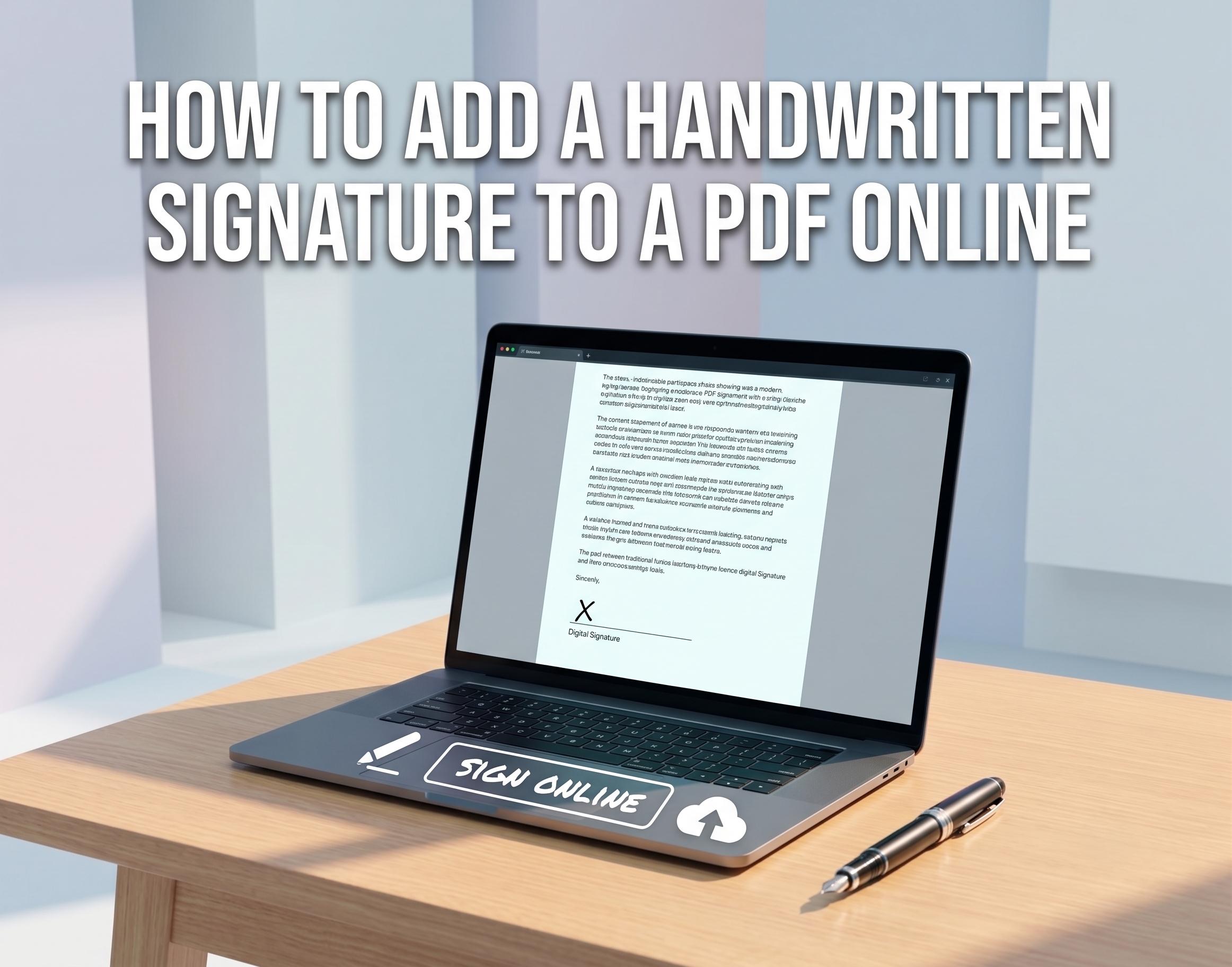
How to Add a Handwritten Signature to a PDF Online

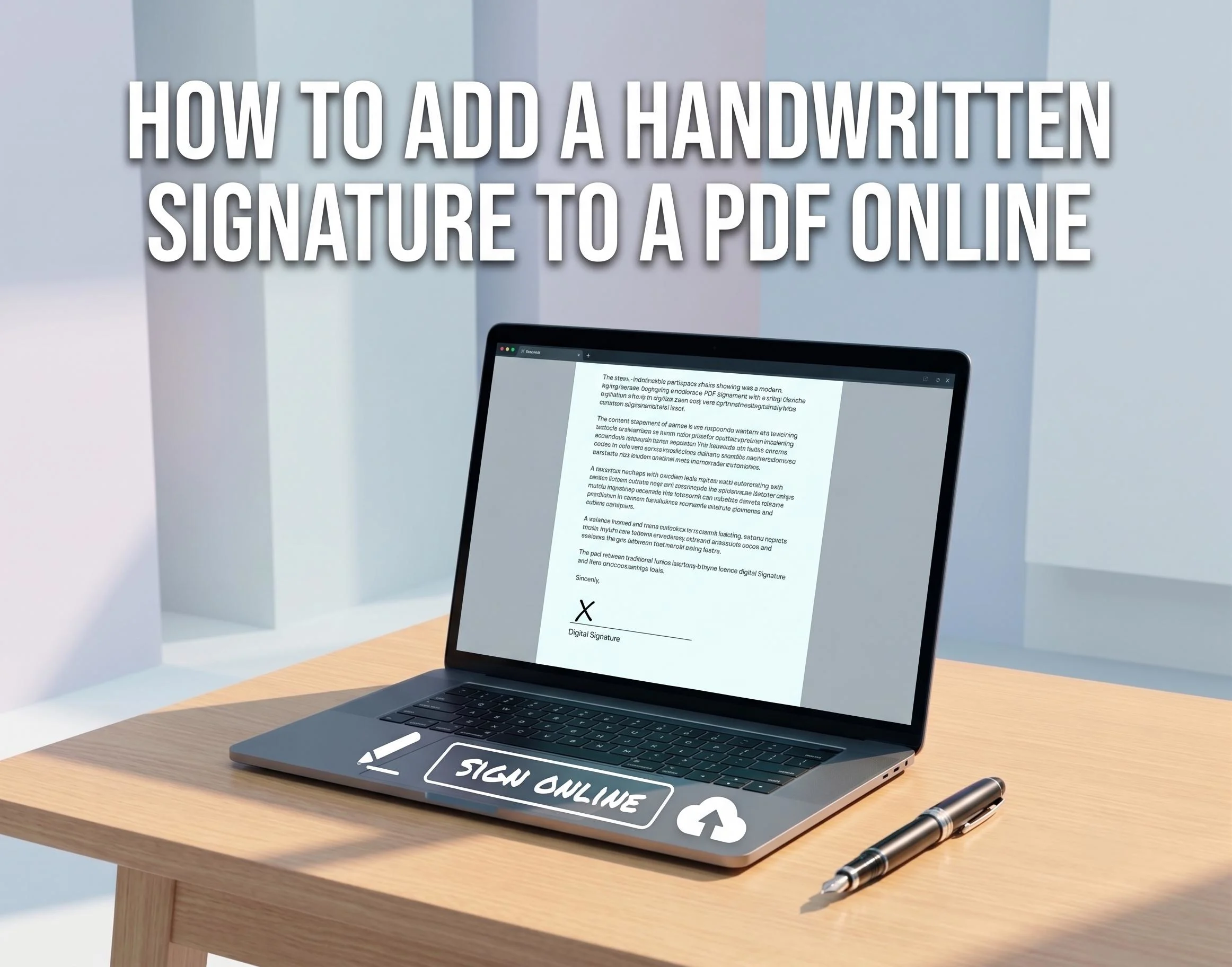

Table of Contents▼
Need to sign a PDF quickly without a printer? Learn how to safely add a real handwritten signature to your documents online using modern, secure workflows.
The Friday Afternoon Contract Panic
It’s 4:45 PM on a Friday. Your client sends over a time-sensitive agreement that needs a signature before the weekend. You don’t own a printer—honestly, who does anymore?—and your office scanner has been gathering dust for three years.
The old-school loop of printing a document, signing it with a blue ink pen, scanning it back into your computer, and emailing it as a crooked, blurry attachment is dead. It’s a massive drain on productivity, especially when you're managing freelance clients or onboarding new hires for a fast-growing startup.
Fortunately, figuring out how to add a handwritten signature to PDF files directly inside your browser has become incredibly straightforward. Modern document hubs allow you to sign PDF online workflows in less than two minutes, saving you from administrative headaches without compromising data safety.
Quick Answer: How to Add a Handwritten Signature to a PDF
Upload your PDF to a secure online document editor.
Create your signature by drawing, typing, or uploading an image.
Position the signature on the required signing line.
Apply the changes to flatten the signature layer onto the document.
Download the signed PDF instantly to your device.
Why Signing PDFs Is Surprisingly Frustrating
While working with digital documents should be seamless, the transition from paper to pixels often hits unexpected friction points. Here is why the traditional signing workflow breaks down so easily:
The Formatting Shuffle: Opening a PDF in a legacy word processor often ruins the layout. Fonts change, tables break, and text shifts to unexpected pages.
Device Restrictions: Try signing a document on your phone using heavy, enterprise desktop software. It usually involves endless zooming, crashing apps, and massive frustration.
Blobby Digital Signatures: Trying to draw a signature on PDF files using a laptop trackpad or mouse often results in an illegible scribble that looks unprofessional.
Security Anxieties: Uploading sensitive contracts, financial statements, or NDAs to random online tools feels risky. If a platform doesn't prioritize data protection, your personal information could be exposed.
Electronic vs. Digital Signatures: Understanding Document Security
Before you insert signature in pdf files, it helps to understand what happens behind the scenes. People often use "electronic signature" and "digital signature" interchangeably, but they serve different technical purposes.
Electronic Signatures (e-Signatures)
An electronic signature is simply a digital image or mark placed on a document to show your intent to sign. This can be a typed name, a photo of your physical signature, or a drawing made on a touchscreen. For daily business operations, freelance contracts, and standard operational forms, a clean e-signature is perfectly valid and widely accepted.
Digital Signatures (Cryptographic)
Digital signatures are a secure subset of e-signatures that use advanced public-key cryptography (PKI) to verify document authenticity and detect tampering. When a digital signature is applied, a unique cryptographic key locks the file. If anyone attempts to alter the text or layout after it has been signed, the digital certificate breaks, instantly flagging the file as modified.
What to Look for in a Modern Solution
If you’re choosing an online tool to electronically sign PDF documents daily, look for these modern essentials:
Strict Data Privacy: The platform should use industry-standard encryption protocols (like HTTPS and TLS) to ensure that your files are handled securely and deleted immediately after your session ends.
Layout Preservation: Your signature should sit as an independent layer on top of the PDF without altering the underlying text or structure.
Cross-Platform Support: The tool should work just as smoothly on a smartphone touchscreen as it does on a desktop with a trackpad.
Lightweight Performance: You shouldn’t need to download a 500MB desktop app just to handle a single page. Secure web applications like Doxbar streamline this process entirely inside your browser.
Comparing the Approaches
Feature | Legacy Online Tools | Desktop Software | Modern Browser Workflows |
Speed | Slow upload/download loops | Long installation times | Instantaneous |
Data Privacy | Long file retention policies | Local, but clunky | Secure encryption & auto-deletion |
Mobile Friendliness | Poor responsive design | Requires separate app downloads | Fluid touchscreen support |
System Resource Cost | High browser memory usage | High CPU consumption | Extremely lightweight |
Step-by-Step Workflow: Adding Your Signature Online
Here is the most efficient way to add a signature to PDF online platforms naturally, without ruining file formatting.
Step 1: Upload Your Document
Open your browser and navigate to the document portal. Drag and drop your file into the designated upload zone, or select it directly from your local storage.
Step 2: Create Your Signature
You generally have three ways to approach this, depending on your device:
Draw: Use your trackpad, mouse, or smartphone stylus to draw your actual signature naturally.
Type: Type your name and select a clean, professional script font that mimics real handwriting.
Upload: Take a clear photo of your signature written on white paper with a black pen, crop it, and upload the image.
Step 3: Position and Resize
Click on your newly created signature to place it onto the document canvas. Drag it to the designated signature line, and use the corner handles to scale it so it fits naturally without overlapping important text.
Step 4: Finalize and Apply
Once everything looks correct, click the finalize button. The tool flattens the signature layer into the PDF structure, converting your layout into an uneditable final copy.
Step 5: Save and Verify
Download the signed PDF back to your local drive. Open it in a standard reader like Adobe Acrobat to verify that the formatting looks exactly as intended before sending it to your client or team.
Pros & Cons of Online Document Signing
The Good
Instant Turnaround: Turn a multi-day printing and scanning bottleneck into a two-minute digital task.
Eco-Friendly: Eliminates unnecessary paper waste, ink cartridges, and physical storage needs.
Global Accessibility: Sign contracts from your phone while sitting in a coffee shop or waiting at an airport terminal.
The Catch
Internet Dependency: You need a functional network connection to load web-based tools.
Varying Legal Standards: High-stakes legal matters, such as real estate deeds or complex wills, may still require traditional physical notarization depending on your local jurisdiction.
Advanced FAQ Section
1. Is an online signature legally binding?
Yes. In most jurisdictions worldwide, electronic signatures are legally binding for standard commercial agreements, NDAs, and onboarding forms. Regulatory frameworks like the ESIGN Act in the United States and eIDAS in the European Union explicitly state that a signature cannot be denied legal validity solely because it is digital.
2. Can I use my smartphone to sign a PDF?
Absolutely. Modern web-based utilities are completely responsive and optimized for mobile screens. You can use your finger or a mobile stylus directly on your phone's screen to draw a highly accurate handwritten signature without downloading extra software.
3. What is the difference between drawing and typing my signature online?
Visually, drawing looks like your physical pen signature, while typing converts your name into a clean script font. Legally, both carry the same weight. The law focuses on your intent to sign and agree to the document's terms, not the aesthetic style of the mark.
4. How do I remove an electronic signature if I make a mistake?
Before you hit the final download or flatten button, online signatures exist as adjustable objects. You can simply click on the signature box and press delete. However, once the document is finalized and downloaded, the file layers are flattened to prevent unauthorized tampering.
5. Can I add multiple signatures to the same document?
Yes. You can place your signature, save the file, and then forward the PDF to the next recipient. If you require complex, legally audited signing paths for multiple stakeholders, enterprise-grade multi-party signing platforms are typically recommended.
6. Can I sign encrypted or password-protected PDFs?
If a PDF is securely locked against editing, you will need to enter the author password before any tool can overlay a signature. If you do not have the password, you must request an unlocked copy from the document creator.
7. What should I do if a client or institution rejects my electronic signature?
While rare in modern workflows, some traditional legal entities or government branches still insist on physical "wet ink" signatures. If a document is rejected, clarify whether they require a certified cryptographic digital signature or a traditional physical print-and-sign process to meet compliance.
8. How do I know if an online document tool is safe to use?
Always check your browser address bar for a secure HTTPS connection. Review the platform's privacy protocols to ensure they use data encryption during transfers and have an automated file deletion policy that clears user data from their systems after processing.
9. Will adding a digital signature image mess up my document's original fonts?
No. Modern document editors treat your signature as an independent graphic overlay. It is placed seamlessly on top of the document layout, preserving your original fonts, line spacings, and structural margins completely.
10. Do I need to create an account to sign a file online?
Many legacy platforms force you through a tedious signup funnel just to modify a single document. Modern, user-focused utility tools let you upload your PDF, apply your signature, and download the completed file instantly without requiring an email registration.
11. Does my signature image need to have a transparent background?
While a transparent PNG file looks best because it allows document lines to show through naturally, high-quality document tools often include automatic background contrast adjustments that clean up white backgrounds from standard JPEG photos seamlessly.
12. Why is a digital signature better than printing and scanning?
Printing and scanning introduce severe visual degradation—adding noise, blur, and tilted pages to your files. Electronic signing maintains pristine vector quality, ensuring your document remains clean, legible, and professional.
Conclusion
Managing document workflows shouldn't be a tedious chore. By moving away from legacy printing loops and adopting secure, web-based signing methods, you can secure client agreements and finalize paperwork in just a few clicks.
The next time an urgent contract lands in your inbox, skip the printer hunt. Use a clean, fast, and secure tool like Doxbar to drop in your signature and get back to what matters most.
Need to Convert Document Formats?
Try our secure, lightning-fast PDF conversion suite. Convert Word, Excel, Images, and more with zero formatting loss.

Doxbar Editorial
Security & Privacy Team
We specialize in secure document architectures, parsing engines, and modern developer utilities. Keeping your files safe, lightweight, and perfectly formatted.
Join the Conversation
Share your thoughts or ask a question about this topic. This is a privacy-first system.