

Convert PDF to Grayscale Online – Print-Friendly PDF | Doxbar
Contents
Convert PDF to Grayscale Online – Print-Friendly PDF | Doxbar

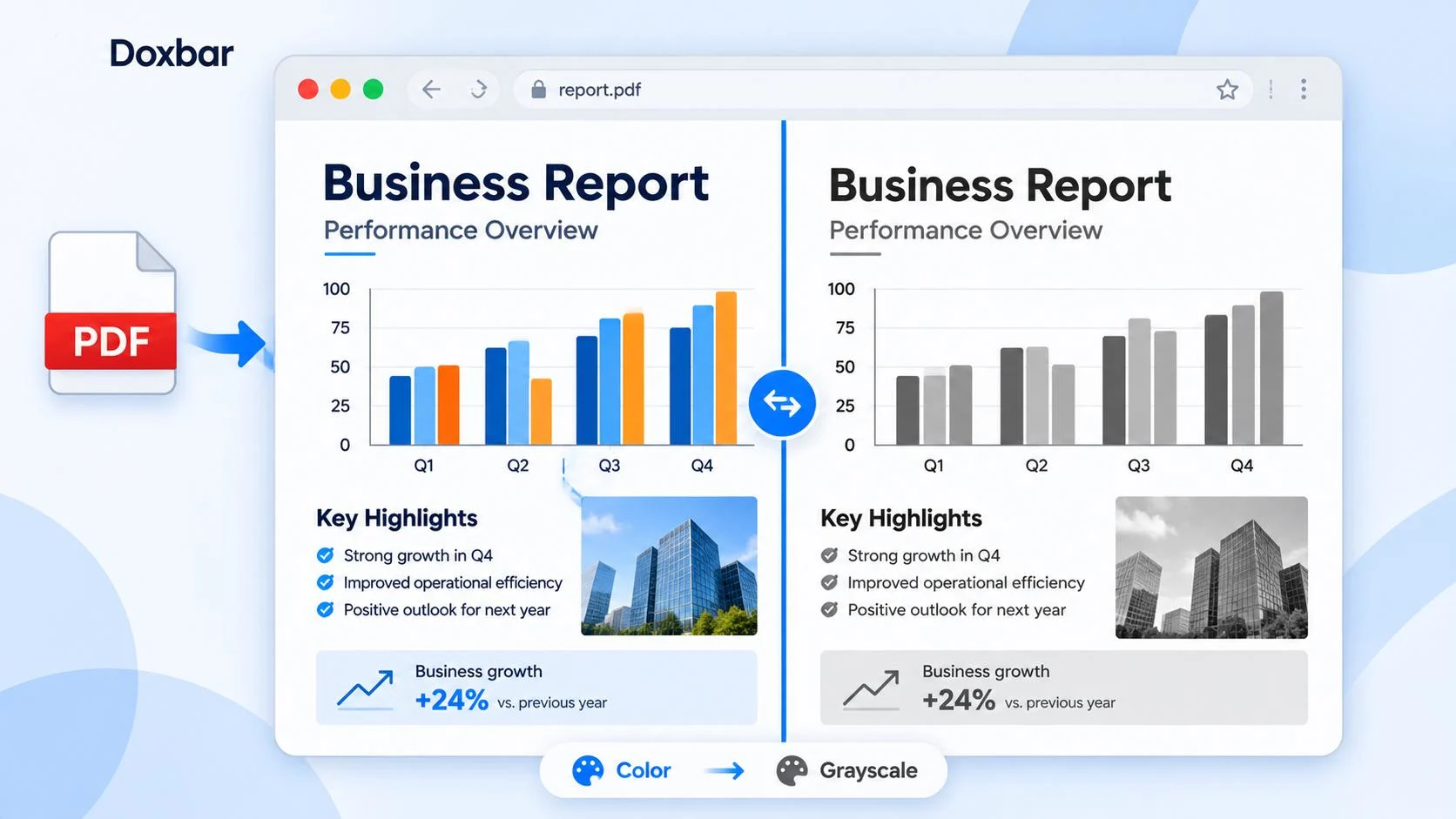

Table of Contents▼
Convert color PDFs to grayscale for easier monochrome printing. Learn grayscale vs. black and white, file size effects, and how to keep text readable.
How to Convert a PDF to Grayscale: Make Color PDFs Print-Friendly
You just finished putting together a 40-page client report, university assignment, or legal packet. You hit print, and your office printer stalls because the cyan or magenta cartridge is empty—even though you only wanted black text on white paper. Or maybe you are trying to upload a heavy, color-rich brochure to an online form that has strict file size limits.
Most people assume switching a document to black and white is a simple one-click fix. Sometimes it is. Other times, you run your file through a web utility, download the result, and realize all your crisp text turned into a blurry image that you can no longer highlight or search.
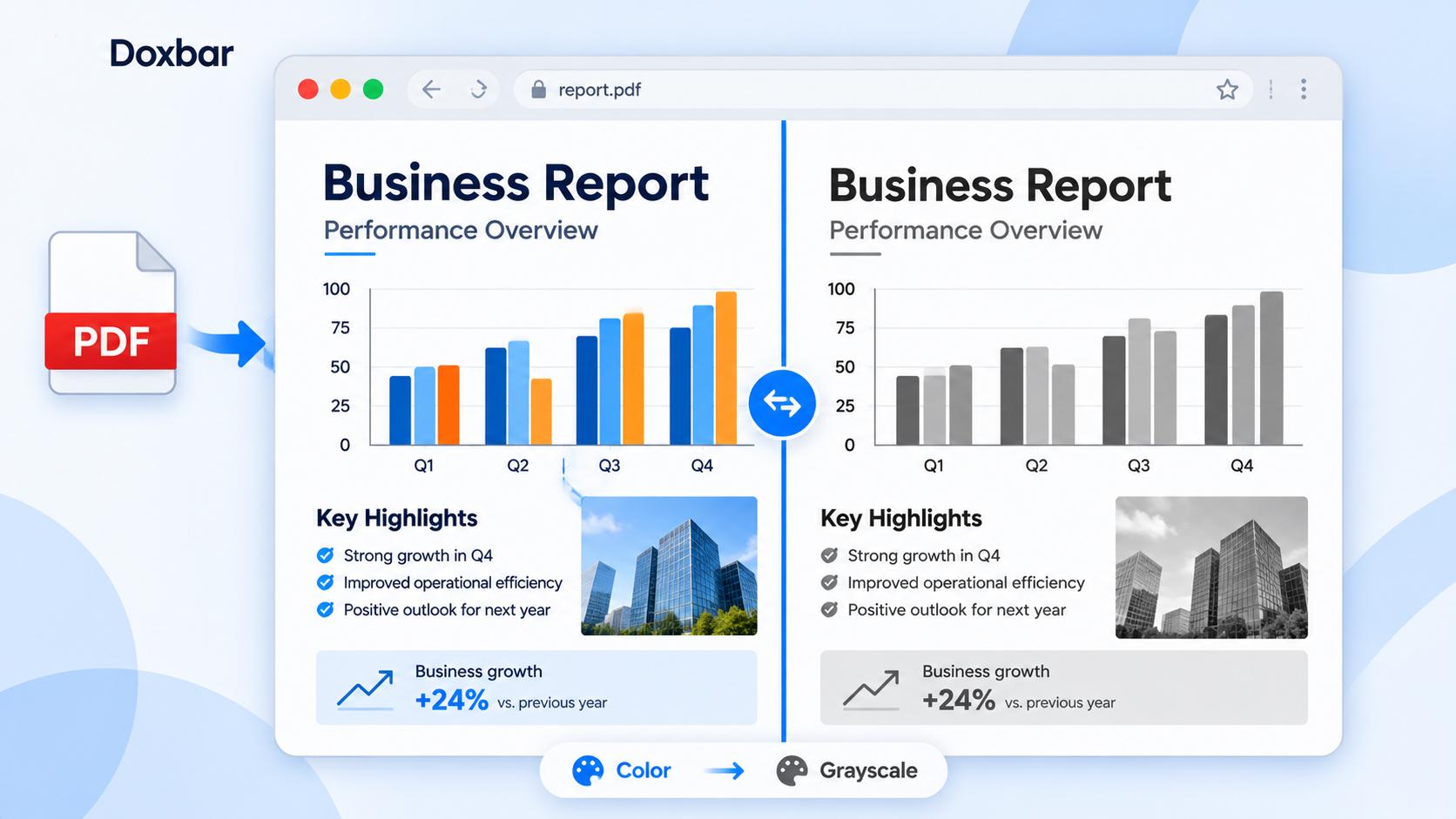
Converting a color PDF to shades of gray helps solve monochrome printing issues, cuts unnecessary color toner use, and gives messy multi-source documents a clean, uniform look. Using a browser-based utility like Doxbar’s grayscale PDF converter lets you remove color data right from your web browser, without needing to install heavy desktop software.
What Does Grayscale PDF Mean?
A grayscale PDF replaces red, green, and blue (RGB) or cyan, magenta, yellow, and black (CMYK) color values in a document with varying shades of gray, ranging from pure white to solid black.
However, a PDF is rarely made of just one type of data. Depending on how the document was created, it can contain text fonts, vector shapes, transparency layers, and embedded photographs. Converting that file to grayscale does not always work the exact same way across every element.
How Color Is Converted into Shades of Gray
When a converter processes a color element, it calculates the perceived brightness (luminance) of each color. Bright yellow becomes a very pale gray, while deep navy blue or dark red turns into a dark charcoal shade. In a standard 8-bit grayscale representation, a file can display up to 256 distinct shades of gray, which allows shadows, gradients, and photographs to retain smooth depth rather than turning into harsh black-and-white blocks.
What Happens to Text, Images, and Graphics?
How your document behaves after conversion depends entirely on the method the tool uses under the hood:
Vector-Preserving Conversion: Advanced color-space mapping changes color tags (such as RGB or CMYK) to a grayscale color space like DeviceGray without altering the underlying font or vector structure. In this case, text remains sharp at any zoom level and stays selectable.
Raster-Based Conversion: Some converters render each PDF page as a flat bitmap image and desaturate the pixels. While this handles complex color layers consistently, it turns selectable text into an image.
Links, Bookmarks, and Form Fields: Whether hyperlinks, interactive form fields, and navigation bookmarks survive the process depends on whether the converter modifies object properties directly or flattens the pages during export.
Grayscale vs Black and White PDF: What Is the Difference?
People often use "grayscale" and "black and white" to mean the same thing, but technically they produce very different visual results. Grayscale preserves multiple shades of gray, whereas pure black and white (1-bit monochrome thresholding) forces every pixel to become either 100% black or 100% white with no middle ground.
Feature | Grayscale PDF (e.g., 8-Bit) | Pure Black & White PDF (1-Bit) |
Tonal Depth | Multiple shades of gray between black and white | Only 2 tones: pure black and pure white |
Photo & Chart Quality | Smooth gradients, readable shadows, clear depth | High contrast; photos often look like harsh photocopies |
Light Colored Text | Remains visible as a light or medium gray | Can disappear completely if it falls below the brightness threshold |
Best Use Case | Reports, brochures, presentation slides, mixed text & photos | Simple text invoices, signatures, line-art sketches |
File Size Impact | Varies depending on image compression and vector preservation | Often very small for clean, text-only scans |
When to Use Grayscale
Choose grayscale whenever your PDF includes photographs, shaded tables, colored highlights, or presentation slides. It preserves visual hierarchy so a light-blue table header still looks distinct from a white row.
When Pure Black and White Works Better
Pure black and white works best for high-contrast text contracts, architectural line drawings, or noisy fax-style scans where you want to force a slightly yellowed paper background into clean white.
How to Convert a PDF to Grayscale Online
If you do not have a paid desktop license for Adobe Acrobat, converting a document in your browser is straightforward. Here is how a standard browser-based workflow operates:
1. Upload Your Color PDF
Open the Doxbar Grayscale PDF converter in your web browser and select or drag your PDF file into the upload area. (Note: Make sure your file is not password-protected before uploading, as encrypted PDFs usually restrict color profile modifications.)
2. Run the Grayscale Conversion
Start the conversion process. Depending on your document's internal structure, the converter processes the color channels across your pages to generate a monochrome output.
3. Download and Verify the Result
Download the converted PDF to your device. Before sending it to a printer or submitting it online, open the file in a desktop browser like Google Chrome or Mozilla Firefox's built-in PDF viewer to check two things:
Drag your cursor across a line of text to see if the text remains selectable.
Zoom in to 200% on any small footnotes, tables, or diagrams to ensure edges remain clean and legible.
Why Convert a Color PDF to Grayscale?
Beyond working around an empty color ink cartridge, converting PDFs to grayscale is a practical pre-flight step in everyday office, legal, and academic work.
Prepare Documents for Monochrome Printing
If you send a full-color PDF directly to a black-and-white laser printer, the printer driver has to translate those colors on the fly. Some drivers map bright red and bright green to nearly identical shades of gray, making charts difficult to read. Converting the PDF beforehand gives you a much better preview of how tonal contrasts will look on paper.
Help Reduce Unnecessary Color Usage
Color toner and inkjet cartridges cost noticeably more per page than black ink. Even when printing a page that looks mostly black, some printer drivers mix cyan, magenta, and yellow to produce "composite black." Converting the file to grayscale—and selecting "Black Ink Only" or "Grayscale" in your printer settings—helps prevent unintended color ink consumption.
Create Consistent-Looking Documents
When combining PDFs from multiple team members—some with blue headers, others with yellow highlights or scanned receipts—converting the merged packet to grayscale gives the entire document a uniform, cohesive look.
Make Scanned Documents Easier to Review
Mobile scanning apps frequently capture warm room lighting, turning white paper into a muddy beige or pale blue tint. Converting a color scan to grayscale strips away color casts and improves visual contrast for screen reading.
Does Converting PDF to Grayscale Reduce File Size?
Converting a PDF to grayscale can reduce file size, particularly when the document contains high-resolution color photographs or scanned pages. However, it does not guarantee a smaller file in every situation—final size depends on image resolution, compression, and how the PDF is processed.
Why Image-Heavy PDFs Often Become Smaller
In uncompressed raw pixel data, an RGB image stores three color values per pixel (Red, Green, Blue) and CMYK stores four, whereas grayscale stores only one luminance channel. Theoretically, dropping from three or four channels down to one reduces raw pixel data by roughly 66% to 75%. While real-world PDFs already use internal compression, converting heavy color photos to grayscale still commonly lowers the overall file size.
Why Text-Only PDFs Can Become Larger
Vector text in a PDF takes up very little storage space—often just a few kilobytes of font instructions. However, if a converter removes color by rasterizing pages (turning every page into a flat JPEG or PNG image), a lightweight 150 KB text document can suddenly grow to several megabytes.
How Compression Affects the Final Output
As detailed in Adobe’s PDF optimization documentation, final PDF size depends heavily on the compression algorithms applied to embedded images (such as JPEG/DCT for photos or CCITT/JBIG2 for monochrome scans), embedded font subsets, and overall document structure—not color space alone.
Technical Deep Dive: Text-Preserving Conversion vs. Rasterization
Understanding the difference between color-space mapping and page rasterization explains why some grayscale conversions produce tiny, sharp files while others create large, image-based documents.
Color-Space Mapping (Vector-Preserving): This approach parses the PDF's internal object structure and translates color operators (converting RGB or CMYK definitions into grayscale values) while keeping text and vector paths intact. Because fonts remain mathematical outlines, text stays crisp at any magnification and remains searchable.
Page Rasterization (Image-Based): This method renders each PDF page like a high-resolution image, converts those pixels to shades of gray, and wraps the images back into a PDF container. While rasterization handles complex overlapping transparencies reliably, it removes native text selectability and clickable links. Running Optical Character Recognition (OCR) afterward can restore a searchable text layer, though it will not rebuild the original vector graphics or interactive links.
How to Keep Text and Images Clear After Grayscale Conversion
If your workflow involves rasterizing pages or scanning physical documents into grayscale, resolution and compression settings play a major role in output clarity. (Note: DPI settings primarily affect image-based or rasterized conversions; native vector text remains sharp regardless of DPI.)
Choosing the Right Resolution (DPI)
Dots Per Inch (DPI) determines how much pixel detail is packed into each inch of a rendered page. These general starting points fit common workflows:
Resolution | Practical Use Case | File Size Impact |
100 DPI | Quick screen previews, rough drafts | Very small |
150 DPI | Standard office reports, internal handouts, web viewing | Balanced |
200 DPI | Documents with small footnotes, spreadsheets, or diagrams | Moderate |
300 DPI | Detailed print handouts, archiving, fine-line drawings | Large |
Keep in mind that DPI is a guideline rather than a rigid rule. If a source PDF already contains low-resolution 72 DPI web graphics, exporting at 300 DPI will increase file size without adding real visual detail.
Preserving Small Text and Fine Lines
When working with dense financial tables or 8-point footnotes in image-based PDFs, overly aggressive JPEG compression can introduce fuzzy artifacts ("ringing") around sharp dark characters. Keeping moderate-to-high image quality settings helps maintain clean letter edges.
Checking Charts, Graphs, and Highlighted Sections
Color-coded pie charts and multi-line graphs are the most common casualties of grayscale conversion. If a chart relies on red, green, and blue lines that share the same brightness level, they will convert into three identical shades of gray. Whenever you control the source file, use distinct line styles (solid, dashed, dotted), pattern fills, or direct data labels rather than relying solely on color legends.
How to Convert Scanned PDF to Grayscale
Scanned PDFs are already collections of raster images inside a PDF wrapper, which makes handling them slightly different from digitally exported documents.
Grayscale vs Black and White for Scanned Pages
If you scanned a clean, dark-ink text contract on bright white paper, pure black-and-white (1-bit) thresholding produces crisp text and compact files. However, if the original paper includes a colored rubber stamp, a faint pencil signature, a watermark, or paper creases, pure black and white can wipe out the signature or turn a light stain into a solid black smudge. Grayscale preserves those tonal variations safely.
When OCR Is Needed
Because a scanned page is essentially a photograph, computers cannot read or search the words inside it by default. If you need to copy text or search keywords after converting a scan to grayscale, you will need to run Optical Character Recognition (OCR) on the output file. Grayscale conversion can help reduce color-related background distractions in some scans, though final OCR accuracy still depends heavily on scan resolution, text contrast, skew, and the OCR engine used.
Comparing Grayscale Conversion Workflows
Different workflows suit different situations depending on whether you need quick browser access, advanced print controls, or offline processing.
Conversion Method | Advantages | Limitations |
Online Browser Converter | Fast access on any OS; requires no software installation | Requires an internet connection; feature depth varies by tool |
Desktop PDF Software (e.g., Acrobat Pro) | Granular pre-flight color profile controls; works offline | Typically requires a paid license and local installation |
Built-in OS Print-to-PDF | Already available on Windows and macOS at no extra cost | Often flattens hyperlinks, form fields, and bookmarks |
Pros and Cons of Converting PDFs to Grayscale Online
Pros:
No Software Installation: Works directly in a web browser on Windows, macOS, Linux, Chromebooks, or mobile devices where you may not have permission to install desktop programs.
Better Monochrome Print Previews: Helps catch low-contrast text or muddled charts before wasting paper and toner.
Consistent Appearance: Unifies mixed-color documents into a clean, neutral palette.
Cons:
Loss of Color-Coded Meaning: Status indicators (red/yellow/green), heatmaps, and color-dependent chart legends lose their visual distinction.
Permanent Color Removal: Once color channels are converted to grayscale, original RGB/CMYK data cannot be recovered from the converted file.
Viewer & Printer Variations: While grayscale standardizes color values, minor brightness differences can still appear across different PDF viewers and printer drivers.
Common Grayscale PDF Conversion Problems and Fixes
Text Becomes Blurry
Why it happens: In rasterized conversions, pages were rendered at a low resolution (such as 72 or 96 DPI).
How to fix it: Use a conversion approach that preserves vector text whenever possible. If you are rasterizing pages or scanning documents, set the output resolution to at least 200–300 DPI.
Light Text Disappears
Why it happens: Yellow, pastel blue, or pale gray text translates to a brightness level so close to white that it blends into the page background.
How to fix it: Avoid 1-bit pure black-and-white thresholding. Use multi-shade grayscale, or darken light-colored text in your source document before exporting to PDF.
Charts Become Difficult to Understand
Why it happens: Different colors with identical luminance values convert into indistinguishable shades of gray.
How to fix it: Add direct data labels, percentage callouts, or distinct bar/line patterns in the original file before converting.
Converted PDF Is Larger Than the Original
Why it happens: A compact vector/text PDF was converted into uncompressed or high-resolution page images.
How to fix it: Optimize embedded images using a PDF compression utility, or choose a conversion method that keeps text in vector form rather than rasterizing pages.
Text Is No Longer Selectable
Why it happens: The conversion process flattened the document pages into static raster images.
How to fix it: Run an OCR pass on the grayscale PDF to generate a searchable text layer over the page images.
Frequently Asked Questions About Grayscale PDF
1. How do I convert a PDF to grayscale online? Open Doxbar’s grayscale PDF tool in your browser, upload your color PDF, run the conversion, and download the monochrome file. Always open the downloaded PDF afterward to verify text clarity and layout.
2. Can I convert a PDF to grayscale without Adobe Acrobat? Yes. You can use a browser-based converter like Doxbar, or use built-in operating system tools such as Apple Preview on macOS or the Microsoft Print to PDF feature on Windows.
3. Is grayscale the same as black and white? No. Grayscale uses multiple shades of gray (up to 256 levels in 8-bit files) to preserve smooth shadows and photo details. Pure black and white uses only two tones—solid black and pure white—with no intermediate gray shading.
4. Does converting a PDF to grayscale reduce file size? It often reduces file size for PDFs filled with color photographs or scanned pages because grayscale stores one brightness channel instead of three or four color channels. However, if a text-only PDF is converted into high-resolution page images, the file size can actually increase.
5. Will my text remain selectable after conversion? That depends on how the converter processes the file. If the tool maps color profiles while keeping vector text intact, you can still highlight and search words. If it flattens pages into images, you will need to run OCR to make the text selectable again.
6. Can I convert a scanned PDF to grayscale? Yes. Converting a color scan to grayscale removes colored background tints (like yellowed paper or ambient lighting shadows) while preserving subtle details like stamps and handwritten signatures.
7. Why does my grayscale PDF look blurry? Blurry text typically occurs when a tool converts vector pages into low-resolution images. Stick to vector-preserving workflows when available, or ensure image rendering is set to 200 DPI or higher.
8. Does grayscale printing save color ink? Converting a PDF to grayscale helps prevent your printer from mixing cyan, magenta, and yellow toners to create dark grays or composite black. For best results, also select "Grayscale" or "Black Ink Only" in your printer driver dialog before printing.
9. How do I convert a PDF to grayscale on Windows without extra software? Open your PDF in Microsoft Edge, press Ctrl + P, choose Microsoft Print to PDF as your printer, select Black and white / Grayscale under Color options, and save the file. Keep in mind that printing to PDF removes clickable hyperlinks and bookmarks.
10. How do I convert a PDF to grayscale on a Mac? Open the PDF in Apple’s built-in Preview app, go to File > Export, click the Quartz Filter drop-down menu, and select Gray Tone before saving your new file.
Related PDF Tools
Explore these related tools to make working with PDF files easier:
Compress PDF: Reduce PDF file size for easier sharing and storage.
PDF to Image: Convert PDF pages into image formats for viewing, sharing, or further editing.
OCR PDF: Extract searchable text from scanned PDF documents.
PDF Grayscale Converter: Convert color PDF documents into grayscale for monochrome printing, if available on Doxbar.
Trust & Transparency Note
File conversion should be predictable. Always keep a backup copy of your original color PDF before converting—stripping color channels to grayscale is a permanent change and cannot be reversed. While standard reports, forms, and scans convert smoothly in modern browsers, files containing complex vector transparencies or specialized spot inks may flatten during processing. Reviewing your converted file at 100% zoom before commercial printing helps catch formatting shifts early.
Conclusion
Converting a color PDF to grayscale is one of the easiest ways to prepare documents for monochrome printing, reduce unnecessary color toner usage, and clean up multi-page scans—all without needing expensive desktop suites. Knowing the difference between multi-shade grayscale and harsh two-tone black and white, along with how resolution impacts text sharpness, helps you avoid blurry exports and unreadable charts.
Whenever you need to convert a color PDF to grayscale, upload your document to Doxbar’s grayscale PDF tool, double-check the output in your browser, and print or share with confidence.
Need to Convert Document Formats?
Try our secure, lightning-fast PDF conversion suite. Convert Word, Excel, Images, and more with zero formatting loss.

Doxbar Editorial
Security & Privacy Team
We specialize in secure document architectures, parsing engines, and modern developer utilities. Keeping your files safe, lightweight, and perfectly formatted.
Join the Conversation
Share your thoughts or ask a question about this topic. This is a privacy-first system.