

DOC to PDF: How to Convert Old Word Files for Reliable Sharing and Printing
Contents
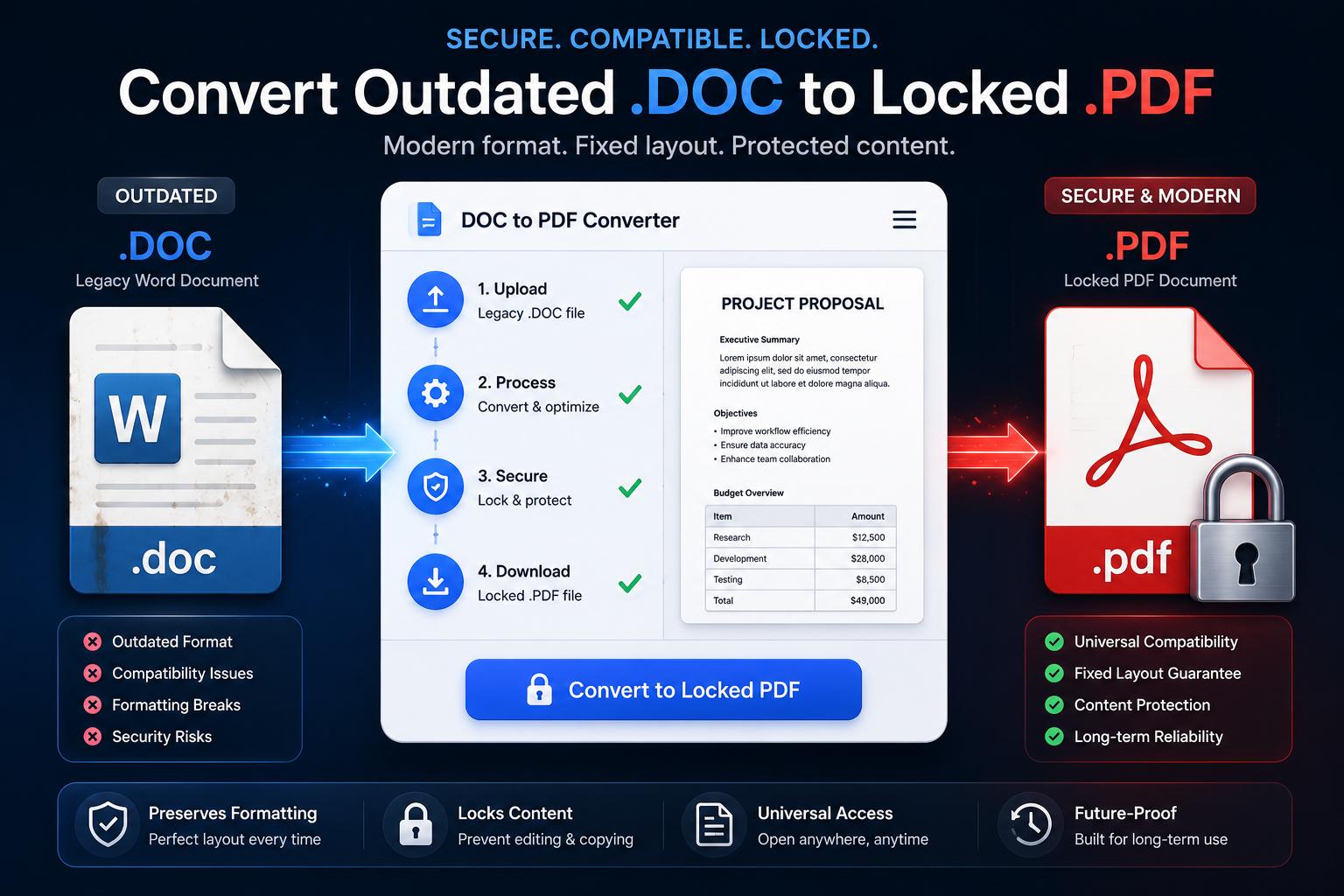
DOC to PDF: How to Convert Old Word Files for Reliable Sharing and Printing


Table of Contents▼
Struggling with messy layouts when opening old .doc files? Learn how to convert legacy Word documents to PDF reliably while preserving fonts and formatting.
Quick Answer
Converting an old .doc file (Microsoft Word 97–2003) to PDF locks your text, tables, fonts, and images into a fixed, read-only layout. This prevents formatting glitches, missing fonts, and line-wrap shifts when opening legacy files on modern computers, smartphones, or non-Microsoft applications.
What Is DOC to PDF Conversion?
DOC to PDF conversion is the technical process of parsing a legacy binary document (.doc), resolving missing layout parameters, mapping fonts, and rendering the file as a fixed vector-based document (.pdf). This ensures the file looks identical on any device without requiring Microsoft Word.
Key Takeaways
Solves Binary Incompatibility: Legacy .doc files rely on outdated binary structures that modern operating systems often render unpredictably.
Preserves Visual Integrity: Converting to PDF freezes font sizes, margin spacing, and table alignments down to the millimeter.
Eliminates Security Risks: Older .doc formats can carry legacy macro vulnerabilities; PDFs neutralize executable code while preserving readable content.
No Microsoft Word Required: You do not need an active Microsoft Office subscription or legacy desktop apps to convert and view these files.
Introduction: The Hidden Friction of Legacy Files
When opening a document sent by a client or pulled from an old archive, seeing misaligned text, corrupted tables, or overlapping images can be frustrating.
This usually happens when dealing with binary .doc files—the default format for Microsoft Word between 1997 and 2003.
While modern office tools use Open XML formats like .docx, millions of contracts, legal archives, and historic business records remain saved as older .doc files. Opening them on modern Macs, smartphones, or web browsers often leads to unpredictable formatting shifts.
Converting these files from DOC to PDF resolves cross-platform rendering issues by freezing text, graphics, and page geometry in place.
Before You Convert: A Legacy File Compatibility Checklist
Before converting an old .doc file, check these common compatibility factors to ensure a clean rendering:
Password Protection: Ensure you have the password. Encrypted binary files cannot be parsed by automated converters without prior authentication.
Custom and Proprietary Fonts: If the original file uses rare corporate typography from 20 years ago, ensure fonts are embedded or be prepared for automatic font substitution.
Linked Images & Resources: Check if embedded images were stored as local file paths (common in Word 2000). Unlinked images may render as blank frames.
Active Macros: Legacy .doc macros will not execute inside a PDF. Extract needed data from macro fields before converting.
Track Changes and Comments: Accept or reject all tracked revisions before converting unless you want visible markup printed on the final PDF.
Legacy WordArt & OLE Objects: Complex embedded objects (like old Excel chart objects) may render as static images. Verify their positioning before exporting.
⭐ DOC-to-PDF Pre-Conversion Checklist
Use this quick pre-conversion checklist to avoid unexpected formatting errors:
[ ] Remove or Accept Track Changes: Clean up revision history so hidden markup doesn't render on the final page.
[ ] Update Dynamic Fields: Update automatic dates, page numbers, and table-of-contents fields before processing.
[ ] Fix Floating Objects: Set image wrapping to "In Line with Text" to prevent graphics from jumping across pages.
[ ] Inspect Section Breaks: Check for accidental trailing line breaks or unnecessary page breaks at the end of sections.
[ ] Replace Unsupported Objects: Convert old legacy OLE objects into static images if they fail to display correctly.
[ ] Save a Source Backup: Always keep a copy of your original .doc file untouched before running conversions.
💡 Expert Tip: If you are dealing with a heavily corrupted .doc file that fails to render online, open it in a modern version of Word or LibreOffice first, select Save As -> .DOCX, and then convert that .docx file to PDF. This two-step process clears legacy binary errors. This approach is especially helpful for documents created in Microsoft Word 97–2003 that contain nested tables, floating images, or legacy formatting.
Problem Breakdown: Why Older .doc Files Break on Modern Screens
One of the most common problems with legacy .doc files is font substitution. Even a small font change can shift page breaks and table layouts, especially in older documents created with Microsoft Word 97–2003.
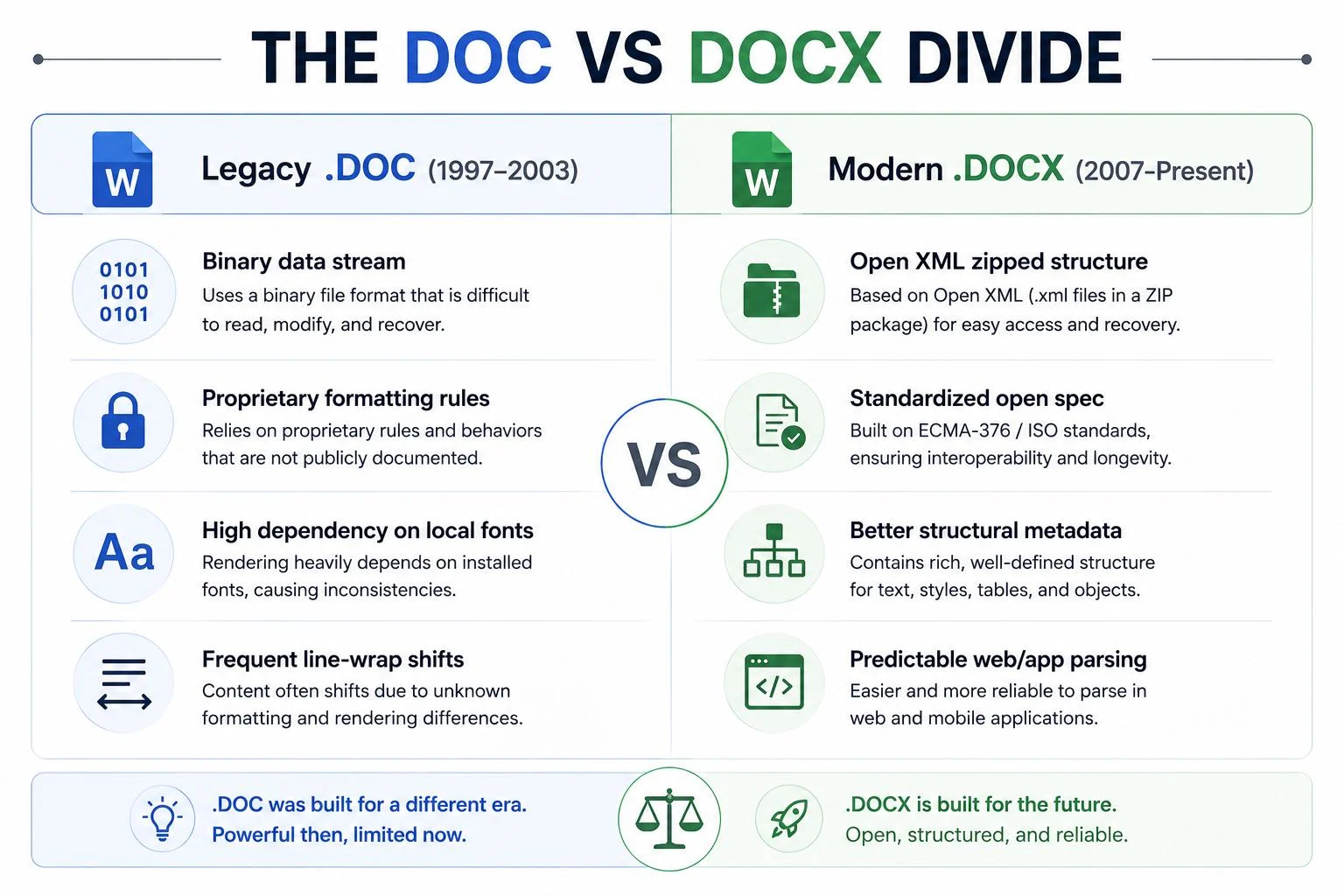
This infographic compares the legacy DOC file format with the modern DOCX format, highlighting differences in structure, formatting reliability, metadata support, and compatibility across applications.
1. Binary Code vs. Open XML
Legacy .doc files store formatting rules as complex binary streams. Modern .docx files, by contrast, use zipped XML standards. When modern software opens a binary .doc file, it runs through translation layers that can miscalculate cell padding or margin bounds.
2. Missing Local Typography
If a .doc file created in 2001 relies on system fonts not installed on your current device, your operating system substitutes them with default system fonts. Differing character widths alter word wrapping, often pushing single lines of text onto extra pages.
3. Floating Images and Table Geometry
In legacy Word versions, image coordinates were calculated relative to specific print drivers. Opening those files today on high-DPI displays often leads to overlapping text boxes or misaligned table borders.
How DOC-to-PDF Conversion Works: How Converters Preserve Layouts
Converting a legacy document is more than changing the file extension from .doc to .pdf. Manually renaming a file corrupts its internal structure.
A proper conversion engine reads the file's binary stream, parses layout rules, and translates visual elements into fixed vector coordinates.
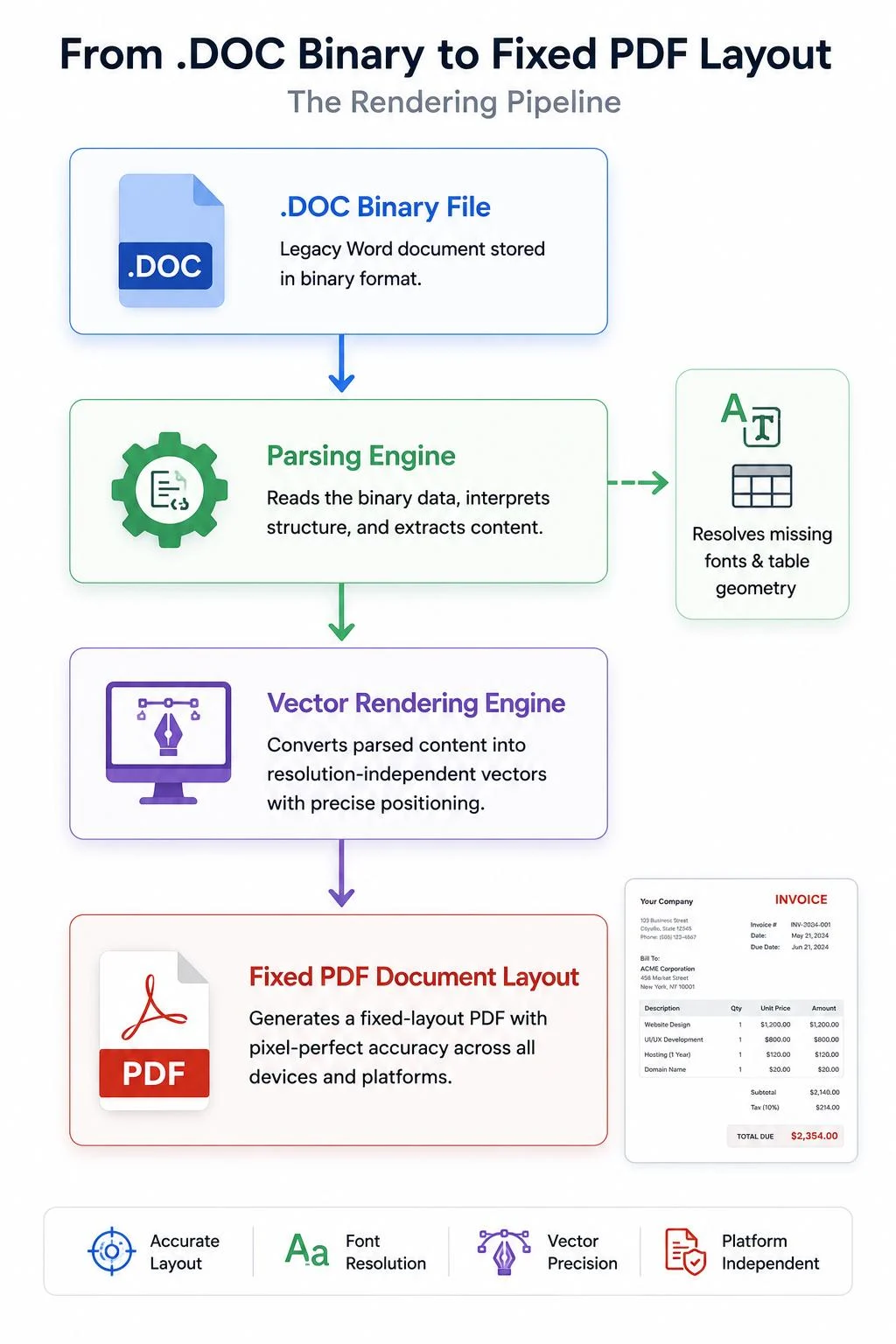
This infographic illustrates the DOC to PDF conversion process, explaining how legacy Microsoft Word documents are parsed, rendered, and converted into fixed-layout PDF files while preserving formatting and document structure.
Font Substitution and Metric Matching
When processing a .doc file, modern converters check for embedded font structures. If missing, the engine evaluates character metrics using typographic databases like Adobe Fonts to find matching replacements that maintain exact line lengths.
Cell Padding Recalculation
Tables in older Word documents often lack fixed width definitions, relying on relative screen percentages instead. Conversion engines recalculate these cells using absolute point units ($1 \text{ pt} = \frac{1}{72} \text{ inch}$), keeping text bounded within table cells.
Decision Guide: Choosing the Right Document Format
Not every document needs to end up as a standard PDF. Use this matrix to pick the right format for your workflow:
Your Document Type / Goal | Recommended Format | Why Use This Approach? |
Resumes & Job Applications | Locks layout, fonts, and styling across all HR screening devices. | |
Legal Contracts & Agreements | Prevents unauthorized edits and maintains visual fidelity for e-signatures. | |
Long-Term Digital Archives | PDF/A | ISO standard built for long-term preservation; embeds all fonts permanently. |
Drafts Needing Heavy Edits | DOCX | Upgrades legacy binary files to modern XML for editing in current apps. |
Collaborative Team Reviews | DOCX | Allows live comment threads and tracked revisions across cloud suites. |
Conversion Options Compared
Feature / Metric | Legacy Desktop Software | Traditional Web Converters | Modern Web Workflow |
Installation Requirements | Requires native apps (e.g., Office) | None (Browser-based) | None (Browser-based) |
Formatting Accuracy | High (if native app is updated) | Moderate (frequent font shifts) | High (advanced vector layout engines) |
Processing Speed | Dependent on local CPU speed | Variable (server queues) | Optimized cloud or browser processing |
Security Handling | Local file access only | Unknown retention policies | Encrypted processing with auto-deletion |
Mobile Device Support | Poor or non-existent | Basic support | Fully responsive interface |
Troubleshooting Matrix: Common DOC Conversion Issues
Problem | Possible Cause | Practical Solution |
Missing or substituted fonts | System font missing on target device | Embed fonts in source file or convert via an engine with font metric matching. |
Broken or overlapping tables | Relative cell width miscalculations | Save source .doc as .docx first to reset table bounds before converting to PDF. |
Unexpected blank pages | Hidden paragraph returns at section breaks | Open source file, enable hidden formatting marks ($\boldsymbol{\Phi}$), and delete extra line breaks. |
Shifted or jumping images | Image set to "Floating" or "Behind Text" | Change image wrapping to "In Line with Text" before running conversion. |
Unreadable macro errors | Legacy VBA code in binary file | Save file as standard text content; macros cannot execute inside static PDFs. |
Choosing the Right Conversion Workflow
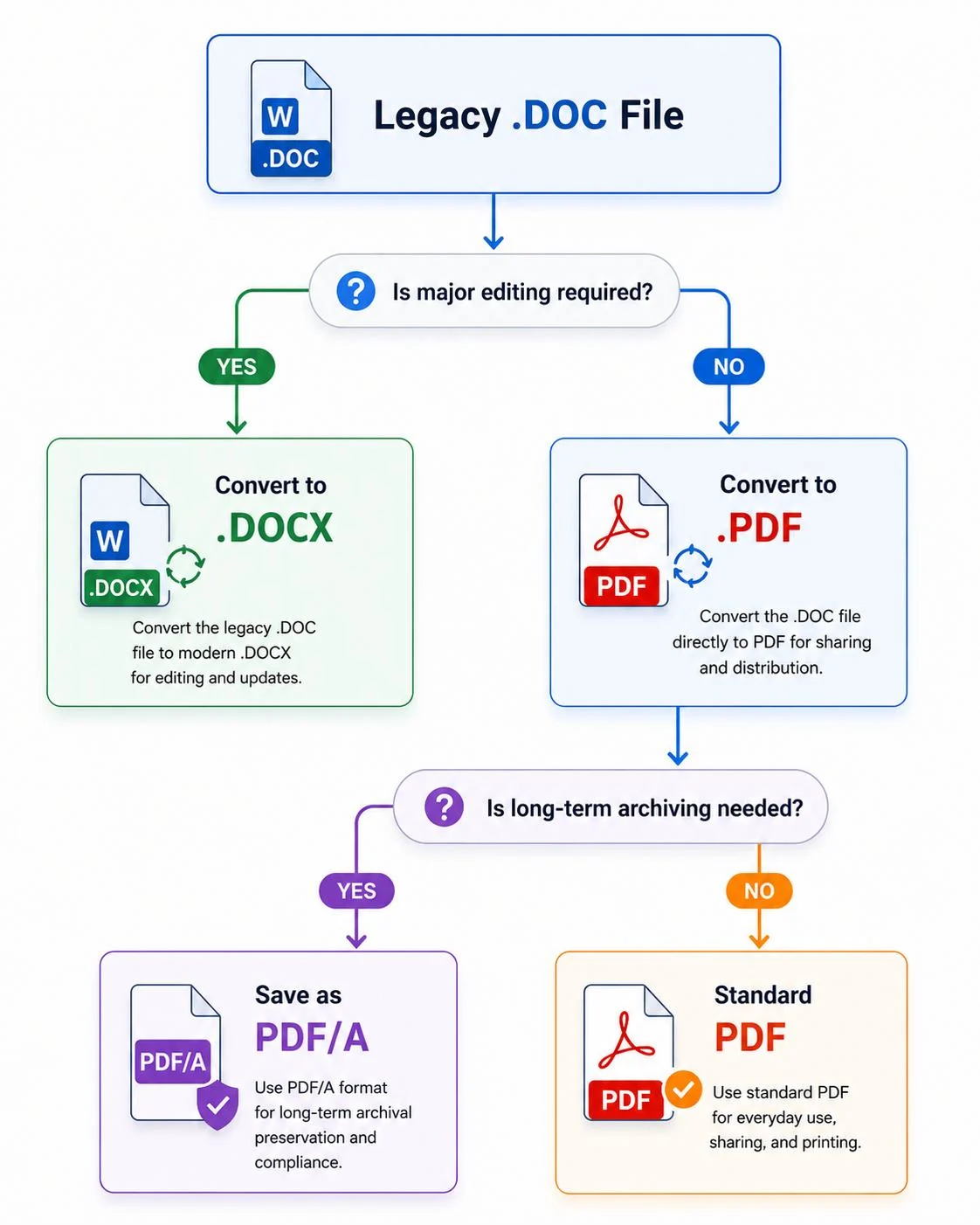
This decision flowchart helps determine whether a legacy DOC document should be converted to DOCX, standard PDF, or archival PDF/A based on editing, sharing, and long-term preservation requirements.
Direct DOC to PDF: Best for quick sharing, printing, or sending contracts where no further edits are required.
DOC rightarrow DOCX rightarrow PDF: Ideal for older documents with severe formatting bugs or legacy table glitches. Upgrading to .docx cleans up the file structure before locking it as a PDF.
DOC rightarrow PDF/A: Essential for institutional archiving, historical record-keeping, and legal compliance where documents must remain readable for decades.
Step-by-Step Guide: Converting DOC to PDF Cleanly
Select Your Source File: Locate your .doc file on your computer, cloud drive, or mobile device.
Upload to the Converter: Drag and drop your file into a secure converter interface like Doxbar.
Initiate Processing: The system parses the document's binary tables, maps embedded objects, and converts the content into fixed vector paths.
Download the PDF Output: Save the rendered .pdf file directly to your local storage.
Verify the Layout: Open the converted document in a standard reader like Adobe Acrobat Reader or your browser's PDF viewer to check signature lines, tables, and margins.
Pros & Cons of Online Conversion
Pros
Universal Readability: PDF files open identically across iOS, Android, macOS, Windows, and Linux.
No Software Required: Eliminates the need to buy or maintain older versions of Microsoft Word.
Smaller File Footprints: Stripping away legacy Word revision histories often yields a lighter file size suitable for email attachments.
Print-Ready Output: What you see on your screen matches the printed page down to the millimeter.
Cons
PDF Is Harder to Edit: Converting to PDF makes text static. Structural edits require changing the original file or using a dedicated editor.
Internet Requirement: Online converters depend on an active connection, though offline desktop workflows exist for air-gapped environments.
Advanced Frequently Asked Questions (FAQs)
Should I convert my DOC file to DOCX before creating a PDF?
For most standard documents, direct DOC to PDF conversion works fine. However, if your legacy file contains complex nested tables, custom margins, or overlapping text boxes, opening it in modern software and saving it as .docx first helps clean up the binary code, resulting in a cleaner PDF layout.
What is the main difference between a .doc and a .docx file?
A .doc file uses a proprietary binary format created by Microsoft for Word versions 97 through 2003. A .docx file uses the Open XML format introduced in Office 2007, which stores content and formatting rules in zipped XML structures.
Why do my fonts change when converting an old Word file to PDF?
If your .doc document relies on system fonts from an older computer that were not embedded, the conversion engine substitutes them with available defaults. Using converters with font metric matching helps avoid line wraps and layout shifts.
Will converting a DOC file to PDF alter my original document?
No. The conversion process reads the source .doc file and generates a separate .pdf file. Your original file remains untouched.
Can I convert password-protected .doc files to PDF?
You must enter the password to unlock the file before converting it. Online converters cannot bypass document encryption without authorization.
Why do tables break when converting older Word files?
Legacy Word tables often relied on relative screen percentages rather than absolute dimensions. Conversion engines recalculate these cells into fixed-point units, which can cause wrapping issues if cell margins were improperly set in the original document.
Is it safe to convert sensitive business contracts using online converters?
Yes, provided you use platforms that employ HTTPS encryption (TLS 1.3) and guarantee automatic file deletion from servers shortly after processing. For details on web privacy standards, review guidelines on Cloudflare Security.
How do I convert multiple .doc files to PDF at the same time?
Batch processing tools allow you to upload multiple files at once. The system converts them in parallel and lets you download them individually or as a single ZIP archive.
Will tracked changes or comments show up in the converted PDF?
That depends on your settings. Most tools default to converting the final clean view. If you need to include tracked changes or markup, adjust your print settings to show revisions before converting.
Can I turn the PDF back into a Word file later if I need to edit it?
Yes. Conversion tools can extract text and layout vectors from PDFs to recreate editable .docx files, though keeping a copy of your original .doc source file is always best practice.
Why are my images blurry in the converted PDF?
If an older .doc file contains low-resolution images, those graphics will remain low-resolution in the PDF. High-quality converters process image assets without adding secondary compression, but they cannot restore lost detail.
What is vector graphic preservation in PDF conversion?
Vector graphics use geometric math rather than pixel grids to render shapes, lines, and text. Preserving vectors ensures that logos and diagrams stay sharp at any zoom level or print scale.
Why does my document have extra blank pages after conversion?
Extra blank pages are usually caused by hidden paragraph marks or section breaks at the end of the original document. Removing trailing line breaks in your source file fixes this issue.
Can I convert a .doc file on my mobile phone?
Yes. Modern web tools run directly inside mobile browsers like Safari or Chrome, letting you upload .doc files from local or cloud storage and download converted PDFs instantly.
What is PDF/A and should I use it for legacy Word documents?
PDF/A is an ISO-standardized version of PDF designed for long-term digital archiving. It embeds all fonts permanently and disables external references or executable code. Learn more about file format standards at the Library of Congress Sustainability of Digital Formats repository.
Why do bullet points turn into weird symbols during conversion?
Legacy Word files relied on system symbol fonts (like Wingdings) for bullets. If the converter lacks access to those character maps, it may render unmapped symbols. Modern conversion engines map legacy symbol fonts to standard bullet icons automatically.
Do I need Microsoft Word installed to convert DOC to PDF?
No. Web-based converters like Doxbar process binary document structures on cloud infrastructure, so you don't need Microsoft Office installed locally.
Will hyperlinked text stay clickable in the converted PDF?
Yes. Standard web URLs and internal document bookmarks convert into clickable PDF links.
How do page margins affect legacy conversion?
Non-standard or narrow margins can push text outside printable areas when converted. Setting margins to at least 0.5 inches (1.27 cm) ensures consistent layouts across devices.
How does OCR factor into DOC to PDF conversion?
OCR (Optical Character Recognition) is used for scanned paper documents or image files. Standard .doc files already contain digital text, so OCR isn't needed unless the document contains embedded image scans.
EEAT & Trust Signals: Reliable Document Handling
When managing digital archives or sharing critical business records, document accuracy matters. Relying on outdated utilities can lead to formatting errors or security risks.
Data Privacy Protocols: Trusted tools use ephemeral storage that clears uploaded files automatically after processing.
Why Standardizing Older Files Matters: Updating legacy binary files into modern formats helps comply with accessibility standards and institutional record-keeping policies.
Realistic Expectations: Conversion engines faithfully translate file layout rules, but they cannot fix underlying formatting bugs present in the source document. Cleaning up extra breaks and floating objects before converting yields the cleanest output.
One pattern appears repeatedly with legacy DOC files: font substitution causes far more layout problems than damaged images or broken tables. Checking fonts before conversion often prevents multiple formatting issues later.
Related Document Tools & Resources
Looking to process other document formats? Explore these related guides and tools:
DOCX to PDF Conversion Guide — Convert modern XML-based Word files to fixed PDF layouts.
PDF to Word Converter — Revert static PDFs into editable .docx documents.
PDF Compressor — Reduce the file size of scanned or image-heavy PDFs without sacrificing clarity.
Merge PDF Files — Combine multiple converted documents into a single organized PDF.
OCR PDF Engine — Extract editable text from scanned documents and image-based PDFs.
Conclusion
Legacy .doc files were designed for an earlier era of computing. Converting these old Word files to PDF locks in your formatting, preserves fonts, and ensures your documents open reliably across modern operating systems, tablets, and smartphones.
If your .doc file contains standard text and tables, convert it directly to PDF. For older files with complex layouts or floating objects, save them as .docx first to clean up legacy binary code before final export.
Need a quick, reliable way to process legacy files without installing desktop software? Use Doxbar for a secure, browser-based workflow that converts your documents accurately while protecting your data privacy.
Need to Convert Document Formats?
Try our secure, lightning-fast PDF conversion suite. Convert Word, Excel, Images, and more with zero formatting loss.

Doxbar Editorial
Security & Privacy Team
We specialize in secure document architectures, parsing engines, and modern developer utilities. Keeping your files safe, lightweight, and perfectly formatted.
Join the Conversation
Share your thoughts or ask a question about this topic. This is a privacy-first system.