

DOCM to PDF: Convert Macro-Enabled Word Files into Safe, Shareable Documents
Contents
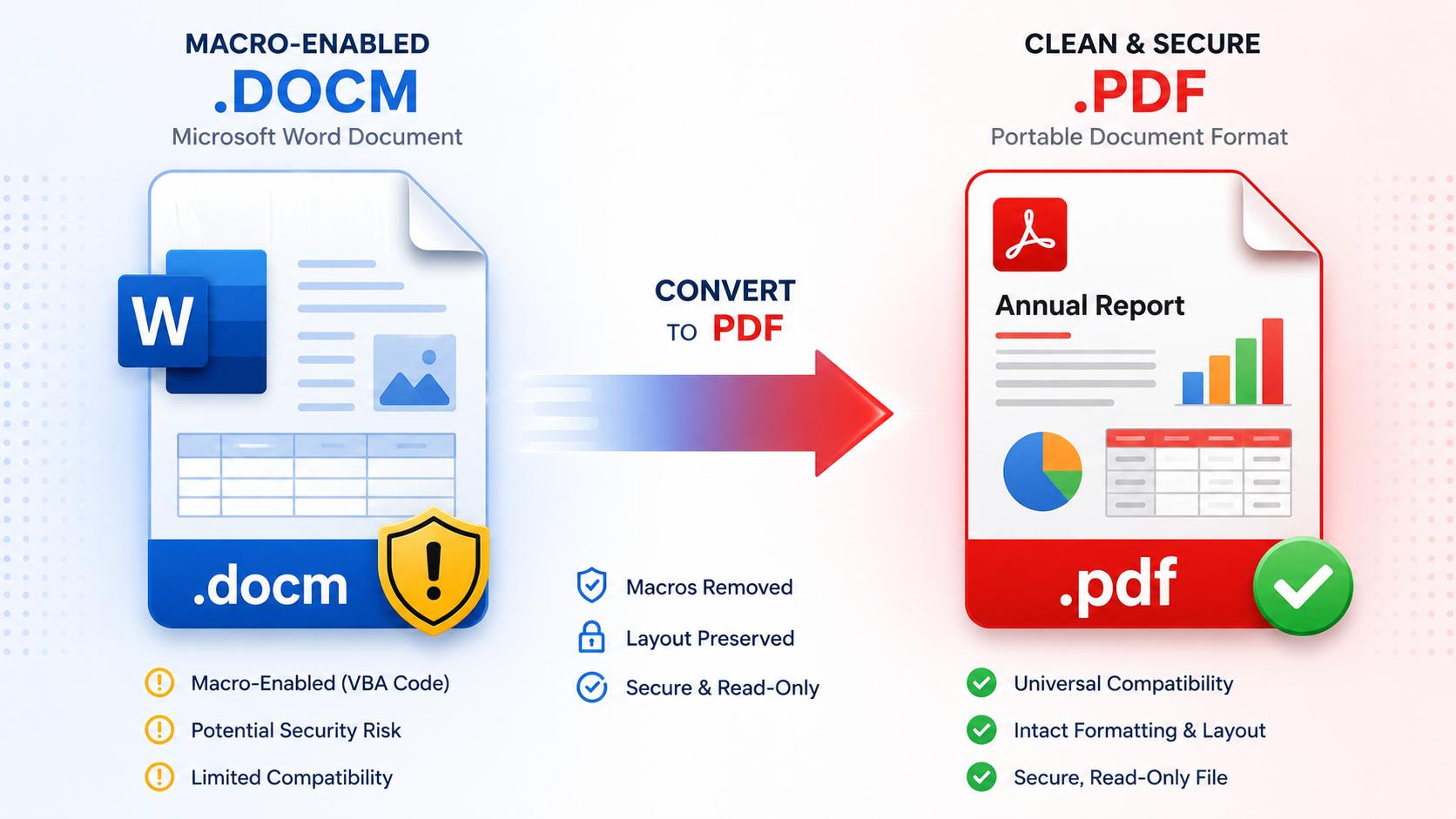
DOCM to PDF: Convert Macro-Enabled Word Files into Safe, Shareable Documents

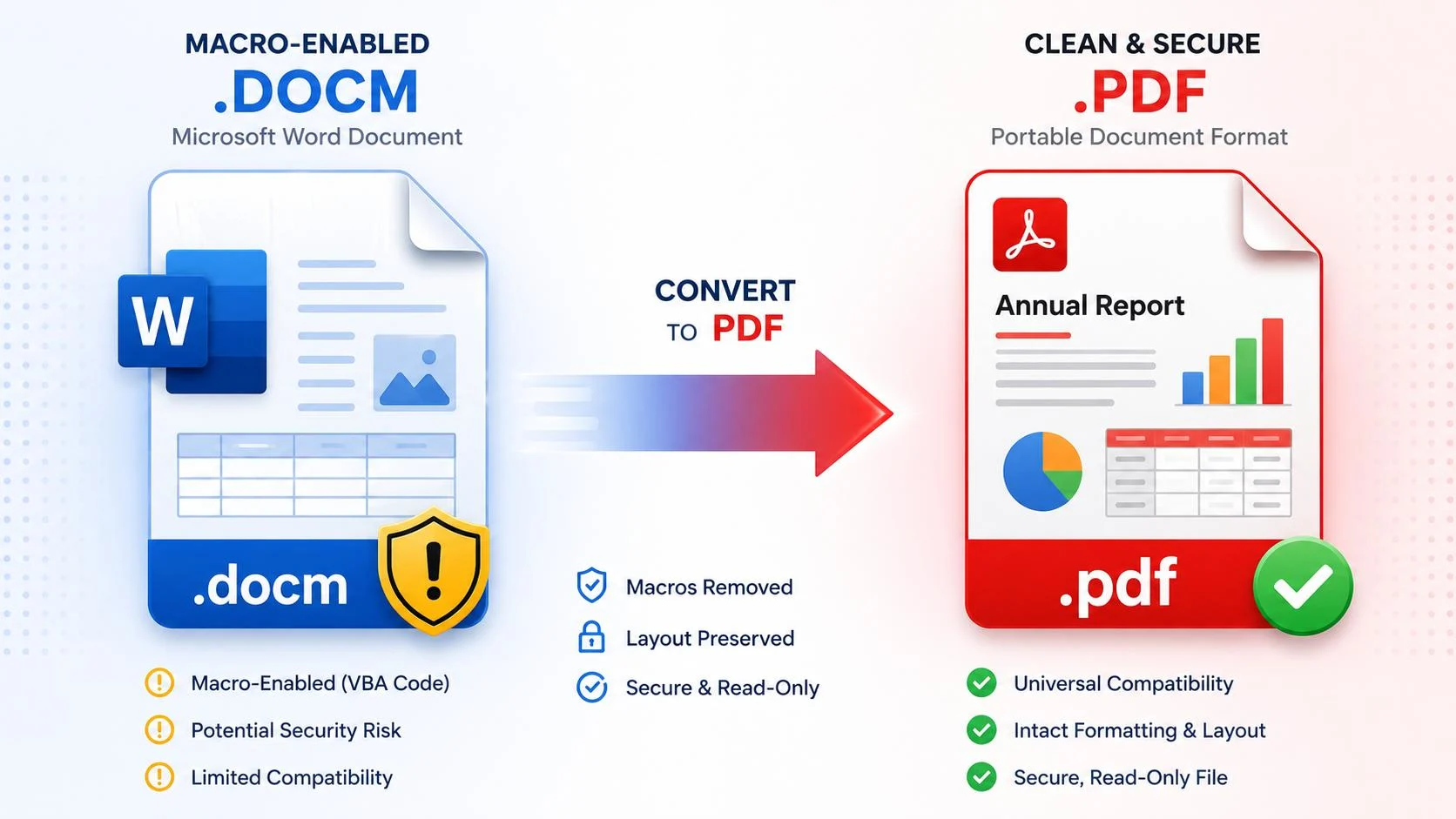

Table of Contents▼
Learn how to convert DOCM files to PDF safely. Preserve formatting, strip active macro risks, and share Word documents securely across any device.
The Hidden Frustration of Receiving a DOCM File
Picture this: You are ten minutes away from presenting a quarterly audit to your executive team. An email lands in your inbox containing a critical report attached as a .docm file. You double-click to open it on your laptop or mobile phone. Instead of a clean document, your screen flashes a stern security banner: "Macros have been disabled," or worse, the document's alignment completely shatters because you are viewing it on a device that doesn't run the full desktop version of Microsoft Word.
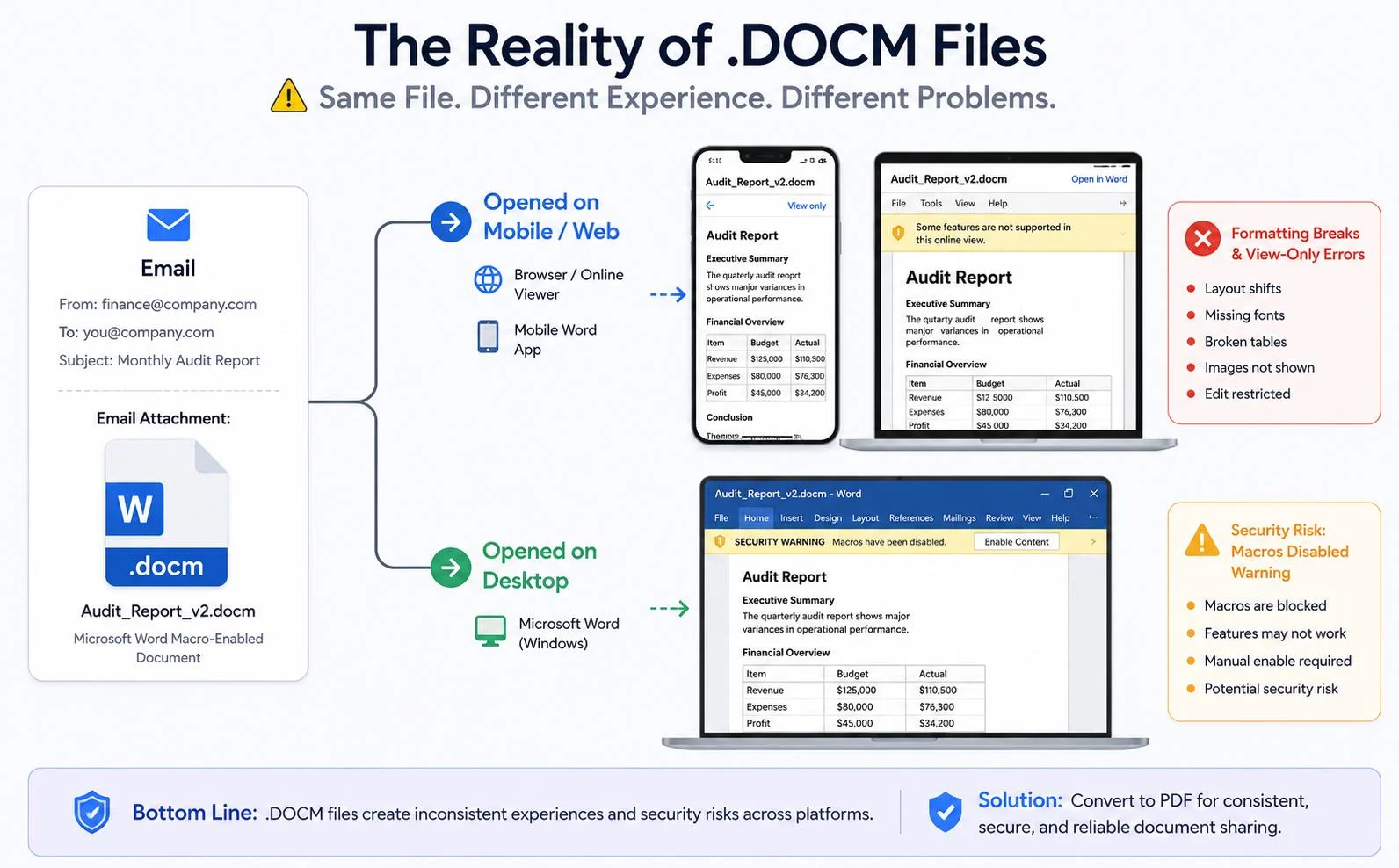
This infographic explains why DOCM files may display formatting inconsistencies, view-only limitations, and macro security warnings across different platforms, making PDF a safer format for document distribution.
If you have ever felt that cold spike of anxiety, you aren't alone. Freelancers, financial analysts, legal professionals, and students deal with this roadblock constantly.
Macro-enabled Word documents (DOCM) are brilliant for automating complex internal office tasks—like running custom calculations or populating data templates. But the moment you need to send that document to an outside client, upload it to an HR portal, or print a clean copy, the embedded automation becomes a liability.
Converting a DOCM file into a standardized PDF solves these friction points in one move: it locks down your formatting, strips away potential macro security flags, and makes the file instantly readable on any screen. Tools like Doxbar help bridge this exact gap, turning specialized working files into universal, presentation-ready PDFs without demanding complex desktop software installations.
Why Macro-Enabled Files Cause Workflow Chaos
To understand why DOCM files create friction, it helps to take a step back and look at what makes them different from standard office files.
1. Embedded Macro Security Risks
DOCM files use Visual Basic for Applications (VBA) scripts to execute automated tasks. Because executable code can carry malicious scripts, operating systems and modern email gateways treat DOCM files with extreme caution. Organizations like the Cybersecurity and Infrastructure Security Agency (CISA) regularly advise against opening untrusted macro-enabled attachments. When you send a DOCM file to a client, their enterprise firewall might outright quarantine your email before they ever see it.
2. Loss of Layout Integrity Across Devices
A DOCM file is a fluid, editable canvas. It relies on the local system's installed fonts, default margin settings, and a specific version of Microsoft Office. If you build a document using Word for Windows and your client opens it using Word for Mac or a web-based editor, your carefully aligned tables, signatures, and page breaks can easily shift out of place.
3. Lack of Cross-Platform Compatibility
Mobile operating systems like iOS and Android, along with web browsers, offer native support for displaying static PDFs, but struggle with macro-enabled Word documents. Attempting to review a complex DOCM report on a smartphone often results in missing visual components or unreadable text blocks.
4. Accidental Edits and Version Drift
When you distribute an editable DOCM file for review, recipients can unintentionally alter formulas, delete text blocks, or break embedded code. Once multiple stakeholders save local copies, track changes becomes a chaotic mess, making version control nearly impossible.
The Technical Reality: How DOCM-to-PDF Conversion Works
Converting a dynamic, code-carrying document into a fixed, static page representation involves several distinct processes under the hood.
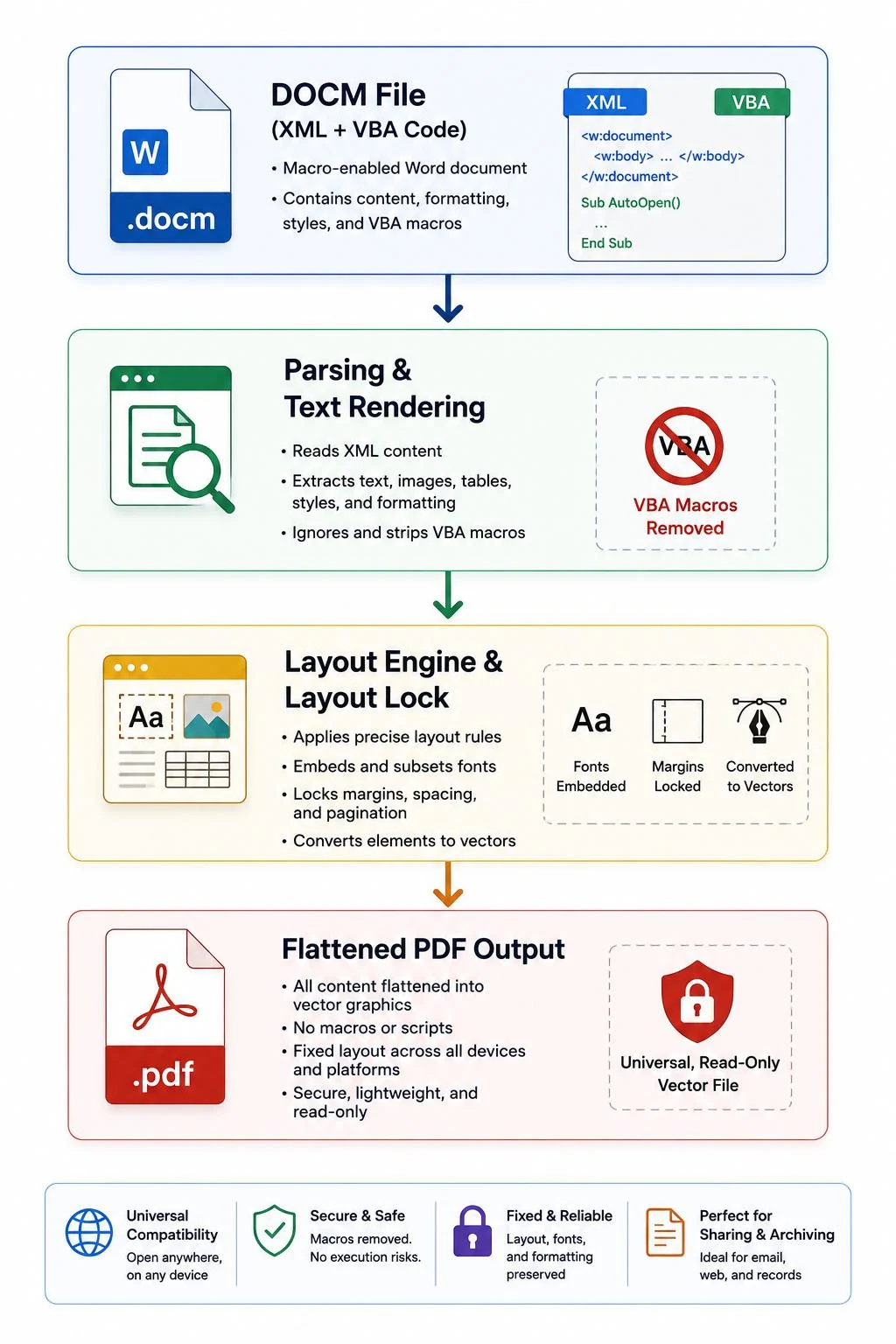
This infographic explains how DOCM files are converted into secure PDF documents by removing VBA macros, preserving formatting, locking page layout, and generating a universally compatible read-only PDF.
DOCM vs. DOCX: What Breaks During Conversion?
Both DOCX and DOCM are built on the Office Open XML standard—essentially zipped archives of XML text files, styles, and media. The single crucial difference is that a DOCM file contains an extra storage stream holding compiled VBA code.
File Property | DOCX (Standard Word) | DOCM (Macro-Enabled) | PDF (Portable Document) |
Primary Purpose | Editable text & images | Automated workflows/macros | Uniform visual output |
Code Execution | No (Static XML) | Yes (VBA Scripts) | No (Pure Document Structure) |
Security Risk | Low | Moderate to High | Low (Safe for Distribution) |
Cross-Platform Fit | High | Low | Universal |
Page Layout | Dynamic / Fluid | Dynamic / Fluid | Fixed / Immutable |
When you convert a DOCM file to PDF, the rendering engine extracts the visual XML structure (fonts, line spacing, image anchors) and discards the execution layer (the VBA macros).
Why Do Fonts and Tables Shift?
A common point of frustration during document conversion is layout drift—where text overflows onto extra pages or table borders disappear. This occurs when the conversion engine lacks access to the exact custom fonts referenced in the source document. Modern document processors substitute missing fonts with metrics-matched fallbacks, but tiny variations in character width accumulate across hundreds of lines of text, causing page breaks to shift. Modern conversion algorithms mitigate this by embedding font glyph geometries directly into the output vector stream.
Choosing the Best DOCM to PDF Conversion Method
Not all document processing workflows are created equal. Depending on your organization's security requirements, processing volume, and hardware setup, different approaches suit different needs.
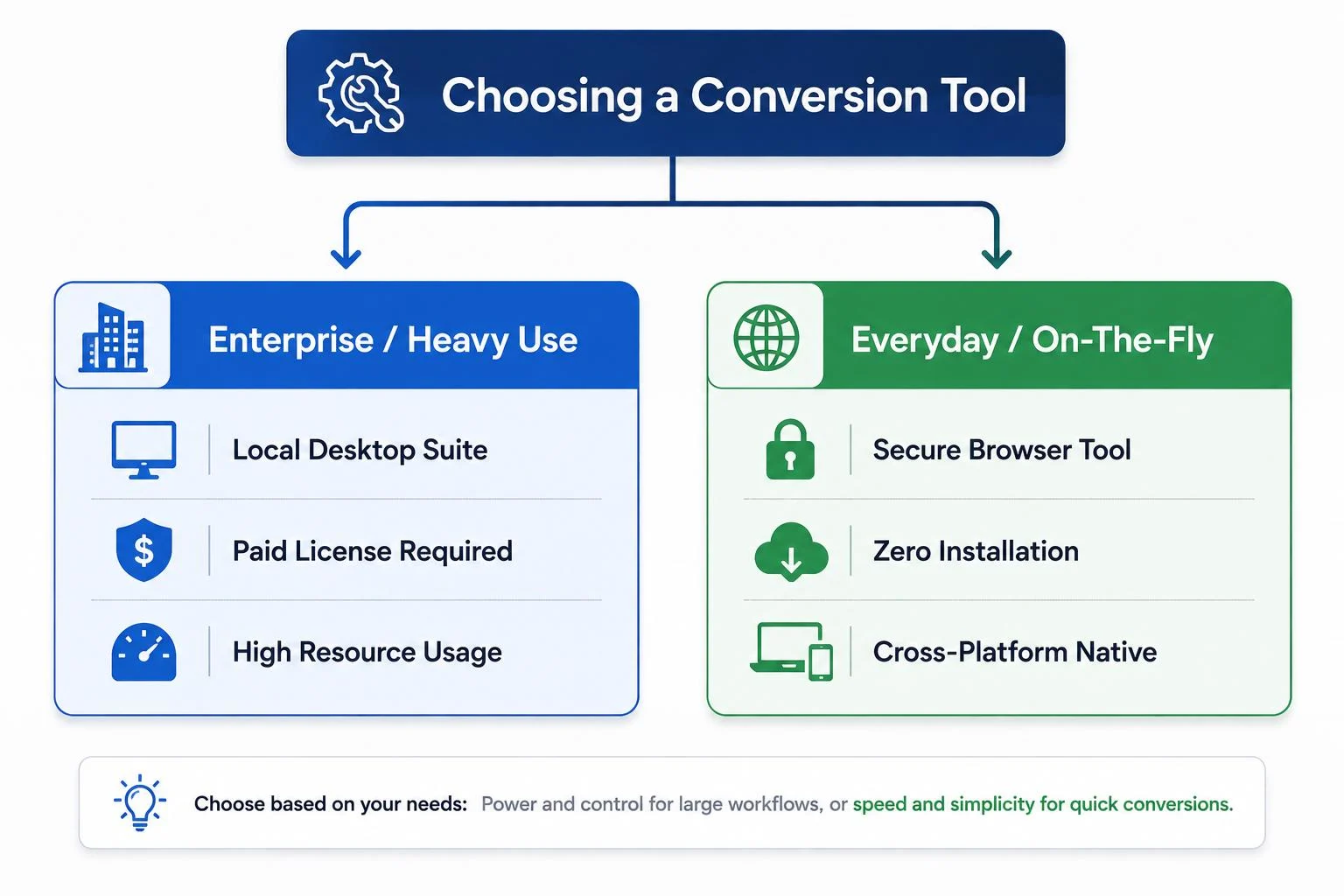
This infographic compares two common approaches to document conversion: enterprise desktop software and browser-based online conversion tools. Enterprise solutions typically offer advanced features for high-volume workflows but often require local installation, paid licensing, and greater system resources. Browser-based converters focus on convenience by providing secure web access, zero installation, and cross-platform compatibility across Windows, macOS, Linux, tablets, and mobile devices. The comparison helps users determine which document conversion workflow best matches their productivity, collaboration, and PDF generation needs.
1. Legacy Desktop Suites
Desktop software like Microsoft Office or Adobe Acrobat offers comprehensive offline editing facilities. However, they require dedicated installation, paid user licensing, and significant system memory. For users on Chromebooks, mobile devices, or locked-down corporate laptops without admin privileges, desktop applications simply aren't an option.
2. Traditional Cloud Converters
First-generation online file utilities pioneered web-based document transformations. While functional, many legacy tools bombard users with aggressive ad placements, cap daily file conversions behind paywalls, or store user files indefinitely on remote servers without explicit retention policies.
3. Modern Browser-Native Workflows
Modern browser-based conversion tools focus on balancing speed, compatibility, and privacy. Rather than requiring large desktop installations, they process documents securely through the browser, making them accessible across Windows, macOS, Linux, ChromeOS, Android, and iOS. combine cloud processing speed with strict data privacy protocols. By leveraging encrypted transport layers and automated file lifecycle management, contemporary web tools deliver rapid document transformations directly inside any modern browser—whether you are on Windows, macOS, Linux, iOS, or Android.
Processing Workflows Compared
To select the right approach for your needs, consider how legacy tools, desktop suites, and modern browser utilities stack up side-by-side:
Feature / Criteria | Legacy Online Converters | Installed Desktop Suites | Modern Browser Tools (e.g., Doxbar) |
Installation Requirement | None | High (GBs of storage) | None (Runs in-browser) |
Cross-Platform Support | Partial (Often Desktop-focused) | Platform-locked | Universal (Mobile & Desktop) |
Macro Handling Strategy | Variable / Unclear | Executes local warnings | Safely strips macro layer |
Layout Preservation | Moderate (Font glitches) | High | High (Precision rendering) |
User Privacy Focus | Low / Ad-supported | High (Local processing) | High (Auto-deletion protocols) |
Processing Speed | Slow / Queue-dependent | Fast (Hardware dependent) | Near-instantaneous |
Step-by-Step: Converting DOCM to PDF Safely
Converting your macro-enabled Word documents into polished PDFs takes only a few seconds when using a streamlined web utility.
1. Select and Upload Your DOCM File: Compatible with desktop, tablet, or mobile browsers.
Navigate to the online conversion interface. Drag and drop your .docm document into the designated upload zone, or browse your local file storage/cloud drive to select the target file.
2. Automated Processing and Vector Mapping: Sanitizes code and embeds visual elements.
The engine reads the document structure, strips away inactive VBA code blocks, embeds font metadata, and locks down your images, margins, and page boundaries into fixed vector pages. 3. Download and Verify Your Secure PDF: Ready for distribution, printing, or archiving.
Once processing completes, hit the download button to save your converted file. Open the new PDF on any device to verify that your headers, footers, tables, and typography match the original layout perfectly.
DOCM-to-PDF Security Checklist
□ Review whether the macros are still needed.
□ Run the document in a trusted environment before sharing.
□ Save the final version after macro execution.
□ Check for tracked changes and hidden comments.
□ Verify embedded fonts and images.
□ Remove sensitive metadata if required.
□ Generate a PDF and review it on another device before distribution.
💡 Expert Tip: If a DOCM file contains macros that populate reports or invoices automatically, run the macro first, verify the output, and only then convert the final document to PDF. Converting too early may leave placeholders or incomplete data in the finished document.
Before You Convert a DOCM File: Macro Safety Checklist
“Unlike standard Word documents, DOCM files can contain VBA macros that automate calculations, generate reports, populate forms, or perform other tasks before a document is finalized. Converting a DOCM file to PDF too early can leave unfinished content or outdated data in the final document. Before exporting your file, review the following checklist.
✔ Confirm That All Required Macros Have Run
If the document relies on VBA automation, execute every required macro before creating the PDF. Generated tables, calculated values, and dynamic content should already appear in the document.
✔ Review the Final Output
Scroll through the completed document to verify that charts, tables, page numbers, and automatically inserted text have been generated correctly.
✔ Remove Unnecessary Editing Features
Accept or reject Track Changes, resolve comments, and delete placeholder text before exporting the final version.
✔ Verify Fonts, Images, and Embedded Objects
Check that every font is available, images display correctly, and embedded charts or objects appear exactly as expected.
✔ Save the Final Version Before Conversion
Save the completed DOCM file first. This preserves the macro-enabled version in case future updates are needed.
✔ Export Only the Finished Document
Once all automation has completed and the document has been reviewed, generate the PDF from the finalized version—not from a draft.
💡 Expert Tip: One of the most common DOCM-to-PDF mistakes is converting the file before running the macro that generates the final content. Always complete the automation workflow first, then review the document, and only after that create the PDF for sharing or archiving.
Evaluating the Trade-Offs
While converting DOCM files to PDF resolves security and layout issues, it is helpful to weigh the full picture before altering your document pipeline.
Advantages
Enhanced Security: Stripping VBA macros eliminates the execution vectors commonly flagged by enterprise IT security systems.
Universal Readability: PDFs open natively on every major operating system, smart browser, and mobile platform without requiring third-party software.
Preserved Document Aesthetics: Fonts, line breaks, vector charts, and signatures stay locked in place regardless of the receiver's screen size or device.
Reduced File Overhead: Removing embedded scripts and unused metadata often results in a leaner file size that is much easier to email.
Disadvantages & Considerations
Loss of Interactive Automations: Once converted to PDF, interactive forms, automated macros, and dynamic database pulls within the original Word document will cease to execute.
Static Page Boundaries: Content can no longer be edited freely as flowing paragraphs without specialized vector editing tools.
Preserve Source Files: Always keep your original .docm working file backed up locally if you plan to make structural text edits or run macro scripts in the future.
Related Resources: Explore More Document Conversion Guides
Converting a DOCM file to PDF is often just one step in a broader document workflow. Depending on your needs, you may also need to convert other Microsoft Office formats, optimize PDF files for sharing, or edit documents after conversion. The following guides can help you complete those tasks more efficiently.
DOC to PDF
Working with older Microsoft Word (.doc) files? Learn how to convert legacy Word documents to PDF while preserving formatting, fonts, tables, and images.
DOCX to PDF
If your document uses the modern DOCX format, this guide explains how to create high-quality PDFs while maintaining layout consistency and compatibility across devices.
PDF to Word
Need to edit a PDF after it's been shared? Explore how to convert PDF files back into editable Word documents without manually recreating the content.
Compress PDF
Large PDF files can be difficult to upload or email. After converting your DOCM file, reducing the file size can make sharing faster while keeping document quality intact.
Protect PDF
If your document contains confidential information, adding password protection or permission controls can help prevent unauthorized access or editing before distribution.
Merge PDF
Working with multiple reports or exported documents? Combine several PDF files into a single organized document for easier sharing, printing, or archiving.
“Workflow Tip: For many business and documentation workflows, the process is straightforward: Create or update the document → Run the required macro → Export to PDF → Compress (if needed) → Protect sensitive files → Share or archive the final version. Following this sequence helps ensure that the PDF reflects the completed document and is ready for professional use.
Frequently Asked Questions
1. What is a DOCM file?
A DOCM file is a macro-enabled document created by Microsoft Word. It uses the Open XML format (similar to DOCX) but contains embedded Visual Basic for Applications (VBA) code designed to automate repetitive formatting or computational tasks.
2. Is it safe to open a DOCM file from an unknown sender?
Opening unknown DOCM files poses security risks because embedded macros can execute automated scripts on your local operating system. Security experts recommend converting untrusted DOCM files to PDF before viewing them to neutralize any potential code execution risks.
3. Will converting my DOCM file to PDF delete my original file?
No. The conversion process creates an entirely new PDF copy of your document. Your original .docm file remains untouched in your storage location.
4. What happens to the macros inside the DOCM file after conversion?
During conversion, the rendering engine processes the visual content (text, shapes, layout) and discards the macro execution layer. The resulting PDF is a safe, static document containing no executable code.
5. Why do my DOCM document fonts look different on another computer?
If the receiving computer does not have the specific fonts installed that were used to build the original Word document, the operating system substitutes alternative fonts. Converting your document to PDF locks in the character geometries, ensuring typography renders identically on all screens.
6. Can I convert a DOCM file to PDF on a mobile phone?
Yes. Browser-native conversion utilities like Doxbar function entirely inside web browsers, allowing you to convert DOCM files on iOS, Android, iPadOS, or ChromeOS without installing dedicated desktop apps.
7. Why do email gateways block DOCM attachments?
Many corporate email servers automatically flag or quarantine .docm attachments because cyber threats frequently use macro-enabled office files to bypass basic perimeter defenses.
8. Will conversion maintain complex multi-page tables?
Yes. High-quality document conversion engines parse XML table properties accurately, maintaining column widths, row heights, and text wrapping definitions without breaking your document's layout.
9. How does DOCM differ from DOCX?
DOCX files are standard Word documents that cannot store active VBA macro code. DOCM files are explicitly configured to save and run macros.
10. Can I convert a password-protected DOCM file?
You must unlock password-protected DOCM files using the correct credentials before uploading them for conversion, as automated tools cannot read encrypted document contents.
11. Will my hyperlinked text still work in the PDF output?
Yes. Standard web links, email anchors, and internal document bookmarks defined within your Word file transfer into functional PDF hyperlinks.
12. Does converting a DOCM file reduce its file size?
In many cases, yes. Removing macro execution logs, uncompressed temporary XML data, and redundant edit history can result in a smaller, more streamlined PDF file.
13. Can I convert multiple DOCM files at once?
Many modern web converters support batch processing, allowing you to upload and convert multiple macro-enabled files simultaneously to save time.
14. What software do I need to open the converted PDF?
Almost all modern operating systems (Windows, macOS, Linux, iOS, Android) feature native PDF viewers built directly into browsers like Google Chrome, Microsoft Edge, and Safari. You can also use dedicated PDF readers like Adobe Acrobat.
15. Are my files stored on cloud servers after conversion?
Reputable online tools enforce strict automated data retention schedules. Uploaded documents and converted outputs are automatically purged from processing nodes shortly after completion.
16. Can I edit text in the PDF after converting from DOCM?
PDFs are designed as fixed output formats. While basic annotations, highlights, and e-signatures are easy to add, major text revisions are best performed in your original .docm file before re-converting.
17. How do I send a macro-enabled report to a client securely?
The best practice is to run your internal macros to populate all necessary data, save the finalized state, convert the document to PDF, and send the secure PDF to your client via email or secure share link.
18. Will my document headers and footers convert accurately?
Yes. Running page elements like headers, page numbers, dynamic dates, and footers carry over cleanly into fixed PDF locations.
19. Why does Microsoft Word warn me about "Blocked Macros"?
Microsoft Office automatically blocks macros in files downloaded from the internet as a default security baseline. Converting those web-sourced DOCM files to PDF bypasses those warnings while letting you view the document content safely.
20. Can I convert DOCM files to PDF without Microsoft Office installed?
Yes. Cloud-based conversion platforms process document layouts on high-performance remote nodes, eliminating the need to have Microsoft Word or Office 365 installed on your local computer.
Best Practices for Document Management
Maintaining clean document distribution protocols protects both your organization's security posture and your professional reputation.
Separate Processing Files from Distribution Copies: Treat .docm files as internal "working drafts." Never send macro-enabled files directly to external stakeholders unless they specifically request live macro functionality.
Audit Document Metadata Before Sharing: Standardize your document publishing flow by checking for hidden author details, revision histories, or tracked comments before generating your public PDF copy. Reference security resources like Mozilla Developer Network (MDN) or data protection guidelines to learn more about content sanitation best practices.
Adopt Secure Web Utilities: Choose lightweight, privacy-conscious processing utilities like Doxbar to convert your everyday work files on the fly without cluttering your operating system with single-use desktop software.
Summary & Next Steps
Working with macro-enabled DOCM files doesn't have to mean dealing with broken formatting, intrusive security pop-ups, or unreadable attachments. By converting your dynamic Word files into standardized PDFs, you preserve your document's visual design, ensure cross-platform compatibility, and eliminate macro-related security risks for your recipients.
Whenever you need a fast, reliable way to prepare your business documents for sharing, head over to Doxbar to streamline your document workflows effortlessly.
Need to Convert Document Formats?
Try our secure, lightning-fast PDF conversion suite. Convert Word, Excel, Images, and more with zero formatting loss.

Doxbar Editorial
Security & Privacy Team
We specialize in secure document architectures, parsing engines, and modern developer utilities. Keeping your files safe, lightweight, and perfectly formatted.
Join the Conversation
Share your thoughts or ask a question about this topic. This is a privacy-first system.