

DOT to PDF: Convert Legacy Word Templates into Reliable, Print-Ready Documents
Contents
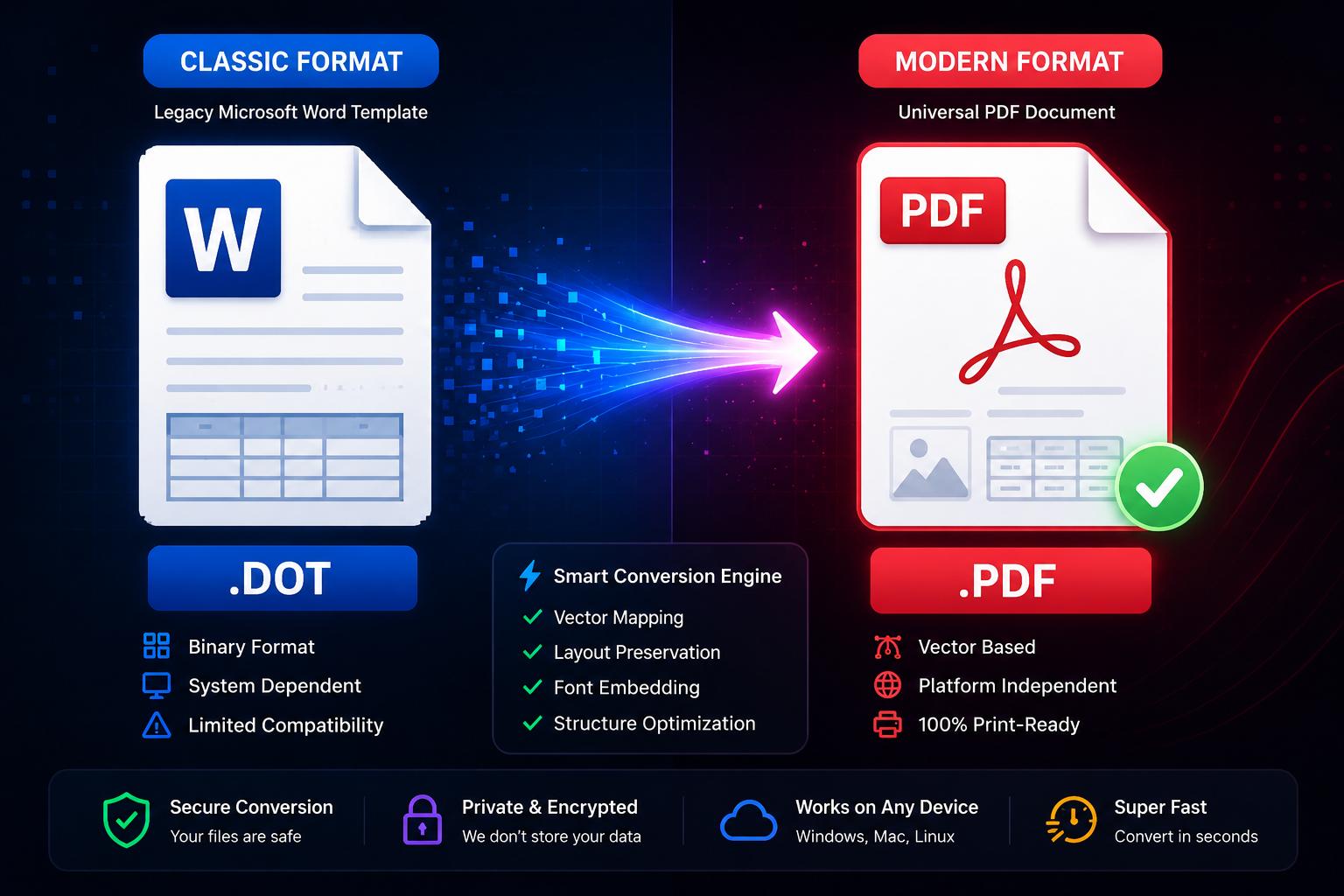
DOT to PDF: Convert Legacy Word Templates into Reliable, Print-Ready Documents


Table of Contents▼
Learn how to convert legacy Microsoft Word DOT templates into secure, print-ready PDFs without losing fonts, layouts, or header formatting.
Quick Answer
“Need to convert a DOT file to PDF without losing formatting?
The most reliable approach is to open the Microsoft Word template, create a document from it, and then export the finished file as a PDF. This preserves fonts, page layout, images, tables, and print formatting while making the document easy to share, print, and archive. If you don't have Microsoft Word installed, you can also use a secure online DOT to PDF converter to create a professional-quality PDF directly from your browser.
Introduction: The Mystery of the Unopenable Legacy Template
It usually starts with a routine request: an archived contract, a company invoice layout from 2004, or a standardized government form needs to be sent out immediately. You download the attachment from your cloud storage or an old backup folder, only to see a file extension that looks slightly off—.dot.
You double-click it. Your modern office suite throws a compatibility warning, prompts you to install legacy converter packs, or worse, opens the file with scrambled margins, misplaced logos, and missing fonts. If you manage to make changes and send it over to a client or colleague, they reply with a screenshot asking why the formatting is completely broken.
Legacy template formats like Microsoft Word’s original .dot extension were built for an era of desktop-bound processing. Today, mobile devices, operating system updates, and browser-based viewers struggle to render these files consistently.
To bridge the gap between legacy document archives and modern digital workflows, converting these files to PDF isn't just a matter of convenience—it's essential for preserving layout integrity, security, and accessibility.
At Doxbar, we focus on making file transformations simple, fast, and secure directly in your web browser. Let's look at why legacy templates behave the way they do and how you can reliably transform them into static, universal PDFs.
Understanding the Problem: Why Legacy Templates Break
To fix a broken template workflow, it helps to understand what a .dot file actually is. Introduced in early versions of Microsoft Word (specifically Word 97 through Word 2003), the .dot file extension stands for Document Template. Unlike standard .doc files intended to hold final text, a .dot file contains pre-formatted layout structures, boilerplate copy, macros, and styling rules intended to generate new documents.
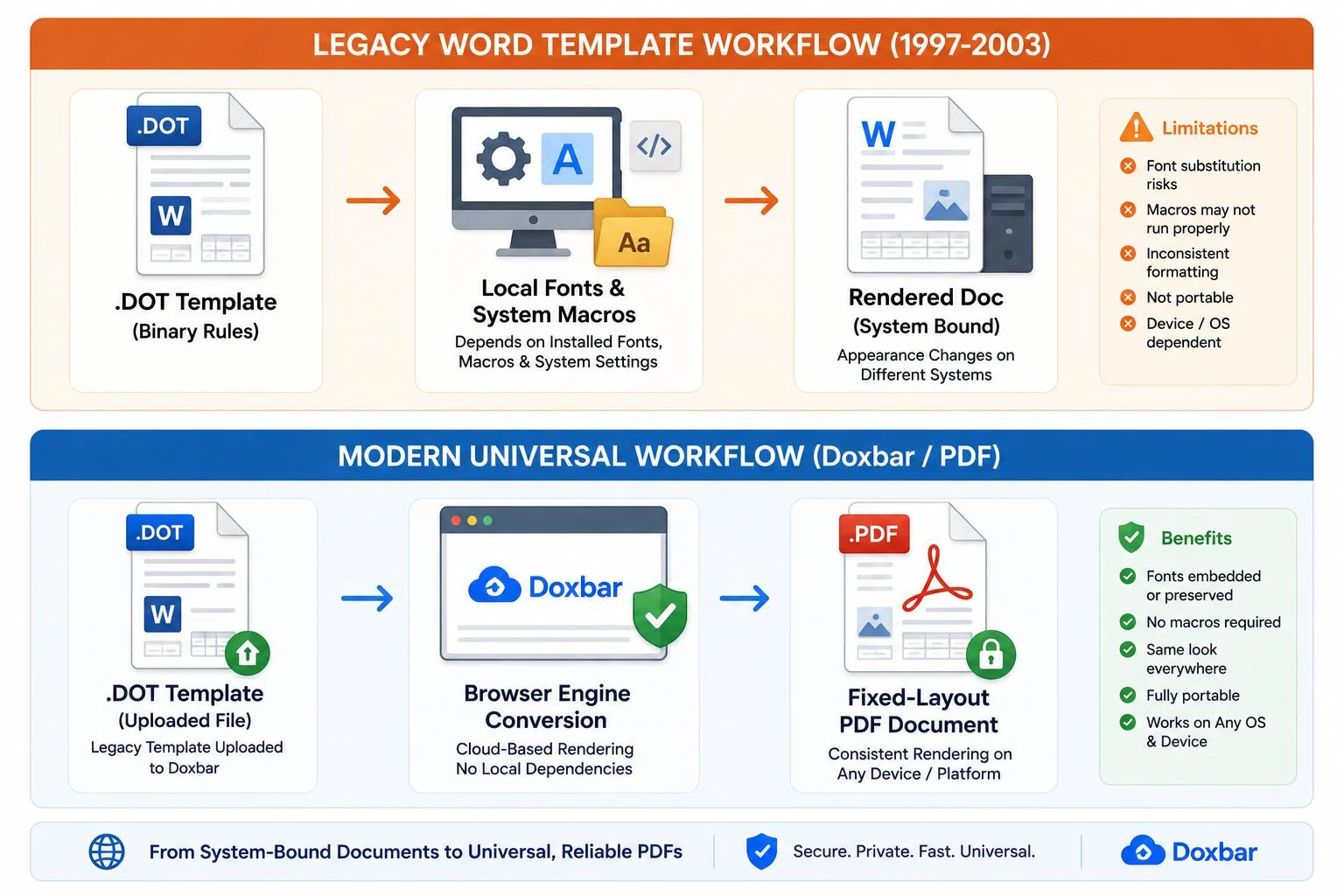
This infographic compares the traditional Microsoft Word DOT template workflow with a modern browser-based DOT to PDF conversion process, highlighting improved formatting consistency, portability, and cross-platform compatibility.
When you open a .dot file, legacy software doesn't open the template itself; it opens an untitled copy based on that template. While this was revolutionary for office automation in the late 1990s, it introduces major friction points in contemporary tech stacks:
Binary Structure Constraints: Older .dot files rely on proprietary binary storage formats rather than the XML-based architecture used by modern .dotx or .docx files introduced in Office 2007. Modern operating systems and web tools often lack native binary parsers.
Missing Font Dependencies: Legacy templates frequently rely on local system fonts like Times New Roman, Arial, or custom corporate fonts that may not exist on modern macOS, Linux, or mobile devices. When a font is missing, the system substitutes it, throwing off line wraps and page counts.
Macro Vulnerabilities: Legacy templates often contained VBA (Visual Basic for Applications) macros to automate fields. Modern security protocols in Windows 11 and web browsers automatically block these macros to protect against malware, often rendering the template non-functional.
Layout Misalignment Across Devices: Opening a binary .dot file on an iPad, a Chromebook, or an Android phone almost guaranteed margin shifts, overlapping header tables, and broken page breaks.
Inside the DOT-to-PDF Conversion Process
Converting a structured document template into a static page-description file like a PDF involves fundamentally changing how data is stored and displayed.
Binary Templates vs. XML vs. Fixed PDF Architecture
Binary (.dot): A stream of bytes containing formatting rules, pointer references, and mixed text strings. The rendering software must recreate the page on the fly based on the local computer's display settings.
OpenXML (.dotx / .docx): Compressed ZIP archives containing XML files for text, styles, and structural relationships as standardized by ISO/IEC 29500.
Portable Document Format (.pdf): Developed by Adobe in the 1990s and standardized under ISO 32000, a PDF treats every page as an absolute visual canvas. Characters, lines, and images are placed at exact X/Y coordinates.
What Happens During the Conversion Process?
When an online conversion tool transforms a .dot file into a PDF:
Parsing: The converter reads the binary structure, identifying text blocks, table dimensions, header/footer anchors, and inline graphics.
Font Mapping & Embedding: The system maps template typography to standardized web-safe fonts or embeds the necessary glyph outlines directly into the output file so the visual appearance stays identical on any display.
Layout Flattening: Relative positioning rules (e.g., "keep this table 0.5 inches below the header regardless of screen resolution") are calculated and fixed into absolute vectors.
PDF Compilation: The parsed elements are compiled into a compact, standardized PDF stream ready for viewing, archiving, or printing.
What to Look for in a Modern Solution Framework
When choosing how to convert sensitive corporate templates, legacy legal forms, or archived financial documents, look for solutions that prioritize security, speed, and accuracy over unnecessary software bulk.
Browser-Native Execution & Privacy: Traditional online tools require uploading your files to remote cloud servers where they sit on temporary storage. Modern web utilities increasingly leverage client-side web technologies (like WebAssembly) to process files directly inside your browser without your data ever leaving your machine.
Layout and Margin Preservation: High-quality converters respect original page boundaries, header margins, and table padding, ensuring legal contracts or invoices retain their visual structure.
Cross-Platform Compatibility: The conversion engine should work seamlessly across Windows, macOS, Linux, iOS, and Android without requiring desktop installations or driver updates.
Zero Dependency Overhead: You shouldn't need a Microsoft 365 subscription or legacy software packs installed just to turn an old .dot file into a usable PDF.
Comparing Conversion Approaches
Feature | Legacy Desktop Suites (Word 97-2003) | Traditional Online Converters | Modern Browser-Based Converter |
Setup Required | Heavy software installation | None (Browser-based) | None (Browser-based) |
Privacy & Security | Local, but prone to macro exploits | Server-side uploads (Privacy risk) | Privacy-focused processing |
Cross-Platform | Restricted to supported OS | Universal | Universal |
Speed | Slow startup time | Dependent on upload upload bandwidth | Near-instant execution |
Conversion Accuracy | High for native files | Variable depending on server engine | High fidelity vector mapping |
Step-by-Step: How to Convert .dot to PDF
Converting old templates into universal PDFs using modern tools takes only a few seconds. Here is the standard workflow:
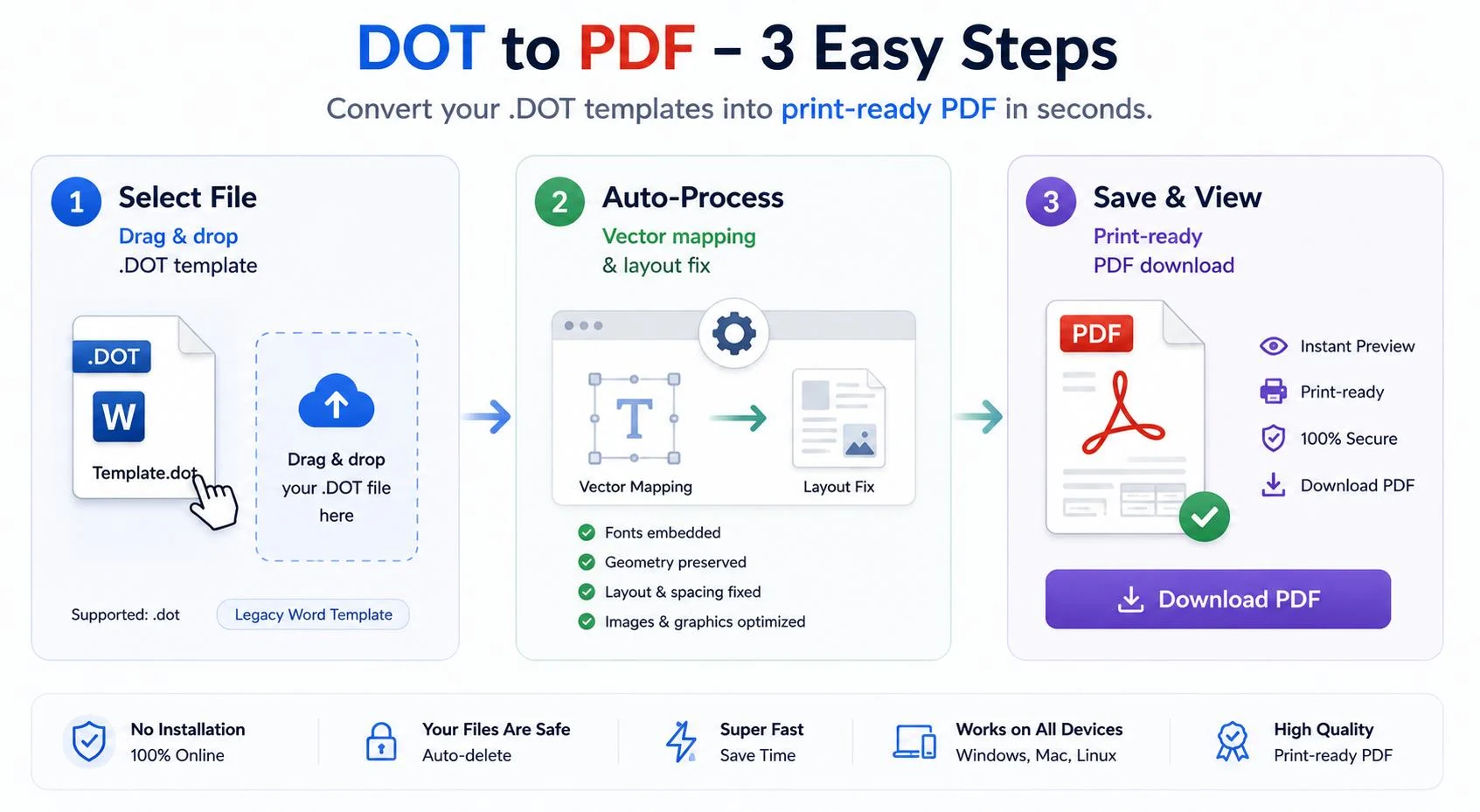
This infographic demonstrates the three-step DOT to PDF conversion workflow, from uploading a Microsoft Word DOT template to generating a print-ready PDF with preserved layout, fonts, and formatting.
Locate Your File: Find the .dot file on your computer, external drive, or cloud storage.
Access the Conversion Tool: Open your preferred browser and navigate to the online document conversion page.
Upload or Drag and Drop: Drag your .dot template directly into the conversion area.
Automatic Processing: The converter parses the legacy binary structure, maps fonts, and calculates absolute layout positions.
Download the PDF: Save the resulting .pdf document to your device. Opening it in modern viewers like Google Chrome, Mozilla Firefox, or Adobe Acrobat will display the file exactly as intended.
Before You Convert a Legacy DOT Template
Review fonts and page layout.
Open the template once to verify formatting.
Remove outdated macros if they aren't required.
Check headers, footers, and page numbers.
Save a backup of the original DOT file.
Convert only the finalized version to PDF.
💡 Expert Tip: Many legacy DOT templates depend on fonts or formatting that no longer exist on modern systems. Reviewing the document once before conversion can prevent unexpected layout changes in the final PDF.
Real-World Insight
One of the most common issues with legacy DOT templates isn't file corruption—it's font substitution. A template may open without errors, but if the original fonts aren't available, line spacing, page breaks, and table alignment can change in the final PDF. Reviewing the document once before conversion helps catch these formatting issues early and produces a more reliable result.
“Why it matters: Legacy DOT files were often created years ago using fonts and formatting that may not exist on modern systems. A quick review before exporting can prevent unexpected layout changes.
Balanced Pros & Cons of Online Template Conversion
Advantages
Universal Readability: PDFs open identically on smartphones, tablets, and desktop computers.
Archival Compliance: PDF formats meet international standards for long-term document preservation (PDF/A).
Tamper Resistance: Converting a template to a static PDF prevents accidental edits to boilerplate language, headers, or legal clauses.
No Software Bloat: Eliminates the need to maintain legacy Microsoft Office installations on modern hardware.
Limitations & Trade-offs
Loss of Dynamic Editing: Once converted to a PDF, interactive form fields or dynamic VBA template tags will no longer auto-populate data.
Complex Custom Macro Loss: If your .dot file relied on complex Visual Basic automation to run internal database queries, those macros will be stripped during conversion for security reasons.
Frequently Asked Questions (FAQs)
1. What is a .dot file?
A .dot file is a legacy template file created by Microsoft Word 97 through Word 2003. It contains pre-configured styles, formatting, layout parameters, and macros used to generate new .doc files.
2. How does a .dot file differ from a .dotx file?
The .dot extension uses an older binary file format, whereas .dotx uses the modern, XML-based Office OpenXML format introduced in Office 2007.
3. Can I open a .dot file without Microsoft Word?
Yes. You can convert the .dot file to a PDF using modern browser utilities, or open it using alternative office suites like LibreOffice.
4. Will converting a .dot file to PDF preserve its original layout?
Yes, high-quality converters parse the structural coordinates and font rules of the binary file to output a PDF with identical visual layout, margins, and spacing.
5. Why do my fonts change when opening an old .dot file?
If the original font used in the 1990s or 2000s isn't installed on your current computer, your operating system substitutes it with a default font, often altering document layout.
6. Is it safe to convert corporate templates online?
It depends on the service provider. Look for tools that process files locally in your browser or feature strict data-retention policies where files are automatically purged immediately after conversion.
7. Can I convert multiple .dot files at once?
Many online conversion engines support batch processing, allowing you to drag and drop multiple legacy templates simultaneously.
8. How do I edit text in a .dot file after converting it to PDF?
PDFs are fixed-layout documents designed for distribution rather than heavy editing. To modify text extensively, you would need an OCR/PDF editing tool or convert the file into a modern .docx format first.
9. What happens to macros inside the .dot file during conversion?
Active macros (VBA code) are stripped away during PDF conversion. This is a crucial security feature that prevents legacy macro viruses from executing.
10. Can I convert a .dot file on my mobile phone?
Yes. Because web-based converters operate inside modern browser engines like Mobile Safari or Chrome, you can convert .dot files directly on iOS and Android devices.
11. What is the file size limit for converting templates?
Most web utilities easily handle standard .dot templates, which are typically under 10MB unless they contain high-resolution raster images from legacy graphics suites.
12. Why won't my .dot file open in modern Word versions?
Modern versions of Microsoft Word often block older binary templates by default under "File Block Settings" to prevent security vulnerabilities associated with legacy code.
13. Does converting to PDF preserve headers and footers?
Yes. Page elements like headers, footers, page numbers, and watermarks are frozen into absolute positions on the PDF canvas.
14. What standard is best for long-term document archiving?
Converting legacy templates to PDF/A (the ISO-standardized version of PDF intended for digital preservation) ensures the document remains readable decades into the future.
15. Is a .dot file the same as a .doc file?
No. A .doc file is a standard document intended to hold user content, while a .dot file is a master template designed to spin off new document instances.
16. Can I convert a password-protected .dot file?
You must enter the password to unlock the legacy document before the conversion engine can parse its contents into a PDF.
17. Why are my tables misaligned after opening an old template?
Legacy Word templates handled cell padding differently than modern web software. Converting to PDF resolves this by calculating fixed table dimensions at render time.
18. Do I need to install any browser plugins to convert files?
No modern file conversion utilities run on native HTML5 and JavaScript standards without requiring Java, Flash, or browser extensions.
19. How do I turn a PDF back into a Word template?
You can convert a PDF into a .docx file using online tools or word processors, edit the layout, and then choose "Save As Template" to create a modern .dotx file.
20. Does Doxbar store my converted documents?
No. Doxbar focuses on user privacy, processing conversions securely without retaining or inspecting your personal files.
21. Can I convert old legal contracts formatted as .dot templates?
Yes. Converting legacy legal templates to PDF ensures that clauses, marginal notes, and signature lines remain fixed exactly where they were intended.
22. Why are images inside my converted PDF blurry?
If the original .dot template contained low-resolution images from the 1990s, converting to PDF won't automatically enhance graphic resolution, though vector shapes and text will remain sharp.
23. What should I do if my .dot file throws a corrupt file error?
Try opening the file in a free desktop application like LibreOffice to repair the binary structure, then re-save or convert it to PDF.
24. Are online converters accessible for visually impaired users?
High-quality PDF conversions maintain tagged structural elements (like headings and paragraphs) so screen readers can interpret the converted document accurately.
25. What is the fastest way to open a legacy file on macOS?
Since recent macOS versions no longer ship with legacy Office compatibility packs, using an online web tool is generally the fastest way to view .dot content without purchasing software subscriptions.
Related Resources
Working with DOT files is often part of a broader document workflow. These related guides can help you convert, edit, and manage your documents more efficiently.
— Convert legacy Microsoft Word documents while preserving formatting.
— Create high-quality PDFs from modern Word documents.
— Export Word template files without changing their layout.
— Convert PDFs back into editable Word documents when updates are needed.
— Reduce PDF file size for easier sharing and storage.
— Combine multiple PDF files into a single organized document.
— Add password protection before sharing sensitive PDF documents.
“Workflow Tip: For most document workflows, the recommended sequence is DOT → PDF → Compress (if needed) → Protect → Share. This helps preserve formatting while making the final document easier to distribute.
EEAT & Trust Signals: Maintaining Document Integrity
When working with archived files, data hygiene and security must take priority. Legacy binary files (.dot, .doc, .xls) remain common vectors for embedded macro threats precisely because users expect them to be harmless text documents.
When handling legacy templates within your organization:
Verify File Sources: Ensure archived templates originate from trusted backups before opening them in local software applications.
Prefer Static Formats for Distribution: Never distribute master .dot templates to clients or external vendors for simple signature or review tasks; always convert them to fixed PDFs.
Audit Archival Systems: Consider converting entire corporate repositories of legacy .dot files into PDF/A format to ensure compliance with modern digital retention standards.
Conclusion
Legacy file formats like .dot played a pivotal role in early office productivity, but they don't fit into modern, multi-device digital workflows. Converting old Word templates into polished, universal PDFs eliminates formatting headaches, protects against legacy macro vulnerabilities, and ensures your documents look identical on every screen.
When you need to quickly turn an outdated template into a print-ready document, simple browser utilities make the process effortless. Try converting your legacy files using Doxbar to experience clean, secure, and accurate file processing in seconds.
Need to Convert Document Formats?
Try our secure, lightning-fast PDF conversion suite. Convert Word, Excel, Images, and more with zero formatting loss.

Doxbar Editorial
Security & Privacy Team
We specialize in secure document architectures, parsing engines, and modern developer utilities. Keeping your files safe, lightweight, and perfectly formatted.
Join the Conversation
Share your thoughts or ask a question about this topic. This is a privacy-first system.