

DOTX to PDF: Convert Word Templates into Professional, Ready-to-Share Documents
Contents
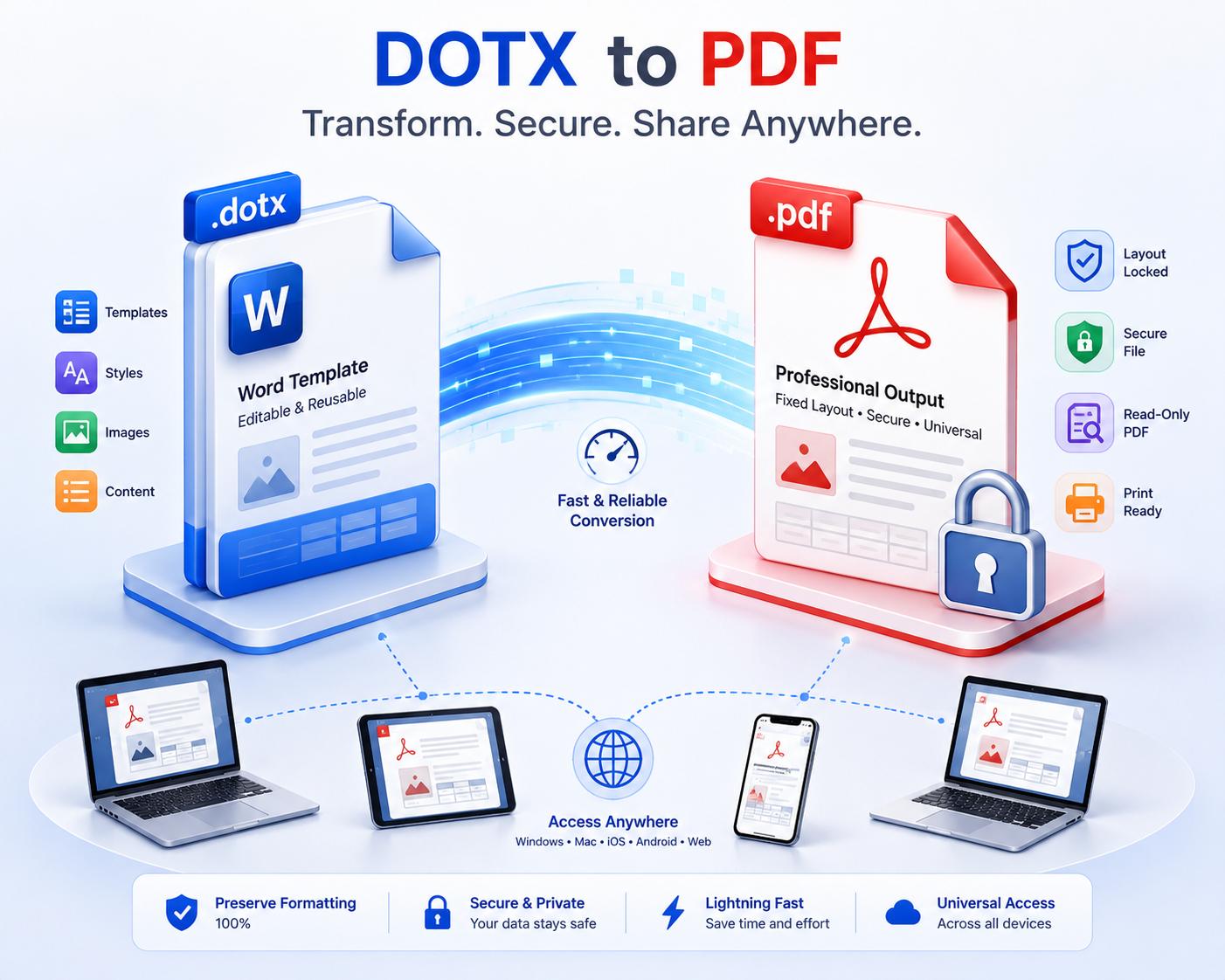
DOTX to PDF: Convert Word Templates into Professional, Ready-to-Share Documents

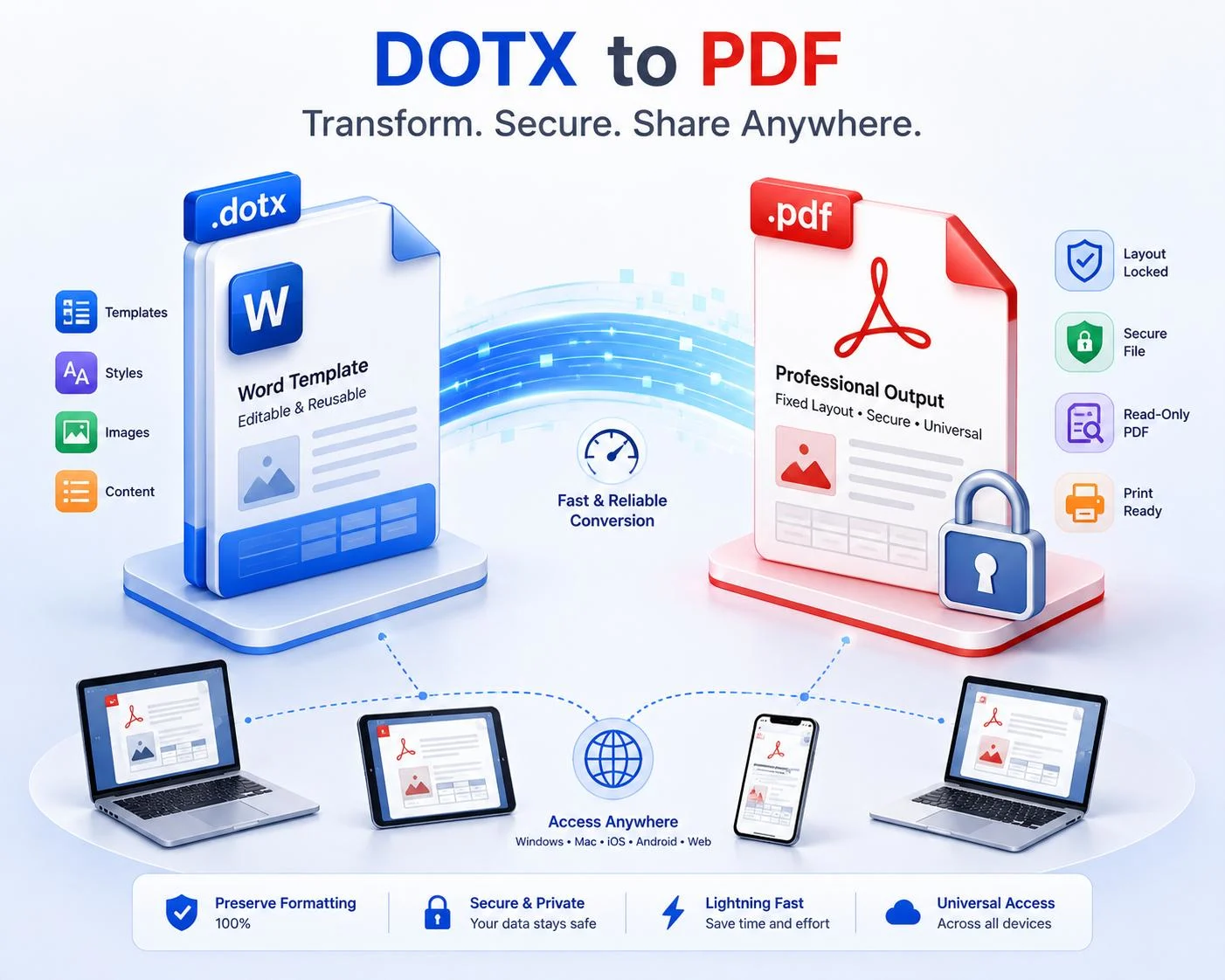

Table of Contents▼
Learn how to convert DOTX files to PDF cleanly without breaking layouts or font styling. Discover simple browser workflows, formatting tips, and security best practices.
The Unspoken Headache of Sending Word Templates to Clients
Picture this: You spent three hours perfecting a sales proposal, client invoice, or onboarding document inside Microsoft Word. You set up clean margins, placed your logo in the header, double-checked line spacing, and saved it as a standardized Word template (.dotx). It looks flawless on your screen.
Then you email it off to a major client.
Ten minutes later, you get a quick reply: "Hey, the formatting looks a bit scrambled on my iPad, and I can edit the text. Should this be locked?"
Suddenly, your crisp corporate template has loaded with default Calibri instead of your brand's custom font, table borders have shifted to the next page, and the client is staring at a document they can accidentally mess up.
It happens all the time. Word templates are designed for creating documents internally, not for distributing final, polished files externally. When you need to preserve your layout, lock your design, and ensure everyone sees the same document across phones, tablets, and desktop displays, turning that DOTX file into a clean, uneditable PDF is the essential bridge.
Browser-based conversion tools can simplify this workflow by generating fixed-layout PDFs without requiring recipients to open the original template.
Why DOTX Files Cause Friction in Modern Workflows
To fix the problem, it helps to understand why template files act up in the first place when shared.
1. Native Purpose Mismatch (.dotx vs. .docx)
A .dotx file isn't a standard document; it's an official template file format introduced in Microsoft Office 2007 alongside the OpenXML standard. When you double-click a DOTX file, Word doesn't open the file itself—it spins up an untitled copy (.docx) based on that template structure. This keeps your base template safe from accidental overrides.
However, when you email a raw .dotx file directly to a customer or team member, their operating system might not recognize how to handle it properly.
2. Local Font and Style Fallbacks
Word templates rely heavily on local machine assets. If your template uses custom corporate typography (like Gotham, Circular, or Futura) and your client’s machine doesn't have those exact font files installed locally, their OS will substitute them with system defaults like Arial or Times New Roman. The result? Text overflows, line breaks shift, and multi-page alignment breaks completely.
3. Cross-Device Inconsistencies
Mobile viewers are notorious for rendering Word elements incorrectly. Mobile email clients on iOS and Android use basic preview engines that struggle with advanced Word elements like relative positioning, floating text boxes, dynamic headers, and embedded macro containers.
4. Unintended Edits and Security Risks
When clients receive a Word file, they are one misclick away from altering terms, messing up calculations, or deleting essential boilerplate language. Converting your raw template output to a read-only PDF freezes your content permanently.
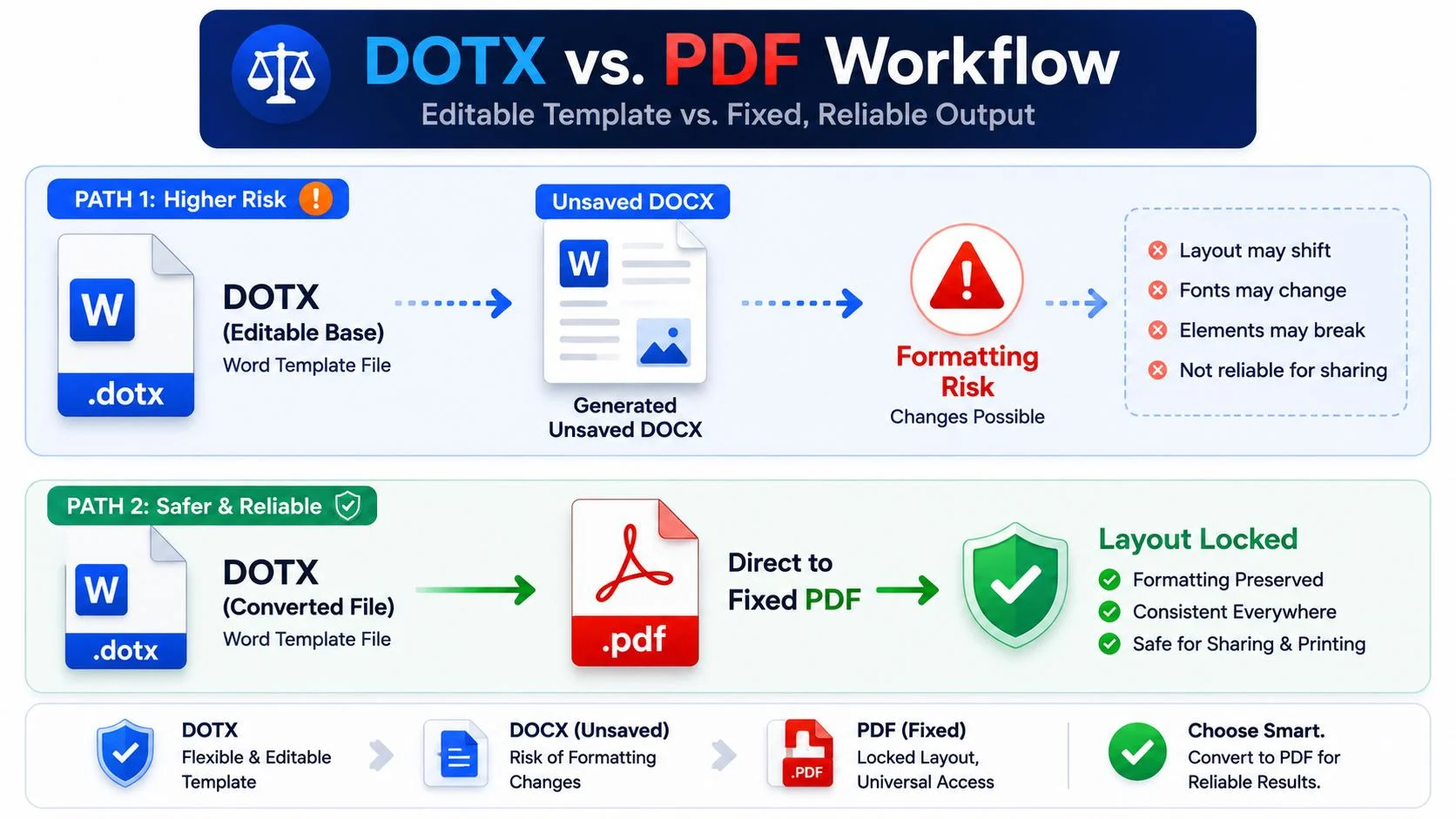
This workflow comparison illustrates why converting a DOTX template directly to PDF helps preserve formatting, maintain layout consistency, and create a reliable document for sharing and printing.
How DOTX Files Are Converted to PDF: What Happens During File Conversion?
Converting a document format isn't just about changing the extension at the end of a filename. Renaming proposal.dotx to proposal.pdf simply corrupts the underlying file architecture.
OpenXML Parsing Engine
A modern .dotx file is actually a zipped package containing several XML files, structure definitions, image assets, and relationship nodes, defined under the ISO/IEC 29500 standard.
When a modern file converter processes a .dotx file:
It unzips the OpenXML payload in memory.
It parses the document hierarchy (styles, paragraphs, section breaks, media headers).
It maps native Word vector instructions into PDF layout paths specified by the PDF Association.
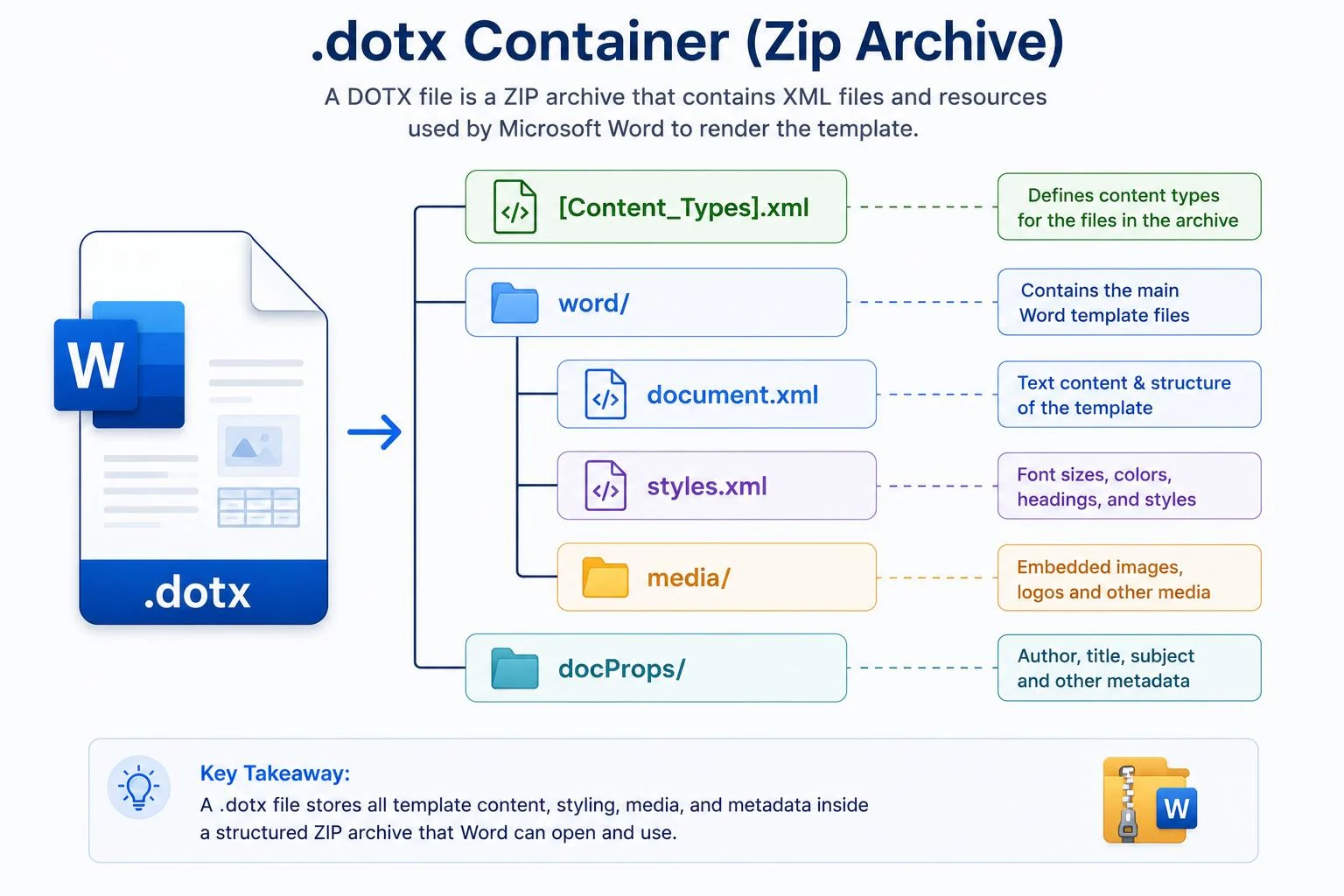
This infographic illustrates the internal structure of a DOTX file, showing how Microsoft Word templates store XML documents, styles, embedded media, and metadata inside a compressed Open XML ZIP archive.
The Typography & Layout Map
The trickiest part of turning Word templates into PDFs is font metrics calculation. Standard Word documents calculate character widths dynamically based on the local system's display scaling and graphics card engine. PDFs, on the other hand, require exact coordinate-based layout engines (X/Y coordinates on a fixed canvas).
A good online converter reads embedded font definitions, calculates line wraps accurately down to the fraction of a millimeter, and locks text positions in place so no text shifting occurs when opened on Linux, macOS, iOS, or Android devices.
What to Look For in a Modern Browser-Based Converter
Not all web converters operate with the same standards. Older legacy tools often process files on insecure, slow server arrays, or mangle complex margins during conversion. When picking a file conversion framework, look out for these non-negotiables:
Zero Memory Footprint & Absolute Privacy: File processing should occur securely with strict auto-deletion policies, making sure sensitive financial forms, client contracts, or internal records aren't permanently logged or stored.
Complex Structural Fidelity: The conversion engine must retain table borders, multi-column setups, background watermarks, page numbers, and custom margins exactly as you laid them out in Microsoft Word.
No Software Dependencies: You shouldn't have to install bulky desktop office suites, printer drivers, or questionable third-party plugins just to convert a two-page template.
Unified Cross-Platform Capability: It should work identically whether you are running Chrome on a Chromebook, Safari on an iPad, or Edge on Windows 11.
Legacy Desktop Tools vs. Online Browser-Based Converters
For years, converting files meant installing heavy office desktop software or using clunky online converters full of invasive pop-up ads. Here is how modern browser workflows compare against older alternatives:
Feature / Metric | Legacy Desktop Suites | Old Online Converters | Modern Web Engines (e.g., Doxbar) |
System Resource Usage | High (Requires gigabytes of disk space) | Low (Runs in cloud) | Ultra-light (Runs instantly in-browser) |
Installation Required | Yes (Bulky software packages) | No | No |
Layout & Font Preservation | Native, but tied to local fonts | Poor (Frequent layout shifts) | High (Precise OpenXML rendering) |
Security & Privacy | Local, but updates managed manually | Variable (Often vague logging rules) | High (Encrypted transit & immediate deletion) |
Mobile Accessibility | Poor / Limited mobile apps | Cluttered with aggressive ads | Fast, responsive, and mobile-optimized |
Which File Format Is Right for Your Workflow?
Your Goal | Recommended Format |
Create a reusable document template | DOTX |
Edit or update document content | DOCX |
Share with clients or external users | |
Print or archive the final version |
How to Convert DOTX to PDF (Step-by-Step)
Here is how you can transform any Microsoft Word template into a locked, professional PDF using a simple online workflow.
Locate Your Template File: Ensure your .dotx file is finalized, with all placeholder text updated and your layout properly aligned in Microsoft Word or Google Docs.
Access the Web Converter: Open your web browser and navigate to the conversion tool (such as Doxbar's DOTX to PDF Converter).
Upload the File: Drag and drop your .dotx file directly into the designated upload area, or select it manually from your local file browser or cloud storage (Dropbox, Google Drive).
Initiate Processing: The engine automatically reads the OpenXML layout, applies font metrics mapping, and generates your high-resolution vector PDF.
Download & Review: Download your new .pdf file. Open it up across different screen sizes or email apps to verify that headers, signatures, and form fields line up perfectly.
Balanced Trade-Offs: When to Use DOTX vs. PDF
No file format is universally superior for every single task. Selecting the right format depends entirely on where you are in your document lifecycle.
When to keep files in DOTX format:
You are building standard internal templates (e.g., reusable invoice structures, reusable meeting agendas) for your internal team.
Content needs to remain editable for future staff members to fill out fields.
You need to leverage custom Word macros (.dotm) to automate internal documents.
When you must switch to PDF format:
You are delivering final documents to clients, external stakeholders, vendors, or legal authorities.
You need to collect formal digital signatures using platforms like Adobe Acrobat.
Your document contains custom typography or intricate visual elements that cannot risk line wrapping issues.
You are preparing files for professional commercial printing or mass distribution.
When You Should Keep a DOTX File Instead of Converting It
Converting a DOTX file to PDF is the right choice when you're ready to share a finished document. However, during the creation and maintenance stage, keeping the file in its original DOTX format is often the smarter option. Templates are designed to save time, maintain consistency, and support ongoing updates—benefits that a static PDF cannot provide.
Continue Using DOTX If...
You're Still Building or Improving the Template
If your team is adjusting layouts, refining branding, or updating placeholder content, keep working with the DOTX file. Converting to PDF too early makes every revision slower because changes must be made in the template first and then exported again.
The Template Will Be Reused Frequently
Templates for invoices, proposals, contracts, reports, meeting agendas, or HR onboarding documents are meant to generate many future documents. Keeping the master template in DOTX format ensures everyone starts from the same standardized version.
Your Branding Is Still Changing
Updating logos, company colors, headers, footers, or corporate fonts is much easier while the document remains a template. Once the branding is finalized, exporting to PDF guarantees that recipients see the approved design exactly as intended.
Multiple Team Members Need to Edit the Template
During collaboration, teams often review wording, adjust formatting, or update standard clauses. A DOTX file supports this editing workflow far better than a fixed PDF.
You're Creating New Documents from the Template
Remember that a DOTX file is a reusable starting point—not the final document. Each time you create a new invoice, proposal, or contract, Word generates a new document based on the template while preserving the original master file.
When It's Time to Convert to PDF
Once your document is complete, reviewed, and ready to leave your organization, converting it to PDF becomes the best choice.
Choose PDF when you want to:
Share documents with clients or external partners.
Preserve formatting across Windows, macOS, iOS, Android, and Linux.
Prevent accidental edits to the finished document.
Prepare files for printing, archiving, or digital signatures.
Maintain a consistent, professional appearance on every device.
“💡 Expert Insight: Think of a DOTX file as your master blueprint and a PDF as the finished product. Build and update your templates in DOTX, then export a PDF only when the document is finalized and ready for distribution. Following this workflow helps maintain brand consistency while ensuring every recipient sees the document exactly as you intended.
Frequently Asked Questions
1. What is the main difference between a DOTX and a DOCX file?
A .docx file is a standard, editable Word document designed for everyday writing. A .dotx file is an official template file used as a master blueprint. Opening a .dotx file generates an unsaved, duplicate .docx copy so you never accidentally overwrite your master template.
2. Will converting a DOTX file to PDF alter my original template file?
Not at all. The conversion engine creates an entirely new .pdf output file while leaving your source .dotx template completely untouched on your computer or device.
3. Why did the fonts change when I emailed my raw DOTX template to a client?
If your client doesn't have the exact font files installed locally on their machine, Microsoft Word or their operating system will substitute them with system defaults (like Arial). Converting to PDF embeds visual representations of fonts directly into the document structure, eliminating this issue.
4. Do I need Microsoft Word installed on my computer to convert DOTX files?
No. Modern online conversion engines like Doxbar parse the underlying OpenXML structure directly inside your browser, eliminating the need for installed desktop office apps.
5. Can I convert a macro-enabled Word template (.dotm) to PDF as well?
Yes. Macro-enabled templates (.dotm) follow a similar underlying structure. A web converter reads the layout and text content while safely stripping out background executable scripts, giving you a clean, static PDF.
6. Will image quality drop when converting a DOTX template to PDF?
If processed correctly, no. Standard conversion engines preserve embedded high-resolution logos, vector graphics, and graphics paths, rendering crisp visuals suitable for digital viewing and high-quality printing.
7. Is it safe to convert sensitive corporate templates using online converters?
It depends on the platform you choose. Reliable tools employ end-to-end SSL encryption during upload and automatically wipe files from memory immediately after conversion. Always double-check a service's privacy policy before uploading confidential data.
8. Why do tables sometimes shift when converting Word files?
Table shifts usually happen when table cells rely on dynamic percentage-based column widths combined with missing font metrics. Applying fixed column dimensions in Word or converting via a dedicated OpenXML layout engine prevents these layout bugs.
9. Can I convert DOTX files on my iPhone or Android device?
Yes. Because modern converters run directly in mobile web browsers like Safari or Chrome, you can convert files straight from your smartphone without downloading separate apps from app stores.
10. How do I make my converted PDF form fields fillable?
Converting a static Word template produces a standard, locked visual PDF. If you need dynamic, fillable form elements (like interactive text fields or checkboxes), you can pass your converted PDF through a dedicated PDF editing tool or signature platform.
11. What is the maximum file size supported for online conversions?
While maximum limits vary depending on the platform, most web-based document tools easily handle standard business templates ranging from a few kilobytes up to 25–50 megabytes.
12. Why can't my recipient open my attached DOTX file?
Older operating systems, custom mobile email previewers, and non-Microsoft apps (like basic text editors) often lack built-in support for .dotx associations. Converting to PDF solves this issue, as almost every modern device includes native PDF rendering capabilities.
13. Will my hyperlinked text inside the Word template remain active in the PDF?
Yes. Clean OpenXML-to-PDF conversion processes retain active web links, internal bookmarks, and email anchors so recipients can click them straight from the final PDF document.
14. What happens to track changes or comments when converting to PDF?
You should accept or reject all tracked changes and delete draft comments inside your Word file before converting. Otherwise, depending on your export settings, visual markup indicators might remain permanently visible in your final PDF.
15. How does converting to PDF preserve brand consistency?
Standardized brand assets—such as corporate color palettes (RGB/CMYK values), precise logo alignments, and custom typography—are locked permanently in place during PDF creation, ensuring your brand standards remain intact across all external touchpoints.
16. Can I convert multiple DOTX templates at the same time?
Batch processing options let you queue up multiple template files simultaneously, converting entire folders of templates (like contracts, invoices, and letterheads) into individual PDFs in one go.
17. Why does my header or footer look faded in Word, but clear in the PDF?
Microsoft Word intentionally dims header and footer elements while you are editing the main body of a document to distinguish between layout sections. When you convert the file to PDF, all sections render with uniform color, contrast, and clarity.
18. Is PDF an open standard format?
Yes. PDF was standardized by the International Organization for Standardization as ISO 32000, ensuring that any compliant PDF reader across any operating system renders your file identically.
19. How do I fix margin errors when converting documents?
Make sure your template’s page setup uses standard paper dimensions (e.g., US Letter or A4) and that your margins fall within standard printer boundaries (at least 0.5 inches or 1.27 cm) before running the conversion.
20. Can I convert a DOTX file back to an editable DOCX later if needed?
Yes, you can convert PDF files back into editable .docx documents using document tools, though it's always best practice to keep your original master .dotx file saved safely as your source edit file.
Related Resources
DOCM-to-PDF conversion is often part of a larger document workflow. Depending on what you need next, these guides can help you continue working with your files more efficiently.
— Convert legacy Microsoft Word documents while preserving formatting.
— Export modern Word files as high-quality PDFs.
— Turn PDFs back into editable Word documents when changes are needed.
— Reduce PDF file size for faster sharing and uploads.
— Add password protection before sharing sensitive documents.
— Combine multiple PDF files into a single organized document.
Workflow Tip: For most business documents, the recommended workflow is DOCM → PDF → Compress (if needed) → Protect → Share.
Building a Reliable Document Strategy
A solid document management strategy comes down to choosing the right tool for the right stage of your workflow:
Use DOTX files internally to build reusable, standardized document structures for your sales, legal, HR, and finance teams.
Keep DOCX files local while drafting, editing, and revising text with internal colleagues or co-authors.
Convert to PDF instantly the moment a document is ready for external distribution, client review, legal signing, or archiving.
Adopting this simple three-stage approach keeps your internal editing smooth while ensuring your external communications remain secure, clean, and reliable across all devices.
Need to Convert Document Formats?
Try our secure, lightning-fast PDF conversion suite. Convert Word, Excel, Images, and more with zero formatting loss.

Doxbar Editorial
Security & Privacy Team
We specialize in secure document architectures, parsing engines, and modern developer utilities. Keeping your files safe, lightweight, and perfectly formatted.
Join the Conversation
Share your thoughts or ask a question about this topic. This is a privacy-first system.