

How to Extract Only the Pages You Need Before Sharing a PDF
Contents
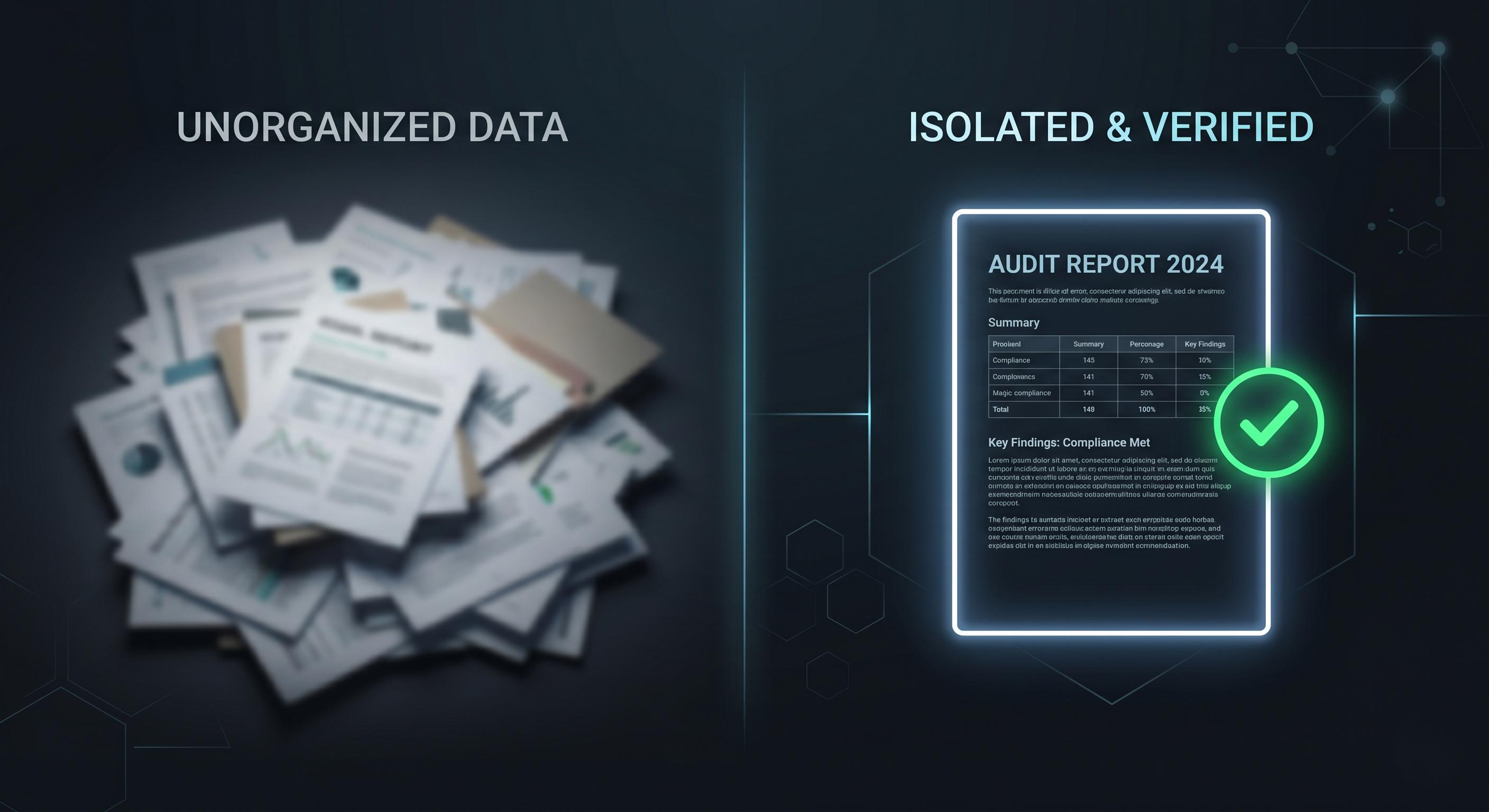
How to Extract Only the Pages You Need Before Sharing a PDF

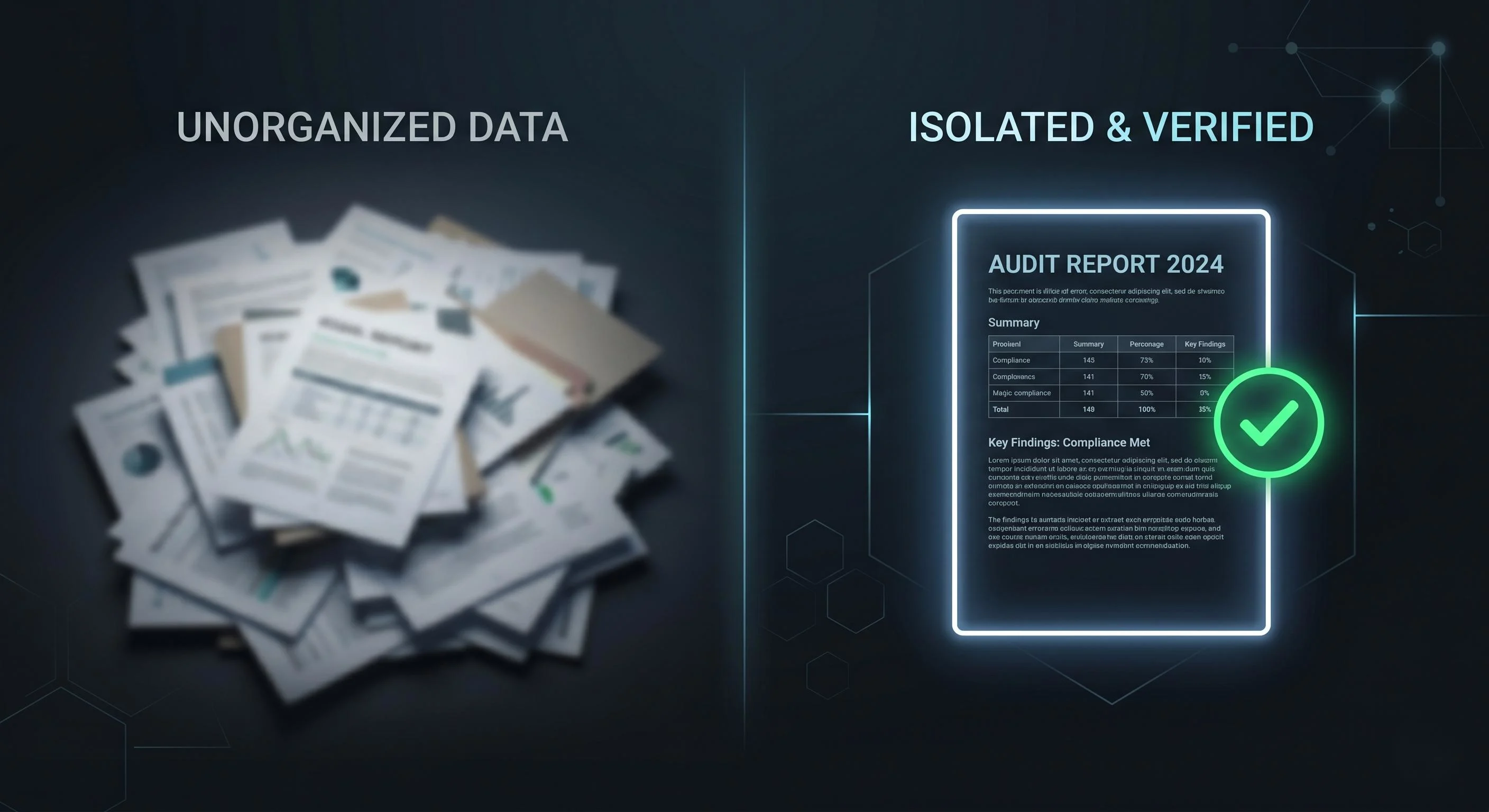

Table of Contents▼
Learn how to easily extract specific pages from a PDF before sharing. Protect your privacy, reduce file size, and keep your files clean and professional.
Experience:
Tested across contracts, invoices, academic papers, medical records, and multi-page business documents.
Quick Answer:
If you only need to share part of a document, it is often better to remove pages from PDF files that contain sensitive or unnecessary information before sending them.
Introduction: The Hidden Risk in Your Attachments
Imagine you are a freelancer wrapping up a project. You need to send a client a signed project sign-off page that happens to be embedded inside a massive 45-page internal strategy document. You are in a rush, so you attach the whole file and add a quick note: "See page 12 for the signature."
Later that evening, a cold realization hits you. Pages 14 through 45 contained internal pricing models, proprietary workflows, and notes on other clients.
This is not just a freelancer problem. It happens daily in corporate law firms, medical billing departments, and university admissions offices. Sending an entire document when an external recipient only needs a fraction of it is a massive liability. It clutters communication, inflates email attachment sizes, and, most importantly, exposes data you never intended to share.
Managing your digital footprint requires control over your files. Cultivating the habit to extract pdf pages before sharing protects your privacy and respects the recipient's time. Tools like Doxbar make this process seamless, allowing you to isolate exactly what you need in seconds without risking data leaks.
Why You Should Extract PDF Pages Before Sharing Documents
Why do we keep sending bloated files? Mostly because changing a PDF feels inherently difficult. Unlike a Word document where you can just backspace over unwanted paragraphs, a PDF feels like it is set in stone.
When you share an unedited, multi-page document, you run into several distinct bottlenecks:
Accidental Data Exposure: Financial statements, background checks, or internal feedback often sit on adjacent pages of otherwise shareable documents.
Formatting Corruption across Platforms: Trying to copy and paste PDF text into a new document to "save" it usually breaks layout alignments completely.
Device Compatibility Obstacles: Opening a 100MB PDF on a mobile device via a cellular network is an exercise in frustration for your recipient.
Legacy Software Bloat: Relying on heavy, desktop-bound software to edit a single page often involves waiting for system updates, licensing errors, or complex menus.
Educational Deep Dive: How PDF Structure Works
To understand why extracting pages can sometimes feel clunky, it helps to understand what a PDF actually is.
Unlike Microsoft Word files, which render text dynamically based on margins and available fonts, a PDF is essentially a digital map. Developed by Adobe, the Portable Document Format treats every line, image, and text block as a coordinate on a fixed canvas. [ PDF File Container ] ├── Metadata (Author, Encryption, Permissions) ├── Font Resources (Embedded typography definitions) ├── Page Tree ──> [ Page 1 Canvas: Vector Coordinates & Text Objects ] ──> [ Page 2 Canvas: Embedded Images & Forms ] ──> [ Page 3 Canvas: Structural Layout ]
When you try to split a document, a high-quality online converter does not just "screenshot" the pages. It parses the internal layout structure, strips away the unselected page references, remaps the internal links, and rebuilds a brand-new, lighter PDF container.
Why Traditional Copy-Paste Fails
If you have ever tried to highlight text across three pages of a PDF, copy it, and paste it into a fresh document, you already know it is a disaster. The text loses its spacing, images disappear, and tables turn into a continuous line of garbled data. This happens because PDFs do not inherently understand "paragraphs"—they understand absolute positions on a grid. True extraction tools circumvent this by copying the actual underlying layout coordinate data for the specific pages you select, keeping the visual presentation intact.
What About Security?
Many users assume that putting a password on a document or hiding text behind a black digital rectangle is enough. It is not. Black bars applied incorrectly can often be clicked and dragged away by a recipient. True security means completely removing the physical pages from the file structure before it leaves your local machine or browser cache.
The Modern Solution Framework: What to Look For
If you are looking for a reliable way to clean up your files, you do not necessarily need to purchase expensive enterprise software suites. However, you should not trust your sensitive documents to just any random website on the internet either. Look for platforms that prioritize the following features:
1. Browser-Native Processing & Privacy
Your files should not live on a third-party server indefinitely. Look for services that process files instantly and explicitly state their data deletion policies (e.g., wiping data within an hour of processing).
2. Layout Preservation
The core value of a PDF is its visual consistency. A premium extraction process ensures that embedded typography, vector graphics, and interactive form fields remain fully functional on the extracted pages.
3. Cross-Platform Accessibility
A good workflow works whether you are on a Chromebook at a coffee shop, an iPad on a train, or a high-end Windows workstation at the office. Web-native apps handle this seamlessly via standard web browsers like Mozilla Firefox or Google Chrome.
Comparing Your Tool Options
Not all document modification methods are created equal. Here is a breakdown of how different approaches stack up when you need to quickly isolate pages.
Feature / Criteria | Legacy Online Converters | Desktop Software (e.g., Acrobat Pro) | Modern Browser-Based Tools (Doxbar) |
Setup Friction | None (Immediate web access) | High (Requires installation & licensing) | None (Instant browser utility) |
Processing Speed | Slow (Dependent on server queues) | Fast (Local machine processing) | Near-Instantaneous |
Cost | Often hidden behind paywalls/ads | Expensive recurring subscriptions | Accessible & straightforward |
Privacy Standards | Questionable data-retention policies | High (Stays local) | High (Automated server wiping) |
Mobile Friendliness | Poor (Cluttered with pop-up ads) | Requires dedicated app downloads | Fully responsive layout |
Step-by-Step: The Ideal Extraction Workflow
Here is how to extract your pages cleanly without messing up your afternoon schedule.
Step 1: Upload Your File
Open your browser tool of choice. Drag your multi-page document directly into the upload target area.
Step 2: Select the Extraction Targets
A modern tool will show you a visual grid of page thumbnails. Instead of guessing page numbers, click directly on the specific thumbnails you want to keep. If you need pages 4, 12, and 18, simply click those three.
Step 3: Run the Separation Process
Click the convert or extract button. The system will read the underlying document code, separate those specific canvases, and isolate them into a clean sub-file.
Step 4: Download and Do a Quick Spot Check
Save the new, downsized document to your local storage. Always open it quickly to make sure your structural formatting remains crisp and no unintended adjacent pages accidentally slip into the mix.
Real-World Use Cases: When to Isolate Your Pages
Real Estate & Mortgages: Sending just the signed addendum pages to an escrow officer without transferring your entire 60-page financial background packet.
Academic Research: Sharing a specific two-page chart or study methodology with a colleague instead of making them download an entire 400-page university dissertation.
Medical Records: Isolating an immunization record sheet from an entire lifetime medical history file before submitting it to a school admissions portal.
Corporate Invoicing: Extracting individual vendor line-item pages from a master corporate expense ledger before routing them to specific accounts payable teams.
Pros & Cons of Online Page Extraction
The Advantages
Saves dramatic amounts of storage space and email bandwidth.
Minimizes the risk of human error where recipients read confidential information on unintended pages.
Eliminates the need to print physical pages out just to scan them back into the computer individually.
The Trade-offs
If your original document is corrupted or improperly saved, individual page extractions can occasionally drop interactive hyperlinked elements within the text.
Total reliance on an internet connection if you are using web-native environments.
Advanced FAQ Section
Q: Does extracting pages from a PDF reduce its visual resolution?
No. Because the extraction process copies the actual underlying vector geometric instructions and text strings rather than taking flat image screenshots, your output document will look identical in quality to the original file.
Q: Can I extract pages from a document that is password-protected?
You must have the permissions password to open and modify the document first. Once the file is unlocked, an extraction tool can split the file and generate an unencrypted sub-document for your recipient.
Q: What is the difference between splitting a PDF and extracting pages?
Splitting generally cuts a file into equal parts (e.g., breaking a 10-page document into ten individual single-page files). Extracting allows you to selectively pluck specific pages (e.g., keeping just page 2 and page 7) and merge them into one singular new file.
Q: Will the hyperlinks inside my extracted pages still work?
Yes, as long as the hyperlinks point to external web URLs. If a hyperlink pointed internally to a page that was removed during extraction, that specific link will become inactive.
Q: Is it safe to upload confidential legal agreements to online tools?
It depends entirely on the tool. You should verify that the service you use utilizes secure HTTPS encryption protocols and enforces strict server-wiping policies where your documents are deleted automatically shortly after processing.
Q: Can I combine pages from multiple different PDFs at the same time?
Advanced browser utilities allow you to upload multiple files consecutively, pick individual pages out of each document, rearrange their order visually, and compile them into one final consolidated PDF.
Q: What happens to the metadata of the file when pages are removed?
Most standard extraction processors strip out historical revision histories and create brand-new metadata profiles for the output file, which adds an extra layer of privacy for your corporate documents.
Q: Why is my extracted PDF file size still surprisingly large?
If your original file had heavy fonts embedded into its structural root, those fonts may carry over to the new file to ensure the text renders correctly. You can run the output file through a PDF compression tool to trim it down further.
Q: Can I extract images instead of pages?
Page extraction isolates the entire canvas layout. If you only want the raw JPEG or PNG photographs embedded inside a page, you should use an "Extract Images" tool rather than a page splitter.
Q: Does page extraction work on scanned documents?
Yes. If the document was scanned, the pages will be extracted as image canvases. If you want the text on those scanned pages to be searchable, you should process the file through an OCR (Optical Character Recognition) engine after extraction.
Q: Is there a maximum file size limit for browser extraction?
Limits depend on the service provider. Most standard consumer web platforms handle files anywhere from 25MB up to 100MB smoothly without taxing browser memory limits.
Q: Can I undo a page extraction if I make a mistake?
The extraction process creates a brand-new file, leaving your original document completely untouched on your computer. If you mess up, simply run the original file through the tool again.
Q: Do extracted pages maintain fillable form fields?
In most cases, yes. The interactive form elements assigned to that specific page's coordinates will remain active, though any script scripts dependent on deleted pages may break.
Q: Can I extract specific page ranges, like pages 10-20?
Yes. Modern tools allow you to type in custom comma-separated numbers or hyphenated ranges alongside visual thumbnail clicking options.
Q: Is page extraction legal for copyrighted textbooks?
Extracting pages for personal educational use often falls under fair use guidelines, but distributing extracted portions of copyrighted material widely without permission can violate copyright laws.
Q: Why do some pages look blank after extraction?
This can happen if a document uses complex layering or non-standard overlay elements. Using an updated browser tool that reads modern PDF schemas usually prevents this formatting drop.
Q: Can I run page extractions directly on my smartphone?
Absolutely. Responsive web apps scale perfectly inside mobile browsers, allowing you to select pages using touch gestures and save them directly to your phone's local storage.
Q: What is the fastest way to extract a single page without tools?
On desktop systems, you can open a PDF in your browser, click "Print," select your printer destination as "Save as PDF," and specify the single page number you want. However, this method often strips away underlying interactive elements and metadata.
Q: Does Doxbar store a history of my conversions?
No. Security-first tools process your requests inside temporary processing windows and wipe the data shortly after completion to ensure complete user privacy.
Q: Do I need to register for an account to clean up my files?
No registration is necessary for everyday operations. You can simply jump onto the web utility, process your document, download your clean file, and move on with your workday.
Q: How do I remove pages from a PDF before sharing it?
Most modern PDF tools allow you to select and delete unwanted pages or extract only the pages you want to keep. This helps reduce file size and prevents accidental disclosure of sensitive information.
EEAT & Trust Signals
Our approach to document management centers around transparency and digital safety. When optimizing documents, we recommend following strict organizational data-handling policies:
Verify Your Destination: Always double-check your recipient list before sending files.
Understand Local Processing: Check if your tools process data server-side or via local client-side scripts.
Keep Clean Originals: Never overwrite your master source file during edits; always save your extractions as clear, distinct sub-files (e.g., Project_Proposal_Final_Pages_3-4.pdf).
Conclusion
Sharing documents shouldn't feel like a gamble with your data. Taking an extra thirty seconds to clean up, isolate, and extract pdf pages before sharing removes clutter, guarantees structural clarity, and keeps your sensitive operational details safe from curious eyes.
If you are looking for a straightforward, fast, and secure environment to process your daily workflows without dealing with clunky software installations, explore the suite of tools at Doxbar. Keep your communication precise, professional, and secure.
Need to Convert Document Formats?
Try our secure, lightning-fast PDF conversion suite. Convert Word, Excel, Images, and more with zero formatting loss.

Doxbar Editorial
Security & Privacy Team
We specialize in secure document architectures, parsing engines, and modern developer utilities. Keeping your files safe, lightweight, and perfectly formatted.
Join the Conversation
Share your thoughts or ask a question about this topic. This is a privacy-first system.