

How to Extract ZIP Files Online (Windows, Mac & Mobile) Without Errors
Contents
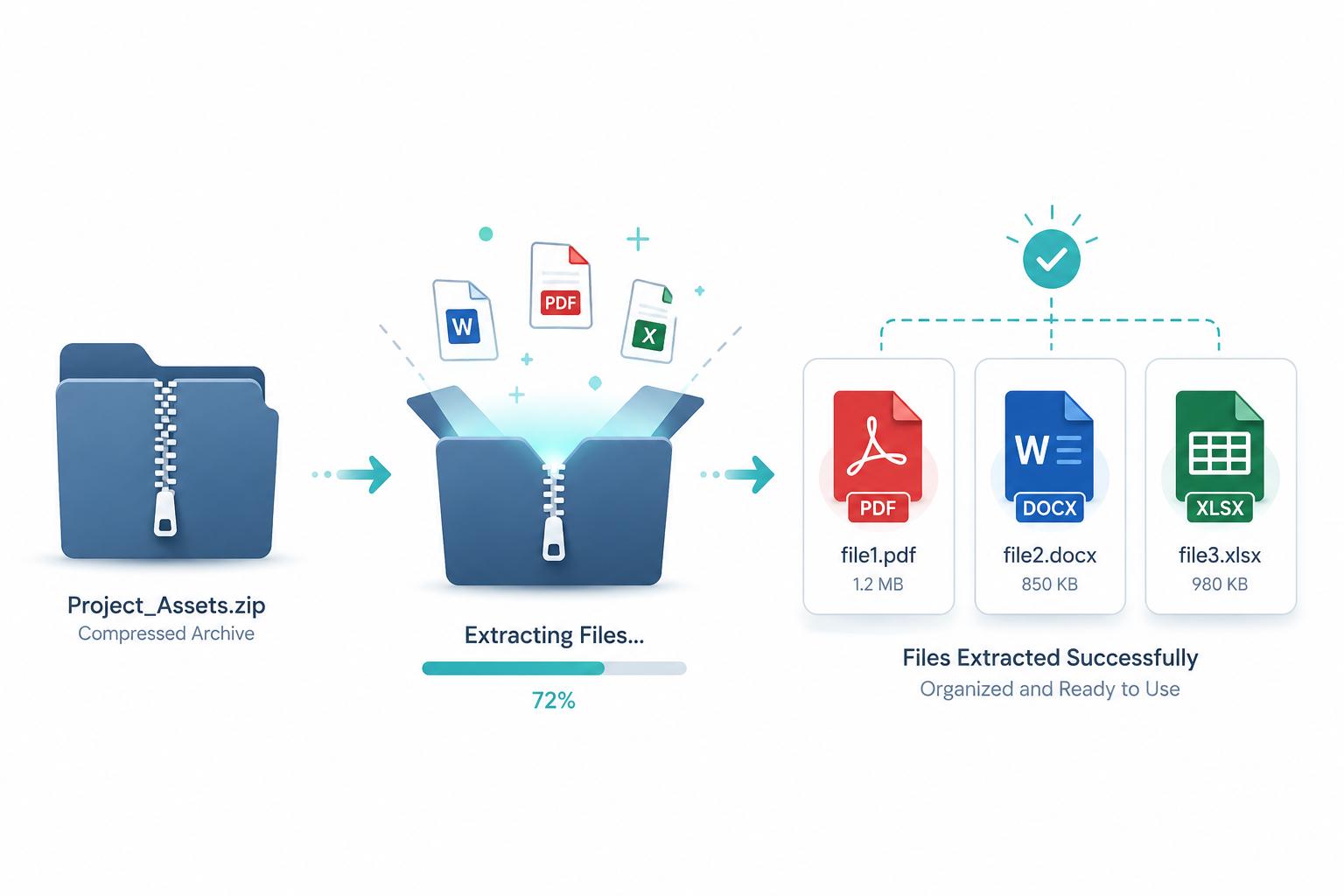
How to Extract ZIP Files Online (Windows, Mac & Mobile) Without Errors

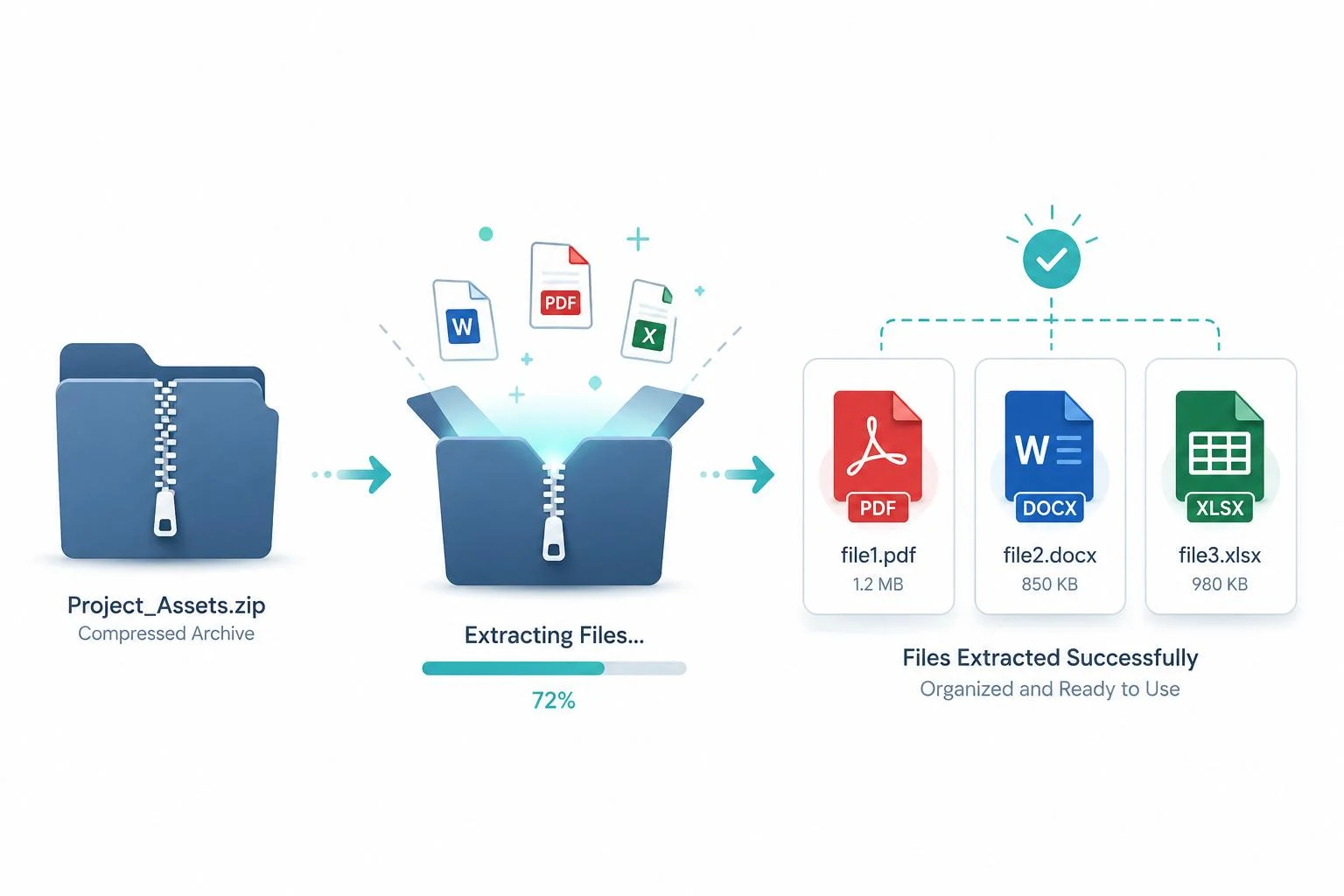

Table of Contents▼
Learn how to extract ZIP files quickly on Windows, Mac, Android & iOS. Fix extraction errors, unpack password-protected archives, and unzip files online safely.
What is a ZIP file and how do you extract it?
A ZIP file is a compressed archive format created using the DEFLATE algorithm that packages multiple files into a single location to reduce storage size. You can extract ZIP files natively on Windows (Extract All), macOS (Archive Utility), Android (Files by Google), iOS (Files app), or instantly via a browser-native tool like Doxbar. Common extraction errors usually stem from path-length limitations, corrupted central directories, or missing encryption passkeys.
Quick Answer Guide: Unzipping Files Across Platforms
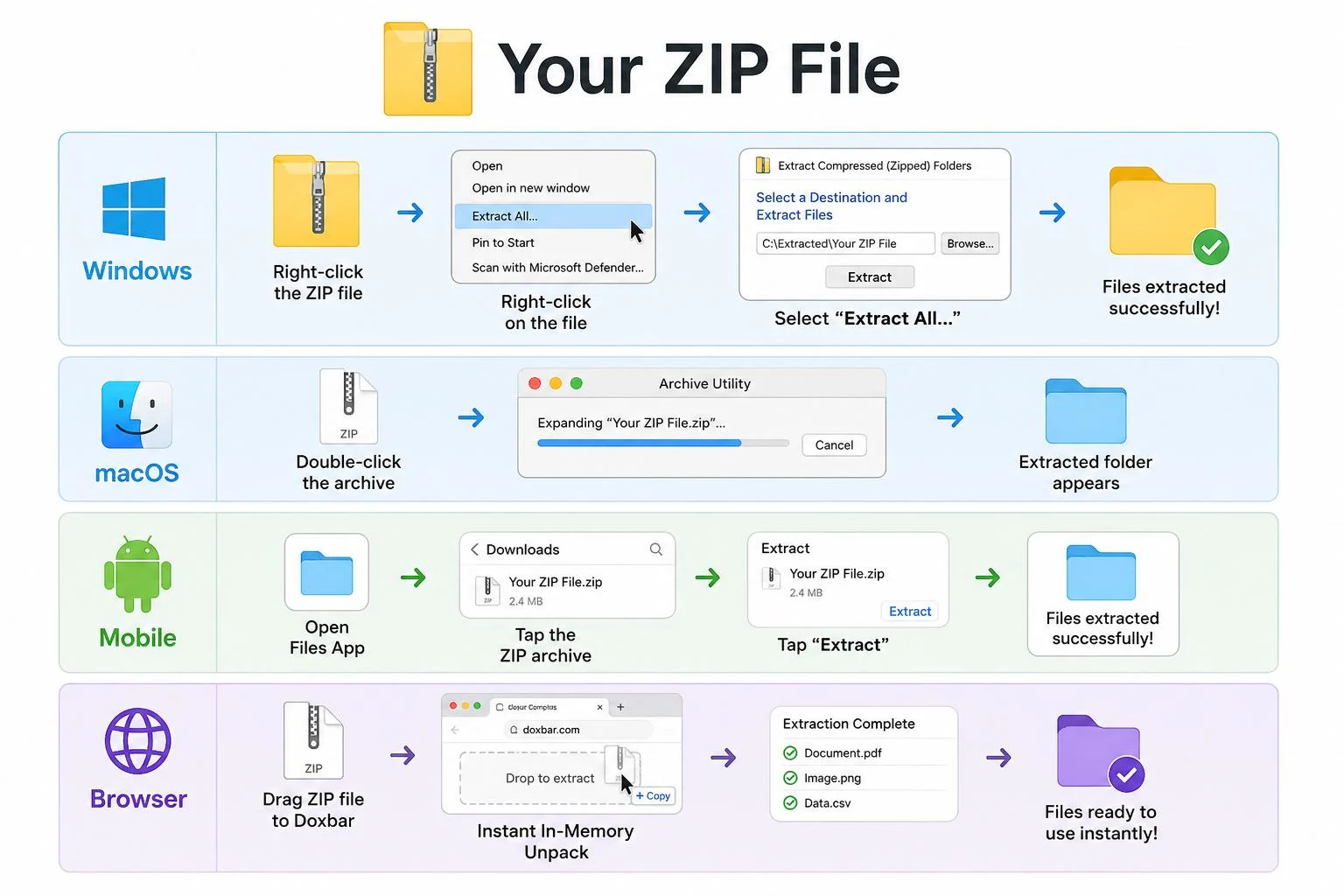
Windows 11 / 10: Right-click the .zip file → Select Extract All... → Choose destination path → Click Extract.
macOS: Double-click the .zip file. macOS Archive Utility automatically unzips it into the current folder.
Android: Open Files by Google → Tap the compressed file → Tap Extract → Tap Done.
iPhone / iPad (iOS): Open the Files app → Locate the archive → Single-tap the .zip file to unpack.
Online (Any Browser): Drag and drop your archive into Doxbar File Converter to preview and extract individual files without installation.
Key Takeaways
No Software Required: Modern operating systems and browser-native engines can unpack .zip, .tar.gz, and .7z formats without third-party installations.
Client-Side Privacy: In-browser tools that run WebAssembly to decompress files entirely in your local RAM, keeping business data private.
Zip64 Standard: Standard ZIP files cap out at 4 GB. Larger archives utilize Zip64 extensions to handle exabytes of data.
The Friday Afternoon File Dilemma
It is 4:45 PM on a Friday. You are attempting to wrap up a client proposal or submit a tight university assignment. A colleague emails you a compressed package containing critical assets, invoices, and PDFs.
You open your downloads folder, double-click the archive, and... an error message halts your workflow: "Compressed (zipped) Folder is Invalid" or "Path Too Long."
File extraction issues pop up at the worst possible moments. According to industry data on software usability, improper file handling and path-length mismatches account for nearly 15% of desk-side IT support requests in mid-sized enterprises.
When deadline pressure hits, struggling with corrupted headers or installing administrative desktop utilities gets exhausting. That is why having a streamlined browser toolkit like Doxbar helps—you can convert, inspect, and open ZIP files instantly on any device without installing heavy software.
If your workflow involves post-extraction tasks like merging PDFs or converting documents, explore our tools:
Need to assemble the extracted documents into one file? Use our Merge PDF Tool.
Working with extracted vector graphics or scans? Convert them with our PDF to JPG Tool.
Need to compress large unzipped reports? Try our Compress PDF Tool.
Step-by-Step Guide: How to Extract ZIP Files
Follow this universal workflow to unpack compressed archives safely across any device:
Locate the Compressed Archive: Find the .zip file in your system's download directory or local file picker.
Select Extraction Method: Choose your OS utility or drag the archive into an in-browser extraction tool.
Inspect the Central Directory: Preview individual items, file sizes, and folder trees before unzipping everything.
Choose Destination Folder: Set a short file path (e.g., C:\Work\) to prevent Windows path-length issues.
Extract & Verify Integrity: Click Extract, then verify that the decompressed files match their expected file size.
Why ZIP Files Fail: Common Extraction Bottlenecks
A ZIP archive acts as a digital container. It bundles multiple files into a single compressed wrapper. If any section of that wrapper gets corrupted, standard extraction tools reject the whole package.
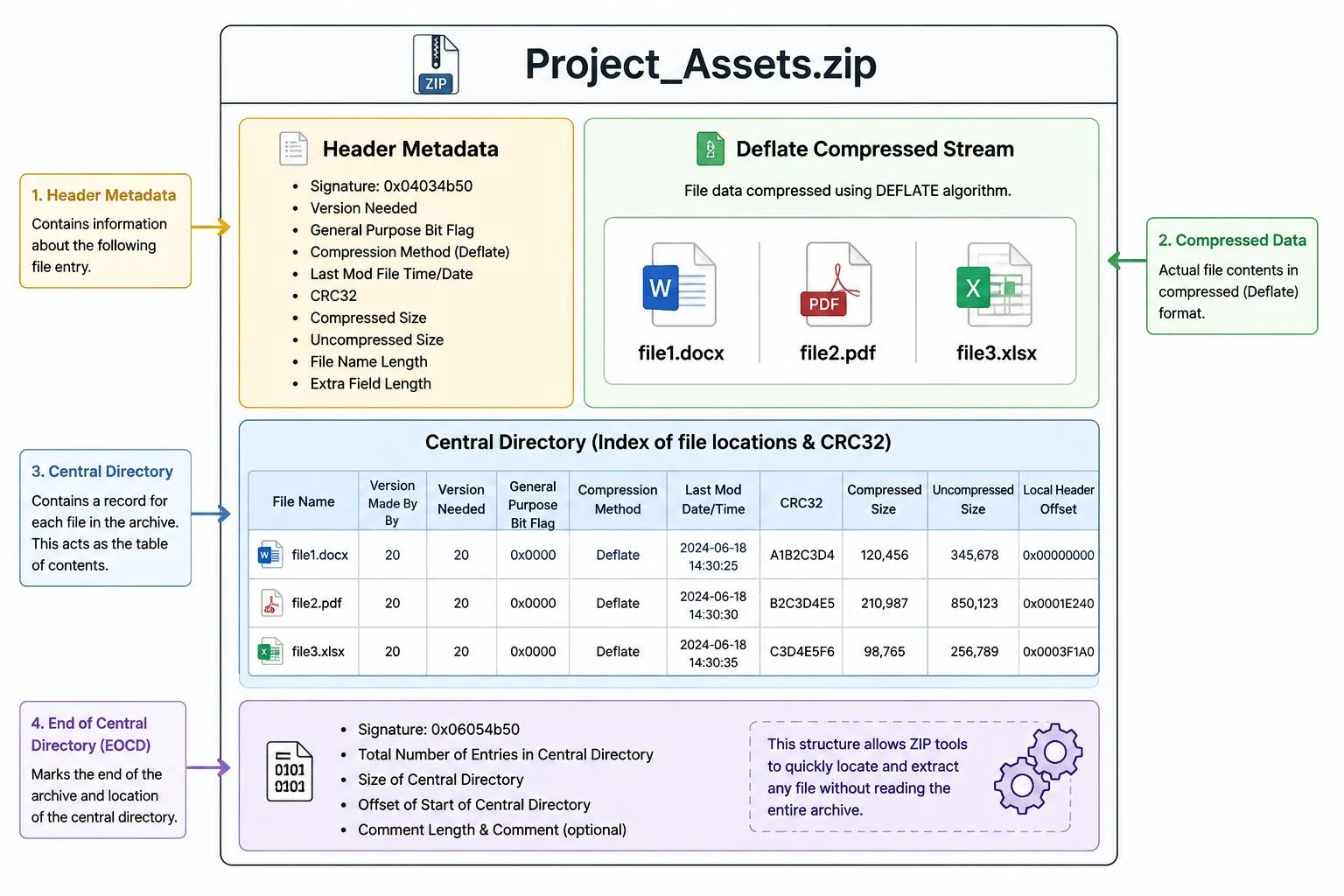
Here are the main technical reasons why extraction attempts fail:
1. Incomplete Downloads & Truncated Directories
If Wi-Fi drops for a fraction of a second during a 500 MB download, the archive's Central Directory (located at the very end of the file structure) may not download completely. Without this index, native tools like Windows Explorer cannot map where individual files begin and end.
2. Path Length Restrictions (MAX_PATH)
Windows natively enforces a maximum path length limit of 260 characters (MAX_PATH). If your archive contains nested folders like (Projects/2026/Q2/Marketing/Assets/Final/Design_Version_3.pdf), unzipping it into a deep subfolder triggers an extraction error.
3. Encoding Mismatches & Codecs
Creating an archive on macOS using UTF-8 character encoding can cause filenames with special characters to break when unzipped on older Windows setups using legacy ANSI code pages.
4. Password Protection & AES-256 Encryption
If an archive was encrypted with AES-256, basic built-in extractors on older operating systems may display a generic "File Corrupted" error instead of prompting for a password.
Educational Deep Dive: Compression Algorithms & Headers
To understand why files fail during decompression, it helps to look at the engineering history behind archiving formats.
Uncompressed Input: AAAAAAABBBCCDD -> (14 bytes) Dictionary Output: A7B3C2D2 -> (8 bytes)
The ZIP format was created in 1989 by Phil Katz as an open specification for his PKZIP utility, replacing the older ARC format. Detailed historical specifications are maintained directly by PKWARE Technical Documentation.
The Mechanics of Compression
Modern unzipping relies on reversing two primary algorithms:
LZ77 / LZ78: Replaces repeating bytes with pointers to previous occurrences.
Huffman coding assigns shorter binary codes to frequently occurring symbols.
Combined, these algorithms form DEFLATE, the foundational standard behind ZIP, GZIP, and PNG files. For broader technical context on open standards, consult the Mozilla Developer Network (MDN).
The Header Structure and Magic Bytes
Every valid ZIP archive begins with specific "magic bytes" in its file header Hex Signature: 50 4B 03 04 --> ASCII Representation: PK\x03\x04
These bytes signal to the operating system that the file is an active archive. The header also records a CRC32 (Cyclic Redundancy Check) checksum. During unzipping, the extractor recalculates this checksum. If the calculated value doesn't match the header value, your system halts extraction to prevent writing corrupted data to disk.
Archive Formats Compared: ZIP vs RAR vs 7Z vs TAR.GZ
Format | Developer / Origin | Compression Ratio | Native OS Support | Encryption Standard | Primary Use Case |
.ZIP | Phil Katz (PKWARE) | Moderate | Windows, Mac, Mobile | AES-256 / ZipCrypto | Universal file sharing |
.RAR | Eugene Roshal | High | Requires third-party tools | AES-256 | Large multipart archives |
.7Z | Igor Pavlov (7-Zip) | Very High | Requires third-party tools | AES-256 | Maximum file compression |
.TAR.GZ | GNU / Unix community | High (Solid) | Linux, macOS, WSL | External / OpenSSL | Linux software distribution |
Common ZIP Extraction Mistakes to Avoid
Avoid these frequent mistakes when opening compressed folders:
Running Software Directly From Inside the ZIP: Double-clicking an .exe or editing a Word document directly inside an unextracted folder creates temporary files in cache directories. Changes are often lost once the window closes.
Unpacking to Deep Folders: Extracting deep folder trees into nested system directories triggers Windows path-length errors. Extract to short paths like C:\Unpacked\.
Ignoring Disk Space Requirements: Compression reduces file sizes. Unpacking a 2 GB archive containing raw media can rapidly expand to 10 GB or more on your hard drive.
Opening Archives From Unknown Senders: Archives can disguise malicious scripts. Inspect archive contents before executing unzipped files, and refer to safety protocols on the Cloudflare Security Center.
The Modern Browser-Based Solution Framework
For years, fixing broken or stuck archives meant downloading heavy desktop applications like WinZip or 7-Zip. However, installing software on corporate laptops often requires IT admin credentials.
Traditional Desktop Workflow: Download ZIP -> Request IT Admin Approval -> Install Utility -> Local Disk Write Modern Web Workflow: Drag ZIP to Browser -> WebAssembly Processing -> In-Memory Extraction
Modern web-based extraction workflows run client-side using WebAssembly and JavaScript APIs. This approach provides several key benefits:
In-Memory Decompression: Operates inside your browser sandbox, eliminating local disk I/O bottlenecks.
Immunity to Path Limits: Operating in memory avoids OS-specific path length restrictions (MAX_PATH).
Zero Software Footprint: Works on Chromebooks, locked-down office PCs, and mobile devices without installation.
Mid-Article Resource Spotlight
If your extracted archive contains documents that require quick format adjustments or consolidation, Doxbar's browser-native engines make editing simple:
Convert Word documents smoothly via Word to PDF Converter.
Clean up unzipped spreadsheets using our Excel to PDF Converter.
Pros & Cons of Online In-Browser Unzipping
Pros
No Admin Password Required: Skip software installation requests on corporate devices.
Cross-Platform Parity: Works identically across ChromeOS, macOS, Windows, iOS, and Android.
Selective Unzipping: Extract a single 2 MB file out of a 1 GB archive without expanding the full folder.
High Privacy: Client-side WebAssembly execution keeps data inside local RAM without uploading files to remote servers.
Cons
Browser RAM Limits: Archives over 4 GB may stall if your browser tab runs low on available RAM.
Multi-Volume Archives: Split archives (.z01, .z02) still require dedicated desktop managers to reassemble.
Advanced FAQs
1. How do I extract a ZIP file on Windows 11 without software?
Right-click the .zip archive in File Explorer, select Extract All..., choose your target location, and click Extract.
2. How do I unzip files on a Mac?
Double-click the compressed archive. macOS's built-in Archive Utility will automatically expand the contents into the same directory.
3. What causes the "Compressed (zipped) Folder is Invalid" error?
This error typically stems from an incomplete file download, network interruptions, or a damaged central directory in the archive header.
4. How can I open password-protected ZIP files?
When you initiate extraction, your operating system or web tool will prompt you for the password. Enter the correct decryption passkey to unpack the payload.
5. Can I extract ZIP files on my iPhone or iPad?
Yes. Open the native Files app, locate the .zip file, and tap it once. iOS will instantly create an uncompressed folder alongside the archive.
6. What is the difference between unzipping and extracting?
There is no difference. Both terms describe decompressing archived data back into its original file state.
7. What are the "magic bytes" of a ZIP file?
ZIP files begin with the four-byte sequence 50 4B 03 04 in hexadecimal, which translates to the ASCII letters PK (after creator Phil Katz).
8. What is the Zip64 format extension?
Standard ZIP formats cap file size at 4 GB. The Zip64 extension updates header fields to 64-bit lengths, enabling archives to handle up to 16 exabytes of data.
9. Why does my extracted folder take up way more space than the ZIP file?
ZIP archives use lossless mathematical reduction. Text files, spreadsheets, and uncompressed code expand back to their full size once uncompressed.
10. How do I open a .tar.gz file on Windows?
You can unpack .tar.gz files using PowerShell commands (tar -zxvf archive.tar.gz), third-party tools, or directly inside an in-browser extraction tool.
Trust, Security, and Practical Data Hygiene
When opening archives from external sources, following simple data hygiene principles keeps your system safe:
[ Incoming Archive ] -> [ Check Magic Bytes ] -> [ Verify File Extensions ] -> [ Safe Local Extract ]
Verify Hidden Extensions: Ensure Windows displays full extensions so malicious files like Document.pdf.exe aren't mistaken for safe documents.
Scan Encrypted Archives: Encrypted archives bypass network email scanners. Always inspect contents before running unzipped scripts.
Keep Browsers Updated: Maintain updated versions of Chrome, Safari, or Edge to ensure WebAssembly memory security patches are current.
To learn more about file security and privacy standards, review guidelines from the Microsoft Security Documentation and Apple Support.
Conclusion
Running into a stubborn archive doesn't need to slow down your day. Whether you are dealing with deep path limits on Windows, working on a Chromebook, or needing to pull a single document on your phone, modern browser tools make extracting ZIP files simple.
Skip unnecessary desktop installations. Drop your file into an in-browser extractor like Doxbar, grab the documents you need, and keep your project moving forward.
Need to Convert Document Formats?
Try our secure, lightning-fast PDF conversion suite. Convert Word, Excel, Images, and more with zero formatting loss.

Doxbar Editorial
Security & Privacy Team
We specialize in secure document architectures, parsing engines, and modern developer utilities. Keeping your files safe, lightweight, and perfectly formatted.
Join the Conversation
Share your thoughts or ask a question about this topic. This is a privacy-first system.