

Forgot Your PDF Password? Here’s What You Can (and Can’t) Do
Contents
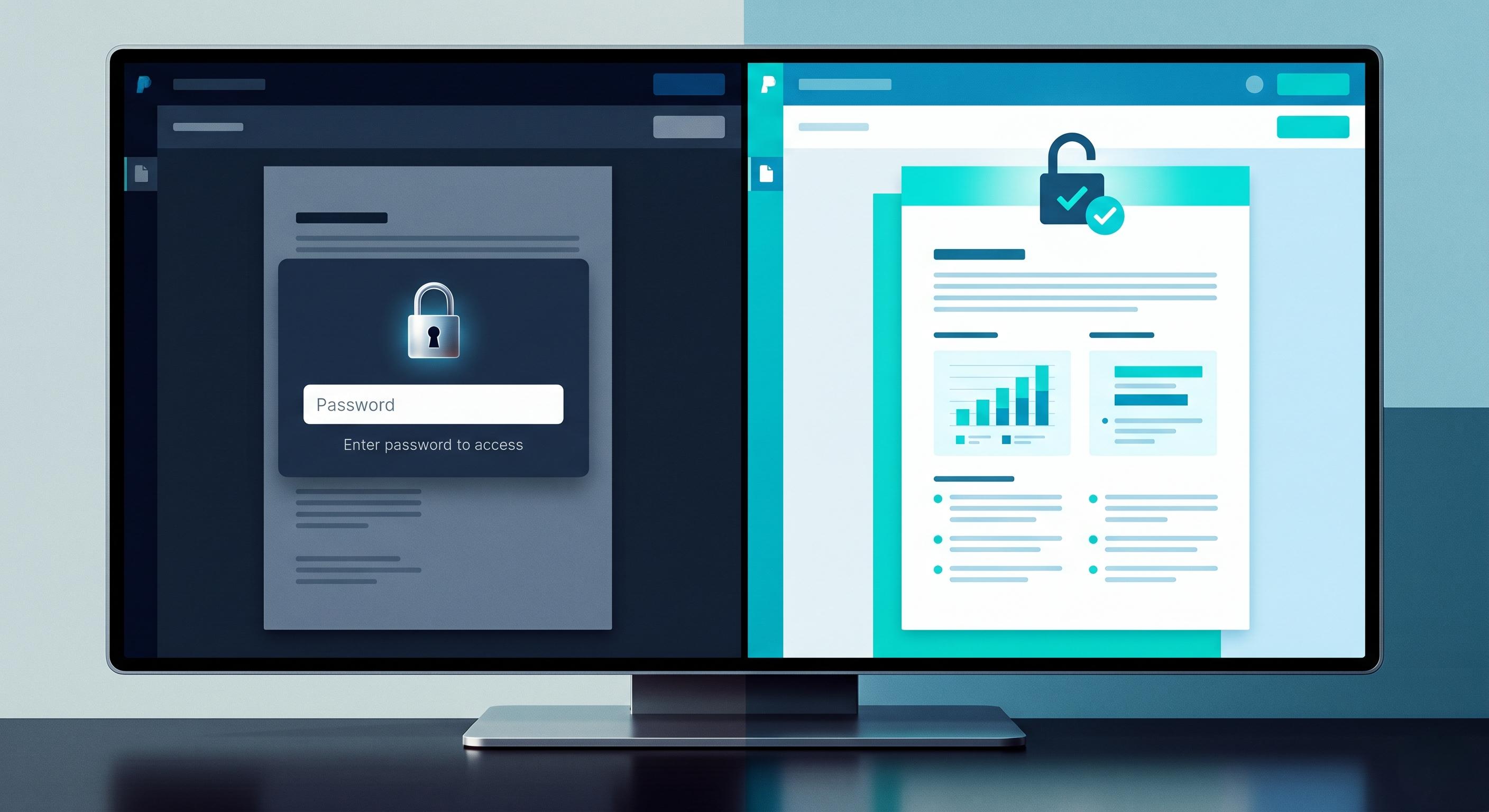
Forgot Your PDF Password? Here’s What You Can (and Can’t) Do

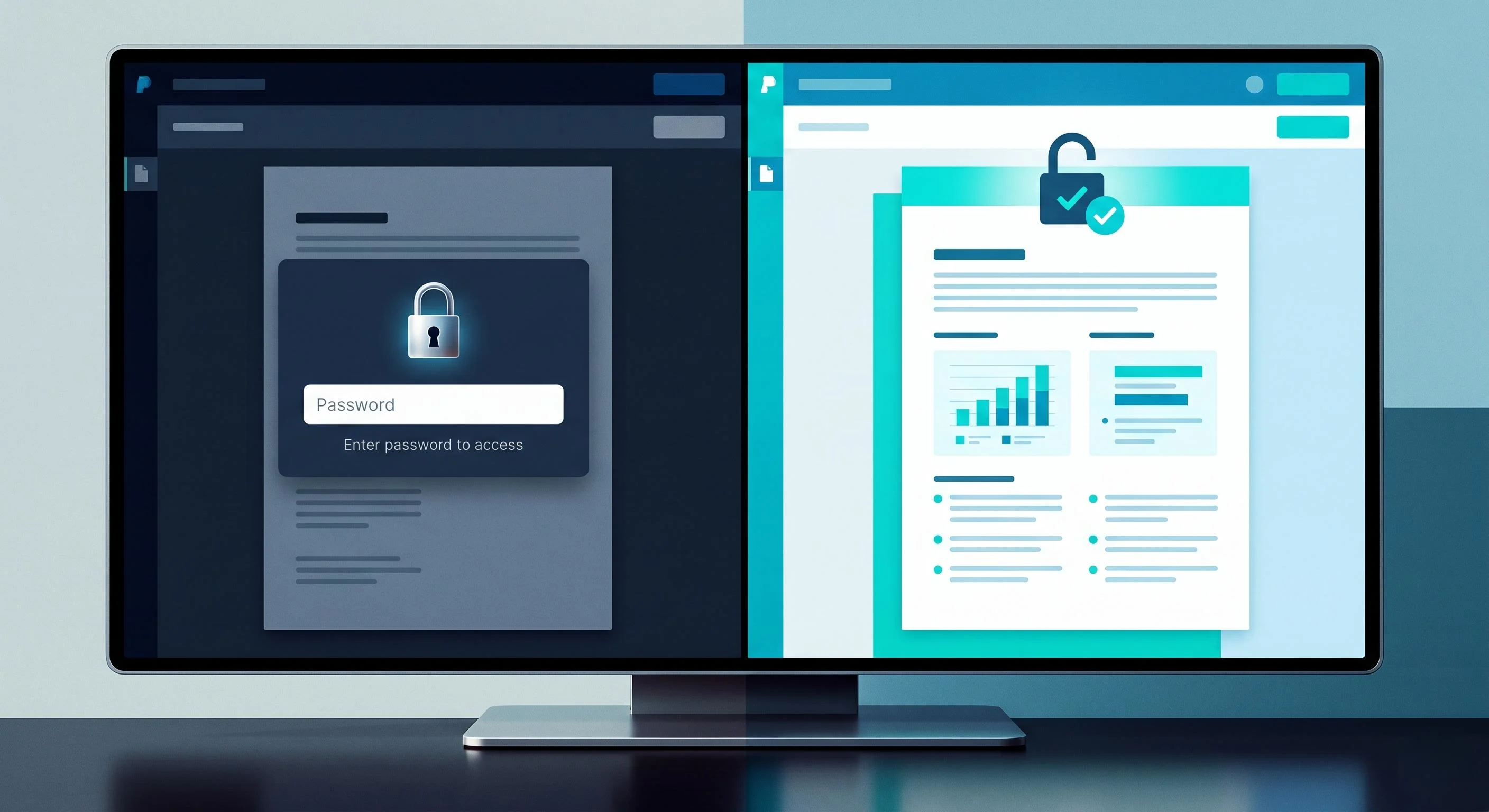

Table of Contents▼
Forgot your PDF password? Learn how to unlock PDFs, recover lost access, and safely remove document restrictions using secure modern workflows.
The Panic of the Locked Document
It usually happens when you are right up against a deadline. You find the exact contract, tax form, or design brief you need, double-click it, and a stark dialog box pops up demanding a password. You try your current go-to phrases. You try your old corporate combinations. Nothing works.
Losing access to a critical PDF is a frustratingly common roadblock. Whether a client locked a freelance brief before sending it or you simply forgot the encryption key you set on your own financial archives three years ago, you are suddenly locked out of your own workflow.
While the situation feels urgent, fixing it requires a mix of patience and the right digital tools. Depending on how the file was secured, you might be able to restore access in seconds using a web-based tool like Doxbar, or you might need to hunt down the original creator. Let's look closely at how document security actually operates under the hood and explore your practical options for regaining access.
Understanding the Obstacle: The Two Types of PDF Passwords
Not all PDF locks are created equal. Before trying to clear a password, you need to identify which type of digital lock you are facing. Adobe’s core formatting standard defines two distinct layers of security:
1. The User Password (Open Password)
This is the front door. If a PDF requires a user password, you cannot view the content at all without typing it in. The entire file structure is encrypted. Without the key, the document remains a scrambled mess of data that your computer cannot render.
2. The Owner Password (Permissions Password)
This is the velvet rope inside the room. You can open and read the document perfectly fine, but certain actions are greyed out.
Common restrictions include:
Printing the document (or limiting printing to low-resolution)
Copying text or extracting images
Modifying content or adding annotations
Filling out form fields
If you can read the file but cannot print or edit it, you are dealing with a permissions password rather than a document open password.
Why PDF Encryption Behaves Differently From Other Files
If you forget a password to your email or a SaaS dashboard, you simply click a "Forgot Password" link. An automated server verifies your identity and resets the lock.
PDFs do not work that way. A PDF is an autonomous container. According to the official PDF specifications hosted by the ISO, the security data lives inside the file itself. There is no central database or customer support hotline for a generic PDF.
The Encryption Dilemma
When you lock a document, software applies cryptographic algorithms (such as AES-128 or AES-256) to scramble the data. Modern operating systems from Apple and Microsoft natively respect these cryptographic flags. If a file uses heavy 256-bit encryption, guessing the password via automated brute force can take years of computing power.
However, many files rely on older, weaker security standards or only utilize permission flags rather than full-scale data encryption. That is where modern conversion and unlocking tools find their opening.
Real-World Approaches to Unlock PDF
If you find yourself stuck outside a crucial file, work through these recovery strategies systematically.
Strategy 1: Check for Local System Backups
Before looking for external utilities, check your automated system histories. If you are on a Mac, browse through your Time Machine snapshots to see if an unencrypted version of the document exists from an earlier date. Windows users should look into File History or check cloud syncing platforms like Dropbox or Notion to see if an older, unprotected version was saved in the cloud before the security policy was applied.
Strategy 2: The Print-to-PDF Loophole (For Permissions Only)
If your document opens fine but restricts editing or copying, you can sometimes bypass the restriction using your web browser.
Right-click the PDF file and choose Open With, then select Google Chrome or Mozilla Firefox.
Click the Print icon inside the browser interface.
Switch your destination printer to Save as PDF or Microsoft Print to PDF.
Save the new file to your desktop.
Note: This strategy only works if the original creator forgot to restrict printing privileges. If printing is blocked, the browser will disable the print button entirely.
Strategy 3: Leverage a Modern Online Unlocking Utility
When you face a file with a permissions lock that blocks printing, an online processing engine is often the most efficient route. Modern cloud platforms process the file architecture instantly, stripping out structural permission flags without modifying your text or layouts.
For files protected by user/open passwords, tools can instantly clear the lock if the password used was short or relied on older encryption standards. If you use a lightweight web application like Doxbar, the system safely processes the document via your web browser, giving you back an unrestricted, fully open copy within seconds.
How Digital Unlocking Tools Work Under the Hood
To understand why some files unlock instantly while others take work, it helps to understand how web-based file engines analyze a document.
Step 1: Document Analysis
The tool scans the PDF metadata and encryption settings to understand how the file is protected.
Step 2: Lock Detection
At this stage, the system identifies whether the PDF uses:
Permission (Owner) Restrictions
– limits actions such as printing, copying, or editing.
Open Password Protection
– requires a password before the file can be viewed.
Step 3: Processing Strategy
For permission-restricted PDFs, the tool can often remove usage restrictions directly, allowing immediate access to editing and copying features.
For password-protected PDFs, additional cryptographic analysis may be required. The system evaluates the encryption method and attempts to process the file accordingly.
Step 4: Result Generation
Once processing is complete, the tool either:
Generates an unlocked version of the document, or
Reports that the file could not be processed successfully.
When you drop a file into a conversion engine, the platform reads the file's metadata headers. If it detects a standard owner restriction password, the tool bypasses the visual interface block and rebuilds the PDF structure without the restrictive code blocks.
However, if it encounters a file encrypted with true AES-256 system parameters, the algorithm must verify if the key can be bypassed using known cryptographic structural vulnerabilities. If the file uses highly secure, modernized open passwords, true decryption without the key becomes mathematically impossible without brute-force computation.
Legacy Software vs. Modern Web Workflows
Historically, if you wanted to alter or unlock a PDF document, you had to install massive desktop suites or buy complex, single-purpose decoding utilities. Today, modern workflows have largely migrated to secure browser environments.
Feature / Capability | Legacy Desktop Apps | Modern Cloud Tools (e.g., Doxbar) |
Installation Required | Yes (Large disk footprint) | No (Runs directly in browser) |
Cross-Platform Support | Often locked to Windows or macOS | Works on iOS, Android, Linux, ChromeOS |
Processing Speed | Dependent on local CPU power | Handled instantly by cloud servers |
Cost Structure | High upfront software licenses | Free options / affordable usage |
Interface Complexity | Multi-tiered technical menus | Drag-and-drop simplicity |
Step-by-Step: How to Use Doxbar to Unlock Your PDF
If you need to quickly remove permissions restrictions or clear an open password from a file, the process on Doxbar is built to be fast and uncomplicated.
Step 1: Upload Your Document
Navigate to the Unlock PDF tool on Doxbar. Drag your locked file from your desktop file manager and drop it into the designated upload box. You can also tap the box to select files from your mobile camera roll or local storage.
Step 2: Confirm Ownership Rights
Because security and ethics matter, ensure you have the right to access the content. The platform operates under the assumption that you are the rightful owner or have received explicit permission from the creator to modify the document.
Step 3: Let the Engine Process
Click the Unlock button. Doxbar’s processing engine analyzes the PDF’s structural constraints. For permissions locks, the tool deletes the restriction flags entirely in a few moments.
Step 4: Download Your Ready-to-Use File
Once the processing cycle completes, hit the Download button to save the fresh, unencrypted PDF directly to your device.
Step 5: Verify Your Document Layout
Open your newly downloaded file in any PDF viewer or browser. Try copying a line of text or sending it to your local printer to verify that all functional restrictions are officially gone.
The Limitations: When a PDF Simply Cannot Be Unlocked
We believe in setting realistic expectations. There are scenarios where no online utility or technical trick will open a file.
High-Grade Industrial Encryption: If a data security team locked a corporate asset using a 20-character, randomized alphanumeric password combined with modern AES-256-bit encryption, it cannot be hacked open instantly.
Corrupted File Architectures: Sometimes, a file isn't just locked; it's broken. If a file download gets interrupted halfway through, the structural integrity breaks down, throwing errors that mimic password locks.
Digital Rights Management (DRM) Systems: Files secured by corporate identity servers (like Adobe Experience Manager) require active network authentication. These files continuously check an external server to see if your specific user account has viewing rights.
If you run into these enterprise-grade brick walls, your best course of action is to go back to the source. Reach out to the person who built the document and request an unprotected copy.
Advanced FAQ Section
Can I unlock a PDF on my iPhone or Android device?
Yes. Because modern platforms run inside web browsers, you can use Safari or Chrome on your mobile device to upload a file, clear restrictions, and save the updated document directly to your device storage without installing apps from the app store.
What is the difference between a user password and an owner password?
A user password prevents anyone from opening or viewing the contents of the PDF without entering the key. An owner password allows people to open and read the document, but restricts actions like printing, editing, or copying text.
Will unlocking a PDF degrade the visual quality of my images?
No. Tools like Doxbar modify the security permissions metadata block within the file container. The underlying text layers, vector shapes, and image assets remain untouched and preserve their original resolutions.
Is it legal to remove a password from a PDF file?
It depends entirely on your ownership rights and jurisdiction. Removing security settings from your own files, lost personal archives, or documents you have been authorized to edit is entirely legal. Modifying or accessing copyright-protected materials or proprietary intellectual property without consent may violate user agreements or local laws.
Why do some PDFs ask for a password even though I never set one?
This usually occurs when a document contains a corrupted metadata header, or if the document was generated automatically by an enterprise system (like a banking application) that sets default security profiles based on your account details or tax ID numbers.
Can Google Drive help me bypass a PDF password?
If a file has an owner/permissions restriction, uploading it to Google Drive and converting it into a Google Doc can sometimes bypass the text-copying restriction. However, this often scrambles complex layouts, tables, and custom fonts.
How long does it take to unlock a file online?
For standard permission removals, the processing cycle takes just a few seconds. The actual time is mostly dictated by how fast your internet connection uploads and downloads the file.
Can Adobe Acrobat Reader remove a password?
The free version of Adobe Acrobat Reader can open secured documents if you know the password, but it does not have the tools to alter security policies or clear forgotten passwords. Those tools require a paid Acrobat Pro subscription and knowledge of the existing password.
What should I do if my PDF password is too strong to crack?
Your most effective option is to locate the original author or administrator who generated the file and ask them to export an unsecured copy. If it's an internal corporate file, your IT department may have backup keys or original source templates.
Does Doxbar keep a copy of my unlocked documents?
No. Security and user privacy are foundational. Uploaded documents are processed automatically through secure pipelines and permanently wiped from the processing nodes shortly after completion to ensure your sensitive business data stays completely confidential.
Can I batch-unlock multiple PDFs simultaneously?
Yes, modern web platforms often support bulk processing arrays, allowing you to queue up multiple restricted files at once to streamline your administrative workflows.
Will unlocking a PDF remove digital signatures?
Yes. If a document has been digitally signed for legal validation, clearing or changing security structures will invalidate the digital certificate footprint. This is an intentional security feature designed to prevent people from modifying signed agreements.
Why can't I edit text in my PDF even after removing the password?
If the password was removed but you still cannot modify the text, the document might be an unoptimized image scan. You will need to process the file through an Optical Character Recognition (OCR) engine to transform the visual shapes into editable text elements.
Is it safe to enter sensitive financial PDFs into online unlockers?
You should only trust platforms that use encrypted HTTPS connections, explicit data deletion policies, and automated processing environments where human employees never view your file payloads.
What encryption standards are hardest to bypass?
AES (Advanced Encryption Standard) with 128-bit or 256-bit key structures, combined with randomized, long passwords, cannot be bypassed by standard recovery tools. Older RC4 40-bit encryption models are much easier to open.
Why does my browser block certain PDF downloads after unlocking?
Some local browser security extensions flag modified files out of an abundance of caution. If you are using an established web converter, you can safely override the warning and download your file.
Can a password-protected PDF contain malware?
Like any file wrapper, a PDF can house malicious scripts. However, password security structures themselves do not generate malware. Running your documents through an online sandbox can actually isolate risks before the files touch your local hard drive.
Can I set a new, simpler password after removing an old one?
Yes. Once you clear out the problematic restrictions using an online utility, you can use optimization tools to apply a new, clean password that fits your current operational needs.
How do I find out what level of encryption my PDF is using?
Open the file in a browser or a reader tool and check the properties or file info menu. Under the Security tab, you will find information detailing the specific encryption standard (e.g., "AES-256") and the active list of allowed actions.
Technical Security & Practical Expectations
When looking for an answer online, it is easy to run into sketchy downloadable programs promising magic results. Real digital security relies on clear math. Tools can cleanly wipe out permissions restrictions because those locks rely on software compliance rather than data scrambling. True user-open locks require actual decryption.
Platforms like Doxbar prioritize transparency. If a document uses simple permission constraints, the utility clears them instantly. If you run into a file wrapped in enterprise-grade security protocols, the tool will let you know clearly rather than trapping you in endless processing loops.
Conclusion: Take Back Your Workflow
Losing track of a PDF password slows down your workday, but it doesn't have to ruin your afternoon. By identifying whether your file is facing an open-access lock or an administrative permissions block, you can apply the right fix and keep moving forward.
If you have a document that is currently blocking you from copying text, printing a page, or making a quick edit, skip the complex software installations. Head over to the Doxbar Unlock PDF tool, upload your document, and clear those restrictions in just a few clicks.
Need to Convert Document Formats?
Try our secure, lightning-fast PDF conversion suite. Convert Word, Excel, Images, and more with zero formatting loss.

Doxbar Editorial
Security & Privacy Team
We specialize in secure document architectures, parsing engines, and modern developer utilities. Keeping your files safe, lightweight, and perfectly formatted.
Join the Conversation
Share your thoughts or ask a question about this topic. This is a privacy-first system.