

HEIC to PDF: What Nobody Tells You About Converting iPhone Photos for Real Submissions
Contents
HEIC to PDF: What Nobody Tells You About Converting iPhone Photos for Real Submissions

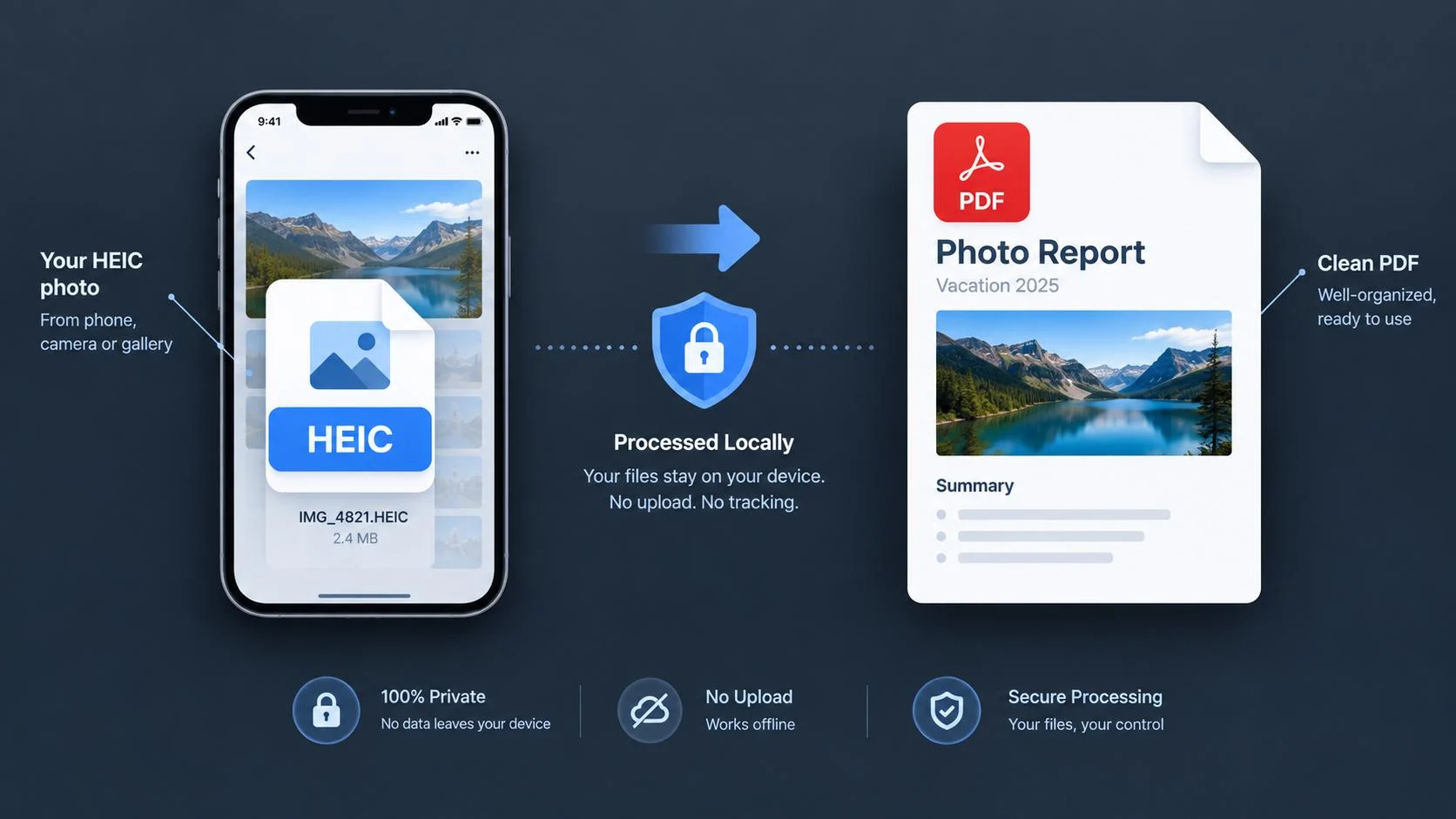

Table of Contents▼
Tried converting HEIC to PDF and ended up with sideways pages or a rejected upload? Here's what actually works, based on real testing with real documents.
Quick Answer:
“To convert HEIC photos into a submission-ready PDF, choose a method that supports HEIC decoding, preserves the image orientation, and lets you check the final page before uploading it. On iPhone, you can create a PDF using the built-in Print workflow. On Mac, Preview can export HEIC images as PDF. Windows users may need HEIF support or a compatible browser-based converter.
The Photo That Looked Perfect But Wouldn't Upload
A few weeks ago, someone on our support team watched a friend try to submit a rental application. She had photographed her ID, her payslip, and a signed form—all with her iPhone, and all in good lighting. The photos were sharp, and you could read every single word.
Yet, the portal rejected all three files with a generic error: "Unsupported format."
She spent the next forty minutes bouncing between online converter tools. Most were stuffed with intrusive pop-ups, and a few required her to create an account just to download her own document. To make matters worse, one converter flipped her ID sideways, while another turned a 2 MB photo into a massive 8 MB PDF—which the portal then rejected for exceeding the file size limit.
She eventually completed the submission, but the process was unnecessarily painful—and completely avoidable.
This article isn't just another generic list of tools. It's a clear breakdown of what we learned from hands-on testing, analyzing user support threads, and understanding why HEIC files cause so much friction in real-world submissions.
The Real Reason Your iPhone Photos Get Rejected
Apple didn't make a mistake when they switched to HEIC; they made a conscious trade-off.
HEIC (High Efficiency Image Container) stores photos at roughly half the size of a JPEG while maintaining better color depth. For your phone's internal storage, that's a huge win. Apple adopted it starting with iOS 11 and never looked back.
The problem arises when those files leave your phone.
Here’s the detail most guides gloss over: Windows PCs don't just struggle to open HEIC files natively. The entire document submission infrastructure—government portals, university platforms, insurance systems, and HR onboarding tools—was built around PDFs and JPEGs. These systems don't just prefer those formats; many literally cannot process anything else.
The technical reason is straightforward. Most automated upload systems inspect a file's internal signature (magic bytes) to verify its type, rather than relying solely on the file extension. Because HEIC uses a completely different container structure, the portal fails to recognize it and rejects the file—often without providing a clear error message.
You are left with a file that looks perfect on your iPhone, but is unreadable to almost every external system.
That is where converting to PDF bridges the gap.
What Actually Happens During Conversion (And Where It Goes Wrong)
To see how converters perform, we processed the exact same receipt photo—a 1.8 MB HEIC file containing small text and a barcode—through six different tools. The results varied significantly:
Converter Type | Output Size | Orientation | Text Sharpness | Notes |
Browser tool A (Server-side upload) | 2.1 MB | Correct | Slightly soft | Retained GPS metadata |
Browser tool B (Client-side / Local) | 1.4 MB | Correct | Sharp | Stripped metadata |
Desktop software (Windows) | 3.2 MB | Sideways | Sharp | Required extra codec installation |
Mac Preview | 1.6 MB | Correct | Sharp | Clean and native process |
Mobile app (On-device) | 1.3 MB | Correct | Sharp | Fastest on-the-go option |
Legacy web converter | 4.7 MB | Upside down | Blurry | Required 3 pop-ups before downloading |
These differences matter. A sideways ID gets flagged or rejected by human reviewers, a blurry signature can look fraudulent, and a 4.7 MB file might exceed undisclosed upload limits.
This is why "just use any free online converter" is risky advice. The converter you choose directly impacts whether your document is accepted or rejected.
Why Some Converters Rotate Your Photos (And Others Don't)
When you tilt your iPhone to take a photo, the camera sensor doesn't always physically rotate the pixel grid. Instead, it writes an orientation note in the file's EXIF metadata instructing software to "display this image rotated 90 degrees."
Your iPhone and modern image viewers read this tag automatically and display the image right-side up.
However, poorly optimized conversion scripts ignore EXIF metadata entirely. They read the raw pixel data as stored, pack it into a PDF wrapper, and output the file. The result is a portrait document that appears sideways in the final PDF, even though it looked correct on your mobile screen.
This is the single most common complaint regarding HEIC to PDF conversions. A properly built converter reads the EXIF orientation tag first and applies the necessary rotation before generating the PDF page.
Quick Test: Take one photo in portrait and one in landscape mode, convert both, and open the resulting PDF. If either page is oriented incorrectly, switch to a better conversion tool.
The Privacy Question Nobody Asks Until It's Too Late
Most free web-based converters work by uploading your documents to a remote server, processing them, and serving a download link back to you.
Consider the sensitive nature of what you might be uploading: passport copies, medical records, bank statements showing account numbers, or signed legal contracts.
Security research has highlighted instances of questionable converter sites retaining uploaded files indefinitely, harvesting data, or operating insecurely. Even reputable free services may store your files on temporary servers for hours or days under complex privacy terms.
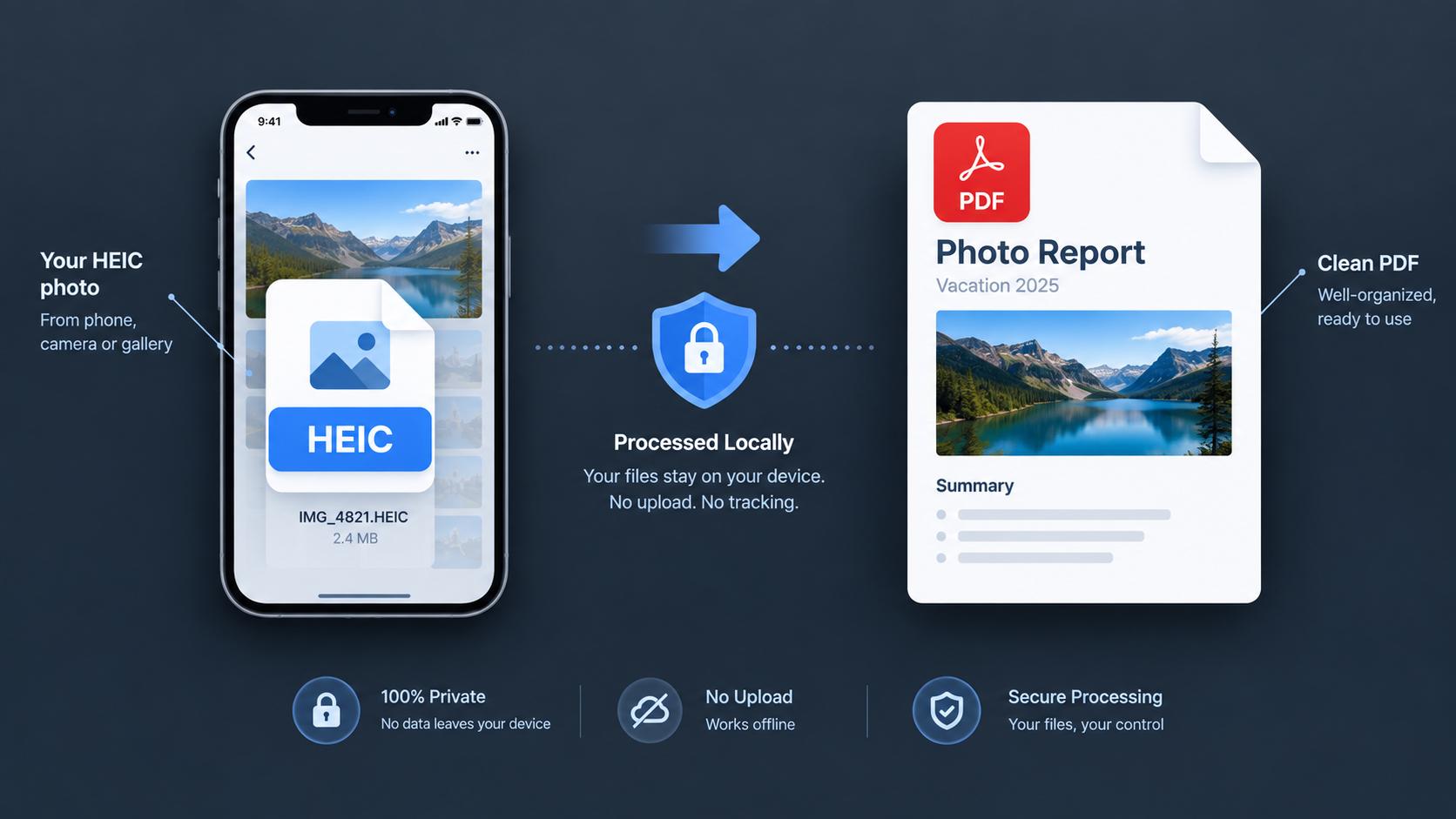
The safest alternative is local processing, where the conversion logic executes entirely on your device, and no data is transmitted across the web. Modern WebAssembly technology allows browsers to run heavy conversion tasks locally. You can verify this by checking your browser's Developer Tools (Network tab)—if no outbound upload request occurs when you click convert, your files remain strictly on your machine.
Practicing basic document hygiene means treating online converters carefully: if you wouldn't email a private document to an unknown party, avoid uploading it to an unverified web server.
Which Method Should You Use?
Select a method based on your operating system, privacy needs, and document volume:
1. Mac Users (Single or Few Files)
Mac’s native Preview application is the cleanest option:
Open the HEIC file in Preview.
Go to File → Export as PDF.
Save your document.
This process is offline, completely private, and requires no additional software. For dozens of files at once, batch processing tools are more efficient.
2. Windows Users (No Native HEIC Support)
Windows users have two main choices:
Native Route: Install the official HEIF Image Extensions from the Microsoft Store, open the image in the Photos app, and choose Print → Microsoft Print to PDF.
Browser-Local Converter: Windows extensions can occasionally fail or conflict with codecs. If troubleshooting becomes frustrating, use a browser-based converter that runs client-side to skip codec issues entirely.
3. iPhone Users (Quick On-Device Conversion)
iOS includes a built-in workflow to save images as PDFs without third-party tools:
Open Photos and select your image(s).
Tap Share → Print.
In the print preview screen, perform a two-finger pinch-out gesture on the image thumbnail.
This opens the image in a full PDF viewer.
Tap Share again and select Save to Files.
While handy for single documents, a dedicated local conversion app or browser tool is faster for multi-page batch submissions.
4. Batch Conversions for Formal Applications
When submitting multi-page documents (like the front and back of a driver's license or a multi-page agreement), browser-based tools offer visual reordering, custom page scaling (A4 or US Letter), and seamless merging into a single file.
Tip: Most submission systems prefer a single, multi-page PDF rather than multiple individual attachments. Always check the application instructions first.
A Step-by-Step Submission Preparation Process
Follow these steps to ensure your converted PDF passes automated and manual checks:
Prepare Before You Convert: Place documents flat under uniform lighting to eliminate hand or phone shadows. Conversion cannot fix low-contrast or blurry source photos.
Choose Your Output Settings: Target 300 DPI for physical printing, or 150 DPI for digital form uploads. Set standard page sizes—A4 for international submissions or US Letter for North American portals.
Convert and Inspect Orientation: Upload or select your files and generate the PDF. Check the preview immediately to ensure no pages are sideways or upside down.
Download and Verify: Open the downloaded PDF and zoom in on signatures, barcodes, and fine print to confirm legibility.
Compress If Needed: If the resulting file exceeds upload size limits, process it through Compress PDF before submitting. Avoid re-converting from the original HEIC repeatedly, as each cycle adds compression degradation.
Retain Original Files: Keep the original HEIC files on your phone until the recipient formally confirms receipt and acceptance of your submission.
When HEIC to PDF Is the Wrong Choice
Converting to PDF isn't always necessary for every scenario:
Casual Sharing: Use standard JPEG format for sending casual photos to non-Apple users; it opens natively on all platforms.
Social Media: Social platforms handle HEIC uploads automatically on backend ingestion—no pre-conversion required.
Editing Requirements: PDFs are intended for distribution and printing, not image editing. Perform all cropping, color adjustments, or markup on the source image before converting to PDF.
Frequently Asked Questions
What is a HEIC file, in plain English?
HEIC (High Efficiency Image Container) is Apple's standard image format for iPhones and iPads. It compresses photos efficiently—taking up about half the space of a JPEG—without sacrificing visual quality.
What does HEIC stand for?
It stands for High Efficiency Image Container. It is based on the HEIF (High Efficiency Image File Format) standard using HEVC encoding.
Why does my iPhone save photos in HEIC by default?
To optimize device storage. You can revert to JPEG by navigating to Settings → Camera → Formats and selecting Most Compatible (note: this only applies to newly captured photos).
How do I convert HEIC to PDF?
You can use Preview on macOS, Microsoft Print to PDF on Windows, built-in iOS sharing features, or privacy-focused browser-based converters.
Can I convert multiple HEIC photos into a single PDF?
Yes. Most dedicated conversion tools allow you to drag, reorder, and merge multiple HEIC photos into one multi-page PDF. If you need to combine separate files later, Merge PDF handles that seamlessly.
How do I convert HEIC to PDF on an iPhone without extra apps?
Select the photo in Photos → Share → Print, pinch out on the print preview thumbnail to view it as a PDF, then tap Share → Save to Files.
Can I convert HEIC to PDF on Windows without installing anything?
Yes. You can use a client-side browser tool to perform the conversion directly within your web browser without installing system codecs.
Does converting HEIC to PDF reduce image quality?
Re-encoding images involves slight compression, but high-quality settings maintain visually identical results.
Why is my converted PDF larger than the original HEIC file?
HEIC uses advanced compression algorithms that PDF readers cannot decode natively. During conversion, images are often re-encoded to standard JPEG streams within the PDF, increasing the overall file size.
How do I prevent my converted PDF from turning sideways?
Use a converter that properly interprets EXIF orientation tags. Always double-check page orientation in a PDF viewer before submitting.
Which page size should I select: A4 or Letter?
Use US Letter for submissions in the United States and Canada. Use A4 for international applications or standard global submissions.
Can a PDF created from a HEIC photo contain searchable text?
No. Converting a photo to PDF simply wraps the image inside a PDF page. Making the text selectable or searchable requires running OCR. If you need to extract text from a scanned document, PDF to Text or OCR PDF to Word can help.
Does HEIC to PDF conversion perform OCR automatically?
Rarely. Some tools include OCR, but it is typically offered as a separate feature or paid upgrade.
What happens to GPS metadata when HEIC is converted to PDF?
Most standard converters strip sensitive EXIF data (such as location coordinates and camera settings) during PDF generation to protect privacy.
Does HEIC to PDF preserve EXIF data?
Usually not completely. While orientation tags are baked into the pixel grid, dates, hardware specs, and location tags are often removed.
Should I use HEIC, JPG, or PDF for sharing photos?
HEIC for local storage on your iPhone, JPEG for casual sharing across devices, and PDF for formal document submissions or printing.
Is PDF better than HEIC for printing?
Yes. PDF is universally supported across commercial printing services and home printers.
Should I convert HEIC to PDF before submitting a document?
Yes, especially if the application specifies PDF format. It prevents unexpected format rejection errors.
Are online HEIC to PDF converters safe?
Not all of them. Server-side converters process your files on external systems, which carries potential privacy risks for confidential documents. Choose tools that execute conversions locally in your browser.
Can I edit a PDF after converting it from HEIC?
You can manipulate pages (rotate, reorder, delete), but you cannot edit the underlying image content directly.
What is the best free HEIC to PDF converter?
There is no universal single tool; it depends on your platform and volume. Browser-based tools that execute locally offer the best balance of speed and privacy.
Will HEIC ever become universally supported everywhere?
While adoption has improved, legacy software and enterprise submission portals continue to rely strictly on PDF and JPEG formats for stability and security.
Can I convert HEIC to PDF without installing software?
Yes. Browser-based converters handle this without installation, as long as they support HEIC decoding.
Why does my converted PDF look blurry?
The original photo may have been low resolution, or the converter applied aggressive image compression.
Can I password-protect a PDF converted from HEIC?
Yes, but you will need a separate PDF security tool, as basic HEIC-to-PDF converters rarely include encryption features.
What page size should I use for document submission?
Check the recipient's guidelines. If unspecified, A4 is standard internationally, and US Letter is standard in North America.
Does converting HEIC to PDF remove Live Photo data?
Yes. PDF is a static document format, so motion and audio layers associated with Apple Live Photos are removed during conversion.
Can I convert HEIC to PDF on Android?
Yes, using browser-based local tools or Android apps that support HEIC decoding.
How can I verify if a web converter is keeping my files private?
Open your browser's Developer Tools (F12 → Network tab) during conversion. If no file upload requests are sent over the network, processing is occurring locally on your device.
Is it safe to convert ID documents with an online converter?
Only if you are certain the tool processes files client-side. For passports, licenses, and medical records, use offline software or browser-local conversion.
What makes a PDF "submission-ready"?
Four key criteria: standard page sizing (A4 or Letter), correct page orientation, file size below the upload threshold, and clear, readable text.
Can I convert a handwritten signature photo into a valid PDF?
Yes. A well-lit, clear photo of a signature on white paper converted to PDF acts as a functional digital signature document when a scanner is unavailable.
What if I have JPG or PNG files instead of HEIC?
The workflow is practically identical. JPG to PDF and PNG to PDF follow the same process. If you have mixed file types, Image to PDF handles multiple image formats in a single batch.
Can I convert a PDF back to an image later?
Yes. If you ever need to extract a page as a standalone image, PDF to JPG performs that extraction cleanly.
EEAT & Trust Signals: Security, Privacy, and Safe Workflows
When handling sensitive personal records, security is paramount. Incorporating these practical habits ensures your documents remain secure across any platform:
1. Audit Before You Upload
Before starting a conversion, inspect what is visible in the source image. If a portal only requests the last four digits of an account number, use your phone's native markup tools to redact the remaining numbers. Redacting sensitive data beforehand ensures confidential information never leaves your device unnecessarily.
2. Verify HTTPS and Privacy Guarantees
Any platform handling document processing must enforce HTTPS encryption as a baseline. Furthermore, review privacy documentation to confirm clear file retention policies. Trustworthy platforms process files in isolated sessions and enforce automated deletion timelines. A complete absence of data retention details should be treated as a warning flag.
For authoritative technical standards on web transport security and data encryption, reference technical resources like Mozilla’s Web Security Guidelines or Cloudflare's Learning Center.
3. Prioritize Client-Side Local Processing
The most robust privacy protection is zero data transmission. WebAssembly-powered tools run conversion routines entirely in your local browser runtime, eliminating server uploads, server storage windows, and third-party exposure. You can verify this behavior by observing the Network tab inside your browser's developer tools during processing.
For high-sensitivity files like government IDs, medical forms, or financial records, make local processing your default workflow.
4. Maintain Secure Originals
Always preserve your source HEIC files until you receive formal confirmation that your submission was successfully processed and accepted. If an upload fails due to strict size requirements or custom layout rules, having the original files allows you to re-export quickly without losing quality.
Store raw originals securely using encrypted cloud storage or a designated local folder on your device.
5. Understand Metadata Handling
HEIC images contain detailed EXIF metadata, including geographical coordinates, timestamp details, and camera specifications. Standard PDF conversions may strip or retain this data depending on the converter's configuration. If privacy regarding your physical location is important, ensure your conversion workflow removes embedded GPS tags prior to submission.
The Bottom Line
Converting HEIC files to PDF is straightforward once you understand format compatibility. Your iPhone captures highly optimized images, but external submission portals require standard, universally readable document formats.
The common pitfalls are easy to avoid: using unverified server-based converters, attempting to convert blurry source images, ignoring page orientation, or failing to inspect final files before submission.
If you regularly work with other media formats, identical principles apply. Tools like JPG to PDF, PNG to PDF, and Image to PDF operate on the same upload-convert-verify pipeline. Should you need to extract pages back into image files, PDF to JPG manages the reverse workflow smoothly.
For documents that require searchable text after conversion, OCR PDF to Word and PDF to Text add an OCR text recognition layer—transforming flat scans into selectable, search-friendly documents.
If your generated file exceeds strict attachment caps, Compress PDF reduces overall file size while maintaining readability. For multi-document applications, Merge PDF consolidates individual files into a single submission.
Doxbar processes HEIC to PDF conversions locally inside your browser without uploading files to remote servers—letting you drag, convert, and download securely. Regardless of the tool you select, following these verification principles guarantees your documents are accepted smoothly every time.
Need to Convert Document Formats?
Try our secure, lightning-fast PDF conversion suite. Convert Word, Excel, Images, and more with zero formatting loss.

Doxbar Editorial
Security & Privacy Team
We specialize in secure document architectures, parsing engines, and modern developer utilities. Keeping your files safe, lightweight, and perfectly formatted.
Join the Conversation
Share your thoughts or ask a question about this topic. This is a privacy-first system.