

HTML Template to PDF: Turn Web Templates into Professional, Print-Ready Documents
Contents
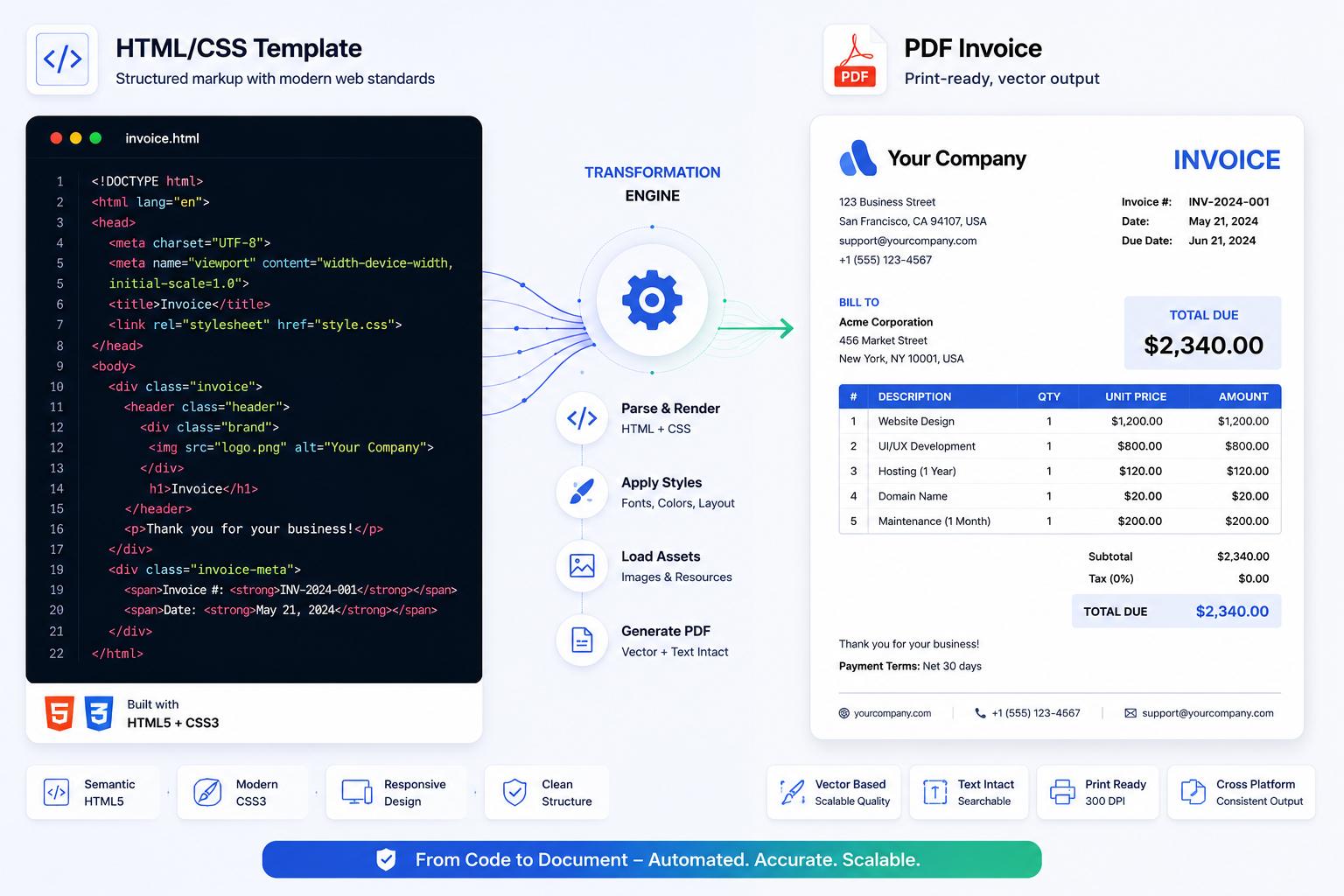
HTML Template to PDF: Turn Web Templates into Professional, Print-Ready Documents

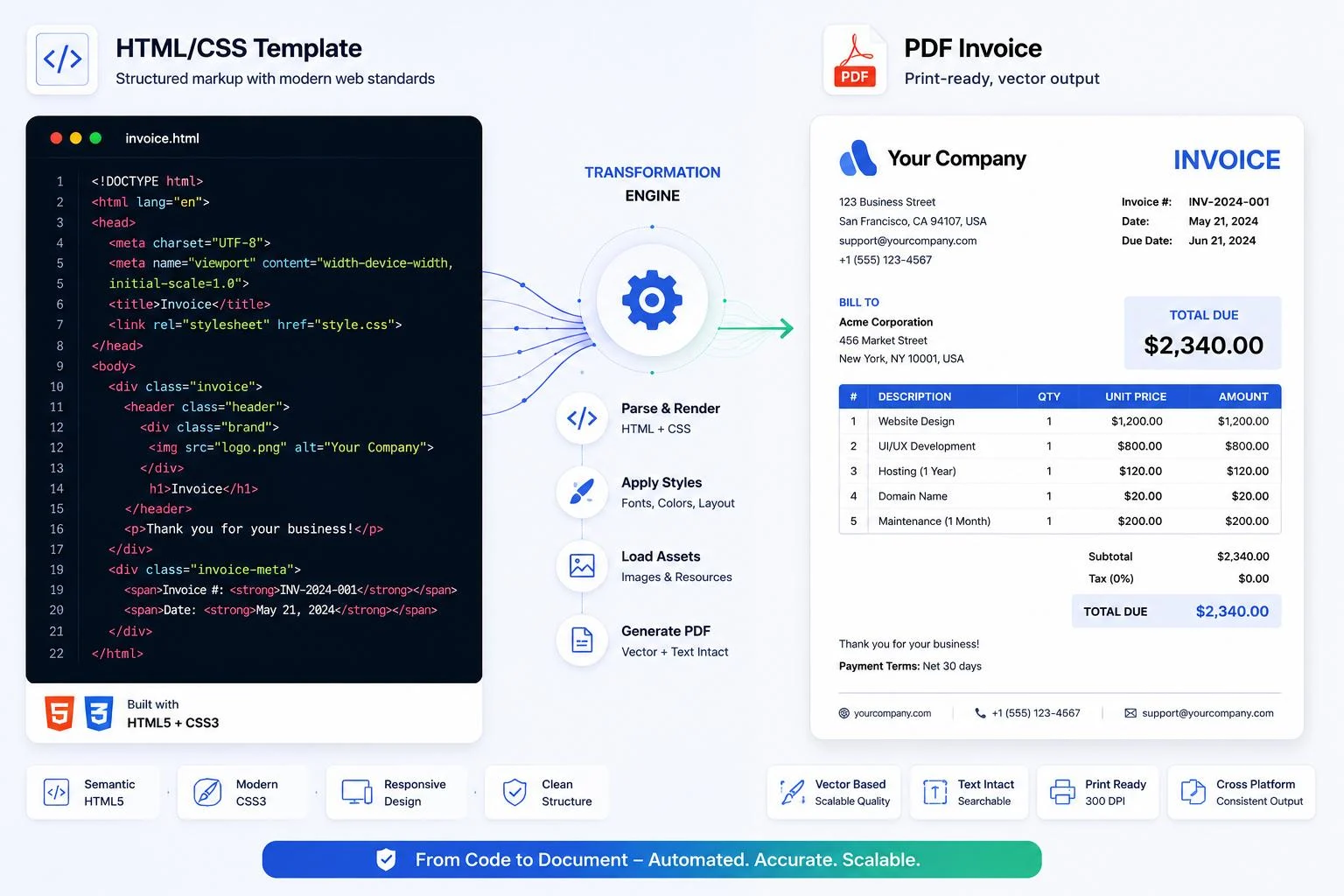

Table of Contents▼
Learn how to convert HTML templates to clean, print-ready PDFs without broken layouts, missing fonts, or pixelated images. Step-by-step workflow and troubleshooting included.
Quick Answer
“Can HTML templates be converted into print-ready PDFs?
Yes. You can convert any HTML template into a high-fidelity PDF document while preserving CSS grid, custom web fonts (WOFF2/TTF), SVG vectors, images, and multi-page layouts. Achieving a flawless result requires configuring print-specific media queries (@media print), specifying explicit page dimensions (@page), and utilizing a modern browser-rendering engine (like Chromium/Blink) rather than legacy conversion tools.
What is HTML Template to PDF Conversion?
Definition:
HTML Template to PDF conversion is the process of parsing web-based code (HTML5 structural markup, CSS3 styling, and vector/raster assets) and rendering it into a fixed-layout, vector-based PDF document. Unlike simple browser screenshots, this process preserves selectable text, embedded links, CSS layout rules, and resolution-independent vector graphics (SVG).
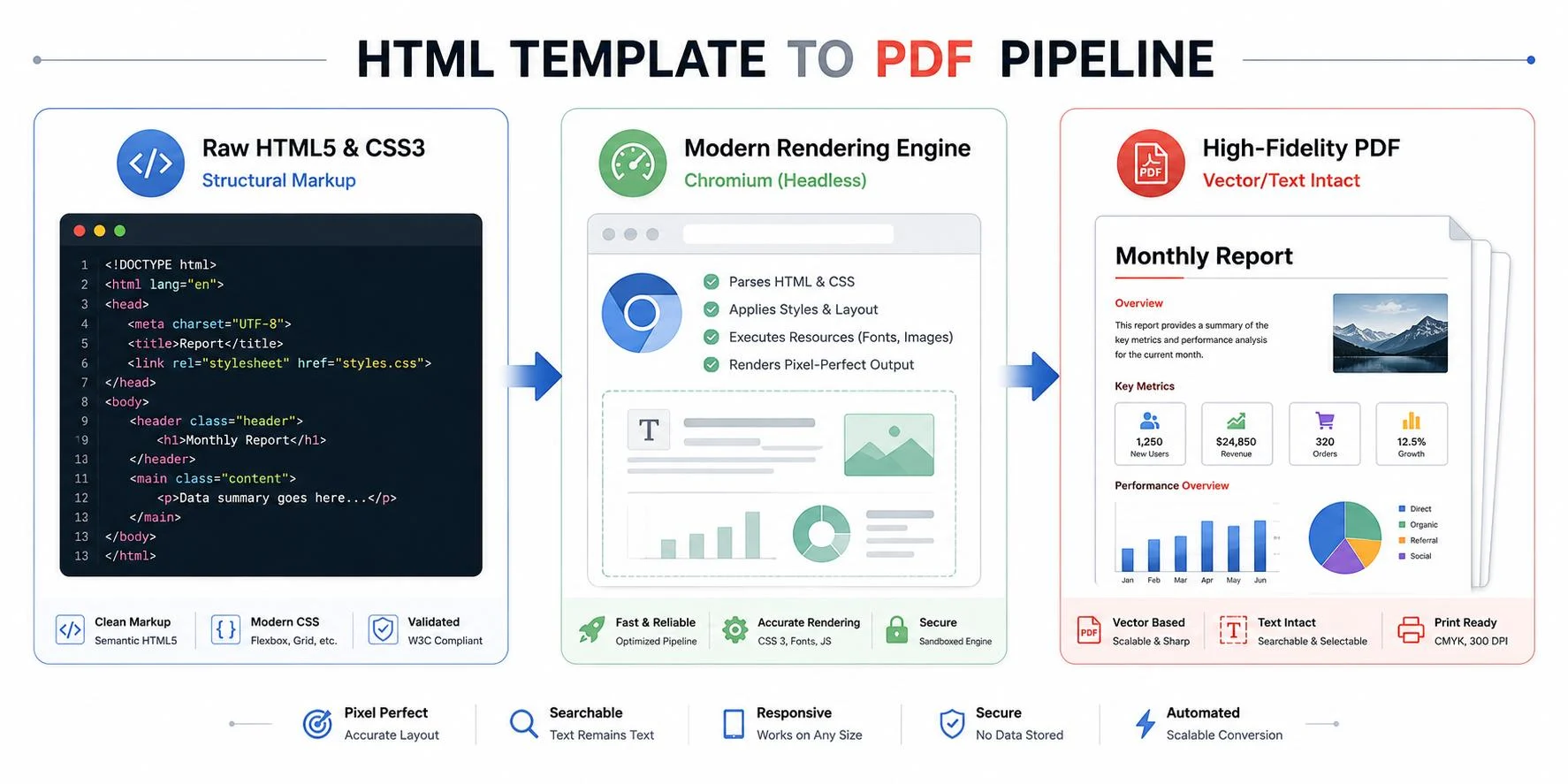
This infographic explains how HTML templates are converted into high-quality PDF documents using a modern rendering engine while preserving layout, typography, vector graphics, and searchable text.
Introduction: The Client Pitch That Almost Went Wrong
One of the most common HTML-to-PDF issues appears after the design phase. A template that looks perfect in Chrome often breaks when exported to PDF because print rendering follows different layout rules than browser rendering.
The corporate logo vanished into an empty grey square. The multi-line item table split right through the middle of a row across page boundaries. Custom fonts defaulted to a generic serif type, throwing off the carefully calculated margins.
This frustration is common among web developers, SaaS operations teams, and designers. We construct fluid interfaces for variable screen viewports, yet global commerce still runs on immutable, physical document standards. Whether you are generating 10,000 automated billing statements, issuing event certificates, or compiling monthly executive reports, turning an HTML template into a PDF requires overcoming the architectural gap between fluid web viewports and fixed page boundaries.
At Doxbar, we spend a lot of time studying how documents move from web formats to print-ready PDFs. One pattern appears repeatedly: layouts that look perfect in a browser often break during PDF generation because print rendering follows different rules than screen rendering. The most common causes include missing print styles, unmanaged page breaks, and outdated rendering engines. This guide walks through practical solutions to help you generate clean, professional PDFs from HTML templates.
Key Takeaways
Screen vs. Print Paradigm: Web viewports scroll infinitely using pixels (px); PDFs use fixed physical dimensions like A4 or Letter with millimeter (mm) or point (pt) measurements.
Engine Architecture Matters: Legacy conversion utilities rely on outdated engines (like older wkhtmltopdf builds) that lack flexbox and CSS grid support. Modern workflows rely on headless Chromium/Blink engines.
Asset Embedding: Linking to external images via relative local paths causes blank asset blocks. Use absolute HTTPS URLs or inline Base64 data strings for images and fonts (WOFF2).
Control Page Boundaries: Use CSS Paged Media rules (@page) and explicit break rules (break-inside: avoid) to prevent awkward table splits across page breaks.
Problem Breakdown: Why HTML Templates Fail in PDF Format
When web code transitions to a static document format, five primary structural friction points emerge:
1. Unmanaged Page Breaks Across Complex Elements
Browsers assume vertical scrolling. PDFs require strict vertical boundaries. Without explicit CSS page-break declarations, long data tables, signatures, or multi-column containers cut off arbitrarily, leaving single lines of orphaned text at the top of subsequent pages.
2. Dropped Fonts and Fallback Typography
Modern typography relies on dynamically fetched web fonts from services like Google Fonts or Adobe Typekit. If an HTML-to-PDF converter lacks active network access or fails to process asynchronous font loads before triggering the print cycle, the document defaults to system fallbacks (like Times New Roman or Arial), warping your intended layout geometry.
3. Relative Asset Paths and Missing Images
An image tag structured as <img src="./assets/logo.png"> works on a local file system or live web server. When passed to an isolated PDF conversion engine, the engine cannot resolve relative paths without a declared base URL. The result is a document dotted with missing image indicators.
4. Background Color Stripping
To conserve printer ink, modern browser engines default to stripping CSS background colors (background-color) and background imagery. Unless explicit print overrides are declared in your CSS, subtle header fills, dark mode accents, and shaded table rows disappear entirely.
5. Reliance on Heavy Legacy Desktop Software
Installing bulky local software desktop suites or outdated server utilities bloats systems, consumes significant CPU/RAM resources, and struggles to render modern CSS flexbox or CSS grid specifications correctly.
Educational Deep Dive: How the Rendering Engine Translates Web Code to Document Pages
To reliably troubleshoot layout bugs, it is necessary to understand the exact mechanics of how web markup turns into a fixed-layout document.
The 4-Stage Rendering Pipeline
DOM & CSSOM Construction: The conversion engine reads raw HTML structure into a Document Object Model (DOM) and compiles external/internal CSS rules into a CSS Object Model (CSSOM).
Resource Fetching & JS Execution: The engine pulls down external assets—including WOFF2/TTF web fonts, Base64 strings, external stylesheets, and inline SVG paths.
Layout & Paged Media Evaluation: The engine applies print-specific media queries (@media print). It calculates physical page dimensions (such as standard A4: 210mm x 297mm) and translates fluid CSS viewport units into fixed point scales.
Rasterization and Vector Output: Text characters are mapped to scalable font glyphs, vector shapes (<svg>) are rendered as PDF path objects, and raster graphics (.png, .jpg) are compressed and embedded into the file container.
For an in-depth reference on browser rendering trees and DOM compilation mechanics, consult the comprehensive guides on the Mozilla Developer Network (MDN).
The Role of CSS Paged Media (@page)
CSS Paged Media Module Level 3 introduces specific rules governing page-based document rendering:
“CSS
/* Print-Ready CSS Setup for HTML Templates */ @page { size: A4 portrait; margin: 15mm 15mm 20mm 15mm; /* Top Right Bottom Left */ } @media print { body { -webkit-print-color-adjust: exact; print-color-adjust: exact; font-family: 'Inter', sans-serif; } /* Prevent awkward page breaks */ .keep-together { page-break-inside: avoid; break-inside: avoid; } /* Force header repetition on tables */ thead { display: table-header-group; } }
Applying print-color-adjust: exact forces the conversion engine to preserve full background colors and graphic fills without stripping them away.
Decision Matrix: When Should You Use HTML Template to PDF Conversion?
Not every document generation scenario requires an HTML template workflow. Use this decision matrix to identify the right approach for your project:
Document Type | Recommended Approach | HTML Template to PDF? | Primary Technical Reason |
Customer Invoices | HTML Template | ✅ Highly Recommended | Requires repeatable styling, dynamic tables, and crisp branding. |
Analytics Reports | HTML Template | ✅ Highly Recommended | Handles complex CSS Grid charts, styled data tables, and metrics. |
Event Certificates | HTML Template | ✅ Highly Recommended | Precise background positioning, custom typography, and vector SVG logos. |
Simple Plain Text Letter | Markdown or Word | ⚠️ Optional | An HTML template is usable, but basic text tools require less setup. |
Multi-Page Book / Novel | LaTeX / InDesign | ❌ Not Recommended | Extremely long continuous text flows benefit from dedicated typesetting engines. |
Marketing Brochures | Figma / Adobe Illustrator | ⚠️ Conditional | Ideal for complex visual layouts; HTML works best if automated data is required. |
Workflow Comparison: HTML Templates vs. Alternative Template Systems
Understanding how HTML templates compare against legacy or alternative document options clarifies why web-based document workflows have become standard across modern SaaS architectures:
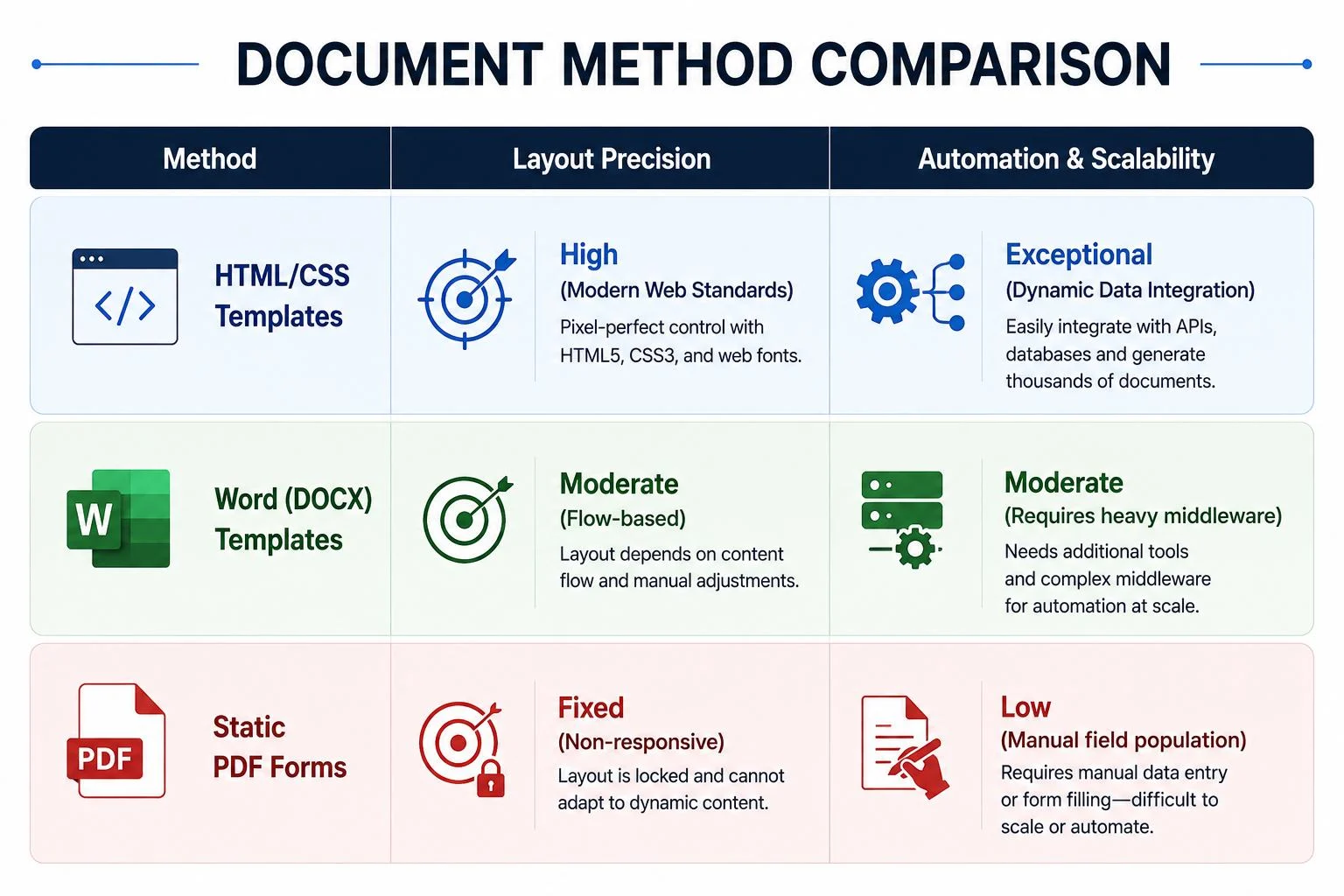
This comparison infographic explains the strengths and limitations of HTML/CSS templates, Word (DOCX) templates, and static PDF forms for automated document generation, layout accuracy, and scalability.
HTML Templates vs. Word (DOCX) Templates
Word files are designed for desktop word processing. While easy for non-technical users to edit, .docx files render inconsistently across different operating systems (macOS vs. Windows), alter margins based on local printer drivers, and lack precise control over pixel-exact positioning.
HTML Templates vs. Static PDF Forms
Filling out static PDF form fields works for basic data entry, but lacks fluid layout scalability. If an address line expands or an invoice contains 50 line items instead of 5, a static PDF form cannot dynamically resize containers or push overflow content smoothly onto page two.
Browser Print vs. Modern Dedicated Converters
Relying on a standard user clicking File -> Print -> Save as PDF inside their browser often introduces default browser headers, footers containing dates, URL parameters, and uncalibrated page margins. Dedicated online or server-side converter engines parse raw HTML markup cleanly without browser artifact clutter.
Choosing the Right HTML-to-PDF Rendering Engine
“Converting an HTML template to PDF isn't just about clicking a Convert button. The rendering engine behind the converter determines how accurately your HTML, CSS, fonts, JavaScript, and page layouts are reproduced in the final PDF. Some engines prioritize speed, while others focus on print accuracy or advanced CSS support. Understanding these differences can help you choose the right workflow for your project.
Rendering Engine | Best For | Strengths | Limitations |
Chromium (Headless Chrome) | Modern web apps, invoices, dashboards | Excellent support for HTML5, CSS3, Flexbox, Grid, JavaScript, and print media | Higher memory usage for large-scale automation |
WebKit | Browser-based rendering | Good layout compatibility and fast rendering | Modern CSS support varies depending on implementation |
wkhtmltopdf | Legacy systems | Stable for older projects and simple layouts | Limited support for modern CSS features such as Grid and newer Flexbox implementations |
PrinceXML | Professional publishing | Outstanding typography, footnotes, page numbering, and print-quality output | Commercial software with licensing costs |
WeasyPrint | Python-based document generation | Strong support for CSS Paged Media and automated workflows | Does not execute client-side JavaScript like a browser engine |
Which One Should You Choose?
Business invoices, reports, and certificates:
Chromium-based rendering is usually the most reliable option.
High-end publishing and print production:
PrinceXML offers the most advanced print features.
Legacy applications:
wkhtmltopdf can still be suitable if your templates use older CSS.
Python automation:
WeasyPrint integrates well into Python-based workflows.
Modern browser workflows:
Chromium or WebKit-based converters generally provide the best balance of compatibility and output quality.
“Tip: If your HTML template relies on CSS Grid, Flexbox, custom web fonts, or JavaScript-generated content, choose a converter powered by a modern browser engine rather than a legacy renderer. It significantly reduces the chances of broken layouts, missing fonts, or unexpected page-break issues.
Modern Solution Framework: Evaluation Standards for HTML-to-PDF Conversion
Whether using an automated API workflow or a browser-based conversion utility, evaluate your tooling against these key standards:
1. CSS3 Layout Support (Flexbox & Grid)
The conversion tool must run a modern browser rendering kernel (such as Chromium or WebKit) capable of calculating CSS flexbox, CSS grid, CSS variables, and inline SVG objects accurately.
2. Privacy & Data Security
Document templates contain sensitive corporate assets, personal data, and financial tallies. Choose security-conscious tools that process files in temporary isolated memory, utilize TLS encryption in transit, and enforce strict data deletion policies. You can review enterprise web security guidelines at the Cloudflare Learning Center.
3. Typography & Web Font Asset Fetching
The conversion engine must support embedded Base64 fonts or resolve external Google Font links accurately before outputting the document.
4. Cross-Platform Accessibility
A modern document workflow should require zero complex software installations, working seamlessly across Windows, macOS, Linux, ChromeOS, and mobile environments.
Tooling Comparison: Legacy Converters vs. Desktop Software vs. Modern Web Engines
Capability / Metric | Legacy Converters (wkhtmltopdf) | Desktop Design Software | Modern Web Converters (e.g., Doxbar) |
CSS Grid & Flexbox | Broken / Unsupported | High | High (Modern Chromium Standards) |
Setup Overhead | Server/CLI Installation | Heavy Software Install | Zero Setup (Browser-Based) |
Processing Speed | Fast (Low CSS accuracy) | Slow | Fast (High CSS accuracy) |
Security & Privacy | Dependent on server config | Local storage | End-to-end encryption & auto-purge |
Font Preservation | Frequently drops web fonts | Requires local font files | Preserves Base64 & linked web fonts |
Resource Footprint | Moderate | High CPU/RAM utilization | Lightweight |
Step-by-Step Guide: Converting HTML Templates to PDF
Follow this practical five-step workflow to transform raw web templates into clean, printable PDFs.
“Step 1: Prep CSS Rules --> Step 2: Embed Assets --> Step 3: Handle Page Breaks --> Step 4: Convert --> Step 5: Validate
Step 1: Declare Print-Specific Styles
Add a dedicated @media print block directly inside your HTML template's <style> section. Specify explicit physical page dimensions using the @page directive:
“CSS
@page { size: A4 portrait; margin: 20mm 15mm 20mm 15mm; } @media print { body { width: 100%; margin: 0; padding: 0; background: #ffffff; color: #000000; } }
Step 2: Convert Relative Assets to Absolute or Base64 Formats
Prevent missing image icons by converting critical assets like logos into Base64 data strings:
“HTML
<!-- Example of inline Base64 Image string --> <img src="data:image/svg+xml;base64,PHN2ZyB4bWxucz0iaHR0cDovL3d3dy53My5vcmcvMjAwMC9zdmciIHZpZXdCb3g9IjAgMCAxMDAgMTAwIj48Y2lyY2xlIGN4PSI1MCIgY3k9IjUwIiByPSI0MCIgc3Ryb2tlPSJibGFjayIgc3Ryb2tlLXdpZHRoPSIzIiBmaWxsPSJyZWQiIC8+PC9zdmc+" alt="Company Logo" />
Step 3: Configure Explicit Page Break Utility Classes
Add break control properties to critical structural containers (such as totals blocks, signatures, or table rows) to prevent unexpected layout cuts:
“HTML
<div style="page-break-inside: avoid; break-inside: avoid;"> <h3>Payment Terms & Conditions</h3> <p>Please send payments within 30 days of issue...</p> </div>
Step 4: Execute the Conversion
Open your browser and navigate to a conversion utility like Doxbar's File Tools.
Upload your self-contained .html template file (or .zip file containing HTML and external stylesheets).
Select your target document orientation (Portrait or Landscape) and target size (A4 or Letter).
Initiate conversion to render the HTML markup into a vector PDF document.
Step 5: Verify Document Output
Open the rendered PDF in a standalone viewer like Adobe Acrobat Reader or Google Chrome's document preview. Validate three crucial areas:
Text Selectability: Ensure text can be highlighted and copied (verifying vector text preservation rather than a flat image screenshot).
Table Page Continuity: Confirm multi-page tables break cleanly between rows without cutting text lines in half.
Vector Clarity: Zoom in to 300% on logos and icons to verify SVG shapes remain sharp.
Before You Convert Your HTML Template: A Pre-Flight Checklist
Even the best HTML-to-PDF converter can't fix problems that already exist in your template. Taking a few minutes to review your HTML, CSS, and assets before conversion can prevent broken layouts, missing content, and inconsistent formatting in the final PDF.
✔ Embed or Load Fonts Correctly
Make sure every font used in your template is accessible during rendering. If a font can't be loaded, the rendering engine will substitute it with a fallback font, which can change spacing, line breaks, and page layout.
✔ Use Absolute or Accessible Image Paths
Broken image links are one of the most common reasons PDFs appear incomplete. Verify that all logos, icons, and illustrations use valid URLs or are embedded correctly before generating the PDF.
✔ Check SVG and Icon Compatibility
SVG graphics generally produce sharper PDF output than raster images, but they should be tested across your rendering engine. If your template relies on icon libraries, confirm that every icon renders correctly in print mode.
✔ Prepare Print-Specific CSS
A webpage is designed for screens, while a PDF is designed for paper. Add print-specific styles using @media print and remove unnecessary navigation bars, animations, buttons, or interactive elements that don't belong in a document.
✔ Configure the @page Rule
Define paper size, orientation, and page margins with the CSS @page rule. This helps prevent unexpected clipping or inconsistent whitespace around the document.
✔ Control Page Breaks
Long tables, images, and content sections should not split randomly across pages. Use CSS properties such as break-before, break-after, and break-inside to create cleaner page transitions.
✔ Repeat Table Headers
If your document contains multi-page tables, configure table headers to repeat on each page. This makes invoices, reports, and financial documents much easier to read.
✔ Test Margins and Printable Area
Generate a sample PDF before publishing or sharing it. Check page margins, spacing, headers, footers, and alignment on multiple pages to ensure the document is ready for printing or professional distribution.
Common HTML-to-PDF Conversion Errors & Solutions
Even well-constructed web templates can run into layout issues when converted to a document format. Here are six common technical issues and how to fix them:
1. Overflowing Content Horizontally
Symptom: Content gets clipped on the right margin of the PDF page.
Cause: Container widths are explicitly set using wide fixed pixel values (e.g., width: 1200px) that exceed physical page boundaries.
Solution: Set top-level containers to width: 100% or use physical measurements matching your target paper size: CSS .container { width: 100%; max-width: 180mm; /* Fits comfortably inside A4 width minus margins */ box-sizing: border-box; }
2. Missing Background Gradients and Shading
Symptom: Colored header bars or alternate table row shading turn plain white.
Cause: The rendering engine's default print settings hide background elements to minimize ink usage.
Solution: Force explicit color printing in your CSS rule: CSS * { -webkit-print-color-adjust: exact !important; print-color-adjust: exact !important; }
3. Custom Fonts Defaulting to Standard Fallbacks
Symptom: Modern web typography renders as Times New Roman or Arial.
Cause: The conversion engine cannot resolve asynchronous external Google Font @import directives.
Solution: Embed the font assets directly inside your CSS using @font-face with Base64 encoded WOFF2 data: CSS @font-face { font-family: 'CustomFont'; src: url('data:font/woff2;base64,d09GMgABAAAAA...') format('woff2'); font-weight: normal; font-style: normal; }
4. Broken SVGs and Distorted Graphics
Symptom: Vector icons collapse into tiny black dots or stretch across the page.
Cause: SVG markup is missing explicit viewBox, width, and height declarations.
Solution: Always declare explicit height, width, and viewBox attributes on your root <svg> element: HTML <svg width="150" height="50" viewBox="0 0 150 50" xmlns="http://www.w3.org/2000/svg"> <!-- SVG paths --> </svg>
5. Table Rows Cutting Across Page Breaks
Symptom: A line of text inside a table cell gets bisected horizontally across the bottom of page one and the top of page two.
Cause: The engine applies default block layout breaks across <tr> and <td> tags.
Solution: Apply explicit page-break rules to all table elements: CSS tr, td, th { page-break-inside: avoid! important; break-inside: avoid! important; }
6. Extra Blank Page at the End of the Document
Symptom: A two-page document renders with an unnecessary blank third page.
Cause: Bottom margins or invisible spacing elements (like cleared floats or extra breaks) push past the bottom margin of page two.
Solution: Inspect trailing elements and strip bottom margins from the final child container: CSS body > *:last-child { margin-bottom: 0 ! important; }
Pros & Cons of Converting HTML Templates to PDF
Understanding the technical benefits and limits of HTML-based document generation ensures balanced expectations:
Pros
Complete Design Freedom: Any layout constructed using standard HTML5 and CSS3—including multi-column CSS grid arrangements, custom color schemes, and vector icons—can be converted into a static document.
Automated Data Integration: Web templates allow operations teams to inject dynamic JSON payloads (such as customer names, invoice line items, or certificate dates) before rendering PDFs.
Searchable Vector Text: Generates resolution-independent vector text that remains searchable and selectable, unlike flat image scans.
Zero Per-Seat License Fees: Avoids expensive proprietary desktop publishing software licenses across your organization.
Cons
Requires CSS Print Awareness: Developers must write clean HTML code and understand print media queries to prevent margin bugs.
Asset Loading Dependencies: Large external image paths can slow down processing if network connections experience latency.
Pixel-to-Millimeter Conversion Differences: Translating screen pixels (px) to physical paper measurements requires testing across page sizes.
Frequently Asked Questions (20+ Answers)
1. Why does my PDF look different from my HTML web preview?
Browsers display HTML using fluid screen layouts designed for scrolling viewports. PDF engines render content using fixed paper boundaries (like A4 or Letter). If your CSS lacks explicit print rules (like @media print or @page dimensions), the engine will guess layout spacing, often leading to shifted margins and broken fonts.
2. How do I force background colors and images to appear in the output PDF?
Override the browser engine's ink-saving setting by adding these CSS declarations:
“CSS
body { -webkit-print-color-adjust: exact !important; print-color-adjust: exact !important; }
3. How do I prevent table rows from splitting across two pages?
Apply break-inside: avoid to table elements in your CSS:
“CSS
tr, td, th { page-break-inside: avoid !important; break-inside: avoid !important; }
4. Can I convert an HTML template into a specific paper size like A4 or Letter?
Yes. Define the paper size inside your stylesheet using the CSS @page rule:
“CSS
@page { size: A4 portrait; /* Or 'letter portrait', 'A4 landscape' */ margin: 15mm; }
5. Why are custom Google Fonts missing in my converted PDF?
This happens if the converter engine lacks external network access or triggers rendering before asynchronous font assets finish loading. Solve this by embedding font assets directly using Base64 data strings inside @font-face rules.
6. Is converting HTML templates to PDF secure?
When using reputable web utilities, file processing is handled over encrypted HTTPS connections, with temporary files purged from memory after conversion. Modern security frameworks like those documented by Google Cloud Security establish industry standards for handling online data.
7. What is the difference between standard Browser Print and a dedicated converter tool?
Standard browser "Print to PDF" often adds unwanted browser artifacts like URLs, dates, and page titles to margins while stripping out background styling. Dedicated converter engines parse the underlying HTML and CSS cleanly without adding browser clutter.
8. How do I set landscape orientation for my converted document?
Set the layout orientation directly inside your CSS @page rule:
“CSS
@page { size: A4 landscape; }
9. Why do my logos look blurry in the output PDF?
Low-resolution raster images (JPEG/PNG) scaled up inside an HTML layout will appear pixelated when output to PDF. Use high-resolution images (300 DPI equivalent) or vector SVG graphics (.svg) for crisp scaling.
10. Can I convert dynamic HTML templates containing client-side JavaScript?
Yes, provided the rendering engine executes JavaScript and updates the DOM before triggering the PDF render. For static templates, HTML and CSS render instantly without requiring script execution.
11. How do I prevent headings from appearing orphaned at the bottom of a page?
Use CSS break-after: avoid on heading tags to ensure they stay attached to the subsequent content paragraph:
“CSS
h1, h2, h3 { page-break-after: avoid; break-after: avoid; }
12. Should I use CSS Grid or Flexbox for my HTML PDF templates?
Modern browser-based conversion engines support both CSS Grid and Flexbox. However, for multi-page document flows, combining block layouts with clear margin definitions often provides more predictable page-break handling.
13. How do I repeat table headers at the top of every page in a multi-page PDF?
Structure your HTML table using semantic <thead> and <tbody> tags:
“HTML
<table> <thead> <tr><th>Item Description</th><th>Amount</th></tr> </thead> <tbody> <!-- Data rows --> </tbody> </table>
Modern rendering engines automatically repeat the <thead> content at the top of each page break.
14. What are Base64 images and why are they useful in HTML templates?
Base64 encoding converts binary image data into inline text strings inside your code. Using Base64 strings (<img src=" data: image/png;base64,...">) removes external network dependencies, ensuring images render reliably offline.
15. How do I set explicit document margins?
Set margin values inside your @page block:
“CSS
@page { margin: 10mm 20mm 10mm 20mm; /* Top Right Bottom Left */ }
16. What resolution setting should I target for printable PDFs?
Screen displays render at 72–96 DPI, whereas print-ready documents target 300 DPI. Ensure any embedded raster image assets have high enough pixel dimensions to remain clear at 300 DPI.
17. Why is my rendered PDF file size unexpectedly large?
Large PDF file sizes typically stem from:
Uncompressed, high-resolution PNG background images.
Multiple full-weight web font files embedded directly.
Entire third-party CSS frameworks imported for minimal styling needs.
18. Can I add dynamic page numbers using CSS?
Yes, using CSS Paged Media counter specifications:
“CSS
@page { @bottom-right { content: "Page " counter(page) " of " counter(pages); } }
19. How do I hide screen-only buttons from showing up in the PDF output?
Apply a print utility class to suppress screen-only navigation or action elements:
“CSS
@media print { .no-print, nav, button, .action-bar { display: none ! important; } }
20. Do I need programming experience to convert an HTML file to PDF?
No. If you have an HTML template exported from a web application or email tool, you can upload it into a browser conversion tool like Doxbar without writing code manually.
21. Why is text overlapping in my converted document?
Text overlapping typically occurs when fixed line heights (line-height: 10px) conflict with large font sizes or custom fonts that fail to load. Use unitless, proportional line heights (such as line-height: 1.4) to maintain text spacing.
22. What other document workflows connect with HTML-to-PDF conversion?
Document management often involves multiple format transitions. If your workflow requires consolidating files, compressing outputs, or managing related formats, utilities like Doxbar support conversions across PDF, Word, Excel, and image file types.
EEAT & Security Signals: Best Practices for Production Workflows
Handling enterprise documents requires maintaining clear security standards and data handling protocols.
1. File Handling & Privacy Protection
When generating sensitive financial invoices, HR documents, or customer agreements online, verify that your processing pipeline utilizes encrypted TLS connections, handles file transformations in temporary memory containers without long-term disk storage, and enforces immediate asset deletion policies. Review security practices through privacy advocacy organizations like the Electronic Frontier Foundation (EFF).
2. Validating Code Integrity
Malformed HTML markup (such as unclosed <div> elements or invalid CSS tags) can cause rendering engines to fail unpredictably during PDF rasterization. Validate your raw template code through validation checkers like the W3C Markup Validation Service prior to deploying automated document pipelines.
3. Cross-Reader Verification
Different PDF viewers (such as Adobe Acrobat Reader, Apple Preview, or web-integrated document viewers) interpret complex vector paths and embedded font tables with subtle variations. Always test rendered output across multiple PDF viewers before distributing templates broadly to clients or automated distribution lists.
Related Resources: Continue Learning About PDF Workflows
Converting an HTML template to PDF is often just one step in a larger document workflow. Depending on your project, you may also need to edit, compress, convert, or combine PDF files after the initial export. The following guides can help you complete those tasks more efficiently.
HTML to PDF: If you're looking for a complete walkthrough of converting standard HTML pages into PDF documents, explore our HTML to PDF guide for additional methods, supported features, and best practices.
PDF to HTML: Need to recover content from an existing PDF? Our PDF to HTML guide explains how to convert PDF documents back into editable HTML while preserving as much formatting as possible.
Word to PDF: Working with Microsoft Word instead of HTML? Learn how to create professional PDFs from DOC and DOCX files without losing formatting.
Compress PDF: Large PDF files can be difficult to upload or share. After converting your HTML template, use Compress PDF to reduce file size while maintaining document quality.
Merge PDF: If your project generates multiple PDF files, our Merge PDF guide shows how to combine them into a single, organized document.
Edit PDF: Need to update text, add annotations, or make quick corrections after conversion? Learn how to modify existing PDF documents efficiently using the right editing workflow.
Conclusion: Reliable Document Generation Built for Modern Teams
Converting HTML templates into clean, print-ready PDFs does not have to involve layout glitches, missing typography, or bulky software installations. By applying CSS Paged Media rules, embedding critical graphic assets, and leveraging modern browser-based rendering engines, you can turn any web template into a professional PDF document.
If your HTML template includes custom fonts, SVG logos, or multi-page tables, test the output before sharing it. A browser-based converter that preserves print styles can save hours of manual fixes.
Need to Convert Document Formats?
Try our secure, lightning-fast PDF conversion suite. Convert Word, Excel, Images, and more with zero formatting loss.

Doxbar Editorial
Security & Privacy Team
We specialize in secure document architectures, parsing engines, and modern developer utilities. Keeping your files safe, lightweight, and perfectly formatted.
Join the Conversation
Share your thoughts or ask a question about this topic. This is a privacy-first system.