

JSX to PDF: Export React Components for Code Review, Documentation, and Sharing
Contents
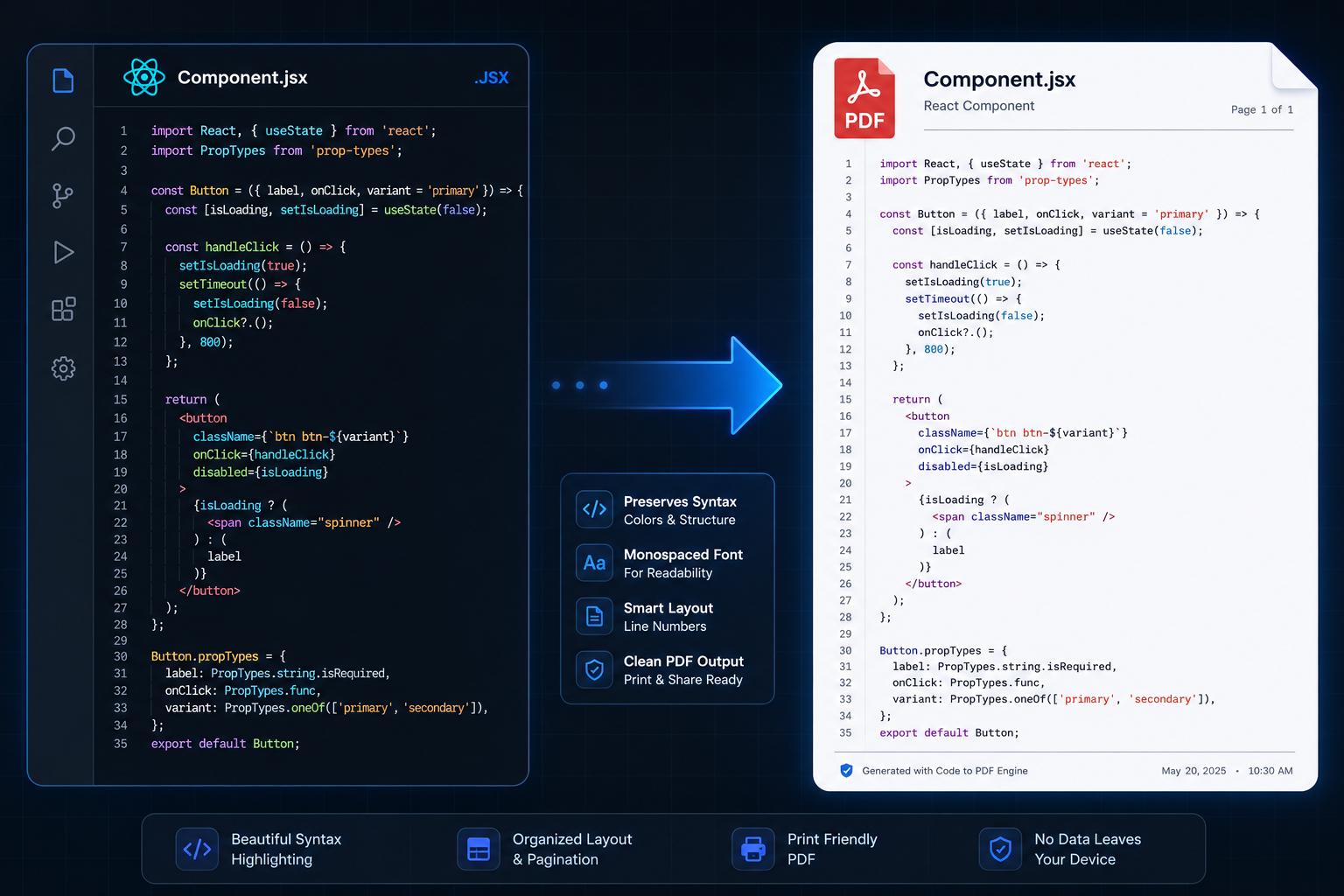
JSX to PDF: Export React Components for Code Review, Documentation, and Sharing

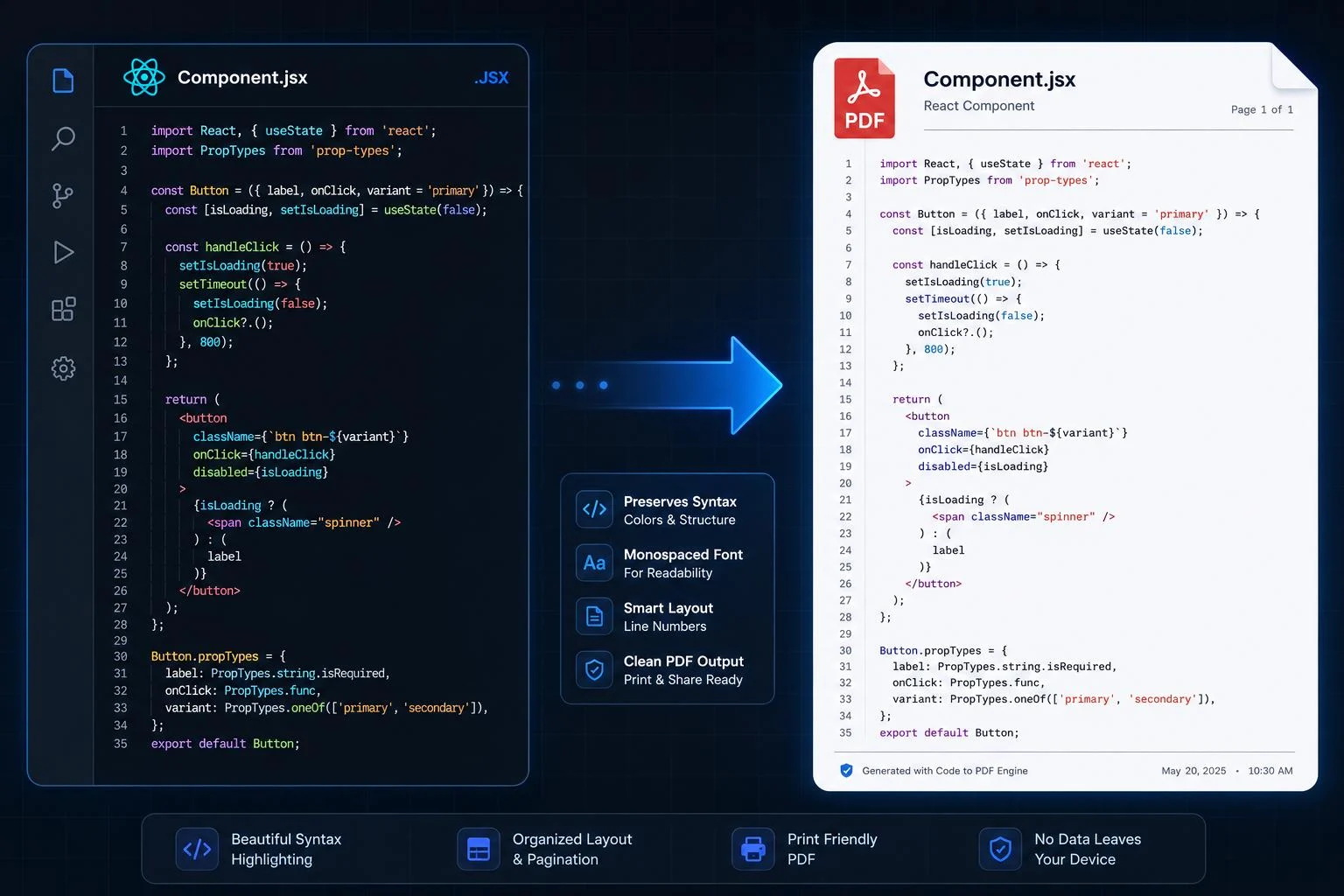

Table of Contents▼
Need to convert JSX to PDF for code reviews or documentation? Learn how to preserve syntax highlighting, formatting, and structure effortlessly.
Quick Answer: Can You Convert JSX to PDF?
“Yes. You can convert a JSX file into a PDF while preserving code formatting, indentation, and readability. Instead of copying code into a word processor, use a code-aware conversion workflow that keeps the layout clean for documentation, code reviews, client sharing, or academic submissions.
The Unexpected Pain of Sharing React Code Outside Your IDE
Picture this: You’ve just finished building a slick, modular React component. The state logic is clean, the hooks are optimized, and the layout looks perfect. Now comes the part every developer dreads—sharing it with someone who doesn't use VS Code or GitHub.
Maybe a non-technical project manager wants to see the component structure before an upcoming release. Or perhaps a client asked for printable technical documentation of their custom frontend. You copy the code, paste it into Google Docs or a standard word processor, and suddenly the layout breaks. Indentation evaporates, line numbers vanish, and syntax highlighting gets replaced with plain, uniform black text. What looked like elegant frontend architecture now resembles an unreadable wall of text.
// What you see in VS Code: const UserCard = ({ name, role }) => ( <div className="card"> <h3>{name}</h3> <p>{role}</p> </div> ); // What happens in basic text processors: const UserCard = ({ name, role }) => (<div className="card"><h3>{name}</h3><p>{role}</p></div>);
When you need to hand off code for formal reviews, client deliverables, or academic submissions, standard copy-pasting fails. Converting your JSX to PDF cleanly—with indentation, line breaks, and bracket hierarchy intact—is the simplest way to preserve readability across any device. Tools like Doxbar are built to solve this exact workflow pain by converting code and documents without destroying original styling.
Why Exporting JSX and Code Files to PDF Breaks So Easily
Converting code files like .jsx, .tsx, or .js into portable documents isn't like converting standard text files. JSX blends JavaScript syntax with HTML-like tags, relying heavily on visual hierarchy to make sense to human eyes.
JSX (JavaScript XML) = Standard JavaScript Logic + HTML-Like Component Structure
Here is why traditional document exports fall apart when handling React code:
1. Plain Text vs. Fixed-Width Typography
Code depends on monospaced typography (fonts like Consolas, Fira Code, or Courier Prime) where every character takes up the exact same horizontal space. Standard document editors use proportional fonts like Arial or Calibri. When proportional fonts are applied to code, indentation misaligns, bracket pairs shift out of place, and nested components become nearly impossible to scan.
2. Loss of Syntax Highlighting
Syntax highlighting isn't decorative; it serves a functional purpose. Developers rely on distinct color profiles for reserved keywords (import, export, return), variable names, strings, and JSX props to parse logic quickly. Standard document converters treat source code as plain strings, stripping color context entirely.
3. Whitespace Collapsing
HTML rendering engines and conventional text processors collapse consecutive spaces into a single space. Because JSX relies on strict visual nesting to indicate component hierarchy, losing indentation strips the code of its structural context.
4. Device and Font Dependency
If you send raw code files or unformatted documents to a stakeholder who lacks developer fonts or an IDE, their local system falls back to default fonts, throwing off your alignment. PDFs lock in fonts, vector layouts, and spacing across all mobile and desktop operating systems.
How Code-to-PDF Conversion Actually Works Under the Hood
To convert source code into a clean, readable PDF without manual reformatting, online conversion engines follow a specific transformation pipeline:
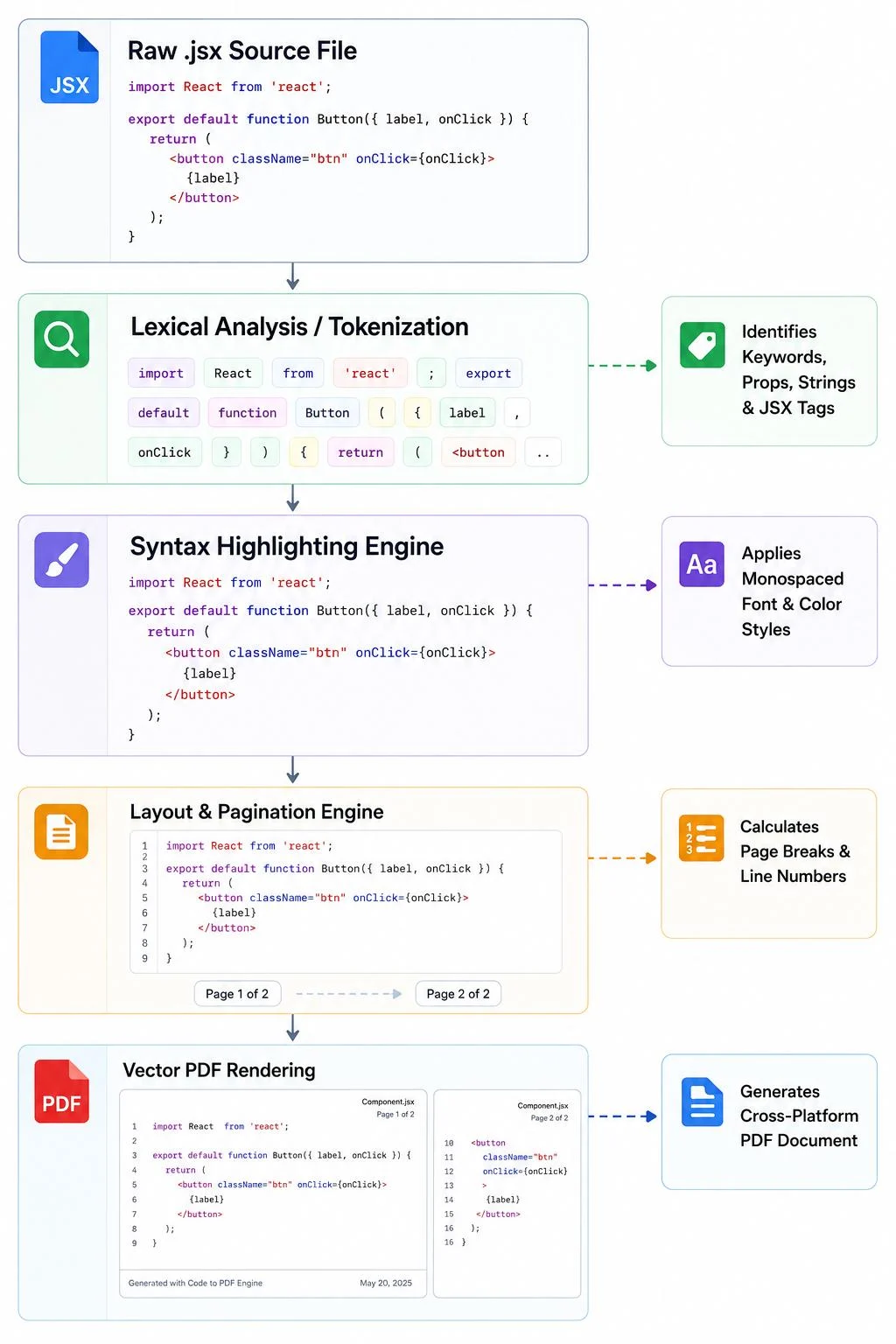
Tokenization: The engine parses raw .jsx text and breaks it into tokens—separating tags, props, variables, and string literals.
Style Mapping: Tokens are mapped to specific color palettes based on established syntax rules (similar to modern themes used in VS Code or GitHub).
Monospaced Layout Calculation: The file is converted into an intermediate layout using strict monospaced rules, calculating where lines wrap and ensuring nesting isn't cut off horizontally.
Vector PDF Generation: The formatted layout is compiled into a PDF. Vector rendering ensures text remains crisp and copyable, even when zoomed in on high-resolution displays.
According to documentation on open document standards maintained by the PDF Association, vector-based PDF text layers preserve accessibility and structural integrity far better than static screen captures or raster image conversions.
Modern Framework: What to Look for in a File Converter
When picking an online document and code converter for your development workflow, keep these features in mind:
Strict Formatting & Layout Preservation: The converter must maintain tab spaces, line indentations, and bracket alignment without forced wrapping.
Security and Data Privacy: Source code often contains proprietary business logic or API structures. Choose web-based tools that utilize secure HTTPS / TLS encryption and automatically purge processed files from temporary memory after download.
Zero Client-Side Overhead: Desktop converters can consume significant memory and require local installation. Browser-native platforms convert files on high-speed infrastructure without slowing down your system.
Cross-Platform Compatibility: Output files must render identically on Windows, macOS, Linux, iOS, and Android.
Multi-Format Versatility: A tool that handles .jsx alongside standard document formats like PDF, Word, Excel, and image files simplifies your daily workflow.
File Conversion Workflows Compared
Feature / Criteria | Legacy Desktop Software | Standard Print-to-PDF (Browser/IDE) | Modern Web Converter (Doxbar) |
Setup Required | High (Local installation) | Low (Uses system print dialog) | Zero (Works instantly in-browser) |
Syntax Color Preservation | Inconsistent | Varies by IDE print theme | Consistent & High Contrast |
Line Numbering Support | Requires manual configuration | Often missing | Automatic visual structure |
Cross-Platform Output | Device dependent | System font dependent | Consistent rendering across supported PDF readers. |
Batch Conversion | Complex / paid upgrade | Manual per-file basis | Simple multi-file processing |
System Resource Impact | Heavy local CPU/RAM usage | Low local impact | Negligible (Cloud-based rendering) |
How to Convert JSX to PDF in 5 Simple Steps
Whether you are preparing code snippets for a client review or compiling technical documentation, here is how to convert your React files into clean PDFs:
Prepare Your Source File: Ensure your .jsx or .tsx file is saved and cleanly indented in your local workspace.
Upload to Converter: Open the Doxbar Conversion Tool in your web browser and drag your source file into the upload zone.
Select Output Format: Choose PDF as your desired export format.
Convert: Click Process. The cloud engine tokenizes your source code, applies monospaced formatting, and compiles the document.
Download and Review: Download your rendered PDF. Open it in any browser or reader to confirm that line wraps, syntax colors, and indentation match your expectations.
Pros and Cons of Converting Code Files to PDF
Pros
Locked Visual Layout: Eliminates font mismatches and broken spaces across recipient devices.
Enhanced Code Reviews: Makes line-by-line printing or digital annotation on tablets easy for reviewers.
Client-Safe Sharing: Lets you share component logic without requiring stakeholders to configure a local development environment.
Universal Accessibility: PDFs open natively on every modern operating system and mobile device without extra dependencies.
Cons
Static Output: Code inside a PDF cannot be edited directly like a live .jsx workspace file.
Line Wrapping Challenges: Very long single-line statements may wrap onto new lines if not configured properly before export.
Frequently Asked Questions
1. What is a JSX file?
JSX stands for JavaScript XML. It is a syntax extension for JavaScript popularized by React that allows developers to write HTML-like markup directly inside JavaScript files.
2. Why should I convert JSX files to PDF?
Converting JSX to PDF creates a clean, fixed-layout version of your code for documentation, client handoffs, code reviews, printouts, or academic project submissions without losing indentation or formatting.
3. What is the difference between JSX and TSX?
JSX uses standard JavaScript syntax with HTML-like components. TSX incorporates TypeScript static typing into JSX syntax. Both follow similar formatting rules when converting to PDF documents.
4. Will converting JSX to PDF strip my syntax colors?
Not if you use a dedicated code-aware converter. Standard text converters strip colors, but dedicated tools preserve syntax highlighting so your code remains easy to read.
5. Can I copy code text directly out of the generated PDF?
Yes. Quality converters generate vector-based text layers rather than flat raster images, allowing recipients to highlight and copy code snippets easily.
6. Is my proprietary source code secure during online conversion?
Tools like Doxbar use end-to-end HTTPS encryption and purge uploaded files from servers automatically after processing to protect your intellectual property.
7. What is the difference between JSX and standard JavaScript (.js)?
Standard JavaScript handles general logic and data manipulation. JSX allows you to define UI components directly within JavaScript files using markup-like tags like <div>, <button>, and custom React components.
8. Can I convert multiple JSX files to PDF at once?
Yes. Many modern online conversion tools support batch processing, letting you upload multiple React files simultaneously.
9. Will line numbers be preserved in the PDF output?
Yes, converting code files through structured converters keeps line numbers intact, which helps during physical or digital code reviews.
10. How do I fix text wrapping issues in long JSX lines?
Before exporting, format your code using a linter like Prettier to enforce a maximum print width (e.g., 80 or 100 characters per line).
11. Can I open a JSX file on a mobile phone without an IDE?
Opening raw .jsx files on mobile devices often results in unformatted plain text. Converting the file to PDF allows anyone to view the formatted code cleanly on iOS or Android.
12. Why does pasting JSX into Microsoft Word break the layout?
Word processors use proportional fonts, automatic smart quotes, spell-checking, and variable line spacing. These features disrupt monospaced spacing and code alignment.
13. Is JSX compatible with standard HTML viewers?
No. Browsers cannot read raw JSX directly; it must first be compiled by tools like Babel. A PDF allows non-developers to view the component design without needing a compiler.
14. What page size works best for code PDFs?
Standard A4 or US Letter sizes in portrait orientation work well for standard component files. For wide components with extensive nested props, landscape mode can help prevent line wrapping.
15. Can I add annotations or comments to a converted code PDF?
Yes. Once your JSX file is converted to PDF, you can use standard annotation tools in Adobe Acrobat, Apple Preview, or browser PDF viewers to highlight lines and add feedback.
16. Does converting JSX to PDF compress or modify my local source code?
No. The conversion process creates a separate PDF copy of your file. Your original .jsx file remains completely untouched on your local system.
17. How do I convert React native components to PDF?
React Native components use the same JSX structure as web React components. You can convert .jsx or .tsx React Native source files using the same process.
18. What is OCR, and do I need it for code conversion?
OCR (Optical Character Recognition) converts scanned images of text into editable text data. When converting digital source code files (.jsx), OCR is not necessary because the input file already contains raw text data.
19. Can non-technical team members read JSX in a PDF?
While reading code still requires technical knowledge, a styled PDF organizes the visual structure with clear nesting and line breaks, making it much easier for project managers to review UI labels and static props.
20. Are there file size limits when converting source code online?
Source code files are lightweight text files (typically a few kilobytes to megabytes). They convert in seconds without hitting typical upload caps.
21. How does PDF export help with compliance and documentation?
Many enterprise compliance frameworks require static, immutable records of technical architectures. Converting source components into archived PDFs creates reliable point-in-time technical documentation.
Contextual Internal Resources
Working with other development files or documentation? These related Doxbar tools can help streamline your workflow:
TSX to PDF – Export React TypeScript components into clean, printable PDFs while preserving formatting and readability.
HTML to PDF – Convert HTML pages, templates, or generated reports into professional PDF documents for sharing or archiving.
Markdown to PDF – Transform README files, project documentation, and technical notes into polished PDF files.
JSON to PDF – Convert structured JSON data into an easy-to-read PDF for debugging, reporting, or documentation.
TXT to PDF – Turn plain text logs, configuration files, or notes into organized PDF documents.
XML to PDF – Create readable PDF versions of XML files for audits, documentation, or data review.
Whether you're documenting React components, preparing code for peer review, or building technical documentation, these tools help you keep your files organized, readable, and easy to share.
Practical Security and Workflow Guidelines
When sharing source code externally, keep these best practices in mind:
Remove Sensitive Data: Always scrub secret keys, API tokens, staging database credentials, and private environment variables from your React components before exporting or sharing code.
Sanitize Internal Comments: Review inline code comments (// TODO: fix security bug) to ensure proprietary internal details aren't exposed externally.
Use Trusted Infrastructure: Avoid unencrypted conversion sites. Confirm the web application operates over HTTPS and clearly states its file deletion policy.
Final Thoughts
Exporting source code doesn't have to ruin your formatting. Whether you are submitting a frontend assignment, compiling technical documentation, or sending code to a client for review, converting JSX to PDF preserves your syntax highlighting, indentation, and structure across every screen.
When you need quick, clean document and code conversions without installing bulky local software, rely on Doxbar to deliver professional, readable results in seconds.
References
The technical concepts, file format details, and development best practices discussed in this guide are based on publicly available documentation and industry standards.
React Documentation – Official guides and API references for building React applications and working with JSX components.
MDN Web Docs (JavaScript Guide) – Comprehensive documentation covering JavaScript syntax, language features, and browser compatibility.
Babel Documentation – Official documentation explaining how JSX is transformed into standard JavaScript during the build process.
Adobe Acrobat SDK Documentation – Technical documentation covering the PDF format and best practices for generating consistent, portable PDF documents.
Need to Convert Document Formats?
Try our secure, lightning-fast PDF conversion suite. Convert Word, Excel, Images, and more with zero formatting loss.

Doxbar Editorial
Security & Privacy Team
We specialize in secure document architectures, parsing engines, and modern developer utilities. Keeping your files safe, lightweight, and perfectly formatted.
Join the Conversation
Share your thoughts or ask a question about this topic. This is a privacy-first system.