

Kotlin to PDF: Export Kotlin Source Code for Documentation, Code Reviews, and Team Collaboration
Contents
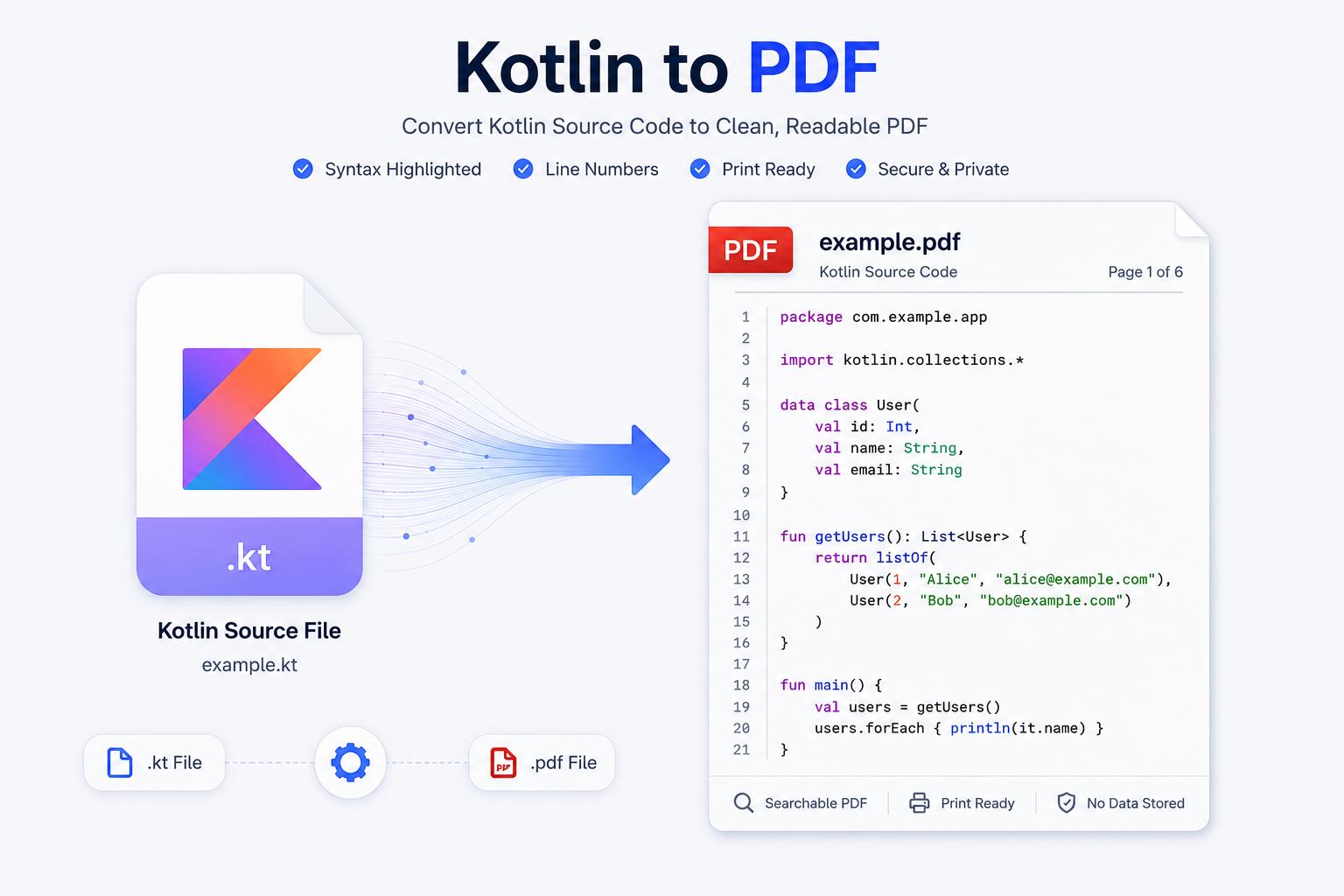
Kotlin to PDF: Export Kotlin Source Code for Documentation, Code Reviews, and Team Collaboration

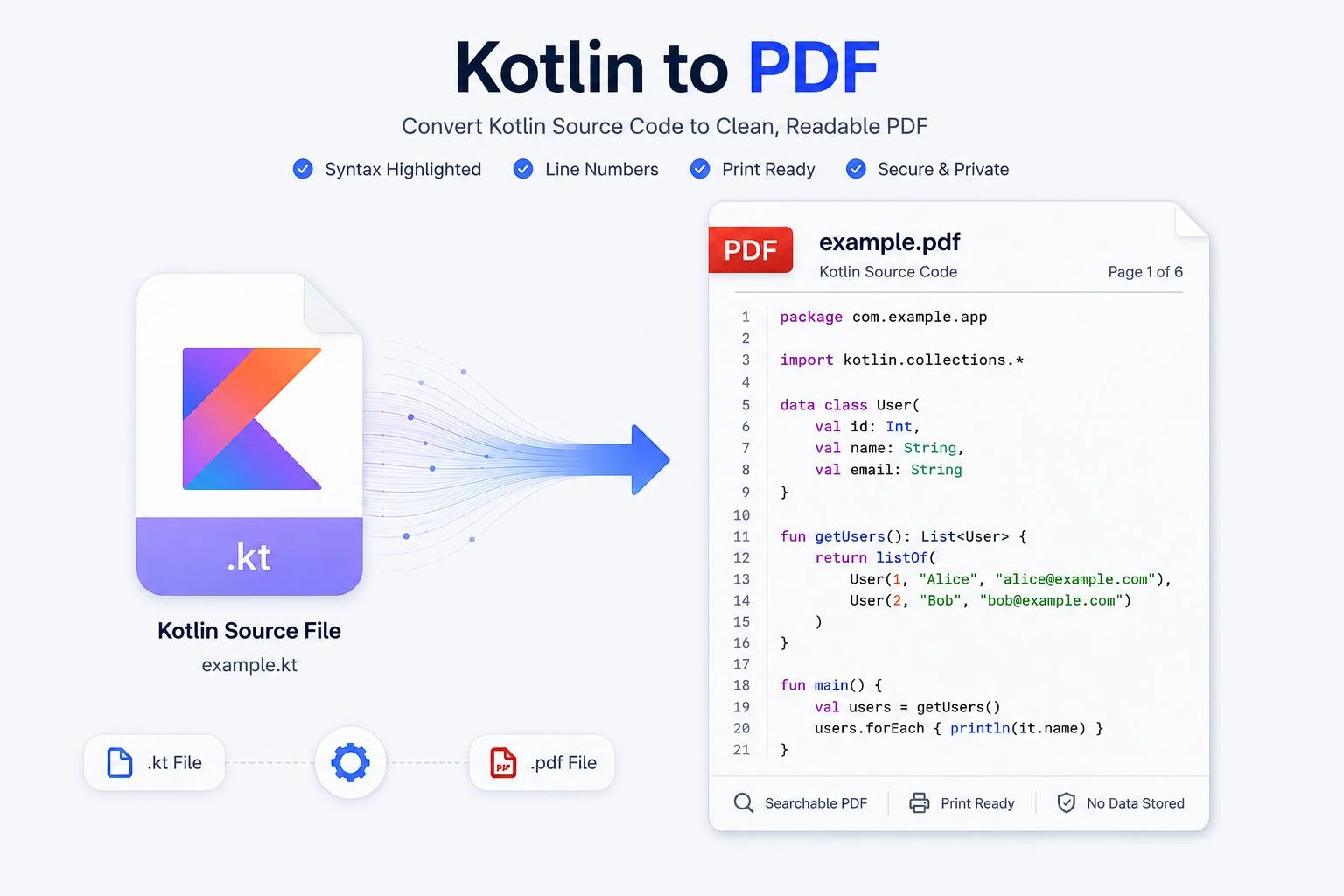

Table of Contents▼
Learn how to convert Kotlin source code (.kt) into clean, syntax-highlighted PDFs for code reviews, technical documentation, and client handoffs.
Introduction: The Unexpected Hassle of Sharing Source Code
You have written a clean, idiomatic piece of Kotlin code. Maybe it is an elegant domain model utilizing sealed interfaces and data classes, or a complex Jetpack Compose UI state handler for an Android app. Now comes the non-coding task: you need to share it.
Your lead architect wants a snippet to attach to an architectural decision record (ADR). Your university professor requires a single file submission for a programming assignment. Or perhaps a non-technical client wants a printed archive of the project deliverables.
So, you attempt the quick fix. You copy-paste the raw .kt code directly into a traditional word processor.
Immediately, the formatting falls apart.
Line breaks snap into arbitrary places. Indentation — crucial for reading nested coroutine scopes or trailing lambdas — scrambles completely. Worse still, your word processor underlines half your syntax with red spell-check squiggles, treating terms like coroutineScope, val, and isNullOrEmpty as misspelled words.
“Kotlin
// What looked clean in Android Studio or IntelliJ IDEA... class UserRepository(private val api: ApiService) { suspend fun fetchUser(id: String): Result<User> = runCatching { api.getUser(id) } }
When pasted carelessly into standard document editors without proper formatting, code loses indentation, typography degrades, and syntax highlighting vanishes entirely.
Converting your Kotlin source code directly to a clean PDF solves this problem. It preserves your exact layout, maintains syntax highlighting, locks indentation, and ensures that anyone opening the file sees precisely what you authored in your IDE — whether they own an IDE or not.
Tools like Doxbar are designed to handle code-to-document conversions gracefully, helping you move from raw .kt files to publication-ready PDF documents without wrestling with print drivers or broken styling.
The Core Technical Challenge: Plain Text vs. Structured Documents
To understand why exporting Kotlin code to PDF requires a tailored approach, it helps to look at how different file formats store information.
Plain Text (.kt Files)
Source code files are plain-text documents that contain no native visual layout information. A .kt file contains raw characters. The colors, font sizing, line numbers, and indentation guides you see while coding do not actually exist inside the .kt file itself — they are rendered dynamically on the fly by your text editor or IDE (such as IntelliJ IDEA or Android Studio) using syntax highlighting engines.
Portable Document Format (.pdf Files)
PDFs operate on an entirely different paradigm. Created by Adobe, the PDF format relies on fixed layout instructions. A PDF explicitly defines the exact horizontal and vertical coordinates of every character, line, and image on a fixed physical page canvas.
When you convert a Kotlin file into a PDF, a conversion tool must:
Parse the raw Kotlin source syntax.
Recognize keywords (fun, val, var, sealed, inline), string literals, comments, and annotations.
Apply fixed-width (monospace) typography.
Color-code token types to mirror proper IDE themes.
Render the result onto a fixed-coordinate PDF canvas while respecting page boundaries.
Why Developers Convert Kotlin Code to PDF
While version control systems like GitHub, GitLab, and Bitbucket dominate daily code sharing, there are several key scenarios where a static, universal PDF document is required:
1. Formal Code Reviews & Archival
During regulatory compliance audits (such as ISO, SOC 2, or HIPAA checks), engineering teams must often present immutable, timestamped snapshots of core software routines. Plain text files can be modified without leaving clear document tracks, whereas a signed PDF provides a stable audit snapshot.
2. Academic Submissions & Technical Documentation
Computer science coursework and software development bootcamps frequently require code submissions in PDF format. A well-formatted PDF allows instructors to review logic, check formatting discipline, and add inline annotations without pulling raw code into local compile environments.
3. Client Deliverables & Technical Proposals
When handing off completed Android applications or backend Kotlin microservices to clients, presenting core architecture files in a structured technical document bundle — complete with executive summaries, diagrams, and highlighted Kotlin code snippets — creates a professional handoff experience.
4. Code vs. Framework Comparisons
Developers evaluating technology stacks frequently create reference cheat sheets comparing syntax side by side. Converting reference examples (like Kotlin vs. Java, Kotlin vs. Swift, or Kotlin vs. Dart) into PDFs makes them easily distributable for team training.
Kotlin vs Java: Does Exporting to PDF Differ?
Both Kotlin and Java source files can be exported to PDF using similar methods, but Kotlin's modern language features—such as extension functions, null safety, and concise syntax—benefit more from proper syntax highlighting and formatting. Whether you're preparing documentation, submitting assignments, or sharing code for review, using a converter that preserves Kotlin-specific syntax ensures your PDF remains accurate and easy to read.
Comparison: Methods for Exporting Kotlin Code to PDF
Method | Syntax Highlighting | Layout Control | Setup Effort | Best Used For |
IDE Native Print (IntelliJ / Android Studio) | Excellent | Moderate | Low (requires IDE installed) | Quick local exports directly from your dev environment |
CLI / Tooling (e.g., Enscript, Pandoc) | Basic to Good | High | High (requires terminal setup) | Automated build pipelines and CI/CD scripting |
Dedicated Browser Converters (Doxbar) | Excellent | High | Zero (runs instantly in browser) | Quick, hassle-free conversion on any device without IDE dependencies |
Manual Copy-Paste to Word Processors | Poor / Broken | Very Low | High (requires heavy reformatting) | Not recommended for production code |
Step-by-Step Guide: How to Convert Kotlin Files to PDF
Method A: Using Modern Browser-Based Utilities (Fastest)
If you are on a mobile device, a Chromebook, or a machine without an IDE installed, browser-native converters offer the quickest path.
Prepare your Kotlin file: Ensure your .kt file is cleanly formatted. If you are using standard Kotlin style guidelines, run ktlint or use auto-formatting (Cmd + Option + L on macOS, Ctrl + Alt + L on Windows) before export.
Upload to the Converter: Navigate to an online file utility like Doxbar and upload your .kt source file or paste your code snippet.
Configure Visual Settings: Select your preferred code font (e.g., JetBrains Mono, Fira Code, or Source Code Pro) and pick a light or dark syntax highlighting theme.
Convert & Download: Click Convert. The engine processes the source code, applies syntax highlighting rules, wraps long lines gracefully, and outputs a downloadable PDF.
Method B: Exporting Directly from IntelliJ IDEA or Android Studio
If you already have your Kotlin project open in JetBrains IntelliJ IDEA or Google's Android Studio:
Open the .kt file you wish to export.
Go to the top menu and select File $\rightarrow$ Print...
In the print dialog, select Save as PDF (or use your operating system's native PDF printer driver).
Toggle options such as Line numbers, Syntax highlighting, and Header/Footer details (which include file path and date).
Click Save and select your output directory.
Essential Considerations for Quality Code PDFs
When converting technical code to static documents, small details significantly impact legibility:
Line Wrapping: Long lines of code can get clipped off the edge of a PDF page if word-wrapping is disabled. Ensure your converter applies smart soft wrapping or scales the font size slightly down so no logic is hidden.
Font Selection: Always use a true monospace font. Variable-width fonts break spacing alignments, making indented blocks hard to follow.
Color Contrast: Ensure high contrast between syntax highlighting colors and the page background. Bright yellow text on a white background or dark blue on black makes reading difficult.
Page Numbers & File Headers: Including the relative source path (e.g., src/main/kotlin/com/example/service/UserService.kt) in the header helps keep multi-page document packages organized.
Common Mistakes When Exporting Kotlin Code to PDF
Even experienced developers can run into formatting issues when exporting Kotlin source code to PDF. Avoid these common mistakes to ensure your document remains clean, readable, and professional.
Using proportional fonts instead of monospace fonts:
Fonts like Arial or Calibri can break code alignment. Always choose a monospace font such as JetBrains Mono, Fira Code, or Source Code Pro.
Ignoring line wrapping:
Long lines may be cut off at the page edge if wrapping isn't enabled. Check your PDF before sharing to make sure no code is hidden.
Removing syntax highlighting:
Plain black text is harder to review, especially in large files. Syntax highlighting improves readability and helps reviewers understand the code faster.
Including sensitive information:
Before exporting, remove API keys, passwords, tokens, and other confidential data from your Kotlin source files.
Skipping a final PDF review:
Always open the generated PDF and verify indentation, page breaks, headers, and overall formatting before sending it to clients, teammates, or instructors.
Frequently Asked Questions (FAQs)
1. How do I convert a .kt file to PDF without losing code formatting?
To preserve indentation, spacing, and structure, use a tool specifically designed to handle source code parsing, such as IntelliJ IDEA's native print function or dedicated web converters like Doxbar. Avoid copying plain code directly into generic word processors without using dedicated code block formatting.
2. Can I convert an entire Android project folder into a single Kotlin PDF?
Yes. You can merge individual .kt files using command-line tools like Pandoc combined with LaTeX, or compile files prior to conversion using custom scripts. Alternatively, you can batch convert individual files using browser utilities and merge the resulting PDFs using a standard PDF joiner tool.
3. Will dark mode IDE themes print well on paper?
While dark mode code blocks look slick on screen, printing them on physical paper consumes high amounts of black ink and often results in soggy paper or poor readability. For physical printing, select a light background syntax theme (such as GitHub Light or IntelliJ Light). For digital-only PDF reviews, dark themes are completely fine.
4. How does Kotlin syntax highlighting differ from Java when exported?
Kotlin includes language features like top-level functions, extension functions, trailing lambdas, val/var property declarations, smart casts, and nullability operators (?, !!). A syntax highlighter built specifically for Kotlin will properly color-code these distinct elements, whereas a generic Java parser may misinterpret or leave Kotlin-specific keywords unhighlighted.
5. Does converting code to PDF impact security or expose sensitive logic?
When using online conversion tools, security is paramount. Ensure that the web service processes conversions locally using client-side WebAssembly/JavaScript, or uses encrypted HTTPS uploads with immediate server file purging post-processing. For strictly confidential enterprise codebases, check your organization's security policy before uploading source code to third-party web services.
6. Can I convert Kotlin code to PDF online for free?
Yes. Many online tools allow you to convert Kotlin source code into a PDF without installing additional software. Simply upload your .kt file or paste your code, choose your preferred formatting options, and generate a PDF that's easy to share, review, or print.
7. How do I print a Kotlin file without Android Studio?
If you don't have Android Studio or IntelliJ IDEA installed, you can use a browser-based converter to create a PDF from your Kotlin file. After converting the file to PDF, you can print it from any standard PDF viewer while preserving the original formatting.
8. Can I export syntax-highlighted Kotlin code to PDF?
Yes. Many code-to-PDF tools support syntax highlighting, making your Kotlin code easier to read during code reviews, documentation, and presentations. You can also export directly from supported IDEs that include syntax highlighting in their print settings.
9. What's the best way to share Kotlin source code as a PDF?
The best approach is to export your Kotlin file as a properly formatted PDF with preserved indentation, syntax highlighting, and a monospace font. This ensures the document looks the same on every device and is suitable for technical documentation, client handoffs, academic submissions, and code reviews.
10. Can I convert multiple Kotlin files into a single PDF?
Yes. You can convert multiple Kotlin files individually and then combine them into a single PDF document. This approach is useful for project documentation, assignment submissions, and sharing multiple source files with clients or team members.
Related Tools That May Help
If you regularly work with source code and technical documentation, you may also find these tools useful:
Java to PDF
– Convert Java source files into clean, syntax-highlighted PDFs for documentation, code reviews, and project submissions.
Python to PDF
– Export Python scripts to professional PDF documents while preserving formatting and readability.
Swift to PDF
– Create shareable PDF versions of Swift source code for iOS development projects and technical documentation.
Code to PDF
– Convert various programming languages into well-formatted PDF files using a single, consistent workflow.
Merge PDF
– Combine multiple exported code PDFs into one document for project reports, client handoffs, or academic submissions.
Compress PDF
– Reduce the file size of your exported code PDFs before sharing them via email, cloud storage, or messaging platforms without significantly affecting readability.
Conclusion
Converting your Kotlin source code into a structured, readable PDF doesn't have to be complicated. Whether you're creating technical documentation, submitting a programming assignment, preparing for a code review, or sharing project files with clients, a well-formatted PDF keeps your code clean, professional, and easy to read across any device.
If you need a quick and reliable solution, DoxBar lets you convert Kotlin (.kt) files into high-quality PDFs while preserving formatting, indentation, and readability. With no software to install and a privacy-focused workflow, it's an easy way to create shareable PDF documents for developers, students, and technical teams.
Need to Convert Document Formats?
Try our secure, lightning-fast PDF conversion suite. Convert Word, Excel, Images, and more with zero formatting loss.

Doxbar Editorial
Security & Privacy Team
We specialize in secure document architectures, parsing engines, and modern developer utilities. Keeping your files safe, lightweight, and perfectly formatted.
Join the Conversation
Share your thoughts or ask a question about this topic. This is a privacy-first system.