

Markdown to PDF: How to Turn README Files, Notes, and Documentation into Shareable Documents
Contents
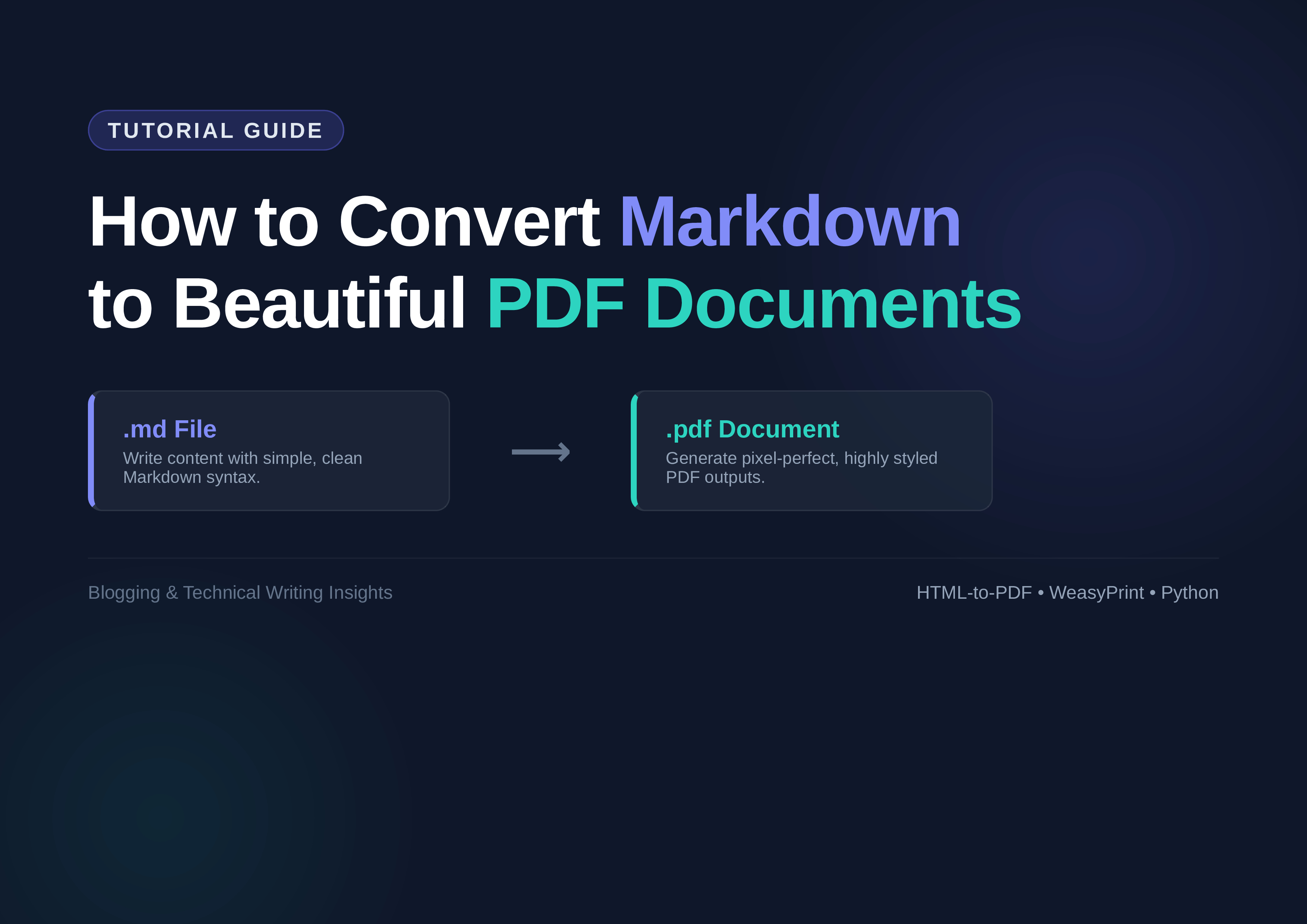
Markdown to PDF: How to Turn README Files, Notes, and Documentation into Shareable Documents

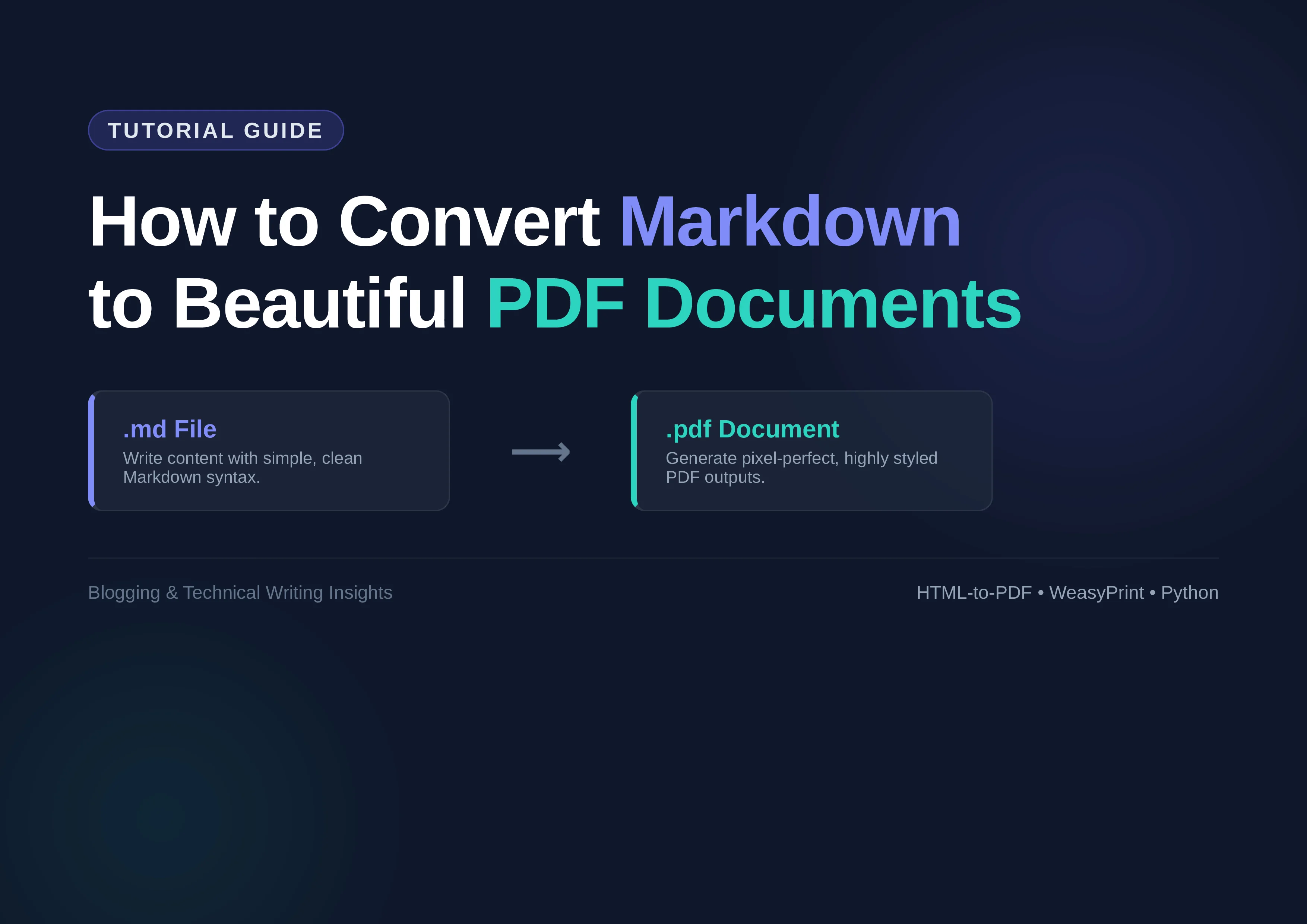

Table of Contents▼
Learn how to convert Markdown to PDF without losing code syntax highlighting, tables, or formatting. A clean guide to turning MD files into polished documents.
You have spent three hours meticulously documenting a project repository. The documentation lives in a beautiful README.md file, complete with nested bullet points, code snippets, and structured tables. Everything looks crisp on GitHub.
Then, the message arrives from upper management or a non-technical client: "Can you email over a PDF version of the documentation for review?"
Suddenly, your clean syntax turns into a formatting nightmare. Copy-pasting directly into a standard word processor strips away your styling, breaks your code blocks into weirdly wrapped text, and turns your tables into an unreadable mess.
Getting text out of a developer-friendly environment and into a universally shareable format shouldn't feel like wrestling with legacy software. Whether you are compiling a technical manual, sharing project notes, or sending an invoice drafted in Markdown, finding a reliable way to shift between plain text and polished PDF is essential for smooth collaboration. That is why modern utilities like Doxbar focus on keeping these transitions seamless without breaking your flow.
The Friction in Modern Document Workflows
Markdown has become the definitive standard for technical writing because it keeps your hands on the keyboard. It is lightweight, readable as raw text, and version-control friendly. But its greatest strength—simplicity—becomes a liability when you need to hand a document to someone outside your immediate ecosystem.
1. The Chaos of Broken Formatting
Markdown relies on specific structural syntax (like hashes for headers and asterisks for bolding). When you pass this through a generic converter or a standard word processor, the engine often misinterprets the markup. Your clean headings become plain text with trailing symbols, and your blockquotes just disappear.
2. The Code Block Nightmare
If your documentation includes snippets of JavaScript, Python, or HTML, maintaining readability is critical. Standard text engines do not understand syntax highlighting. Without proper parsing, your carefully indented code blocks turn into a single, massive run-on sentence that is completely useless to the reader.
3. Desktop Software Bloat
In the past, the go-to solution was downloading a heavy local IDE extension or installing massive desktop rendering engines like Pandoc alongside a full LaTeX distribution. For a quick conversion, downloading hundreds of megabytes of local tooling is an unnecessary bottleneck, especially if you are working on a secondary device or a locked-down corporate laptop.
4. Cross-Platform Display Inconsistencies
A raw .md file looks drastically different depending on the editor used to open it. If your recipient opens it in a basic text viewer, they see all the raw formatting tags. Exporting to a PDF locks your layout in place, ensuring that what you see on your screen is exactly what lands in their inbox, regardless of their operating system.
Educational Deep Dive: How MD Conversions Actually Work
To understand why conversions go sideways, it helps to look under the hood at how plain text transforms into a fixed-layout document.
[Raw Markdown] ---> [HTML Semantic Tree] ---> [CSS/Styling Engine] ---> [PDF Canvas Render]
Why Formatting Breaks
Markdown does not possess inherent styling. It only dictates structure. A line starting with # means "this is a top-level heading," but it doesn't say what font size, color, or weight that heading should be.
When you convert a Markdown file, the conversion engine first translates the markup into HTML elements. If the converter lacks a robust CSS engine to style those elements, you get a bare-bones page that looks like a website from 1995.
The Complexity of Rendering Tables and Images
Tables are notoriously finicky. In plain text, they are held together by pipes (|) and dashes (-). To render them properly in a PDF, the layout engine must dynamically calculate column widths based on the text inside them. If a single column contains a long URL or an unspaced string, it can force the entire table off the edge of the PDF page, cutting off vital data.
Similarly, images in Markdown are typically stored as external web links or relative file paths (e.g., ). If the conversion tool cannot access the local file directory or lacks an internet connection to fetch the remote URL, you will be left with a broken image icon in your final document.
The Modern Solution Framework: What to Look For
You don't need over-engineered software to run a clean conversion. When selecting a utility to handle your document processing, keep these pillars in mind:
Zero Local Setup: Look for browser-native execution. You should be able to drag, drop, and convert without configuring terminal commands or installing local dependencies.
Privacy-First Processing: Your internal documentation, server configurations, and project roadmaps are sensitive. Avoid tools that store your files on external servers indefinitely. Modern platforms often use HTTPS encryption and secure infrastructure to protect files during upload and processing.
Intelligent Layout Preservation: The converter must automatically handle page breaks, prevent text from overlapping, and scale tables so they fit perfectly within standard A4 or Letter margins.
Syntax Highlighting Support: For technical teams, having clear, colored themes for code blocks isn't a luxury—it's a readability requirement.
Comparing the Conversion Landscapes
Feature | Legacy Online Tools | Local Desktop / IDEs | Modern Browser Workflows (Doxbar) |
Setup Time | Instant | 10–30 minutes (Extensions/Packages) | Instant |
Privacy Control | Low (Server-dependent) | High (Local execution) | High (Ephemeral processing) |
Code Block Rendering | Often broken plain text | Good (Requires setup) | Native syntax highlighting |
Resource Usage | Moderate | High (Heavy dependencies) | Minimal |
Table Scaling | Poor (Often cuts off text) | Manual adjustments needed | Automated auto-fit |
Step-by-Step: The Perfect Markdown-to-PDF Workflow
Here is the most efficient way to turn your raw developer notes into an executive-ready PDF.
Step 1: Prepare Your Document
Before exporting, check your relative links. If your Markdown document links to other local text files (like [See Setup](./setup.md)), change those references to plain text or absolute URLs so your PDF readers don't click into dead links.
Step 2: Drop into the Converter
Open your conversion interface. Drag your .md file directly into the drop zone. If you are using a tool built for modern web standards, the file parsing happens almost instantly.
Step 3: Configure Your Layout Options
Select your preferred page size (usually Letter for North America, A4 for the rest of the world) and orientation. Ensure your code themes are set to a readable contrast mode—light modes generally print better, while dark styles look sharp on screens.
Step 4: Generate and Verify
Hit convert and download the generated file. Open the PDF and do a quick visual scan: Check the margins, ensure your code snippets aren't cut off at the right border, and verify that your bullet lists maintain their indentation hierarchy.
Pros & Cons of Web-Based Markdown Processing
Pros
Speed: No command-line arguments to remember or extensions to update.
Consistency: The cloud or browser rendering engine uses standardized font packages, avoiding local font mismatches.
Accessibility: Works perfectly on Chromebooks, tablets, and locked corporate environments where software installation is banned.
Cons
Offline Limitations: Web-reliant tools require an active connection to load the interface.
Deep Customization Limits: If you need highly complex, programmatic LaTeX layouts with custom academic citations, a dedicated local compilation chain might still be required.
Frequently Asked Questions
Can I convert a Markdown file that contains embedded HTML tags?
Yes, most advanced Markdown parsers follow the CommonMark or GitHub Flavored Markdown (GFM) specifications, which allow inline HTML to pass through and render correctly in the final PDF output.
How are code blocks handled during conversion?
A quality converter reads the language tag next to your triple backticks (e.g., ```python) and applies standard syntax coloring rules so the code remains as readable as it would look in an editor like Notion or VS Code.
Will my local images show up in the generated PDF?
If you are using a web-based utility, images hosted online via public URLs will render perfectly. For local images, you may need to embed them as Base64 strings directly into the document or upload the image folder alongside the document if the tool supports batch uploads.
Can I convert large README files with thousands of lines?
Absolutely. Standard Markdown text takes up very little memory, meaning even exceptionally long documentation files process in a matter of seconds.
Is there a file size limit for online conversions?
While text files are incredibly light, limitations usually arise if your document includes massive embedded images. Check your specific tool's limits, though plain text files rarely hit these caps.
Does the PDF maintain internal document anchors?
If your Markdown file includes a table of contents linking to specific section headers (e.g., [Jump to Setup](#setup)), a robust converter transforms those into functional, clickable internal document hyperlinks within the PDF.
What happens to checkboxes and task lists?
Task list syntax (- [x] Task) is parsed into visual checkbox icons. Completed items will show up checked, and incomplete ones will show up empty, preserving your project management state.
How are mathematical formulas formatted?
If your Markdown uses MathJax or LaTeX notation (like $$E=mc^2$$), specialized converters will render those strings into clean mathematical equations. Check your converter's specific support for math blocks before exporting.
Is my data safe when using an online converter?
It depends entirely on the tool. Many legacy sites log uploads on their storage disks. Modern platforms, like Doxbar, prioritize processing workflows that handle data ephemerally, ensuring your documentation remains your own.
Why do my tables look compressed in the output document?
PDFs have rigid horizontal boundaries. If your table has many columns, the engine has to squeeze the text to fit the page width. Try using landscape mode during export if your data sets are particularly wide.
Can I style the PDF with my own fonts?
Standard converters use built-in, widely accessible web fonts like Arial, Helvetica, or Roboto to ensure layout consistency across different devices.
Do page numbers get added automatically?
Most modern processors include a clean footer layout option that appends page numbers automatically, preventing you from having to type them out manually.
Will Markdown emojis render in the PDF?
Standard Unicode emojis (like 🚀 or Checkmarks) will render perfectly fine, provided the underlying PDF engine supports system emoji fonts.
Can I convert multiple Markdown files at once?
Many modern platforms feature batch processing queues, allowing you to drop multiple files into the interface and download them as individual PDFs or a single combined document.
How do I force a manual page break in Markdown?
Since Markdown doesn't have a native page break syntax, you can insert an inline HTML utility tag like <div style="page-break-after: always;"></div> where you want the split to occur.
Does the output comply with accessibility standards?
Properly converted PDFs retain their semantic structure (headings remain headings, tables remain tables), making it much easier for screen readers to parse the document compared to an unoptimized flat export.
What is the difference between GFM and standard Markdown during export?
GitHub Flavored Markdown includes support for real-world additions like tables, task lists, strikethroughs, and auto-linked URLs. Standard Markdown does not natively support these, so make sure your utility utilizes a GFM parser.
Can I save my export configurations for future use?
Browser-based tools often remember your default preferences (like margins, orientation, and themes) using local browser storage, saving you configuration time on subsequent visits.
Can I convert Markdown directly from a URL?
Some advanced developer tools allow you to paste a public GitHub or GitLab raw file link to fetch and render the text directly without downloading the file first.
Why did my text blockquote lose its styling?
This occurs if the converter doesn't apply standard CSS callout blocks to the blockquote tag (>). A proper styling engine gives these sections a distinct left border and a subtle background tint.
Can I protect the output PDF with a password?
While standard conversions create open documents for quick distribution, you can apply encryption permissions afterward using standard document security utilities.
Why are my bullet points misaligned?
Ensure you have a blank line before your bullet list starts in your Markdown source. Skipping that spacing can confuse parser engines and break list layouts.
Can I export my files directly to cloud storage?
Once your document converts, you can quickly save it straight to platforms like Dropbox or Google Drive using your browser's native saving locations.
Does Doxbar require an account to convert files?
No, the utility allows you to jump straight into your workflow without jumping through account creation or verification hoops.
What makes a document "commercially safe"?
Commercially safe utilities guarantee that your intellectual property, code snippets, and text are not scraped for AI training models or cached on open servers.
Maintaining Document Trust and Quality
When publishing documentation for clients or external stakeholders, visual polish translates directly into professional trust. Using clean, standardized conversion layers ensures your technical precision isn't masked by clumsy formatting. Keep your formatting clean, double-check your wide tables, and choose processing tools that respect both your data privacy and your time.
If you want a straightforward, efficient way to convert your documentation without dealing with complex command lines, explore the clean web tools at Doxbar to streamline your next document export.
Need to Convert Document Formats?
Try our secure, lightning-fast PDF conversion suite. Convert Word, Excel, Images, and more with zero formatting loss.

Doxbar Editorial
Security & Privacy Team
We specialize in secure document architectures, parsing engines, and modern developer utilities. Keeping your files safe, lightweight, and perfectly formatted.
Join the Conversation
Share your thoughts or ask a question about this topic. This is a privacy-first system.