

ODS to PDF: Convert ODS Spreadsheets Online Without Losing Formatting
Contents
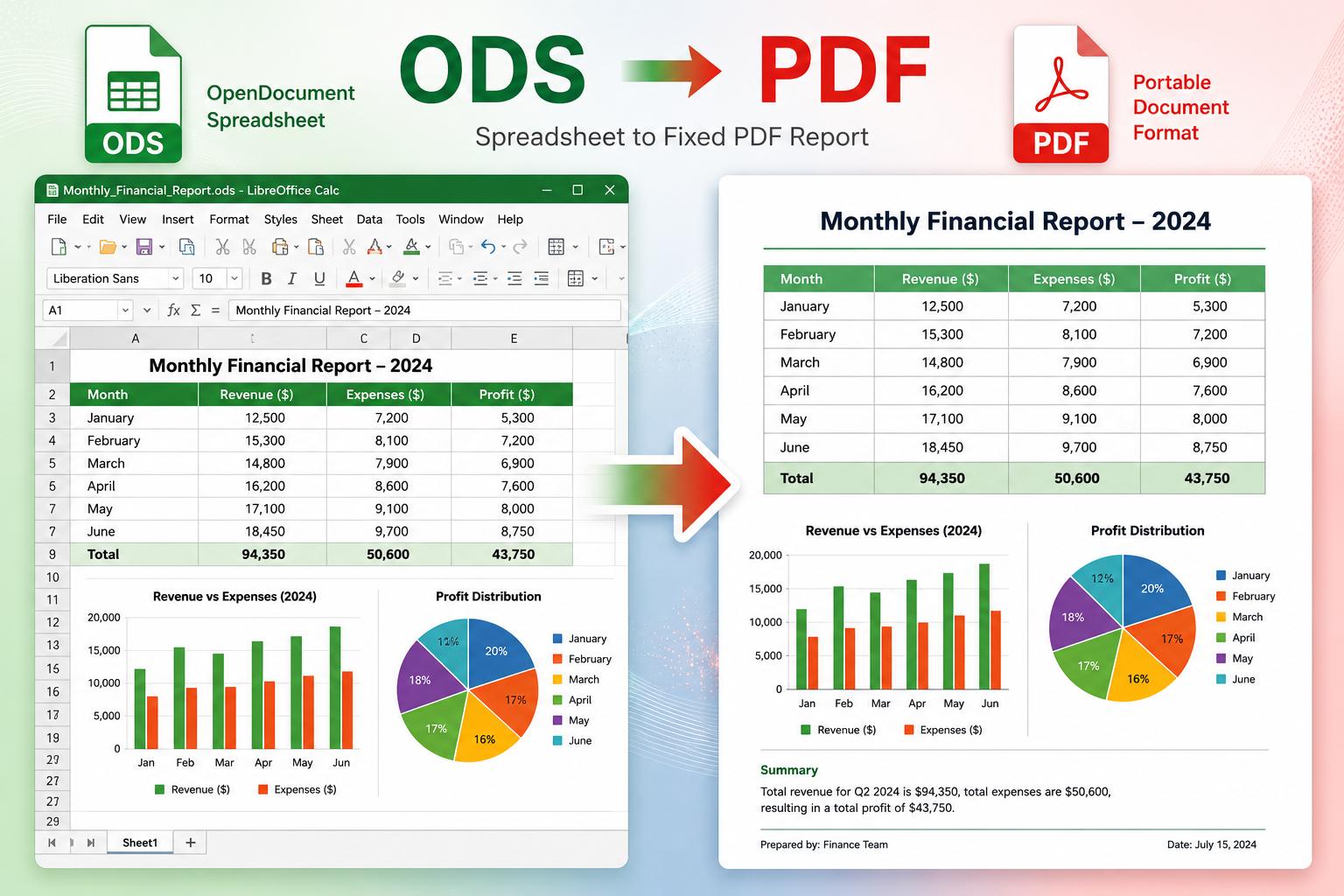
ODS to PDF: Convert ODS Spreadsheets Online Without Losing Formatting

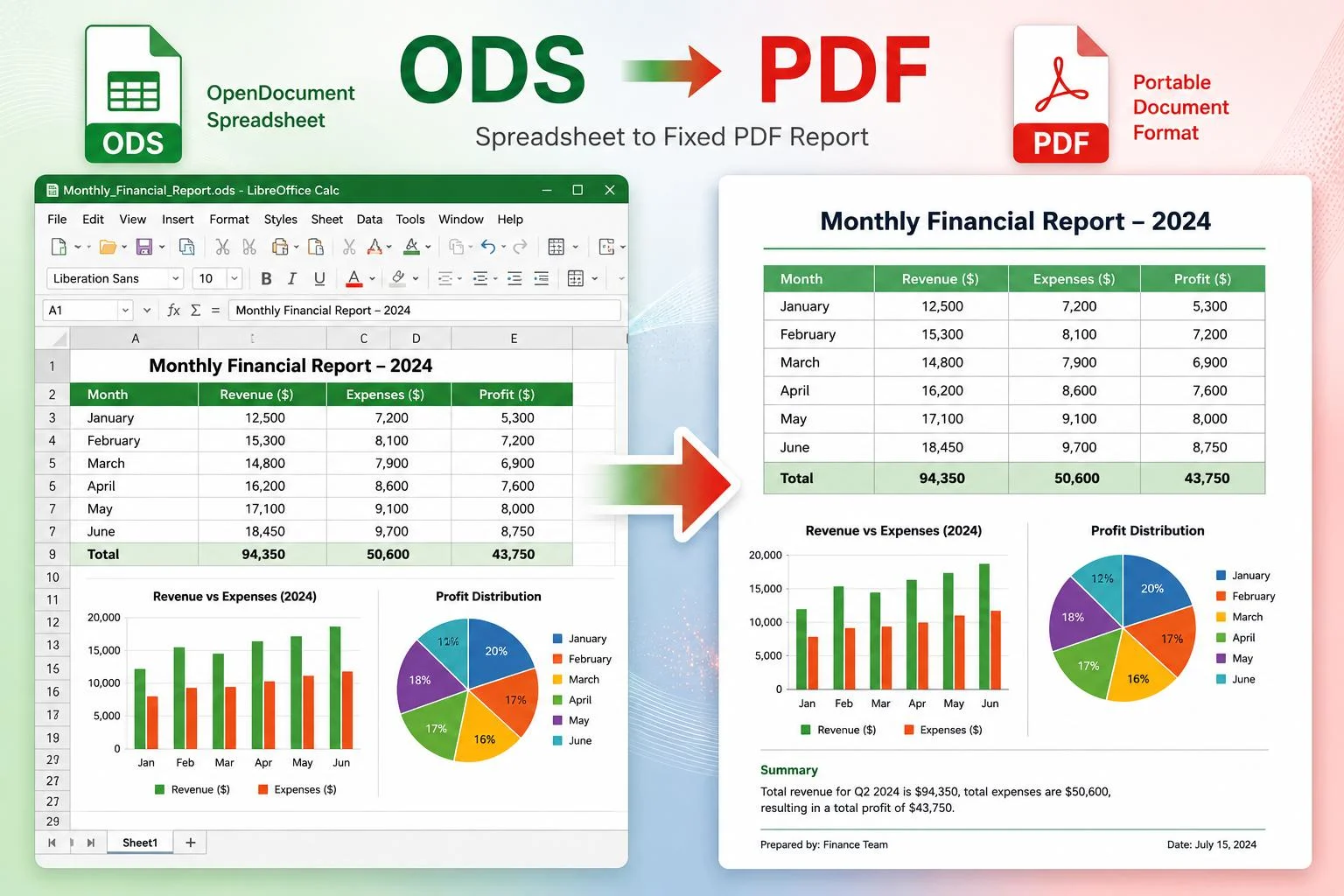

Table of Contents▼
Learn how to convert ODS spreadsheets to clean, print-ready PDFs without cut-off columns, broken charts, or misaligned formatting across any device.
Introduction
An ODS file can work smoothly inside LibreOffice Calc or OpenOffice and still become frustrating to distribute when someone needs a fixed, printable document. Wide columns can spill across separate sheets, fonts may substitute unexpectedly on different computers, and charts might not line up the way you planned.
Converting an ODS to PDF addresses this fundamental issue: it transforms an editable spreadsheet into a fixed-layout document that is significantly easier to review, archive, and print. Whether you manage client ledgers on Linux, prepare accounting reports on Windows, or review shared sheets on a mobile browser, generating a well-formatted PDF makes it easier to keep tables readable and consistently laid out when the file is shared or printed.
Why ODS Files Can Be Difficult to Share as Editable Spreadsheets
The OpenDocument Spreadsheet (.ods) format is an open XML-based standard maintained through the OASIS OpenDocument standard and standardized via ISO/IEC 26300. While it provides a reliable open alternative to proprietary workbook formats, sharing raw .ods files directly introduces a few common challenges:
1. Varying Application Renderers
Microsoft Excel, Apple Numbers, LibreOffice Calc, and Google Sheets each interpret spreadsheet layout properties slightly differently. A table styled carefully in OpenOffice Calc may display altered row heights or misaligned cell borders when opened in another application.
2. Font Substitution and Text Wrapping
If a spreadsheet relies on fonts unavailable on the recipient's computer, the host system substitutes an available alternative. Minor variations in font metrics can alter cell dimensions, shift line wrapping, or trigger display truncation where text unexpectedly clips. In some spreadsheet programs, numeric or date cells that become too narrow will display as ### symbols until manually resized.
3. Print Scaling and Multi-Page Splits
Unlike word-processing documents, spreadsheets can span many columns and rows both horizontally and vertically. Without setting defined print ranges or scale constraints, exporting a wide spreadsheet can split columns awkwardly across several pages, leaving trailing numbers on orphaned sheets.
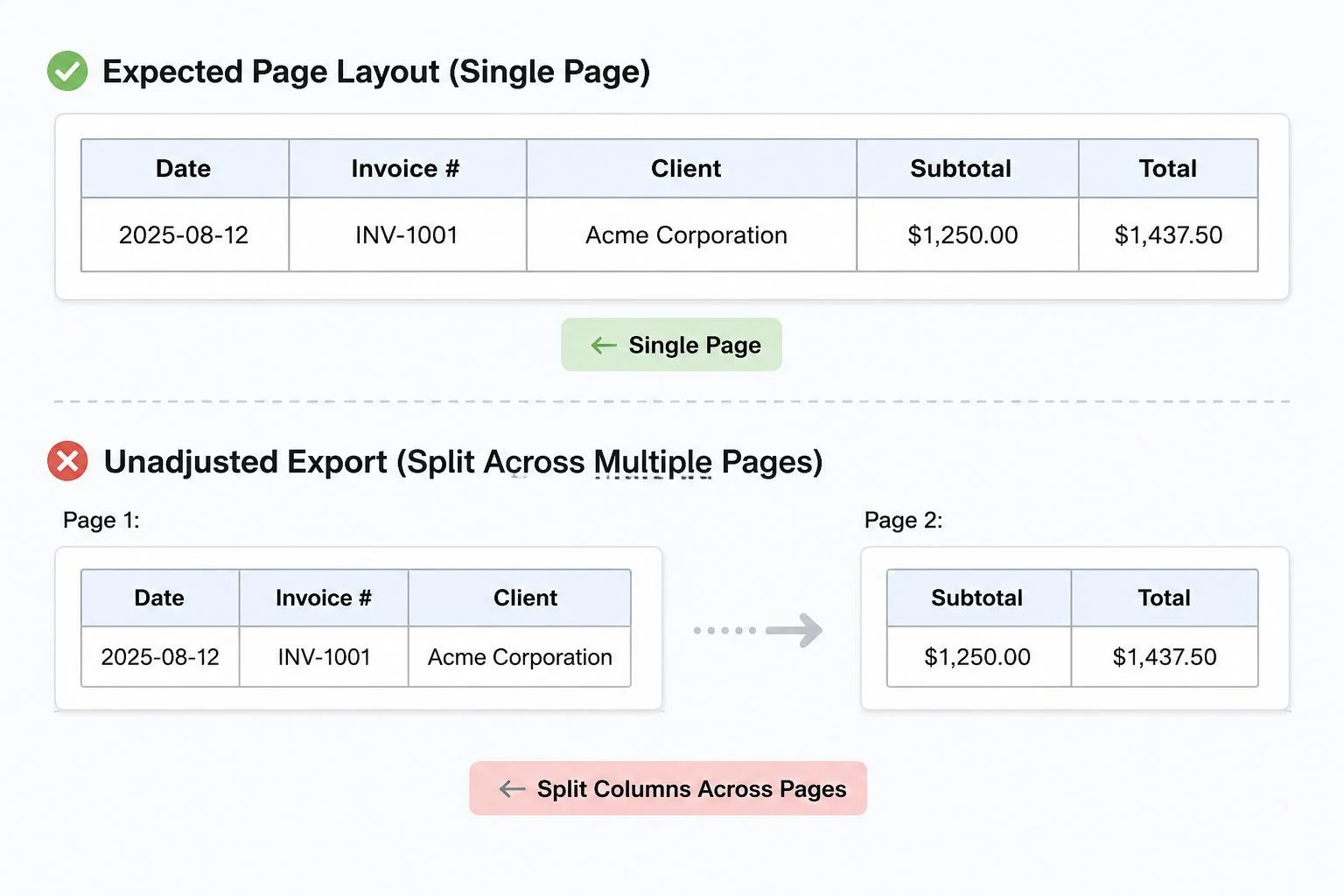
Keep PDF table columns together on one page by adjusting page layout and scaling settings before export.
4. Visibility of Formulas and Workbook Structure
Distributing the original spreadsheet shares raw calculation formulas, hidden reference tabs, and workbook structure. A PDF export presents a fixed visual copy of the selected data, helping ensure external recipients see the finished report without modifying values.
What Happens When You Convert ODS to PDF?
When an ODS spreadsheet is converted to PDF, the file's visible content is rendered onto fixed virtual pages. Cell values, table borders, colors, embedded charts, and active layout rules are processed into a static visual document according to the source file's page and print configurations.
Because different converters and office suites process complex XML styling with varying precision, results can differ—particularly for multi-tab workbooks, extensive datasets, or customized graphics. Checking page scaling and orientation before or immediately after export remains the most reliable way to prevent layout discrepancies.
Practical Considerations for ODS to PDF Conversion
When choosing a conversion method for your documents, several core factors determine how cleanly the output will render:
Data Privacy: Business spreadsheets can contain financial information, internal metrics, and contact details. If you use a web-based converter, check whether it uses TLS encryption during transfer and clearly explains how long uploaded files are retained.
Layout and Orientation Adjustments: Wide data tables often benefit from landscape orientation or scaling settings (such as fitting all columns to a single page width) to prevent awkward horizontal pagination.
Multi-Tab Support: Workbooks with several active sheets require flexible handling—either merging all tabs into a sequential multi-page PDF or allowing you to export only the specific sheet needed.
Accessibility Across Devices: For users on tablets, Chromebooks, or mobile phones, browser-based conversion avoids the requirement to install heavy desktop office suites.
Comparison: Approaches to Converting ODS Files
Feature | Desktop Office Suite | Command-Line Interface | Online Converter |
Software Setup | Required | Required | None |
Print Range Setup | Detailed manual control | Script/configuration based | Depends on tool |
Mobile Use | Limited | Not practical | Browser-based |
Automation | Manual | Excellent for repeatable workflows | Designed for quick conversions |
Best Used For | Detailed layout adjustments | Batch workflows | On-demand conversion |
Step-by-Step Guide: How to Convert an ODS File to PDF
Method 1: Using an Online Converter (Quick & Universal)
Navigate to the ODS to PDF converter tool on Doxbar.
Upload your .ods spreadsheet from your device storage.
Click the convert button and wait for the document processing to complete.
Download the generated PDF and review the page structure in your preferred reader to verify table margins and chart placement.
“Doxbar provides 200+ file conversion tools from a single platform, allowing you to convert ODS files online without installing desktop software.
Method 2: Exporting Directly from LibreOffice Calc
Open your .ods file in LibreOffice Calc.
Go to Format > Page Style and select the Sheet tab.
Under Scale, set the scaling mode to Fit print range(s) to width/height or specify page counts to ensure columns remain on one page.
Select File > Export As > Export as PDF... (review details in the LibreOffice PDF Export Documentation).
Choose your desired image compression and sheet range, then click Export.
Practical Pros & Cons of Converting ODS to PDF
Pros
Fixed Visual Output: Preserves the exported page layout so recipients see a consistent report rather than having to render raw spreadsheet data.
Cross-Platform Readability: Opens smoothly on mobile devices, desktop operating systems, and web browsers without dedicated office software.
Print-Friendly Format: Provides an accurate representation of physical page boundaries before sending to a printer.
Point-in-Time Copy: Creates a standalone record of your figures as they appeared at the moment of export.
Cons
Static Content: Formulas, automated calculations, and interactive data filters are no longer dynamic in a flat PDF.
Complex Multi-Sheet Adjustments: Sheets with differing column counts may require individual print scaling to maintain uniform appearance across pages.
Re-editing Complexity: While PDFs can be annotated or converted back to tables using OCR, the original dynamic spreadsheet formulas cannot be directly restored from the exported document.
Advanced FAQ Section
What is an ODS file?
An ODS (OpenDocument Spreadsheet) file is an open, XML-based spreadsheet format maintained by the OASIS consortium. It serves as the primary spreadsheet standard for LibreOffice Calc, OpenOffice Calc, and related productivity tools.
Why should I convert an ODS file to PDF?
Converting to PDF provides a fixed-layout document that preserves your visible tables, fonts, and charts across different platforms, making it easier to share, review, and print without requiring spreadsheet software.
How do I convert an ODS file to PDF online?
Upload your .ods file to an online converter such as Doxbar, initiate the conversion process, and download the finished PDF once rendering is complete.
How do I prevent spreadsheet columns from getting cut off in the PDF?
To keep columns within a single page width:
In your spreadsheet software (such as LibreOffice Calc), open Format > Page Style > Sheet and adjust the scaling mode to Fit print range(s) on number of pages (set Width to 1).
Check the print preview to confirm all table columns fit on the primary page before exporting.
Can I convert an ODS file containing multiple sheets?
Yes. Many conversion tools and desktop programs can export all active sheets sequentially into a single multi-page PDF. Check the output document if individual sheets require different orientations (portrait vs. landscape).
Can I convert an ODS spreadsheet without installing LibreOffice?
Yes. You can use an online converter in your web browser to transform .ods files into PDFs directly without downloading desktop software suites.
Can I convert ODS to PDF on a smartphone or tablet?
Yes. Browser-based conversion tools allow you to upload an .ods file directly from iOS, iPadOS, or Android devices and save the exported PDF to your device.
What happens to formulas when converting ODS to PDF?
The PDF displays the calculated numerical results and text as shown in the spreadsheet at the time of conversion. The underlying formulas are not stored as active calculations inside the PDF.
How are embedded charts handled during conversion?
Charts are rendered as part of the output page layout. It is advisable to review chart legends, axis titles, and data labels in the resulting PDF to ensure they are scaled properly.
Can an ODS file with macros be converted to PDF?
Yes. The visible tables and text will render normally. However, macros and automated scripts do not execute inside PDF files.
Can Microsoft Excel open and convert ODS files to PDF?
Yes. Modern versions of Microsoft Excel can open standard .ods files. Once opened, you can select File > Save As or Export and choose PDF as the destination format.
Can I convert a PDF back into an ODS spreadsheet later?
You can use table extraction and OCR tools to pull text and tabular data back into a spreadsheet format. However, original workbook formulas, sheet link structures, and custom macros cannot be automatically reconstructed.
Why does text wrap differently in my exported PDF?
Differences in line wrapping usually occur when the system performing the conversion uses slightly different font metrics or default margin rules than the software used to create the original sheet.
Why do some cells show ### in the spreadsheet output?
In several spreadsheet programs, numeric or date values appear as ### when a column is too narrow to display the full number. Expanding the column width in the source file before converting resolves this issue.
How can I make column headers repeat on every page of a multi-page PDF?
In LibreOffice Calc, navigate to Format > Print Ranges > Edit, and specify your title row under Rows to Repeat. This ensures long tables display header titles at the top of each exported PDF page.
Trust, Security, and File Management
Handling operational files requires basic precautions to maintain both document clarity and data privacy:
Preview Layouts Before Sharing: Reviewing the exported PDF in a standard viewer ensures no columns, header notes, or summary rows were unintentionally split across pages.
Review Source Metadata: Spreadsheets can retain author properties, template details, and editing history. Check file properties in your source application before exporting if you need to minimize shared internal information.
Maintain Your Master ODS Files: Always keep your original .ods files backed up. Since a PDF represents a static snapshot for distribution, your master spreadsheet remains necessary for future formula adjustments and record updates.
Conclusion
Spreadsheets are useful for calculating data, maintaining inventories, and organizing business records, but they are not always the easiest format to share when someone only needs a finished report.
Converting ODS to PDF creates a fixed-layout version that is easier to review, print, and distribute. If your spreadsheet contains wide tables, multiple sheets, or charts, check the exported PDF before sharing to make sure the page scaling and layout look right.
Need to Convert an ODS File to PDF?
Convert your ODS spreadsheet to PDF directly from your browser with Doxbar. Upload your file, convert it to PDF, and download the finished document when processing is complete.
Need to Convert Document Formats?
Try our secure, lightning-fast PDF conversion suite. Convert Word, Excel, Images, and more with zero formatting loss.

Doxbar Editorial
Security & Privacy Team
We specialize in secure document architectures, parsing engines, and modern developer utilities. Keeping your files safe, lightweight, and perfectly formatted.
Join the Conversation
Share your thoughts or ask a question about this topic. This is a privacy-first system.