

ODT to PDF Without Losing Formatting: Fix Common Layout Problems
Contents
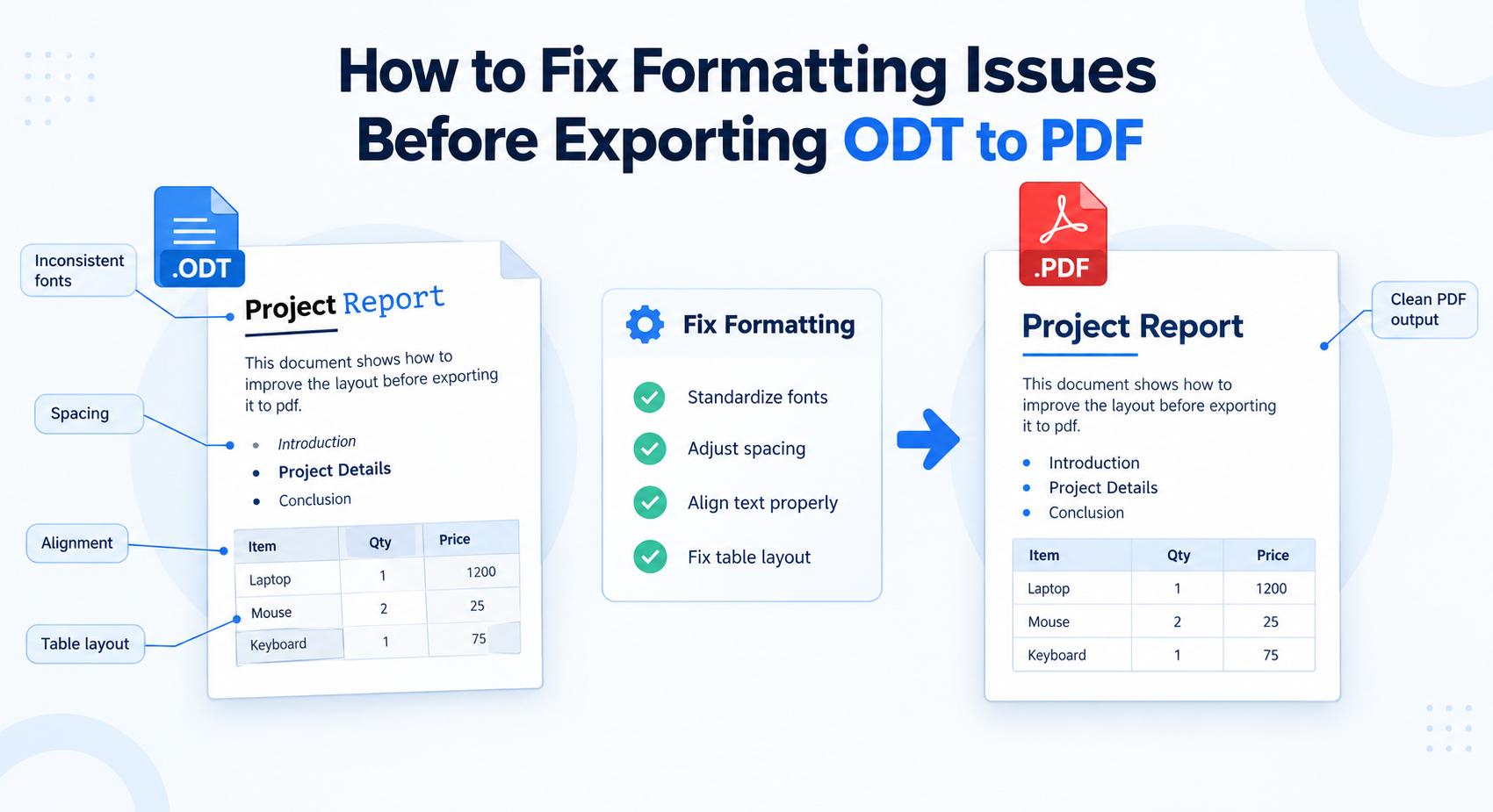
ODT to PDF Without Losing Formatting: Fix Common Layout Problems

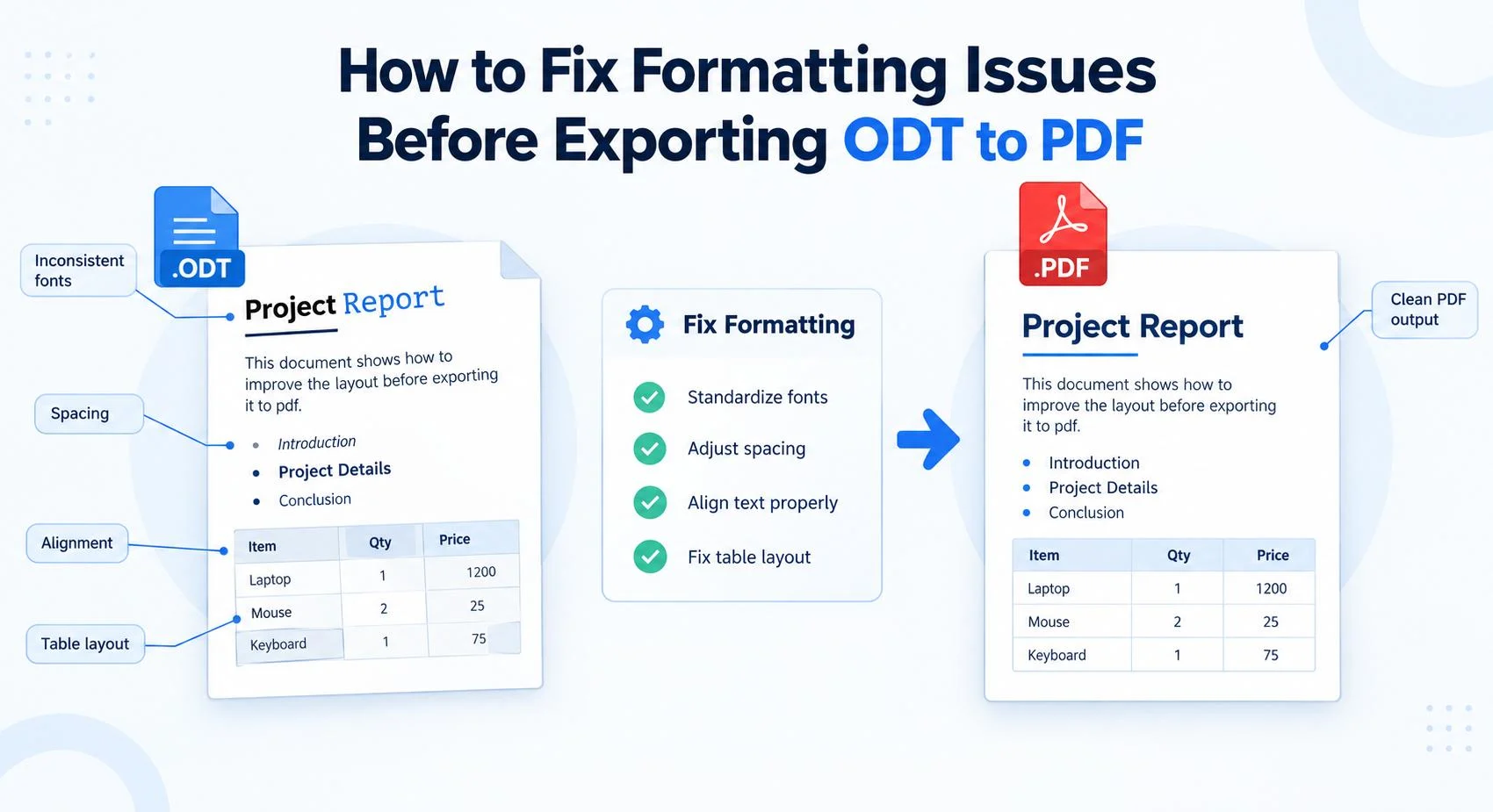

Table of Contents▼
Learn how to convert ODT to PDF without losing formatting. Fix font shifts, clipped tables, page breaks, and blank pages before you export.
How to Convert ODT to PDF Without Losing Formatting
It usually happens right before a deadline.
You spend an hour fine-tuning a report, proposal, or academic paper in LibreOffice Writer or OpenOffice. The headings sit neatly above every section, your data tables line up with the text, and the document ends flush at the bottom of page four.
Then you convert that OpenDocument Text (.odt) file into a PDF.
You open the finished file to send it, and things look off:
An unintended blank page sits between sections two and three.
The right column of a financial summary table is chopped off by the margin.
A signature block or floating diagram has jumped down into the middle of the next page.
The font looks slightly wider, pushing two extra lines of text onto an accidental fifth page.
It is an infuriating problem because the original document looked right on screen.
The issue rarely stems from a faulty export button. It happens because ODT and PDF treat document layout in fundamentally different ways. ODT is built to let text move, adapt, and reflow as you edit; PDF is designed to preserve a document's page layout rather than continuously reflow its content as an editable word processor does.
When you convert between them, small formatting habits that feel harmless inside an active word processor turn into visible layout breaks.
Preventing those issues does not require complex technical workarounds. A few targeted adjustments to your document structure before converting will keep your layout intact once the file becomes a PDF.
Why ODT Files Shift When Exported to PDF
To fix layout shifts permanently, it helps to understand why an ODT file behaves differently from the PDF it produces.
An OpenDocument Text file—governed by the open standard managed by OASIS—is an editable stream of content. It relies on your computer's local software environment to interpret styles, calculate spacing between lines, and display fonts.
A PDF follows the ISO 32000 standard. Rather than recalculating fluid lines of text, PDF is designed to preserve a document's page layout rather than continuously reflow its content as an editable word processor does.
Three underlying factors cause most conversion mismatches:
1. Font Substitution
If your ODT file uses a typeface that is not available during the conversion process, the system replaces it with a generic fallback font. Because different typefaces feature distinct character widths, line heights, and letter spacing, even a minor variance in letter proportions can accumulate across multiple paragraphs. A paragraph that fit neatly into four lines can expand to five, nudging headers, tables, and page breaks downward throughout the document.
2. Relative vs. Fixed Anchoring
In word processors like LibreOffice Writer, images and text boxes are often set to anchor "To Paragraph" or "To Character" by default. While you draft, this keeps visuals close to related text. But during export, if preceding lines expand or contract even slightly, floating objects can jump across page boundaries or overlap nearby elements.
3. Margin Boundary Collisions
Text wraps naturally when it reaches a margin. Tables and imported images do not always behave the same way. If a table or graphic is slightly wider than the printable area between your page margins, the conversion engine cannot always squeeze it down. The result is clipped content or an automatic, unwanted page break.
The Core Framework: Prepare First, Convert Second, Inspect Last
The most reliable approach to clean document output follows a straightforward three-stage pipeline:
The Three-Stage Conversion Pipeline
1. Prepare Before converting, clean up the document. Turn on formatting marks, remove unnecessary trailing paragraph returns, and set explicit widths for tables and other important elements.
2. Convert Export the prepared ODT file to PDF using your preferred method. During conversion, make sure images keep their intended proportions and that the output is created as a standalone PDF.
3. Inspect Don't assume the conversion is perfect. Open the PDF at 100% zoom and check table boundaries, image placement, and any unexpected changes in the total page count.
This simple Prepare → Convert → Inspect workflow helps catch common formatting problems before you send, print, or share the final PDF.
Spending three to five minutes preparing your file inside your editor resolves the structural ambiguities that trip up conversion engines later.
Pre-Flight Checklist: Preparing Your ODT Before Converting
Before initiating any conversion, open your file in your word processor (such as LibreOffice Writer or Apache OpenOffice) and verify these structural checkpoints.
1. Turn on Non-Printing Characters
Make hidden layout elements visible. In LibreOffice Writer, press Ctrl + F10 (or Cmd + F10 on macOS), or click the pilcrow icon (¶) on the standard toolbar.
What to Look For With Formatting Marks Turned On
Unstable Drafting Habit
Quarterly Overview ¶ ¶ ¶ ¶ Next Quarter Projections
Repeated paragraph marks can create unpredictable spacing and page breaks during PDF conversion.
Stable Document Structure
Quarterly Overview
Page Break (Ctrl + Enter)
Next Quarter Projections
Using an intentional page break gives the document a clear structural separation instead of relying on multiple empty paragraphs to push content onto the next page.
Tip: When you see several ¶ marks stacked together, replace them with proper paragraph spacing or an intentional page break where appropriate.
Look closely for:
Consecutive paragraph returns (¶): Hitting Enter multiple times to push text to the top of the next page is one of the most common causes of accidental blank pages. Delete these empty returns and insert a dedicated page break using Ctrl + Enter.
Trailing spaces at paragraph ends: Stray spaces can force a single punctuation mark onto a new line, adding unexpected vertical height to paragraphs.
Dangling returns after tables: A trailing empty paragraph right below a table that touches the bottom margin will push a blank page into the final document.
2. Standardize Fonts and Typography
Stick to widely supported system or open-source fonts: Typefaces such as Liberation Sans, Liberation Serif, DejaVu, or standard system fonts convert predictably across local and cloud environments.
Audit custom fonts: If you must use a distinctive brand font, verify whether your editor supports font embedding (in LibreOffice, check File > Properties > Font > Embed fonts in the document). If embedding is unavailable, consider using standard typographic alternatives for documents that must be distributed externally.
3. Lock Image and Graphic Anchors
Floating images cause unpredictable page spills when text shifts around them.
Use "As Character" for inline graphics: If a visual element belongs strictly between two paragraphs or functions like an icon, set its anchor to As Character. The editor will treat it like a single large text character, keeping it directly within the normal text flow.
Use "To Page" for standalone full-page diagrams: If a chart or diagram must stay in one exact physical spot regardless of text edits around it, anchor it to Page.
Keep dimensions inside the margins: Check your page settings (e.g., standard Letter or A4). If your page width is 8.5 inches and your left and right margins are each 1 inch, keep every image width at or under 6.5 inches.
4. Set Explicit Table Dimensions
Tables with automatic or percentage-based widths often render inconsistently during conversion:
Right-click the table and select Table Properties.
Look under the Columns tab and assign explicit widths (in inches or centimeters) rather than relying on dynamic auto-fit.
Verify that the combined width of all columns does not exceed your printable page width.
To prevent awkward splits, uncheck Allow row to break across pages for rows that contain critical short data entries or signature blocks.
Quick Troubleshooting Guide
If an exported PDF shows formatting issues, use this reference table to find the likely cause and apply the fix inside your source ODT file.
Problem in Exported PDF | Likely Cause | How to Fix in Your ODT File |
Blank page appears inside or at the end | Extra paragraph returns (¶) or an accidental hard page break. | Turn on formatting marks (Ctrl + F10). Delete empty lines and trailing returns after tables. |
Right side of table is cut off | Table width exceeds the printable page area between margins. | Open Table Properties. Set explicit column widths that total less than your margin boundaries. |
Document gained an extra page | Font substitution or loose line-spacing rules pushed content downward. | Use standard system fonts. Remove stacked returns and rely on explicit spacing in paragraph styles. |
Images shift onto unexpected pages | Graphic is anchored "To Paragraph" or "To Character" with loose wrapping. | Change the anchor property to "As Character" for inline flow, or "To Page" for fixed assets. |
Missing images or empty boxes | Graphic was inserted as a file link to local disk storage, not embedded. | Re-insert the graphic without checking "Link", or break links via Edit > Links to External Files. |
Hyperlinks do not work in PDF | URLs were typed as plain text without semantic link tagging. | Highlight the text, press Ctrl + K, and ensure a destination URL is assigned to the link. |
Converting Your ODT File
Once your document structure is audited, choose the conversion path that fits your setup:
Option A: Direct Export via Desktop Office Suites
If you have LibreOffice or OpenOffice installed:
Open your prepared ODT file.
Select File > Export as PDF...
Review the PDF export options for image quality, compression, and page range before saving the file.
Click Export and save the file to your computer.
Option B: Modern Online Conversion Tools
If you work across different machines, use a mobile device, or prefer not to install large desktop office suites, an online conversion workflow provides a fast alternative.
Platforms like Doxbar let you convert ODT files to PDF directly through your web browser:
Open the converter page in your browser.
Upload your prepared .odt file.
Run the conversion.
Download the generated PDF to your local drive.
Using an online tool is especially practical when working on devices like Chromebooks or tablets, where full desktop office software is not available.
The Post-Conversion Inspection
Never send an exported document without checking the output. Open the generated PDF in your preferred viewer, set the zoom scale to 100%, and review these five checkpoints:
Post-Conversion 5-Point Inspection
1. First & Last Pages Confirm that the title appears correctly and check the beginning and end of the document for unexpected blank pages.
2. Page Count Compare the PDF's page count with the source ODT and investigate any unexpected extra or missing pages.
3. Wide Tables Check that all columns, table content, and border lines remain fully visible without being clipped.
4. Image Placement Make sure images and illustrations have not shifted unexpectedly or moved past their intended section breaks.
5. Heading Alignment Check that section headings remain properly positioned with the text they introduce and have not been separated from the following content.
This keeps the section easy to scan on mobile, responsive, and much more natural for a blog article.
ODT vs. PDF: When to Use Which
Use Case / Requirement | ODT (OpenDocument Text) | PDF (Portable Document Format) |
Active Drafting & Editing | Best choice. Native support for revisions and style inheritance. | Poor choice. Difficult to reflow or modify body text cleanly. |
Sending to Clients or External Reviewers | Risk of layout shifts if recipient uses different software or fonts. | Standard choice. Designed to preserve a consistent visual layout across devices and PDF viewers. |
Commercial Printing | Layout may adjust based on local printer driver defaults. | Standard choice. Preserves margins, vector elements, and coordinates. |
Long-Term Digital Preservation | Strong for open-format text archives, but rendering varies over time. | Excellent, particularly formats adhering to PDF/A archive standards. |
A simple practical rule: Keep your original ODT file as your permanent working copy. Whenever changes are needed, update the source ODT and export a fresh PDF. Trying to edit text inside a finalized PDF often leads to broken alignments and mismatched typefaces.
Frequently Asked Questions
What should I check first before converting ODT to PDF?
Turn on formatting marks (Ctrl + F10) to check for empty paragraph returns, confirm your tables do not exceed margin boundaries, and ensure images have stable anchor properties.
How do I convert ODT to PDF?
You can use the native export feature inside desktop editors like LibreOffice Writer (File > Export as PDF), or upload your file to an online conversion tool like Doxbar to generate the PDF through your browser.
Why does my document look different after conversion?
The most frequent cause is font substitution. If the system converting your file does not have access to your document's original fonts, it substitutes alternatives with different widths and heights, shifting lines, paragraphs, and page breaks.
How do I prevent blank pages in my exported PDF?
Remove manual stacks of empty paragraph returns (¶) used as spacers, delete trailing empty paragraphs placed immediately below tables, and use explicit page breaks (Ctrl + Enter) instead of repeated Enter keys.
Why are my tables getting cut off on the right?
This occurs when a table's total width exceeds the space available between your left and right page margins. In your word processor, open Table Properties and define explicit column widths that fit comfortably within your page margins.
Does converting ODT to PDF preserve formatting?
Yes, provided that your fonts are standard or embedded, your images are anchored predictably, and elements like tables stay inside page boundary limits.
Can I convert an ODT file without LibreOffice installed?
Yes. You can use a web-based document tool like Doxbar in your browser, or import the ODT file into cloud platforms such as Google Docs to download it as a PDF.
Can I convert ODT to PDF on a mobile phone?
Yes. Modern online converters work directly inside mobile browsers on iOS and Android, allowing you to upload an ODT file from local storage or cloud drives and download the finished PDF without installing an office suite.
Should I keep my original ODT file after creating a PDF?
Always keep the original ODT. PDFs are designed for viewing and distribution, making substantive text edits difficult later. Keeping the source file lets you make corrections easily and re-export whenever necessary.
Is it safe to convert documents using an online tool?
Online conversion can be appropriate for sensitive documents when the service uses encrypted transmission and clearly explains how uploaded files are processed, stored, and deleted. For highly sensitive files, review the provider's privacy and retention policies before uploading.
Summary: Clean Conversions Start in the Editor
A clean transition from an editable ODT file to a polished PDF does not come down to luck. By switching on non-printing characters, using reliable fonts, locking table widths to page margins, and anchoring graphics properly, you remove the common ambiguities that break layouts during export.
Once your document structure is sound, pick the conversion workflow that fits your routine—whether that means exporting straight from your desktop editor or running a fast conversion through Doxbar when working in the browser. A quick 100% zoom check at the end ensures your document looks exactly as intended before it reaches your audience.
Need to Convert Document Formats?
Try our secure, lightning-fast PDF conversion suite. Convert Word, Excel, Images, and more with zero formatting loss.

Doxbar Editorial
Security & Privacy Team
We specialize in secure document architectures, parsing engines, and modern developer utilities. Keeping your files safe, lightweight, and perfectly formatted.
Join the Conversation
Share your thoughts or ask a question about this topic. This is a privacy-first system.