

How to Combine and Organize PDF Pages From Multiple Documents
Contents
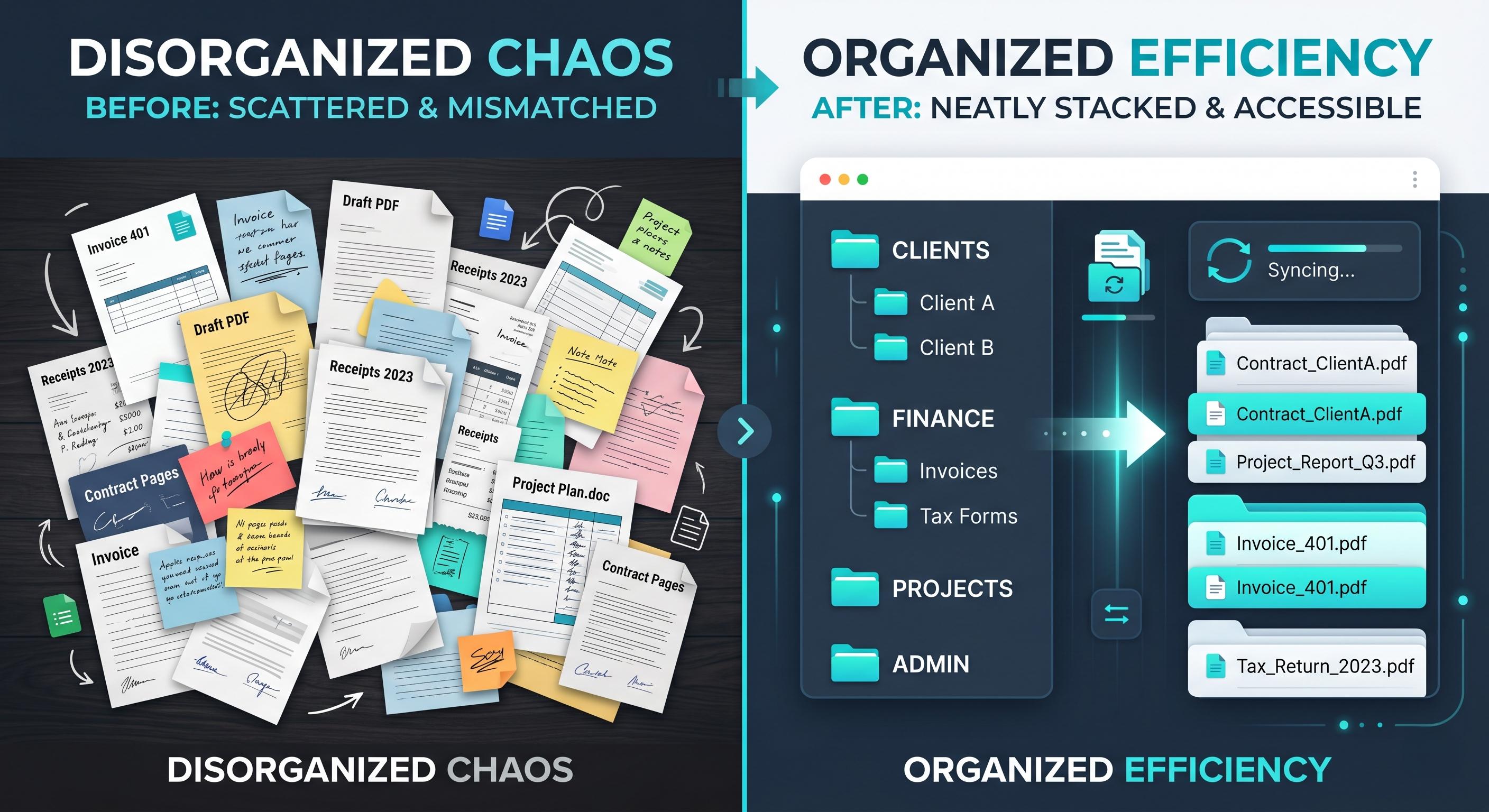
How to Combine and Organize PDF Pages From Multiple Documents

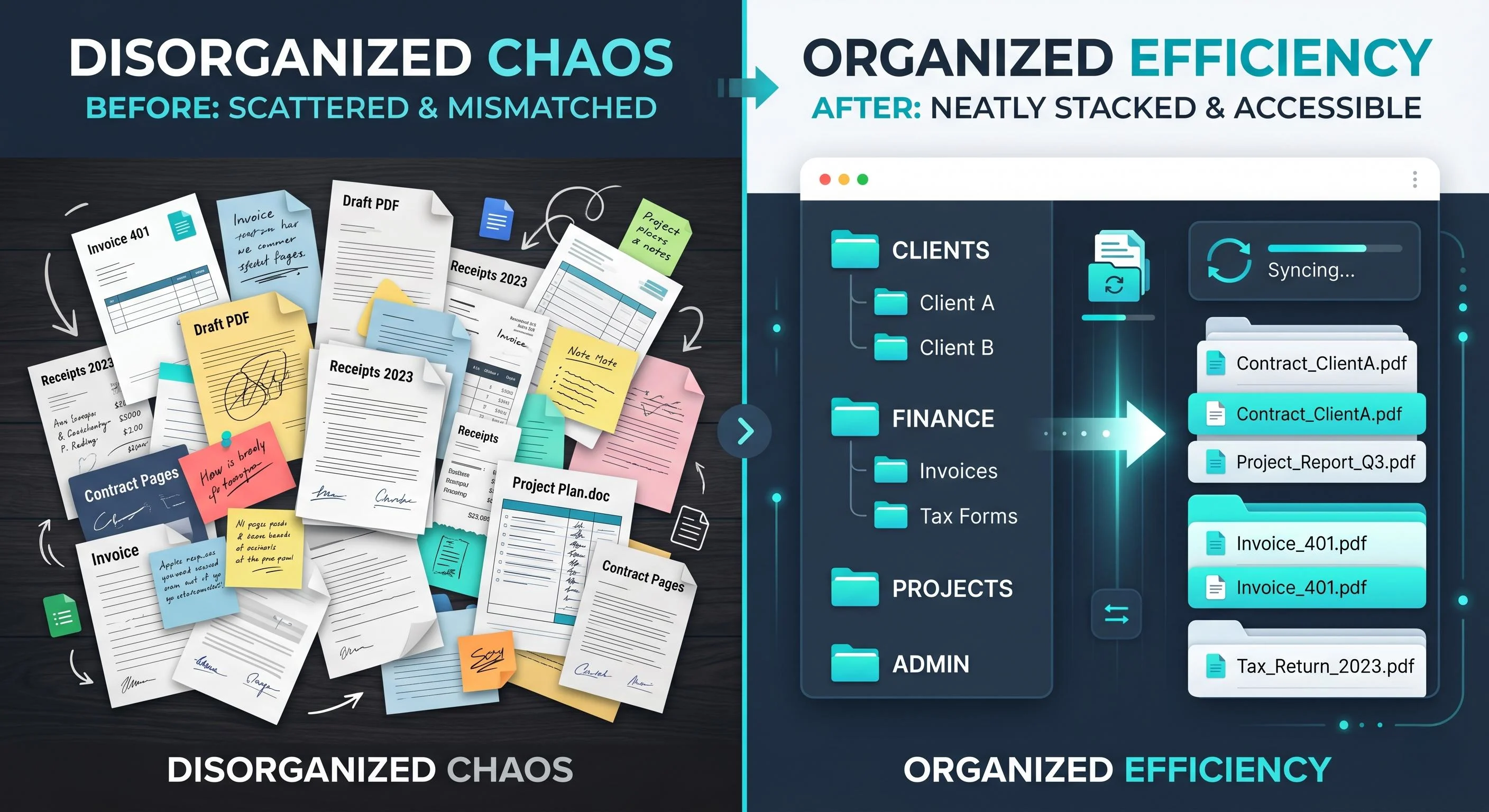

Table of Contents▼
Struggling to combine files? Learn how to organize PDF pages from multiple PDFs quickly, preserve formatting, and maintain total data privacy.
It is 4:45 PM on a Friday. Your manager asks for a single, comprehensive project report compiled from three different sources: a financial spreadsheet exported as a PDF, a creative brief from marketing, and a legal addendum from an external partner.
You try the old copy-and-paste method. The formatting explodes immediately. Fonts change sizes arbitrarily, margins misalign, and your charts turn into an unreadable mess. Next, you consider downloading a heavy desktop software package, but your corporate laptop requires IT admin privileges just to run an installer. Meanwhile, the clock is ticking.
Managing multiple document fragments shouldn't feel like digital archaeology. Whether you are a student piecing together research papers, a freelancer compiling portfolio samples, or an office administrator syncing departmental updates, finding an efficient way to organize pages from multiple PDFs is a daily friction point. Whether you need to organize PDF pages for a business report, academic project, or legal document, using the right workflow can save significant time and effort.
That is why we built Doxbar — to handle these exact bottlenecks directly in your browser, keeping your formatting intact and your data private.
Why Combining PDFs Destroys Your Layouts
To understand why organizing pages across separate documents is so painful, we have to look under the hood at how files handle structural data.
1. The Core Conflict: Flowable vs. Fixed Layouts
Microsoft Word documents (.docx) are built on flowable layouts. According to Microsoft, these files act like a continuous stream of text; if you add words on page one, everything else pushes down automatically.
PDFs are the exact opposite. Built as a digital representation of printed paper, Adobe designed the Portable Document Format to lock elements into exact coordinate systems ($X$ and $Y$ positions). When you try to merge two distinct PDFs via basic text copying, the underlying layout grids clash, resulting in overlapping images and displaced text lines.
2. Embedded Font Mapping Conflicts
When a PDF is created, it embeds specific font subsets to save space. If Document A uses a variant of Helvetica and Document B uses a slightly different web-optimized version of Helvetica, forcing them into the same file can cause rendering engines to misread the font maps. The result? Your text mutates into strange squares or unreadable symbols.
3. Desktop Software Bloat
Traditional desktop applications require significant system resources, constant updates, and a local storage footprint. For a user who just wants to rearrange pages in PDF online, launching an enterprise-grade suite is massive overkill.
4. Security Risks of Blind Web Uploads
Many legacy web tools process your files on external, unverified servers. If you are handling sensitive financial data or personal identification documents, uploading them blindly to a platform with vague data retention policies puts your compliance at serious risk.
The Tech Behind the Transformation
When you want to merge pages from multiple PDF files and reorder them digitally, a few complex background processes take place to keep your document legible:
Vector Matrix Remapping: The software reads the geometric coordinates of every line, vector shape, and text string on a page, adjusting the internal reference pointers so they exist harmoniously in a newly defined document container.
Optical Character Recognition (OCR): If your source PDF is simply a collection of scanned image pages, a modern converter runs basic OCR algorithms to recognize character shapes, turning static images into searchable text layers without altering the visual presentation.
Browser-Native Sandboxing: Modern web applications leverage secure client-side scripting. Instead of shipping your files to an unknown server across the globe, processing happens directly within your local browser memory space, much like how Cloudflare processes edge tasks for speed and security.
What to Look For in a Modern Tool
Modern tools make it easy to organize PDF files without installing complex desktop software. Don't just use the first link you find on a search engine. A reliable document utility must tick a few vital boxes:
Zero Footprint Privacy: Your files should ideally be processed locally or wiped from temporary cloud storage immediately after execution.
Visual Page Layout Previews: You cannot efficiently reorder pages blindly. You need clear, high-resolution thumbnails of each page to drag, drop, and rotate visually.
Cross-Platform Performance: The system should operate seamlessly whether you are on a MacBook, a Windows desktop, or a Linux workstation.
Batch Capability: If you have twelve individual files to merge, you shouldn’t have to upload them one by one.
Comparing Your Options
Feature | Legacy Online Tools | Desktop Software | Modern Browser Workflows (Doxbar) |
Setup Friction | None | High (Requires Installation) | None |
Processing Speed | Slow (Queue-dependent) | Fast (Hardware-dependent) | Instant |
Data Privacy | Poor (Long server retention) | High (Local processing) | High (Immediate deletion) |
Interface Modernity | Ad-heavy and confusing | Complex menu hierarchies | Clean, minimalist, visual |
Cost | Often hides behind paywalls | Expensive recurring licenses | Highly accessible |
Step-by-Step: How to Organize Pages From Multiple PDFs
If you are wondering how to organize pages from multiple PDFs without pulling your hair out, here is the cleanest way to merge and structure your documents using Doxbar's streamlined utility.
Step 1: Upload Your Sources
Open your browser and navigate to the Doxbar compilation tool. Drag and drop all the individual PDF files you wish to pull pages from into the drop zone.
Step 2: Visual Arrangement
Once loaded, you will see a grid layout of every page across all uploaded documents. You can drag thumbnails to rearrange the sequence, delete unnecessary filler pages, or rotate landscape charts into portrait orientation.
Step 3: Execute the Merge
Click the compile button. The engine restructures the underlying data coordinates, standardizes the font maps, and binds the pages into a single, cohesive file structure.
Step 4: Download and Verify
Save the output file to your local drive. Open it up to ensure your margins, tables, and images look exactly as they did in their original standalone versions.
The Reality Check: Pros & Cons
Pros
Eliminates App Swapping: No need to jump between three different tools to read, extract, and combine pages.
Preserves Quality: Vector graphics and high-res photography stay crisp without compression degradation.
Saves Disk Space: Keeps your operating system clean from resource-heavy apps.
Cons
Requires Internet Access: Being a browser-centric workflow, you need an active connection to access the interface.
Extremely Corrupted Files Fail: If a source PDF has corrupted root tables, no online editor can magically rebuild it without a repair phase first.
Advanced FAQ Section
Q: Can I combine PDFs that have different page sizes?
Yes. Modern engines can handle a mix of Letter, A4, and custom sizing within a single document wrapper. The layout engine treats each page as an independent canvas, preventing smaller pages from getting stretched or clipped.
Q: Will my hyperlinked table of contents still work after merging?
Internal document links (like "Go to Page 4") often break during a merge because the total page count and page index change. However, external URLs embedded in text strings generally remain fully functional.
Q: Is there a maximum file size limit when uploading to Doxbar?
We optimize our platform to handle heavy, text-dense business documents effortlessly. For exceptionally large files filled with high-resolution imagery, performance depends primarily on your local network upload speed.
Q: What happens to password-protected files?
For security and privacy compliance, encrypted or password-protected PDFs cannot be modified until you input the correct decryption password to unlock the file permissions.
Q: Does combining files compress the image quality?
Doxbar prioritizes visual fidelity, retaining the original resolution of embedded elements. It does not aggressively compress your files unless you explicitly choose an optimization or compression pathway.
Q: Can I insert a blank page between merged documents?
Yes, our visual interface allows you to insert blank structural dividers or placeholder pages wherever necessary before finalizing your file compilation.
Q: Can I merge Excel spreadsheets directly with PDFs?
You must save or export your spreadsheet as a PDF first using applications like Google Sheets or Microsoft Excel. Once both files share the PDF format, they can be merged flawlessly.
Q: Does this tool work on mobile browsers?
Absolutely. The responsive layout adapts easily to iPadOS, iOS, and Android mobile browsers, allowing you to reorder document flows on the go.
Q: Why do my fonts sometimes look weird after a merge?
This happens if the original creator didn't fully embed the font properties into the PDF. When merged, the rendering engine is forced to fall back to a generic font style like Arial or Times New Roman.
Q: Can I extract a single page from a 100-page document?
Yes. You can upload the long document, visually delete the 99 pages you don't need, and download the remaining single page as a standalone file.
Q: How long do my files remain on Doxbar's servers?
We believe in absolute data privacy. Your processed files are automatically purged from our ephemeral systems immediately after your session ends or download completes.
Q: Will combining documents remove digital signatures?
Yes, modification of any kind invalidates cryptographic digital signatures. This is an intentional security design within PDF specifications to prevent fraud and unauthorized document tampering.
Q: Can I undo a page movement if I make a mistake?
Of course. The visual drag-and-drop workspace acts as a sandbox. Changes are only written permanently once you hit the final processing button.
Q: Why do some scanned pages take longer to display previews?
If a page is an uncompressed raster image rather than clean vector text, the system takes an extra moment to generate a crisp visual thumbnail for your workspace grid.
Q: Can I combine landscape and portrait pages?
Yes, you can mix orientations freely. You can also use our rotational tools to flip inverted pages right-side up.
Q: Does this process alter the original files on my computer?
No. The tool works on a copy of your files. Your source documents remain completely untouched on your local drive.
Q: Is there any limit to how many files I can merge at once?
While there isn't a hard system cap, we recommend processing documents in manageable batches to prevent your browser memory from bottlenecks.
Q: Can I search text within the newly created PDF?
If your source files contained selectable text layers, that searchable data maps directly into the combined document.
Q: Why do some web converters ask for my email address?
Many legacy websites use document tools as lead-generation magnets to capture your email for marketing lists. Doxbar provides access without forcing you through registration walls.
Q: Is this platform compliant with data privacy frameworks like GDPR?
Because we don't store, profile, or permanently harvest your document contents, our ephemeral workflow supports a highly secure approach to data privacy.
Summary of Best Practices for Document Management
To make your workflow as smooth as possible, keep these habits in mind before compiling files:
Standardize Names Early: Name your source files sequentially (e.g., Part1_Intro.pdf, Part2_Data.pdf) so they load in a predictable order.
Check Integrity First: Open your source documents individually to ensure they aren't corrupted before processing them.
Review Post-Merge Layouts: Always scan your final document to confirm that mixed orientations render correctly on all screens.
Conclusion
When you are looking for the fastest, safest way to organize pages from multiple PDFs, desktop programs, and ad-heavy sites can often feel like more trouble than they are worth. By shifting to a modern, browser-native platform that values layout precision and strict user privacy, you can finish your compiling tasks in seconds without breaking your original layouts.
The next time you need to stitch together fragments for an audit, school project, or corporate deadline, run your documents through Doxbar. It is fast, intuitive, secure, and entirely hassle-free.
Need to Convert Document Formats?
Try our secure, lightning-fast PDF conversion suite. Convert Word, Excel, Images, and more with zero formatting loss.

Doxbar Editorial
Security & Privacy Team
We specialize in secure document architectures, parsing engines, and modern developer utilities. Keeping your files safe, lightweight, and perfectly formatted.
Join the Conversation
Share your thoughts or ask a question about this topic. This is a privacy-first system.