

Why Does PDF to HTML Conversion Break Page Layouts?
Contents
Why Does PDF to HTML Conversion Break Page Layouts?

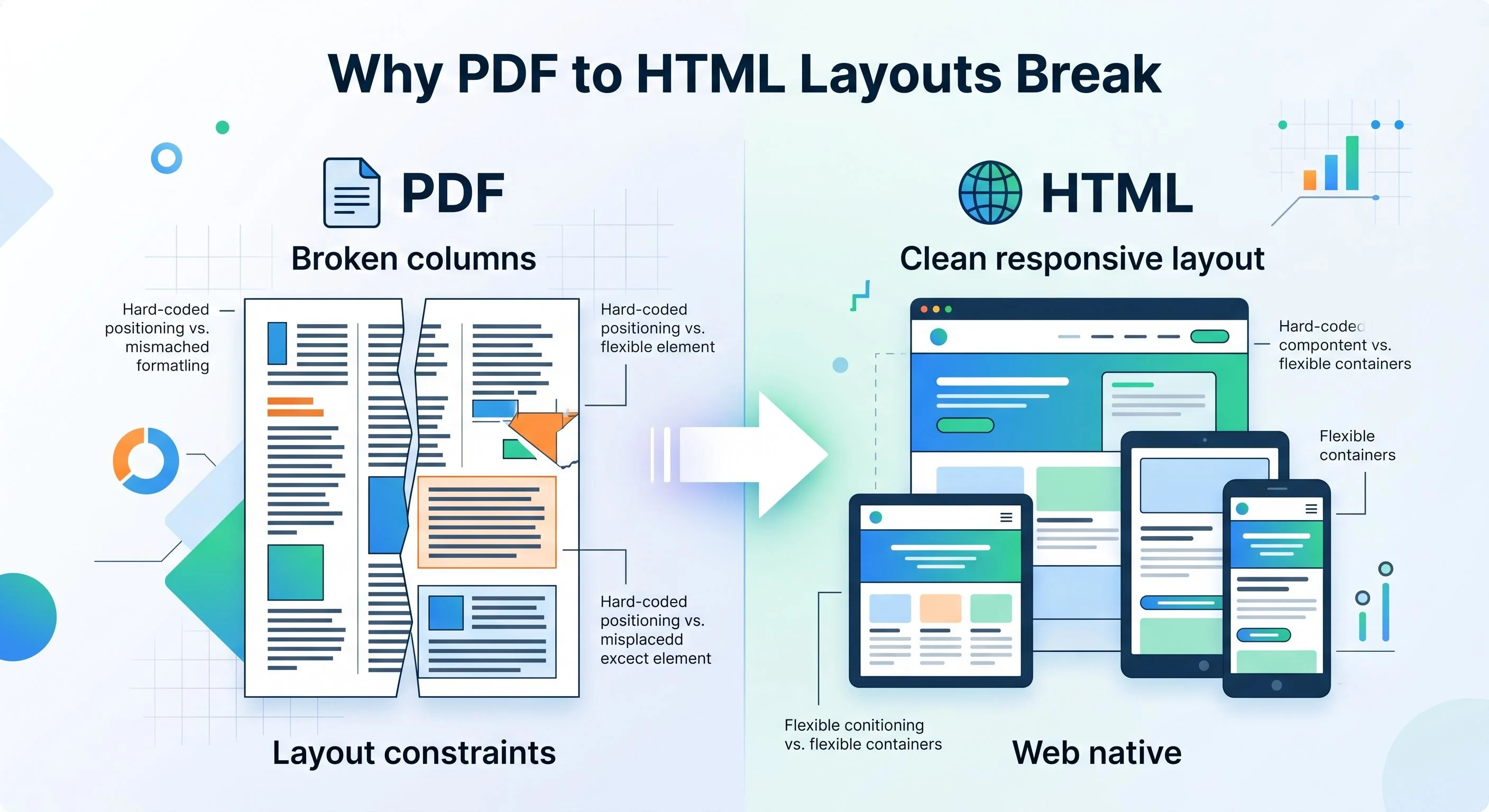

Table of Contents▼
Discover why PDF to HTML conversion breaks layouts and how to achieve clean, responsive web code without losing your original formatting.
PDF structure vs HTML, fixed layout vs responsive web design, and preserve PDF formatting online
Quick Answer
PDF to HTML formatting issues occur because PDFs use fixed-position layouts while HTML uses responsive, flow-based layouts. During conversion, fonts, columns, tables, and positioned elements often lose their original structure, causing broken page layouts.
The Ultimate Office Frustration: When "Save As Web Page" Goes Wrong
Imagine this scenario: You have spent three days perfecting a beautiful Q4 corporate report. The typography is elegant, the multi-column layout is balanced, and the charts align perfectly with the data tables. Your manager asks you to upload it to the company portal as a native web page so users do not have to download a heavy file.
You find a quick converter online, upload the document, click convert, and look at the resulting HTML file.
The text is overlapping. Your perfectly centered charts are floating somewhere in the left margin. The fonts have defaulted to a generic Times New Roman, and your multi-column layout looks like an absolute mess.
This is the frustrating reality of converting document formats designed for print into formats designed for screens. Documents like PDFs are rigid, whereas web pages need to flex. Bridging that structural gap is notoriously difficult. Modern workflows require intelligent tools like Doxbar to translate static designs into clean, usable web formats without manual rewriting.
Why File Conversion Is Such a Mess
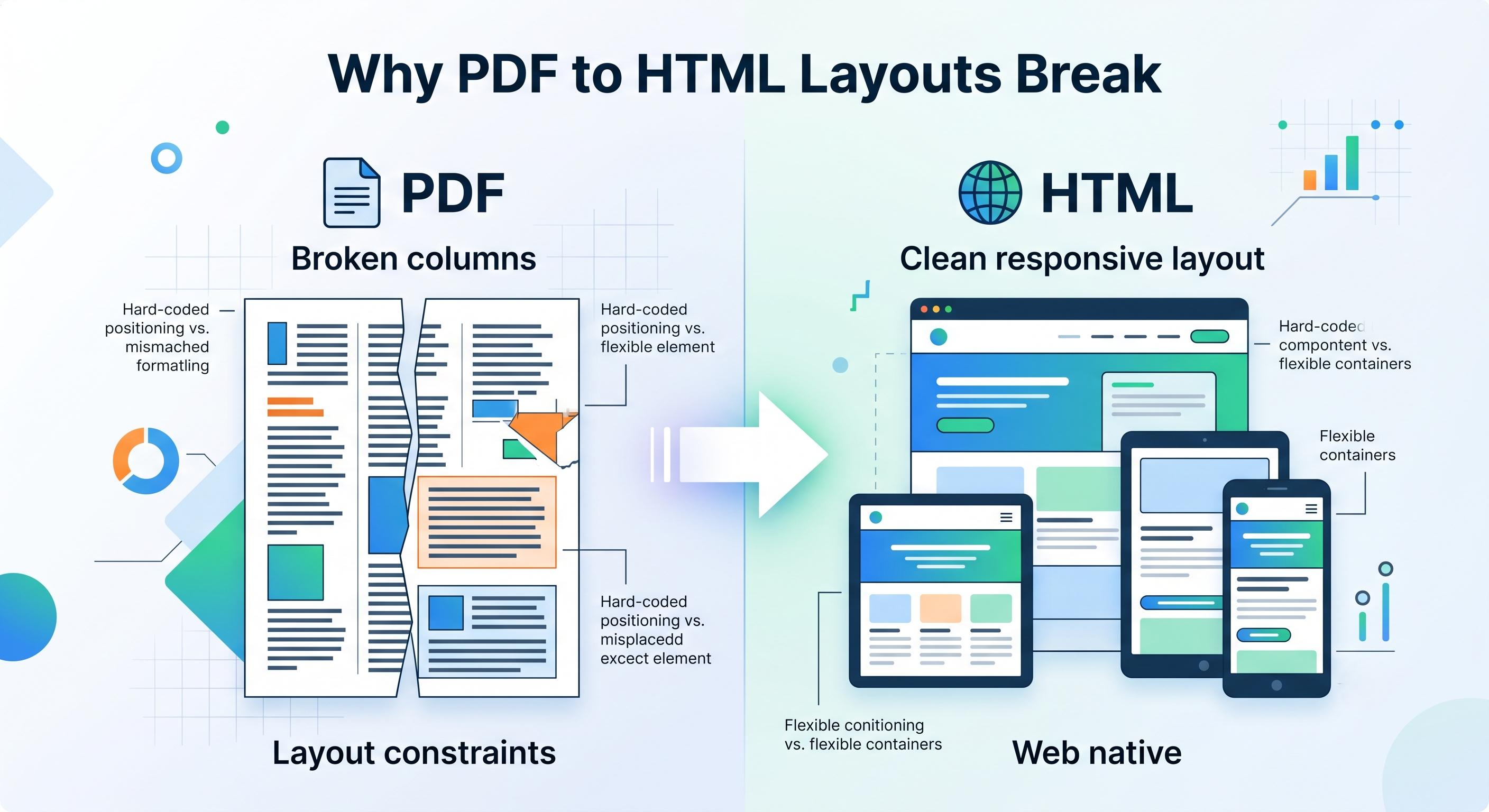
🧩 The Structural Divide: Fixed vs. Fluid Layout
📄 The PDF Framework (Fixed Layout)
How it works: Uses rigid, fixed points ($X, Y$ coordinates) to lock elements onto a digital piece of paper.
The Code: [Text Box: X=40, Y=120]
On Mobile Screens: Stays locked in place and does not resize.
Final Result: Text and images overlap, causing the layout to break ❌.
🌐 The HTML Framework (Fluid Layout)
How it works: Content flows naturally to fill up the screen, just like text in a modern web app.
The Code: <main style="display: flex;">
On Mobile Screens: Auto-fits perfectly on any screen size (fully responsive).
Final Result: A clean, smooth, and easy-to-read web page.
The Main Problem: Layouts break because basic converters try to force rigid, fixed PDF pixels into flexible web boxes.
1. Document Architecture is Completely Different
A PDF is a digital piece of paper. It uses absolute coordinates to place text, lines, and shapes at exact geometric points ($X$ and $Y$ positions) relative to the edges of the page. This system is perfect for printing because a piece of paper never changes size.
An HTML document uses a relative, flow-based structure. Content flows from top to bottom, filling the width of the viewport. When you open a web page on an iPhone, an ultra-wide desktop monitor, or an old laptop, the layout reflows dynamically to fit the screen.
2. The Multi-Column Disconnect
When you look at a two-column layout in a PDF, the human eye reads down the left column and then moves to the top of the right column.
A computer reading that same PDF sees strings of text with spatial coordinates. A naive converter will read straight across the page horizontally. It grabs line one from column A, then immediately grabs line one from column B. The result is a jumbled, unreadable mess of text strings.
3. Font and Asset Vulnerabilities
PDFs embed font files directly inside the document. When converting to HTML, those embedded fonts must be extracted and translated into web-safe formats or mapped to standard fallback fonts. If the system fails to match them, your typography breaks, line lengths change, and your text overflows its containers.
4. Legacy and Rigid Software Barriers
Heavy desktop publishing software often relies on outdated conversion scripts that bundle every piece of text into absolute-positioned HTML <div> tags. This creates a webpage that looks okay on one specific monitor size but breaks completely if a user zooms in or opens it on a mobile device.
The Technical Reality of PDF to HTML Conversions
To fix layout issues, it helps to understand what happens under the hood during conversion.
The Contrast Between Fixed and Fluid Design
In a PDF, every character can be placed manually. If you inspect raw PDF code, it looks less like text and more like vector instructions.
HTML relies on a nested DOM (Document Object Model) tree. An element's position depends on its parent container, its margins, padding, and the surrounding text flow. Forcing a fixed-coordinate PDF into a fluid HTML framework requires an intelligent parser that reads the layout contextually rather than just copying characters.
How Layout Parsing Fails
Most basic conversion engines make a simple compromise: they wrap every single line of a PDF in a separate HTML element with inline styling like position: absolute; top: 142px; left: 50px;.
While this mirrors the original layout on a standard desktop screen, it destroys the semantic value of your document. The text is no longer searchable as a coherent article, screen readers cannot parse it for accessibility, and it is entirely unresponsive.
The Role of Optical Character Recognition (OCR)
If your PDF is generated from a scanner, it contains no actual text—just a flat image of text. The converter must run an OCR engine to detect shapes, turn them into characters, and guess where paragraphs start and end.
Even minor contrast issues or specialized fonts can throw off an OCR scanner, leading to misspelled words and broken layouts.
What to Look for in a Modern Conversion Tool
When evaluating a web-based conversion workflow, avoid outdated legacy software. Look for a modern document platform designed for efficiency and accuracy.
Zero Footprint, Browser-Native Access: You should not need to download a sketchy executable file or install a bloated browser extension just to transform a file. Look for clean web tools that operate entirely within a modern browser interface.
True Formatting and Geometry Recognition: A good converter looks at blocks of text collectively. It identifies that three separate lines form a single paragraph, and wraps them in a single HTML <p> tag rather than multiple absolute-positioned lines.
Security, Isolation, and Automated Purging: Document data can be highly sensitive. Ensure the platform you use prioritizes privacy, deletes your files from its storage immediately after conversion, and operates transparently. Always choose tools with transparent privacy policies, encrypted transfers, and automatic file deletion.
Cross-Platform Performance: The tool must produce standard-compliant web layouts that work across Safari, Chrome, Firefox, and Edge without requiring special styles for each browser.
Choosing the Right Tooling Framework
Feature Set | Legacy Online Utilities | Desktop Software Installations | Modern Web-Based Frameworks (e.g., Doxbar) |
Setup Friction | None, but often ad-heavy | Heavy download, license keys | Zero installation, instant access |
Mobile Layout Performance | Completely broken, requires horizontal scrolling | Mixed results, complex settings | Responsive, adaptive containers |
Data Privacy Policy | Often logs and retains data | Local processing, but updates track usage | Ephemeral storage, automatic purging |
Output Code Quality | Messy, bloated inline CSS | Overly complex, rigid structures | Semantic, clean HTML tags |
Step-by-Step: The Clean Conversion Workflow
Converting a document should be simple. This workflow ensures clean, readable results using an optimized online platform like Doxbar.
Step 1: Prep the Document
Before uploading, open your source document and ensure it doesn't contain overlapping text boxes or non-standard fonts that could confuse a conversion engine.
Step 2: Upload to an Optimized Environment
Navigate to the conversion portal. Drag and drop your target file directly into the secure upload dropzone.
Step 3: Let the Layout Engine Analyze
The backend system evaluates the document's structure, grouping text fragments into semantic blocks and isolating images from text backgrounds.
Step 4: Download and Review
Save the generated HTML file. Open it in a browser like Google Chrome or Mozilla Firefox to verify the layout holds up under various screen widths.
The Realistic Pros and Cons of Automated Conversion
The Benefits
Massive Time Savings: Converting manually by copying text and re-uploading images takes hours. Automated tools do it in seconds.
Structural Groundwork: Even if a complex layout requires small manual tweaks, an automated tool gives you a structured HTML file with headers and paragraphs pre-sorted.
High Portability: Web pages are lightweight and instantly readable on any device without requiring dedicated software like Adobe Acrobat.
The Challenges
Hyper-Complex Designs: Graphic-heavy magazines with text wrapping around complex vector shapes will never map perfectly to clean, responsive text columns without manual adjustments.
Font Licensing Discrepancies: If your PDF uses a proprietary commercial font, an online converter cannot embed that licensed font into an HTML file without infringing copyright laws. It will use an open-source equivalent instead.
Advanced Deep Dive: FAQ
Why do tables always look broken after conversion?
Tables are structurally complex. In a PDF, a table is drawn using individual visual lines, and text snippets are placed. A web converter has to figure out which text snippets belong in the same row and column, then map them into an HTML <table> structure. If a border line is faint or missing, the converter miscalculates the grid layout.
Will converted HTML files hurt my website's SEO performance?
It depends on how clean the output code is. If the tool generates bloated, unreadable inline styles, search engine bots like Googlebot will struggle to read your content hierarchy. Using semantic tools that generate clean header structures ensures your text is fully indexed and searchable.
What happens to vector graphics and charts inside a PDF?
High-quality converters try to extract vector shapes and convert them into scalable web vector graphics (SVGs), which stay sharp at any zoom level. Lower-end tools simply flatten charts into low-resolution JPEGs, which look blurry on high-density displays.
Can I convert password-protected PDFs directly to HTML?
Not without providing the password first. Encryption locks down the file's data streams. If you own the file, you must decrypt it or provide the master password to the conversion interface so it can read and parse the content.
Why does text sometimes group without spaces?
This happens when a PDF uses precise kerning adjustments to space out letters visually rather than using actual space characters. When a basic converter strips away those coordinate instructions, the letters compress into a single line.
How does Doxbar keep files secure?
Doxbar uses encrypted transfer protocols and processes files in isolated memory environments. Your documents are automatically deleted from the conversion servers shortly after your session ends, ensuring your confidential business reports stay private.
Can interactive forms inside a PDF be translated to HTML forms?
Standard converters turn interactive form fields into static text inputs or flat boxes. Translating a PDF script form into a functional web form with real-time validation requires manual development.
Why do page numbers appear in the middle of my web page?
PDFs are paginated, meaning they have fixed headers and footers with page numbers stamped on every sheet. HTML is a continuous canvas. A basic converter simply leaves those headers and footers in place, causing page numbers to pop up right in the middle of a reading flow.
Can an HTML conversion match my print margins exactly?
It can if you use fixed CSS styling, but doing so compromises your site's responsiveness. It is usually better to let the web layout adapt naturally to the user's screen dimensions.
What is the difference between HTML5 and legacy HTML conversions?
Legacy conversion frameworks use old layouts like <table> tags for positioning elements, or excessive <div> wrapping. Modern HTML5 output uses semantic elements like <article>, <section>, <nav>, and <aside>, making it more accessible and search-engine friendly.
Why are some elements missing entirely?
This usually occurs when elements are placed on hidden layer elements within complex documents. If the parsing framework doesn't read non-printing structural layers, it skips over those hidden design assets entirely.
Does file size shrink after converting a PDF to web code?
Yes, dramatically. PDFs carry structural overhead, metadata, and embedded font collections. A clean web page uses plain text files and external resource calls, resulting in significantly faster loading speeds.
How should I handle multi-lingual documents?
Choose an advanced processing tool that preserves Unicode character rendering. This ensures that special characters, accents, and non-Latin character sets display accurately without breaking into random symbols.
Is it possible to batch-convert large folders of documents?
Yes. Modern SaaS tools provide batch processing queues, allowing you to drop multiple files into the system simultaneously rather than uploading them one by one.
Can I run conversions on a mobile device?
Because cloud-based utilities like Doxbar do the heavy computational processing on remote servers, you can run conversions directly from a smartphone or tablet browser.
Why do background colors sometimes vanish?
PDF backgrounds are often handled as separate color vector boxes placed behind the text layers. If a converter prioritizing text extraction ignores non-text vector fills, background colors drop out.
What is the best way to handle complex mathematical formulas?
Math notation is difficult to convert. Standard tools treat complex equations as raw layout strings, which scramble the symbols. For high-fidelity math notation, equations are best rendered as sharp SVG assets or styled with specialized libraries like MathJax.
How do I fix text overflowing outside its border containers?
This layout glitch happens when an element's width is set to a fixed pixel size while the text inside is forced to a larger font size. Changing the container layout properties to fluid values resolves the overlap.
Why are hidden notes visible in the output code?
Annotations, design comments, and tracked revisions live inside a PDF's metadata. Advanced converters filter out non-content layers, but basic platforms might accidentally print those hidden notes directly onto your web page.
Should I edit code directly after running an automated conversion?
Yes, for polished production websites. An automated utility handles the heavy lifting, saving you hours of initial layout setup, but a quick manual review ensures your final page meets your exact design standards.
Keeping Your Layout Integrity Intact
Converting static documents into dynamic web elements doesn't have to break your layout. The secret lies in understanding that web-native code requires flexibility.
Using lightweight, browser-native tools like Doxbar bridges this gap seamlessly. It analyzes document structures intelligently, protects your data privacy, and generates clean, semantic code. Say goodbye to messy inline styles and broken layout structures, and embrace clean web documents.
Need to Convert Document Formats?
Try our secure, lightning-fast PDF conversion suite. Convert Word, Excel, Images, and more with zero formatting loss.

Doxbar Editorial
Security & Privacy Team
We specialize in secure document architectures, parsing engines, and modern developer utilities. Keeping your files safe, lightweight, and perfectly formatted.
Join the Conversation
Share your thoughts or ask a question about this topic. This is a privacy-first system.