

POTX to PDF: Convert PowerPoint Templates Without Losing Layout
Contents
POTX to PDF: Convert PowerPoint Templates Without Losing Layout


Table of Contents▼
Learn how to convert POTX PowerPoint templates to PDF online or with desktop software. Preserve slide layouts, fonts, graphics, and branding for easy sharing.
The Frustration of Sharing Open PowerPoint Templates
You spent four hours tweaking grid alignment, picking off-brand-proof typography, and setting up master slide layouts for your team's new pitch deck template. You send the .potx file over to a client or a remote contractor for a quick preview.
Twenty minutes later, you get a message: "The layout looks completely broken on my end, and it's asking me to install three custom fonts." Or worse, they accidentally edit the master template file directly, save over it, and send back an altered version that ruins your base design system.
It’s an annoying, recurring nightmare for designers, brand strategists, and team leads.
PowerPoint template files (.potx) are built to be live, editable starting points. But when your goal is simply to present a static design system, pitch a layout reference, or get quick client approval on a brand template, sending an open template file is risky. Fonts drop out, layouts reflow depending on the viewer's operating system, and non-tech-savvy recipients end up confused.
Converting your POTX file into a crisp, fixed-layout PDF bridges the gap. You get visual control, universal readability across mobile and desktop devices, and peace of mind knowing your layout won't be ruined by accidental edits.
At Doxbar, we focus on stripping away the friction from document management, turning file format headaches into smooth, browser-native workflows.
Quick Answer: To convert a POTX PowerPoint template to a PDF:
Open your .potx file in Microsoft PowerPoint, click File > Export > Create PDF/XPS Document, and save your file.
Alternatively, upload your .potx file to an online converter like Doxbar, select PDF as the output, and click Convert.
Converting creates a fixed PDF version of the slide design, making it easier to share without exposing the editable PowerPoint template. It prevents recipients from accidentally altering your underlying PowerPoint template.
What Is a POTX File?
“A POTX file is a Microsoft PowerPoint Open XML Template file. Introduced alongside Office 2007, it uses the OpenXML file structure to store master slide layouts, custom color palettes, font pairings, background styles, and placeholder positioning.
Unlike standard presentation files, a .potx file is engineered to serve as a blueprint. When a user double-clicks a .potx file, PowerPoint automatically opens a fresh, untitled presentation based on those underlying master styles, leaving the original template file untouched on the disk. (Source: Microsoft Learn)
POTX vs. POT vs. PPTX: What’s the Difference?
Understanding how .potx compares to other presentation formats helps clarify why layout shifts occur during conversion:
Format | File Extension | File Purpose | File Structure |
Modern PowerPoint Template | .potx | Reusable slide blueprint | XML-based zip archive |
Legacy PowerPoint Template | .pot | Legacy reusable blueprint (Pre-2007) | Binary format |
Modern PowerPoint Presentation | .pptx | Editable, populated presentation | XML-based zip archive |
Why Convert a POTX File to PDF?
PowerPoint templates can render differently when fonts, presentation software versions, or supported features vary between environments. Custom fonts and complex layouts are especially worth checking before sharing a template externally.
Layout Locking: Prevents recipients from accidentally moving text boxes, shifting margins, or deleting placeholder guides.
Reduced Font Dependency: A properly exported PDF can preserve the appearance of embedded or supported fonts without requiring the recipient to install the original PowerPoint fonts locally.
Universal Access: PDF files are widely supported across smartphones, tablets, laptops, and major operating systems.
Simpler Distribution: A PDF removes editable template structures, making it easier to share, review, and print.
How to Convert POTX to PDF
Depending on your software setup and workflow requirements, you can convert a .potx file to PDF using desktop software or web-based conversion tools.
Method 1: Convert POTX to PDF in Microsoft PowerPoint
If you have Microsoft Office installed on your desktop:
Double-click your .potx file to launch it in PowerPoint.
Navigate to File > Export > Create PDF/XPS Document (or File > Save As on macOS and choose PDF).
Choose your optimization settings (Standard or Minimum size) and click Publish.
Method 2: Convert POTX to PDF Online
If you don't have PowerPoint installed or need to convert files on mobile devices:
Go to an online conversion tool in your web browser.
Drag and drop your .potx file into the upload zone.
Select PDF as your desired output format.
Click Convert and download your generated document.
Method 3: Convert POTX to PDF Without PowerPoint
If a .potx file fails to render cleanly in non-Microsoft tools, LibreOffice or another compatible presentation application, save it as a standard .pptx file, verify that the slide elements align correctly, and then export that .pptx as a PDF.
How POTX-to-PDF Conversion Handles Fonts and Layouts
A POTX-to-PDF converter needs to interpret the template's slide masters, layouts, fonts, shapes, images, and text before producing fixed PDF pages. The exact rendering pipeline varies by software and conversion service.
When fonts are properly embedded or otherwise preserved during export, the resulting PDF is less dependent on the recipient's installed fonts. It is
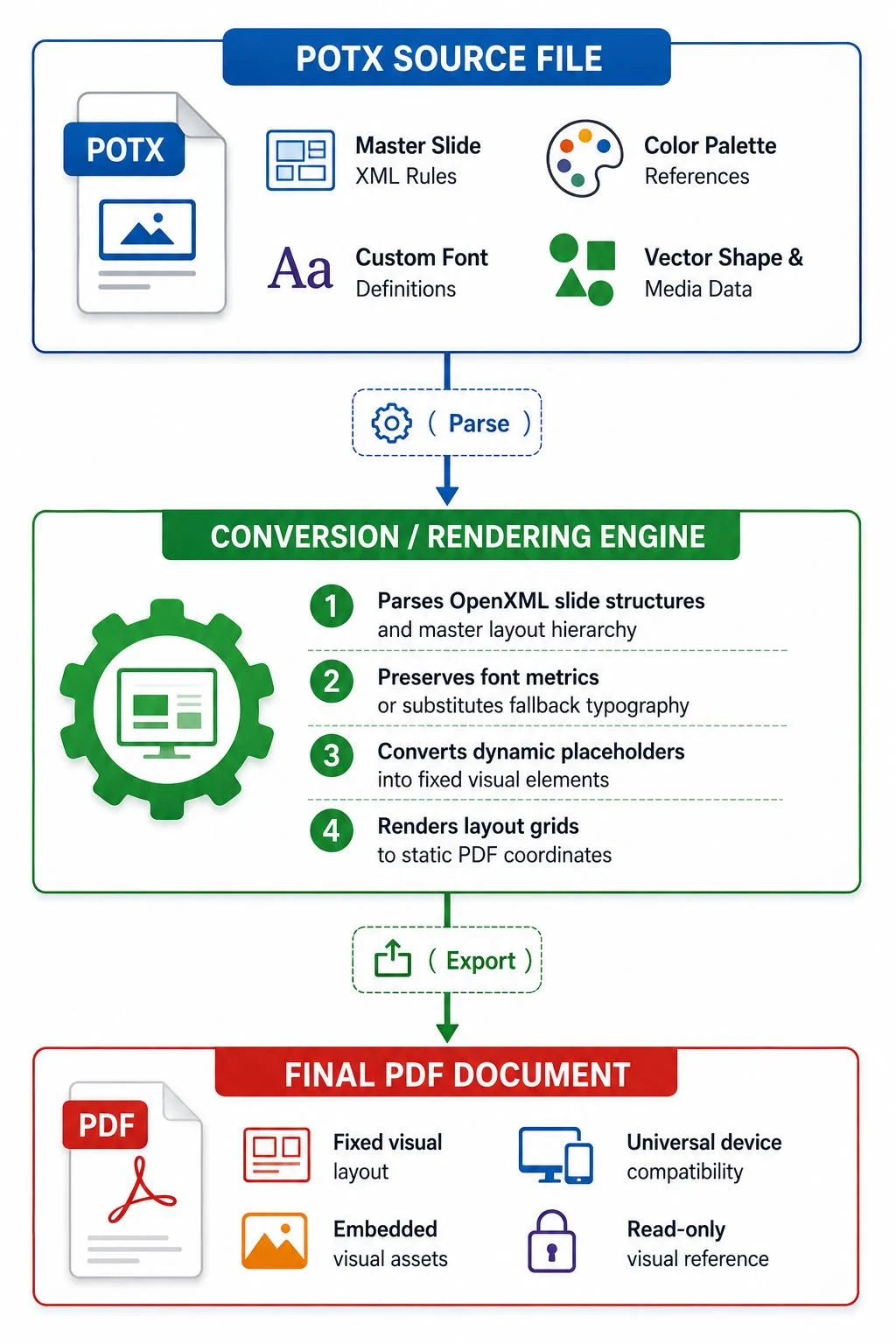
A technical workflow showing how a POTX PowerPoint template is parsed and rendered into a fixed-layout PDF while preserving slide structure, fonts, visual elements, and layout positioning.
more likely to maintain consistent text appearance across different screens.
Browser-Based vs. Server-Based Conversion
When choosing an online conversion workflow, understanding how files are processed helps you balance privacy and format handling:
Browser-Based Processing: Some modern web utilities execute conversions locally within your browser using technologies like client-side JavaScript. This can offer privacy advantages because your files do not need to be stored on an external server.
Server-Based Processing: Traditional online converters upload your document to remote server farms running dedicated conversion software. This approach often handles large file sizes and complex formatting features better, but requires trusting the provider's file retention policies.
Comparing Your Conversion Methods
Method | Best For | Main Advantage | Limitations |
Microsoft PowerPoint | Desktop users with Office licenses | Native rendering & layout control | Requires installed software license |
Online POTX Converter | Quick cross-platform conversions | Works without Office; mobile friendly | Output quality depends on the tool's engine |
Convert to PPTX First | Fixing broken layout rendering | Resolves template import issues | Requires an extra conversion step |
How to Convert POTX to PDF with Doxbar
Converting your template file into a fixed-layout PDF on Doxbar is simple:
Step 1: Upload Your File
Open the Doxbar converter in your browser. Drag your .potx file into the conversion area, or select it from your local storage or cloud services like Google Drive or Dropbox.
Step 2: Choose Your Settings
Select PDF as your target file type.
Step 3: Convert and Download
Click Convert and wait for the file to process. Once processing is complete, download your PDF and open it in a viewer like Adobe Acrobat Reader to verify that all layout elements render properly.
Pros & Cons of Converting POTX to PDF
Pros
Layout Stability: Locks text positions, images, and shapes into place so clients cannot accidentally distort master slides.
Reduced Font Dependency: Helps avoid text flow issues on devices that lack your original brand fonts.
Universal Compatibility: PDFs open easily on iOS, Android, macOS, Windows, and Linux without requiring presentation software.
Print Reliability: Ensures slide decks print with accurate proportions and background elements.
Cons
Loss of Live Editing: Recipients cannot edit text fields, change layout placeholders, or modify design elements inside the PDF.
Media Compression: Animated slide transitions, timed triggers, and embedded media files do not play back in a static PDF.
Fixed Aspect Ratios: Display dimensions remain fixed, which can introduce black border margins on non-standard screens.
Frequently Asked Questions
What is the difference between a POTX file and a PPTX file?
A .potx file is a template containing master layouts and design defaults used to generate new presentations. A .pptx file is a standard, editable PowerPoint presentation created from a template.
Why convert a PowerPoint template to PDF before sending it to a client?
Converting to PDF locks your layout design visually. It prevents accidental edits to your master slides, reduces font substitution errors, and lets clients view the design preview on mobile devices without needing Microsoft Office.
Can I convert a POTX file to PDF if I don't have PowerPoint installed?
Yes. Online POTX-to-PDF converters let you convert a template without installing PowerPoint. Availability and output quality depend on the converter, so review the generated PDF before sharing it.
Will converting to PDF break my master slide formatting?
A good conversion should preserve the visible slide design, but formatting differences can occur with unsupported fonts, unusual effects, embedded media, or complex layouts. Always review the PDF after conversion.
How are custom fonts handled during POTX-to-PDF conversion?
Font handling depends on the conversion method. When fonts are embedded or otherwise preserved correctly, the PDF can maintain the original typography without requiring the viewer to install the source fonts locally.
Is it safe to upload confidential business templates to an online converter?
It depends on the service. Before uploading confidential templates, check whether files are transmitted securely via encryption (TLS/SSL), how long they are retained, whether they are automatically deleted, and whether the service explains how uploaded documents are handled.
Can a client edit a PDF converted from a POTX file?
Not directly. Converting a .potx to PDF transforms your presentation layout into a fixed document. While recipients can add annotations or comments, the underlying slide design remains locked.
How do I print a POTX slide design cleanly?
Converting your POTX file to PDF first helps ensure all background colors, graphic vectors, and page margins render predictably for printing.
What happens to embedded videos or animated transitions when converting POTX to PDF?
Interactive media and slide transitions are stripped during PDF creation, as PDF is a static document format optimized for visual layout retention.
Can I batch-convert multiple POTX template files at once?
Some online converters support batch POTX-to-PDF conversion, while others process one file at a time. Check the specific tool's upload limits before starting.
Will my PDF maintain high vector quality for logos and icons?
If the graphic assets inside your original POTX template are vector-based (SVG, native PowerPoint shapes), they will generally remain crisp vector elements in the exported PDF.
What is the file size difference between a POTX and its converted PDF?
The output size varies. Images, font definitions, transparency, and export resolution settings can make the resulting PDF smaller, similar in size, or larger than the original POTX file.
Can I convert POTX files on a Mac or mobile device?
Yes. Web-native converters operate directly inside modern web browsers like Safari, Chrome, or Firefox, allowing you to convert files across macOS, iOS, Android, or Windows.
Is OCR necessary when converting POTX to PDF?
Usually no. POTX presentations contain editable text objects, so normal conversion does not require Optical Character Recognition (OCR). However, text that exists only inside raster images may still require OCR if you want that text to become searchable.
How should I share a brand guidelines presentation built in PowerPoint?
Convert your master presentation template into a PDF reference guide. This gives your team an easy-to-access, unalterable visual reference document they can review on any screen.
Security & Privacy Checklist for Document Conversion
When managing sensitive brand assets or proprietary presentation decks, follow these basic security practices:
Review Data Policies: Check whether your conversion service automatically purges uploaded files from its servers after processing.
Verify Connection Encryption: Ensure the site uses HTTPS so your files are encrypted during transfer.
Audit Document Content: Strip out hidden notes, comments, or sensitive metadata from your presentation before converting and sharing externally.
Streamline Your Presentation Workflows
Document formats should make sharing easy, not add friction to your daily routine. By converting complex, environment-sensitive PowerPoint templates into clean, universally accessible PDF documents, you protect your brand designs, ensure consistent visual presentation, and simplify client review cycles.
When you need a simple, dependable way to convert presentation templates without setting up complex software, try Doxbar for secure, browser-native document tools designed for modern workflows.
Need to Convert Document Formats?
Try our secure, lightning-fast PDF conversion suite. Convert Word, Excel, Images, and more with zero formatting loss.

Doxbar Editorial
Security & Privacy Team
We specialize in secure document architectures, parsing engines, and modern developer utilities. Keeping your files safe, lightweight, and perfectly formatted.
Join the Conversation
Share your thoughts or ask a question about this topic. This is a privacy-first system.