

PPT to PDF: How to Convert PowerPoint Presentations Without Losing Formatting
Contents
PPT to PDF: How to Convert PowerPoint Presentations Without Losing Formatting

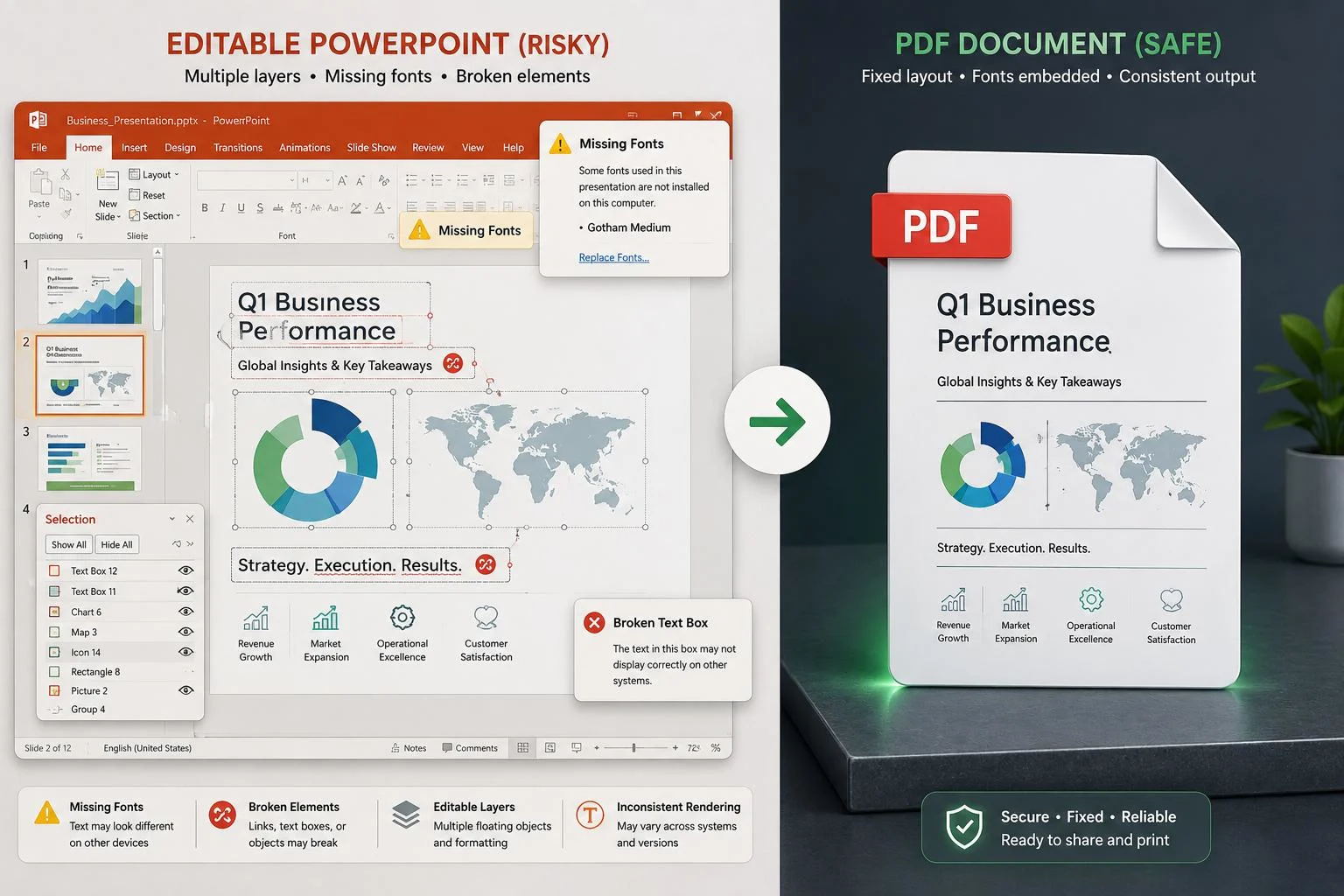

Table of Contents▼
Learn how to convert PowerPoint presentations to crisp, print-ready PDFs without losing fonts, layouts, or quality. A complete guide to seamless file sharing.
Quick Answer:
“Can You Convert PPT to PDF?
Yes. You can convert PPT and PPTX PowerPoint presentations to PDF using Microsoft PowerPoint or an online converter. PDF is useful when you need a fixed-layout version for sharing, printing, uploading, or archiving. Before sending the file, review fonts, slide dimensions, hyperlinks, images, and page edges to make sure the exported PDF looks correct.
The Pitch Deck Crisis at 11:45 PM
We have all been there. It is 11:45 PM on a Sunday. You spent four hours meticulously tweaking a 25-slide pitch deck for a prospective client meeting at 8:00 AM the next morning. The custom typography looks sleek, your key financial metrics are arranged in a clean layout, and your charts pop against a dark slate background.
You email the .pptx file to your boss for a quick final review. Ten minutes later, your phone buzzes with a frantic text: "Why are all the headings overlapping, and where did the custom font go? It looks totally broken on my iPad."
Your heart sinks. It turns out your boss opened the file on a mobile device that lacks your custom brand fonts. PowerPoint defaulted to Times New Roman, squishing your carefully aligned text boxes and pushing critical chart legends off the screen.
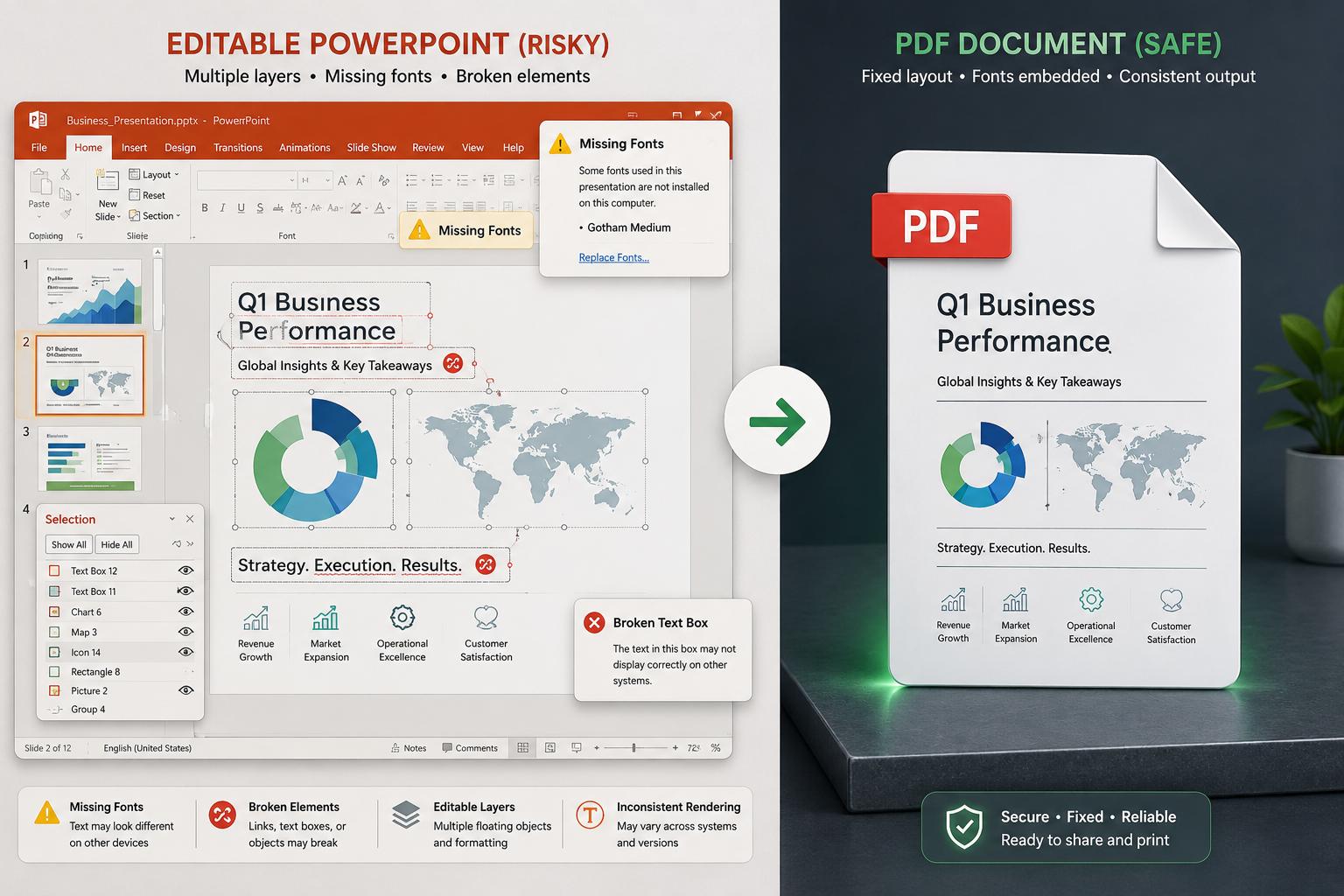
When you need to deliver a presentation—whether it is a sales deck to an enterprise buyer, a university lecture handout, or a portfolio for a freelance gig—sending raw PowerPoint files is a gamble. Formats shift, OS variations mess up layouts, and huge embedded video files make attachments bounce back from email servers.
Converting your PowerPoint slides to PDF can reduce these compatibility problems by creating a fixed-layout version of the presentation, but the exported file should still be checked before sharing. It fixes the slide layout into a PDF page, making the presentation less dependent on the recipient's PowerPoint version, fonts, or editing environment. While desktop suites do offer basic export functions, quick online workflows like Doxbar give you a zero-install way to convert, compress, and share presentation files on any device.
Why PowerPoint Files Shift Across Devices
To understand why presentations look different on every screen, it helps to look at how presentation software handles layout rendering.
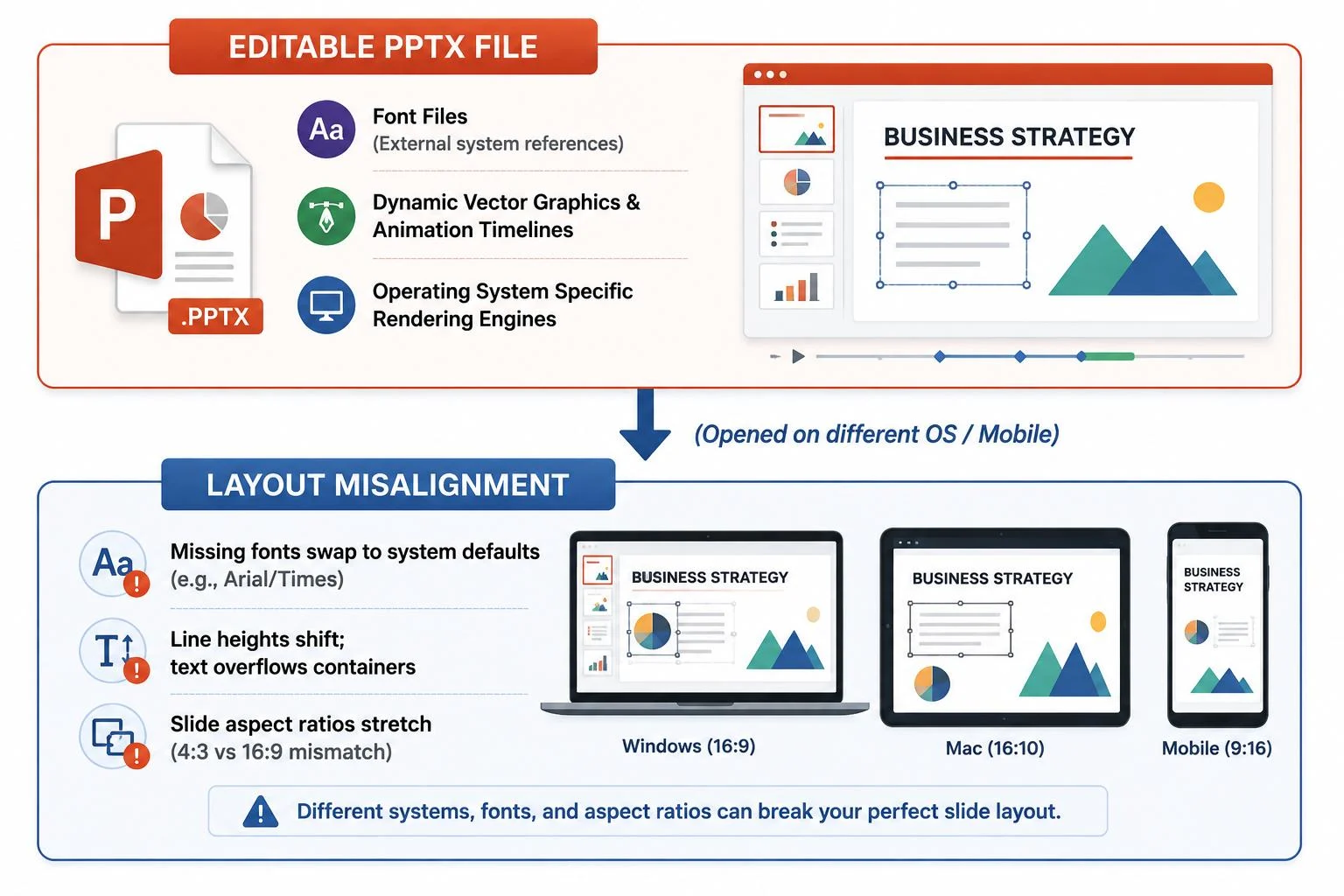
An infographic showing how editable PPTX presentations can develop layout problems across different operating systems and mobile devices when fonts, rendering engines, or slide dimensions differ.
When you save a file as .ppt or .pptx, you are not saving a single fixed image. You are saving a complex bundle of XML files, media assets, vector paths, and references to font libraries stored locally on your specific computer.
The Missing Font Dilemma
If you design a slide using a custom font like Inter or Montserrat, PowerPoint relies on your operating system’s local font directory to draw those letters on screen. When your recipient opens that .pptx on a device without those font files, the software performs an automatic font substitution. Because font dimensions vary, a heading that took up one line in Montserrat might take up two lines in Calibri, overlapping your subheadings and pushing images out of place.
Version and Platform Discrepancies
PowerPoint on Windows renders shapes, shadows, and text boundaries differently than Microsoft PowerPoint for Mac or the iOS mobile app. According to documentation on file formats from the Microsoft Learn portal, different builds of office suites use localized graphic libraries (like DirectX on Windows vs. Quartz on macOS). These differences can subtly alter chart padding, line spacing, and color profiles across platforms.
Accidental Edits and Security Risks
Sending an editable .pptx file means anyone who opens it can accidentally move a text box, delete a slide, or modify sensitive financial figures before forwarding the deck to others. Raw presentation files can also carry hidden metadata, revision histories, speaker notes, and embedded background objects that you might not want public.
The Technical Reality: How PPT to PDF Conversion Works
A Portable Document Format (PDF)—originally developed by Adobe—is built on a completely different philosophy than a presentation deck. While PowerPoint files are dynamic and editable workspaces, a PDF acts as a digital printing press.
1. Vector Path Flattening
When an engine processes a PowerPoint file, it maps every shape, vector path, line, and image coordinate relative to a fixed canvas size (such as standard 16:9 widescreen or 4:3 letter landscape). Instead of relying on a local app to render elements on the fly, the PDF engine freezes these elements in exact mathematical coordinates.
2. Font Embedding and Subsetting
A PDF can preserve the appearance of fonts by embedding the required font data or using other PDF text-rendering techniques. The exact behavior depends on the source fonts, licensing restrictions, and conversion software. Technical standard documentation on Wikipedia details how PDF font subsetting bundles only the characters used in your document. This keeps file sizes low while ensuring fonts render accurately on any screen.
3. Color Management and Resolution Downsampling
PowerPoint decks often contain high-resolution camera photos, raw asset vectors, and uncompressed background images that make files exceed 50 MB. Converting to PDF standardizes image color spaces into uniform RGB profiles and applies smart image downsampling (usually target-compressed to 150–300 DPI), shrinking the file size while maintaining screen clarity.
What to Look for in a Modern File Converter
Not all conversion tools handle complex presentations equally well. If you have ever converted a deck only to find missing custom icons, fuzzy text, or a broken hyperlinked table of contents, you know how frustrating bad conversion engines can be.
Here is what you should evaluate in a file workflow:
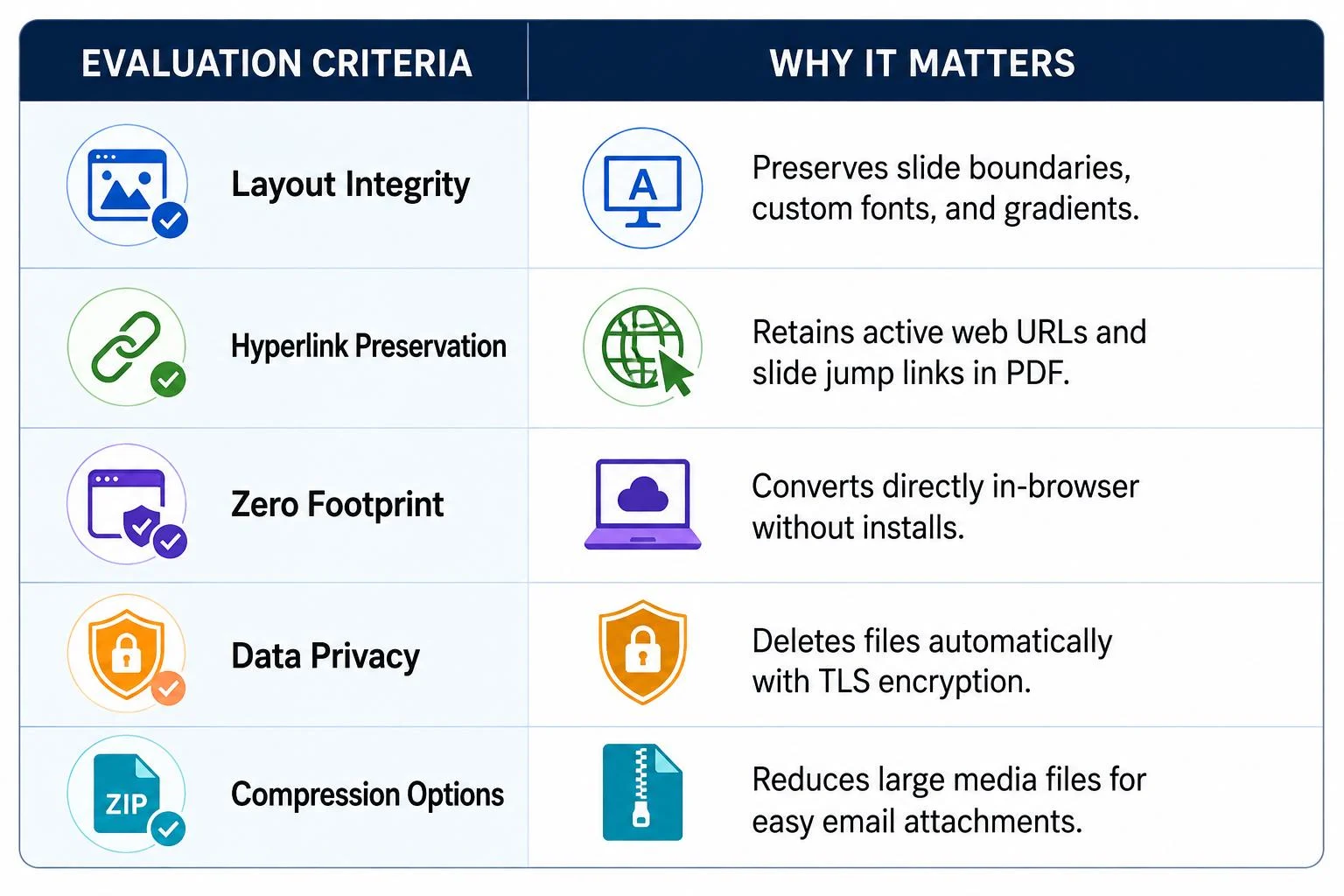
An evaluation checklist for choosing a PDF converter, covering layout preservation, active hyperlink retention, browser-based conversion, file privacy, automatic deletion, and PDF compression for easier sharing and email attachments.
Preservation of Hyperlinks and Navigation: Many basic tools convert your slides into flat raster images, breaking interactive links, email buttons, and jump-to-slide table-of-contents menus.
Layout and Gradient Fidelity: Gradient fills, transparent overlays, and complex vector graphics should stay clear without pixelation or color distortion.
Privacy and Security Standards: When uploading business strategies or proprietary financial projections, your files must be processed over encrypted HTTPS connection channels and deleted promptly from conversion servers.
Cross-Platform Accessibility: Whether you are working on a Chromebook, a mobile phone, Linux, or a desktop workstation, your converter should run directly inside web browsers without demanding software plugins.
Comparing Presentation File Workflows
Different methods of handling your decks come with distinct trade-offs depending on your environment, internet connectivity, and hardware setup.
Feature / Capability | Legacy Native Desktop Apps | Basic Online Converter Tools | Modern Web Workflows (e.g., Doxbar) |
System Dependency | High (Requires installed software) | Low (Runs in browser) | Very Low (Cross-platform web standard) |
Font Preservation | Medium (Requires font installation) | Low (Replaces missing fonts) | High (Embeds glyphs accurately) |
Setup Time | High (Large software suite installs) | Instant | Instant |
Hyperlink Retention | High | Low (Flattens to static images) | High (Preserves link paths) |
Mobile Accessibility | Poor (Requires heavy mobile apps) | Fair (Mobile browser supported) | Excellent (Optimized mobile UI) |
File Compression | Manual tweaking required | Automated (Variable quality) | Smart Automated Balance |
Step-by-Step: Converting PowerPoint to PDF with Doxbar
Converting your presentation using Doxbar is simple and requires no software installation or registration.
Step 1: Select Your Presentation File
Open your web browser and navigate to the Doxbar file conversion interface. Click the upload box or drag and drop your .ppt or .pptx presentation directly into the upload dropzone.
Step 2: Automatic Processing and Optimization
Doxbar’s engine parses your PowerPoint document structure. It processes graphics, locks vector shapes, embeds character shapes, and aligns layout dimensions according to standard PDF specifications—all in seconds.
Step 3: Download and Quick Quality Check
Click the Download button to save your print-ready PDF locally. Open the document in your preferred PDF viewer or browser to double-check text positioning, embedded links, and general visual quality before sending it out.
Balanced Realities: Pros and Cons of Converting PPT to PDF
While converting your slides to PDF resolves formatting issues, it is helpful to understand the practical trade-offs.
Pros
Guaranteed Visual Consistency: What you see on your screen is precisely what client devices render, regardless of operating system or available fonts.
Reduced File Sizes: High-resolution slides get optimized, keeping attachments light enough to pass through standard email gateways (like Google Gmail or Microsoft Outlook).
Print-Ready Formatting: Margins, bleed ratios, and orientation lock in cleanly, avoiding page-split bugs when printing slide handouts.
Universal Viewing: Virtually all modern desktop browsers, mobile OS platforms, and dedicated readers open PDFs natively without extra software.
Cons
Loss of Animations and Transitions: Slide transitions, video loops, and timed text animations become static single-page snapshots.
Non-Editable Canvas: Making minor content changes or fixing a typo requires editing the source .pptx file and re-converting the document.
Aspect Ratio Padding: If you convert a legacy 4:3 presentation and view it on a modern 16:9 monitor, you will see black bars along the sides of the display.
Frequently Asked Questions
1. Will converting my PPT to PDF preserve embedded videos and audio files?
No. Standard PDF files convert video elements into static preview images. If your presentation relies heavily on playing video clips on-slide, consider sharing a cloud presentation link or attaching media files separately alongside your PDF deck.
2. What happens to my presenter notes during conversion?
Standard conversions turn full-screen slides into individual PDF pages. Presenter notes stay hidden unless you explicitly choose a "Handout" or "Notes Page" export layout option before converting.
3. How can I fix hyperlinks that stop working after converting to PDF?
Hyperlinks break when conversion tools turn slides into flat raster images instead of parsing text layers. Web engines like Doxbar preserve underlying vector structures, keeping your web links and email references clickable in the output document.
4. Why are my custom fonts still breaking after converting my file?
If a font is restricted by strict licensing flags on your machine, local export tools may block font embedding during conversion. Ensure your font files permit embedding, or convert the file using cloud-based workflows that parse vector outlines directly.
5. Is it safe to convert private business slide decks online?
Safety comes down to encryption standards and file retention policies. Trustworthy platforms use secure TLS connections during transfer and automatically purge processed files from temporary conversion drives within a short window.
6. Why did my converted PDF file get larger than the original PowerPoint?
If your original PowerPoint file relied heavily on compressed, un-embedded system fonts and vector lines, embedding full font character sets and rasterizing complex graphics during conversion can occasionally increase overall file size.
7. How do I make sure my PDF prints without cutting off slide edges?
PowerPoint slide ratios (like widescreen 16:9) do not always match standard letter or A4 printer paper sizes. When printing, select "Fit to Printable Area" in your PDF print dialogue to prevent cropped margins.
8. Can I convert a PPTX file back into an editable PowerPoint file later?
Yes, but reversing the process is harder than creating it. Converting PDF back to PPTX uses Optical Character Recognition (OCR) and layout guessing, which may require minor manual formatting cleanup afterward.
9. Will my slide master background images convert in high resolution?
Yes. Background fills, gradients, and pattern images from your Slide Master maintain their resolution relative to the target DPI settings of the conversion engine.
10. Can I convert PowerPoint files on an iPhone, iPad, or Android phone?
Yes. Web-based conversion tools run inside mobile browsers like Mobile Safari or Chrome, letting you upload a presentation file directly from your device storage and download a PDF in seconds without app installs.
11. What is the difference between PPT and PPTX formats?
.PPT is the legacy binary file format used by Microsoft Office before 2007. PPTX is the open, XML-based standard used by modern versions of PowerPoint. Modern tools handle both file formats easily.
12. How do I convert only selected slides from my PowerPoint presentation?
If you only need a subset of slides, export the full PDF file first, then use a PDF page splitter tool to pull out the exact pages you want to share.
13. Why do transparent overlays look pixelated or blocky after converting?
This happens when a converter engine flattens transparent vector paths into low-resolution PNG images. Quality conversion tools preserve native alpha channels to keep gradients and transparencies smooth.
14. How do I send a heavy presentation over email if it exceeds attachment limits?
Email providers limit file attachments (typically 20 MB to 25 MB). Converting your PowerPoint file to PDF applies smart image compression, dropping file sizes by up to 70% while keeping visuals sharp.
15. Can I password-protect my converted presentation PDF?
Yes. Once your PowerPoint file is converted to PDF, you can apply standard AES encryption passwords using a PDF security tool to block unauthorized opening or printing.
16. Does converting a presentation to PDF alter the original PPT file on my computer?
Not at all. The conversion process creates a separate .pdf file on your drive, leaving your original PowerPoint file intact for future edits.
17. How can I turn multiple slides into a single-page PDF handout?
To create a multi-slide handout per page, select a handout layout (e.g., 3 slides per page with note lines) within your presentation software print settings, print to PDF, or run it through a document compiler.
18. Why do colors look slightly different in my converted PDF?
Color variations happen when switching between screen RGB color profiles and print-focused CMYK color spaces. For digital presentations, make sure your conversion settings keep the source RGB color profiles intact.
19. Will my speaker notes show up when sharing a PDF with a client?
No, standard slide conversion processes only export the visible canvas area of each slide. Speaker notes remain private unless you intentionally export the document using a specialized "Notes Layout."
20. Can You Convert PPT to PDF Without PowerPoint?
Yes. You can convert PPT or PPTX files to PDF using a browser-based converter without installing Microsoft PowerPoint. This can be useful on macOS, Linux, ChromeOS, and mobile devices, provided the converter supports your presentation format.
Practical EEAT & Trust Signals
When managing sensitive documents, reliability and technical transparency matter. Here is how to keep your document handling safe and reliable:
Inspect Your Output: Always double-check converted documents on both desktop and mobile screens before sending them to clients, investors, or evaluators.
Keep Source Files Safe: Always archive your original .pptx source files. PDFs lock in layout geometry, making them great for distribution but inconvenient for last-minute edits.
Practice Good Security: Never upload sensitive documents (like personal identification or unannounced financial metrics) to conversion platforms that lack transparent deletion policies or encryption protocols.
Verify Formats Early: Check your destination upload guidelines early. Many job portals, conference submissions, and tender application sites explicitly require PDFs to avoid system-rendering bugs.
Final Thoughts
A great presentation deck requires hours of hard work—shaping narrative structures, refining copy, and organizing graphics. Do not let platform mismatches or missing fonts ruin that effort at the finish line.
Converting your PowerPoint decks into locked, universal PDFs ensures your audience sees your slides exactly as you intended. When you need a quick, reliable way to process documents without bulky software installs, tools like Doxbar offer a fast, browser-based workflow to keep your files moving.
Need to Convert Document Formats?
Try our secure, lightning-fast PDF conversion suite. Convert Word, Excel, Images, and more with zero formatting loss.

Doxbar Editorial
Security & Privacy Team
We specialize in secure document architectures, parsing engines, and modern developer utilities. Keeping your files safe, lightweight, and perfectly formatted.
Join the Conversation
Share your thoughts or ask a question about this topic. This is a privacy-first system.