

PSD to PDF Converter: Share and Print Photoshop Designs
Contents
PSD to PDF Converter: Share and Print Photoshop Designs

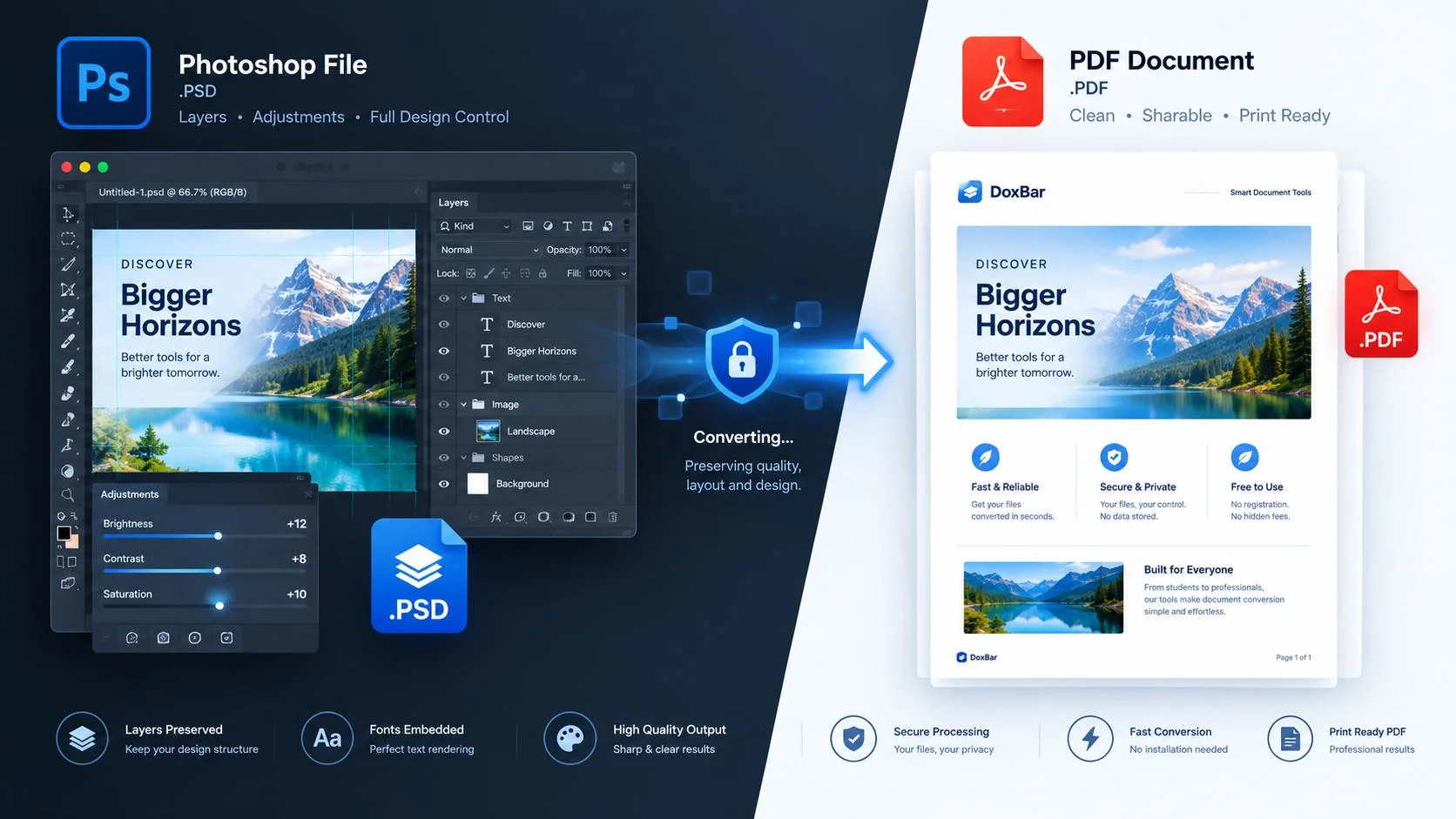

Table of Contents▼
Learn how to convert PSD to PDF for client reviews and printing. Understand layers, colour profiles, image quality, and how to prepare Photoshop designs.
What Is a PSD File, and Why Convert It to PDF?
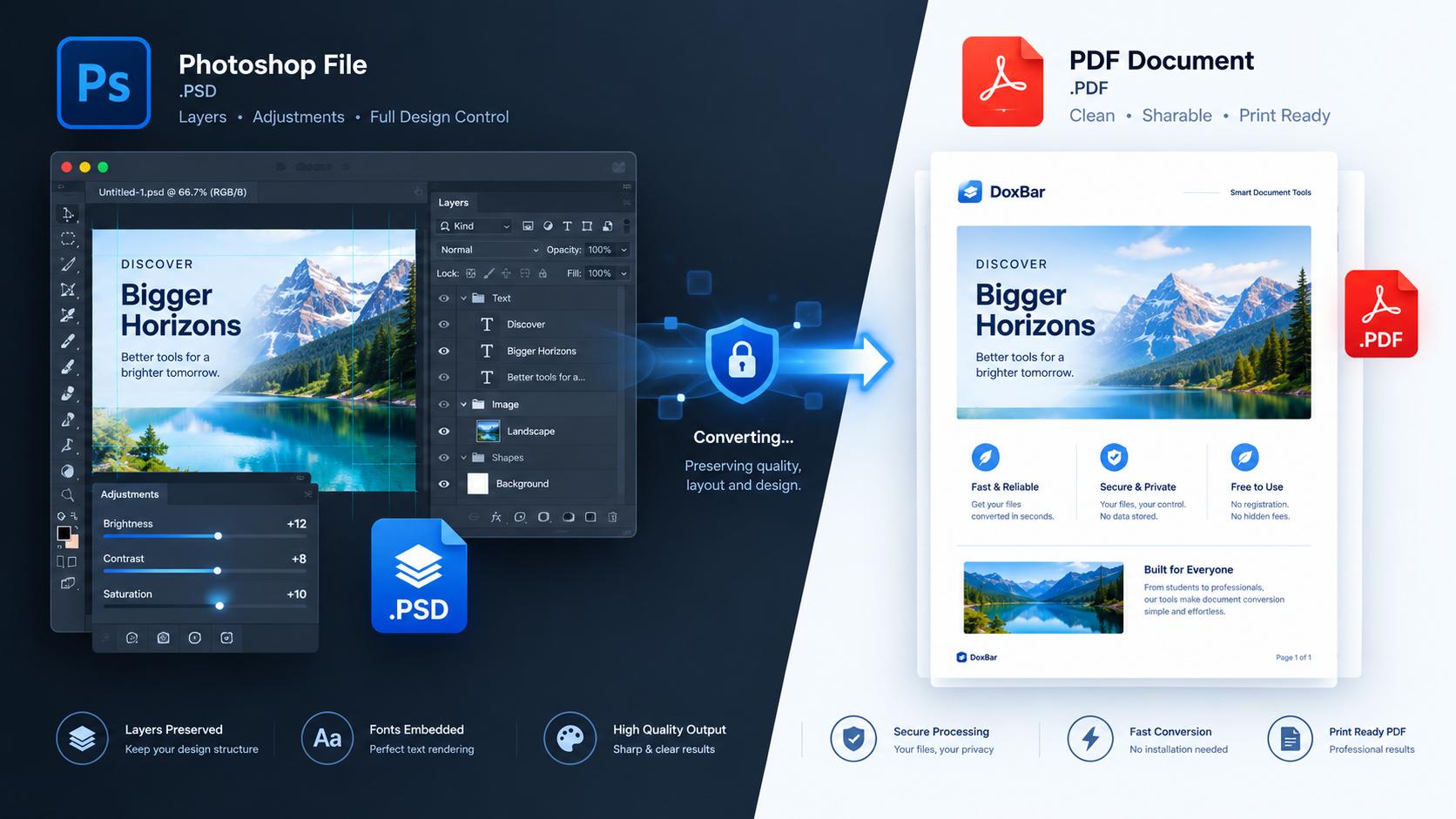
A PSD (Photoshop Document) is Adobe’s native format for graphic authoring. Rather than storing a single flat image, it maintains a complex layered structure containing raster pixel layers, vector shape paths, adjustment layers, typography metadata, clipping masks, and smart objects.
Because of this structure, opening a PSD requires specialized software and system resources. Distributing raw .psd files directly to clients, printing vendors, or team members often leads to rendering mismatches and operational bottlenecks.
Understanding PSD Layers, Masks, Text, and Effects
A typical production PSD file relies on active rendering relationships:
Raster and Vector Paths: Crisp vector outlines live alongside pixel-based imagery.
Non-Destructive Adjustments: Curves, levels, and hue/saturation layers calculate color values dynamically across the layers beneath them.
Live Fonts: Typography layers reference font files installed locally on your operating system.
Blending Modes: Effects like Multiply, Overlay, or Soft Light recalculate color interactions dynamically.
If a recipient opens your file without the necessary fonts installed or through third-party viewer software that lacks Photoshop’s exact compositing engine, fonts will substitute unexpectedly, and layer blend modes can produce severe visual errors.
Why Sending a PDF to Clients, Teams, or Print Shops Is Preferable
Exporting your design to a Portable Document Format (PDF) resolves most distribution issues:
Consistent Viewing Across Platforms: A properly generated PDF displays reliably across operating systems (macOS, Windows, iOS, Android) and web browsers using modern rendering engines such as Mozilla PDF.js.
No Specialized Software Needed: Clients can review designs on a smartphone or standard desktop browser without needing Creative Cloud accounts or heavy image editors.
Locked Typographic Geometry: When converted, live text is either embedded, converted to vector paths, or rasterized, eliminating font-missing alerts.
Predictable File Sizes: Multi-layered source files that weigh several hundred megabytes can typically be exported into lightweight documents suitable for email or chat.
Print Preparation: Commercial printers may request a PDF/X-compliant file for production. Confirm the required PDF/X standard, colour settings, bleed, and output specifications with your print provider before exporting.
What Happens to Photoshop Layers After Converting to PDF?
The visual appearance of a design and its underlying file editability serve two completely different functions.
Visual Appearance vs. Functional Editability
A well-configured PDF export can preserve the intended appearance of a Photoshop design, but the result depends on the export settings, colour profiles, fonts, transparency handling, and the specific converter used.
In a standard online conversion process:
Layer Consolidation: Individual layers, masks, and adjustment stacks are composited into a flat, visible representation.
Static Vector/Raster Data: Text and shapes are fixed in place. While vector sharpness can be preserved depending on the engine, live text strings typically cannot be retyped or reformatted.
Filter Freezing: Drop shadows, blurs, and blending calculations are permanently baked into the underlying pixels.
Photoshop-Specific Note: When exporting a PDF directly from within Adobe Photoshop using the native "Preserve Photoshop Editing Capabilities" option, Photoshop embeds the entire original PSD data stream inside the PDF. This allows Photoshop to reopen the file with all layers intact, but it significantly increases file size. Most third-party and web-based converters generate standardized, flattened PDFs intended strictly for viewing or printing.
Why Retaining Your Original PSD Master File Is Essential
A converted PDF should always be treated as a delivery asset, not a master working file:
Irreversible Edits: You cannot extract individual background layers or adjust non-destructive masks from a flattened PDF.
Locked Adjustments: Color balance and curve adjustments can no longer be edited independently.
Resolution Ceilings: If you generate a low-resolution PDF for quick web approval, you cannot scale that file back up for high-resolution offset printing without loss of clarity.
Always archive your .psd master asset securely and treat your output PDF strictly as an end-state distribution format.
How to Prepare a PSD File Before Converting to PDF
Taking a few minutes to clean up your canvas before running a conversion prevents formatting surprises and reprint costs.
1. Final Design and Layer Visibility
Review Layer Visibility: Before exporting, check that draft layers, alternate concepts, reference images, and other elements you do not want to include are hidden or removed. Preview the exported PDF to confirm that the visible design matches your intended output.
Check Clipping Masks: Ensure all adjustment layers are clipped exclusively to their intended base layers rather than unintentionally tinting the rest of your artboard stack.
Rasterize Complex Native Effects: If you use proprietary third-party styling plugins, consider converting those specific layers to smart objects or rasterizing them so the visual effect does not rely on local plugin computation.
2. Canvas Dimensions, Bleed, and Safe Margins
For digital review, pixel dimensions aligned with screen displays are sufficient. For physical printing, follow strict dimensional tolerances:
Bleed: Artwork intended to run to the edge of the sheet must extend slightly beyond the final cut line (commonly 0.125 inches or 3 mm) to avoid unprinted white edges if paper shifts during mechanical trimming.
Trim Line: The exact boundary where the physical document will be cut to its finished dimension.
Safe Margin: Keep all essential typography, logos, and critical details positioned safely inside the trim line (typically 0.125 to 0.25 inches inward) to prevent accidental clipping.
Transparency & Backgrounds: The appearance of transparent canvas areas depends on your export settings and viewer configuration. If you require a solid white background, add an explicit white fill layer at the base of your layer stack before conversion.
3. Fonts and Resolution Alignment
Missing Glyphs: Verify that no missing font warnings appear in Photoshop. If a font cannot be embedded or licensed, convert text layers into vector shapes or rasterize them before exporting.
Effective Resolution: Resolution requirements depend on the deliverable. For screen-based client previews, optimizing pixel dimensions keeps file sizes light and fast to download. For commercial printing, output sharpness depends on effective resolution at final reproduction size—300 PPI is a standard target for handheld material, though exact requirements vary depending on viewing distance and your print provider's guidelines.
Decision Matrix: Choosing the Right Output Settings
Project Goal | Recommended Format | Key Technical Considerations |
Client Approval & Review | Standard PDF | Target manageable file sizes, sRGB color profile, and flattened layers for universal phone/desktop viewing. |
Commercial Print Run | Print-Ready PDF / PDF/X | Verify target dimensions, bleed, safe margins, and specific color spaces requested by your print vendor. |
Future Design Revisions | Master PSD File | Preserve original file containing live text layers, adjustments, masks, and smart objects. |
Multi-Asset Pitch Deck | Combined Multi-Page PDF | Ensure consistent page aspect ratios across artboards for smooth presentation scrolling. |
Quick Messaging/Chat | Compressed PDF | Balance compression against text legibility to avoid heavy file payloads. |
Why Do Colours or Image Quality Change in a PDF?
Unexpected color shifts between your Photoshop workspace and an exported PDF typically trace back to color space management and file compression rules.
1. RGB vs. CMYK Color Spaces and Color Profiles
RGB (Additive): Standard for screen displays (smartphones, monitors, televisions). It offers a wide, vibrant color gamut capable of displaying bright neons and rich greens.
CMYK (Subtractive): Used for physical printing ink mixes (Cyan, Magenta, Yellow, Key/Black). Its physical gamut is naturally narrower than digital RGB displays.
Color Shifts During Conversion: If an RGB file containing bright, saturated tones is converted to a CMYK PDF without deliberate color grading, colors will look comparatively muted.
Color Profiles: Maintain standard, recognized profiles—such as sRGB IEC61966-2.1 for digital distribution. For print, consult your print supplier rather than assuming a single CMYK standard; different paper stocks demand distinct color management targets.
2. Compression Algorithms and Artifacts
Lossless Compression (ZIP/Flate): Retains every pixel detail without degradation, making it ideal for sharp typography, diagrams, and line graphics.
Lossy Compression (JPEG): Discards subtle image data to reduce overall file weight. If compression ratios are set too aggressively, artifacts and blurring will appear around sharp text borders and high-contrast lines.
3. Display Backlighting vs. Reflective Print
A screen actively transmits light directly to your eyes, while a printed page passively reflects ambient light. Even with identical color values, a layout on an OLED or calibrated IPS screen will look more luminous than ink printed on paper.
Converting Multiple PSD Files into One PDF
Multi-page collateral—such as brochures, brand style guides, or presentation slides—often starts as multiple independent .psd files.
Maintain Consistent Artboard Orientations: Mixing portrait, landscape, and panoramic dimensions within a single presentation PDF can cause disorienting page transitions for clients. Match your canvas dimensions across all related files whenever practical.
Standardize Naming Sequences: Use structured file names (01_Cover.psd, 02_Introduction.psd, 03_Services.psd) so automated sorting tools arrange your pages in correct sequential order.
Decide Between Single vs. Batch Documents:
Combine files into a single PDF for client review, slide deck presentations, or sequential catalogs.
Keep files as distinct individual PDFs when sending assets to print production (e.g., separate packaging dies, front/back card splits), unless your commercial printer explicitly requests a multi-page signature file.
How to Convert PSD to PDF Online
When you need to deliver a proof or generate a viewable document without launching heavy graphics software, a reliable web-based file converter provides a fast alternative:
Select Your PSD File: Choose a trusted online conversion tool and upload your .psd asset. Ensure the file size fits within your connection limits and tool parameters.
Process the File: The converter composites the graphic layers and builds an industry-standard PDF document.
Download and Inspect: Save the resulting PDF locally. Open the document in both a standard web browser and a dedicated PDF viewer to confirm that text rendering, layout framing, and color tone meet your standards before sending it out.
What to Look for in an Online File Conversion Workflow
When evaluating third-party conversion tools for client work, prioritize utility, privacy, and output fidelity:
File Privacy Standards: Confirm that the platform employs modern HTTPS transmission and has transparent data-retention policies indicating that files are queued for automated removal after processing.
Visual Verification: Always open exported PDFs at 100% and 200% zoom to check fine lines, drop shadow gradients, and text legibility.
Sensible Workflow Limits: Online converters work best for rapid sharing, client approvals, and lightweight handoffs. Complex prepress configurations—such as custom spot-color plates or variable data printing—are best handled inside dedicated desktop publishing applications.
Frequently Asked Questions
1. How do I convert a PSD to a PDF online?
Upload your PSD to a web converter, let the tool process the design, and download the finished PDF. Always preview the downloaded file in a PDF reader to confirm the layout and colors match your expectations.
2. Can I convert a PSD to PDF without Adobe Photoshop installed?
Yes. Many web-based converters read the composite graphic data inside a PSD file to produce a standard PDF, eliminating the need for desktop design software.
3. Do Photoshop layers remain editable in a PDF?
In standard online converters, no. Layers, masks, and adjustment curves are flattened into a single presentation layer. The design retains its visual appearance, but individual layers and text strings cannot be edited.
4. Can I combine multiple PSD files into one PDF?
Yes. You can convert each PSD individually and combine the resulting pages using a PDF merging tool, or use a batch converter that compiles multiple files into a single ordered document.
5. Why do colours sometimes shift after PSD-to-PDF conversion?
Color changes usually occur when an RGB file is mapped into a CMYK color space or when a converter fails to interpret the embedded color profile. Converting bright, saturated RGB values into a narrower print gamut naturally results in more subdued tones.
6. How do I prepare a PSD for commercial printing?
Verify your document dimensions, add required bleed, keep text within safe margins, and check with your print provider for their required color profile and PDF/X specifications.
7. Does converting PSD to PDF reduce image quality?
Not by default. Quality is preserved if the converter uses conservative compression settings and retains document resolution. Noticeable degradation only happens if aggressive lossy compression or downsampling is applied.
8. Can I convert large PSD files online?
Yes, provided the file does not exceed the platform's upload limits or cause browser timeouts on slower network connections. For massive files containing numerous smart objects, using desktop export options is often more practical.
9. Can Photoshop artboards be exported as separate PDF pages?
Directly inside Adobe Photoshop, artboards can be exported natively as multi-page PDF documents. Third-party web converters vary: some recognize individual artboards, while others render only the primary canvas. Test a sample file first to verify your converter's behavior.
10. Is it safe to upload client designs to an online file converter?
Reputable converters transmit files over encrypted HTTPS connections and enforce automated server deletion policies to clear files shortly after conversion. For sensitive, unreleased client assets or NDA-protected projects, always review the platform’s privacy policy and data retention practices before uploading.
Conclusion
Both PSD and PDF formats serve vital roles in modern creative workflows. The PSD file remains the indispensable workspace for creating, adjusting, and preserving complex visual concepts, while the PDF provides an accessible, locked layout for review, distribution, and print reproduction.
By setting up your margins correctly, auditing layer visibility, and choosing export settings suited to your end goal, you can convert Photoshop files into dependable, high-quality PDFs without communication friction or print surprises.
Need to Convert Document Formats?
Try our secure, lightning-fast PDF conversion suite. Convert Word, Excel, Images, and more with zero formatting loss.

Doxbar Editorial
Security & Privacy Team
We specialize in secure document architectures, parsing engines, and modern developer utilities. Keeping your files safe, lightweight, and perfectly formatted.
Join the Conversation
Share your thoughts or ask a question about this topic. This is a privacy-first system.