

How to Convert PUB to PDF Before Microsoft Publisher Retires
Contents
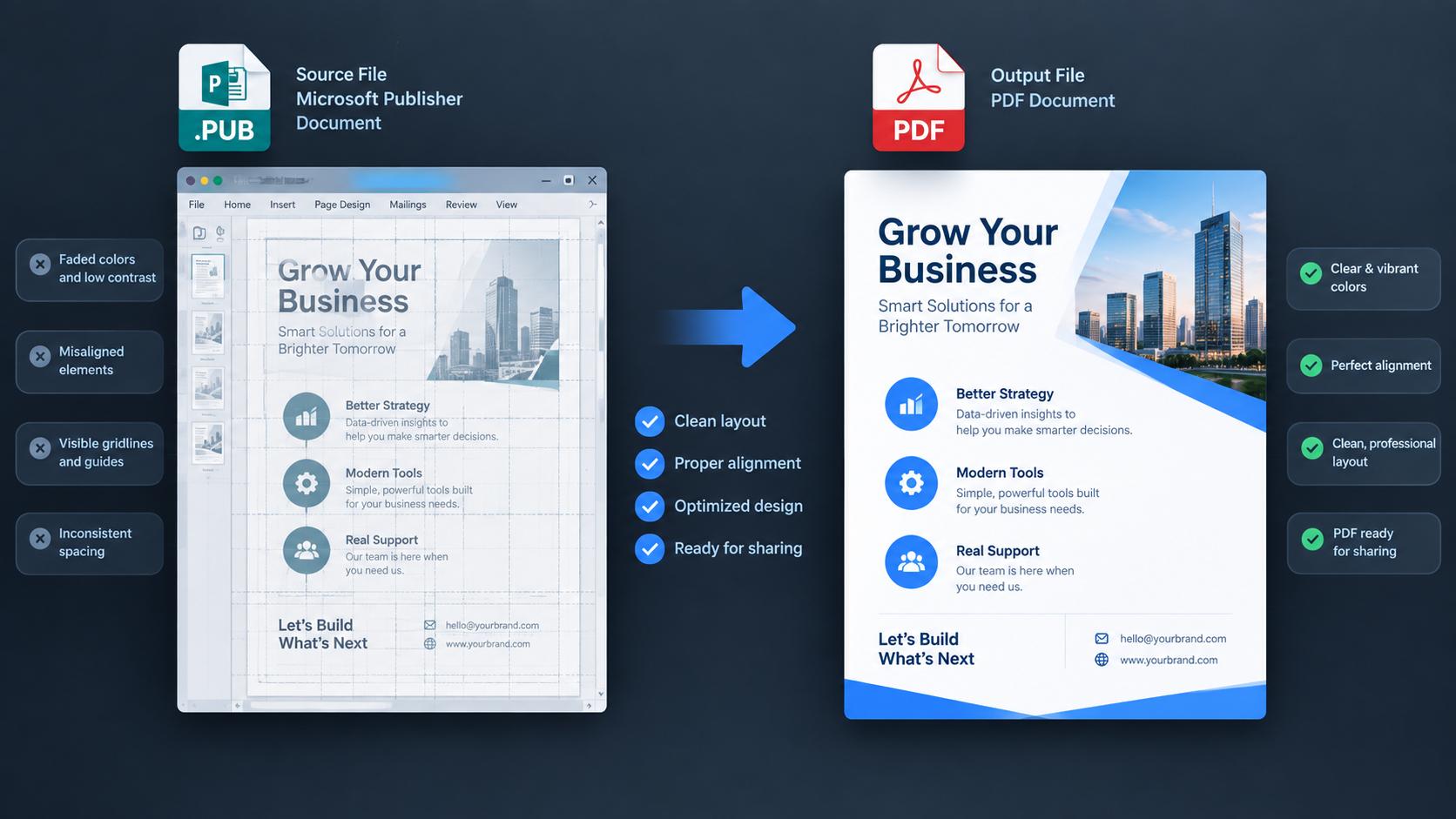
How to Convert PUB to PDF Before Microsoft Publisher Retires

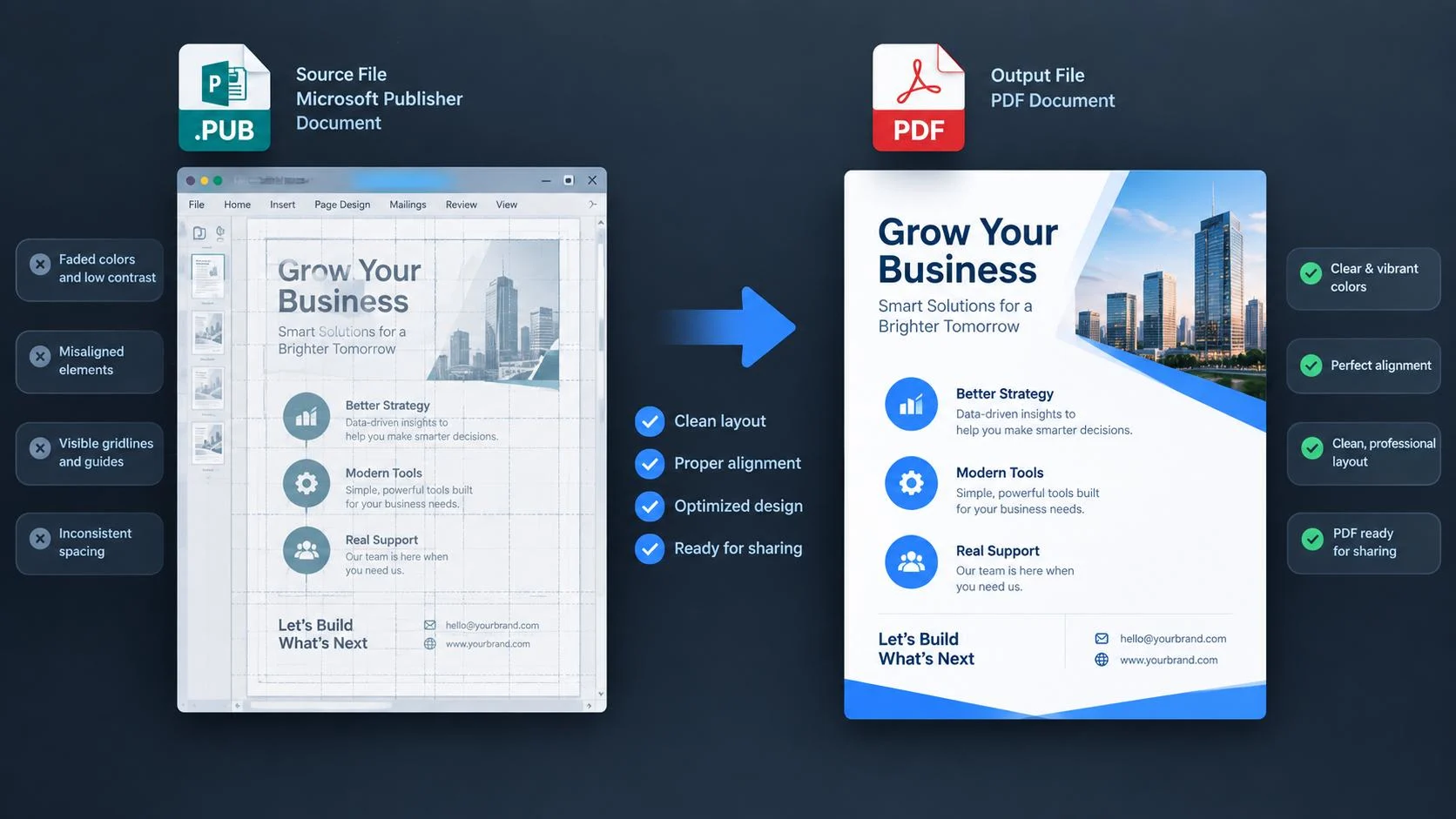

Table of Contents▼
Learn how to convert PUB to PDF and archive legacy Microsoft Publisher designs before the software retires. Step-by-step preservation guide and workflow tips.
Introduction
Almost every office has that one archived folder on a shared drive or a dusty backup drive labeled Old Marketing Assets or Print Templates 2018. Inside, alongside standard images and spreadsheets, sit dozens of files ending in .pub.
For decades, Microsoft Publisher was the workhorse of community newsletters, school event certificates, church bulletins, folded brochures, and local business flyers. It sat comfortably between the bare-bones text framing of Word and the expensive, intimidating learning curve of tools like InDesign. It wasn't flashy, but it got the job done.
Then reality caught up. You double-click a .pub file on a modern laptop, and nothing happens. Or worse, you send a tri-fold brochure layout to an outside commercial print shop, and their prepress team replies with a blunt note: "We can't open this. Can you send a high-resolution PDF instead?"
With Microsoft officially phasing out Publisher across Microsoft 365, millions of legacy publications are on the verge of becoming digital paperweights. If you rely on old brochures, product catalog templates, or annual reports saved in .pub format, you are running against a structural timeline.
Preserving those assets isn't about finding another desktop publishing suite to rebuild everything from scratch. It is about locking down the geometry, typography, and visual integrity of your work into an unalterable, globally compatible format: PDF.
Tools like Doxbar are built around this exact principle—taking proprietary, format-locked files and turning them into clean, accessible web and print standards directly inside your browser. Here is an honest, ground-level look at what is happening to Publisher files, why they are notorious for breaking during conversion, and how to safely archive your entire catalog before the software vanishes from your desktop.
6. The Problem Breakdown: Why Publisher Files Become Digital Traps
To understand why converting a .pub file causes so much anxiety, you have to look at how Microsoft built Publisher in the first place.
Unlike Microsoft Word—which views documents as a continuous, flowing stream of text paragraphs, tables, and inline images—Publisher was designed around absolute spatial layout. PUB to PDF is generally a more natural fit for preserving a page-based layout than converting a fixed-layout publication into a reflowable document format.
How Publisher Layouts Are Structured
A Publisher file does not behave like a simple text document. It can contain independently positioned text boxes, images, shapes, and linked text frames.
For example, a brochure might have:
A headline placed at a specific position on the page.
An image positioned beside the headline.
A second text box linked to the first so that text continues between the two frames.
When the file is converted to PDF, these positioned elements are rendered onto fixed pages. That is why checking text-box alignment, image placement, linked text frames, and page boundaries after conversion is important.
When you try to move that content into modern environments, several things break simultaneously:
1. Zero Native Cross-Platform Compatibility
Microsoft Publisher was built exclusively for Windows. There has never been an official macOS client, an iOS or Android app, or a native web reader on OneDrive. If someone on your team works on a Mac or a Chromebook, an incoming .pub file is entirely inaccessible without third-party intervention.
2. Cascading Text-Overflow and Font Substitution
Because Publisher relies on fixed-dimension text frames, a tiny shift in font metrics ruins the document. If a machine opening the file lacks the exact local TrueType font used when creating the flyer in 2012, the operating system substitutes an alternative font (like Arial or Calibri). The replacement font might have slightly wider character tracking. Instantly, text overflows the fixed box boundary, cutting off phone numbers, prices, or dates entirely.
3. Print Margin Collisions and Bleed Failures
Desktop publishing files are usually intended for physical output: double-sided flyers, z-folds, or business cards. Publisher allowed users to design right up to the edge of the printable paper area. When opening legacy files on different printers or unverified viewers, margins shift by fractions of an inch, slicing through headlines or cropping critical artwork.
4. Bloated, Vulnerable Desktop Runtimes
Once software reaches end of support, it no longer receives the same security and compatibility maintenance. Keeping an unsupported application solely to access old files can therefore become a long-term maintenance concern.
7. Educational Deep Dive: How Layout Engines Handle Conversion
Why can't you just open a .pub file in Word and save it as a PDF? If you have ever tried doing that, you probably saw broken tables, displaced logos, and text frames stacked randomly on top of one another.
Flowable vs. Fixed-Layout Architectures
To understand why conversions fail, consider the difference between flowable layouts and fixed layouts:
Flowable Layouts (.docx, .html): The text behaves like water. If you increase the font size or change the paper size from Letter to A4, the words reflow naturally down the page. Extra content pushes downward and creates a new page.
Fixed Layouts (.pdf, desktop publishing formats): Elements are pinned to explicit canvas coordinates. The text box does not reflow; it sits at an exact coordinate offset.
When software tries to convert .pub directly to .docx, it forces fixed-coordinate boxes into a flowable stream. The engine tries to guess which block of text comes first, which leads to overlapping elements and broken columns.
Why Direct PUB-to-PDF Conversion Can Preserve Layout Better
Microsoft Publisher uses fixed-position elements. A text box or image can be placed at a specific location on the page rather than flowing continuously like ordinary word-processing text.
When a PUB file is routed through an editable format such as DOCX, the document structure may be reconstructed as flowing text. During that process, text boxes, images, spacing, and page positioning can change.
A direct PUB-to-PDF conversion takes a different approach: the original page layout is rendered into a fixed PDF page. This can help preserve the relative position of text, images, and other design elements.
In simple terms:
PUB:
Elements are positioned within a fixed page layout.
DOCX:
Content is more flow-oriented and may be restructured during conversion.
PDF:
The final page preserves the rendered arrangement rather than turning the design back into editable flowing content.
Converting PUB to PDF, however, is mathematically clean. A PDF is also a coordinate-based canvas. The conversion engine translates Publisher's proprietary vector paths, text coordinates, and raster placements directly into the ISO 32000 standard for PDF, maintained by the International Organization for Standardization.
The Role of Vector Graphics and Embedded Fonts
A professional conversion does not simply take a "screenshot" of each page and paste it into a PDF wrapper. Doing so would destroy text searchability and produce blurry, pixelated text when printed.
A high-fidelity engine performs three distinct operations:
Font Virtualization & Embedding: It checks whether fonts are embedded in the source file. If so, it embeds those vector glyph outlines directly into the resulting PDF so that any device can render them cleanly.
Vector Translation: Lines, geometric shapes, dividers, and background fills are translated into raw PDF vector drawing commands rather than flattened bitmap images.
Color Space Preservation: Desktop documents meant for office copiers use sRGB, while files created for commercial offset printing use CMYK. A proper conversion pipeline preserves those channel definitions, preventing colors from shifting or muddying.
What to Look for in a Modern Solution
If you are faced with a directory full of .pub files and no active Microsoft Publisher license, how should you convert them? Whether using an online converter or an emergency software backup, look for these baseline standards:
Modern PUB-to-PDF Converter Checklist
Before choosing a converter, check whether it supports the features that matter for Publisher files:
No software installation
— The conversion can be completed without installing desktop publishing software.
Layout preservation
— Text boxes, images, shapes, and page positioning should remain as close as possible to the original design.
Temporary file processing
— Check how uploaded files are handled, stored, and deleted after conversion.
Batch conversion
— Useful when you need to convert multiple Publisher files at once.
Font handling
— The converter should handle the fonts used in the original file carefully and flag potential substitution or rendering issues.
Zero Client-Side Overhead: You shouldn't have to download third-party desktop converters bundled with adware or trialware simply to rescue a two-page document. The workflow should execute smoothly inside a modern, sandboxed browser tab.
Transparent Privacy Practices: Your company newsletters, financial summaries, or event rosters contain real names, email addresses, and occasionally private corporate data. Avoid questionable conversion sites that bury vague data-retention clauses in their terms of service. Choose privacy-conscious tools that automatically scrub uploaded files and converted outputs from their servers shortly after processing.
High-Resolution Print Output: If your Publisher file was built as a vector-based flyer or brochure, the converter must output a clean, high-resolution document (at least 300 DPI for raster assets) that can go straight to a commercial print house.
Layout Integrity on Complex Shapes: Look for converters that correctly handle rotated text boxes, wrapped text around irregular images, and multi-column frames.
Comparison: Legacy Desktop vs. Outdated Web Tools vs. Modern Web Conversion
Feature / Metric | Legacy Desktop Publisher | Outdated "Free" Converters | Modern Web Workflow (e.g., Doxbar) |
Platform Compatibility | Windows only | Any browser | Any browser (Mac, PC, Linux, Mobile) |
Installation Required | Yes (Heavy MS Office suite) | No | None (Runs directly in the browser) |
Data Privacy Policy | Local machine | Often sells data / keeps files | Ephemeral storage (Auto-delete after processing) |
Font Preservation | Relies on local system fonts | High rate of font substitution | TrueType/OpenType vector outline embedding |
Visual Fidelity | Native baseline | Broken alignment, low-res images | Preserved coordinate mapping & crisp assets |
Cost | Part of expensive legacy suites | Ad-heavy / CAPTCHA walls | Fast, friction-free access |
Step-by-Step Guide: Converting PUB to PDF for Long-Term Archiving
Here is a straightforward, reliable workflow to convert and archive your Publisher documents without layout corruption.
Step 1: Gather and Organize Your Source Files
Locate your .pub files across your cloud drives, old email threads, or internal servers. Before converting, keep the original files untouched in a dedicated backup folder. Never delete your source .pub files until you have visually checked the converted PDFs.
Step 2: Upload to the Converter
Head to your browser-based converter (such as the document conversion suite on Doxbar). Drag and drop your .pub file into the upload zone. If you have several publications—such as monthly newsletters across a full calendar year—use batch processing to save time.
Step 3: Let the Engine Process the Layout
During this phase, the converter parses the proprietary Publisher binary structures, maps out the canvas coordinates, renders the typography according to embedded font descriptions, and generates a structured, multi-page vector PDF.
Step 4: Download and Inspect the Rendered Document
Download the output file and open it in a trusted PDF viewer like Adobe Acrobat or Google Chrome.
Step 5: Run the Five-Point Verification Check
Before marking the document archived, verify these five high-risk areas:
Text Box Overflows: Look at the bottom of colored blocks or multi-column sections to ensure trailing lines weren't cut off.
Font Kerning: Check that character spacing looks natural and words aren't squished or overlapping.
Image Resolution: Zoom in to 200%. Logos, photos, and background banners should stay sharp, not look like heavily compressed thumbnails.
Margins & Page Breaks: For double-sided flyers or multi-page booklets, check that the front and back covers match the expected layout without shifting onto extra pages.
Colors: Verify that dark background fills did not shift or display banding across gradients.
Pros and Cons of Converting PUB to PDF
A balanced look at what PDF conversion achieves—and where its limitations lie.
Pros
Universal Accessibility: PDFs open immediately on macOS, Windows, iOS, Android, and Linux without specialized software.
Layout Freezing: What you see is permanently locked in place. There is zero risk of text reflowing because someone opened the file on a machine lacking specific fonts.
Print-Ready Reliability: Commercial print shops, office copiers, and local service bureaus universally accept PDF as the gold standard for prepress.
Long-Term Preservation: Archival PDF profiles (like PDF/A) comply with international archival standards, ensuring the file remains readable decades from now.
Searchable Text: Properly converted PDFs maintain a distinct text layer, allowing desktop search utilities and document management systems to index your old content.
Cons
Limited Post-Conversion Editing: A PDF is designed to be an end-state document. While you can make minor typographical corrections using a dedicated editor, editing a complex multi-column brochure inside a PDF is difficult compared to working on an open canvas.
Unrecoverable Source Errors: If the source .pub file was already corrupted or created with broken font links on a decommissioned machine, converting it to PDF cannot automatically regenerate the missing original assets.
Advanced FAQ Section
What is a PUB file?
A PUB file is the proprietary document format created by Microsoft Publisher, Microsoft's entry-level desktop publishing software. It contains page layouts, text frames, vector shapes, embedded raster images, colors, and typographic styling tailored for print publications.
What does PUB stand for?
In the context of office document extensions, PUB stands simply for Publication. It designates files meant for page-centric layout and graphic design rather than raw word processing or data tabulation.
What is a PUB file used for?
PUB files were widely used by small businesses, educators, non-profits, and administrative offices to design print-oriented materials. Common examples include tri-fold brochures, event flyers, monthly newsletters, formal greeting cards, restaurant menus, certificates, and address label sheets.
How do I convert PUB to PDF?
The easiest way is to use a dedicated browser-based converter like Doxbar. Upload your .pub file directly from your computer or phone, let the conversion engine translate the document layout into standardized vector PDF commands, and download the finished PDF file within seconds—no software installation required.
Can I convert PUB to PDF without Microsoft Publisher?
Yes. You do not need Microsoft Publisher installed to convert .pub files. Modern cloud document engines parse the internal structure of the Publisher file format independently, rendering the pages into an exact PDF mirror without requiring an active Microsoft Office license.
What happens to PUB files after Microsoft Publisher retires?
Microsoft has formally announced the retirement of Publisher across all Microsoft 365 licensing tiers, with support ending in October 2026. After this cutoff, Publisher will no longer receive security patches, bug fixes, or updates, and it will be removed from standard installations. Any .pub files left unconverted will become increasingly difficult to open or edit safely. For official lifecycle details, refer to the Microsoft Lifecycle documentation.
Can I still open old PUB files after Publisher retirement?
If you have an older standalone version of Office (such as Office 2019 or Office 2021) permanently installed on an offline or un-updated machine, you may still technically launch the executable. However, running end-of-life software on connected office computers creates serious cybersecurity liabilities, and files cannot be opened by coworkers who rely on modern cloud-first suites.
Should I convert my PUB files to PDF before Publisher retires?
Yes. Converting your active and archived catalog to PDF is the safest, most effective way to protect your work. Once in PDF format, your documents are permanently preserved against operating system upgrades, software cancellations, and font deprecations.
Does converting PUB to PDF preserve the layout?
A high-grade conversion engine preserves the absolute layout of the original document. Because both Publisher and PDF use coordinate-based canvas positioning, text boxes, graphic elements, dividers, margins, and photographic assets translate cleanly into the PDF format.
Can a PDF replace the original PUB file?
For reading, printing, sharing, and long-term archiving, yes—PDF is superior in every way. However, if you anticipate needing to rewrite large sections of text or frequently replace photos in that template, you may eventually want to recreate the layout in a modern design platform or convert the PDF into an editable document.
Should I keep the original PUB after converting it to PDF?
As a rule of thumb for digital asset management, yes. Keep your original .pub files stored in a secondary cold archive alongside the newly generated PDFs. Storage space is inexpensive, and keeping the raw binary file guarantees you always have the original artifact if needed.
How do I convert multiple PUB files to PDF?
If you are managing an archive containing dozens of historical publications, select an online tool that supports batch uploads. You can drop several files into the queue at once, let the server convert them in parallel, and download the resulting PDFs as a clean collection.
What PDF setting should I use for printing a Publisher file?
If you intend to print the converted document on a commercial press or an office laser printer, ensure your converter exports at maximum fidelity:
Raster images should render at 300 DPI or higher.
Text outlines and vector paths must remain un-rasterized.
Page geometry must reflect the intended trim size (such as Letter, A4, or custom dimensions).
Can I convert a Publisher brochure to PDF?
Yes. Brochures—especially tri-fold and bi-fold variants—rely heavily on precise columns and folded panels. A proper converter preserves the panel widths so that when the printed sheet is folded down the center, the creases line up with the designed margins.
Can I convert a Publisher newsletter to PDF?
Yes. Newsletters often contain linked text boxes, where an article begins on Page 1 and continues on Page 3. Converting to PDF renders the text across those frames seamlessly, maintaining the correct reading order while locking down sidebars, mastheads, and footers.
Can I convert a Publisher flyer to PDF?
Yes. Flyers are among the easiest documents to convert because they are usually single-page, high-impact layouts combining large typography with background graphics. Converting them to PDF ensures they can be shared over email, posted on social channels, or sent straight to a print shop.
How do I archive old Publisher files?
To build a durable archive:
Export or convert every .pub file into a PDF.
Standardize your file naming (e.g., 2024-Q3-Company-Newsletter.pdf).
Store the files in a structured cloud folder or redundant local storage.
Verify that each file contains a readable text layer using standard document search.
What is the difference between PUB and PDF?
PUB: A closed, proprietary binary format created by Microsoft. It requires specific Windows-based software to read and edit, and it is nearing complete end-of-life status.
PDF (Portable Document Format): An open, internationally standardized format maintained by the ISO. It renders identically across all hardware platforms and operating systems, with native viewing support built into every modern web browser. You can explore the architectural origins of the format via the Library of Congress PDF Specifications.
What should I do if I no longer have Microsoft Publisher?
You do not need to buy old software licenses or subscribe to obsolete packages. Simply use a secure online converter like Doxbar. Drag your .pub file into the conversion interface, process the file online, and download the finished PDF directly through your browser.
Can I convert PUB files after Publisher is discontinued?
Yes. Independent converters do not rely on Microsoft's cloud infrastructure to parse files. As long as modern converters maintain parsing libraries for legacy binary document structures, you will be able to convert your historical .pub files into standard PDFs.
13. Practical Workflow Advice: Securing and Organizing Converted Assets
Converting your files from PUB to PDF solves the immediate format-compatibility issue, but long-term digital preservation requires a few practical habits:
ARCHIVAL HYGIENE PIPELINE: Raw .pub Source ---> Convert to PDF ---> Verify Text Layer ---> Add Metadata ---> Dual Backup
1. Maintain Predictable Naming Conventions
Legacy office files often carry vague names like Flyer_Final_v2_edit.pub. When converting to PDF, rename your files with structured identifiers:
YYYY-MM-[DocumentType]-[Title].pdf
Example: 2023-11-Flyer-Fall-Festival.pdf
This simple step ensures that document management software, desktop search engines, and backup scripts can categorize your archive automatically.
2. Verify Text Searchability
After conversion, open your PDF and press Ctrl + F (or Cmd + F on a Mac). Type a word you know appears in the body of the document. If your viewer highlights the word immediately, your PDF contains a true vector text layer. If it doesn't, your conversion engine flattened the text into a raster graphic. Always demand true vector and text preservation for archival documents.
3. Build a Redundant Backup
Never trust a single hard drive or a lone cloud folder with historical organizational records. Follow the basic 3-2-1 backup principle:
Keep 3 copies of your document archive.
Store them on 2 different types of media (such as local SSD storage and cloud object storage).
Keep 1 copy completely off-site or in a geographically distinct cloud region.
Conclusion: Don't Let Your Legacy Work Disappear
Software tools come and go. Over the past three decades, countless proprietary office formats have quietly faded into obscurity, taking valuable work with them whenever companies retired legacy suites.
Microsoft Publisher served its purpose well, helping millions of people create tangible, physical print layouts without needing professional design training. But its retirement is a reminder: never leave critical institutional knowledge or marketing assets locked inside a proprietary, single-platform format.
Converting your .pub library to PDF isn't a complex IT chore. With lightweight, browser-based utilities like Doxbar, you can transform those legacy files into clean, universal, print-ready documents in a matter of seconds.
Take an afternoon to audit your older folders, run those forgotten Publisher files through a modern conversion workflow, and ensure your creative work remains readable for decades to come.
Need to Convert Document Formats?
Try our secure, lightning-fast PDF conversion suite. Convert Word, Excel, Images, and more with zero formatting loss.

Doxbar Editorial
Security & Privacy Team
We specialize in secure document architectures, parsing engines, and modern developer utilities. Keeping your files safe, lightweight, and perfectly formatted.
Join the Conversation
Share your thoughts or ask a question about this topic. This is a privacy-first system.