

RAW to PDF: Convert Camera RAW Photos Online
Contents
RAW to PDF: Convert Camera RAW Photos Online

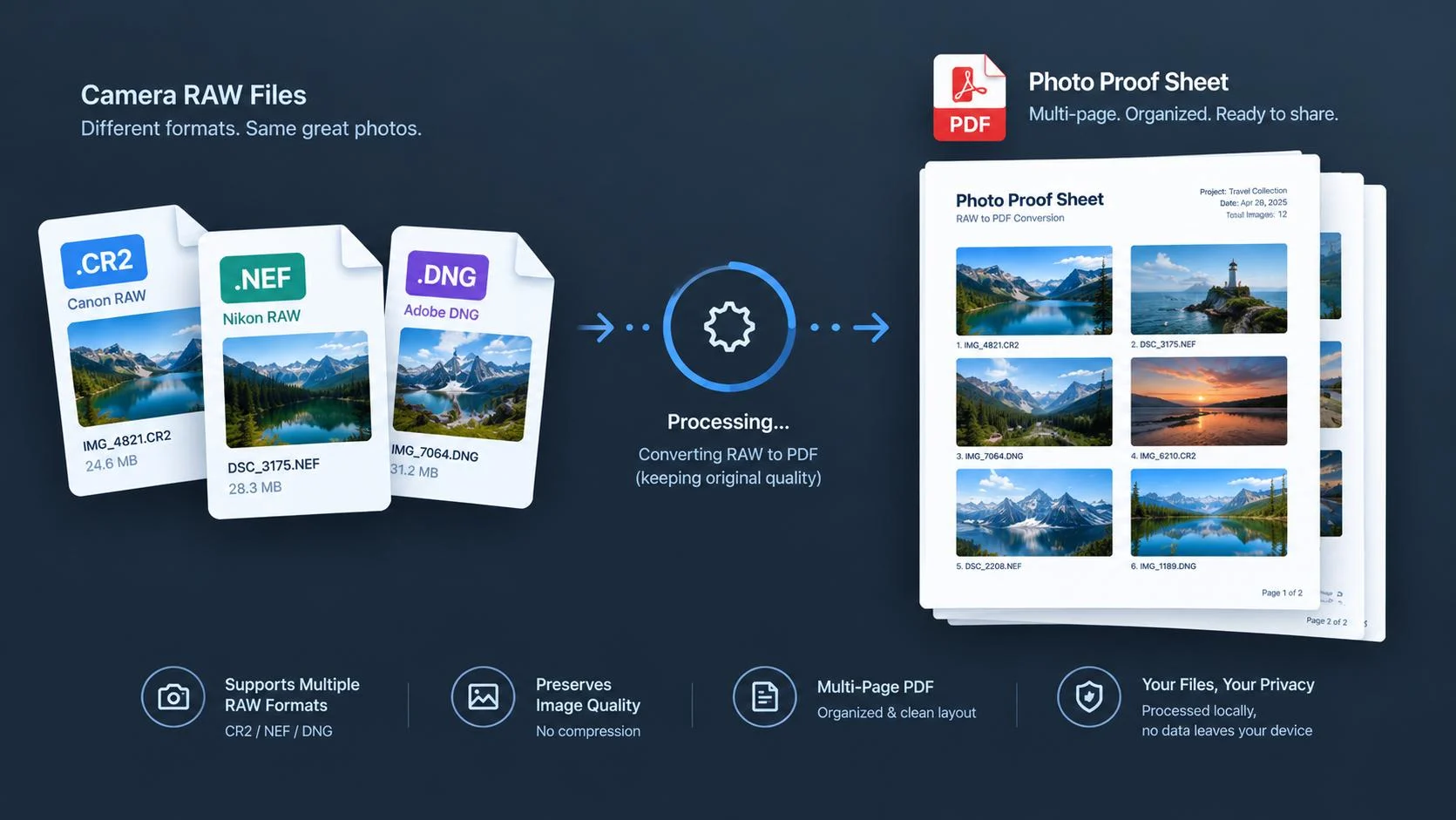

Table of Contents▼
Learn how to turn camera RAW photos into a shareable PDF. Explore format compatibility, image quality, color handling, and practical workflows for client proofing.
Quick Answer: What Is RAW to PDF Conversion?
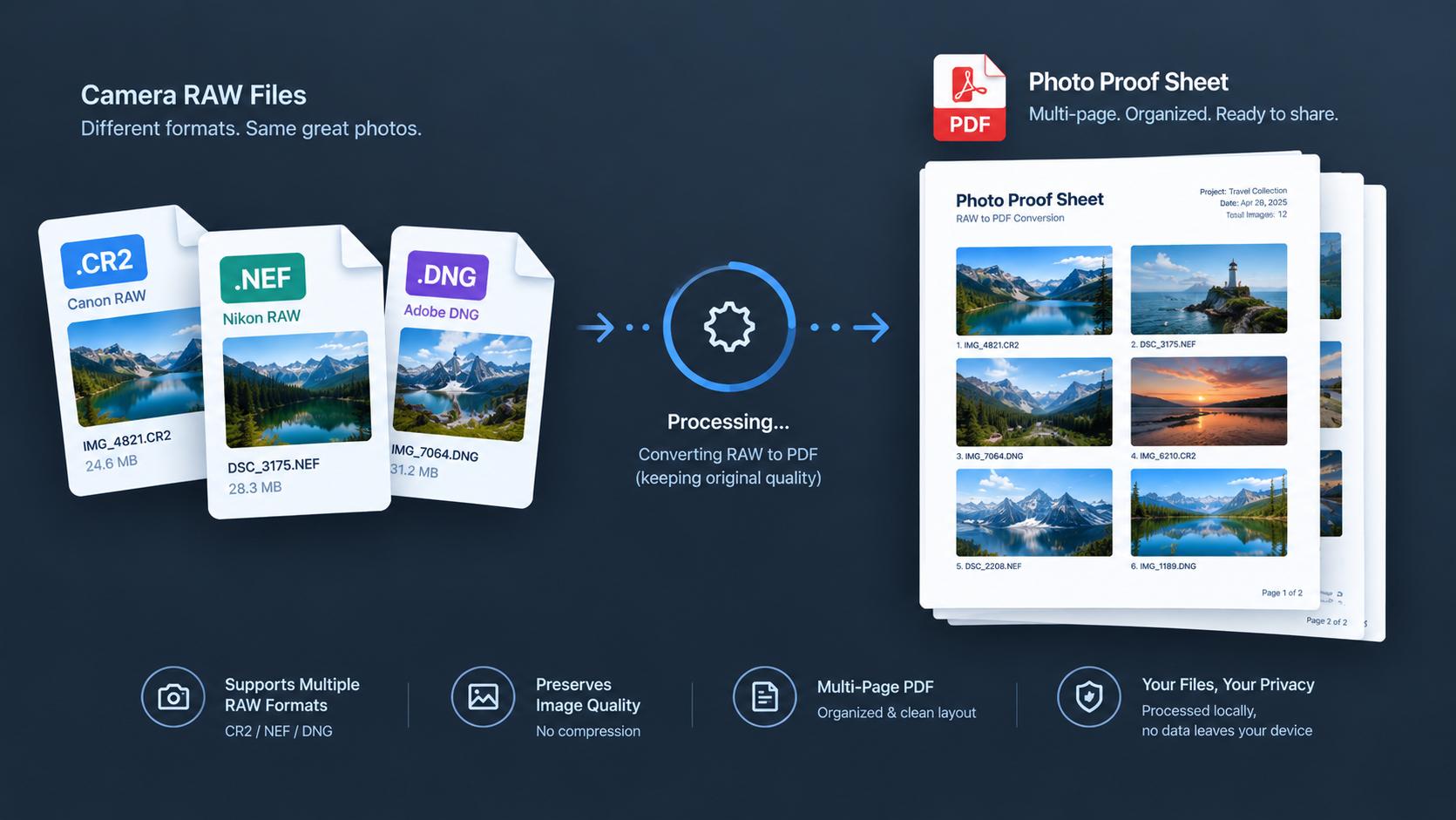
A RAW to PDF conversion takes digital camera captures (such as .CR2, .NEF, .ARW, or .DNG) and packages them as rendered raster pages within a single PDF document.
This process creates a shareable, sequential contact sheet or proof document that clients and art directors can open on standard mobile phones, tablets, and desktop computers without needing specialized RAW editing software or manufacturer codecs. It does not replace your original master files or preserve the dynamic range adjustments of the original negative.
Why Turn Camera RAW Files into a PDF?
Photographers regularly encounter a review bottleneck: after an extensive shoot, the client or creative director wants to see the unedited selects to approve framing, expressions, or products before retouching begins.
Distributing native camera files directly creates several issues:
System Incompatibility: Proprietary camera files cannot be viewed natively on most standard office laptops or mobile devices without specialized decoders.
Bandwidth Overhead: Modern sensors produce files ranging from 30 MB to over 80 MB each. Transferring 40 unedited selects as raw files consumes gigabytes of unnecessary bandwidth.
Disorganized Reviews: Sending an archive of loose, individual image files forces the client to download, unpack, and sort them manually.
Compiling selections into an organized, multi-page PDF solves this by providing a unified document with consistent page sequence, standardized margins, and universal viewing across all major PDF readers.
Format Compatibility: Proprietary Formats vs. Open Containers
Digital cameras write sensor data and capture metadata into proprietary containers that vary by manufacturer:
Canon (.CR2, .CR3): Legacy.CR2 files are widely recognized by open tools, whereas newerCR3 files use updated base containers that require current decoders.
Nikon (.NEF, .NRW): Standard Nikon Electronic Format files are widely documented, though specific high-efficiency compression variants on recent mirrorless bodies may require updated support.
Sony (.ARW): Built on TIFF-structured specifications, standard Sony RAW files are generally supported by established imaging software.
Fujifilm (.RAF): Houses both standard Bayer and X-Trans sensor data, requiring specific demosaicing pipelines depending on the camera model.
Adobe DNG (.DNG): Digital Negative is a publicly documented, non-proprietary RAW format designed to improve compatibility across imaging software. However, DNG support still depends on the software or converter being used.
Workflow Advice: If a web tool cannot directly parse a newly released camera body's native format, batch-convert the files to .DNG using the free Adobe DNG Converter desktop utility first, or export preliminary proof rasters (JPEG/TIFF) to compile your final PDF.
Format Comparison: Choosing the Right Tool for the Job
Format | Nature | Bit Depth | Primary Purpose | Sharing Suitability |
RAW | Sensor-derived data & capture metadata | 12-bit / 14-bit | Exposure latitude, color grading master | Low (requires specialized software; heavy file size) |
TIFF | High-fidelity raster image container | 8-bit / 16-bit | Retouching handoffs, high-end print masters | Moderate (supports compression, but files remain very heavy) |
JPEG | Flattened, lossy raster image | 8-bit | Social media, fast previews, web publication | High for single frames; cumbersome for large batches |
Standardized multi-page document container | Dependent on embedded rasters | Client proof sheets, review dossiers, presentations | Excellent (maintains page sequence across desktop and mobile) |
Step-by-Step Workflow: Creating a PDF Proof Sheet
Follow these steps to produce a clean, multi-page review document for your client:
Sort and Name Selects: Place your chosen images into a dedicated project folder. Rename files in sequential order (e.g., Project_Select_01, Project_Select_02). PDF compilation tools sequence pages alphabetically based on input filenames.
Before you begin: Check whether your chosen PDF tool supports your specific RAW format. If it does not, open the images in compatible RAW-processing software and export them as JPEG or TIFF first. You can then arrange the exported images into a multi-page PDF. Converting proprietary RAW files to DNG may help with compatibility, but it does not guarantee that every PDF tool will accept them.
Select Page Dimensions:
For Screen Review: Choose standardized paper dimensions (A4 or US Letter) with clean outer margins, leaving room for frame numbers or client feedback.
For Portfolio Previews: Fit the page boundary directly to the aspect ratio of the image (typically 3:2 for 35mm cameras).
Compile and Export: Execute the build. The pipeline rasterizes the images, maps colors into a viewable space, and packages them into sequential PDF pages.
Inspect the Output File: Open the generated PDF in a standard viewer (such as Adobe Acrobat or Firefox's built-in reader):
Confirm that portrait-oriented images appear upright and respect EXIF rotation flags.
Zoom in to verify that visual sharpness remains clean.
Verify that shadow and highlight tones look balanced.
Color Handling and Quality Expectations
When turning camera captures into a PDF, keep these technical factors in mind:
Color Space Consistency: Monitors vary in color calibration. Ensuring the images embedded in the PDF are mapped to the universal sRGB color profile helps maintain consistent appearance across phones, tablets, and office laptops.
Tone Curve Variations: RAW files contain linear sensor information without permanent picture profiles. Unedited captures compiled directly into a PDF may appear more neutral or less punchy than the preview on your camera's LCD screen, which typically applies in-camera contrast enhancements.
Resolution vs. File Size: For on-screen review, aiming for an effective resolution of 150 to 200 DPI at display size keeps the PDF light enough to share via email or messaging apps. For physical proof printing on office hardware, preserving approximately 300 DPI relative to page size is recommended.
Practical Review Checklist
Before sending a PDF proof to a client, review these key points:
File Sequence: Are the pages ordered correctly according to your filenames?
Orientation: Did any vertical frames render sideways?
Text & Identifiers: Are file names or frame numbers clearly visible for easy client feedback?
Master Retention: Are your original RAW files safely backed up on your local storage drives? (A PDF is a delivery document, not an archival negative).
Troubleshooting Common Workflow Issues
The converter does not recognize the RAW extension:
Reason: The camera model may be brand new or utilizes proprietary compression not supported by general file processors.
Solution: Convert the source files to .DNG using Adobe DNG Converter, or export quick sRGB review images from your desktop editor and compile them into your PDF.
Vertical frames appear sideways:
Reason: The conversion tool did not read the embedded EXIF orientation tag.
Solution: Use a tool that detects EXIF flags, or rotate the affected pages in a standard PDF viewer before sending.
The output PDF is too large to email:
Reason: Images were embedded at maximum uncompressed pixel dimensions.
Solution: Re-compile using standard review compression settings or run the completed document through a PDF compression tool.
Frequently Asked Questions (FAQ)
What is a camera RAW file?
A camera RAW file contains unprocessed digital data and exposure metadata recorded by a digital camera’s image sensor. It acts as a digital negative that requires compatible software to interpret and view.
Can I compile multiple photos into a single PDF?
Yes. Creating a unified, multi-page contact sheet is one of the main reasons photographers use PDF for proofing, letting you review dozens of images in a fixed order.
Does converting photos to PDF alter my original files?
Creating a PDF normally produces a separate output file rather than replacing your original RAW files. Keep your original files backed up, and check the tool's file-handling policy if you upload images to an online service.
Will image quality change after PDF conversion?
Yes, minor changes occur. The image data is rasterized and compressed into standard RGB pixels to maintain practical document file sizes. While suitable for visual review, the resulting PDF does not preserve the original RAW file's deep highlight and shadow recovery latitude.
Can I print a PDF made from camera photos?
Yes. As long as the embedded images maintain sufficient resolution (typically 300 DPI at target paper dimensions), the resulting PDF will print clearly on standard office and production printers.
What should I do if my camera's RAW format is not supported?
Convert your captures to the open Adobe DNG format using the free desktop Adobe DNG Converter, or export high-quality review rasters before assembling your PDF.
Is PDF better than JPEG for sharing photo selects?
For reviewing multiple images, yes. A PDF packages the entire set into a single document with consistent page order, eliminating the need for clients to download and sort dozens of loose JPEG email attachments.
Conclusion
A camera RAW file is your archival negative, built for dynamic range, exposure latitude, and post-processing control. A PDF is a distribution container built for cross-platform compatibility, client reviews, and orderly presentation.
By understanding format compatibility, using open standards like DNG when bridging tools, and checking image orientation before sending, you can deliver professional proof sheets that any client can open and review without software barriers.
Need to Convert Document Formats?
Try our secure, lightning-fast PDF conversion suite. Convert Word, Excel, Images, and more with zero formatting loss.

Doxbar Editorial
Security & Privacy Team
We specialize in secure document architectures, parsing engines, and modern developer utilities. Keeping your files safe, lightweight, and perfectly formatted.
Join the Conversation
Share your thoughts or ask a question about this topic. This is a privacy-first system.