

SH to PDF: Export Shell Scripts for Documentation, Code Review, and Sharing
Contents
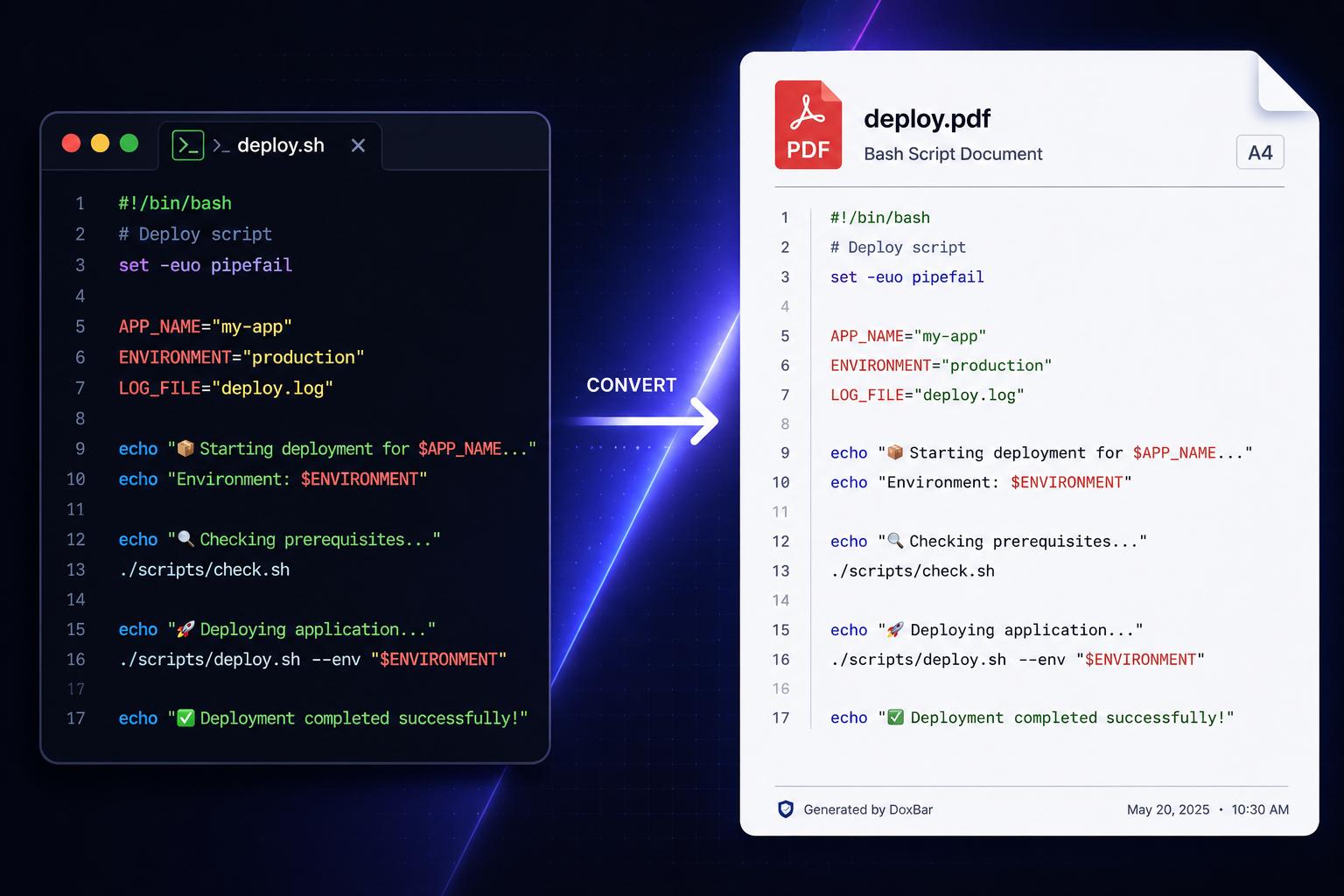
SH to PDF: Export Shell Scripts for Documentation, Code Review, and Sharing

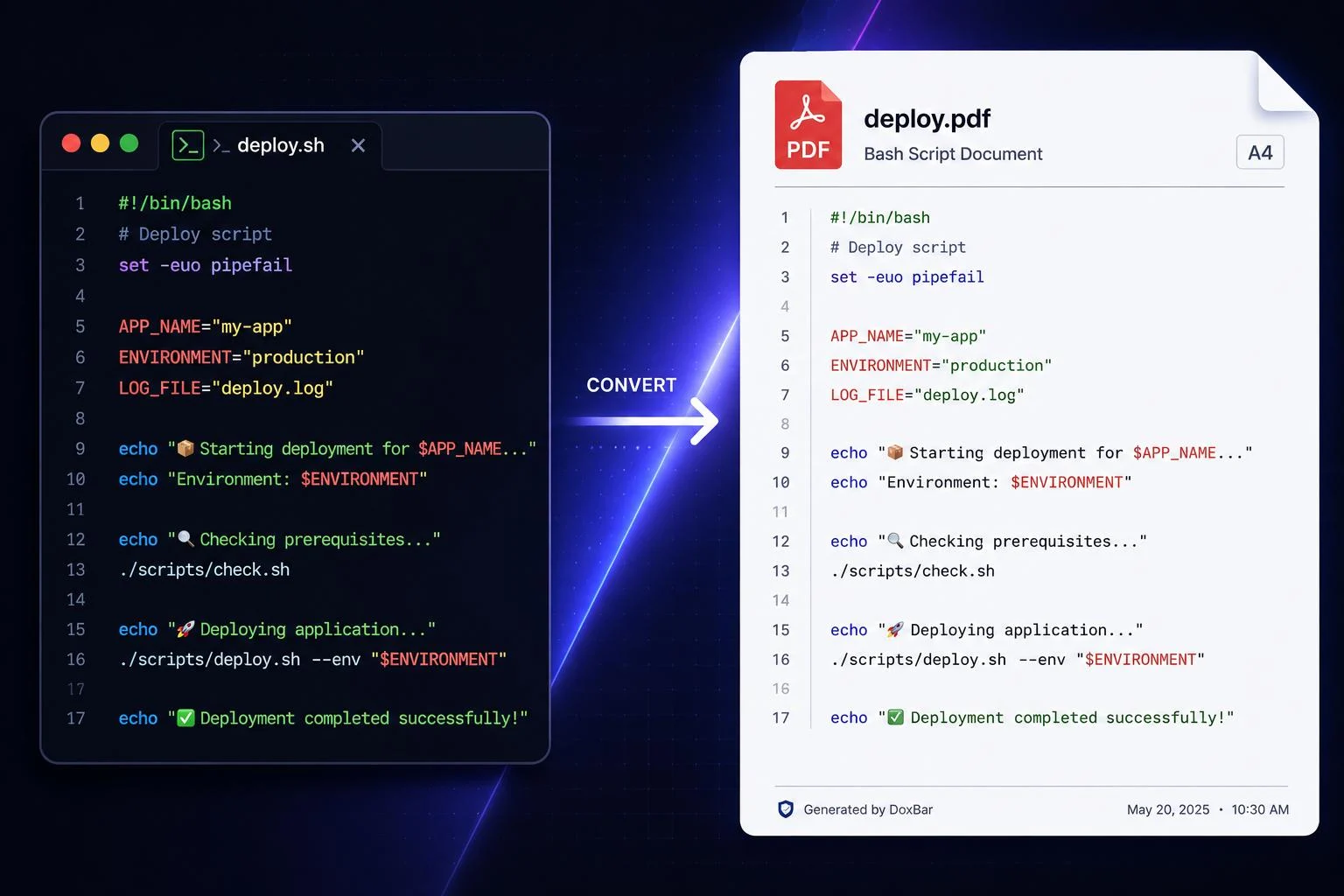

Table of Contents▼
Learn how to convert SH shell scripts to clean, formatted PDF documents. Preserve syntax highlighting and layout for code reviews, docs, and sharing.
Quick Answer: Can You Convert SH Files to PDF?
Yes. You can convert shell script (.sh) files into clean, printable PDF documents while preserving formatting, indentation, syntax highlighting, and readability. This makes shell scripts easier to review, document, archive, and share without modifying the original source file.
Key Takeaways
Convert shell scripts into clean, printable PDF documents.
Preserve indentation, syntax highlighting, and formatting.
Share scripts without sending executable files.
Improve documentation, code reviews, and compliance workflows.
Keep your original .sh file unchanged.
The Silent Headache of Sharing Shell Scripts
Imagine this scenario: You just spent three hours writing an intricate Bash deployment script for an infrastructure rollout. It handles database migrations, secret rotation, and rolling service restarts. Your DevOps lead asks for a copy to attach to the official change management ticket, or a non-technical project manager asks for a readable copy to attach to a client compliance audit.
You drop the raw .sh file into a Slack channel or email thread.
What happens next?
Security filters trigger: Gmail or corporate mail servers instantly flag or quarantine the raw shell script as a potential security risk (.sh files often raise red flags for automated malware filters).
Formatting explodes: The client or project manager opens the file in Microsoft Word or Apple TextEdit. The indentation collapses, line wraps break mid-command, and readable code transforms into a wall of unformatted plain text.
Loss of visual hierarchy: Without syntax highlighting, a complex if-else block or nested awk single-liner becomes almost impossible to skim during a formal code review meeting.
“Bash
# What was clean code... if [ "$ENV" = "production" ]; then ./deploy.sh --force; else echo "Staging run"; fi # ...turns into wrapped, plain-text soup when opened in basic text viewers.
Whether you need to submit a university programming assignment, file a patent, present code during a SOC2 compliance audit, or print a clean cheat sheet for an offline server room, raw text files often fall short. Converting your shell script (.sh) into a structured, universally readable PDF fixes all three problems at once.
At Doxbar, we focus on making file transformations simple and instant right inside your browser, ensuring your technical assets remain formatted exactly as intended.
Why .sh Files Break Outside the Terminal
To understand why sharing shell scripts causes visual headaches, it helps to look under the hood at how different text standards handle line breaks and visual formatting.
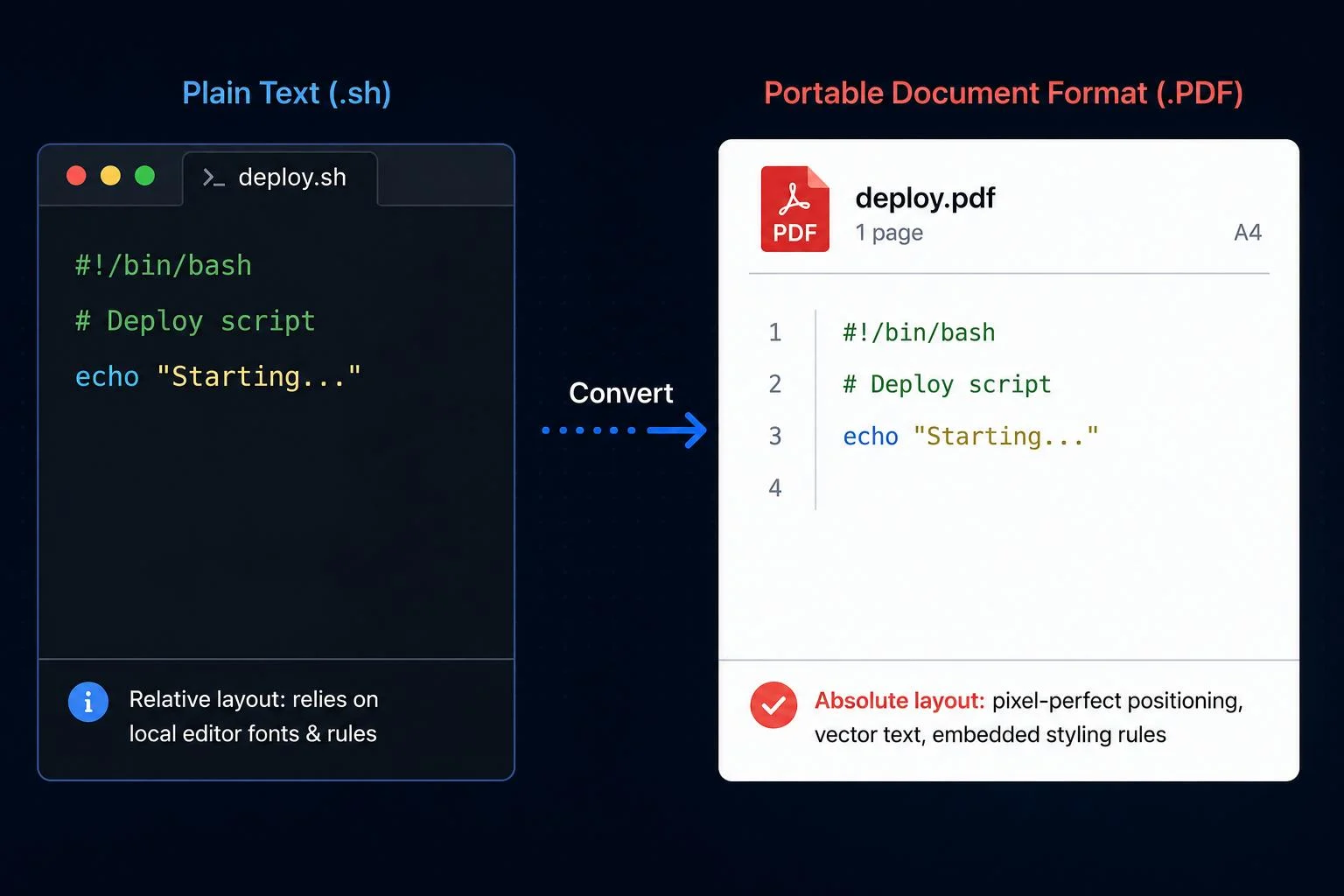
1. Plain Text vs. Fixed Layout
A .sh file contains plain text characters. It relies completely on the application opening it to decide fonts, tab widths, character colors, and line wraps. A tab character might equal 2 spaces on your terminal, 4 spaces in Visual Studio Code, and 8 spaces inside Notepad.
A PDF (Portable Document Format), originally developed by Adobe, operates on absolute positioning. Every character, background color, and line number is fixed in a digital layout canvas. What you see on your screen is precisely what appears on a colleague’s mobile screen, desktop monitor, or physical printout.
2. Line Ending Discrepancies (LF vs. CRLF)
Shell scripts written on Linux or macOS use LF (Line Feed, \n) line endings. Windows systems historically expect CRLF (Carriage Return + Line Feed, \r\n).
If a non-technical team member opens a Linux .sh file in a legacy Windows text reader, all the lines might collapse into a single continuous line of text. Converting the script into a PDF locks the parsed layout in place, bypassing OS-level line-ending discrepancies completely.
3. Syntax Highlighting Loss
Syntax highlighting isn't stored inside the .sh file itself. Your local IDE (like VS Code or Neovim) dynamically colorizes words based on local grammar definitions.
When you convert a script to PDF using a modern, smart parsing tool, that color taxonomy (keywords, strings, comments, variables) is rendered directly into vector graphic elements or styled text layers, locking in the visual logic.
Where Plain .sh Sharing Fails (And Where PDF Wins)
Let's break down where sharing raw scripts creates friction compared to exporting a styled PDF document:
Context / Scenario | Raw .sh File | Converted PDF Document |
Email Attachments | Frequently blocked by corporate firewalls as executable code. | Universally accepted as an enterprise document format. |
Code Audits & Compliance | Hard to annotate line-by-line in standard document suites. | Easy to highlight, comment on, and sign using tools like Adobe Acrobat. |
Academic Submissions | Professors often require uniform page counts and headers. | Supports margins, page numbers, running headers, and footers. |
Mobile Viewing | Requires specialized text editor apps on iOS or Android. | Renders natively in system PDF previewers on any smartphone. |
Print & Offline Docs | Margins clip long commands; text wraps unpredictably. | Preserves fixed margins, page breaks, and line numbering cleanly. |
What to Look for in an Online Script-to-PDF Converter
Not all document converters treat code files properly. If you use a generic text-to-PDF converter, it might strip indentation, use a variable-width font like Times New Roman (which ruins code alignment), or drop long lines off the right edge of the page.
When choosing a modern converter, evaluate these key capabilities:
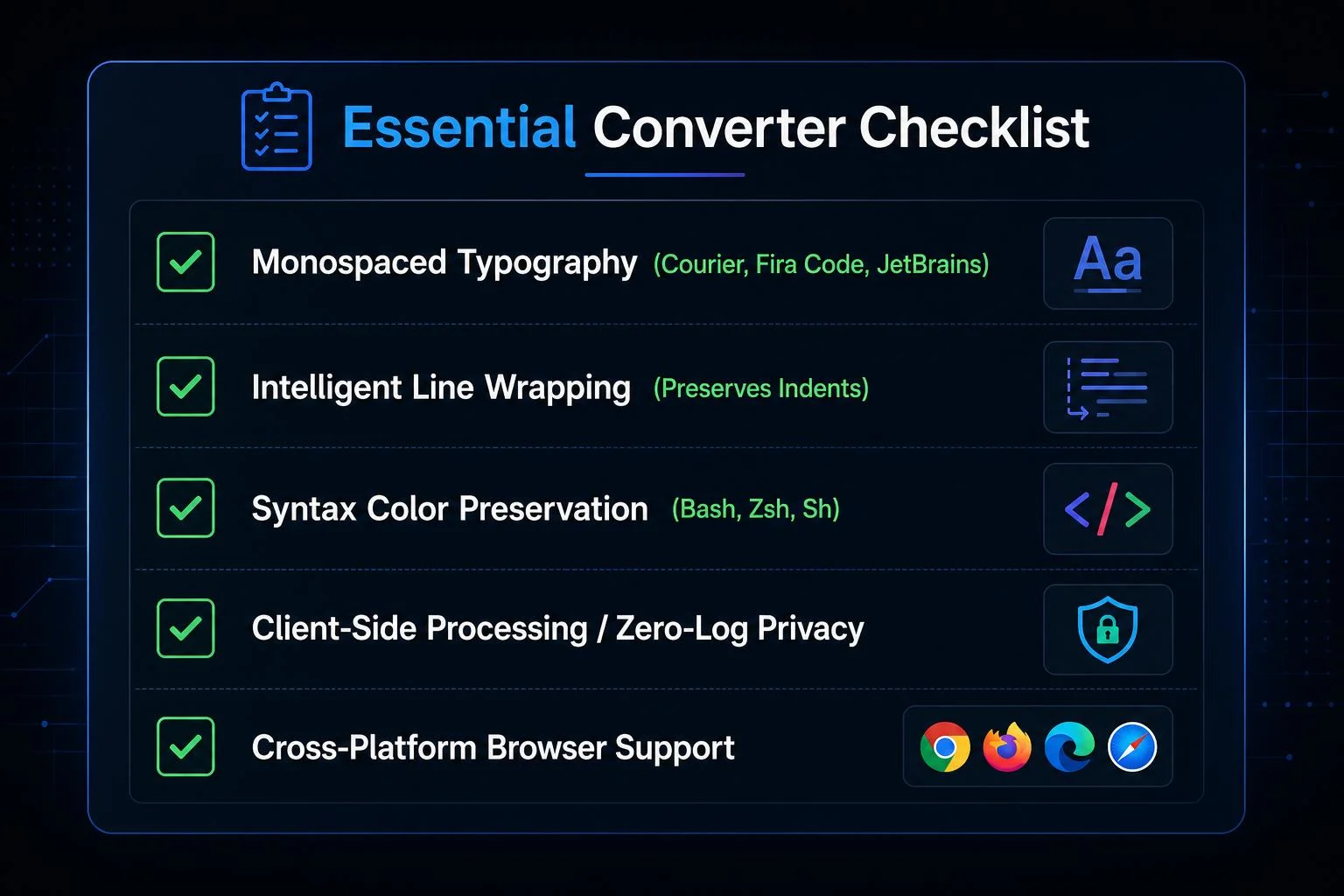
Monospaced Font Support
Code requires fixed-width (monospaced) typography where every character—from an i to a w—occupies the exact same horizontal space. This is critical for reading aligned comments, multi-line arrays, and indented loops.
Preserved Syntax Coloration
A good converter identifies Shell syntax constructs:
Strings ("Hello World")
Variables ($PORT, ${USER_NAME})
Control Flow (if, then, else, fi, for, while)
Comments (# System check)
Keeping these elements visually distinct dramatically improves readability for your team.
Security and Data Privacy
Shell scripts often contain internal server IP addresses, directory structures, environment variable keys, or staging configuration details. Uploading your scripts to an insecure platform risks exposing sensitive infrastructure data.
Prioritize tools that process files securely or execute conversions locally within your browser using modern WebAssembly technologies, ensuring your code never lingers on untrusted third-party servers. You can learn more about web security standards through resources like the Mozilla Developer Network (MDN).
Step-by-Step: How to Convert Your SH File to PDF
Converting your shell script to a presentation-ready PDF takes just a few seconds using a browser-based workflow:
1. Locate & Prepare Your Script: Check for sensitive variables.
Open your .sh or .bash file in your preferred text editor. Briefly verify that you haven't hardcoded live production passwords, private API keys, or raw JWT tokens. Use environment variables (e.g., $DB_PASS) instead.
2. Upload to the Converter: Drag and drop the file.
Navigate to the Doxbar file conversion interface. Drag your .sh file directly into the upload area, or click Browse to select it from your local storage.
3. Process & Format: Automatic parsing.
The engine reads the script structure, applies monospaced formatting, preserves indentation, and structures the text across standard PDF page layouts (A4 or US Letter).
4. Download and Verify: Final review.
Download your generated PDF. Open it in your default PDF browser to verify that line wraps look clean, no long command strings are cut off, and page numbering is intact.
Realistic Trade-Offs: When to Use (and Avoid) Script PDFs
While PDF files are ideal for documentation and formal distribution, they are not a one-size-fits-all solution for software engineering workflows.
Advantages
Immutability: A PDF cannot be accidentally modified or executed by a non-technical reader double-clicking the file.
Universal Presentation: Fonts, alignment, and formatting remain identical across Windows, macOS, Linux, iOS, and Android.
Print-Ready: Perfectly formatted for physical binder archives, meeting handouts, or training manuals.
Limitations
Non-Executable: You cannot execute a .pdf file directly in a Linux shell terminal like bash script.pdf. To run the script, the receiver must extract or copy the text back into a raw .sh file.
Copy-Paste Artifacts: Sometimes, copying code out of a formatted PDF can introduce unwanted hidden formatting characters or smart quotes (“ instead of ") if the PDF generator isn't designed properly.
Version Control Incompatibility: PDF files are binary blobs. Git systems like GitHub or GitLab cannot perform line-by-line git diff comparisons on binary PDF files as they do with plain .sh scripts.
Frequently Asked Questions
1. What is an SH file?
An .sh file is a text file containing a sequence of commands executed by a Unix/Linux shell interpreter (such as Bash, Dash, Zsh, or KornShell). It automates command-line tasks, system deployments, backups, and administrative routines.
2. Can I run a PDF file as a shell script in Linux?
No. A PDF is a structured document file, not a plain-text script. Linux shell environments cannot parse binary PDF structures. To execute the code, open the PDF, copy the text into a plain-text file, and save it with an .sh extension.
3. Will converting my script to PDF alter the underlying code?
No. The conversion process reads the character stream and renders it visually onto a PDF canvas. The original logic, command strings, and code structure remain completely unchanged.
4. Why are raw .sh files blocked in email attachments?
Most email clients (like Gmail or Microsoft Outlook) block .sh attachments because they are executable scripts. Attackers often use script files to run unauthorized terminal commands. Converting the content to a .pdf file safely turns it into a standard document format that passes automated security filters.
5. How does a script PDF handle very long lines of code?
A dedicated code-to-PDF engine handles long lines through intelligent code wrapping, softly wrapping the line while visually preserving indentation or adding a soft wrap indicator. This prevents long command lines from bleeding off the edge of the physical page.
6. Is it safe to upload proprietary shell scripts to online converters?
It depends on the privacy policy and architecture of the converter. Always ensure you are using trusted platforms that employ HTTPS encryption, automatically delete files shortly after conversion, or process files locally inside the browser.
7. What is the difference between SH and Bash?
sh (Bourne Shell) is an older standard Unix shell specification. bash (Bourne Again Shell) is a modern, feature-rich superset of sh used as the default interactive shell on many Linux distributions. Most modern .sh files are written for Bash compatibility.
8. Will the generated PDF show line numbers?
Many code-focused document tools allow you to toggle line numbers on or off. Including line numbers in your PDF is especially useful for team code reviews and technical training materials.
9. Can I convert multiple .sh files to PDF at once?
Yes, batch processing tools allow you to drop multiple .sh scripts into the converter simultaneously, compiling them into individual PDFs or a single unified documentation PDF.
10. Does a converted PDF retain tab indents?
Yes. Quality script converters convert tab characters (\t) into standardized space equivalents (usually 2 or 4 spaces) to ensure that nested logic loops maintain visual hierarchy in the PDF document.
11. Can I convert Zsh, Fish, or PowerShell scripts using the same tool?
Yes. Since command-line scripts share similar plain-text structures, tools that convert .sh files can also convert .zsh, .fish, .ps1, .bat, or .py files cleanly.
12. How do I turn a PDF back into an executable .sh file on Linux?
Open the PDF, copy the code text, and paste it into a plain text editor like Nano, Vim, or VS Code. Save the file as script.sh, then make it executable in your terminal using the command:
“chmod +x script.sh
13. How does PDF formatting help with university programming assignments?
Professors and teaching assistants often require homework submissions in PDF format so they can annotate code, leave grading feedback, and view consistent layouts without needing to open hundreds of raw script files in different text editors.
14. What fonts work best for shell script PDFs?
Monospaced fonts such as Courier New, Consolas, Fira Code, Source Code Pro, or JetBrains Mono work best because every character shares equal width, preserving strict column alignment.
15. Why does my code lose color when printing a PDF?
If your PDF renders in full color on screen but prints in monochrome, check your printer driver settings. Most PDF viewers preserve color output unless "Print in Grayscale" or "Save Ink" is selected in your system print dialog.
16. Can I convert a shell script to PDF on mobile devices?
Yes. Because modern online converters operate within web browsers (like Safari, Chrome, or Firefox), you can upload a .sh file from your iPhone, iPad, or Android device and download the converted PDF directly to your device storage.
17. What is a Shebang line, and will it show in the PDF?
A Shebang line is the first line of a Unix script (e.g., #!/bin/bash) that tells the operating system which interpreter to use. It renders at the top of your converted PDF document just as it appears in the raw text file.
18. How can I password-protect my converted PDF script?
After generating your script PDF, you can apply standard AES encryption and a password using document tools like Adobe Acrobat or browser-based PDF utility modules to secure sensitive documentation.
19. Does converting to PDF remove hidden terminal escape characters?
Yes. Raw ANSI color escape sequences (like \033[0;31m) that format terminal text outputs can clutter static text files. A good converter strips or translates these raw codes into clean visual elements in the output PDF.
20. Can I merge multiple .sh PDFs into a single technical manual?
Yes. You can convert individual scripts into PDF files and then use a PDF merger tool to combine them into a single, organized manual with custom cover pages and section dividers.
References
The technical concepts, shell scripting practices, Unix command behavior, and PDF formatting recommendations discussed in this guide are based on publicly available documentation and industry standards.
GNU Bash Documentation – Official documentation covering Bash syntax, scripting features, shell variables, control structures, and command execution.
POSIX Shell Command Language Specification – The official POSIX standard describing portable shell syntax and scripting behavior across Unix-like operating systems.
Linux Manual Pages (man-pages Project) – Authoritative reference documentation for Linux commands, shell utilities, file permissions, and system administration.
MDN Web Docs (Mozilla Developer Network) – Documentation covering modern web technologies, browser security practices, HTTPS, and related development concepts.
Adobe Acrobat SDK Documentation – Technical documentation describing the PDF format and best practices for generating portable, searchable, and consistently rendered PDF documents.
Contextual Internal Resources
Working with other programming languages, shell environments, or technical documentation? These related Doxbar tools can help you convert source code and development files into clean, professional PDF documents.
Bash to PDF – Convert Bash scripts into printable PDF documents while preserving formatting and readability for documentation and code reviews.
TXT to PDF – Turn plain text files, terminal logs, and command outputs into organized PDF documents for sharing and archiving.
Markdown to PDF – Export README files, technical documentation, and project notes into polished PDF documents.
YAML to PDF – Convert YAML configuration files into structured PDFs for DevOps documentation, infrastructure reviews, and team collaboration.
JSON to PDF – Transform structured JSON data into readable PDF reports for debugging, documentation, and analysis.
XML to PDF – Export XML files into professional PDF documents for configuration reviews, audits, and data sharing.
Python to PDF – Convert Python source code into searchable PDF documents for technical documentation, classroom submissions, and peer reviews.
PHP to PDF – Preserve PHP source code formatting when creating PDF documents for audits, documentation, or collaboration.
JavaScript to PDF – Export JavaScript files into clean PDF documents while maintaining indentation, readability, and code structure.
Whether you're documenting shell scripts, preparing deployment guides, or sharing source code with teammates and clients, these related tools help you create organized, professional, and easy-to-read PDF documentation.
Building Better Technical Workflows
Documenting infrastructure shouldn't be an exercise in fighting broken line wraps, unreadable text editors, or bounced email attachments. By converting raw shell scripts into cleanly formatted PDF documents, you can bridge the gap between developer terminals, administrative compliance teams, and enterprise clients.
When you need a quick, reliable way to convert your .sh scripts—or any other business, code, or spreadsheet documents—Doxbar provides a clean browser-based workspace to handle your document conversions effortlessly.
Need to Convert Document Formats?
Try our secure, lightning-fast PDF conversion suite. Convert Word, Excel, Images, and more with zero formatting loss.

Doxbar Editorial
Security & Privacy Team
We specialize in secure document architectures, parsing engines, and modern developer utilities. Keeping your files safe, lightweight, and perfectly formatted.
Join the Conversation
Share your thoughts or ask a question about this topic. This is a privacy-first system.