

SVG to PDF Formatting Issues: Why Fonts, Gradients & Layouts Break
Contents
SVG to PDF Formatting Issues: Why Fonts, Gradients & Layouts Break

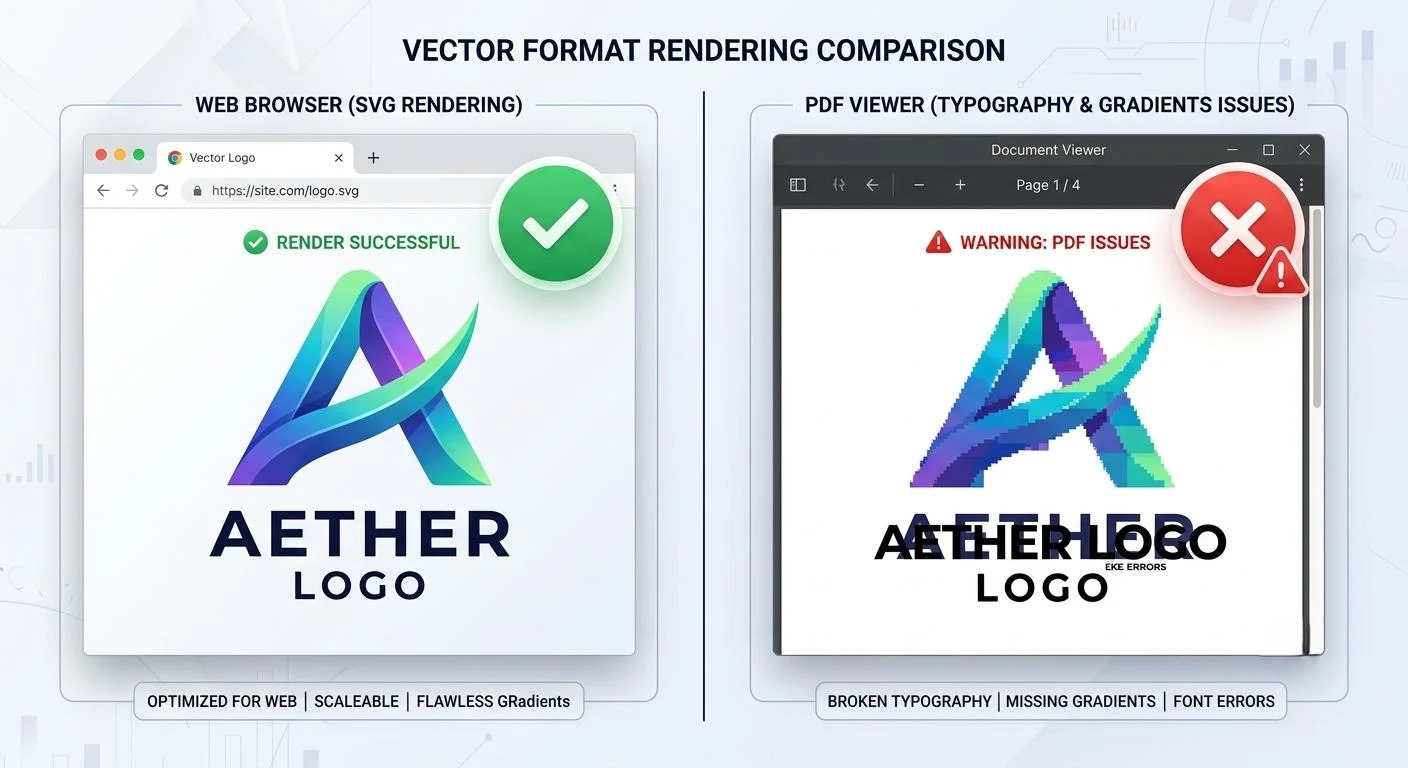

Table of Contents▼
Ever wondered why clean SVG designs from Figma or Illustrator look broken, pixelated, or misaligned after saving as a PDF? Here is the engineering reality and how to fix it.
Quick Summary: Why Does SVG Break in PDF?
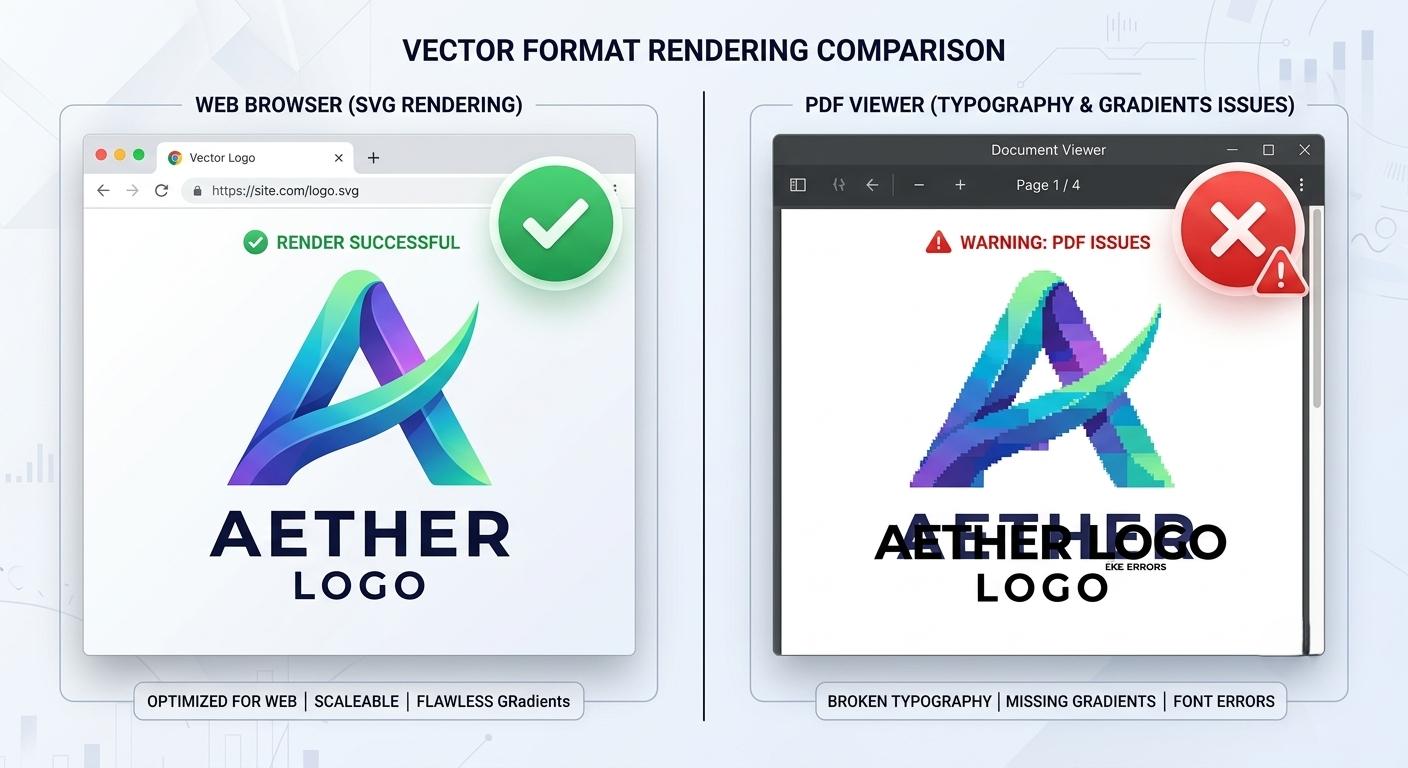
Quick Answer: SVGs are dynamic, XML-based web files styled with CSS and rendered by modern browser engines (like Blink or WebKit). PDFs are static, print-centric documents operating on fixed coordinate spaces. When converting, formatting breaks because generic conversion tools lack a browser rendering engine to accurately parse web fonts, live CSS filters (like drop-shadows), responsive viewBox scale properties, and RGB-to-CMYK color maps.
The Designer’s Dilemma: A Real-World Workflow Breakdown
Imagine this scenario: You just finished a complex UI dashboard mockup in Figma, an intricate vector icon set in Adobe Illustrator, or a technical diagram in Inkscape. On your design canvas, every path is clean, the typography is perfectly kerned, and the gradients look incredibly sharp. You export it as an SVG to hand over to a developer or share with a client.
To make it readable for the executive team, you run that SVG through a standard document converter to turn it into a PDF.
You open the generated PDF, and it is an absolute mess. The custom brand typography has reverted to generic Times New Roman or Arial, causing the text blocks to overflow and overlap. Your smooth, glowing linear gradients have transformed into harsh, blocky bands of solid color. Even worse, half of your complex clipping masks and drop shadows have simply vanished.
This is one of the most common bottlenecks in modern design and development workflows. The frustration comes from a simple misunderstanding: assuming that because both formats are "vector," they speak the same language. They don't. At Doxbar, our engineering team processes millions of vector coordinates daily, and resolving these translation layers is a core part of our architecture. Let's look at why this breakdown happens and how to prevent it.
🎬 Vlog Section: The Tech Reality — Why SVG Web Logic Fails in Static PDFs
Have you ever tried to convert an SVG to PDF, only to find out that your beautiful web graphic completely breaks? It’s a massive headache for developers and designers alike. To truly understand these frustrating SVG to PDF formatting issues, we have to stop looking at them as simple image files. Instead, we need to understand how their underlying engines interpret the code.
Think of it as a clash between two entirely different worlds: the dynamic web and static print.
An SVG (Scalable Vector Graphic) is fundamentally a live document written in XML, natively supported by modern browsers like Google Chrome and Mozilla Firefox. On the other hand, a PDF (Portable Document Format)—originally engineered by Adobe—is a compiled, rigid document meant to look identical on a physical printing press or a mobile screen.
When you attempt an SVG to PDF conversion, a major technical breakdown happens. Here is exactly why:
🌐 Team Web:
The Live SVG Asset Live XML Code & CSS Variables: SVGs use dynamic web code and CSS variables to change styles on the fly.
Remote Google/Adobe Fonts:
Instead of saving fonts locally, they fetch typography directly from cloud servers.
Browser-Native Filters (feGaussianBlur): They rely on the web browser to render live visual effects like blurs and shadows.
🛑 The Breakdown Point The Core Issue: Generic PDF parsers cannot read web code.
When you pass a web-centric SVG through a legacy SVG to PDF converter or library, it tries to read it like a traditional, flat image. As a result, the rendering completely breaks down on the modern web specs defined by the W3C.
📄 Team Print:
The Static PDF Document. To force that living web code into a flat document, the PDF engine strips away the web logic and applies a rigid structure:
Rigid PostScript Vector Math: No flexible web code allowed—only strict, absolute mathematical vector lines.
Embedded TrueType/OpenType Blobs: Since PDFs can't call cloud fonts from the internet, they must physically embed heavy font files ("blobs") right inside the document.
Fixed Device-Independent Coordinates: Everything is locked into a permanent coordinate system, making it completely static.
Top 5 Reasons Your SVG Code Breaks During PDF Conversion
1. The SVG Text Missing & Font Fallback Problem
When you export an SVG from a tool like Figma or Canva, text elements are often preserved as raw <text> strings referencing external fonts (like Inter or Roboto). If your conversion utility doesn't have those exact font files installed locally or fails to fetch the remote CSS files, the layout collapses. The PDF reader forces a generic system font fallback, entirely ruining your custom tracking, kerning, and line wraps.
2. Live CSS Filters vs. Static PostScript Math
Modern web developers love using advanced SVG filter primitives like <feDropShadow>, <feGaussianBlur>, or backdrop-blurs. These rely on the user's graphics card rendering through a browser engine. PDFs do not understand web filters. When a basic converter meets these tags, it either strips the effect entirely (leaving you with a flat, lifeless shape) or renders a solid black box over your artwork.
3. Responsive ViewBoxes Overriding Fixed Page Dimensions
SVGs are inherently responsive. They use attributes like viewBox, width="100%", and percentage-based coordinates to scale fluidly inside any browser window. PDFs, however, operate on strict point-based dimensions ($1 \text{ point} = 1/72 \text{ inch}$) mapped to physical paper sizes like A4 or Letter. Converting fluid percentages to fixed coordinates frequently results in massive white clipping margins, cropped artwork, or squished aspect ratios.
4. Gradient Maps and Object Alpha Channels
A common cause for svg to pdf gradients missing is how opacity and color blend modes are processed. SVGs use linear and radial gradient XML elements paired with web opacity attributes (stop-opacity). PDFs use distinct "shading dictionaries" and extended graphic states (ExtGState) for transparency. Basic translation tools fail to map these intricate web alpha channels to print-safe document layers.
5. Color Space Mismatches (RGB vs. CMYK)
SVGs live exclusively in the digital, screen-facing RGB color space. If your target PDF workflow requires strict print alignment or uses standardized profiles like PDF/X, converting raw digital hexadecimal colors without proper ICC color profiles causes vibrant neon gradients to turn dull, muddy, or shifted when opened in tools like Acrobat.
Quick Reference: SVG Features vs. PDF Support
Visual Component | SVG Web Capabilities | Native PDF Specification Support | The Conversion Catch |
Vector Geometry | Paths, Polygons, Circles | Fixed Point Vector Paths | 100% compatible if coordinates are absolute. |
Typography | Live <text> using Web Fonts | Embedded Font Subsets | Breaks if fonts aren't embedded or flattened. |
Gradients & Opacity | CSS/XML Gradients & stop-opacity | Shading Dictionaries & ExtGState | Generic tools flatten gradients into solid blocks. |
Visual Filters | Blur, Shadows, Blend Modes | Limited Native Transparency | Web filters (feDropShadow) are often stripped entirely. |
Interactivity | CSS Transitions, JS Animation | Static Pages Only | All interactive scripts and hover states become inert. |
How to Fix SVG to PDF Formatting Issues: The Advanced Engineering Approach
If you are running a production pipeline or dealing with high-volume asset workflows, you cannot rely on basic command-line conversion libraries that treat vectors like static pixel sheets. To preserve formatting perfectly, a modern layout engine must follow a browser-first architecture.
Instead of writing basic script parsers, advanced systems spin up a headless browser instance (like Puppeteer running an enterprise-grade Chromium shell). The platform loads your SVG into an isolated web environment exactly like a browser tab would.
Once the headless browser renders the live CSS, pulls the remote typography assets, and computes the exact pixel coordinates of the filters, the system issues a clean print command directly to a PDF canvas asset. This architecture ensures that what you see in your web UI is exactly what gets written into the static PDF structure.
At Doxbar, we built our file conversion pipelines around this exact headless browser principle. Rather than applying a destructive "best-guess" translation layer to your vector math, our infrastructure mirrors a native browser compile step. This ensures complex gradients, dynamic font styling, and bounding boxes scale natively without requiring heavy desktop applications like Illustrator just to verify an export layout.
Designer Checklist: 5 Steps Before Exporting Vectors
Before running your files through any document automation system, verify these quick checkmarks to avoid an svg pdf broken layout:
Outline Crucial Branding Typography: If you are exporting brand assets where typography cannot shift by even a single pixel, convert text layers to vector outlines (Ctrl+Shift+O in Illustrator or Ctrl+E in Figma).
Flatten Complex Blend Modes: If you use exotic layout styles like "Exclusion" or "Color Burn," bake those specific layers down into high-res vector paths or transparent asset shapes.
Set Explicit Bounding Boxes: Avoid leaving width and height parameters purely as responsive percentages (100%). Define explicit pixel or point boundaries in your root <svg> tag to prevent cropping.
Embed Raster Links: If your SVG contains embedded pixel mockups (like a small JPEG image component), make sure it is base64 encoded directly into the code instead of linking to a local desktop path.
Purge Unused CSS Rules: Clean up the XML structure by stripping out redundant CSS definitions or empty groups (<g>) using tools like SVGO to keep file translation ultra-fast.
Common Conversion Mistakes to Avoid
Relying on Legacy Command-Line Libraries: Tools built over a decade ago lack the modern CSS parsers needed to read modern Figma or Sketch outputs.
Assuming Hidden Layers are Ignored: SVG files often keep invisible or hidden design layers inside their XML code. Basic converters might mistakenly render these layers on top of your final PDF design.
Ignoring Viewport Ratios: Converting a long, wide panoramic web asset into a standard vertical A4 document layout without setting explicit margins will distort your layout every single time.
Advanced FAQ Section
Q: Why is my SVG text missing entirely after I open the PDF document?
This generally happens when your SVG uses <text> layers styled via external CSS classes rather than inline XML attributes. If the conversion parser strips the style block, the text color might default to transparent or white, making it completely invisible against the background canvas.
Q: Can a PDF handle responsive SVG assets fluidly?
No. The PDF format is built to simulate physical, static paper mockups. Responsive rules like percentage sizes are frozen into explicit point scales the exact second the file conversion takes place.
Q: How do I handle complex gradients without them breaking into jagged color lines?
Make sure your converter fully supports SVG 2.0 specs and can translate linear gradient stops into modern PDF smooth shading patterns. Alternatively, you can use an engineering platform like Doxbar that handles the pre-rendering step inside a headless browser environment to preserve color depth.
Q: Does converting an SVG to a PDF affect its final file size?
For pure geometric vector shapes, the file size remains exceptionally light. However, if your original SVG contains heavy base64 embedded raster images or thousands of intricate coordinate points from text outlines, the output PDF size will grow accordingly.
Q: Will my SVG animations or hover styles work inside a PDF layout?
No. Any interactive CSS animations, JavaScript movements, or hover-triggered states will immediately lock onto their initial default state once compiled into a document format.
Conclusion
Resolving svg to pdf formatting issues doesn't mean you have to compromise on your design choices or constantly re-author your asset code. Once you understand that PDFs follow rigid page constraints while SVGs prioritize fluid web logic, the fix becomes straightforward. By setting absolute bounding boxes, keeping an eye on your font dependencies, and using modern, browser-native document tools like Doxbar that render your files exactly as a browser would, you can ensure your vector assets stay pixel-perfect from your first design canvas to the final client download.
Need to Convert Document Formats?
Try our secure, lightning-fast PDF conversion suite. Convert Word, Excel, Images, and more with zero formatting loss.

Doxbar Editorial
Security & Privacy Team
We specialize in secure document architectures, parsing engines, and modern developer utilities. Keeping your files safe, lightweight, and perfectly formatted.
Join the Conversation
Share your thoughts or ask a question about this topic. This is a privacy-first system.