

Swift to PDF: Convert Swift Source Code for Documentation & Code Reviews
Contents
Swift to PDF: Convert Swift Source Code for Documentation & Code Reviews

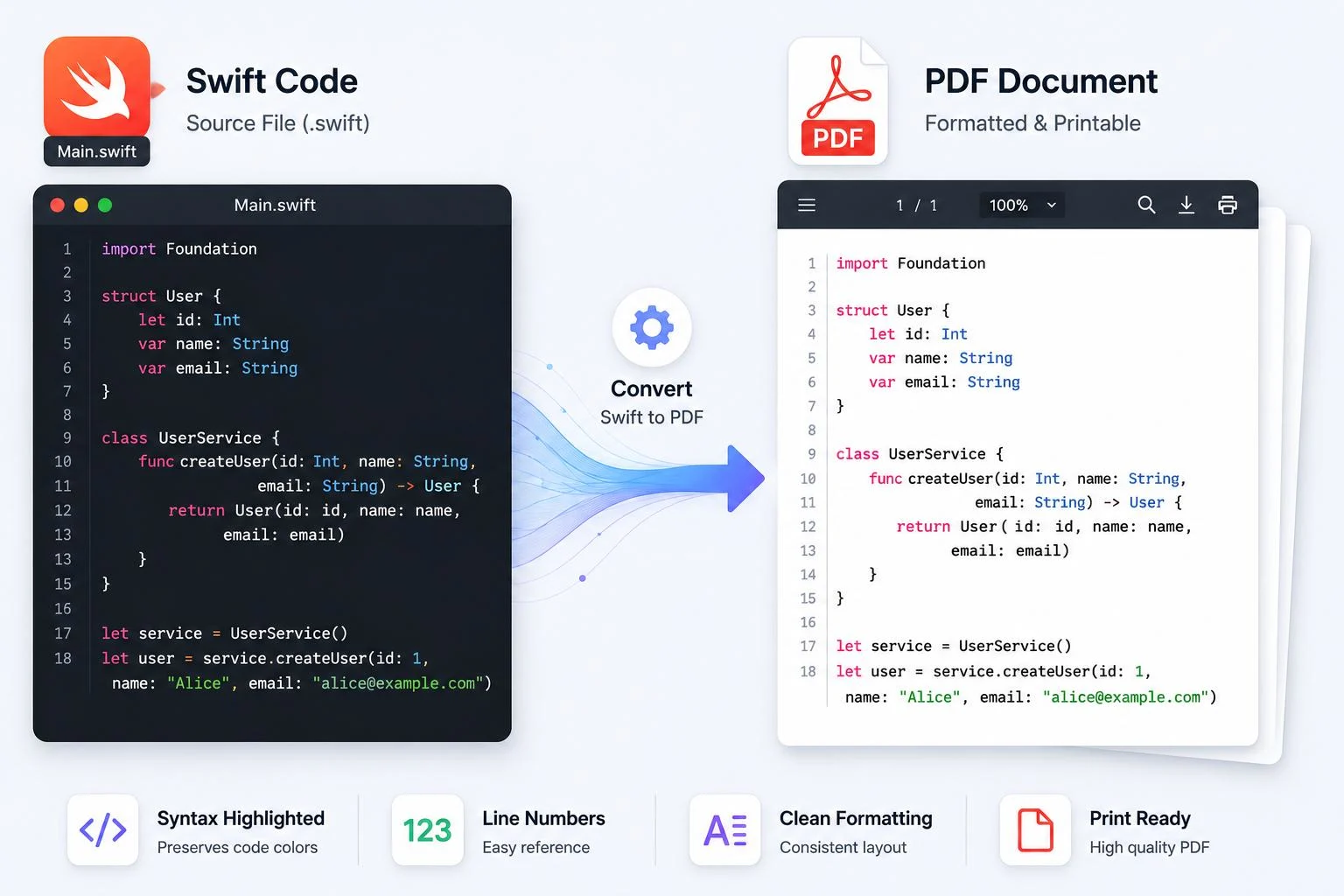

Table of Contents▼
Convert Apple Swift (.swift) source code to PDF while preserving syntax highlighting, line numbers, indentation, and formatting. Perfect for code reviews, documentation, and sharing.
Quick Answer: How to Convert Swift Source Code to PDF
“Need a fast, reliable way to turn your Swift programming language files into formatted PDFs?
Upload File: Drag and drop your .swift source code file into the online converter at Doxbar.
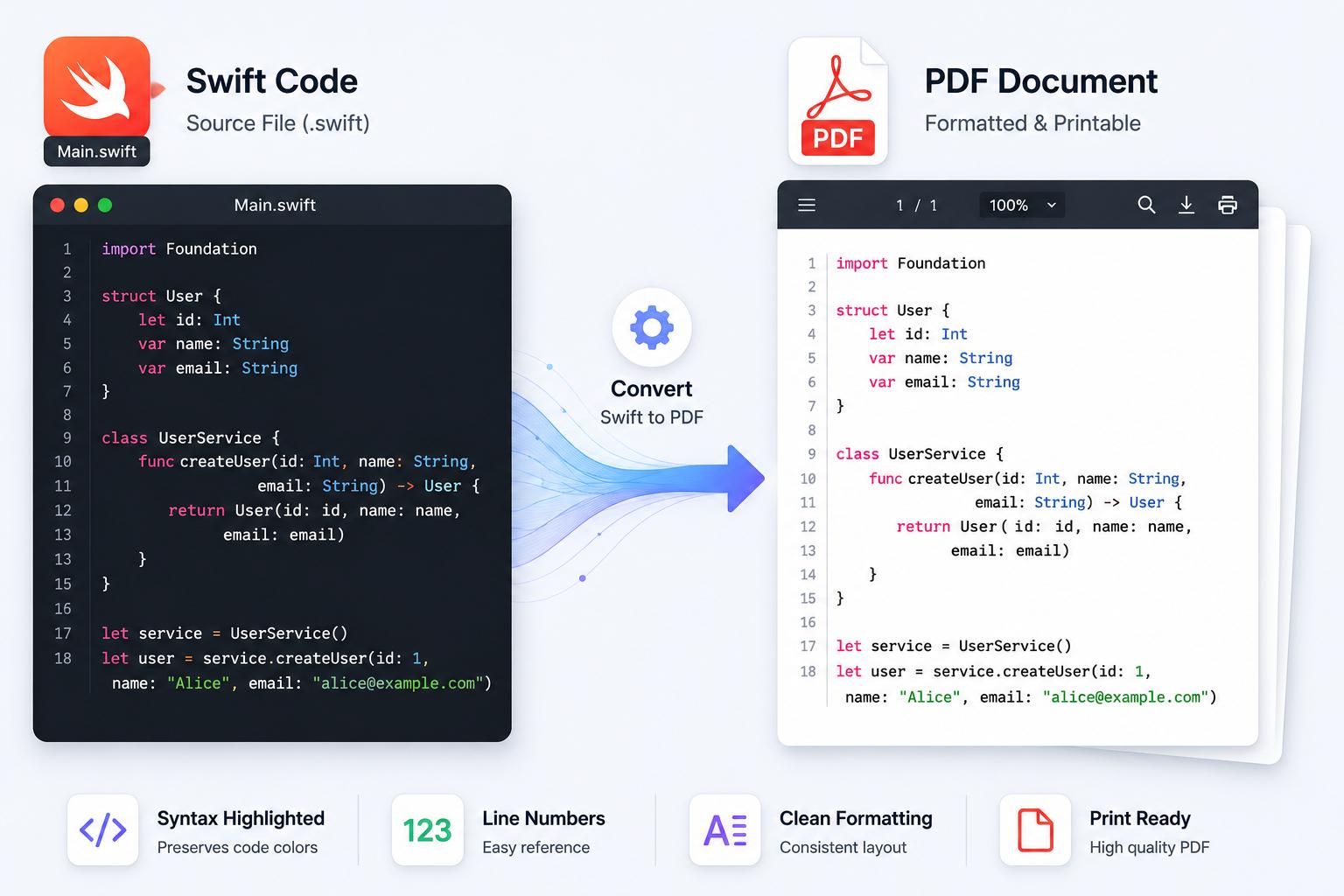
Auto-Format: The tool automatically detects Apple Swift syntax, preserving indentation, color schemes, and line numbers.
Convert & Download: Click Convert Swift to PDF and download your searchable, vector-rendered PDF document in seconds.
“No software installation or Xcode setup required—works seamlessly on macOS, Windows, Linux, iOS, and Android.
When Should You Convert Swift Code to PDF?
You should convert Swift source code to PDF whenever you need to share, review, print, or archive your code while preserving its original formatting. A PDF keeps your code readable on any device without requiring Xcode or another code editor.
Common situations include:
• Code Reviews – Share well-formatted Swift code with teammates, reviewers, or open-source contributors while preserving indentation and line numbers.
• Technical Documentation – Include Swift source code in developer guides, API documentation, software manuals, or project reports.
• Client & Stakeholder Sharing – Send readable code snippets to clients, managers, or non-technical stakeholders without requiring them to install development tools.
• Academic Assignments – Submit Swift programming assignments, lab reports, and coursework in a professional PDF format accepted by most schools and universities.
• Security & Compliance Audits – Generate immutable PDF copies of your source code for security assessments, compliance reviews, or internal documentation.
• Printing Source Code – Create clean, printable copies of Swift code for meetings, classroom discussions, workshops, or offline code reviews.
• Project Archiving – Preserve important versions of your Swift source code for future reference, software maintenance, or long-term documentation.
• Legal & Patent Records – Keep permanent, well-formatted copies of source code for intellectual property documentation, licensing, or legal archives.
Introduction: The Hidden Friction in Sharing Code Outside the IDE
Picture this: you are preparing for an architecture audit or submitting an iOS app for external security clearance. You need to share a crucial core module written in Apple's Swift programming language (.swift) with stakeholders, compliance auditors, or external partners. None of them have Xcode installed on their machines. Opening a raw source file on their end leads to broken line wraps, unreadable plain text, or persistent operating system prompts asking which app to use.
Or maybe you are a computer science student submitting a Swift programming assignment to an academic portal that exclusively accepts PDF attachments. You copy and paste your code into a standard word processor, only to watch indentation collapse, syntax colors vanish, and smart quotes silently corrupt your string literals.
“Swift
// What was clean, structured Swift code in Xcode... func calculateTax(amount: Double) -> Double { return amount * 0.20 } // ...turns into an unformatted wall of plain text when pasted into basic text tools.
While Xcode and modern text editors excel at writing code, sharing that code outside the development environment remains surprisingly clunky. (Note: We are referring specifically to Apple’s Swift programming language for iOS, macOS, and server development, not the SWIFT financial banking network).
Converting Swift source code files directly into clean, formatted PDF documents bridges this gap instantly.
What Happens During Swift-to-PDF Conversion?
You don't need a degree in compiler design to understand why code standardizes so well into PDF. When converting a .swift file into a visual document, five core formatting rules are applied behind the scenes:
Syntax Highlighting: The converter recognizes standard language keywords (func, let, struct, guard), types (String, Int), and comments, mapping them to crisp color themes.
Monospace Typography: Code relies on fixed-width fonts (such as SF Mono, Menlo, or Fira Code) so every character occupies the same horizontal space, preserving vertical alignment.
Indentation Preservation: Tabs and spaces are locked in place, ensuring nested closures and multi-line guard statements retain their structural hierarchy.
Line Numbering: Sequential line numbers are appended along the left margin to make code references clear during audits and peer reviews.
Page Layout & Flow: Long lines wrap cleanly without breaking mid-word, and page breaks are calculated so functions don't split unnaturally across physical pages.
Practical Experience: Why iOS & macOS Teams Prefer PDF for Code Sharing
In real-world development workflows, sending raw .swift files or sharing GitHub repository links isn't always practical or permitted. Here is where structured PDF code documents become essential:
App Store & Security Audits: External security auditors and compliance officers frequently require immutable code exports for static security analysis and documentation records.
Cross-Platform Stakeholder Reviews: Product managers, legal counsel, and business analysts rarely have development environments configured. A PDF opens natively on any device.
Academic Assignments & Code Portfolios: Universities and bootcamps rely on PDF submissions to review logic, verify original syntax highlighting, and maintain permanent academic records.
Intellectual Property & Patent Filings: Legal teams filing software patents use vector PDFs because they preserve line-for-line formatting permanently without software dependencies.
Solution Comparison: Legacy vs. Modern Workflows
Features & Capabilities | Command Line (CLI) | Xcode Print-to-PDF | Modern Web Platform (Doxbar) |
Ease of Use | Complex (Requires terminal tools) | Simple on Mac / Unavailable on Windows | One-click, browser-native |
Cross-Platform Access | Varies by OS | macOS only | Works on any OS or mobile device |
Syntax Highlighting | Requires manual configuration | Basic system theme | Automatic high-contrast highlighting |
Batch Processing | Requires custom scripts | Manual file-by-file export | Native batch uploads |
Searchable Vector Text | Yes | Yes | Yes (Copy & search supported) |
Step-by-Step Guide: Convert Swift Source Code to PDF
Converting your .swift code files into styled PDF documents takes only a few simple steps:
Step 1: Upload Your Swift Source File
Head over to Doxbar. Drag and drop your .swift file into the conversion area, or select it directly from your file storage.
Step 2: Automatic Syntax & Formatting Detection
Doxbar automatically identifies Apple Swift language elements, instantly applying syntax color schemes, monospace font sizing, and line numbers.
Step 3: Convert and Download
Click Convert to PDF. Within seconds, your document is ready to download. Open it in any PDF viewer (like Adobe Acrobat or Chrome) to verify layout, text searchability, and formatting.
Common Mistakes When Exporting Swift Code to PDF
Avoid these common pitfalls to ensure your converted code documents look professional:
Pasting Code into Word Processors First: Rich-text editors auto-correct quotes (changing "hello" to “hello”), strip indentation, and add unexpected line breaks. Convert .swift files directly.
Ignoring Secret Keys and Tokens: Always audit your source files for hardcoded API keys, passwords, or private endpoints before generating shareable PDF documents.
Using Image Screen Captures: Taking screenshots of Xcode clips code across long files, ruins text searchability, and looks blurry when printed.
Neglecting Line Wrapping: Unusually long code strings or inline comments can overflow page margins if line-wrapping rules are disabled.
Security & Privacy: Keeping Your Source Code Safe
Source code represents core intellectual property. When using online converters, security and privacy are paramount.
Security Precaution: Never upload source files containing unencrypted secret keys, database credentials, or private credentials to any public web service. Review best practices for data transmission and cloud privacy through resources like Cloudflare Security.
At Doxbar, data privacy is built directly into the platform:
Files are processed strictly in memory.
All connections use secure, high-grade TLS encryption.
Uploaded files are automatically deleted from server buffers shortly after conversion.
Frequently Asked Questions (FAQs)
1. Can Xcode export Swift files directly to PDF?
Yes, on macOS you can open a file in Xcode and select File > Print > Save as PDF. However, this method is limited to Macs and lacks cross-platform batch processing features.
2. Can I convert Swift files to PDF on Windows, Linux, or mobile devices?
Yes. Browser-based platforms like Doxbar allow you to upload .swift files and convert them on any operating system without installing Apple developer tools.
3. Will the output PDF preserve original indentation and syntax colors?
Yes. Converting .swift files directly ensures spaces, tabs, nesting hierarchy, and syntax coloring match standard developer editor schemes.
4. Can readers search and copy text from the generated PDF?
Yes. The output is a high-quality vector PDF with full text-layer preservation, allowing users to highlight, search, and copy code snippets easily.
5. How are long lines of code handled across page boundaries?
The conversion engine applies smart line wrapping and margins, preventing long code lines or comments from getting truncated at the right edge of the page.
6. Can I convert SwiftUI code files to PDF?
Yes. SwiftUI code is written inside standard .swift source files. The conversion engine renders all SwiftUI code, views, structures, and property wrappers cleanly.
7. Is it possible to convert an entire Swift project at once?
You can batch-upload multiple .swift files from your project directory to generate individual, formatted PDF documents for every source file.
8. Does converting Swift to PDF ruin string formatting or syntax?
No. Unlike rich-text editors that auto-correct quotes and hyphens, code converters maintain raw UTF-8 string integrity.
9. Are my private Swift files saved or stored online?
No. Doxbar processes files ephemerally. Uploaded source code is converted in temporary memory and automatically removed after processing.
10. Does the generated PDF include line numbers?
Yes, line numbers are added along the left margin to make code references straightforward during team reviews and grading.
11. What font is used in the converted PDF?
The converter uses clean, standard developer monospace fonts (like SF Mono or Courier) to ensure code elements align perfectly.
12. Are code comments preserved in the PDF output?
Yes. Inline (//) and multi-line (/* */) comments are fully preserved and styled in soft, readable tones matching standard IDE themes.
13. Is OCR (Optical Character Recognition) required for this conversion?
No. Because .swift files contain pure text data, the PDF is created natively with crisp, searchable text layers without needing OCR.
14. What is the file size of the generated code PDF?
Code PDFs are lightweight vector documents, typically ranging from 20 KB to 200 KB depending on page count.
15. Does Doxbar support other programming language conversions?
Yes. In addition to Swift, Doxbar supports converting Python, Java, Go, C#, Rust, JavaScript, and TypeScript files to PDF.
16. What Is a .swift File?
A .swift file is a source code file created using Apple's Swift programming language. It contains the instructions developers write to build applications for iOS, iPadOS, macOS, watchOS, tvOS, and server-side Swift projects. Since a .swift file is stored as plain UTF-8 text, it can include functions, classes, structures, variables, and comments that are later compiled into an application. Developers typically create and edit Swift files using Xcode, although many other code editors also support the Swift programming language.
17. How Do I Open a .swift File?
The easiest way to open a .swift file is with Xcode, Apple's official development environment for Swift. If you only want to view or edit the source code, you can also use text editors such as Visual Studio Code, Sublime Text, Notepad++, or any editor that supports plain text files. On devices where Xcode or a code editor is not available, converting a .swift file to PDF is a convenient alternative. A PDF preserves the original formatting, indentation, and line numbers, allowing anyone to read the code without installing additional software.
18. Can I Convert a .swift File to PDF Without Installing Xcode?
Yes. You can convert a .swift file to PDF without installing Xcode or any other development software. Browser-based converters allow you to upload your Swift source code, automatically preserve its formatting, indentation, and line numbers, and generate a clean, searchable PDF in just a few seconds. This approach is ideal for sharing code with teammates, clients, instructors, or reviewers who may not have access to Apple's development tools. It also works across macOS, Windows, Linux, Android, and iOS, making it one of the easiest ways to create professional Swift code documentation.
Related Developer PDF Tools
Looking for other developer file converters? Explore Doxbar's suite of code and document tools:
Java to PDF: Convert .java source files to formatted PDFs.
Python to PDF: Export Python scripts (.py) with syntax highlighting.
Go to PDF: Render Go code files (.go) into clean PDF documents.
Rust to PDF: Convert Rust source code (.rs) for documentation.
C# to PDF: Export C# source files (.cs) with preserved layout.
JavaScript to PDF: Convert JS and TS scripts to PDF.
Markdown to PDF: Turn .md documentation files into styled PDFs.
TXT to PDF: Convert plain text files into formatted documents.
Compress PDF – Reduce PDF file size before sharing or uploading.
Merge PDF – Combine multiple PDF files into a single document.
PDF to Word – Convert PDF documents back to editable Word files.
Summary
Documenting, reviewing, and sharing code shouldn't be hampered by missing developer tools or broken text formatting. Exporting Swift code to clean, vector-rendered PDFs provides a reliable, cross-platform solution for developers, students, and legal teams alike.
Whether you are archiving codebase releases, submitting coursework, or conducting external reviews, Doxbar keeps your workflow simple, secure, and fast.
Need to Convert Document Formats?
Try our secure, lightning-fast PDF conversion suite. Convert Word, Excel, Images, and more with zero formatting loss.

Doxbar Editorial
Security & Privacy Team
We specialize in secure document architectures, parsing engines, and modern developer utilities. Keeping your files safe, lightweight, and perfectly formatted.
Join the Conversation
Share your thoughts or ask a question about this topic. This is a privacy-first system.