

TIFF to PDF: Convert Single or Multi-Page TIFF Files
Contents
TIFF to PDF: Convert Single or Multi-Page TIFF Files

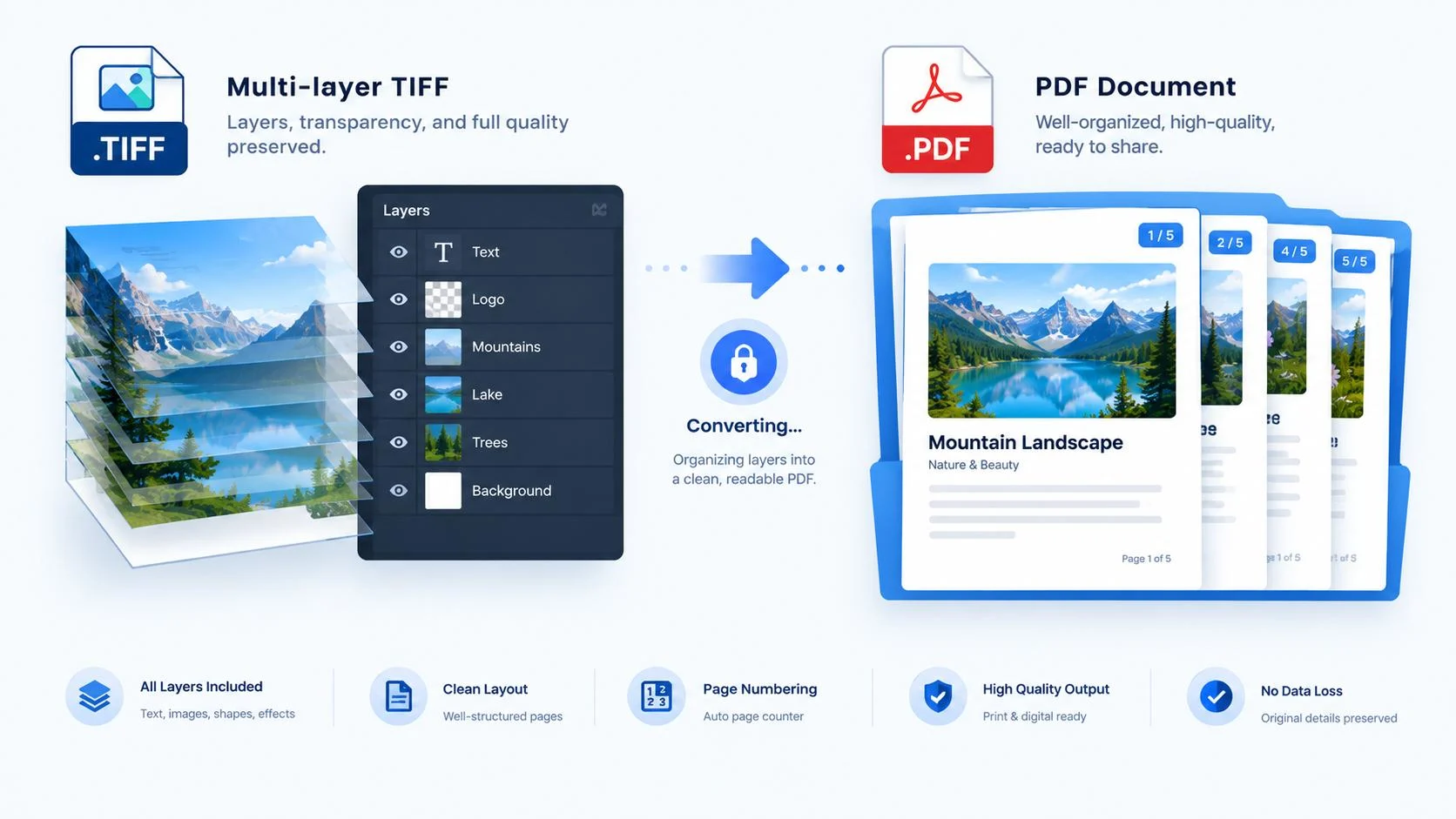

Table of Contents▼
Learn how to convert TIFF and TIF files to PDF, handle multi-page scans, adjust orientation, manage file size, and understand when OCR is required.
How to Convert TIFF to PDF: Single and Multi-Page Scans
A multi-page TIFF can be difficult to preview or share across different operating systems. While desktop image viewers and mobile mail apps often render single images without issue, compound TIFF scans frequently fail to show beyond page one or fail to open altogether. Converting those scans into a standardized PDF solves the viewing barrier and makes distributing multi-page documents straightforward.
Need to convert a TIFF scan right now?
Use the Doxbar TIFF to PDF Converter to create a clean document, then verify page sequence and layout before distributing.
What Is a TIFF File, and Why Convert It to PDF?
A Tag Image File Format (TIFF) file is a raster graphics container capable of storing high-resolution bitmap data with or without compression.
TIFF vs. TIF: Is There a Difference?
There is no functional difference between .tiff and .tif. The three-letter .tif extension originated from the 8.3 file-naming constraints of older operating systems like MS-DOS. Modern operating systems treat both extensions identically.
Why Scanners and Document Archives Use TIFF
Document scanners, medical imaging systems, and archival projects rely heavily on TIFF because of its format flexibility. TIFF supports lossless storage—including LZW compression, ZIP encoding, and bitonal Group 4 fax compression—preventing the visual compression artifacts associated with standard JPEG encoding. For master preservation, keeping signatures, line art, and fine typography intact is paramount.
When PDF Is Easier for Sharing and Viewing
While TIFF excels at archival graphic retention, PDF is designed for universal document presentation. According to technical documentation by Adobe Systems and standardized under ISO 32000-2, PDF wraps image streams inside a standardized page geometry. This helps maintain consistent page layout, scaling, and orientation across compatible PDF viewers, whether opened on macOS, Windows, iOS, Android, or inside Google Chrome.
Single-Page TIFF vs. Multi-Page TIFF
Handling scans requires recognizing how your files are packaged.
How One TIFF File Can Contain Multiple Scans
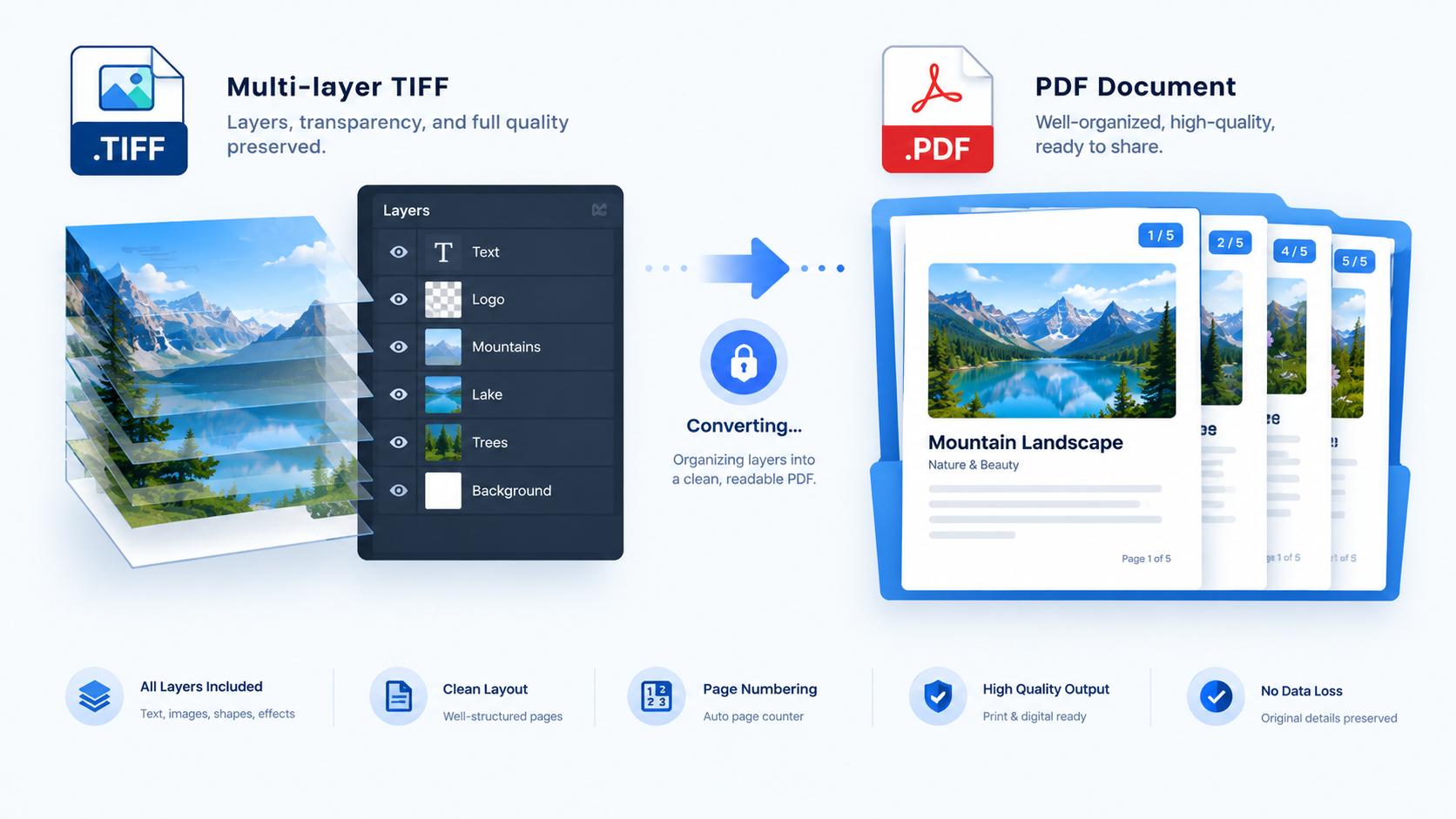
The TIFF specification allows multiple distinct images—each stored in its own internal Image File Directory (IFD)—within a single container. In a multi-page scan, each physical sheet of paper corresponds to a distinct internal page. If an image viewer or basic script is only configured to read the first image directory, subsequent pages remain invisible. A complete converter walks the entire directory list to parse every page into your target document.
Multi-Page TIFF vs. Several Separate TIFF Files
Multi-page TIFF: One file on your disk holding multiple scanned pages sequentially.
Multiple separate TIFF files: Distinct standalone files (scan_01.tif, scan_02.tif, etc.), each representing an individual page.
If you have a collection of separate TIFF files, you can convert them individually and combine the resulting documents into a single file using a utility like Doxbar Merge PDF.
Checking That Every Page Is Included
Before archiving or emailing, verify that the final PDF page count matches your physical document stack. If your thirty-page contract only yields a one-page PDF, the tool only read the initial directory.
How to Convert TIFF to PDF Without Missing Pages
Select the TIFF file: Upload your .tiff or .tif file into the online conversion tool.
Review sequence and orientation: Ensure pages follow the intended order, and that portrait documents are not turned sideways.
Convert and review: Run the conversion and inspect the generated PDF to confirm every page converted cleanly.
How to Keep Scanned Documents Readable
Balancing legibility against transmission size is an essential part of document preparation.
Resolution, Text Size, and Image Quality
Scan resolution is measured in Dots Per Inch (DPI):
150 DPI: Suitable for casual internal previews, but fine text under 9 points may appear jagged.
300 DPI: A common starting point for ordinary office documents, contracts, and legal papers. It preserves handwritten signatures and small type without creating unmanageable file bloat.
600 DPI: Primarily used for detailed schematics, fine engravings, or archival preservation.
Converting a TIFF to PDF does not automatically degrade visual quality when lossless container wrapping or sensible image compression is applied.
Avoiding Sideways, Cropped, or Blank Pages
Automatic document feeders occasionally ingest sheets sideways or pull blank backing sheets. If your converted PDF includes sideways pages, reorient them with a tool like Doxbar Rotate PDF before sharing. Truncated margins typically occur when an oversized scan is mapped onto a fixed page dimension without proportional scaling.
Why a Converted PDF Can Still Have a Large File Size
A PDF container wraps around the underlying raster image stream. If you feed an uncompressed 60 MB color TIFF into a converter, the resulting PDF will remain large unless compression is applied or color depths are adjusted. If your resulting file exceeds email attachment caps—which vary widely depending on the provider—optimize the document using Doxbar Compress PDF.
Does TIFF to PDF Conversion Make a Document Searchable?
Converting an image file to PDF does not automatically extract or recognize the text inside the picture.
Image-Only PDF vs. Text-Searchable PDF
Image-Only PDF: The PDF contains a visual bitmap image on the canvas. While human eyes can read the words, the computer treats the content purely as colored pixels. You cannot search keywords using Ctrl+F (or Cmd+F) or select sentences to copy.
Text-Searchable PDF: Contains the original visual scan overlaid with an invisible, machine-readable text layer aligned directly behind the characters.
When OCR Is Needed
To convert scanned pixel forms into selectable text, an Optical Character Recognition (OCR) engine must process the image, as outlined in Wikipedia's OCR overview.
Standard TIFF-to-PDF conversion creates an image-only PDF. If your workflow requires keyword searchability, data extraction, or indexing, run the file through Doxbar OCR PDF after conversion.
Standard TIFF to PDF vs. OCR Processing
Standard TIFF to PDF Conversion | TIFF to Searchable PDF with OCR |
|---|---|
Output: Image-based PDF | Output: Searchable PDF |
Preserves the scanned page's visual appearance | Adds a text layer that can make scanned text selectable and searchable |
Text may not be selectable or searchable without OCR | Text can usually be selected, copied, and searched when OCR recognizes it correctly |
Best for preserving scanned documents for viewing and sharing | Best for finding text, copying information, and text-based searches |
Important: Standard conversion does not automatically guarantee that text will be searchable. OCR is generally needed for image-only scans, and its accuracy depends on image quality, language, and text clarity.
Checking for Searchable Text
Open your output PDF in any browser or reader and try dragging your cursor across a line of text. If a text-selection highlight snaps to individual words, the document contains searchable text. If dragging moves the page canvas or creates a crop box, it remains an image-only PDF.
Workflow Decision Guide
User Goal | What You Need to Know | Recommended Action |
Email a scanned form | Provider attachment caps vary by service | Convert to PDF; use compression if the file is bulky. |
Convert a multi-page scan | Ensure all sub-pages parse sequentially | Verify final page count matches the physical document. |
Search text inside scans | Conversion alone does not extract text | Run the converted document through an OCR tool. |
Print a scanned record | Verify page dimensions and orientation | Check print scaling and preview before sending to paper. |
Maintain long-term records | Master archive vs. working copies | Keep the master TIFF safely; share the PDF version. |
How to Convert TIFF to PDF with Doxbar
Doxbar provides an accessible web workflow to turn uncompressed scans into structured PDFs:
Upload your file: Drag and drop your .tiff or .tif file into the Doxbar TIFF to PDF Converter.
Process the document: The conversion engine reads the internal image directories and packages the pages into a single PDF document.
Download and verify: Save your PDF and inspect the document to ensure all pages, orientations, and margins look as intended.
Frequently Asked Questions
How do I convert a TIFF to PDF online?
Open the Doxbar TIFF to PDF Converter in your web browser, upload your .tiff or .tif file, and trigger the conversion. Once processed, download your ready-to-view PDF document directly to your device.
Can a multi-page TIFF be converted into a single PDF?
Yes. When a converter properly supports multi-page TIFF directories, it extracts each internal page sequentially and places them into a single, multi-page PDF document.
What is the difference between a multi-page TIFF and multiple TIFF files?
A multi-page TIFF contains multiple scanned sheets bundled inside a single file container. Multiple TIFF files are independent files on your computer. If you have separate files, convert them and combine the outputs using Merge PDF.
Will converting TIFF to PDF reduce image quality?
Not by default. PDFs can encapsulate raster data losslessly using Flate compression. Unless a tool explicitly applies aggressive downsampling or heavy JPEG re-encoding, fine text and line details remain clear.
Why is my converted PDF file size still so large?
PDF wraps around the original image stream. If your source TIFF is a high-resolution 600 DPI color image, that data footprint carries over into the PDF. You can reduce the size by lowering the scan resolution at the source or applying a PDF compression tool afterward.
Does converting TIFF to PDF make the scanned text searchable?
No. Standard TIFF-to-PDF conversion generates an image-only PDF. To enable text selection, copy-pasting, or keyword searches via Ctrl+F, the document must be processed with Optical Character Recognition (OCR).
Can I convert TIFF files to PDF for printing?
Yes. Converting to PDF standardizes page geometry, making it easier for print drivers and office printers to handle the document without cropping margins. Always check your printer's scaling settings (e.g., "Fit to Printable Area") before printing.
Should I keep the original TIFF after conversion?
For important administrative, medical, or legal documentation, retain the original TIFF file in secure storage as your unedited digital master. Distribute the converted PDF as your everyday working copy.
Final Review Before Sharing
Before sharing your converted PDF with clients, colleagues, or administrative portals, open the file and check three things:
Page Count: Make sure every page from the original TIFF file is included.
Orientation: Check that all pages display upright and in the correct order.
Readability: Zoom in on signatures, footnotes, stamps, and other small details to confirm they remain clear.
Once you've checked the output, your PDF is ready to share if it meets your requirements. To get started, convert your TIFF file to PDF with Doxbar.
Need to Convert Document Formats?
Try our secure, lightning-fast PDF conversion suite. Convert Word, Excel, Images, and more with zero formatting loss.

Doxbar Editorial
Security & Privacy Team
We specialize in secure document architectures, parsing engines, and modern developer utilities. Keeping your files safe, lightweight, and perfectly formatted.
Join the Conversation
Share your thoughts or ask a question about this topic. This is a privacy-first system.