

TS to PDF: How to Convert TS Video Content into PDF (Step-by-Step Guide)
Contents
TS to PDF: How to Convert TS Video Content into PDF (Step-by-Step Guide)

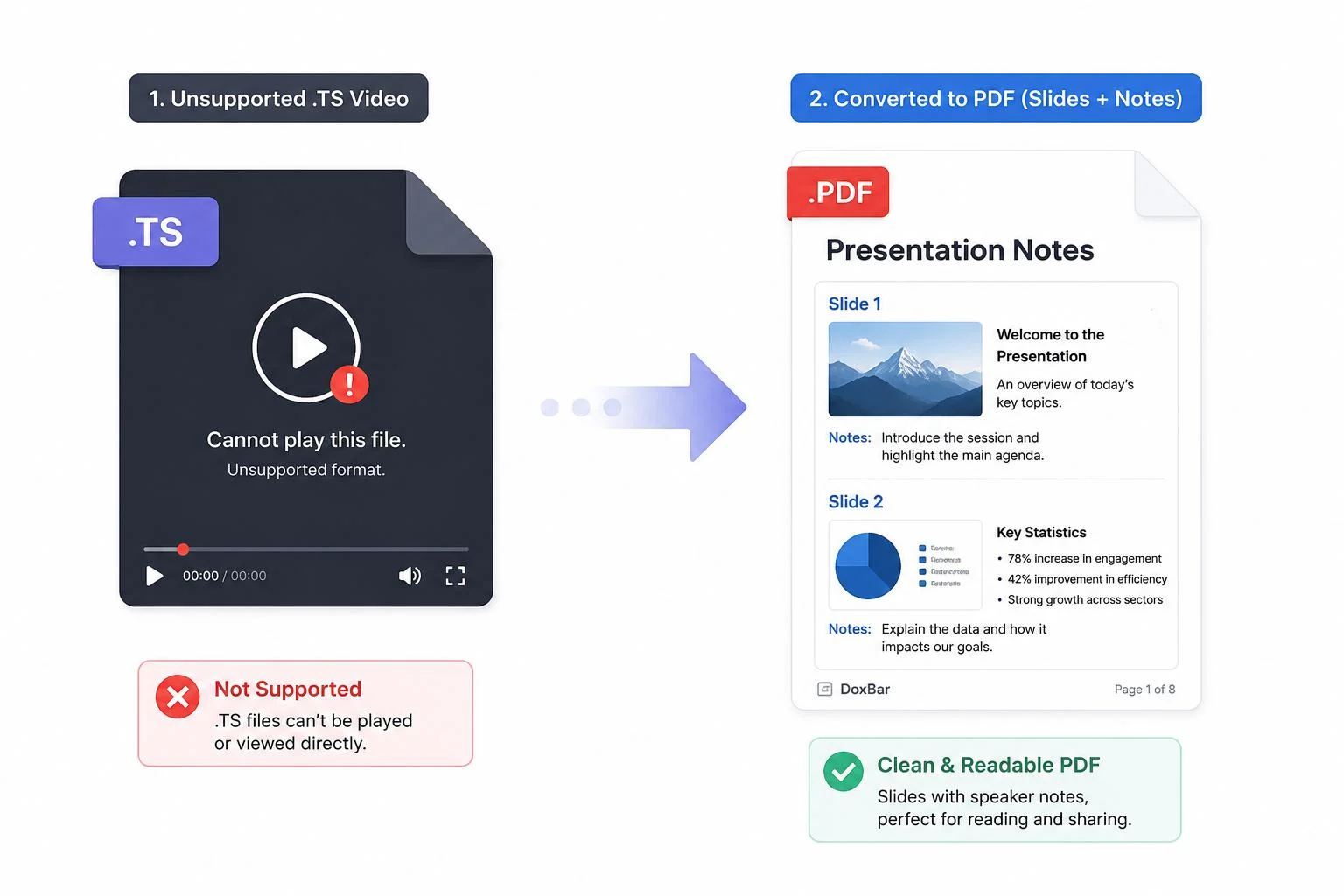

Table of Contents▼
TS file not opening? Learn the correct workflow to convert MPEG Transport Stream video content into searchable PDF notes, transcripts, and study guides using free tools.
Quick Answer: Can You Convert a TS File Directly to PDF?
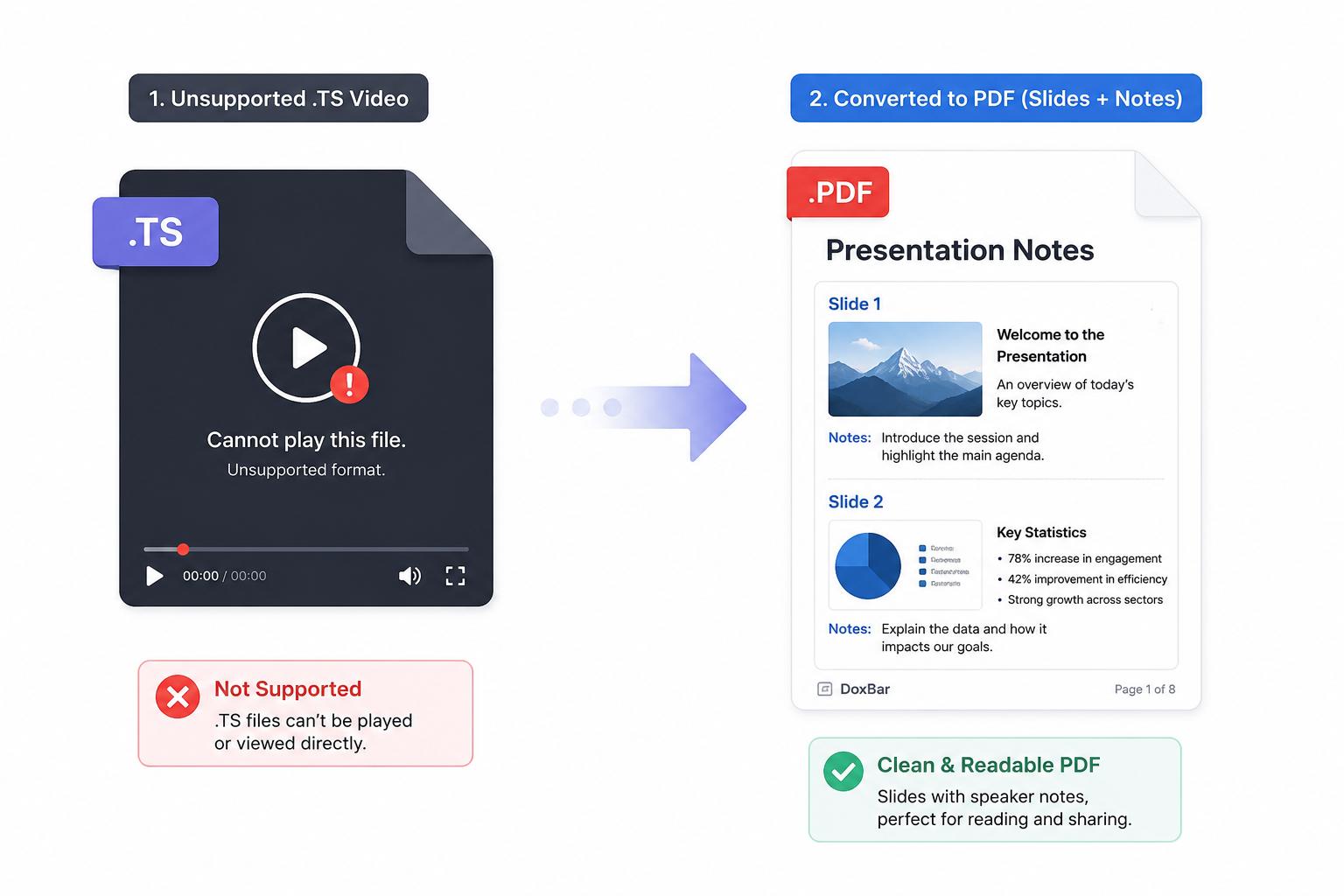
No, you cannot convert a raw .ts video file directly into a PDF document with a single click. A TS file is a video broadcast container, while a PDF is a fixed-layout document format. The practical way to convert a TS video to a PDF is to open or transcode the TS file, extract transcripts or keyframe screenshots, organize them in a text editor, and compile the final document into a PDF.
Where Doxbar Fits in This Workflow
Clear Expectation Note: Doxbar does not directly parse raw video codecs, run automated speech recognition (ASR), or transcribe audio files. Instead, Doxbar acts as the secure, high-fidelity document compiler at the end of your workflow. Once you have compiled your extracted transcripts, notes, or screenshot images in a word processor or text editor, Doxbar enables you to convert, secure, and compress those files into polished, shareable PDFs.
Who Is This Guide For?
This workflow guide is designed for professionals and students who deal with media recordings that need to be documented, archived, or shared:
Students & Academics: Converting recorded university lectures or webinar streams into printable study guides and review notes.
Journalists & Media Researchers: Documenting broadcast clips, press conferences, or interview recordings for quick text citation.
Compliance & Legal Teams: Archiving video evidence, court transcripts, or broadcast compliance logs in immutable document formats.
Security & IT Personnel: Extracting keyframe screenshots and incident reports from raw CCTV or surveillance TS files.
The Problem: TS File Not Opening or Supported
It usually happens when you are under a tight deadline. You receive a client file, an old video archive, or a CCTV recording with a .ts extension. You double-click it on Windows or macOS, only to receive a frustrating error message: "TS file not supported" or "Cannot play video format."
If you are looking for the best TS player or searching for how to open TS files, you are far from alone. Transport Stream (.ts) files were engineered specifically for real-time video broadcasting and streaming stability, not for daily file sharing or note-taking.
When you need to share key insights from a video with colleagues who cannot open raw media files, turning that content into an accessible document is the fastest solution.
Technical Reality: Understanding the MPEG Transport Stream
To understand why a video file requires a multi-step transformation into a document, it helps to examine how .ts files work at a technical level.
Container vs. Codec
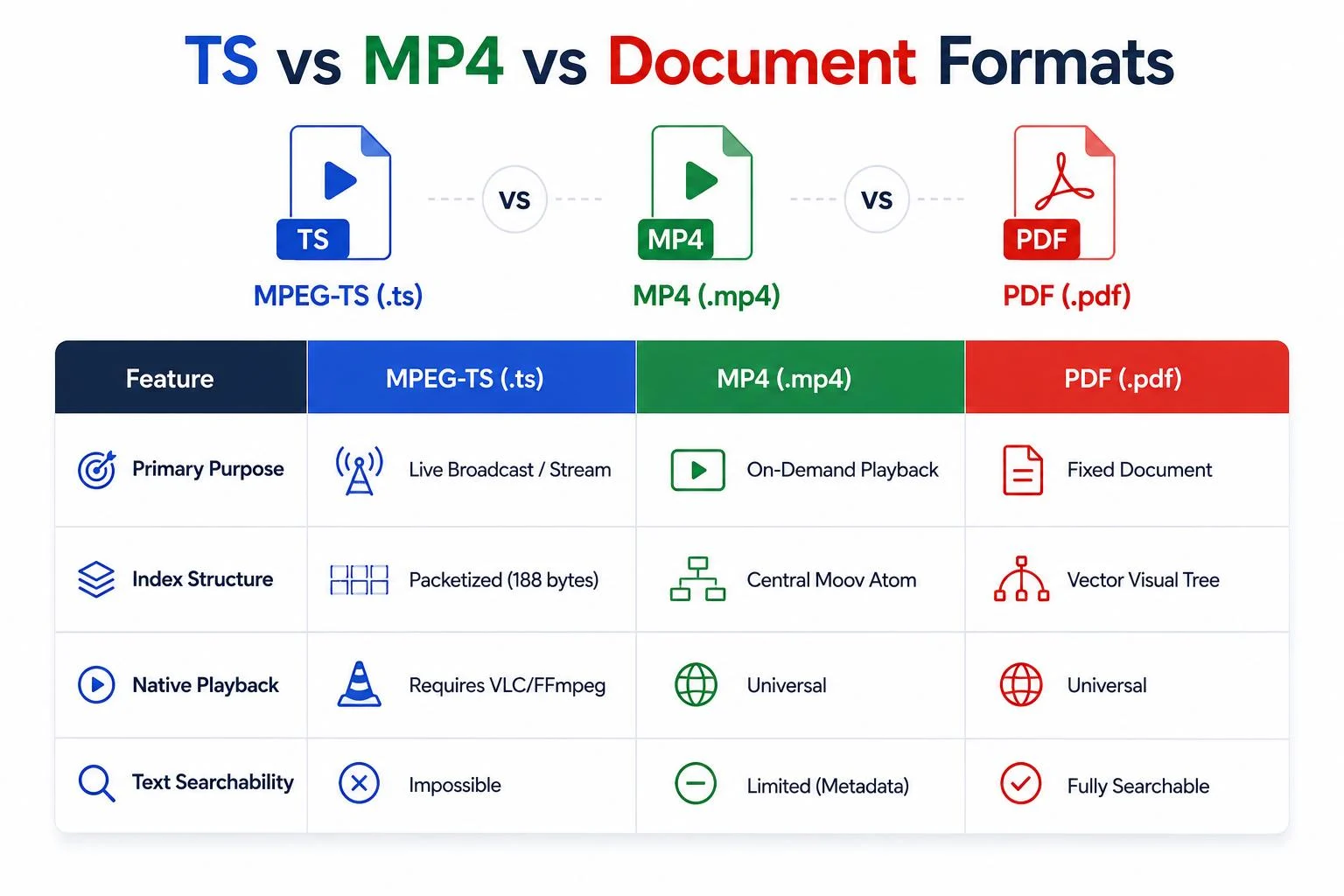
According to the official MPEG-TS Specification Overview, a Transport Stream is a standard container format used to transmit audio, video, and data over unstable broadcast networks (such as DVB and ATSC digital television).
188-Byte Packet Structure: Unlike modern MP4 containers that rely on an internal index header (the "moov atom") at the start or end of the file, .ts files divide data into continuous 188-byte packets.
Broadcast Resilience: If signal interference causes dropped packets during a television broadcast, the stream keeps playing. However, standard media players on iOS, Android, or desktop platforms often lack the demuxers needed to play these packetized streams without specialized codecs.
Step-by-Step Guide: How to Go From TS Video to PDF Notes
While the first step may require opening the TS file with a compatible media tool such as VLC or FFmpeg, the document creation and PDF conversion stages can be completed online using DoxBar. Converting media content or complex video files into usable PDF documents is straightforward when following a clear, realistic workflow:
Phase 1: Media Access (Transcode or Play the TS File) Use an open-source media tool like VLC Media Player or FFmpeg to open or convert the .ts container to a standard, widely accessible video format, such as .mp4.
Phase 2: Content Capture (Extract Text & Keyframes) Generate audio transcripts using speech-to-text tools or extract closed captions (.srt files). Simultaneously, capture high-resolution screenshots of essential slides or visual frames.
Phase 3: Formatting (Compile in a Word Processor) Paste your extracted text notes, timecodes, and slide images into a word processor or text editor (such as Microsoft Word, Google Docs, or Notion) to structure your document layout cleanly.
Phase 4: PDF Generation (Convert and Secure with Doxbar) Drop your finalized document or image compilation into Doxbar to convert it into a lightweight, encrypted, and universally readable PDF file ready for instant distribution.
Why Export Lecture Notes and Transcripts to PDF?
When you finalize your video transcriptions and visual notes into PDFs, you ensure long-term usability and ease of sharing:
Fixed Layout Preservation: Unlike editable text files that alter page margins across different screens, a standardized PDF rendered according to Adobe PDF Specifications preserves image placement, line breaks, and typography on every device.
Drastic Storage Efficiency: Swapping hundreds of megabytes of raw media for a lightweight text-and-image summary reduces cloud storage consumption.
Instant Text Searchability: Converting spoken audio into a written PDF allows teams to search through hours of lecture material in seconds using standard keyboard shortcuts (Ctrl + F).
Enhanced Security: Web-native conversion tools process documents under strict TLS/HTTPS Security Standards, protecting sensitive compliance or research notes during formatting.
Pros & Cons of Video-to-Document Workflows
Pros
Universal Shareability: PDFs open natively in browser engines like Google Chrome and Mozilla Firefox without requiring external video player plugins.
Print-Ready Documentation: Allows researchers, legal teams, and students to print physical copies for manual review and margin annotation.
Fast Information Retrieval: Finding a specific quote or slide takes seconds in a document, compared to scrubbing through a 90-minute video timeline.
Cons
Loss of Motion Context: Static keyframes cannot replicate fluid physical motion, animations, or live technical demonstrations.
Multi-Step Setup Required: Extracting notes from raw TS video requires an initial playback/transcription phase before creating the final PDF.
Frequently Asked Questions (FAQ)
1. What is a TS file?
A .ts file stands for MPEG Transport Stream. It is a standard video container format used for digital TV broadcasts, satellite feeds, and real-time video streaming.
2. Why is my TS file not opening on Windows or Mac?
Default system media players like QuickTime or Windows Media Player often lack the internal demuxers and codecs needed to process packetized MPEG-TS streams natively.
3. What is the best TS player available?
The most reliable, free TS player is VLC Media Player. It includes built-in codecs that play .ts files on Windows, macOS, Linux, iOS, and Android without requiring additional downloads.
4. What is the main difference between TS and MP4?
TS is designed for real-time broadcast streaming and can handle packet loss without crashing playback. MP4 is optimized for local storage and web streaming, requiring a complete index header to play smoothly.
5. Can I convert a TS video file directly into a PDF document?
No. A TS file contains compressed video and audio streams, while a PDF contains fixed text and vector elements. You must extract the text, captions, or screenshots first, and then compile them into a PDF.
6. How do I extract an audio transcript from a TS video?
First, open or transcode the TS file into MP4 using VLC or FFmpeg. Then, run the audio track through a speech-to-text service or export the closed captions (.srt or .vtt file).
7. How do I capture high-quality screenshots from a TS file?
Open the TS video in VLC Media Player, navigate to the slide or frame you want, and use the built-in snapshot feature (Video > Take Snapshot) to export clear images.
8. Why should I convert my video notes into a PDF?
PDFs lock in your visual formatting, margins, and image placements across all operating systems, ensuring your document looks identical whether opened on a laptop, tablet, or smartphone.
9. How does Doxbar help in this process?
Doxbar handles the final, critical step of the workflow. Once you have gathered your extracted text, notes, and screenshot images into a document, Doxbar converts them into an optimized, secure PDF file.
10. Can I convert my Word notes to PDF using Doxbar?
Yes. If you prepare your video notes or transcripts in Microsoft Word, our Word to PDF converter preserves your formatting, headings, and image placements with full fidelity.
11. Can I combine multiple screenshot images into a single PDF?
Yes. You can compile your extracted video slide screenshots into a single document file or image bundle and convert them into a structured PDF using our online tools.
12. Is it safe to upload confidential transcripts or study notes to Doxbar?
Yes. Doxbar processes all file transactions using end-to-end TLS encryption and enforces strict zero-retention policies, ensuring your uploaded files are deleted shortly after conversion.
13. Will converting video notes to PDF reduce file size?
Significantly. A raw TS video file often takes up hundreds of megabytes or gigabytes of storage, whereas a compiled In many cases, a text-and-image PDF summary is significantly smaller than the original TS video, though the final size depends on the number and resolution of included images.
14. How can I search for specific text inside a converted video PDF?
Once your audio transcript or OCR text is compiled into a PDF, open the file in any PDF viewer or browser and press Ctrl + F (or Cmd + F on Mac) to search for keywords instantly.
15. Can I annotate or highlight the resulting PDF?
Yes. Once your notes are saved as a PDF, you can use standard annotation tools in Adobe Acrobat, Apple Preview, or your web browser to highlight text, draw diagrams, or add comments.
16. How do I convert TS files to MP4 using FFmpeg?
You can run a simple, fast command in the terminal without re-encoding: ffmpeg -i input.ts -c copy output.mp4. This changes the container from TS to MP4 in seconds.
“Note: This command works only if the video and audio codecs are already compatible with the MP4 container. If they are not, FFmpeg may need to re-encode the streams instead of simply copying them.
17. Does Doxbar require software installation?
No. Doxbar is a browser-native web platform that works directly inside Google Chrome, Mozilla Firefox, Microsoft Edge, or Safari without requiring local software installation.
18. Can I view converted PDF notes on mobile devices?
Yes. PDF is a universal standard that opens natively on iOS and Android smartphones and tablets without requiring specialized media players or plugins.
Contextual Internal Resources
If you are ready to compile and optimize your video notes into professional documents, explore our related tools:
If you structured your extracted lecture notes in a word processor, use our Word to PDF Converter to lock in your layout before sharing.
Have multiple slide screenshots? Use our Image to PDF Converter to merge keyframe images into a single document.
Working with scanned transcript pages or printed notes? Convert them using our OCR PDF Tool to make your physical notes fully searchable.
Conclusion
While .ts files are ideal for broadcasting, they present major obstacles for everyday sharing and study workflows. By leveraging media software like VLC or FFmpeg alongside dedicated document utilities like Doxbar, you can transform unsupported video streams into clean, searchable, and printable PDF documents in just a few straightforward steps.
Need to Convert Document Formats?
Try our secure, lightning-fast PDF conversion suite. Convert Word, Excel, Images, and more with zero formatting loss.

Doxbar Editorial
Security & Privacy Team
We specialize in secure document architectures, parsing engines, and modern developer utilities. Keeping your files safe, lightweight, and perfectly formatted.
Join the Conversation
Share your thoughts or ask a question about this topic. This is a privacy-first system.