

TSV to PDF Converter – Convert TSV Files to PDF Online
Contents
TSV to PDF Converter – Convert TSV Files to PDF Online

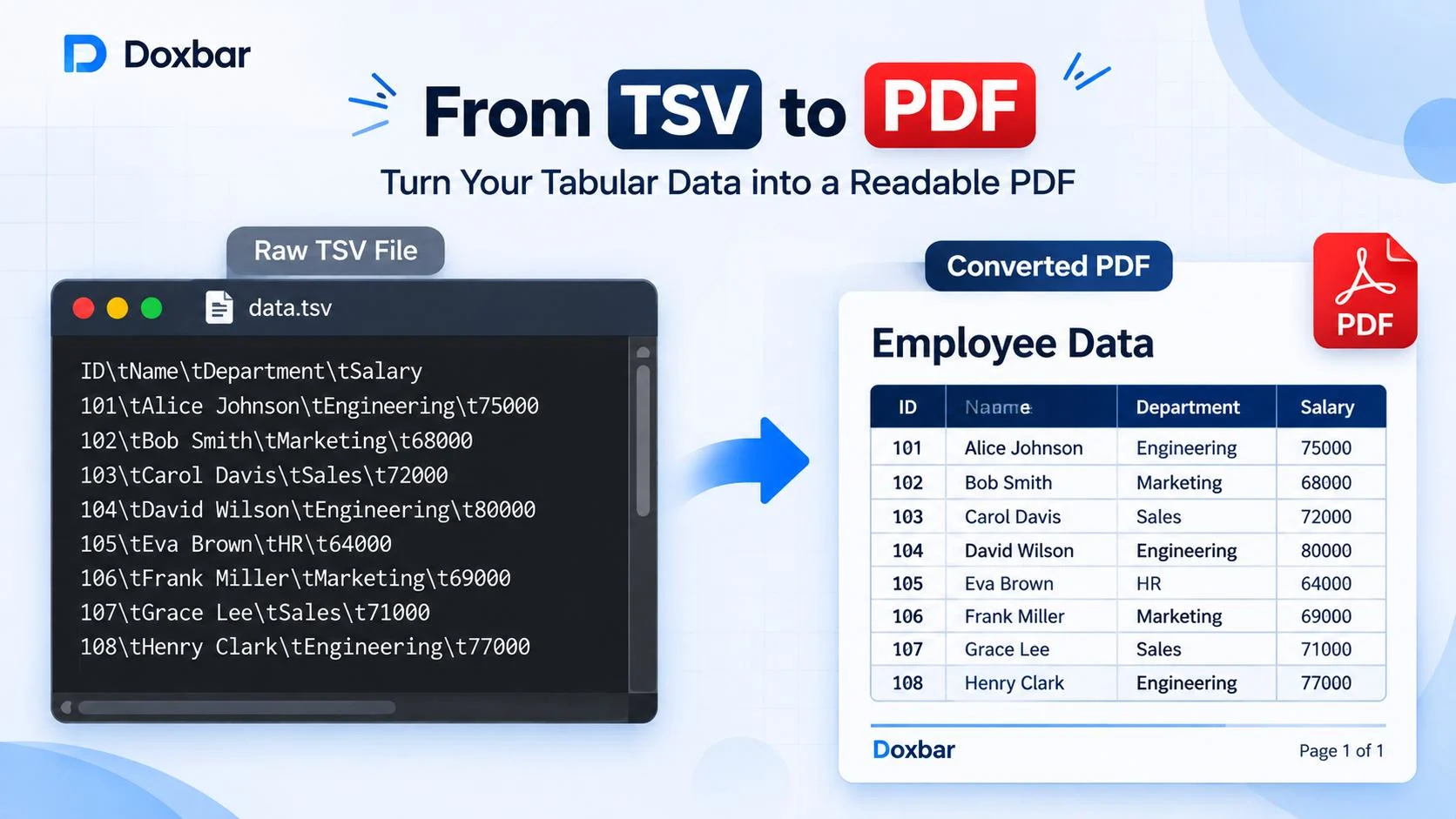

Table of Contents▼
Convert TSV to PDF online without losing column alignment. Learn how to fix wide tables, landscape layouts, encoding issues, and export clean PDFs fast.
How to Convert TSV to PDF: Turn Tabular Data into a Readable Document
You just exported a dataset from a database, analytics dashboard, or research tool, and the file ends in .tsv. You double-click it expecting a clean spreadsheet, only for it to open in a plain text editor as a wall of misaligned numbers and words separated by invisible gaps. Now you have ten minutes before a client meeting or assignment deadline, and you need to send that data as a clean, printable PDF.
Sending raw tab-separated values to a manager, professor, or client rarely goes well. Most people don't have specialized data tools configured to parse .tsv files properly, and opening them on a phone usually turns rows into an unreadable mess.
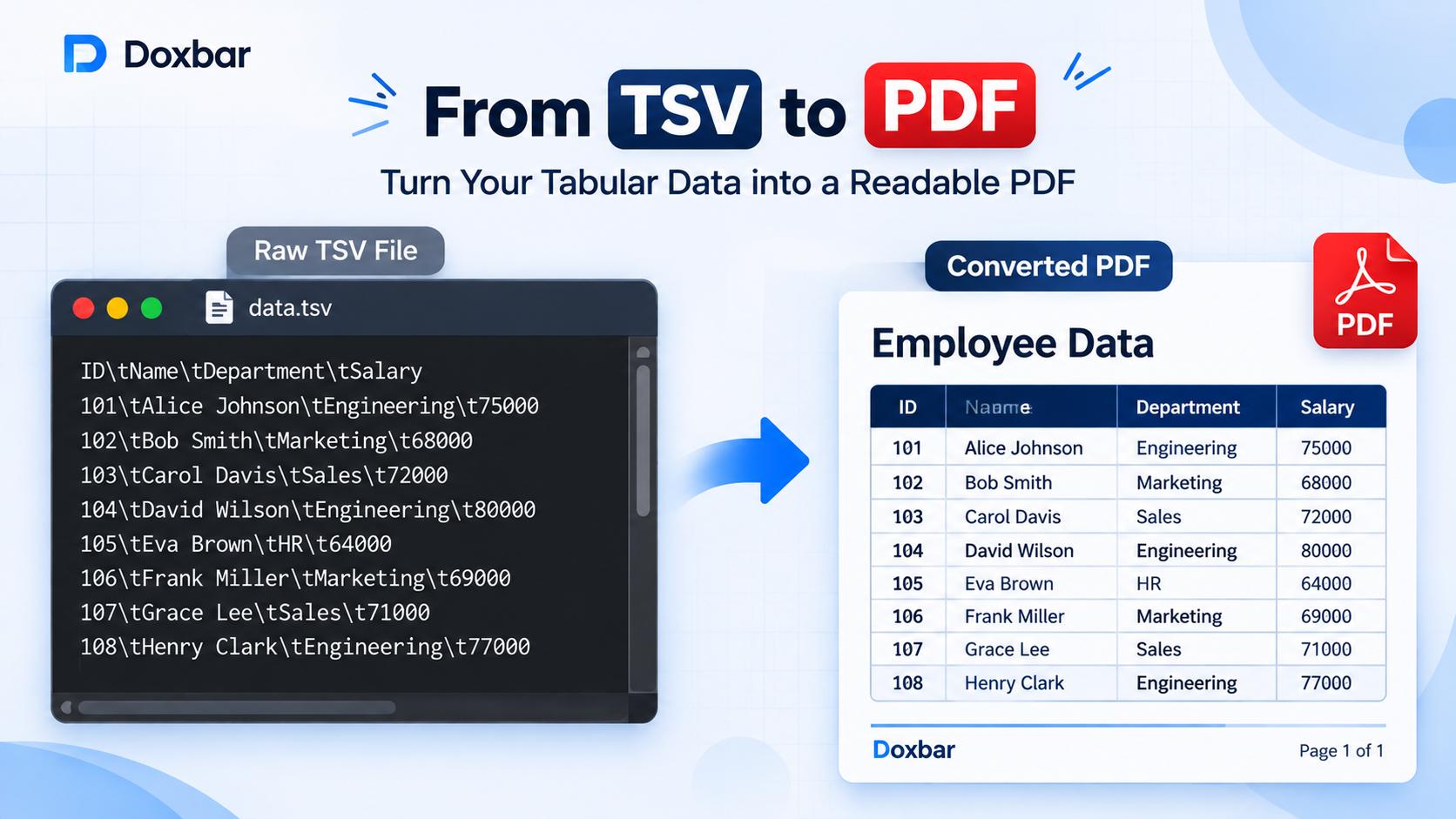
Converting TSV to PDF solves that immediately. By turning raw tab-delimited text into a structured, fixed-layout document, anyone can open, read, or print your tables on any device without needing spreadsheet software. Using a browser-based utility like Doxbar, you can handle that conversion directly in your browser without installing bloated desktop suites or risking sensitive data on sketchy file-hosting servers.
What Is a TSV File (And Why Does It Break When Shared)?
A TSV (Tab-Separated Values) file is a plain-text format used to store tabular data. Each line in the file represents a single data record (a row), and individual fields (columns) within that row are separated by a horizontal tab character (\t).
According to the Library of Congress Digital Formats specification, TSV exists as a simple, universal way to exchange structured tables between databases and applications without proprietary formatting overhead. Unlike CSV (Comma-Separated Values), which is formally documented under IETF RFC 4180 and uses commas to separate fields, TSV uses tabs. That makes TSV much safer for text containing commas—like street addresses, product descriptions, or financial figures—because commas won't accidentally split a single cell into two columns.
The problem? TSV stores zero visual information.
No column widths: The file doesn't know if a column needs 50 pixels or 400 pixels.
No font or border styling: There are no gridlines, header highlights, or cell padding.
No page boundaries: A TSV file is an endless stream of text with no concept of A4, Letter, portrait, or landscape margins.
Application confusion: Windows and macOS often associate .tsv files with basic text editors rather than spreadsheet programs, leaving non-technical recipients confused about how to even open the attachment.
Problem Breakdown: Why Converting TSV to PDF Often Goes Wrong
If you have ever tried to print a TSV file directly from a text editor or import it hastily into a legacy converter, you have probably seen how quickly things fall apart.
1. Everything Collapses Into a Single Column
If a converter or spreadsheet program fails to recognize the tab character as the delimiter, it treats every row as one giant text string. Your neatly structured 12-column report turns into a single unreadable column pushed against the left margin.
2. Wide Tables Get Sliced in Half
Standard portrait PDF pages are 8.5 inches wide. If your TSV export has 15 columns of inventory SKUs, timestamps, and customer notes, a basic conversion will either clip off the right half of your table or split columns awkwardly across multiple disconnected pages.
3. Broken Special Characters (Encoding Mismatches)
Datasets containing international names, currency symbols (€, ₹, £), or accented characters are usually encoded in UTF-8. Older desktop tools or poorly configured converters often default to legacy encodings like Windows-1252, turning clean text into garbled symbols like é or ₹.
4. Heavy Desktop Software Friction
Opening a 50,000-row TSV file in Microsoft Excel or LibreOffice Calc just to export a PDF often triggers an import wizard, freezes the application, or automatically reformats leading zeros (turning ZIP code 07030 into 7030 or dates into serial numbers).
5. Privacy and Cloud Upload Risks
Many traditional online converters upload your raw business reports, customer lists, or financial exports to remote third-party servers. If you are working with confidential company data or student records, uploading files to unverified cloud servers introduces unnecessary compliance and security risks.
Educational Deep Dive: How Modern TSV to PDF Conversion Works
Understanding what happens under the hood makes it much easier to control how your final PDF looks.
Delimiter Parsing vs. Visual Rendering
When converting tab-separated values to PDF, the software performs two distinct tasks:
Lexical Parsing: The parser scans the raw text stream line by line, splitting cells whenever it encounters an ASCII tab character (0x09). Properly built parsers also respect quoted strings and line breaks so multi-line notes stay inside their intended cells.
Layout Engine Rendering: Once the data is mapped into a virtual grid (rows and columns), a layout engine calculates column widths, wraps long text, applies typography, and paginates the grid onto fixed PDF dimensions.
Why PDFs Behave Differently from Spreadsheets
A spreadsheet or TSV file is dynamic—cells expand infinitely to the right and downward. As Adobe’s PDF technical documentation outlines, Portable Document Format is a fixed-layout specification. Every character, line, and cell border is locked to exact X/Y coordinates on a virtual sheet of paper.
Because PDF has strict physical boundaries, converting tabular data requires trade-offs between font size, cell padding, text wrapping, and page orientation.
Browser-Native Workflows
Modern web architecture allows file parsing and PDF generation to happen directly inside your browser’s sandboxed memory using JavaScript and WebAssembly, rather than bouncing files across external servers. As Mozilla’s WebAssembly documentation explains, near-native execution inside the browser enables complex file transformations locally on your machine—meaning faster turnaround and stronger data privacy.
Why Your TSV Data Looks Messy When Converted to PDF — And How to Fix It
Before hitting "Convert," a few quick adjustments determine whether your output looks like a broken raw dump or an executive-ready report.
Use Landscape Orientation for Wide Tables
If your TSV file has more than 6 or 7 columns, portrait mode will squeeze columns so tightly that words wrap every two letters. Switching to TSV to PDF landscape mode increases horizontal width by roughly 35%, giving columns breathing room to display numbers, dates, and titles on single lines.
Define and Repeat Header Rows
In a multi-page dataset, readers lose context by page two if they can't see which column is "Gross Revenue" and which is "Net Margin." Always designate the first row as a header row—and when possible, repeat that header at the top of every subsequent PDF page.
Handle Empty Cells and Long Text Strings
TSV exports frequently contain empty tabs (\t\t) representing null database values. A reliable parser preserves those empty cells as blank grid boxes so subsequent columns don't shift left. For columns containing long paragraphs or URLs, enabling automatic text wrapping prevents a single long string from forcing every other column to shrink.
Verify UTF-8 Encoding First
If you generated the TSV from a script or database query, ensure it was exported with UTF-8 encoding. Clean UTF-8 input guarantees that symbols, non-Latin scripts, and punctuation render accurately in the final PDF table.
Modern Solution Framework: What to Look for in a TSV to PDF Converter
When choosing a workflow to convert TSV data to PDF table formats, look for five practical capabilities:
Browser-Side Privacy: Tools that process files locally in your browser or automatically purge temporary data immediately after conversion keep sensitive records out of persistent storage.
Accurate Tab Detection: The converter should recognize \t delimiters automatically without forcing you through complicated regex or import dialogs.
Layout & Orientation Controls: Support for switching between Portrait and Landscape, adjusting page sizes (A4, Letter, Legal), and fitting wide tables to page width.
Header Styling & Gridlines: Subtle borders, alternating row shading, and bold header rows dramatically improve readability when printing or reviewing on screen.
Zero-Install Cross-Platform Access: Whether you are on Windows, macOS, Linux, or a Chromebook, a browser-based tool works identically without software licenses or version conflicts.
Comparison: Legacy Online Tools vs. Desktop Software vs. Modern Browser Workflows
Feature / Criteria | Legacy Online Converters | Desktop Spreadsheets (Excel / Calc) | Modern Browser-Based Workflow (e.g., Doxbar) |
Setup & Installation | None, but often cluttered with ads | Requires heavy local software & licenses | Instant access directly in any modern browser |
Data Privacy | Uploads files to external servers | Fully local on your hard drive | Browser-native / privacy-first processing |
Delimiter Handling | Frequently confuses tabs with spaces | Requires manual Text Import Wizard steps | Automatic tab-delimited structure detection |
Wide Table Formatting | Often clips or wraps awkwardly | Manual print-area and scaling adjustments | Built-in table fitting and orientation options |
Data Type Preservation | Usually preserves raw text strings | Often alters leading zeros and dates | Keeps raw text values intact as exported |
Speed for Quick Tasks | Moderate (upload/queue wait times) | Slow to launch and configure print setup | Seconds from file selection to PDF download |
Step-by-Step Workflow Guide: How to Convert TSV to PDF Online
You don't need Microsoft Excel, Google Sheets, or coding scripts to turn a .tsv file into a clean PDF. Here is the straightforward workflow using a modern browser utility like Doxbar:
Prepare or Locate Your TSV File: Make sure your .tsv file is saved on your device. If you are exporting it from a database or analytics tool, select UTF-8 encoding if prompted.
Upload Your File: Open the Doxbar TSV to PDF converter in your browser and drag and drop your .tsv file into the upload zone (or select it from your file manager).
Configure Page Layout & Orientation: Check the preview or layout settings. If your table has more than 6 columns, switch orientation to Landscape and select Fit to Page Width so columns aren't cut off. Confirm that the first row is recognized as your table header.
Convert the File: Click the Convert button. The parser reads the tab-separated structure, maps rows and columns into a clean grid, and generates the PDF document.
Download and Verify Formatting: Download the resulting PDF and open it in your browser or PDF viewer. Scroll through the first two pages to check that column headers align properly, numbers aren't truncated, and special characters render cleanly.
Alternative Workflow Without Excel (If You Need Manual Edits First)
If you need to delete columns, filter rows, or add summary formulas before creating your PDF, you can import the TSV into Google Sheets via File > Import > Upload (selecting "Tab" as the separator type), adjust your layout, and use File > Download > PDF to export.
Pros and Cons of Converting TSV Files to PDF
Every file format serves a specific role. Before converting everything to PDF, consider where it shines and where it has limits.
Pros
Universal Readability: Every computer, smartphone, and tablet can open a PDF natively without specialized software.
Locked Visual Layout: Margins, column alignment, fonts, and page breaks look identical on your screen, your client's laptop, and a physical printer.
Prevents Accidental Edits: Unlike spreadsheets, recipients won't accidentally type over a cell or break a formula while reviewing your report.
Print-Ready Output: Ideal for physical handouts, invoices, inventory sheets, and academic submissions.
Cons
Not Editable as Raw Data: Once converted to PDF, recipients cannot easily sort columns, run formulas, or ingest the file back into a database without extracting the table first.
Very Wide Datasets Have Physical Limits: A TSV with 45 columns will still be hard to read on a standard A4 PDF unless you split the dataset or use a larger page format like A3 or Tabloid.
Large File Sizes for Massive Logs: A 100,000-row raw server log in TSV format will generate a multi-thousand-page PDF that is better analyzed in a database or spreadsheet tool.
Frequently Asked Questions (FAQ)
1. What does TSV stand for?
TSV stands for Tab-Separated Values. It is a plain-text file format where each row of a table is on a new line and each column is separated by a tab character.
2. How do I convert TSV to PDF online for free?
Open a browser-based converter like Doxbar, upload your .tsv file, choose your preferred page orientation (Portrait or Landscape), and click Convert to download your formatted PDF immediately.
3. Can I convert TSV to PDF without Excel?
Yes. You do not need Microsoft Excel or any desktop office suite installed. Browser-based converters parse tab-delimited text directly into a PDF table in seconds.
4. Why did my TSV file convert into a single column?
This happens when a tool looks for commas instead of tab characters as the column separator. Make sure you are using a converter that explicitly supports TSV (\t tab delimiters) rather than a generic text-to-PDF tool.
5. How do I fit wide TSV columns onto one PDF page?
Switch the page orientation to Landscape, reduce page margins slightly, and enable a "Fit to Page Width" scaling option if available. For tables with more than 12 columns, consider using A3 or Legal paper size.
6. What is the difference between TSV and CSV?
Both store plain-text tabular data, but CSV separates values with commas (,), while TSV separates values with tabs (\t). TSV is preferred when your text fields contain lots of commas, such as descriptions, notes, or addresses.
7. Will converting TSV to PDF preserve my table structure?
Yes, when parsed properly. Each tab becomes a column boundary, and each line break starts a new row, resulting in a clean, aligned grid in the final PDF.
8. How do I print a TSV file cleanly?
Printing directly from Notepad or TextEdit usually ruins column alignment because tab stops vary by text length. Convert the TSV to PDF first so columns lock into a uniform grid, then print the PDF.
9. Can I convert large TSV files to PDF?
Yes, though files with tens of thousands of rows will produce very long PDFs. For large datasets, filter out unnecessary columns first and use landscape orientation to keep page counts manageable.
10. Does converting TSV to PDF change my numbers or dates?
Unlike Excel—which notoriously turns strings like 00123 into 123 or 4-12 into Apr 12—a direct TSV-to-PDF converter treats your fields as literal text, preserving exact formatting.
11. Is it safe to convert confidential TSV files online?
Only if you use a privacy-focused tool. Look for converters that process files locally in your browser or guarantee immediate, automated deletion without storing copies on remote servers.
12. How do I convert a TSV file to PDF on Windows?
You can use any web browser (Chrome, Edge, Firefox) with an online TSV-to-PDF tool, or open the file in Excel/LibreOffice Calc, adjust the print layout to Landscape, and choose "Microsoft Print to PDF."
13. How do I convert TSV to PDF on Mac?
Open the converter in Safari or Chrome for an instant export, or import the TSV into Apple Numbers, format the table borders, and select File > Export To > PDF.
14. Can I convert TSV to PDF on my phone?
Yes. Since modern browser tools don't require desktop software, you can upload a .tsv file directly from your iPhone or Android file manager and download a readable PDF on the go.
15. Why are weird symbols appearing in my converted PDF?
Weird characters (like é instead of é) indicate a character encoding mismatch. Re-save or export your original TSV file using UTF-8 encoding before converting it to PDF.
16. Can I convert multiple TSV files into PDF at once?
Many modern browser utilities support batch processing, allowing you to queue multiple .tsv files and convert them into individual PDFs without repeating the setup for each one.
17. How do I make the first row look like a table header?
Most table converters automatically treat Row 1 as the header, applying bold text and background shading. Check your layout preview before downloading to confirm the header row is styled clearly.
18. What if my TSV file has a .txt extension?
Many databases export tab-delimited data with a .txt extension instead of .tsv. Simply rename the file extension from .txt to .tsv before uploading so the converter knows to parse tabs as columns.
19. Can I convert a PDF table back into a TSV or Excel file later?
Yes, using a dedicated PDF-to-Excel or OCR table extraction tool, though keeping your original .tsv file as your master data source is always best practice.
20. Which paper size works best for TSV reports?
A4 (standard internationally) and Letter (standard in North America) work well for up to 8–10 columns in Landscape mode. For dense financial or scientific tables, Legal or A3 provides extra horizontal space.
21. Why do some columns look much wider than others in the PDF?
Table layout engines distribute column width proportionally based on the longest text entry in each column. If one row has a 200-character note, that column will expand unless text wrapping is applied.
22. Do TSV files support formulas or multiple sheets?
No. TSV is a single-sheet, plain-text format. It stores raw values only—no formulas, charts, colors, or multiple tabs.
Trust & Security Transparency
When working with operational data, academic research, or business exports, knowing how your files are handled matters just as much as how the final PDF looks.
Modern document utilities like Doxbar are built around privacy-first, browser-native processing—minimizing server exposure and ensuring you never have to surrender ownership or persistent copies of your spreadsheets just to format a table. Before sharing any converted PDF externally, always double-check your output for hidden columns, sensitive personally identifiable information (PII), or clipped edge margins.
Conclusion
Raw .tsv files are great for machines, databases, and scripts, but they are frustrating for human readers. Turning tab-separated values into a well-formatted PDF bridges that gap—giving your colleagues, clients, or professors a clean, portable table that looks right on every screen and printer.
Next time you export a dataset and need to share it without formatting headaches, drop your file into Doxbar, switch to landscape if your table is wide, and export a print-ready PDF in seconds.
Need to Convert Document Formats?
Try our secure, lightning-fast PDF conversion suite. Convert Word, Excel, Images, and more with zero formatting loss.

Doxbar Editorial
Security & Privacy Team
We specialize in secure document architectures, parsing engines, and modern developer utilities. Keeping your files safe, lightweight, and perfectly formatted.
Join the Conversation
Share your thoughts or ask a question about this topic. This is a privacy-first system.