

Visio to PDF Formatting Issues: Why Diagrams Break (And How to Fix Them)
Contents
Visio to PDF Formatting Issues: Why Diagrams Break (And How to Fix Them)

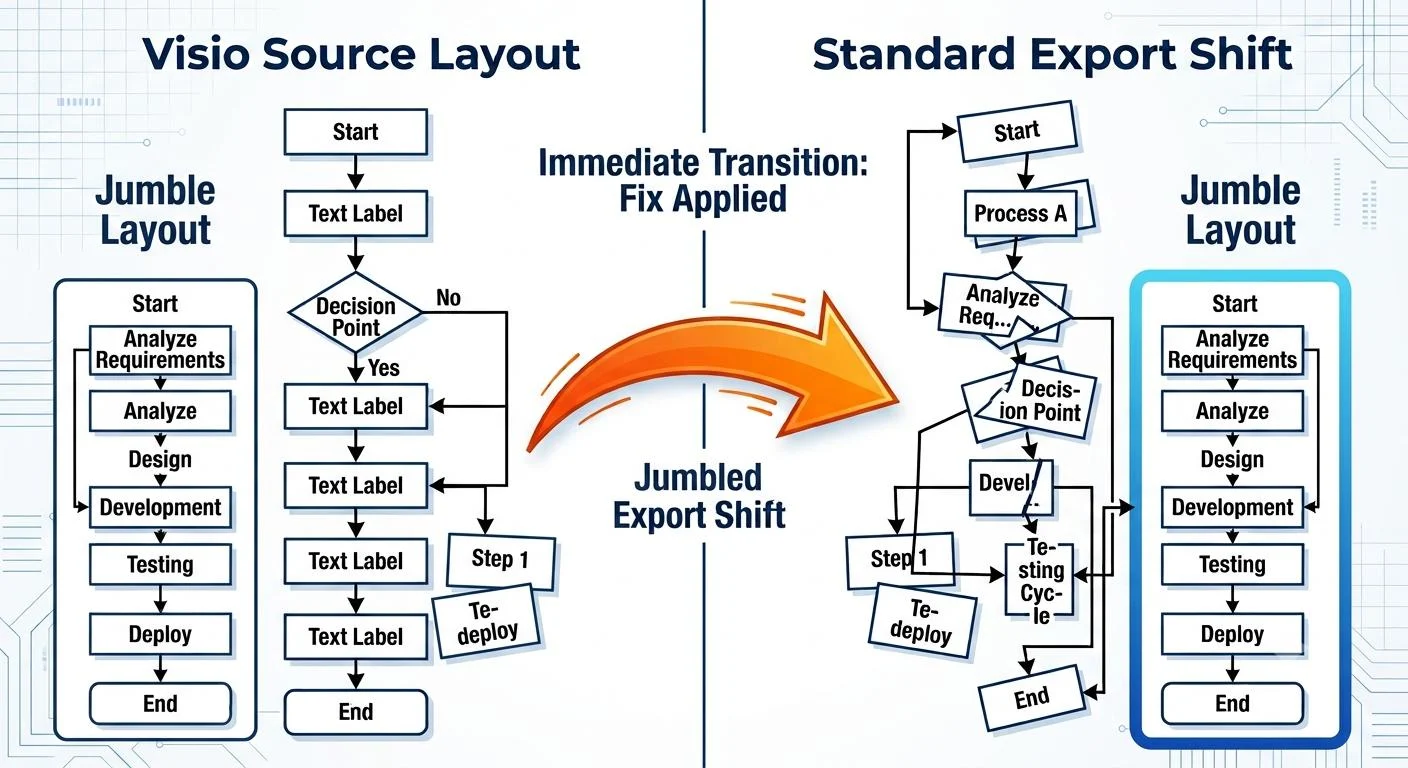

Table of Contents▼
Stop wrestling with shifted connectors, broken text wrapping, and missing stencils. Discover why Visio to PDF formatting issues happen and how to resolve them cleanly.
Quick Summary: Microsoft Visio (.vsdx) diagrams usually distort during PDF export because fixed PDF page geometry conflicts with Visio's dynamic, XML-based canvas rules. Local font mismatches cause text wrapping errors, while un-snapped anchors break connector routing. Using high-fidelity cloud pipelines like Doxbar ensures formatting is preserved natively without local print-driver distortion.
The Core Problem: Why Do Microsoft Visio Diagrams Warp on Export?
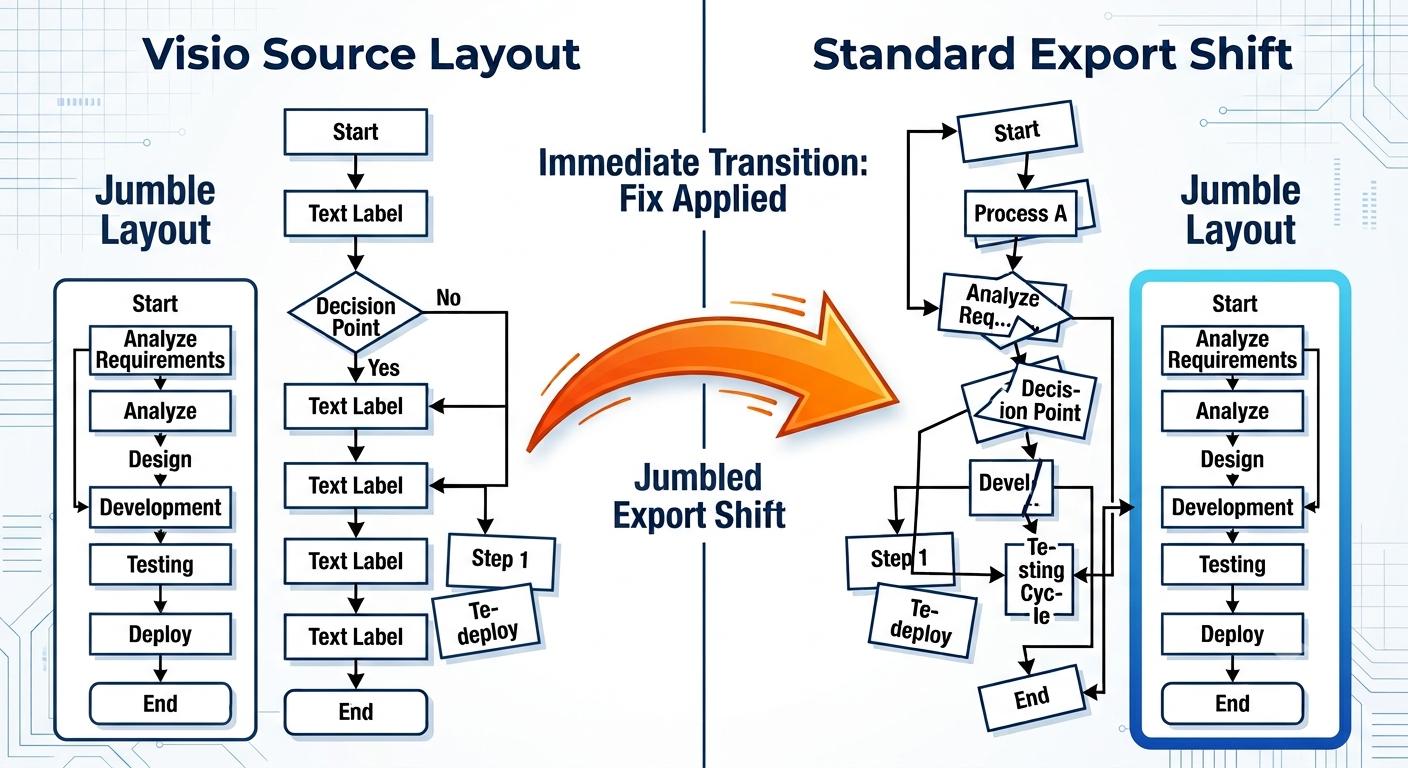
If you routinely export Microsoft Visio diagrams to PDF for corporate decks, technical blueprints, or architecture reviews, you have likely encountered the sudden shift: text overflowing shape boundaries, connectors misaligning, or custom network stencils completely disappearing.
These layout errors do not happen at random. They stem from a fundamental architectural conflict between how Microsoft 365/Visio renders dynamic vector data and how the fixed document object model of a PDF handles static pages.
When a .vsdx file is flattened, local system variations alter the final rendering. Unlike standard text documents, diagrammatic vectors rely on precise spatial coordinate systems. Even a millimeter of layout drift can make an entire engineering pipeline or software flowchart completely unreadable.
Technical Reality: Behind the .vsdx Vector Translation
To diagnose recurring export failures, it helps to understand the underlying file structures. A modern Microsoft Visio file (.vsdx) is an archive of XML structures defining shapes through specific geometric formulas, connection points, and behavioral parameters.
Conversely, the PDF format—originally engineered by Adobe—is a static, page-description language designed to lock visual items into fixed coordinate matrices.
“During conversion, a Visio (.vsdx) file passes through an export engine before becoming a static PDF. Most formatting problems occur at this middle stage, where the converter must translate dynamic XML shapes, local fonts, and connector rules into fixed PDF objects. If the conversion engine cannot interpret these elements correctly, text wrapping, blurry stencils, and broken connectors are the most common results.
During conversion, several high-friction technical changes occur:
Font Metric Deviations: Visio reads font metrics directly from your local operating system. If your export driver does not explicitly embed the font geometry into the PDF, the viewing application substitutes it, changing line breaks and wrapping text mid-word.
Vector Rasterization: When standard print-to-pdf engines fail to interpret advanced vector styling—such as multi-stop gradients or complex custom stencils—they convert that section into a low-resolution bitmap image, causing blurry shapes alongside sharp text.
Coordinate Remapping: Visio can expand its canvas dynamically. Forcing these fluid boundaries onto strict layouts like Letter or A4 requires the conversion engine to recompute line intersections. Without clean mathematical parsing, connectors slip out of place.
The "Save As PDF" vs. "Print to PDF" Trap
A common mistake is using the system's default virtual print engine rather than a true export pipeline. While both approaches create a .pdf file, their internal structures differ significantly.
Virtual "Print to PDF" Drivers: These drivers treat your diagram exactly like a physical sheet of paper. They strip away structural XML metadata, break active hyperlinks, eliminate searchable text layers, and frequently clip edges if your drawing canvas sits outside standard print margins.
True Native Export / Cloud Conversions: This method parses the underlying .vsdx code directly. It translates vectors as true lines, preserves internal shape data, embeds typography, and retains hyperlinks for documentation platforms like Notion or corporate wikis.
Visio Feature vs. PDF Compatibility Matrix
The following table breaks down how standard Microsoft Visio components translate during export and identifies why specific structural layout errors occur:
Visio Element | PDF Support Level | Common Conversion Root Cause |
Dynamic Connectors | Partial Support | Lines route straight through shapes if not snapped to explicit connection points. |
System Typography | Context Dependent | Font substitution occurs if local system fonts are not fully embedded in the file. |
Custom Stencils & Icons | Variable | Complex vector paths drop out or rasterize when processed by older layout engines. |
Layer Properties | Good | Hidden or drafting layers can accidentally render visible if flattened improperly. |
Hyperlinks & Metadata | Supported | Virtual "Print to PDF" drivers strip them completely; true exports preserve them. |
Alpha-Channel Gradients | Moderate | Transparent fills can turn solid black or grey under legacy PDF specifications. |
A Reliable Troubleshooting Workflow
If your diagrams are distorting during export, follow this structured troubleshooting sequence to isolate and correct formatting errors before distribution.
1. Bind Connectors to Explicit Anchors
Never let connector lines float loosely near an object. Ensure the line ends lock directly onto a green connection point on the target shape. If connectors warp anyway, right-click the line and change its routing behavior from "Dynamic" to "Straight" or "Right Angle" to prevent the export engine from re-routing paths automatically.
2. Verify Canvas and Page Setup Match
Navigate to your Page Design settings inside Visio. Ensure that your drawing page dimensions align with your target export layout. If your canvas is configured to an infinite or non-standard scale, it will distort during flattening unless processed by a responsive scaler.
3. Stick to Web-Standard Typography
To avoid text truncation or unexpected line breaks inside narrow shapes, build diagrams using cross-platform fonts like Arial, Calibri, or Segoe UI. If your company requires a proprietary typeface, you must use a dedicated conversion engine that handles server-side font embedding.
4. Leverage Cloud-Native Parsing
Instead of relying on heavy desktop software bundles or insecure, ad-heavy legacy converters, pass the source file through an isolated pipeline. Tools like Doxbar parse the file's native XML elements directly in a clean browser environment, ensuring fonts, vector paths, and layers are locked down accurately.
Core Alternatives: Comparing Layout Workflows
Achieving clean document layouts depends heavily on the tools you integrate into your daily production pipeline.
Desktop Software Suites: Highly secure for local networks but heavily dependent on local environment configurations, installed fonts, and high system RAM usage for massive network maps.
Legacy Ad-Supported Web Tools: Often free but run outdated open-source rendering libraries that frequently break complex vector groups, strip metadata, and pose data privacy risks.
Modern Cloud-Native Processing: Runs dedicated, server-side layouts that parse formatting rules accurately. Platforms like Doxbar process files entirely in memory and perform immediate data deletion, offering a balance of cross-platform accessibility, high fidelity, and security.
Advanced FAQ Section
Why does text wrap to a new line inside shapes when exporting Visio to PDF?
This issue is caused by variations in font metrics. If the conversion engine cannot access the exact font metrics file used on your local machine, it substitutes a default typeface. Even a fractional change in letter widths can cause the final word in a string to overflow and drop to a new line inside a bounding box.
Why do my connectors slice directly through my shapes instead of routing around them?
This occurs when connectors are placed near a shape instead of being locked onto a designated connection point. Without an explicit anchor coordinate, the export engine treats the connector as an independent line segment and draws the shortest path between its two endpoints.
Why do some custom icons and stencils look pixelated in the final PDF?
When a PDF generator encounters highly complex vector clipping paths or proprietary third-party stencils it cannot interpret, it rasterizes that specific element into a compressed image file to prevent export failure, resulting in a blurry look when zoomed in.
How can I keep embedded hyperlinks active when moving files from Visio to PDF?
You must avoid using virtual "Print to PDF" functions. Instead, use a direct native export sequence or an enterprise-grade cloud pipeline that reads and rebuilds the file's original XML hyperlink tags within the PDF.
Why do my custom background fills turn black or gray?
Solid black rendering points to an alpha-channel transparency flattening failure. Older PDF specifications cannot read modern, complex multi-layer transparency attributes cleanly, causing the rendering engine to interpret transparent spaces as solid black shapes.
Should I choose standard PDF or PDF/A for my architecture diagrams?
For active team collaborations, standard PDF preserves web links and rich metadata layers. For long-term compliance or auditing, choose PDF/A. This ISO-standard format embeds all typography and structural rules directly into the file, preventing dependencies on external web assets.
Will hidden layers inside my drawing show up in the output document?
Most standard export setups render whatever is visible in your current workspace. If you have active drafting notes or hidden layers, check your conversion settings to ensure those specific asset groups are excluded from the final print loop.
How can I stop large network flowcharts from being clipped at the margins?
Check your layout settings and verify your drawing canvas matches your target output page dimensions. If your vectors extend to the extreme edges of your canvas, use an optimized cloud converter to handle proportional scaling automatically.
Why do my diagram colors look dull or shifted after conversion?
This shift stems from color-space mapping. Documents designed inside a print-focused CMYK matrix will lose vibrancy when compressed into the standard sRGB color spectrum used by digital PDF viewers and web browsers.
Maintaining Professional Document Standards
Resolving diagram formatting issues does not require manual coordinate adjustments or constant font tweaking. By structuring your source documents cleanly—locking connector lines directly to shape anchors, sticking to highly compatible web typography, and using dedicated conversion architectures like Doxbar—you can ensure your system architectures, flowcharts, and corporate maps translate beautifully.
Need to Convert Document Formats?
Try our secure, lightning-fast PDF conversion suite. Convert Word, Excel, Images, and more with zero formatting loss.

Doxbar Editorial
Security & Privacy Team
We specialize in secure document architectures, parsing engines, and modern developer utilities. Keeping your files safe, lightweight, and perfectly formatted.
Join the Conversation
Share your thoughts or ask a question about this topic. This is a privacy-first system.