

Why Password-Protected PDFs Are Not Always Enough (And What You Should Do Instead)
Contents
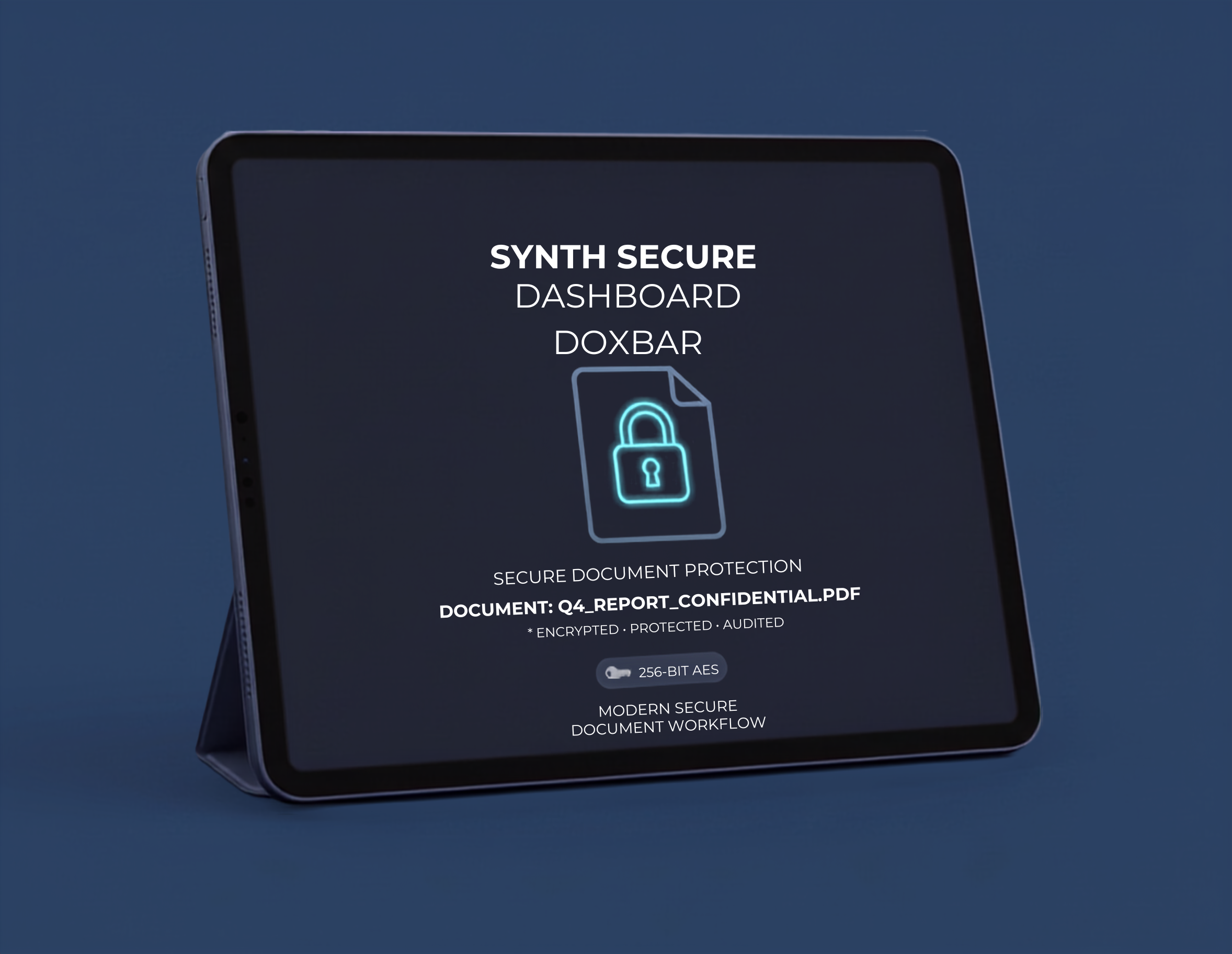
Why Password-Protected PDFs Are Not Always Enough (And What You Should Do Instead)

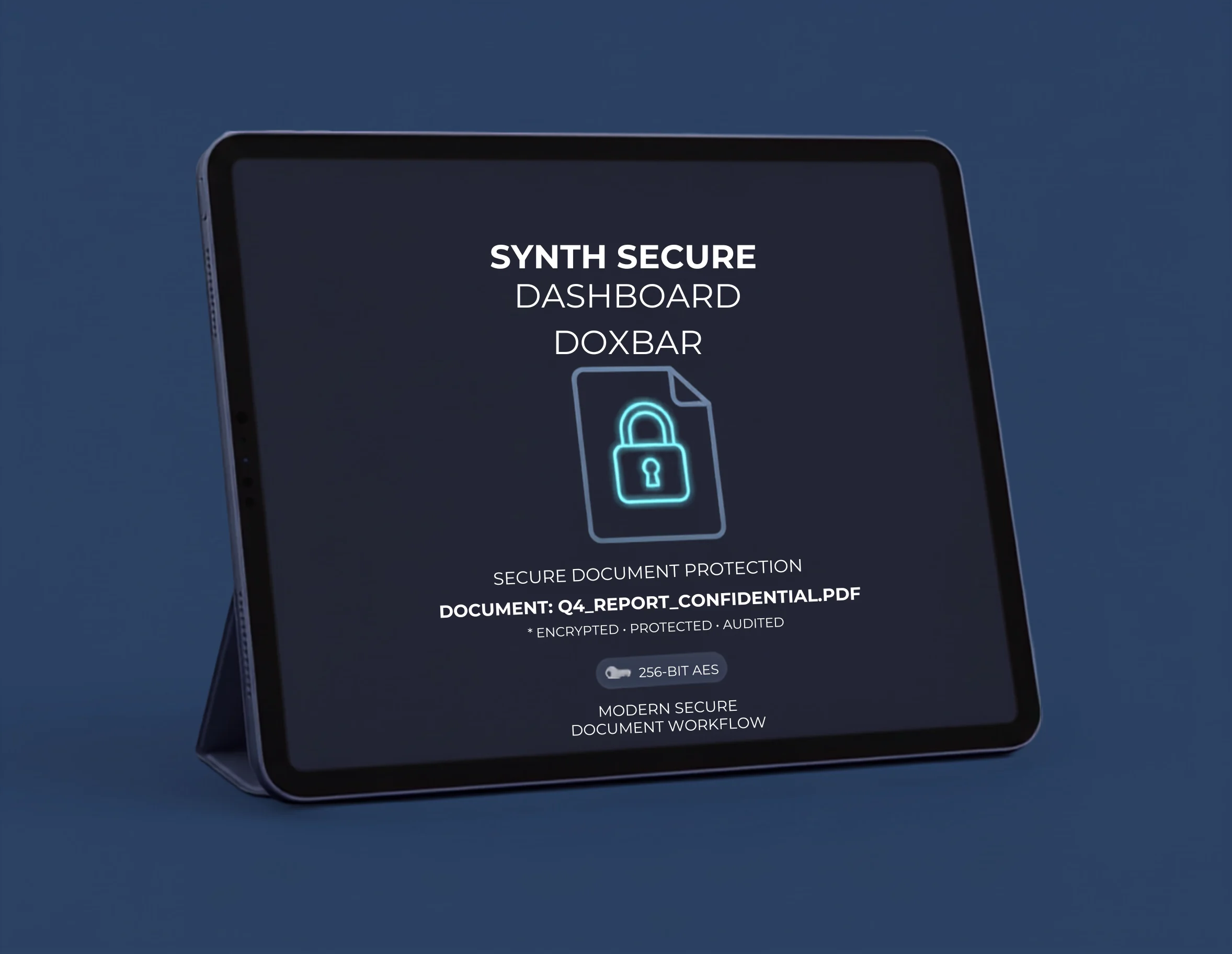

Table of Contents▼
Discover why a simple PDF password isn't a foolproof security plan and learn the modern, multi-layered workflows required to truly protect sensitive documents.
Why Password-Protected PDFs Are Not Always Enough (And What You Should Do Instead)
Imagine this scenario: It’s 9:45 PM on a Friday. You’re about to close your laptop after a grueling week, but you still need to send over the final Q2 financial forecast to your external stakeholders. The spreadsheet contains sensitive revenue data, internal hiring plans, and unreleased product roadmaps.
Knowing the risks of leaving this data exposed, you convert the spreadsheet into a PDF and apply a standard password via your default desktop app. You hit send, breathe a sigh of relief, and close your laptop. You feel secure.
But are you actually safe?
The uncomfortable truth is that relying solely on a basic PDF password is like putting a standard padlock on a glass door. It deters casual passersby, but anyone with the right tools or enough motivation can bypass it with surprising ease. For modern businesses, freelancers, and students dealing with sensitive information, understanding the gaps in traditional PDF security is no longer optional—it’s an operational necessity.
At Doxbar, we spend all day thinking about document workflows, file management, and how professionals actually handle their data. Let's look beyond the checkbox of "password protection" and break down what is really happening beneath the surface of your secured documents.
The Core Security Vulnerabilities of Traditional PDFs
When you check the box to "Protect PDF" in a legacy software application, it feels like an absolute action. However, file security is a spectrum, and standard password encryption sits much lower on that spectrum than most people realize.
1. The Fragility of User Passwords
Most users pick passwords that are easy to remember. Unfortunately, human-friendly passwords are also incredibly easy for automated scripts to guess. According to research published by Microsoft, a staggering percentage of data breaches stem from weak or reused credentials. If your document password is Company2026! or Confidential1, a basic brute-force tool can crack it in a matter of seconds.
2. Owner Passwords vs. User Passwords
PDF architecture splits security into two distinct types of restrictions:
User Passwords (Open Passwords): Prevents unauthorized users from opening the file.
Owner Passwords (Permissions Passwords): Restricts what an authorized user can do once inside (e.g., preventing printing, editing, or copying text).
Here is the problem: many open-source tools and command-line utilities completely ignore owner passwords. If someone has the password to open your file, they can easily use a free online tool to strip away your printing and copying restrictions entirely.
3. Metadata Leakage
When you encrypt a PDF with a standard user password, the content of the pages is scrambled. However, the document’s metadata often remains completely unencrypted. This means an outsider might still be able to read:
The file title and subject line.
The author's name and corporate organization.
The exact software application used to create the file.
The creation and modification dates.
For a competitor or a malicious actor, these breadcrumbs provide immense context for targeted social engineering attacks.
4. Legacy Encryption Standards
Older software tools often default to 128-bit RC4 encryption to maintain backwards compatibility with ancient PDF readers. RC4 has known mathematical vulnerabilities and is considered insecure by modern cryptographic standards. If your software isn't utilizing 256-bit AES (Advanced Encryption Standard), your document is inherently vulnerable.
Educational Deep Dive: How PDF Security Actually Works
To build a better document workflow, it helps to understand what is happening under the hood when a browser or native application interacts with a protected PDF.
The Mechanics of PDF Encryption
When you use a platform to protect sensitive PDF documents, the system doesn't just "hide" the text. It uses a cryptographic algorithm to transform readable text and images into unreadable ciphertext.
When a legitimate user enters the correct password, the PDF reader uses that string of characters as a cryptographic key to decode the ciphertext back into its original state.
[Original Document Content] │ ▼ (Combined with 256-bit AES Key) [Scrambled Ciphertext] │ ▼ (Requires Correct Password Entry) [Decrypted Viewable PDF]
Why Desktop Software Slows You Down
Historically, applying high-level encryption required heavy, local desktop software suites. These programs often come with bloated load times, mandatory paid updates, and rigid licensing models that don't match the agility of a modern remote workforce.
Furthermore, processing files locally on older hardware can cause performance bottlenecks, especially when handling batch conversions or massive multi-megabyte documents containing high-resolution graphics.
The Rise of Browser-Native Workflows
Modern document security has shifted significantly toward secure, browser-based environments. Using web standards like WebAssembly, modern platforms can perform complex cryptographic operations directly inside your local browser sandbox. This means your files don't necessarily have to be uploaded to an unverified, far-off cloud server just to have a password applied; the computation happens safely right on your machine, combining the speed of the web with the isolation of a local app.
The Modern Document Protection Framework
If standard PDF password protection isn't a silver bullet, what should you look for when designing a secure file workflow? A truly modern approach relies on a multi-layered framework built around data privacy, usability, and modern encryption standards.
Advanced Encryption Standards (AES-256): Never settle for legacy encryption methods. Ensure any tool you use leverages 256-bit AES encryption, which is the gold standard trusted by financial institutions and government agencies globally.
Zero-Knowledge Architecture: Choose tools that value your privacy. A true zero-knowledge workflow means that the platform processing your file cannot see, store, or access your content or your passwords. Files should be wiped cleanly from processing servers immediately after the session ends.
Granular Permission Controls: Preventing unauthorized PDF access means controlling the file lifecycle after it is opened. Look for systems that accurately enforce restrictions on text copying, form filling, extraction, and high-resolution printing.
Cross-Platform Accessibility: A security workflow is useless if it breaks when an executive tries to open the document on an iPad at an airport. Security tools must generate universally compliant PDFs that open cleanly across iOS, Android, macOS, Windows, and Linux.
Comparing Document Management Workflows
To see how these concepts play out in real life, let’s look at how different document management approaches handle security, accessibility, and speed.
Feature | Legacy Online Tools | Traditional Desktop Software | Modern Browser-Based Platforms (Doxbar) |
Encryption Strength | Often uses outdated 128-bit RC4 | Supports AES-256, but hard to configure | Defaults to 256-bit AES encryption |
Processing Speed | Slow queue times on shared cloud servers | High local hardware dependency | Instant processing via optimized engines |
Data Privacy | Files may be stored for ad-targeting or tracking | Secure, but local to a single device | Ephemeral processing with strict auto-delete |
User Experience | Cluttered with aggressive ads and pop-ups | Complex, multi-layered navigation menus | Clean, minimalist, and mobile-friendly |
Cost & Friction | Free, but insecure and unpredictable | Expensive subscription models per user | Accessible, frictionless web tools |
Step-by-Step Guide to Truly Securing Your PDFs
Securing a document should not feel like rocket science. Here is how to execute a secure PDF protection workflow cleanly without breaking your daily rhythm.
Step 1: Sanitize and Prepare Your Document
Before applying any password protection, review your document for hidden data. Clean out track-changes histories from your word processor, delete hidden spreadsheet tabs, and ensure no sensitive comments are left floating in the margins. Once pristine, export the file to a clean PDF format.
Step 2: Use a Trusted Modern Tool
Open your browser and navigate to a secure processing platform like Doxbar. Avoid sketchy, ad-ridden conversion sites that look like they haven't been updated since 2012. You want a clean, professional workspace that explicitly states its data retention policies.
Step 3: Generate a High-Entropy Password
Do not use your dog's name, your birthday, or a variation of the company name. Use a phrase of random words, mixed numbers, and symbols (e.g., Correct-Horse-7-Battery-Staple!). If you are sharing the document with a client, use a secure password manager or an out-of-band communication channel (like an encrypted text message or a phone call) to hand off the password—never send the password in the exact same email thread as the attached PDF.
Step 4: Apply Explicit Permissions
If you only want the recipient to review the document, restrict editing and printing rights. Make sure your processing engine applies these flags correctly so that secondary PDF readers honor the restrictions.
Step 5: Verify the Output
Download your newly protected PDF file and try opening it yourself. Confirm that it prompts for a password immediately, and verify that text selection or printing is disabled if you set those specific parameters.
Pros & Cons of PDF Password Protection
To maintain realistic expectations about document security, we have to look honestly at the advantages and the limitations of this approach.
The Advantages
Universal Standard: Almost every computer and mobile device on Earth has a built-in PDF viewer that natively understands password prompt fields.
Low Friction: It requires zero special software installation for your end recipient; they just double-click and type the password.
Basic Compliance: It satisfies basic regulatory checkboxes for protecting personally identifiable information (PII) during transit.
The Disadvantages
No Revocation Rights: Once you email a password-protected PDF to someone, you cannot claw it back. If they leak the password, anyone who gets a copy of the file can open it.
The "Human Factor": Recipients often write passwords down on sticky notes, paste them into insecure Slack channels, or share them casually with colleagues.
Vulnerability to Offline Cracking: If an attacker intercepts the file, they can download it onto an isolated machine and run dictionary attacks endlessly without fear of getting "locked out" after three wrong guesses.
Advanced FAQ Section
Is a PDF user password completely uncrackable if it is long?
Not necessarily, but length changes the math completely. A 6-character lowercase password can be cracked instantly. A 16-character password mixing uppercase letters, lowercase letters, numbers, and symbols would take billions of years to crack using modern computing clusters. The cryptographic math behind AES-256 is rock solid; the weakness is almost always the password's simplicity.
Can someone convert my protected PDF back to Word to bypass security?
If you have applied an "Owner Password" that restricts editing and copying, legitimate conversion tools (like those from Adobe) will refuse to convert the file without that secondary password. However, bad actors using malicious or modified open-source software can strip those permission flags and force a conversion anyway.
Does Doxbar store a copy of my confidential files or passwords?
No. Security and trust are fundamental to modern workflows. Doxbar processes your files ephemerally. Your data is handled with strict privacy protocols, meaning your files are completely purged from the processing environment as soon as your action is completed. We do not index, analyze, or retain your passwords or document contents.
What is the difference between a digital signature and a password?
A password restricts access to a file (encryption). A digital signature proves who created or approved the document and ensures that the content hasn't been altered or tampered with since it was signed (integrity). They serve completely different purposes but work beautifully when used together.
Why do some mobile browsers fail to open protected PDFs?
Some basic mobile web views or older email preview apps don't fully support advanced PDF encryption rendering libraries. When this happens, the app simply displays an error rather than showing a password prompt. The fix is simple: open the file directly in a dedicated application like Google Drive or a native PDF reader.
Can search engines index the content inside my password-protected PDF?
No. If a search engine crawler encounters a PDF that requires a user password to open, it cannot decrypt the text layers. The file name and metadata might be indexed if the file is hosted on a publicly crawlable webpage, but the internal contents remain entirely invisible to search engines.
Should I compress a PDF before applying a password?
If you are dealing with massive files with high-resolution imagery, compressing the file first can make sharing significantly easier. Modern platforms allow you to optimize your document sizes seamlessly before finalizing your security layers, ensuring your emails don't get bounced by strict attachment size limits.
Moving Beyond Simple Passwords: Next-Generation Trust Signals
True document security is a habit, not a feature. As remote work and digital operations become the standard for businesses around the globe, the risks associated with data leaks continue to climb.
Relying on old-school, complex desktop programs creates friction, leading employees to cut corners and bypass security protocols entirely. Conversely, using sketchy, unverified free online web tools risks exposing your intellectual property to data brokers.
The solution lies in adopting efficient, clean, browser-based file tools that respect your privacy while delivering professional-grade encryption. By combining strong password habits, out-of-band credential sharing, and clean, modern utilities like Doxbar, you can protect your workflows without slowing down your day.
Keep your passwords long, your software lightweight, and your data handling practices transparent. Your peace of mind is worth the extra few seconds of diligence.
Need to Convert Document Formats?
Try our secure, lightning-fast PDF conversion suite. Convert Word, Excel, Images, and more with zero formatting loss.

Doxbar Editorial
Security & Privacy Team
We specialize in secure document architectures, parsing engines, and modern developer utilities. Keeping your files safe, lightweight, and perfectly formatted.
Join the Conversation
Share your thoughts or ask a question about this topic. This is a privacy-first system.