

XLTM to PDF: How to Convert Macro-Enabled Excel Templates
Contents
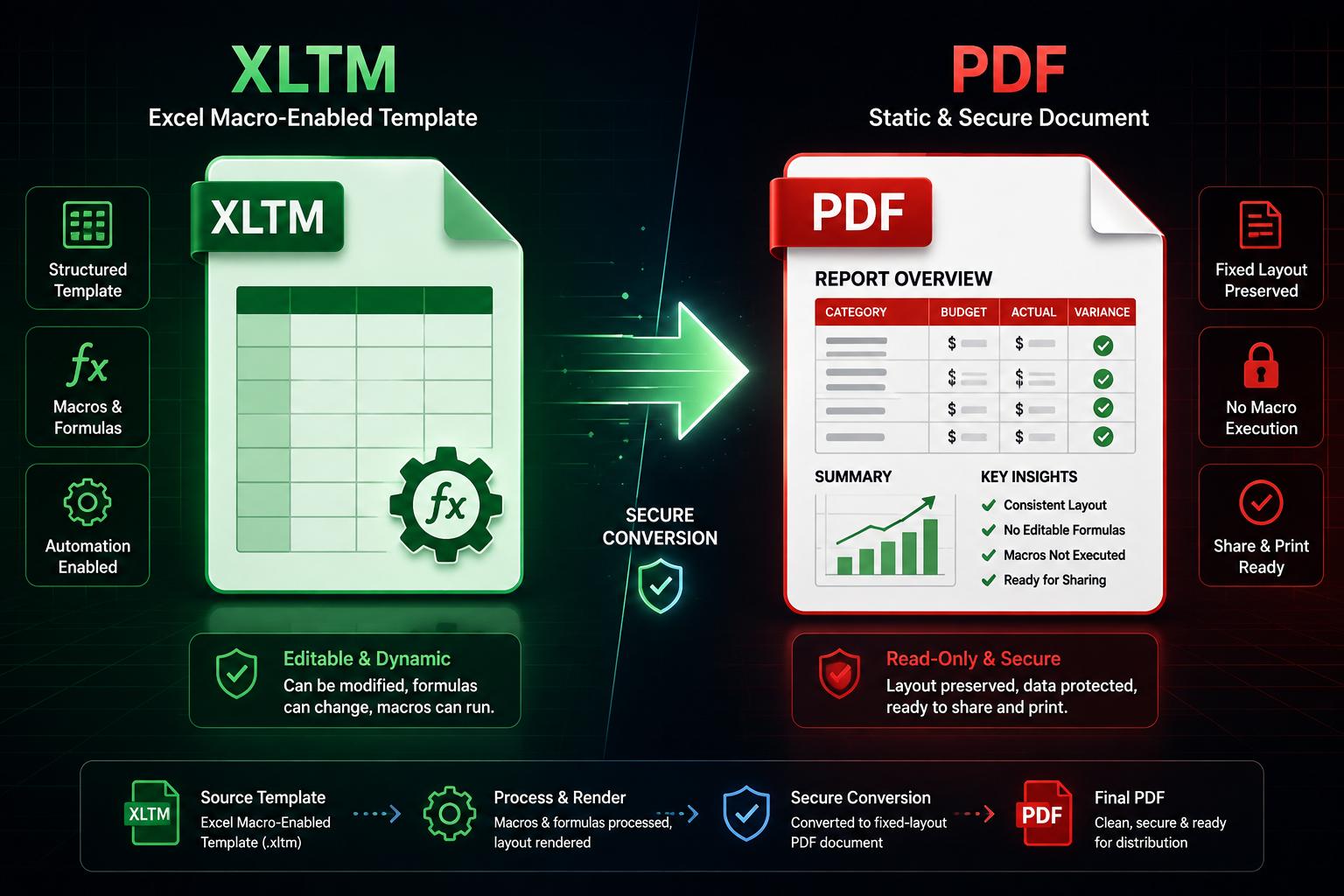
XLTM to PDF: How to Convert Macro-Enabled Excel Templates

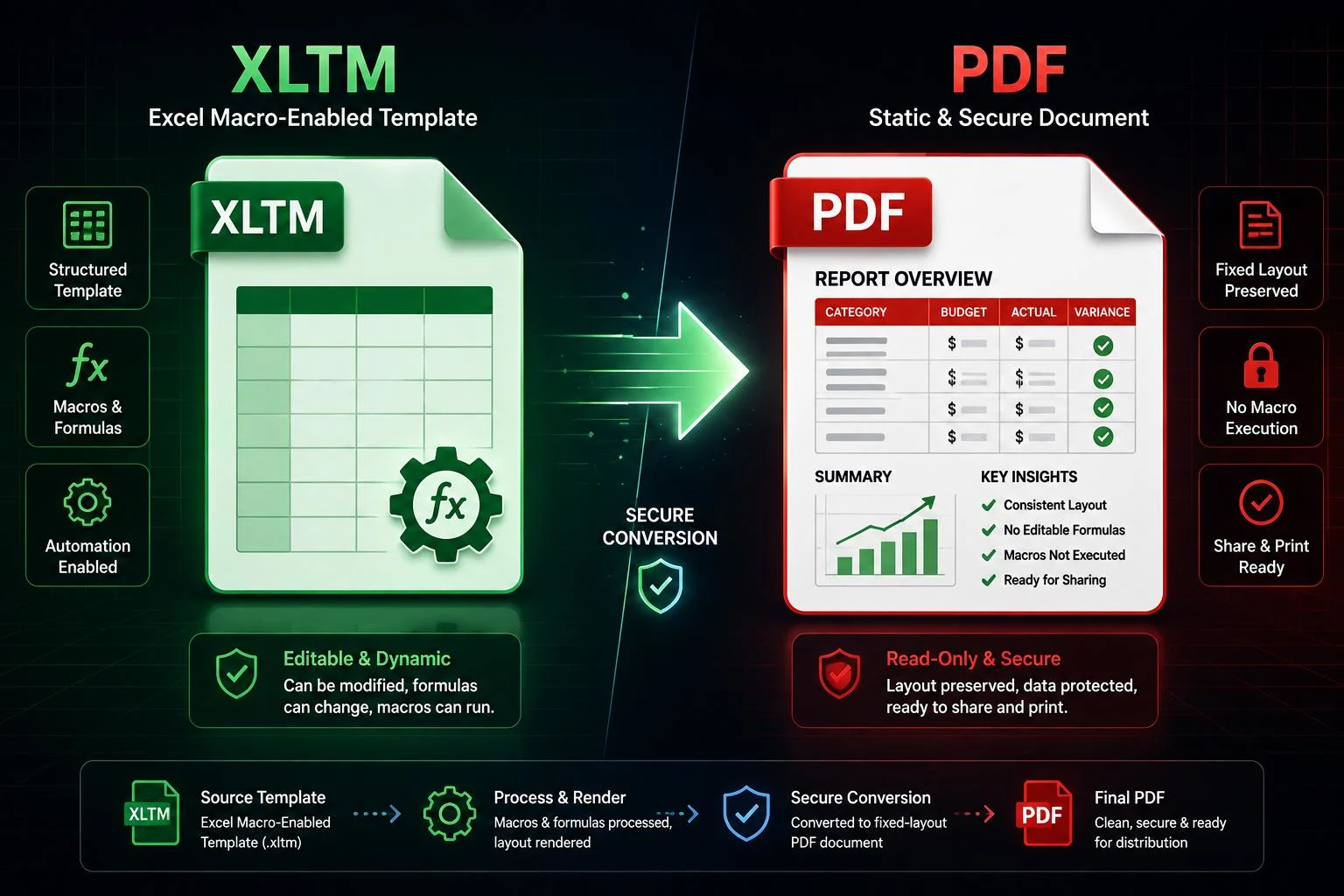

Table of Contents▼
Learn how to convert XLTM macro-enabled Excel templates to PDF. Preserve page layout, handle formulas and macros, and create share-ready documents with Excel or online tools.
Quick Answer:
“Can You Convert an XLTM File to PDF?
Yes. You can convert an XLTM (Excel Macro-Enabled Template) file to PDF using Microsoft Excel or a compatible online converter. Before exporting, review the template's print area, page orientation, scaling, fonts, and calculated values. The resulting PDF preserves the visible document rather than the original VBA macros or editable spreadsheet logic.
Introduction
It usually happens right when you are about to step into a meeting or send out a monthly client deliverable. You spent two hours entering fresh data into an automated Excel template—maybe an invoice generator, a financial forecast model, or a custom inventory tracker loaded with Visual Basic for Applications (VBA) macros. Everything calculates beautifully. The formulas fire as expected, and the dashboard updates in seconds.
Then comes the moment to share it.
You email the raw spreadsheet to your client or finance head. Five minutes later, the inevitable email pops up: "The formatting looks strange on my iPad," or worse, "My security settings blocked the macros from running, so the sheet looks completely broken."
Sending native spreadsheets—especially macro-enabled template files like XLTM—directly to stakeholders is a recipe for headaches. Recipients might accidentally alter a hardcoded cell, alter formulas, or encounter scary security warnings about untrusted VBA code.
When you need to turn a dynamic, macro-driven template into a clean, permanent, and universal document, converting your XLTM to PDF is the most reliable path forward.
At Doxbar, we focus on making document conversions simple, safe, and lightning-fast right in your browser, ensuring your reports look exactly as intended every time.
Problem Breakdown: The Headache of Sharing XLTM Files
Understanding why XLTM files cause trouble in daily workflows comes down to how Microsoft Office handles specialized formats.
What is an XLTM File?
An XLTM file is a Microsoft Excel Macro-Enabled Template. Unlike standard spreadsheets (.xlsx) or regular macro-enabled workbooks (.xlsm), an XLTM file serves as a master blueprint. When you open an XLTM file, Excel generates an unsaved copy of the workbook so you don't overwrite the original layout or code.
While this architecture is helpful for internal operations, distributing raw XLTM files externally presents several practical problems:
Security Warnings & Macro Blocks: Modern enterprise security gateways aggressively flag or isolate files containing embedded macros. According to Microsoft Security Guidelines, macros sourced from external emails or internet downloads are blocked by default to prevent script-based malware. Your recipient may see an intimidating warning bar across the top of their screen before they even view your data.
Layout and Font Shifts: Excel depends heavily on the local computer's display settings, active printer drivers, and installed system fonts. A perfectly proportioned table on a Windows desktop running a 4K monitor can wrap text awkwardly or spill onto extra pages when opened on a macOS laptop or mobile device.
Accidental Formula Corruption: If you hand off a live template file, a single misplaced keystroke by a reader can overwrite complex formulas, breaking the entire sheet’s calculations without anyone noticing until later.
Software Version Incompatibilities: Legacy versions of desktop software or third-party web viewers often struggle to parse macro-enabled templates correctly, resulting in broken charts or invisible data ranges.
Educational Deep Dive: How Spreadsheet-to-PDF Conversion Works
To appreciate why converting an XLTM file requires careful handling, it helps to look under the hood at how spreadsheet data translates into static documents.
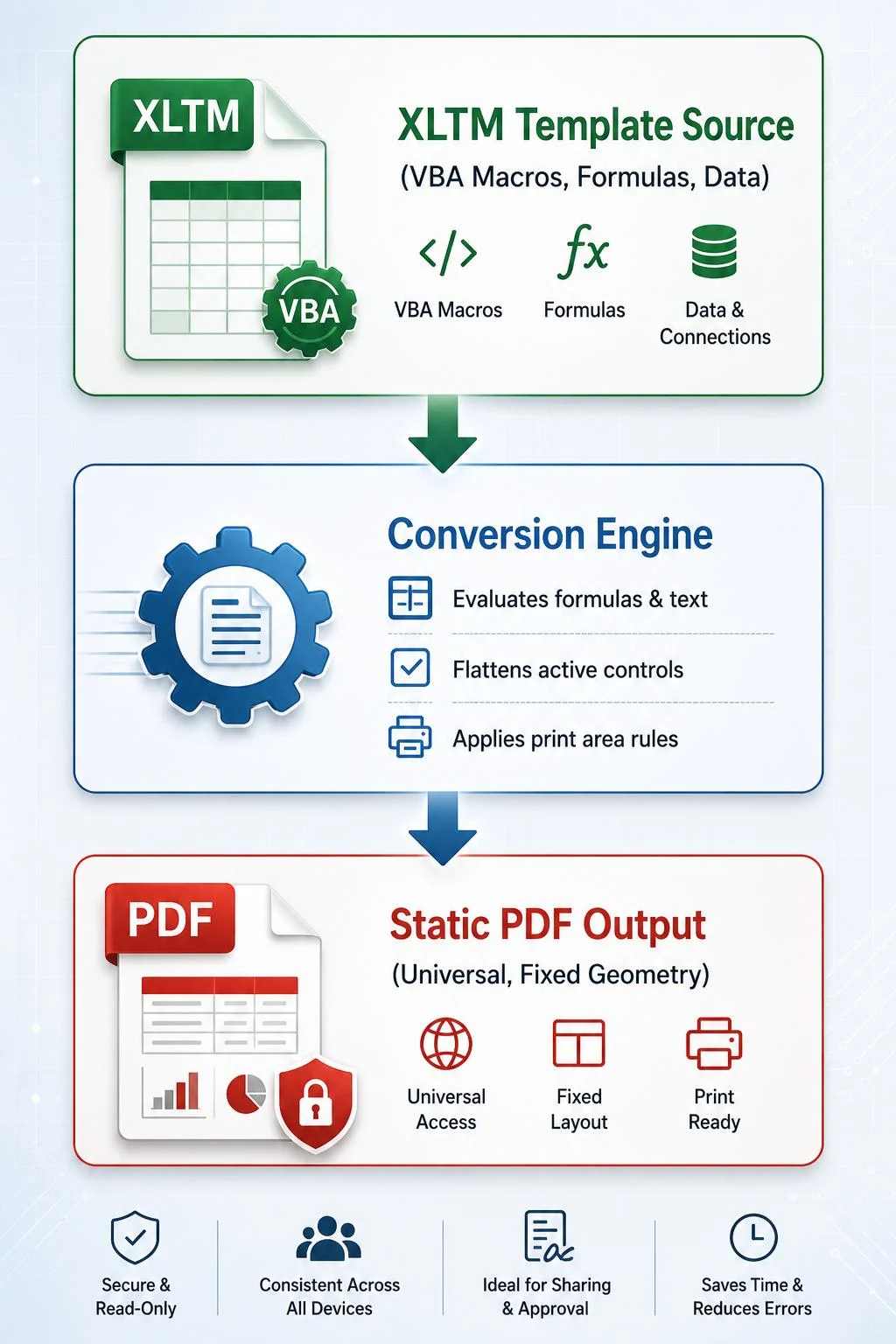
A technical infographic explaining how an XLTM macro-enabled Excel template is converted into a static PDF. The workflow shows the template source, conversion engine, formula and text processing, active-control flattening, print-area handling, and the final fixed-geometry PDF output.
Why PDFs Behave Differently from DOCX or XLTM
Word documents (.docx) flow text dynamically across pages based on margins. Excel spreadsheets, however, exist on a virtually infinite two-dimensional grid without strict natural page breaks.
When converting an XLTM spreadsheet to PDF:
Formula Resolution: During conversion, the rendering engine interprets the workbook's current values, formatting, print settings, and page layout before producing fixed PDF pages and rendering them as static text strings. The underlying dynamic VBA code is stripped away, preserving the output values while discarding the executable code.
Page Boundaries and Scaling: Excel sheets lack inherent physical dimensions until print rules are defined. Without explicit instructions like "Fit All Columns on One Page," a wide financial sheet will chop off the last three columns and drop them onto a separate page.
Control Flattening: Interactive elements such as macro buttons, drop-down menus, and form controls must be "flattened"—converted into static visual vectors—so they look like crisp user-interface elements without attempting to execute code.
For more technical information on fixed-layout format specifications, you can review the official ISO 32000-1 PDF standard overview on Wikipedia.
Modern Solution Framework: What to Look for in a Converter
If you routinely process macro-enabled templates into final distribution-ready reports, you need a workflow that handles complex sheets without introducing security risks.
When evaluating an online converter or document workflow tool, look for these features:
Client-Side or Encrypted Processing: Your financial data, client invoices, and internal metrics are confidential. Ensure any platform you use processes files locally in the browser or uses short-lived, encrypted temporary storage that purges files immediately after processing. Review security best practices documented by organizations like Cloudflare to understand modern web data handling.
Print Area Preservation: A quality conversion tool respects preset print ranges, page orientations, and gridline settings defined within the original XLTM file.
Cross-Platform Accessibility: You should be able to drop an XLTM file into a browser on Linux, macOS, iOS, or Android and receive an identical PDF output without needing desktop Excel installed.
Batch Conversion Capability: When closing out monthly billing cycles, converting dozens of individual XLTM-generated reports one by one in desktop Excel is tedious. A web-based batch converter saves hours of manual labor.
Comparing Conversion Approaches
Feature / Metric | Legacy Desktop Excel | Standard Free Online Converters | Modern Web-Based Workflows (e.g., Doxbar) |
VBA / Macro Handling | Executes macros, requires manual "Save As" per file | Strips macros, often distorts visual controls | Strips macros securely, preserves final visual state |
Platform Requirement | Requires active Microsoft 365 / Windows / Mac installation | Any browser | Any browser (Desktop, Mobile, Tablet) |
Batch Processing | Requires custom VBA code or third-party add-ons | Usually capped or behind heavy paywalls | Fast, streamlined processing for multiple files |
Document Privacy | Files remain local | Often retains files on cloud servers for extended periods | Privacy depends on the platform's stated retention and processing policies. |
Formatting control | Native Excel print settings | Varies by service | Depends on converter |
Step-by-Step Guide: How to Convert XLTM to PDF
Converting your macro-enabled Excel template into a distribution-ready PDF takes only a few seconds using a web-based converter.
Step 1: Select Your XLTM File
Gather the completed macro-enabled template file from your computer or cloud storage. Make sure you have entered and saved all current calculations in Excel before converting.
Step 2: Upload to the Converter
Drag and drop your .xltm file into the upload zone on the web converter page.
Step 3: Set Layout Preferences (If Applicable)
If your tool allows custom page configurations, select your target page orientation (Landscape is usually best for wide spreadsheets) and choose whether to fit content to page width.
Step 4: Process and Download
Click Convert. The engine processes the spreadsheet, flattens macro elements into vector shapes, calculates active layout grids, and produces a locked PDF. Click Download to save the PDF to your device.
Step 5: Verify the Layout
Open your newly minted PDF in a standard browser viewer or Adobe Acrobat. Double-check that numerical columns fit comfortably across pages and that no page numbers or footers are clipped.
Pros & Cons of Converting XLTM to PDF
Pros
Universal Compatibility: PDF files are widely supported across modern desktop and mobile platforms. Tablet, and smartphone without requiring spreadsheet software.
Enhanced Security: Stripping active macros eliminates malware risks, ensuring your document passes safely through enterprise email filters.
Data Integrity: Recipients cannot accidentally alter numbers, break complex nested formulas, or delete reference tabs.
Professional Presentation: Output looks clean, formatted, and print-ready for executive review or client presentations.
Cons
Loss of Interactivity: Once converted, dynamic features like clickable drop-down lists, macro-driven buttons, and auto-calculating cells become static elements.
Irreversible Data Extraction: Reverting a PDF into a working spreadsheet with functional macros requires rebuilding the original logic. (Always keep your source .xltm file backed up!)
Requires Proper Layout Preparation: If the original sheet was messy with poor print area definitions, the initial PDF export may require adjustments in page orientation.
Advanced FAQ Section
1. What is the main difference between XLTM and XLSM files?
An XLTM file is a macro-enabled template used to generate new workbooks without modifying the master file. An XLSM file is a standard macro-enabled workbook containing operational data and saved changes. Both support VBA macros, but XLTM acts as a read-only starting point each time it is opened.
2. Is it safe to convert financial XLTM files using online tools?
Safety depends entirely on the conversion platform's architecture. Reputable platforms prioritize privacy by utilizing end-to-end encryption (HTTPS) during transit and implementing automated file deletion scripts that purge documents from servers shortly after processing. For sensitive business data, always check the privacy policy to ensure your files are never analyzed, indexed, or stored long-term.
3. Will my VBA macros run during the PDF conversion process?
No. Conversion engines do not execute underlying VBA macros during the PDF creation process. The converter captures the static visual state of the data as rendered in the file. If your template relies on a macro to generate calculated values (like auto-generating invoice numbers upon opening), run that macro inside Excel before saving and converting the file.
4. Why did my converted PDF split my Excel columns across separate pages?
This occurs when the original spreadsheet lacks defined print area rules or scaling parameters. Excel sheets default to 100% scale, causing wide tables to spill over the page boundaries. To fix this, adjust the page setup options in your spreadsheet tool to Fit All Columns on One Page or switch page orientation to Landscape before converting.
5. Do I need Microsoft Office installed on my computer to convert XLTM to PDF?
No. Modern web-based conversion tools use cloud or browser-native rendering engines to parse Excel XML structure and layout models directly. You can convert .xltm files from a Chromebook, Mac, or mobile device without an active Microsoft 365 subscription.
6. What happens to drop-down menus and interactive form controls in the PDF?
Interactive controls like combo boxes, check boxes, and drop-down lists are flattened into static graphical elements during conversion. They display the last selected value at the time of conversion but will no longer be interactive in the PDF format.
7. Can You Batch Convert XLTM Files to PDF?
Yes. Batch conversion tools allow you to queue and convert multiple XLTM files simultaneously. The system processes each file sequentially and provides either individual PDF download links or a single compressed .zip archive containing all converted documents.
8. Will converting an XLTM file overwrite my original template?
No. The conversion process creates a completely separate .pdf file. Your original master .xltm template remains unchanged on your local drive or cloud storage.
9. Why do enterprise email gateways flag my original XLTM file, but accept the converted PDF?
Enterprise email filters flag .xltm files because they contain executable VBA code, which can potentially carry malicious scripts. Converting the file to PDF strips away all executable code while retaining visual text and formatting. Converting the template to PDF removes the VBA code from the distributed file, which can reduce the macro-related security concerns associated with sending the original XLTM file.
10. Can I password-protect the output PDF after converting from XLTM?
Yes. Once your XLTM file is converted to PDF, you can apply standard PDF security layers, such as open passwords or permission restrictions (preventing printing or text copying), using dedicated PDF management utilities.
11. How does XLTM compare to XLTX?
XLTX is a standard Excel template file that does not support macros or custom VBA code. XLTM supports embedded macros. Both act as master blueprints for creating new workbooks, and both can be converted into static PDF files using similar methods.
12. Why do fonts look different in my converted PDF compared to my screen?
If your XLTM template uses specialized or proprietary system fonts that are not embedded in the file, the conversion engine may substitute them with standard fallback fonts (like Arial or Helvetica). Stick to standard cross-platform typography (Calibri, Arial, Segoe UI) to ensure visual consistency.
13. Can I convert an XLTM file to PDF directly on a mobile device?
Yes. Open your web browser on iOS or Android, navigate to an online converter platform, select the XLTM file from your device files or cloud drive (e.g., Google Drive, iCloud), and download the processed PDF directly to your mobile downloads folder.
14. How can I keep grid lines visible in my output PDF?
Gridline visibility is controlled by the print setup flags within the Excel file structure. To display grid lines in the output PDF, ensure that the Print Gridlines checkbox (found under the Page Layout options in Excel) is enabled before saving your template, or select an option to preserve grid lines within your conversion settings.
15. What is the file size limit for converting XLTM files online?
File size limits vary by platform, but standard XLTM files rarely exceed a few megabytes because they primarily contain cell data and XML text structure. Most online utilities handle files up to 50 MB to 100 MB without issue, which is more than enough for complex enterprise spreadsheets.
16. Will hidden worksheets or tabs show up in the final PDF?
By default, standard converters only process visible worksheets. Hidden tabs or secondary reference sheets contained within the XLTM workbook are excluded from the output PDF unless you manually unhide them before running the conversion process.
17. Can I convert a specific tab range from my XLTM template instead of the whole file?
Yes. If your tool supports page/tab selection, you can specify individual sheet names or page numbers to process. Alternatively, hide non-essential tabs in Excel before uploading to export only your primary summary dashboard.
18. Why is my chart missing or misaligned in the converted PDF?
Chart misalignment usually happens when dynamic chart objects overlap sheet margins or link to external, unresolved workbook paths. Ensure all charts are anchored cleanly within active cell boundaries before uploading your document.
19. How does converting XLTM to PDF help with regulatory compliance?
Many industries (such as healthcare, legal, and financial services) require immutable records for audit trails. Converting dynamic templates into flattened PDF files creates a permanent, time-stamped visual record of calculations that cannot be quietly edited after submission.
20. Can I extract text back out of the PDF if I need to update my template later?
Yes. Modern PDFs retain vector text layers, meaning you can highlight, copy, or run Optical Character Recognition (OCR) tools over the content using tools like Adobe Acrobat Reader. However, formula logic and macro structures will not be restored; updates to calculations should always be made in the original XLTM master file.
EEAT & Trust Signals: Workflow Best Practices
To maintain data integrity and professional standards across your team, adopt these simple guidelines when managing macro-enabled templates:
Maintain a Master Archive: Store original .xltm master templates in a dedicated, read-only directory with access controls. Store exported distribution PDFs in client-facing or public folders.
Audit Active Print Regions: Before deploying an XLTM template for team-wide use, open the file, set print boundaries to Fit to 1 Page Wide, and test exporting it locally. This ensures every report generated by your team converts cleanly without manual tweaks.
Incorporate Security Reviews: If your organization processes high-security documents, verify that third-party conversion services publish clear data protection policies and comply with modern web security practices, such as TLS encryption and strict retention schedules.
Conclusion
Macro-enabled templates are essential tools for automating complex spreadsheets, financial modeling, and standardized business operations. However, when it comes to presenting that data to clients, executives, or external partners, raw XLTM files present security hurdles, visual glitches, and accidental formula edits.
Converting your XLTM files to PDF bridges the gap between active internal data tools and clean, universal external reports. By locking in formatting, stripping away execution risks, and presenting calculations clearly, you ensure your work looks polished on any screen or device.
When you need to quickly turn an XLTM spreadsheet or macro template into a distribution-ready PDF without software setup, try Doxbar for fast, secure, browser-native conversions.
Need to Convert Document Formats?
Try our secure, lightning-fast PDF conversion suite. Convert Word, Excel, Images, and more with zero formatting loss.

Doxbar Editorial
Security & Privacy Team
We specialize in secure document architectures, parsing engines, and modern developer utilities. Keeping your files safe, lightweight, and perfectly formatted.
Join the Conversation
Share your thoughts or ask a question about this topic. This is a privacy-first system.