

How to Crop White Margins From a PDF Without Changing Content
Contents

How to Crop White Margins From a PDF Without Changing Content

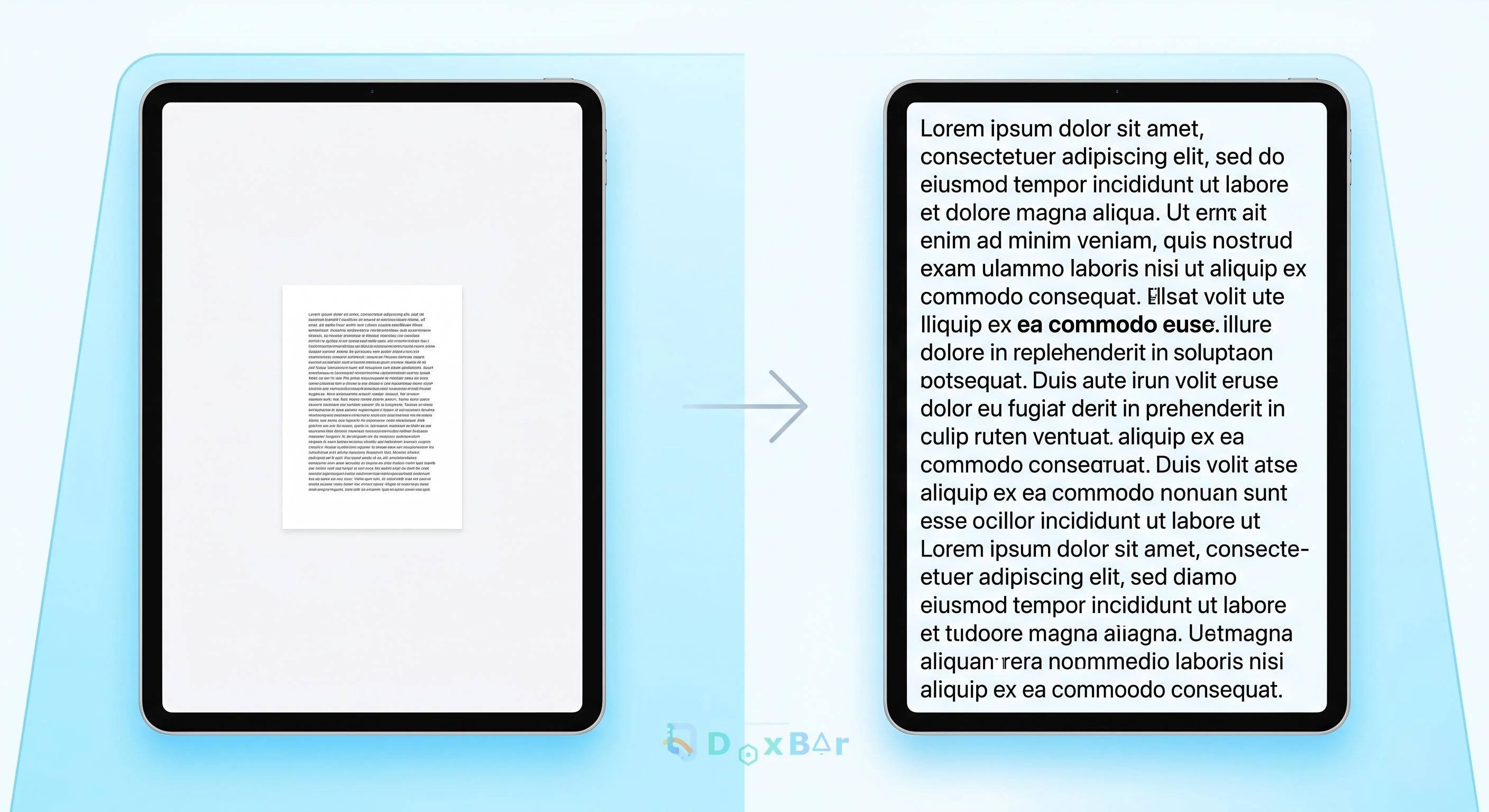

Table of Contents▼
Learn how to crop white margins from your PDF files effortlessly while keeping your content intact. Discover modern web-based workflows for cleaner documents.
The Presentation is Perfect—Except for the Giant White Border
You have spent three hours tweaking a report, or perhaps you are trying to read a downloaded textbook on your tablet. The text is crisp, the data is solid, but there is a problem: massive, unnecessary white margins are pushing your actual content into a tiny, unreadable box in the center of the screen. Every time you change pages, you have to pinch, zoom, and scroll horizontally just to read a single sentence.
It is incredibly frustrating. Most of us just want to trim the dead space so the document fits beautifully on a mobile screen, a tablet, or an e-reader.
While legacy desktop software often locks this basic feature behind a hefty subscription paywall, modern web tools have made the process seamless. If you need to crop pdf online, platforms like Doxbar allow you to strip away those distracting borders in seconds, right from your browser, without altering a single word or image in your original file.
Quick Answer: How to Crop PDF Margins
Upload your PDF to the secure online document processor.
Choose Auto-Crop to automatically detect margins or manually adjust the bounding boxes.
Apply the crop settings to recalculate the page boundaries.
Download the optimized PDF directly to your device.
Verify the document layout on your screen to ensure perfect readability.
Why PDF Margins Cause Such a Headache
To understand why removing a simple border is surprisingly tricky, we have to look at how PDFs are built. Unlike a Word document, which fluidly reflows text based on your screen size, a PDF acts like a digital photograph. Every character and image is locked to exact coordinates on a fixed grid.
When you encounter poorly formatted PDFs, you are usually dealing with a few specific bottlenecks:
The Tablet and Mobile Squint: When a document with 2-inch margins is opened on an iPad or Kindle, the rendering engine shrinks the entire page—margins included—to fit the screen. Your text becomes microscopic.
The "Print Layout" Curse: Many PDFs are generated using standard print templates (like A4 or US Letter) that assume you need physical room for binding or thumbprints. On a digital display, that space is completely wasted.
Presentation Letterboxing: Slides converted to PDF often end up with thick black or white bars on the top and bottom because the aspect ratio of the presentation doesn't match standard document sizes.
Bloated File Sizes: While empty space itself doesn't weigh much, the underlying structural metadata required to maintain those vast, empty layouts can sometimes inflate your file sizes unnecessarily.
The Tech Behind the Trim: How PDF Cropping Actually Works
When you "crop" a PDF, you aren't actually cutting the paper with scissors. Instead, your software modifies the document's internal geometry.
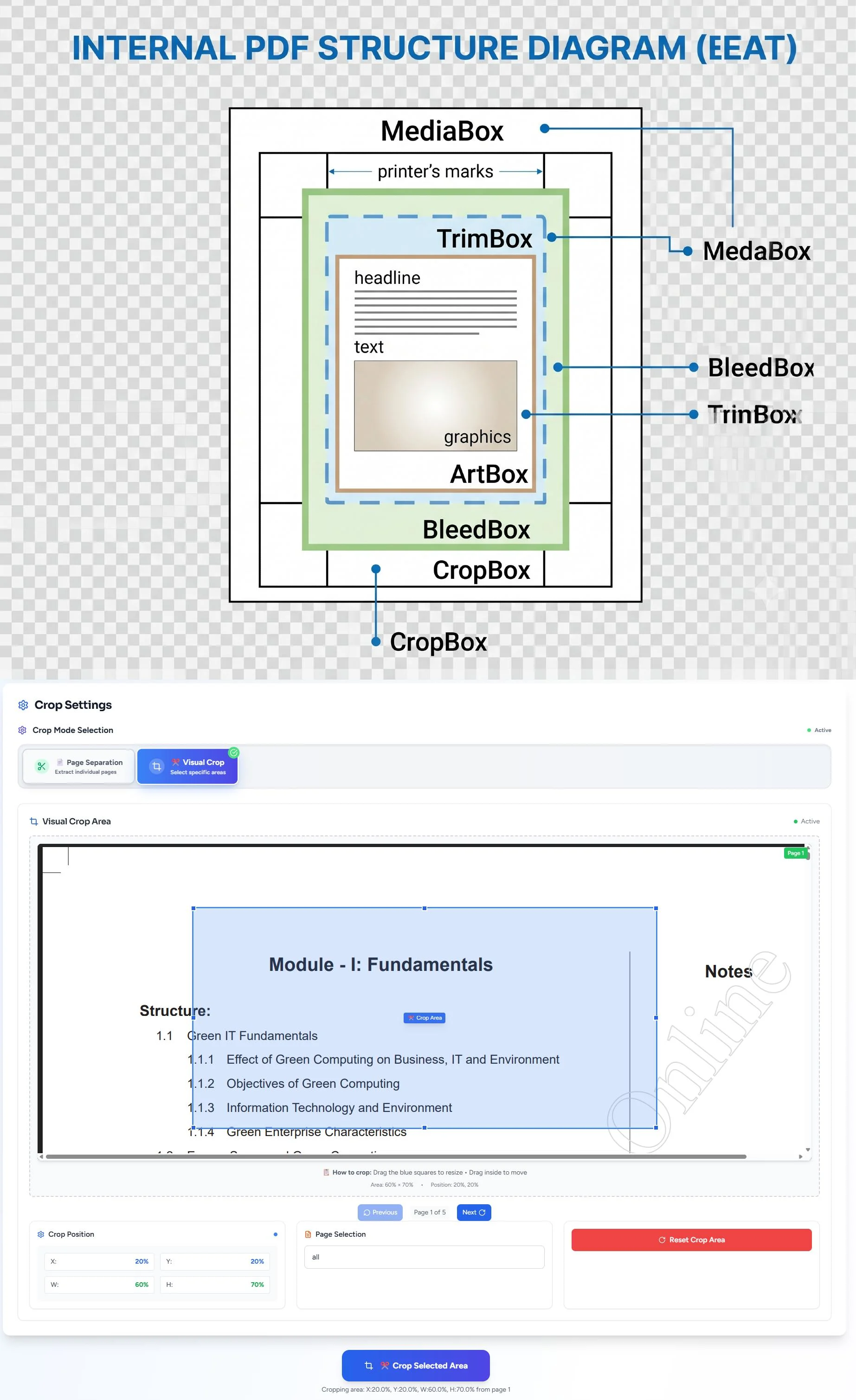
According to the official PDF specifications managed by the ISO, every PDF page contains hidden boxes that dictate how content is displayed. The most important ones are:
MediaBox: The total physical size of the page.
CropBox: The region of the page that your PDF viewer (like Adobe Acrobat Reader) actually displays on your screen.
 © DoxBar Secured
Technical diagram showing internal PDF structure layers (MediaBox and CropBox) mapped directly to a live screenshot of an online visual cropping tool dashboard interface.
When you use a modern browser utility to crop pdf online, the software automatically detects the boundaries of your text and images. It then shrinks the CropBox to match those boundaries perfectly. The underlying data remains completely untouched—the tool simply tells your screen to ignore the empty space outside the new borders.
The Challenge with Scanned Documents
If your PDF was generated from a physical scanner, the document doesn't contain actual text data; it is just a giant image file. Trimming these requires a bit more heavy lifting. Modern web tools use lightweight algorithms to scan the pixels, identify where the white space ends and the ink begins, and align the boundary box accordingly.
The Modern Solution Framework: What to Look For
If you are hunting for a tool to fix your document layout, don't just click the first random link on a search engine. A bad tool can ruin your formatting, text clarity, or worse, compromise your data privacy.
Here is what a reliable, modern PDF workflow looks like:
Zero Content Degradation: Your text must remain sharp and selectable. If a tool turns your PDF into a blurry, low-resolution JPEG, skip it.
Strict Privacy Protocols: Your documents might contain invoices, contracts, or personal notes. Ensure the platform uses encrypted connections (HTTPS) and automatically purges files from their servers shortly after processing.
Visual Control: A great tool lets you see exactly where the crop lines will fall before you hit "Apply."
Cross-Platform Agility: You should be able to fix a file on your MacBook, a Windows desktop, or even your phone while sitting on a train.
Comparing Your Options
Feature / Workflow | Legacy Online Utilities | Heavy Desktop Software | Modern Browser-Based Tools (Doxbar) |
Setup Time | Instant | Slow (Requires Installation) | Instant |
Cost | Free (but heavy on annoying ads) | Expensive Subscriptions | Free / Accessible |
Processing Speed | Slow queues | Fast (uses local hardware) | Near-Instant Cloud Processing |
Mobile Friendly | Rarely (clunky UI) | No (Desktop only) | Fully Optimized for Mobile |
Data Privacy | Questionable logging | High (local) | High (Automated server purging) |
Step-by-Step: Trimming Your PDF Margins Without the Fuss
Cleaning up your layout shouldn't require a computer science degree. Here is how the workflow functions using clean, browser-native tools:
Step 1: Upload Your File
Open your browser and navigate to the PDF crop tool. Drag your file directly into the drop zone, or select it from your local storage, Google Drive, or Dropbox.
Step 2: Define the Boundary
Depending on the tool, you will either see an interactive box where you can manually drag the borders inward, or an "Auto-Crop" button. Auto-crop is generally preferred as it uses precise pixel detection to find the exact edge of your text across all pages simultaneously.
Step 3: Execute the Adjustments
Click the "Crop" or "Process" button. The cloud infrastructure handles the calculation in a fraction of a second, shifting the document's internal CropBox boundaries.
Step 4: Download and Verify
Save the optimized file back to your device. Open it up on your preferred screen to verify that the text now fills the page perfectly and that no edge cases were accidentally cut off.
The Honest Pros and Cons of Trimming PDF Margins
Let's look at this objectively. While cropping margins solves the majority of readability issues, it isn't a magical fix for every single document quirk.
The Good
Instant Readability Boost: Text suddenly appears larger and clearer on small screens because you aren't rendering empty borders.
Better Printing layouts: Saves paper and ink when printing slides or oddly sized documents by scaling the actual content to fit the page.
Smoother Scrolling: Eliminates the annoying left-to-right drift when scrolling vertically on a mobile device.
The Considerations
Unbalanced Pages: If a document has irregular layouts (like page numbers that sit way out in the bottom corner), the auto-crop tool will include those numbers, leaving you with slightly wider bottom margins.
Not True Reflow: Cropping changes the frame size, but it doesn't re-arrange the words into a single column. For heavily multi-column academic papers, you will still need to zoom in occasionally.
Advanced FAQ
Does cropping a PDF reduce its quality?
No. Standard cropping does not compress images or alter the vector text engine. It simply changes the visible boundary lines of the canvas. Your text will remain just as sharp as it was in the original document.
Can I crop specific pages instead of the whole document?
Yes, advanced web utilities allow you to select specific page ranges if you only want to fix an offset cover page or a few misaligned sheets within a larger report.
Is it safe to upload confidential business contracts to crop them?
If you use a reputable platform like Doxbar to crop pdf online, yes. Look for tools that state their privacy policy clearly. Safe platforms handle everything via automated scripts and delete your files from their systems within an hour of processing.
Why do some margins reappear when I open the file in a different app?
Some older or less compliant PDF viewers ignore the document's internal CropBox commands and force the display of the full MediaBox. To ensure maximum compatibility, open your file in standard modern browsers like Mozilla Firefox or Google Chrome to double-check the layout.
Will this break the interactive elements or hyperlinks in my PDF?
Generally, no. Because the underlying structural data and links are not being rewritten—only hidden outside a new viewport—your hyperlinks, bookmarks, and internal navigation should remain fully functional.
Can I undo a crop later on?
Because online tools deliver a completely new, separate file for you to download, your original document remains completely safe on your computer. If you don't like the results, you can just start over with the original file.
What is the difference between an auto-crop and a manual crop?
Auto-crop uses computational analysis to find the outermost pixels of ink on a page and trims everything outside that line. Manual cropping gives you an adjustable bounding box, which is ideal if you intentionally want to cut out certain headers, footers, or margin notes.
How do I handle double-sided book layouts where the margins alternate sides?
For books with alternating left and right margins, look for a tool that offers asymmetric or "odd/even page" handling. This allows you to apply different cropping frames to odd and even pages so you don't accidentally cut text from the book's gutter.
Does this process work on password-protected PDFs?
If a PDF is locked with an open password, you will need to input the password first to allow the software to read the page layout and apply the new boundaries.
Why did my file size get larger after cropping?
This is rare but can happen if an inefficient tool rasterizes the document (turning pages into images). Modern tools preserve the native PDF code, ensuring your file size stays the same or becomes slightly smaller.
Can I crop multiple PDFs at the same time?
Batch processing is supported by premium or high-tier web tools. You can drop multiple files into the interface, set a global margin preference, and download them all as an organized ZIP file.
Will cropping remove watermarks located in the background?
If the watermark spans across the entire background of the page, an auto-crop tool will recognize those background pixels as content and won't trim past them. In these scenarios, manual cropping is your best bet to slice inside the watermark line.
How does cropping affect form-fillable PDFs?
Form fields have specific coordinates. As long as the crop doesn't cut through the actual input boxes, the fields will remain active and fillable in the new version.
What happens to the metadata of the file?
Standard properties like the author, creation date, and title tags are typically preserved during a layout adjustment, keeping your digital archiving clean.
Can I use this to prepare documents for an Amazon Kindle?
Absolutely. In fact, cropping out white borders is the single best way to make standard PDFs readable on e-ink devices without having to convert them into EPUB formats, which often ruins mathematical formulas and tables.
Why do some pages look smaller than others after an auto-crop?
If your PDF contains pages with varying amounts of text (e.g., one page has a full essay, while the next has only a single sentence), the auto-crop tool shrinks the canvas of each page to fit its specific content. You can choose a "Uniform Crop" setting if you prefer all pages to remain identical in size.
Secure, Seamless Processing
When you are managing professional documents, you shouldn't have to compromise on data security just to fix a layout issue. Modern browser solutions mean you don't have to install random executables or third-party plug-ins that slow down your machine.
By utilizing cloud-native document processors, your files are handled in isolated environments, optimized using clean code, and delivered back to you in seconds. It is a smarter, safer way to work with digital media.
Related Document Tools
Once you have optimized your margins, you might need to handle other structural tweaks to make your documents entirely screen-ready. Explore our other internal browser-native helpers:
Compress PDF: Shrink down your optimized file sizes for quick email attachments and lighter storage.
Rotate PDF: Instantly flip landscape slides or inverted scans into perfect vertical alignment.
Split PDF: Extract specific chapters or sections from heavy textbooks to keep your reading focused.
Remove PDF Pages: Delete blank background pages, old covers, or unnecessary appendix sheets seamlessly.
Merge PDF: Combine multiple cropped articles or reports into a single, cohesive file.
Ready to Fix Your Documents?
If you are tired of pinching and zooming your way through your reading list, let the machines do the heavy lifting. Head over to Doxbar to clean up your layout, strip away those bloated margins, and enjoy a perfectly scaled viewing experience on all your devices.
Need to Convert Document Formats?
Try our secure, lightning-fast PDF conversion suite. Convert Word, Excel, Images, and more with zero formatting loss.

Doxbar Editorial
Security & Privacy Team
We specialize in secure document architectures, parsing engines, and modern developer utilities. Keeping your files safe, lightweight, and perfectly formatted.
Join the Conversation
Share your thoughts or ask a question about this topic. This is a privacy-first system.