

How to Extract Images From a PDF Without Losing Quality— Fast & Free | Doxbar
Contents
How to Extract Images From a PDF Without Losing Quality— Fast & Free | Doxbar

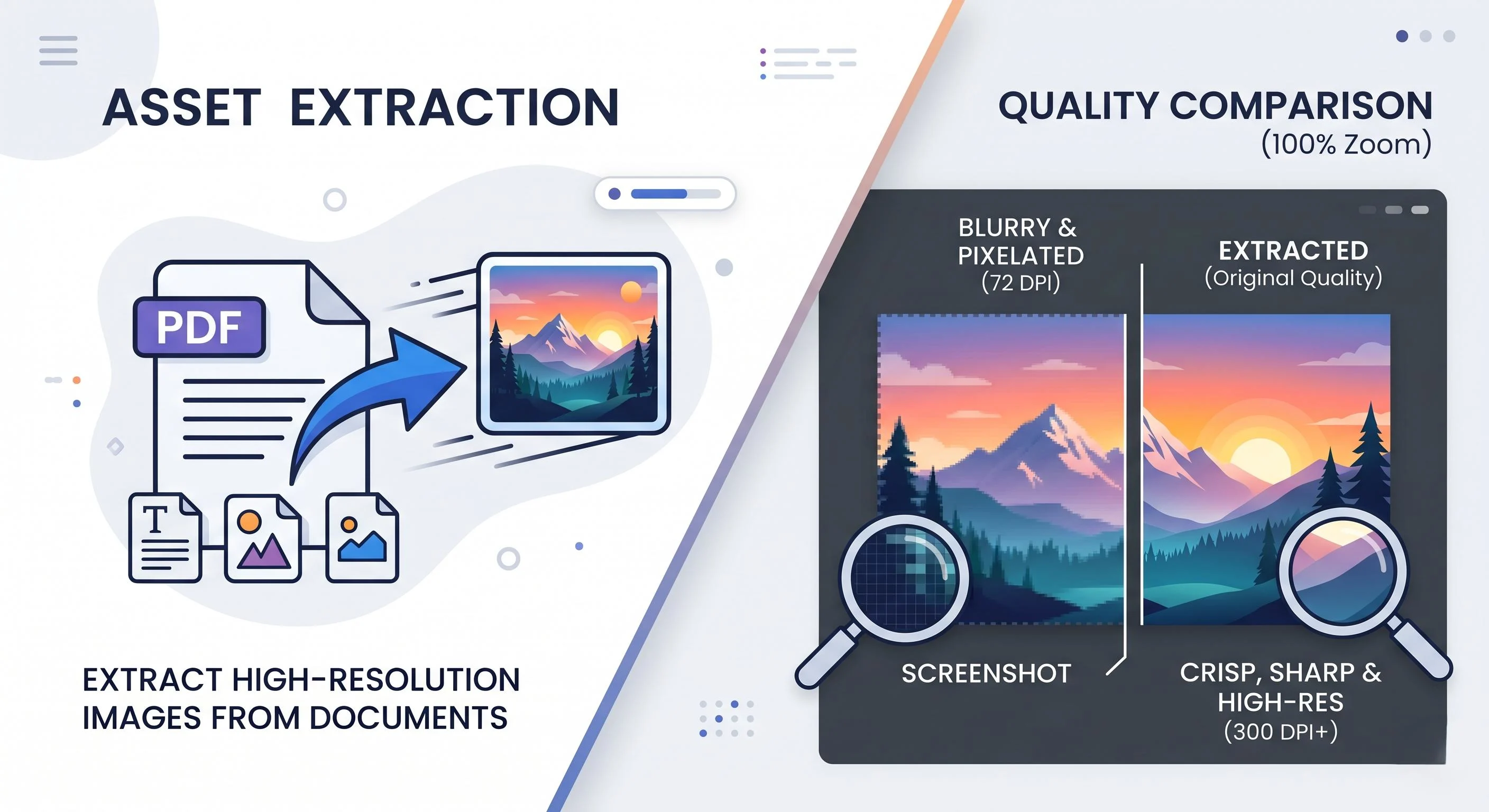

Table of Contents▼
Need to extract images from a PDF without losing resolution? Discover the best tools, step-by-step workflows, and how to maintain perfect image quality.
⚡ Quick Answer:
To extract images from a PDF without losing quality, use a PDF image extraction tool that pulls the original embedded image files directly from the PDF instead of taking screenshots. This preserves the original resolution, format, metadata, and image quality.
The Presentation is in Two Hours, and Your Assets Are Trapped in a PDF
Imagine this: Your team is putting the final touches on a massive client pitch deck. The designer sent over a gorgeous 50-page PDF report yesterday, but now you urgently need three specific high-resolution JPEG charts from page 14 to drop into a presentation.
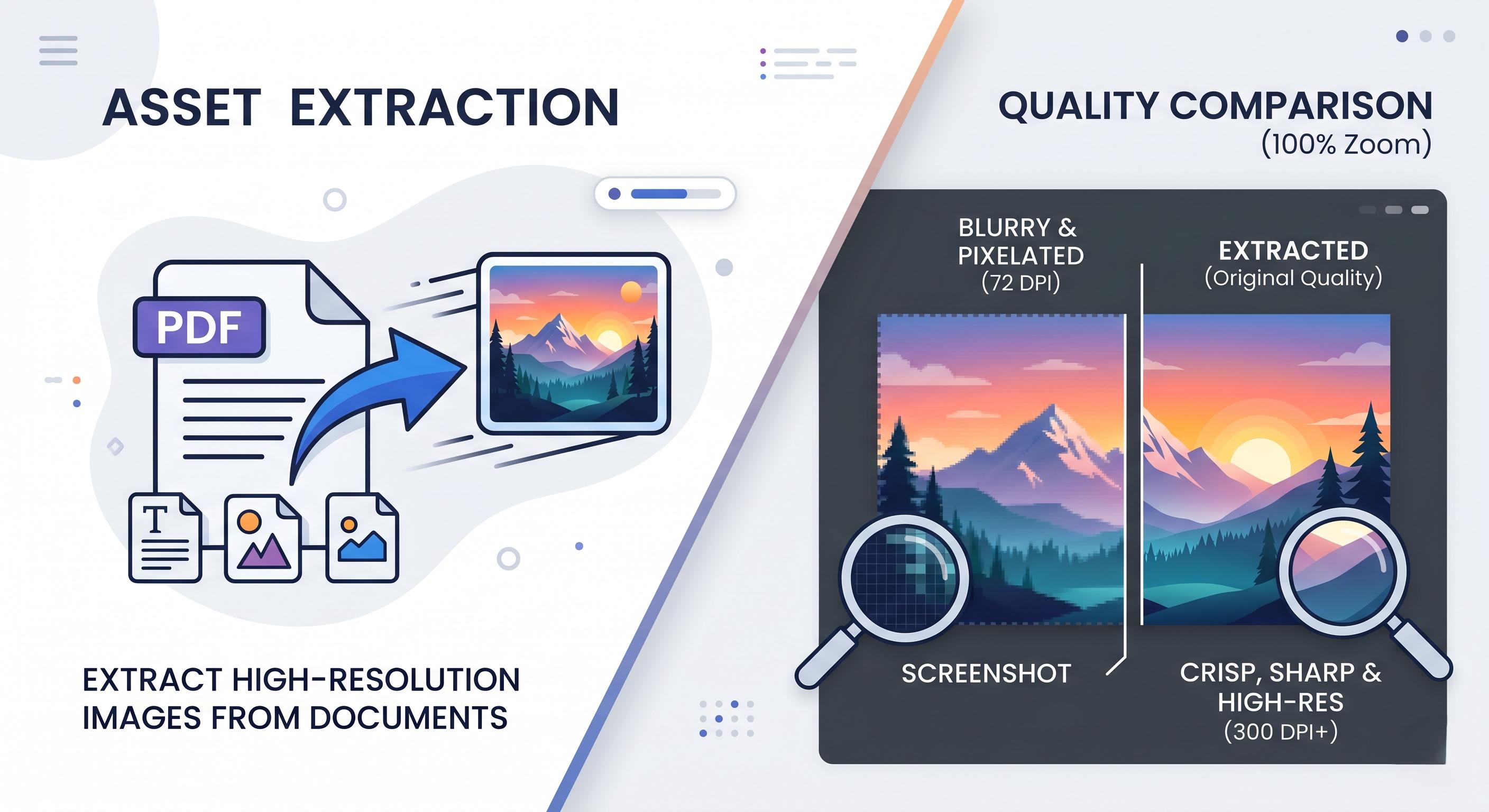
So, you do what most people do. You open the PDF, zoom in to 200%, take a screenshot, and crop it.
You paste it into your presentation, and it looks... okay. But when you preview it on a larger screen, the chart is blurry, the text is pixelated, and it looks entirely unprofessional.
Extracting visual assets from a PDF shouldn’t feel like trying to extract water from a stone. Whether you are a marketer pulling graphics for a blog post, a student harvesting diagrams for a thesis, or a freelancer handling client assets, losing image quality during a file transfer is a massive bottleneck.
Fortunately, you don't need to settle for blurry screenshots or buy expensive, bloated software suites just to get your images back. Web-based platforms like Doxbar are built to handle these exact headaches in a few clicks, pulling raw image files directly out of the PDF container without losing a single pixel.
Why Extracting Images From PDFs Is So Frustrating
To fix the problem, it helps to understand why PDFs are so stubborn in the first place. The format wasn’t designed to be an editable photo album; it was designed to look identical on every single device, acting essentially like a digital printout.
When you try to pull an image out of a PDF manually, you usually hit a few frustrating roadblocks:
The Screenshot Degradation: Taking a screenshot doesn't capture the original image file. It only captures your monitor's current resolution. If you screen-grab an image, you are instantly downgrading its quality.
Formatting and Compression Loss: Many traditional file converters compress the entire document during processing. By the time you get your image, it has been compressed twice—once when it went into the PDF, and once when it came out.
The Eco-System Trap: Heavy desktop applications often require paid subscriptions just to unlock basic extraction features. If you are on a Chromebook or a mobile device, running those heavy programs isn't even an option.
Security Concerns: Uploading sensitive company reports or proprietary designs to sketchy, ad-ridden conversion sites puts your data at risk.
The Technical Reality: How PDFs Handle Images
Why do images look crisp inside a PDF but turn to mush when you try to copy and paste them? It comes down to how the Adobe-created Portable Document Format handles data layout.
A PDF is essentially a digital wrapper. Inside that wrapper sits a map telling the computer exactly where to place text fonts, vector graphics, and raster images (like JPEGs or PNGs).
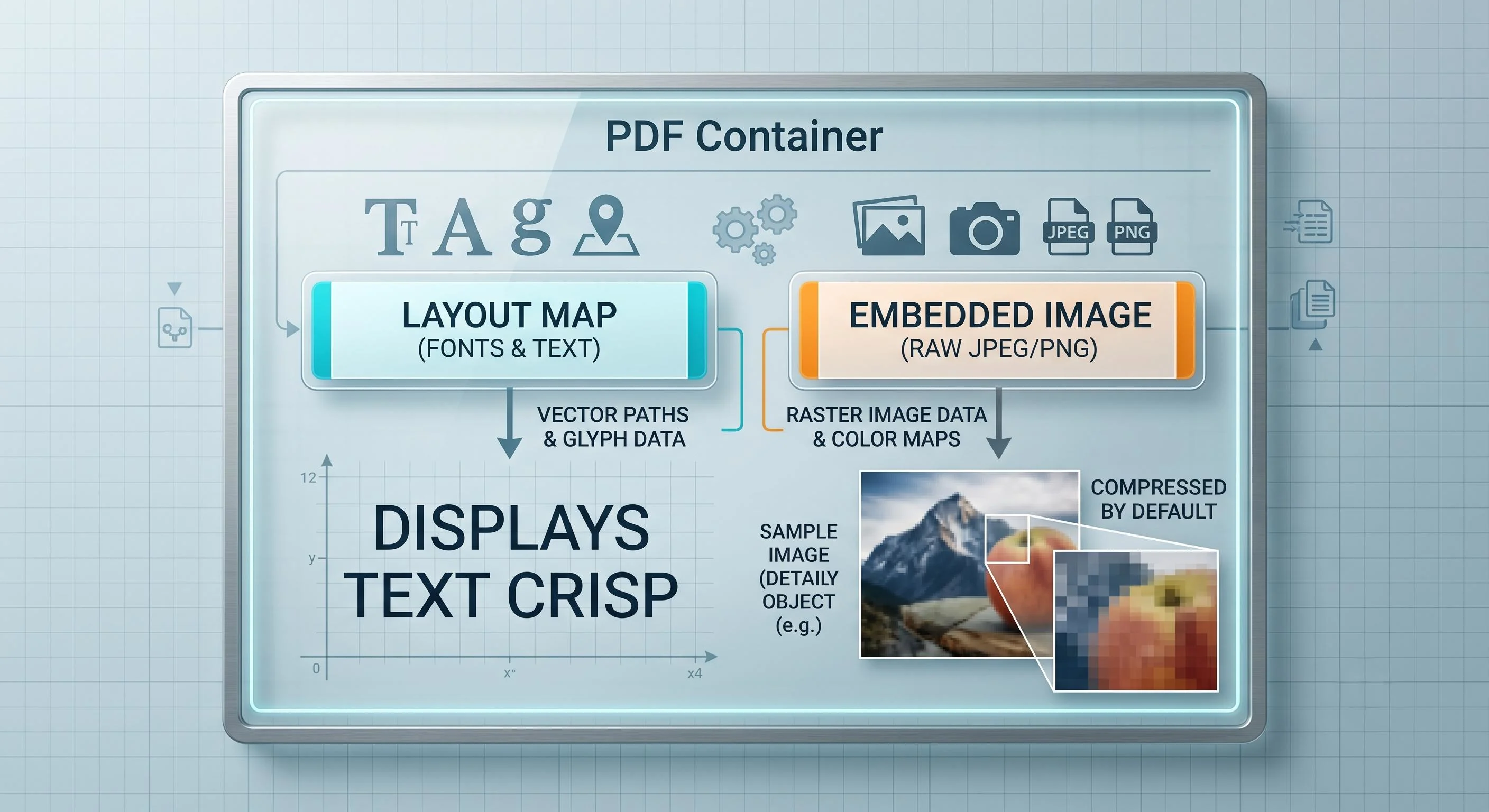
When an image is first embedded into a PDF, the creator's software usually compresses it to keep the overall file size manageable. If you use an extraction tool that recompresses the file, you suffer from "generation loss"—the digital equivalent of making a photocopy of a photocopy.
Furthermore, PDFs distinguish heavily between raster images (pixel-based photos) and vector graphics (mathematical lines used for logos and icons). If you try to extract a vector logo as a JPEG, it will lose its infinite scalability and become jagged around the edges. Understanding this difference is crucial for maintaining design integrity.
What to Look For in a Modern Extraction Workflow
If you want to extract images frequently without pulling your hair out, your workflow needs to meet a few modern standards. Legacy tools from the early 2000s don't cut it anymore.
Here is what a clean, reliable extraction framework looks like:
1. Zero-Compression Extraction
The tool must extract the exact raw binary data of the image as it was stored inside the PDF wrapper. No resizing, no re-encoding, and no quality drops.
2. Browser-Native Privacy
Look for modern web platforms that prioritize security. Your files shouldn't sit on a random third-party server forever. Platforms leveraging secure cloud architectures or browser-based processing ensure that your data remains strictly yours.
3. Cross-Platform Accessibility
Whether you are working from an iPad in a coffee shop or a Windows workstation at the office, the tool should run instantly via any modern browser like Google Chrome or Mozilla Firefox, without requiring plugins.
Comparing Your Extraction Options
Not all extraction methods are created equal. Let's look at how modern browser-based workflows stack up against traditional alternatives.
Feature | Legacy Online Tools | Desktop Software Suites | Modern Browser Workflows (e.g., Doxbar) |
Extraction Speed | Slow (Heavy Ad Loading) | Moderate (Requires App Launch) | Instant |
Image Quality | Often Compressed | Original Quality | Original Quality (1:1) |
Installation Required | No | Yes (Heavy Storage Footprint) | No |
Security Risk | High (Unverified Servers) | Low (Local Processing) | Low (Auto-Deletion Policies) |
Mobile Friendly | Rarely (Cluttered UI) | No (Desktop Only) | Yes (Fully Responsive) |
Step-by-Step: How to Extract Images Cleanly
Extracting your visual assets doesn't need to be a multi-step chore. Using a streamlined tool like Doxbar keeps the workflow down to a matter of seconds.
Step 1: Upload your document. Drop your PDF into the extraction zone on the web interface.
Step 2: Process. The system scans the document's internal map to identify standalone raster objects.
Step 3: Download. Download your images compiled neatly in a ZIP folder or select individual assets.
Step 4: Verify. Open the extracted file details to confirm the dimensions and resolution match the original embedded file perfectly.
The Pros & Cons of Web-Based Extraction
Let's look at this objectively. While web-based extraction tools are incredibly efficient, it helps to understand their limitations alongside their advantages.
The Pros
Incredibly Fast: No installation or setup time; you go from a trapped image to a usable asset in seconds.
Saves Disk Space: You don't need to dedicate gigabytes of storage to massive design programs just for basic file tasks.
Perfect Fidelity: True extraction keeps the original metadata, color profiles, and resolutions intact.
The Cons
Requires an Internet Connection: Since it runs in the browser, you can't use it if you are entirely offline on a flight (though modern Wi-Fi makes this less of an issue).
Dependent on Original Quality: If the creator embedded a low-res, heavily pixelated image into the PDF to begin with, an extraction tool cannot magically upgrade its resolution. It can only give you the best version that exists inside the file.
Frequently Asked Questions
1. Will extracting an image from a PDF change its format from PNG to JPEG?
No. A true extraction tool pulls the file out in its original native format. If it was embedded as a PNG to preserve transparency, it will download as a PNG.
2. Why do my extracted images look smaller than they did in the PDF?
PDFs can stretch or scale images visually on the page. The extracted image shows the true, actual pixel dimensions of the file.
3. Can I extract images from a password-protected PDF?
Only if you have the password. For security and compliance reasons, encryption must be unlocked before any tool can map and extract the internal assets.
4. Is it safe to upload confidential company PDFs to Doxbar?
Yes. Modern productivity tools use end-to-end encryption protocols, ensuring files are processed securely and deleted automatically right after your session ends.
5. What is the difference between converting a PDF to JPEGs and extracting images?
Converting a PDF to JPEG turns entire pages into pictures (including the text). Extracting images only grabs the specific photos and graphics embedded inside those pages, ignoring the background text completely.
6. Can I extract vector graphics like logos using this method?
If the logo was saved as a raster image (PNG/JPEG) inside the PDF, yes. If it is a true mathematical vector, it behaves like text geometry and requires a vector graphic editor to isolate.
7. Does image extraction preserve DPI metadata?
Yes. True extraction copies the original file exactly, meaning any embedded DPI (dots per inch) settings for print quality remain untouched.
8. Why can't I just copy and paste the image out of Adobe Reader?
Adobe Reader often compresses clipboard data when you copy an image manually, which can drastically lower the resolution when pasted into another program.
9. Can I extract images using my smartphone?
Absolutely. Because modern web apps run entirely through mobile browsers, you can upload a PDF from your phone's file app and save the images directly to your camera roll.
10. Can I extract thousands of images at once?
Yes. Batch extraction processes the entire document architecture at once, compiling all found images into a single download package.
11. Why did my extracted image lose its transparent background?
If the original image was a JPEG, it never had transparency. If it was a PNG with transparency, a proper extraction tool will fully preserve that transparent background layer.
12. Does extracting images alter the original PDF file?
Not at all. The tool simply reads and copies the asset data out of the file. Your original PDF remains completely untouched and unaltered.
13. Can an AI tool upscale my images during extraction?
Standard extraction does not upscale assets because upscaling alters the original file data. It focuses purely on giving you the exact, unedited original image.
14. What happens if a PDF has no images inside it?
If a PDF only contains text and font paths, the extraction scanner will simply return a message stating that no raster image assets were found in the document.
15. Why does a screenshot look worse than an extracted image?
Screenshots are limited by your monitor’s display resolution. If the source image inside the PDF is $3000 \times 2000$ pixels, but your screen only displays it at $600 \times 400$ pixels, a screenshot throws away a massive amount of visual data.
16. Can I extract images from scanned book pages?
If the scan saved each page as a full-page photograph, an extraction tool will pull those entire page images out cleanly for you.
17. Is there a file size limit for extracting images online?
While many legacy platforms cap uploads at a few megabytes, modern document platforms can comfortably process highly complex, multi-megabyte PDF presentations without breaking a sweat.
18. Does extracting images remove their metadata or EXIF data?
No. True extraction preserves the internal binary file structure, meaning any embedded camera data, copyright tags, or geolocation tags remain attached to the image.
19. Why are some extracted images broken up into tiny slices?
Some older PDF creation engines split large background images into tiny horizontal or vertical tiles to optimize web loading speeds. An extraction tool pulls these pieces out exactly as they are physically stored in the file map.
20. How do I know if an image in a PDF is vector or raster?
Zoom in very closely to the image inside the PDF. If the edges of the shapes stay perfectly sharp and smooth at 800% zoom, it is a vector graphic. If you see tiny square pixels forming, it is a raster image that can be extracted.
21. What is the best way to extract images from PDF without losing resolution?
The best way is to use a PDF image extractor online that retrieves the original embedded image files from the PDF. Unlike screenshots or copy-paste methods, direct extraction preserves the original resolution, format, and image quality.
Making Your Digital Workflow Frictionless
At the end of the day, handling document assets shouldn't require an advanced degree in file formatting or an expensive software stack. Your tools should mold to your day-to-day workflow, not the other way around.
The best way to extract images from PDF files is to use a dedicated PDF image extractor online that can pull the original embedded images directly from the document. This avoids quality loss, preserves image metadata, and eliminates the need for screenshots. When you need to grab an asset from a document quickly, skip the messy screen-grabbing or complicated workarounds. Use a dedicated, secure platform like Doxbar to pull your files out cleanly, keep your resolutions sharp, and get back to doing your actual work.
Need to Convert Document Formats?
Try our secure, lightning-fast PDF conversion suite. Convert Word, Excel, Images, and more with zero formatting loss.

Doxbar Editorial
Security & Privacy Team
We specialize in secure document architectures, parsing engines, and modern developer utilities. Keeping your files safe, lightweight, and perfectly formatted.
Join the Conversation
Share your thoughts or ask a question about this topic. This is a privacy-first system.