

File to ZIP: Why I Finally Stopped Sending Files One by One
Contents
File to ZIP: Why I Finally Stopped Sending Files One by One

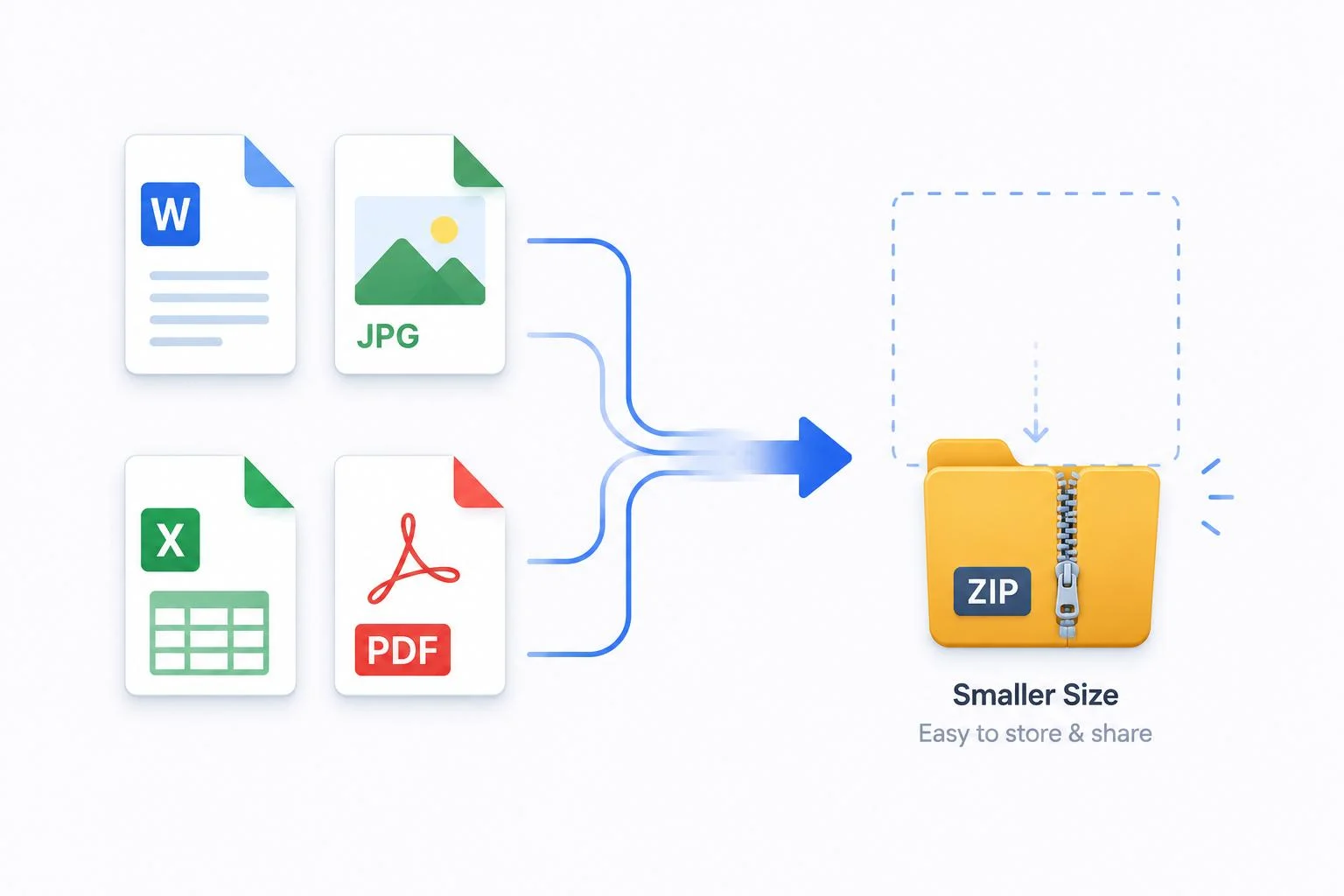

Table of Contents▼
Tired of email size limits and scattered files? Here's why compressing files to ZIP saved my workflow — and how you can do it too.
The Day I Lost Two Hours to File Chaos
Last month, I had to send a project deliverable to a client. Nothing unusual — just the usual mix of Word docs, Excel sheets, some high-res screenshots, and a few PDF references. Total folder size? About 180 MB.
My email provider caps attachments at 25 MB.
I spent the next two hours splitting files into multiple emails, renaming everything so the client wouldn't get confused, and praying nothing got lost in the process. Spoiler: something did get lost. A crucial Excel sheet ended up in the wrong email thread. The client had to ask for it twice. I looked unprofessional.
That evening, I sat down and thought: there has to be a better way.
There was. I just hadn't been using it properly.
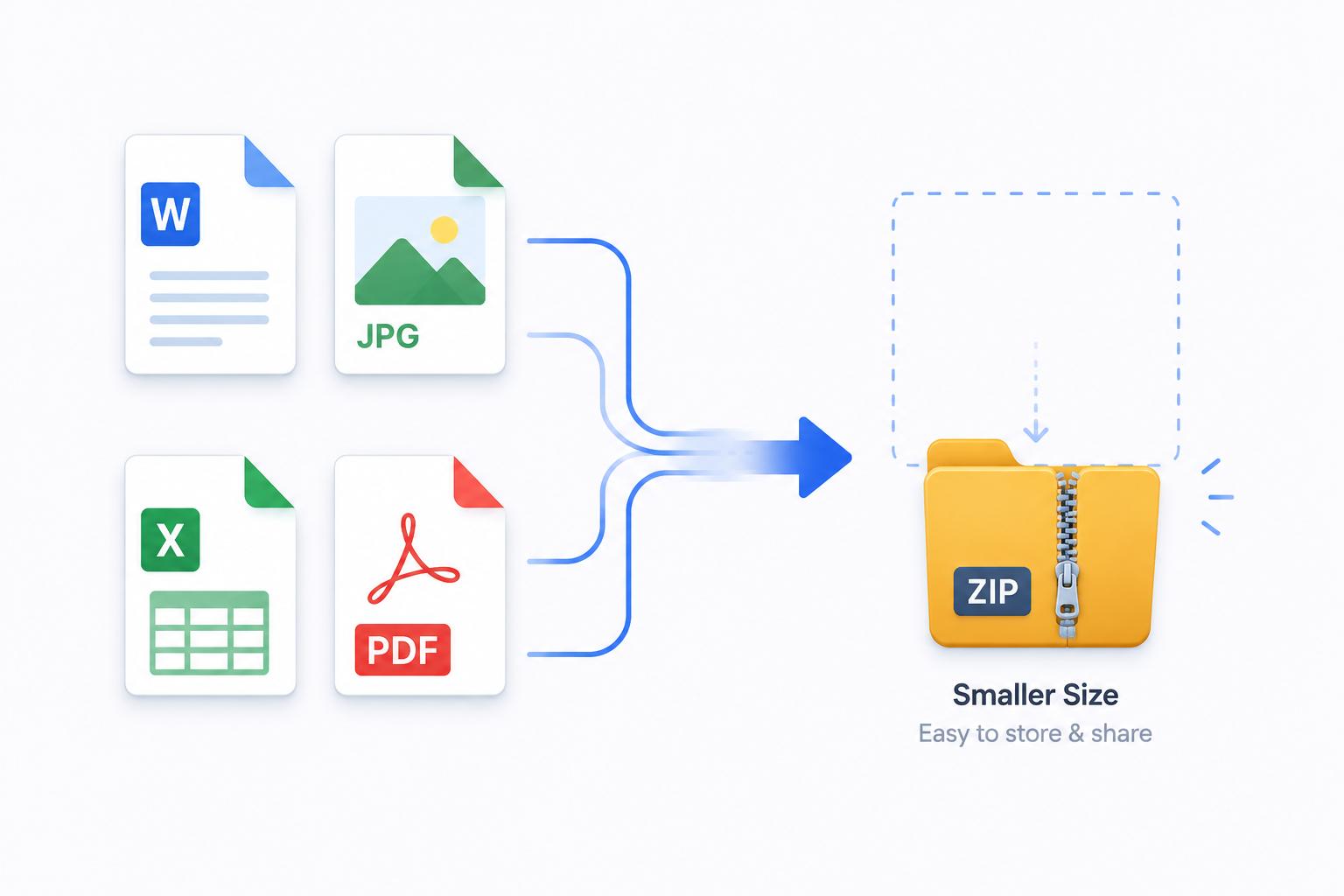
“Quick Answer: A ZIP file combines multiple files into one compressed archive, making them easier to email, store, and organize without losing data quality.
What Actually Happens When You Send Files Individually
Let me break down what I was doing wrong — and what you might be doing wrong too.
The Email Attachment Nightmare
Gmail allows 25 MB. Outlook allows 20 MB. Yahoo allows 25 MB. These limits exist for a reason — servers can't handle massive attachments from millions of users. But when you're working with real files, those limits feel suffocating.
So you end up doing what I did: splitting files, sending multiple emails, and creating chaos.
The "Where Did That File Go?" Problem
Here's something nobody warns you about. When you send ten separate emails with ten separate attachments, the recipient has to download each one individually. They have to keep track of which file came in which email. They might miss one. They might download the wrong version.
It's a mess. And it makes you look disorganized.
Formatting Gets Weird
Ever opened a Word document on someone else's computer and watched the formatting fall apart? Fonts change. Spacing breaks. Tables shift. It happens more often than people admit.
ZIP doesn't fix this directly — but what it does do is keep your files together in one package. The recipient gets everything at once, in the exact state you sent it.
The Storage Clutter
My desktop used to look like a digital landfill. Folders full of files I'd already sent, duplicate copies I'd made for different people, random versions with names like "final_FINAL_v2_actually_final.docx".
ZIP helped me clean that up, too. More on that in a bit.
The First Time I Used ZIP Properly
I'd used ZIP before, obviously. Everyone has. Right-click, compress, done. But I never really thought about it as a workflow tool. It was just something I did when I needed to save space.
Then I started paying attention to how other people were using it.
My designer friend sends me entire project folders as ZIP files. My developer friend sends code repositories as ZIPs. My accountant sends me tax documents in a single ZIP — because who wants to download twenty separate PDFs?
I realized: ZIP isn't just about compression. It's about organization.
How I Fixed My File Sharing Workflow
Here's what I changed.
Step 1: Stop Sending Files Individually
This sounds obvious, but I was stuck in a habit. I'd attach files one by one because that's how I'd always done it. Now I compress everything into a single ZIP first. One file. One email. Done.
Step 2: Name Everything Properly
A ZIP file with a bad name is almost as useless as ten separate files. I started using clear naming conventions:
ProjectName_Client_Date.zip
Invoice_Quarter_Number.zip
Assets_for_Website_v2.zip
Simple, but it changed everything. No more hunting through emails to find what I sent.
Step 3: Verify Before Sending
I made a rule: always open the ZIP before sending it. Check that everything is there. Check that nothing got corrupted. This takes thirty seconds and saves hours of back-and-forth.
Step 4: Use Privacy-Conscious Tools
Here's where I got careful. I handle client contracts and financial documents. Some online tools upload your files to their servers. I started looking for tools that process everything locally — your files never leave your device. That peace of mind is worth a lot.
What I Learned About File Compression
I'm not a compression expert. I'm just someone who uses this stuff daily. But here's what I've picked up along the way.
Not All Files Compress Equally
This surprised me at first. I compressed a folder of Word documents and watched it shrink to 30% of its original size. I compressed a folder of photos and barely saved 5%.
The reason: Word documents have lots of repetitive text. Photos are already compressed. ZIP can't compress what's already compressed.
ZIP vs RAR vs 7Z: My Take
I've tried them all. Here's my honest opinion:
ZIP is what I use for sharing. Everyone can open it. No questions asked. No "what tool do I need?" conversations.
7Z is what I use for long-term storage. It compresses better, but the person on the other end needs special software.
RAR is fine, but I don't use it much. It's good if you need recovery records — but most people don't.
For everyday use? ZIP wins. Hands down.
Speed Matters
Some compression tools let you choose the compression level. Higher compression = smaller file = slower processing. I usually stick with the default. The extra 5–10% space saving isn't worth waiting an extra minute.
The Tools I Actually Use
I keep it simple.
On Windows: Built-in ZIP. Right-click, send to a compressed folder. Done.
On Mac: Built-in ZIP. Right-click, compress items. Done.
When I'm on my phone: Most modern phones open ZIP files natively. I've used a few apps, but honestly, the built-in tools work fine.
When I need extra features: Password protection, split archives, that kind of thing. I use 7-Zip. It's free, it's open source, and it works.
When I'm away from my computer, I use online converters occasionally. But only the ones that process files locally. If a tool asks me to upload files to a server, I close the tab.
Why I Don't Trust Every Online Converter
Let me be blunt about this.
I've seen too many stories about free online tools that quietly save your documents. Some sell data to advertisers. Others get hacked and leak sensitive information. The FBI even issued a warning about fake document converters that install malware.
If you're compressing personal photos or public documents, use whatever works. If you're handling anything sensitive — contracts, financial data, personal information — be selective about where your files go.
Look for tools that:
Process files locally (in your browser)
Don't store uploaded files
Use secure connections (HTTPS)
Have clear privacy policies
Are transparent about how they work
That's not paranoia. That's just being smart.
Step-by-Step: My File to ZIP Workflow
Here's exactly what I do now. Every time.
Gather everything — I put all the files I want to send in one folder. No stragglers.
Check the folder — I open it and make sure everything is there. No missing files. No outdated versions.
Rename if needed — I make sure the folder name is clear. Something the recipient will understand.
Compress — Right-click, choose ZIP. On Windows it's "Send to → Compressed folder". On Mac it's "Compress items".
Name the ZIP — I give it a clear, descriptive name. No "archive.zip" nonsense.
Test it — I open the ZIP file and check that everything opens properly.
Send it — One email. One attachment. Done.
This takes maybe two minutes. Two minutes to avoid two hours of chaos.
What I Wish Someone Had Told Me Earlier
Here's the truth: I wish I'd started using ZIP properly years ago.
I wasted so much time sending files individually. So much time explaining to clients which email had which file. So much time dealing with email bounce-backs because attachments were too large.
All of that could have been avoided with a simple right-click and compress.
But it's not just about saving time. It's about looking professional. When you send a clean, organized ZIP file with everything in one place, you look like you know what you're doing. When you send ten separate emails with random attachments, you look like you're scrambling.
That matters.
Common Problems and How I Solved Them
"My ZIP file is still too big"
This happens. Usually, when you're compressing photos or videos. Try splitting your files into multiple ZIPs, or use a different compression level. Sometimes you just need to accept that certain files are big.
"The recipient can't open my ZIP"
This is rare — ZIP is universal — but it happens. Usually, it's because the ZIP file got corrupted during upload or download. Try resending it. Or use a different compression tool.
"I forgot my ZIP password"
I've done this. More than once. The only solution is to use a tool that supports password recovery — or accept that the files are locked. I've learned to save passwords in my password manager.
"The ZIP is taking forever to compress"
You probably have the compression level set too high. Drop it down to normal or fast. Unless you're storing files long-term, you don't need maximum compression.
The Bigger Picture: Digital Organization
Here's something I've realized.
ZIP isn't just about compression. It's about how we manage digital chaos.
Think about your desktop right now. How many files are sitting there? How many folders? How many duplicates? ZIP forces you to get organized. You have to decide what goes in the archive. You have to name it properly. You have to check it before sending.
Those small acts of organization add up.
Should You Use ZIP? My Honest Answer
Yes. For almost everything.
Sharing documents with clients? ZIP.
Sending photos to family? ZIP.
Archiving old projects? ZIP.
Backing up files? Maybe 7Z — but ZIP works fine.
The only time I wouldn't use ZIP is when I'm dealing with massive files and every megabyte counts. Then I use 7Z. Or when I need a recovery record — then RAR.
But for everyday use? ZIP is the default. And that's okay.
Need to Convert Document Formats?
Try our secure, lightning-fast PDF conversion suite. Convert Word, Excel, Images, and more with zero formatting loss.

Doxbar Editorial
Security & Privacy Team
We specialize in secure document architectures, parsing engines, and modern developer utilities. Keeping your files safe, lightweight, and perfectly formatted.
Join the Conversation
Share your thoughts or ask a question about this topic. This is a privacy-first system.