

FODS to PDF: How to Turn a Flat XML Spreadsheet into a Shareable Report
Contents
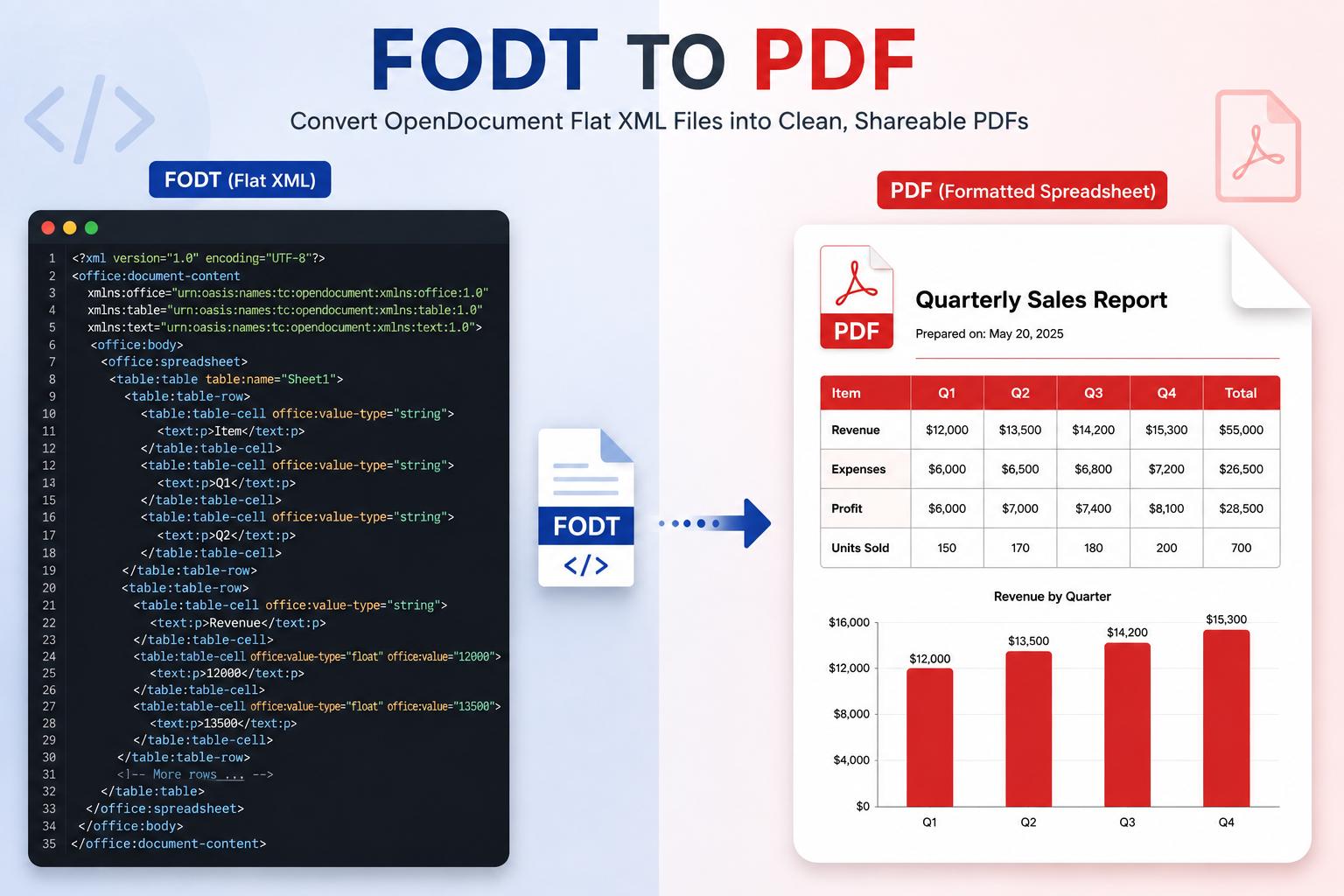
FODS to PDF: How to Turn a Flat XML Spreadsheet into a Shareable Report

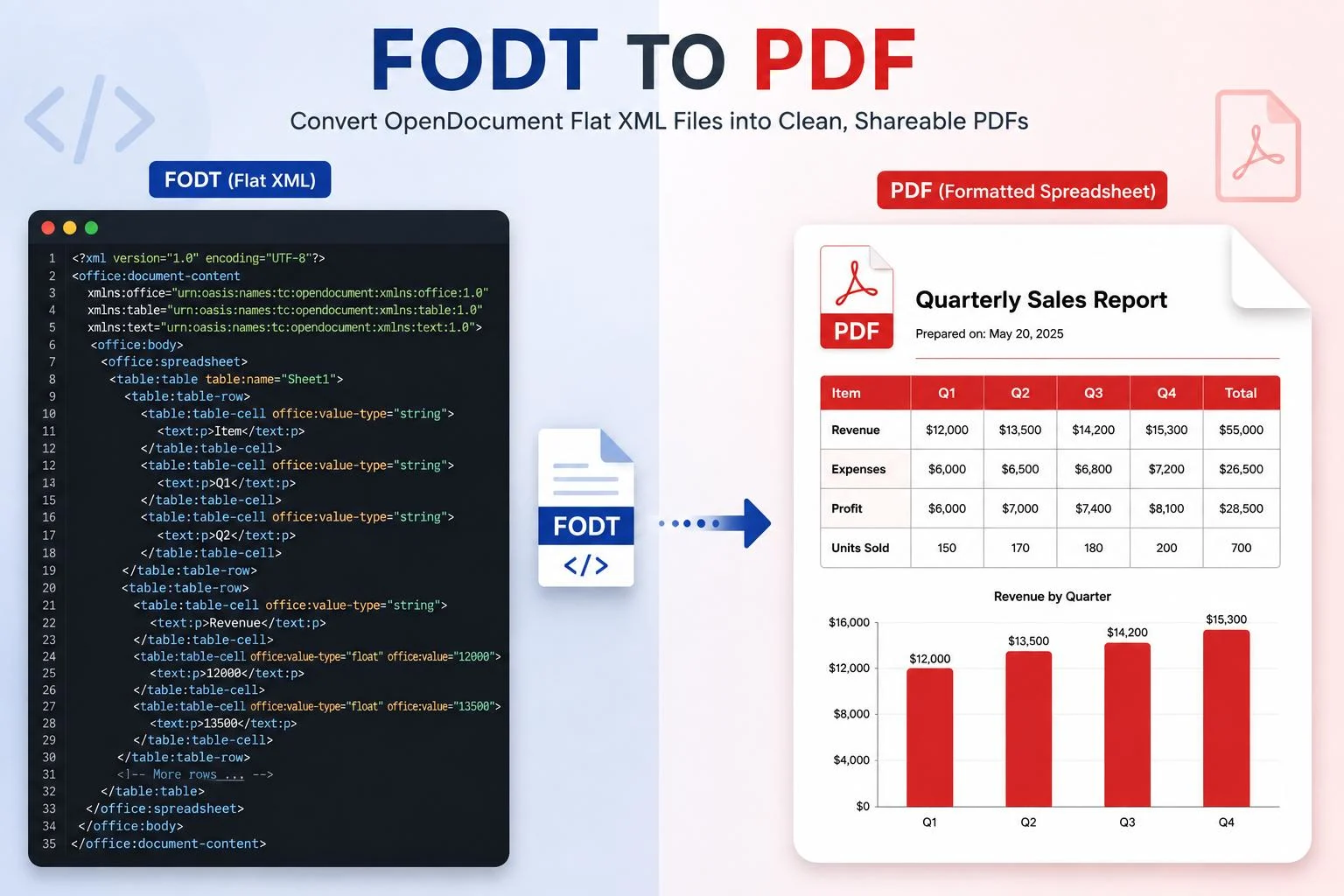

Table of Contents▼
Convert FODS files to PDF while preserving spreadsheet formatting, formulas, tables, and page layout. Learn how to convert Flat XML spreadsheets online or with LibreOffice.
Introduction: The Challenge of Flat XML Spreadsheets
A FODS file may be perfectly useful inside an OpenDocument workflow, but sharing it with someone who simply needs to read or print the spreadsheet can be inconvenient. Converting FODS to PDF turns the spreadsheet into a fixed-layout document that is easier to open, review, print, and share across devices. A recipient—especially someone reviewing files on a smartphone or standard tablet—may lack software that can open a Flat XML spreadsheet as a formatted document.
Converting a FODS file to PDF resolves this distribution barrier. It transforms dynamic spreadsheet data into a fixed-layout document that provides a consistent visual representation across common devices, operating systems, and PDF viewers.
For a quick browser-based workflow, Doxbar lets you convert FODS files without installing a desktop office suite.
Problem Breakdown: Why Sharing FODS Files Is Difficult
A .fods file is fully functional under open document standards, but its architecture is built for machine readability and version control rather than seamless client presentation.
Limited Native Mobile Support: FODS files generally have less direct support in common mobile and consumer applications than formats such as XLSX and ODS.
Split Tables and Awkward Page Breaks: Spreadsheets expand indefinitely across columns and rows. Without explicit print formatting, opening or converting a wide sheet can slice single tables across multiple vertical pages.
Font and Cell Padding Shifts: Because formatting rules in a FODS file are stored as declarative XML attributes, missing system fonts on a recipient's device can trigger text overflow or numeric clipping.
Heavy Software Dependencies: Installing a full desktop office suite just to open and review a single FODS spreadsheet is inefficient for one-time viewing or ad-hoc tasks.
Educational Deep Dive: What Is a FODS File?
Understanding how flat XML spreadsheets work makes it easier to troubleshoot formatting issues when exporting to PDF.
FODS vs. ODS: The Structural Difference
Most modern office files (.xlsx, .docx, .ods) are zipped archive packages containing directories of individual XML files, image folders, and manifest data.
ODS (Standard OpenDocument Spreadsheet): A compressed .zip container housing separate files for content.xml, styles.xml, and embedded assets. Learn more about the underlying structure on Wikipedia’s OpenDocument technical breakdown.
FODS (Flat OpenDocument Spreadsheet): All elements—data values, layout styles, formulas, metadata, and base64-encoded images—are compiled into a single, uncompressed XML file.
“XML
<?xml version="1.0" encoding="UTF-8"?> <office:document xmlns:office="urn:oasis:names:tc:opendocument:xmlns:office:1.0" xmlns:table="urn:oasis:names:tc:opendocument:xmlns:table:1.0" office:mimetype="application/vnd.oasis.opendocument.spreadsheet-flat-xml"> <office:body> <office:spreadsheet> <table:table table:name="QuarterlyReport"> <table:table-row> <table:table-cell office:value-type="string"> <text:p>Revenue</text:p> </table:table-cell> </table:table-row> </table:table> </office:spreadsheet> </office:body> </office:document>
Why Developers and Data Teams Use FODS
Software engineers often prefer FODS over standard ODS or Excel formats for automated environments. Because it is a plain-text XML document, standard Git tools can track incremental row-by-row edits without treating the whole spreadsheet as an opaque binary blob.
How Conversion to PDF Works
A PDF is a fixed-coordinate document governed by the ISO 32000 standard. To convert a FODS file, the rendering engine reads the spreadsheet structure, applies its formatting rules, calculates the page layout, and renders the result as fixed PDF pages.
When Should You Convert FODS to PDF?
Converting a FODS file to PDF makes sense when you need to:
Send a finalized report: Share financial summaries, inventory lists, or invoices with clients who don't use OpenDocument software.
Prepare documents for printing: Lock row and column dimensions to standard page formats (like A4 or US Letter).
Archive frozen records: Store an uneditable, read-only snapshot of spreadsheet data for compliance or auditing.
Review data on mobile: Open and inspect spreadsheet figures on iOS or Android without specialized XML viewers.
Prevent accidental layout changes: Ensure recipients cannot unintentionally alter formulas or cell positions during review.
Comparison: Conversion Methods Compared
Feature | Online Document Converter | Desktop Office Suite (LibreOffice) | Command Line (Headless CLI) |
Setup Required | None (browser-based) | Full desktop suite installation | Local CLI & package setup |
System Resource Usage | Low (server-side processing) | Moderate (desktop app memory) | Low (batch background jobs) |
Mobile Accessibility | Supported via mobile browser | Not supported natively | Not applicable |
Ease of Use | Simple drag-and-drop | Manual GUI export dialogs | Requires terminal familiarity |
Data Transfer | File transferred for processing | Processed locally on disk | Processed locally on disk |
Step-by-Step Workflow Guides
Method 1: Convert Online via Browser
Open the Converter: Access the online document conversion tool in your browser.
Upload Your File: Drag and drop your .fods file into the upload zone or choose it from local storage or cloud services like Google Drive or Dropbox.
Run the Conversion: The converter processes the spreadsheet structure and generates the PDF according to standard export settings.
Download and Review: Download your resulting PDF and verify that margins, columns, and data tables are aligned properly.
Method 2: Convert Locally via Desktop Software (LibreOffice)
Launch LibreOffice Calc.
Open your .fods file via File > Open.
Go to File > Export As > Export as PDF....
Adjust your page range, layout, and image compression options in the dialog.
Click Export and choose your destination folder.
Method 3: Convert via Command Line
For automated server environments and batch jobs, use headless LibreOffice commands:
“Bash
# Convert a single FODS file to PDF libreoffice --headless --convert-to pdf document.fods # Convert all FODS files in the current directory libreoffice --headless --convert-to pdf *.fods
FODS to PDF Quality Checklist
To ensure your exported PDF looks professional, run through this quick checklist before and after conversion.Before converting:
Set the correct page orientation (Portrait or Landscape).
Adjust column widths and cell padding so the content fits comfortably within the page.
Review any hidden rows or columns that may contain important information.
Make sure the fonts used in the spreadsheet are available to the conversion software.
Define the printable area if you only want specific data included in the PDF.
After converting:
Check the total number of pages.
Look for split, broken, or unexpectedly shifted tables.
Confirm that charts and other visual elements are displayed correctly.
Verify that headers and footers appear in the correct position.
Check numerical values for clipping or unexpected
###displays.
Review the entire PDF once before sharing or printing it.
Quick tip: Always open the final PDF and inspect the first few pages as well as any pages containing wide tables, charts, or large amounts of data. This simple check can catch most formatting problems before the file reaches your client or colleagues.
Security and Privacy Considerations
When using online conversion tools for business data, evaluate these baseline security measures:
Encrypted Data Transfer: Look for HTTPS/TLS protection across upload and download connections to secure files in transit.
Automatic File Retention Policies: Confirm that uploaded files are automatically purged from conversion servers shortly after processing.
Data Isolation: Ensure documents are processed through isolated worker environments without unauthorized storage or secondary access.
Frequently Asked Questions (FAQ)
1. What is a FODS file?
A FODS file (Flat OpenDocument Spreadsheet) is a single, uncompressed XML document formatted under the OASIS OpenDocument standard. Unlike regular spreadsheet files that bundle multiple folders into an archive, FODS stores the entire spreadsheet structure inside one flat XML text file.
2. What is the difference between FODS and ODS?
An ODS file is a compressed .zip archive containing separate XML files for content, styles, and settings. A FODS file contains the same data and styling logic, but saved as a single plain-text XML document without ZIP compression.
3. Will formulas appear correctly in the exported PDF?
Usually, the PDF displays the calculated values available to the rendering application at export time. However, formula recalculation and support for complex spreadsheet functions can vary by conversion engine. For important reports, verify the calculated values in the exported PDF before sharing.
4. Why are my spreadsheet columns split across multiple pages?
This happens when the total width of your columns exceeds the printable page area (such as A4 or US Letter). You can fix this by setting the page orientation to Landscape, adjusting column padding, or enabling "Fit to Page Width" scaling before export.
5. Can I convert FODS to PDF on mobile devices?
Yes. Using an online browser-based converter like Doxbar, you can upload a .fods file from an iPhone, iPad, or Android phone and download the compiled PDF without installing desktop software.
6. Why does text inside some cells turn into ###?
In spreadsheet rendering engines, ### indicates that a column is too narrow to display the numerical value or date inside it. Expanding the column width in your sheet source resolves the overflow before converting.
7. Are embedded images and charts preserved during PDF export?
Yes. Base64-encoded images and vector charts stored within the FODS XML are processed and rendered at their respective visual coordinates on the PDF page.
8. How do I batch-convert multiple FODS files?
You can batch-convert files locally using the LibreOffice command line (libreoffice --headless --convert-to pdf *.fods) or by using an online tool that supports multi-file upload queues.
9. Can I convert a FODS file back to XLSX or ODS later?
Yes. You can convert a FODS file back to standard .ods or .xlsx using desktop spreadsheet applications or dedicated document converters.
10. What happens to hidden rows and columns?
Most standard conversion engines respect document visibility flags. If a row or column is marked as hidden inside the FODS XML, it is omitted from the visible PDF output.
11. Is it safe to convert financial spreadsheets online?
It is safe when using reputable services that enforce secure HTTPS encryption during transport and employ automated file deletion routines to remove documents immediately after processing.
12. Does converting to PDF edit my original FODS file?
No. The conversion process reads data from your source file and generates a separate, standalone .pdf document, leaving your original .fods spreadsheet unchanged.
Related Spreadsheet and Document Conversions
To manage other open document formats and spreadsheet workflows, explore these related conversion resources:
FODT to PDF Converter — Turn Flat OpenDocument text files into printable PDFs.
ODS to PDF Converter — Convert standard zipped OpenDocument spreadsheets to PDF.
OTT to PDF Converter — Export OpenDocument text templates directly into fixed PDF reports.
ODT to PDF Converter — Convert OpenDocument word processing documents smoothly.
XLSX to PDF Converter — Export modern Microsoft Excel spreadsheets to clean PDF reports.
PDF to Excel Converter — Extract tabular data from static PDFs back into editable spreadsheets.
Doxbar Universal Conversion Hub — Explore the full suite of document, image, and data file converters.
Conclusion
The Flat OpenDocument XML Spreadsheet format is ideal for developer automation, version control, and programmatic data storage. However, when you need to send reports to clients, archive records, or review figures across multiple devices, PDF remains the standard for fixed-layout reliability.
Converting your FODS files to PDF ensures your data tables, visual styles, and page margins remain readable and intact across every platform. When you need a quick, dependable conversion without desktop setup, DoxBar lets you convert a FODS file directly in your browser.
Need to Convert Document Formats?
Try our secure, lightning-fast PDF conversion suite. Convert Word, Excel, Images, and more with zero formatting loss.

Doxbar Editorial
Security & Privacy Team
We specialize in secure document architectures, parsing engines, and modern developer utilities. Keeping your files safe, lightweight, and perfectly formatted.
Join the Conversation
Share your thoughts or ask a question about this topic. This is a privacy-first system.