

ODG to PDF: Convert ODG Files Online or with LibreOffice
Contents
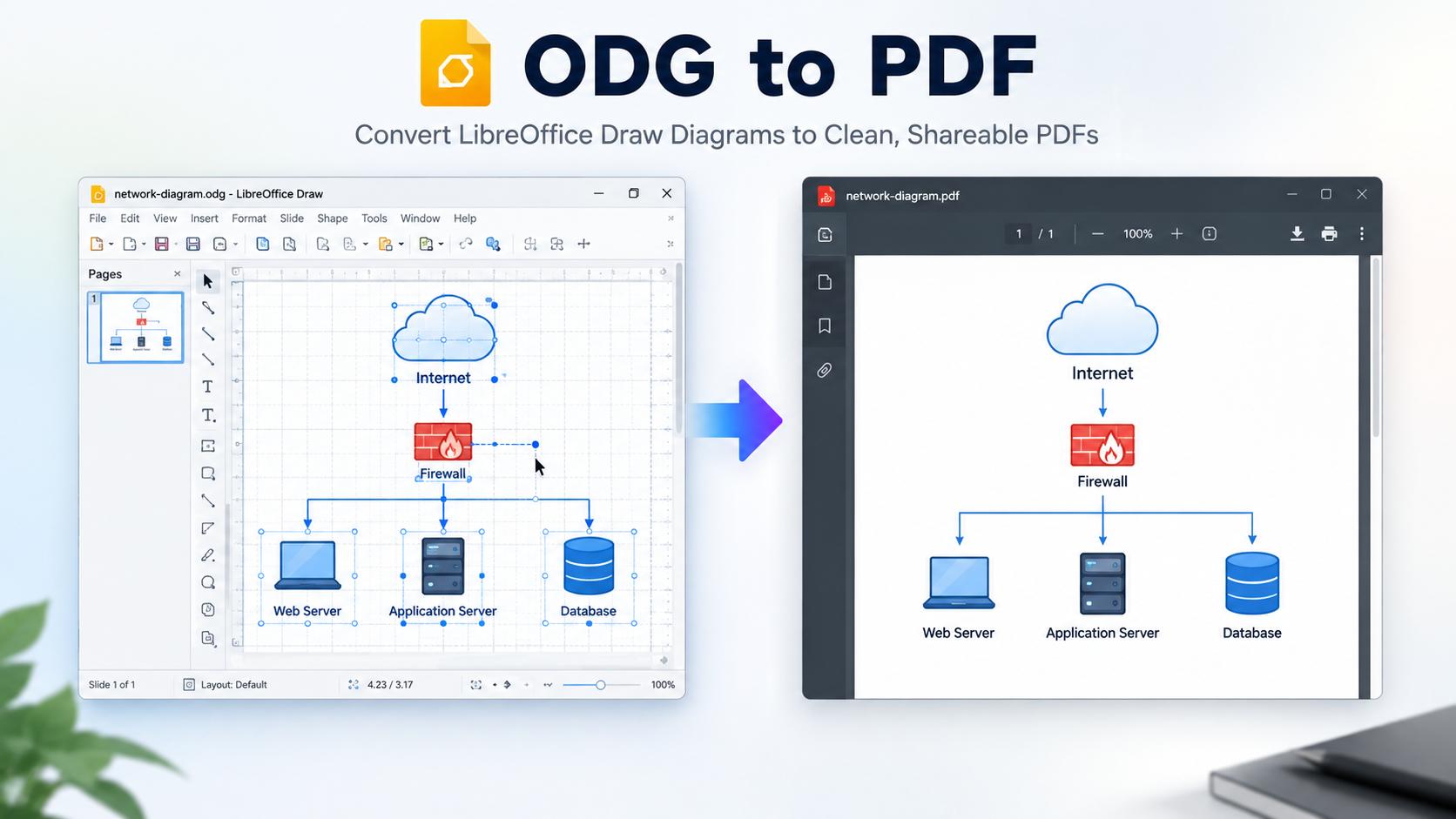
ODG to PDF: Convert ODG Files Online or with LibreOffice

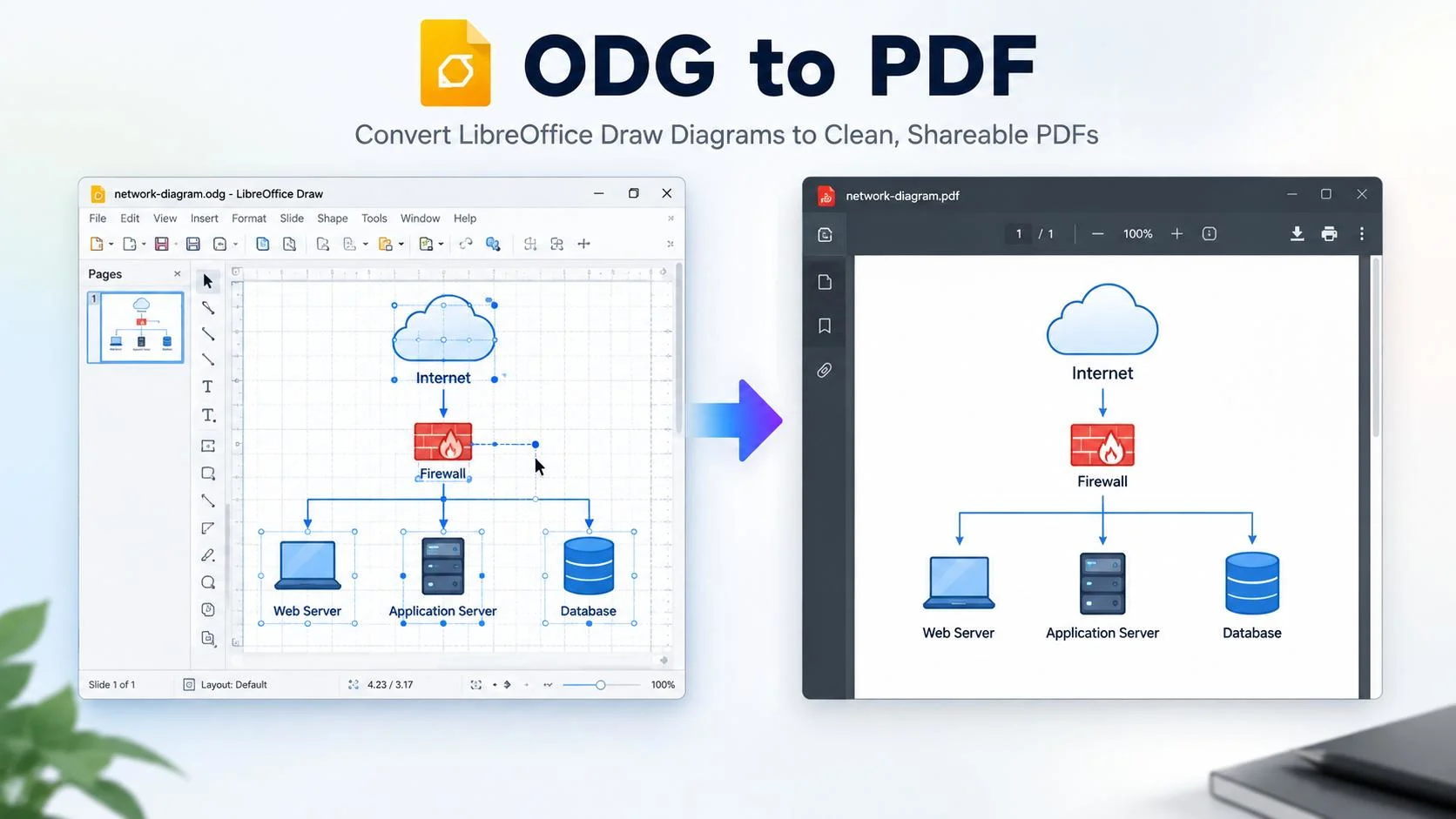

Table of Contents▼
An ODG file is an OpenDocument Graphics drawing, commonly created using LibreOffice Draw or Apache OpenOffice Draw. It is widely used for creating flowcharts, technical schematics, network diagrams, floor plans, and custom vector layouts.
While ODG is ideal for active drafting, sharing raw .odg files often creates friction. Most clients, mobile devices, and standard operating systems do not have software installed that can open or preview OpenDocument drawing files.
Converting an ODG to PDF creates a fixed-layout version that is generally easier to view, print, and share across desktop and mobile devices. When the export preserves vector content, lines and shapes can remain sharp at high zoom.
Quick Answer
“To convert ODG to PDF, you can use LibreOffice Draw or a browser-based converter. If you use LibreOffice, open the
.odgfile and choose File → Export As → Export as PDF. For online conversion, upload the ODG file to a compatible converter, start the conversion, and download the PDF. Afterward, check fonts, connector lines, page order, and page dimensions before sharing.
What Is an ODG File?
An ODG file is part of the standardized OASIS OpenDocument Format (ODF), An ODG file is part of the OpenDocument Format (ODF), an open standard maintained by OASIS.
Unlike raster image formats (such as JPEG or PNG) that map data to a fixed grid of pixels, an ODG file contains vector instructions: mathematical lines, coordinate-based shapes, dynamic connector points, text boxes, and layer definitions.
Technical Clarification: An .odg file is a ZIP-compressed package containing structured XML documents, styles, and embedded assets. It should not be confused with a Flat XML ODF Drawing (.fodg), which stores the entire document uncompressed in a single XML file.
Component | What It Contains | Why It Matters |
Content (content.xml) | Vector coordinates, shape definitions, text elements | Defines the actual objects and text inside the drawing |
Styles (styles.xml) | Fills, line weights, strokes, drop shadows | Controls how shapes, lines, and typography are rendered |
Metadata (meta.xml) | Author information, creation dates, application versions | Stores file-level tracking and metadata properties |
Embedded Resources | External raster images, imported icons | Provides referenced media assets embedded into the canvas |
Why PDF Is Easier to Share Than ODG
Keeping your original vector drawing in .odg format is best for ongoing editing. However, when distributing work to clients, contractors, or team members, converting to PDF offers clear practical advantages:
Universal Viewing: Major web browsers (Chrome, Edge, Safari, Firefox) and mobile operating systems display PDF documents natively without installing extra software.
Fixed Page Layout: An ODG file relies on the viewing application to calculate word wrapping and shape boundaries. A PDF fixes elements to absolute page coordinates, reducing the risk of shifted text boxes or misaligned shapes.
Preserved Vector Clarity: When properly exported, lines, geometric curves, and text retain their vector instructions instead of degrading into low-resolution pixels.
Reduced Accidental Edits: Sending a PDF ensures stakeholders review the intended state of the document without inadvertently dragging connector lines or editing text blocks.
Consistent Printing: PDF software communicates cleanly with printer drivers to preserve intended paper sizes (such as A4, Letter, or A3) and margins.
ODG vs. SVG vs. PDF: Choosing the Right Format
Because ODG, SVG, and PDF all handle vector data, selecting the appropriate format depends entirely on how the file will be used:
Feature | ODG (OpenDocument Graphics) | SVG (Scalable Vector Graphics) | PDF (Portable Document Format) |
Primary Use | Drafting editable diagrams | Web design and interface icons | Document sharing, printing, and archiving |
Multi-Page Support | Native (multiple slides/pages) | Single-canvas only | Native multi-page document pagination |
Viewing Ecosystem | Requires LibreOffice or compatible suites | Standard web browsers, vector editors | Built into browsers, desktop, and mobile viewers |
Text & Fonts | Relies on system-installed fonts | Uses web fonts or outline paths | Embeds or subsets font data directly |
Editing Workflow | Full dynamic object manipulation | Node-level vector path editing | Limited to light annotations or structural edits |
Best For | Working source files | Interactive web graphics | Final client delivery and print production |
Method 1: How to Convert ODG to PDF Online (Without Installing Software)
If you are on a restricted work computer, a mobile device, or a system without LibreOffice installed, you can use a browser-based converter such as Doxbar.
Step 1: Prepare the Source Drawing
If you have access to the source file, ensure that text labels have slight padding within their shapes so minor rendering differences do not cause unwanted line wraps.
Step 2: Upload the File
Navigate to the conversion tool and upload your .odg file using the file selector or drag-and-drop area.
Step 3: Run the Conversion
The service processes the OpenDocument drawing structure, calculates vector coordinates and typography, and generates a standard PDF file.
Step 4: Download and Inspect
Download the generated PDF. Open it in your default PDF viewer and perform a quick visual review before sending it out.
Method 2: Convert ODG to PDF Using LibreOffice Draw
If you have LibreOffice installed on Windows, macOS, or Linux, you can export directly using the native rendering engine:
Open your .odg file in LibreOffice Draw.
Click File in the top menu bar.
Select Export As > Export as PDF....
In the PDF Options dialog:
Under the General tab, select Lossless compression if you have detailed raster images embedded in your technical diagram.
If the document is for long-term archiving, consider checking PDF/A-1b or PDF/A-2b.
Click Export, choose your destination folder, and click Save.
(Tip: You can also click the red Export Directly as PDF icon on the standard toolbar for a one-click export using your last-saved settings.)
Method 3: Convert ODG to PDF via Command Line (Linux, macOS, Windows)
For batch processing, automation scripts, or headless Linux servers, LibreOffice can convert files directly from the terminal without launching the graphical interface.
Standard Linux / macOS Command
“Bash
soffice --headless --convert-to pdf input_file.odg
Specifying an Output Directory
“Bash
soffice --headless --convert-to pdf --outdir ./output input_file.odg
Batch Converting Multiple Drawings
“Bash
soffice --headless --convert-to pdf *.odg
Note: Depending on your operating system distribution, the binary may be named libreoffice rather than soffice. If you receive a "command not found" error, verify your installation path or check your system alias.
How to Prevent Font, Connector, and Layout Problems
While vector conversion is generally reliable, certain drawing attributes require attention to prevent formatting shifts:
1. Font Substitution Shifts
An ODG file references fonts installed on your local computer. If you convert the file in an environment lacking that specific typeface, the system substitutes a fallback font (such as replacing Roboto with DejaVu Sans or Arial).
The Fix: If you must use a rare or proprietary font, consider converting critical display text to curves/paths (Shape > Convert > To Curve in LibreOffice Draw) before export. Note: Doing this disables text searchability and selection inside the resulting PDF, so use it selectively.
2. Connector Disconnections
LibreOffice Draw features "smart connectors" that automatically route around obstacles. When drawings are imported into non-native tools, these mathematical routing rules can occasionally misalign.
The Fix: Always verify that line arrows still contact their exact anchor points in the converted document.
3. Transparent Layers and Drop Shadows
Complex vector illustrations with overlapping alpha channels or soft shadows can sometimes render with dark borders if exported under older PDF specifications.
The Fix: Use modern PDF output settings (such as PDF 1.6+ or PDF/A-2b) that natively handle transparency rather than flattening it.
What to Check After Converting ODG to PDF
Before emailing a converted drawing to a client or sending it to a print shop, run through this five-point quality check:
Zoom to 400% and inspect fine lines and small text. If the drawing becomes visibly pixelated, investigate whether the conversion rasterized some or all of the original content.
Inspect Connector Endpoints: Confirm that flow chart lines and arrows land cleanly on shape boundaries without overlapping or floating in blank space.
Verify Multi-Page Continuity: If your original ODG contained multiple pages, check that all pages exported in the correct sequence.
Confirm Document Dimensions: Open document properties in your PDF reader (Ctrl+D or Cmd+D) to verify that the page matches your intended output format (such as standard A4, Letter, or custom architectural blueprint dimensions).
Test Link Functionality: If your drawing includes hyperlinked shapes or URLs, click them to confirm the interactive links survived the conversion.
Security Considerations for Online Conversion
Technical drawings frequently contain sensitive data—such as internal network topologies, proprietary schematics, workflow diagrams, or building layouts.
When evaluating any browser-based file converter, consider these fundamental data security practices:
Transport Encryption: Ensure the site uses modern TLS/HTTPS encryption to protect files during transit.
Check whether the provider clearly explains how long uploaded and converted files are retained and when they are deleted.
No Unnecessary Permissions: A document converter should never require unnecessary device access or account logins merely to process a single drawing.
Frequently Asked Questions
What is an ODG file?
An ODG file is a vector graphic format used by LibreOffice Draw and Apache OpenOffice Draw. It uses the OpenDocument standard to store lines, shapes, text, and connector points in a structured, editable format.
How do I convert an ODG file to PDF without installing LibreOffice?
You can upload the file to a browser-based converter like Doxbar. The tool parses the OpenDocument vector instructions on the server and compiles them into a standard PDF ready for download.
Will converting ODG to PDF flatten my vector shapes into blurry images?
When the conversion workflow preserves vector content, lines, shapes, and text can remain sharp at high zoom. However, the output depends on the source file and the conversion engine, so it is worth checking the PDF before sharing.
Can a multi-page ODG drawing be converted into a single PDF?
Yes. LibreOffice Draw handles multi-page drawings (often called slides or pages), and standard PDF export tools compile all pages into a unified, sequential multi-page PDF.
Can I edit a PDF after converting it from ODG?
You can add annotations, comments, and minor text edits using standard PDF editors. However, dynamic object behaviors—such as connectors automatically re-routing when a box is moved—are flattened and will no longer function as they did in Draw.
Why did the text inside my diagram shift or wrap unexpectedly?
Text shifting occurs when the conversion environment lacks the exact font used in the original drawing. When an alternate font with different character spacing is substituted, labels may exceed their intended bounding boxes.
What is the difference between ODG and PDF?
ODG is an editable working canvas designed for creating and adjusting vector elements. PDF is an electronic output format designed to maintain uniform display, page layout, and printing across different devices and operating systems.
What is the difference between ODG and SVG?
ODG is designed for office-suite drawing environments and natively supports multi-page technical documents, page margins, and desktop printing formats. SVG is an open vector format primarily intended for web design, digital graphics, and UI components without native multi-page pagination.
How do I convert ODG to PDF on Linux using the terminal?
Run soffice --headless --convert-to pdf filename.odg. This executes LibreOffice's internal conversion filter in the background and writes the resulting PDF to your working directory.
Can I use a converted PDF for scale-accurate architectural or engineering prints?
A PDF can preserve the intended page dimensions, but scale-sensitive work should always be verified before use. Check the document page size and print at 100% / Actual Size rather than “Fit to Page.”
Related Tools
If you need to convert other OpenDocument formats, you can also explore ODT to PDF for text documents and ODP to PDF for presentations. For combining multiple PDF files after conversion, PDF Merge can help organize them into a single document.
If you're working with a less common file format and aren't sure which conversion tool to use, Doxbar's Universal Converter can help you find the appropriate conversion workflow.
Suggested internal links:
ODG to PDF
ODT to PDF
ODP to PDF
PDF Merge
Universal Converter
Summary & Next Steps
The OpenDocument Graphics format remains an effective open-source standard for drafting complex flowcharts, network schematics, and vector illustrations. However, because native ODG support is rare outside of dedicated office suites, exporting your work to PDF is the most reliable way to guarantee that recipients see your exact visual arrangement.
Need to share an ODG drawing without requiring your client or teammate to install desktop software? Convert the file using Doxbar's ODG to PDF converter, run a quick visual spot-check on your connector points and fonts, and distribute your fixed-layout document with confidence.
Need to Convert Document Formats?
Try our secure, lightning-fast PDF conversion suite. Convert Word, Excel, Images, and more with zero formatting loss.

Doxbar Editorial
Security & Privacy Team
We specialize in secure document architectures, parsing engines, and modern developer utilities. Keeping your files safe, lightweight, and perfectly formatted.
Join the Conversation
Share your thoughts or ask a question about this topic. This is a privacy-first system.