

ODP to PDF: Convert ODP Files Online Without Losing Formatting
Contents
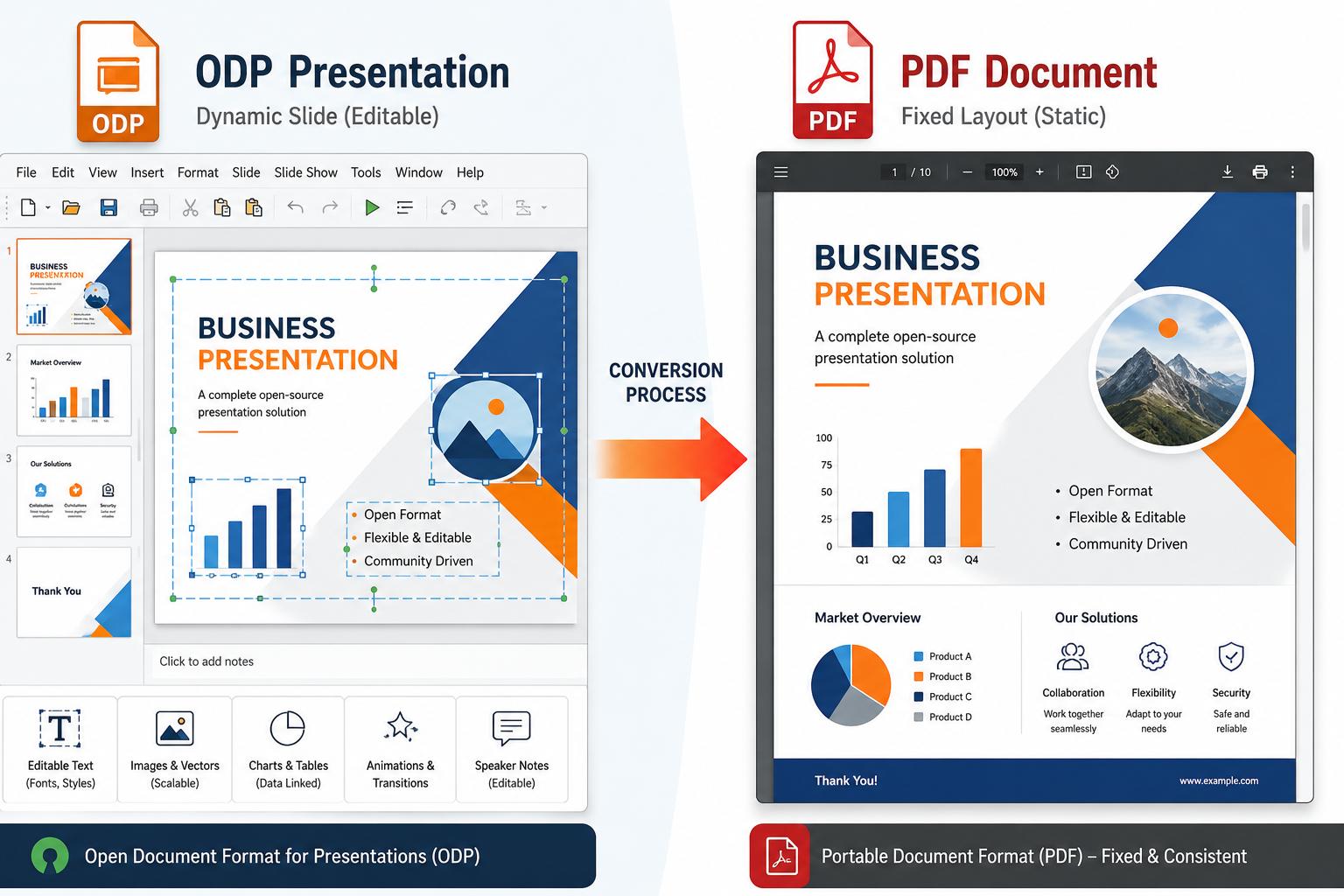
ODP to PDF: Convert ODP Files Online Without Losing Formatting

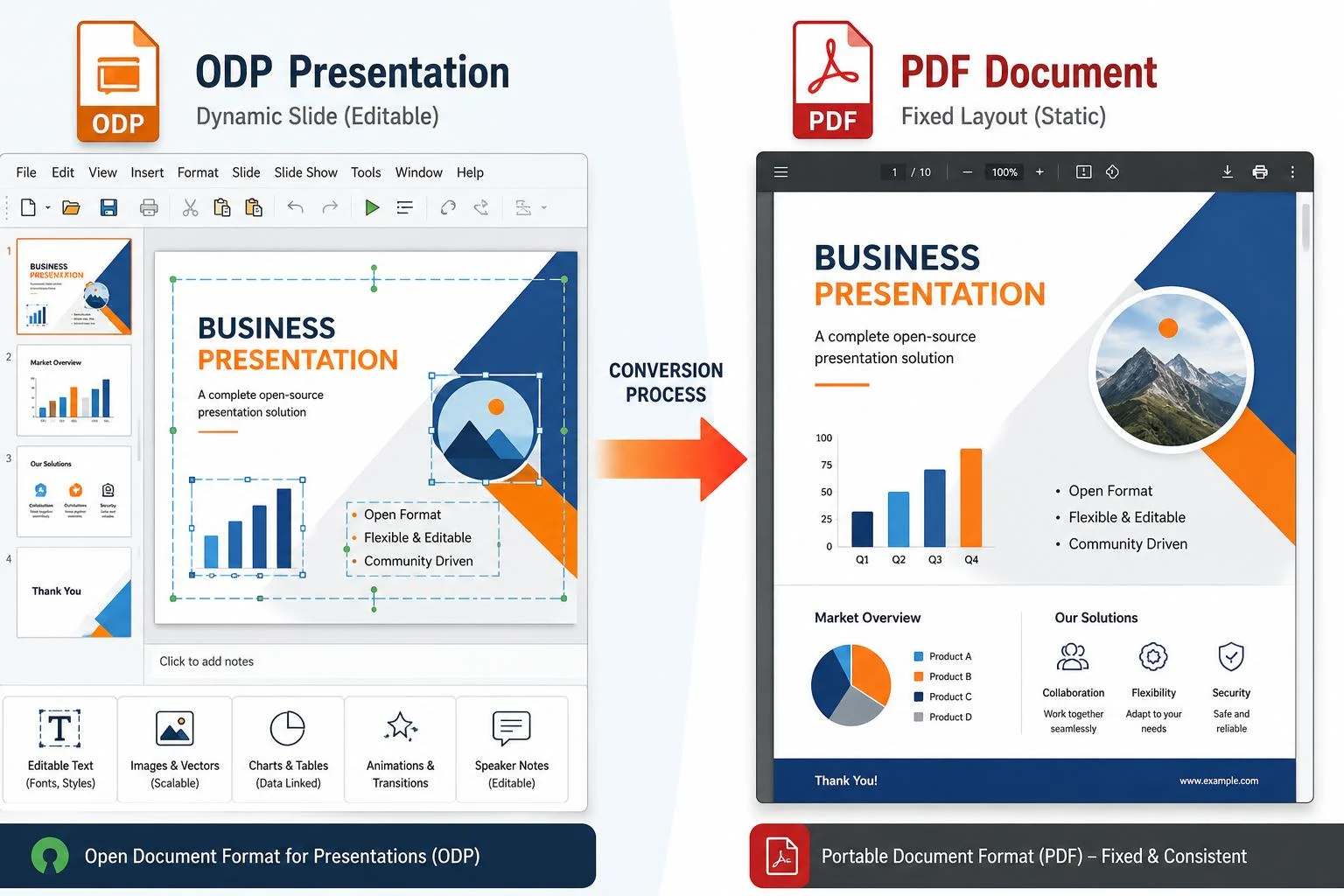

Table of Contents▼
Convert ODP to PDF online and learn what happens to slides, speaker notes, animations, fonts, and formatting during the conversion process.
Quick Answer
“Yes, you can convert an ODP (OpenDocument Presentation) file to PDF online without installing presentation software. The conversion turns each presentation slide into a fixed PDF page, preserving the slide’s visible text, images, and layout. However, animations, transitions, and interactive presentation features are not preserved as live elements in the PDF.
You have spent hours fine-tuning a presentation in LibreOffice Impress. The layout looks sharp, the custom typography matches your project branding, and your charts sit precisely where they belong. Then you email that .odp file to a client, a professor, or a colleague who opens it on a different machine.
Suddenly, custom fonts substitute into standard fallback typefaces, bullet points spill across boundaries, and overlapping shapes break your visual hierarchy. Even worse, if the recipient uses a mobile device or a strictly corporate machine without an open-source office suite installed, they might not be able to open the file at all.
Exporting or converting your OpenDocument Presentation (ODP) to a Portable Document Format (PDF) fixes these distribution headaches. Understanding how ODP to PDF conversion works helps you anticipate changes to animations, fonts, speaker notes, and slide layout before you share the finished file.
What Happens When You Convert ODP to PDF?
Converting an OpenDocument Presentation into a PDF is fundamentally a process of translating a dynamic, editable presentation layout into a fixed-layout document. The two formats serve different purposes: ODP files are designed to be modified and presented dynamically, while PDF (standardized as ISO 32000) is engineered to preserve document geometry and visual structure across different viewing and printing environments.
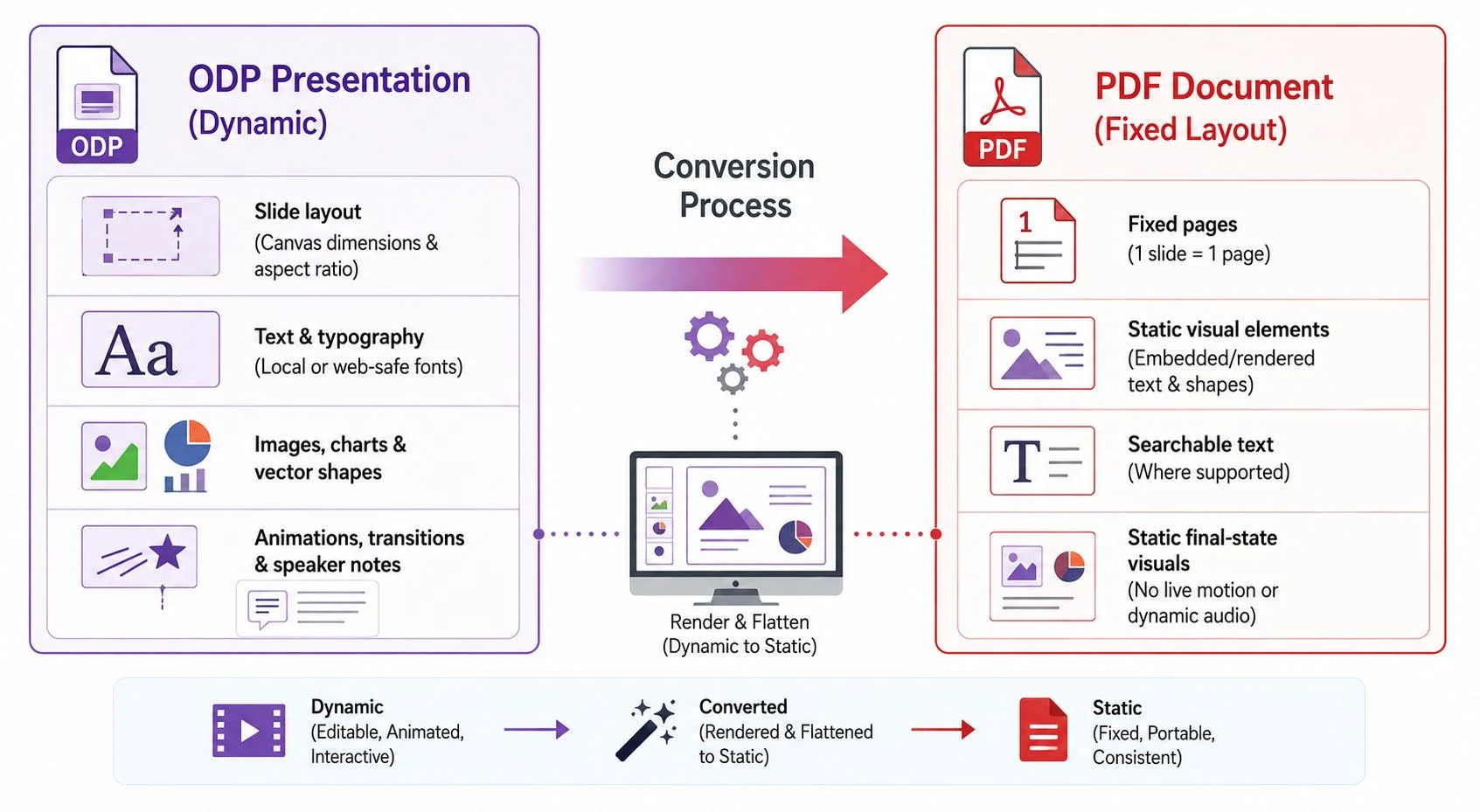
Figure: ODP to PDF conversion process, showing how dynamic presentation elements are rendered into fixed, portable PDF pages while preserving the slide layout and visual content.
1. Slide Layout and Aspect Ratio
Each slide in your ODP presentation maps directly to an individual page within the generated PDF document. The PDF generally follows the source presentation's page dimensions and aspect ratio—whether you designed a 16:9 widescreen deck, a traditional 4:3 format, or a custom vertical page setup.
2. Fonts and Typography
During conversion, the rendering system resolves the fonts available to it and places the resulting text onto the PDF page. Depending on the conversion method and font licensing, fonts may be embedded, subsetted, or substituted:
When fonts are available on the rendering system, text retains its intended line breaks, character spacing, and searchability.
If a custom or uncommon local font is not accessible to the converter, a fallback font with different character widths may be used, which can shift text margins.
For presentations that rely heavily on specialized branding typefaces, always inspect the exported PDF to ensure text wraps as expected.
3. Animations and Slide Transitions
Because PDF is a static document format, dynamic presentation behaviors change:
Slide Transitions: Motion effects like fades, pushes, and wipes do not play.
On-Click Animation Builds: Multi-step bullet reveals and entrance animations flatten. The converter captures the slide in its completed final visual state.
Practical Tip: If your presentation relies on sequential reveals across a single slide to explain a concept step-by-step, duplicate that slide across multiple individual slides in your ODP file before converting so each stage becomes its own static PDF page.
4. Speaker Notes and Handout Views
Standard slide-to-PDF exports focus strictly on the slide canvas, omitting your private speaker notes. If you need speaker notes included in your PDF output, use your presentation software's dedicated Notes Page or handout export options rather than a standard direct-slide conversion.
5. Images, Vector Shapes, and Charts
Vector Shapes & SVGs: Lines, arrows, geometric callouts, and embedded vector graphics generally render as clean vector paths that remain crisp when zoomed in.
Charts: Data charts freeze into their rendered graphical representation, ensuring that numbers and visual markers stay intact without requiring live spreadsheet links.
Images: Embedded raster graphics (JPEGs, PNGs) carry over into the document. The final clarity depends on the source image resolution and the compression settings applied during conversion.
6. Hyperlinks and Embedded Media
Text & Object Links: Standard web URLs and email links attached to text or shapes typically remain clickable in modern PDF viewers.
Video and Audio: Embedded offline audio tracks and video players do not play inside standard PDF viewing software; they typically render as a static frame or placeholder graphic.
Why Convert ODP to PDF?
While .odp is an open standard maintained under the OASIS OpenDocument format specification, distributing raw presentation files often introduces friction during real-world sharing.
Cross-Platform Compatibility: Modern mobile devices, web browsers, and desktop operating systems open PDF files natively without requiring specialized office software.
Predictable Layout: PDF provides a fixed page layout that is generally more consistent for review, sharing, and commercial printing than an editable presentation file.
Version Integrity: Sending a PDF prevents accidental edits, displaced image anchors, or broken formulas when presenting reports, lecture notes, or project proposals to third parties.
How to Convert ODP to PDF Online
Using a modern web-based utility like Doxbar allows you to convert files quickly without installing heavy office suites:
[ 1. Select ODP File ] -> [ 2. Run Conversion ] -> [ 3. Download & Review PDF ]
Select Your File: Open the ODP to PDF Converter in your web browser and select the .odp file from your device.
Convert the Presentation: Start the conversion process. The online tool processes the slide geometry, renders typography and vector assets, and builds the PDF document.
Download and Review: Save the finished PDF to your device and verify key areas such as table alignments, custom bullet points, and multi-line headers before sharing.
(Working with other office presentation formats? You can similarly convert PPT to PDF, PPTX to PDF, PPS to PDF, or PPSX to PDF across the same workflow.)
How to Convert ODP to PDF Using LibreOffice
If you have LibreOffice installed locally, you can export your file directly from the interface or via the terminal.
Method A: Direct Export in LibreOffice Impress
Open your presentation in LibreOffice Impress.
Click File in the top navigation bar.
Select Export As > Export as PDF....
Adjust your export settings (such as selecting General for standard slides or Notes pages for handouts) and click Export.
Method B: Headless Command Line (Linux, macOS, Windows)
For batch processing or local automation, you can run LibreOffice in headless mode:
Bash
soffice --headless --convert-to pdf presentation.odp
This generates a .pdf copy in your current working directory using your local system's rendering engine and installed fonts.
Conversion Methods: Choosing the Right Approach
Factor | Online Converter (e.g., Doxbar) | Desktop Suite (LibreOffice Impress) |
Software Setup | None required (Browser-based) | Full application suite required |
Platform Support | Desktop, mobile, tablet browsers | Desktop-oriented (Windows, macOS, Linux) |
Speed | Fast for single or quick conversions | Fast once software is open |
Export Fine-Tuning | Automated for standard slide sharing | Highly detailed manual settings (DPI, PDF/A, Notes) |
Processing | Cloud-based temporary processing | Local CPU / offline processing |
Best For | Fast sharing without installing software | Advanced document configuration and offline editing |
Common ODP to PDF Formatting Issues and Solutions
Text Wrapping and Line Breaks Shifted: This typically happens when an uncommon local typeface is missing on the converting system. Using standard, open-source typefaces (such as Liberation Sans, Open Sans, or Roboto) significantly reduces substitution discrepancies.
Overlapping Shapes or Misaligned Text Frames: Floating text boxes placed with zero margin tolerance can overlap if font rendering metrics differ slightly. Leaving comfortable buffer space inside text containers prevents clipping.
Notes Missing from Output: Standard conversions export the presentation slides only. Make sure to export using a dedicated "Notes" or "Handouts" profile if meeting notes or speaking cues need to be distributed.
Low-Resolution Embedded Images: If graphics look blurry in the PDF, check the original resolution of the images inserted into the ODP file. Compressing images before adding them to slides can cause noticeable degradation in the final output.
ODP vs. PDF: Format Comparison
Feature | OpenDocument Presentation (.odp) | Portable Document Format (.pdf) |
Primary Purpose | Creating, modifying, and presenting live slide decks | Distributing, archiving, and printing fixed documents |
Editability | Fully editable slide layouts and vector objects | Fixed-layout document; requires specialized editors to adjust |
Software Requirement | Open-source office suite (e.g., LibreOffice, OpenOffice) | Universal support across web browsers and PDF viewers |
Animations & Audio | Supports live transitions, builds, and embedded clips | Static visual pages; no standard slide transitions |
Spreadsheet / Document Ecosystem | Pairs with ODT to PDF and ODS to PDF files | Universal standard across office and creative workflows |
Frequently Asked Questions
1. Does converting an ODP file to PDF make it non-editable?
For everyday viewing, yes. The PDF format locks text, vector paths, and layout positions into a fixed presentation layer. While specialized PDF editors or OCR software can adjust text, recipients cannot casually alter slide layouts or master themes as they would in an editable presentation suite.
2. Do animations and slide transitions stay active in the PDF?
No. Standard PDF specifications do not execute slide transition effects or timed element animations. The conversion process outputs the finished visual state of every slide.
3. What happens to multi-step animated bullet points?
If an ODP slide builds three bullet points step-by-step using click triggers, a standard PDF conversion displays all three bullet points at once on a single static page. If you need step-by-step reveals, duplicate the slide into sequential steps in your presentation file before converting.
4. Will my speaker notes show up in the converted PDF?
Standard slide-to-PDF conversions focus strictly on the visual slide canvas. If you want your speaker notes included, export using a dedicated Notes Page or Handout option in your presentation software, which pairs a slide preview above the written text.
5. Does each ODP slide become an individual PDF page?
For a standard slide-to-PDF export, each slide normally corresponds to one PDF page. Handout or Notes Page exports can use different page layouts.
6. Can I convert ODP files on a mobile device?
Yes. Browser-based tools like Doxbar process conversions online, allowing you to upload an ODP file directly from an iPhone, iPad, or Android device and download the converted PDF without installing desktop office software.
7. What happens to custom fonts during conversion?
Custom fonts can affect conversion results if the required typeface is unavailable to the system performing the export. Standard or embedded fonts are less likely to cause substitution problems. Always review your PDF when your slides rely on uncommon fonts.
8. Why did my PDF layout shift slightly compared to LibreOffice?
Layout shifts generally happen when a system substitutes a missing typeface with a fallback font that has different character widths. Using widely available fonts and avoiding tightly packed text boundaries helps ensure consistent alignment.
9. Do hyperlinks in my presentation still work in the PDF?
Yes. Standard web URLs and email links attached to text or vector shapes typically remain clickable in modern PDF viewers. Embedded video or audio files, however, do not play inside standard PDF readers.
10. Can password-protected ODP files be converted?
Encrypted or password-protected ODP files must be unlocked before an automated online conversion engine can read and process their contents.
11. Is my presentation secure during online conversion?
Doxbar uses encrypted connections for file transfers and is designed for temporary file processing. For sensitive presentations, review the platform's current privacy guidelines before uploading confidential material.
12. Does converting ODP to PDF reduce file size?
Not necessarily. The resulting PDF may be smaller, similar in size, or larger depending on the number of images, embedded vector elements, and overall compression settings.
13. Can a PDF be converted back into an editable ODP file?
Yes, using reverse conversion or OCR utilities. However, because a PDF is a flattened document, reverse-converted files may lose master slide structures, dynamic theme styles, and grouping hierarchies.
14. Can I convert ODP presentations using the command line?
Yes. If you have LibreOffice installed locally, run:
Bash
soffice --headless --convert-to pdf your_presentation.odp
This converts the file directly via your terminal.
15. Does ODP to PDF conversion support non-Latin scripts?
Yes, provided the rendering environment has the necessary Unicode fonts and text-shaping support. If your presentation uses Arabic, Devanagari, CJK, or other complex scripts, inspect the exported PDF for font substitution and text-direction accuracy.
Best Practices Before Sharing Your Presentation
Choose Broadly Compatible Fonts: Use open or widely available typefaces (such as Roboto, Open Sans, or Liberation Sans) to minimize font substitution issues when moving between different systems.
Keep Text Inside Safe Margins: Keep important text and graphics comfortably inside the slide borders, especially if the PDF will be printed or viewed on displays with varying bezel dimensions.
Break Up Timed Step-by-Step Builds: If an animation sequence is critical to understanding your topic, split that sequence across distinct slides before converting.
Review the Rendered PDF Locally: Always open your finalized PDF file in a standard viewer to inspect table borders, chart markers, and non-standard characters before sending it to clients, students, or colleagues.
Summary
Converting an ODP presentation to PDF creates a fixed-layout version that is easier to share, review, and print. While animations, transitions, and dynamic multimedia do not carry over, the PDF provides a stable snapshot of your presentation that is easier to share across different devices and PDF viewers.
Need to convert an ODP file to PDF? Use Doxbar's online ODP to PDF converter to upload your presentation and download the finished PDF without installing desktop software.
Need to Convert Document Formats?
Try our secure, lightning-fast PDF conversion suite. Convert Word, Excel, Images, and more with zero formatting loss.

Doxbar Editorial
Security & Privacy Team
We specialize in secure document architectures, parsing engines, and modern developer utilities. Keeping your files safe, lightweight, and perfectly formatted.
Join the Conversation
Share your thoughts or ask a question about this topic. This is a privacy-first system.