

How to Keep ODT Formatting When Converting to PDF
Contents
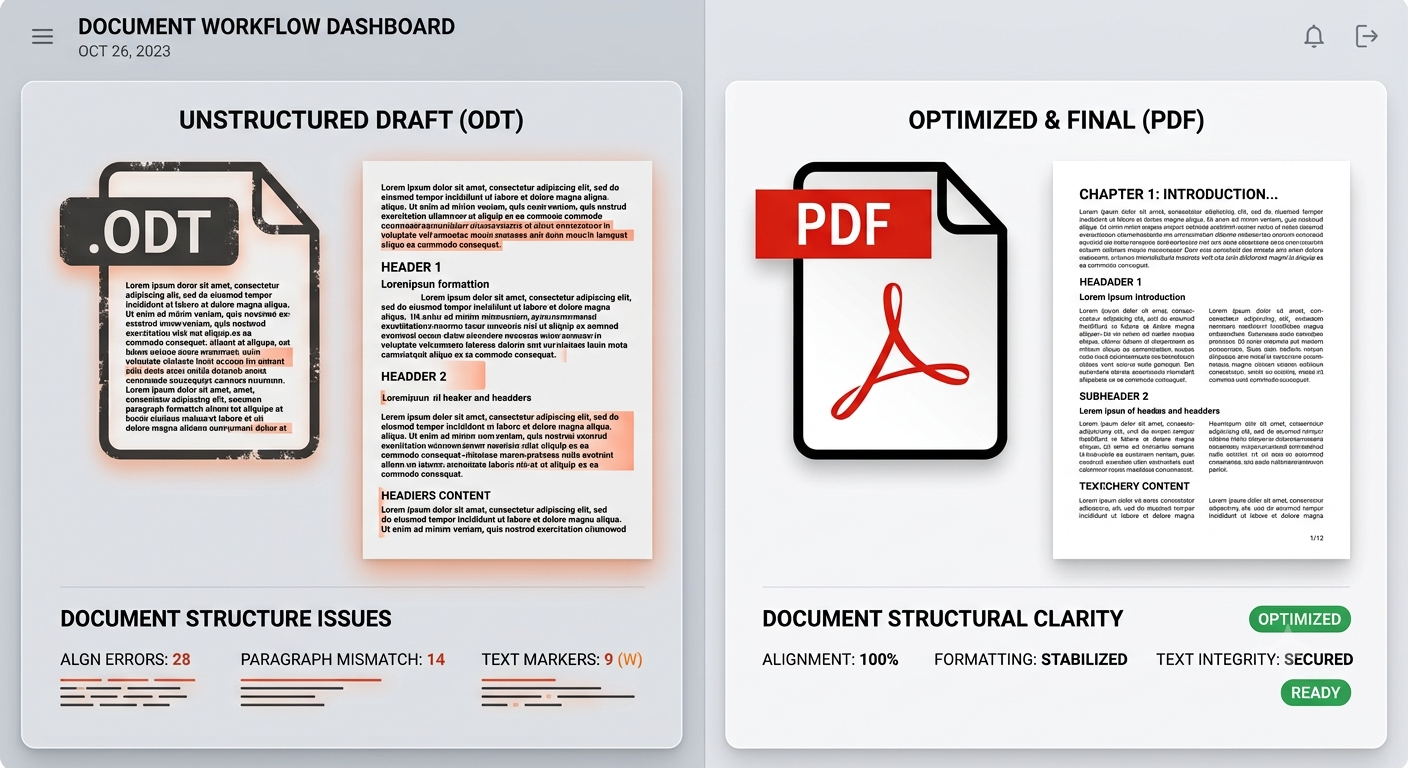
How to Keep ODT Formatting When Converting to PDF

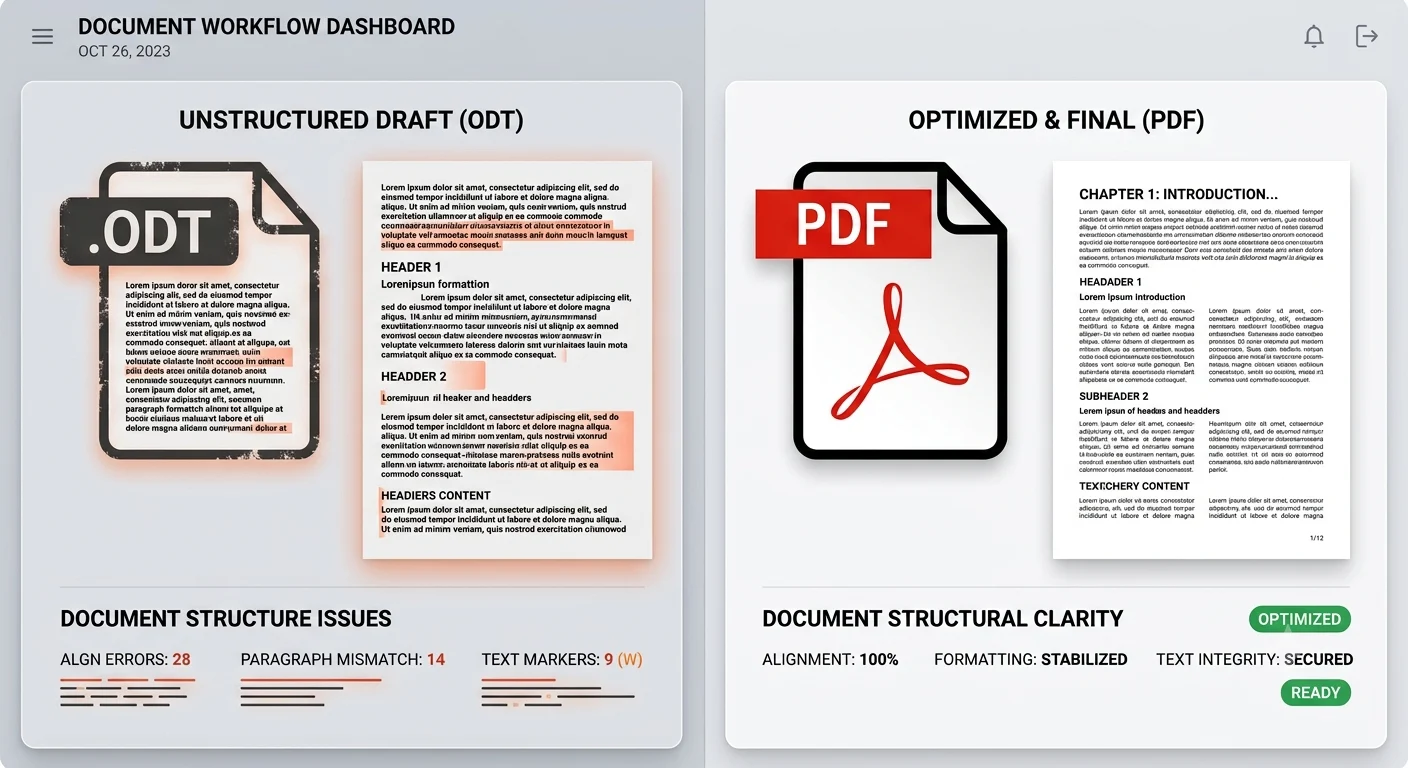

Table of Contents▼
Facing ODT to PDF formatting issues? Learn why layout shifts, font changes, and table breaks happen, and how to convert OpenDocument files without losing your layout.
Introduction
You’ve spent hours formatting a complex report in LibreOffice or Apache OpenOffice. Every heading is perfectly styled, the data tables fit neatly within the margins, and the embedded charts line up exactly where they belong. But the moment you export that .odt file to a PDF to share it with a colleague, everything shifts. Headings drop onto empty pages, custom fonts revert to generic system typography, and your clean data tables split awkwardly across margins.
Dealing with ODT to PDF formatting issues is a notorious frustration for professionals, academics, and open-source software users alike. While the OpenDocument Text (ODT) format is incredible for editing, it handles document layouts entirely differently from a PDF.
At Doxbar, our team regularly works with document conversion workflows and optimization strategies. We understand how critical it is to minimize layout shifts when sharing official files. In this deep dive, we’ll break down exactly why these formatting breaks happen and how you can achieve highly consistent, professional conversions every time.
The Core Problem: Why OpenDocument Layouts Shift
The root cause of most OpenDocument to PDF formatting issues lies in a fundamental conflict between how the two file formats perceive a "page."
An ODT file is fundamentally a reflowable blueprint. Built on an XML-based framework, it adapts fluidly depending on the software, default template, and system fonts available on the machine opening it. A PDF, on the other hand, is a digital printout. It uses static, fixed-coordinate geometry defined by the Adobe PDF Specification, mapping every character, line, and image to an exact X and Y coordinate on a physical sheet.
When you convert an ODT file, the conversion engine has to freeze that fluid layout into a rigid frame. This translation process commonly triggers several specific breaking points:
Font Substitution Shifts: If your ODT file relies on specific open-source fonts that aren't globally installed or correctly embedded, the PDF renderer substitutes them with standard fonts like Arial or Times New Roman. Even a millimeter of difference in character width accumulates over a page, causing massive lines to drop down and trigger major ODT to PDF page break issues.
Dynamic Margin Adjustments: ODT files rely heavily on page styles. If your document default template has different margin parameters from the target PDF sheet size (e.g., Letter vs. A4), elements like footers, page numbers, and borders will noticeably shift.
Anchor Type Misalignments: Images in LibreOffice can be anchored "To Page," "To Paragraph," or "As Character." If an image is anchored to a paragraph that moves due to font substitution, the image moves with it—frequently jumping onto the next page or burying itself behind text.
Technical Deep Dive: ODT Elements vs. PDF Output
To understand why these elements behave so unpredictably during translation, it helps to analyze how structural components are converted.
The Problem with Tables and Page Breaks
Tables are highly prone to ODT table formatting issues. In a native editor, a table dynamically stretches to accommodate text. However, when converting to a fixed PDF layout, the engine has to make hard decisions about where to cut off a row. If a row contains too much text, instead of gracefully breaking the text, the engine might push the entire row to the next page, leaving a massive, unprofessional gap at the bottom of your document.
How Elements Translate During Conversion
To see exactly what happens to your data during the conversion process, look at how individual features map from one format to the other:
ODT Feature | PDF Target Mapping | Common Formatting Issue |
Document Styles | Flattened Vector Paths | Loss of editable formatting hierarchy |
System Fonts | Embedded Typography | The font shifts if typography is missing on the host machine |
Data Tables | Fixed Cell Coordinates | Page splitting, text clipping, and margin overflow |
Comments & Track Changes | Optional Annotations Layer | Completely hidden or removed if not explicitly enabled |
Anchored Images | Fixed Vector/Raster Objects | Unexpected position shifts and text-wrapping breaks |
What to Look For in an ODT Converter
When looking for the best ODT to PDF converter without formatting loss, you need a tool or workflow that respects the intricate styling rules of open-source document editors. Avoid low-tier, generic online tools that treat ODT files like basic text files. Instead, ensure your workflow prioritizes the following:
Native Style Sheet Interpretation: The conversion engine must read the precise XML formatting definitions within the ODT package rather than just applying a generic layout overlay.
True Font Embedding: The tool must have the capability to package and embed the exact font vectors directly inside the output PDF so it looks identical on any operating system.
Precise Layout Preservation: Advanced parsing algorithms ensure that elements like multi-column layouts, custom headers, and text wrapping remain locked in place.
Data Privacy: Ensure the platform handles your documents via isolated, encrypted tunnels and enforces a strict automatic-deletion policy to protect proprietary information.
Step-by-Step Workflow: Converting ODT Without Formatting Loss
Following a structured preparation routine is the most effective way to eliminate LibreOffice ODT to PDF formatting problems before they happen.
1. Embed Your Document Fonts: Prerequisite Step.
Open your document in your native editor (e.g., LibreOffice). Go to File > Properties > Font and check the box for Embed fonts in the document. This guarantees the conversion engine can read your exact typography.
2. Standardize Image Anchoring: Layout Stabilization.
Right-click each image or chart, navigate to Anchor, and change it to As Character or To Paragraph. Avoid "To Page" anchoring, as this completely detaches the image from the flow of text when formatting shifts.
3. Apply Manual Page Breaks: Pagination Control.
Do not press "Enter" repeatedly to create spacing or push content to a new page. Instead, use a hard break (Ctrl + Enter). This locks the pagination sequence, preventing text from bleeding across pages during translation.
4. Configure Table Rows: Data Table Optimization.
Select your tables, right-click to access Table Properties, and under the Text Flow tab, ensure Allow row to split across pages and columns is checked. This keeps your tables flowing cleanly without creating empty spaces.
5. Execute the Conversion: Final Export.
Upload your optimized file to a dedicated conversion tool or use the native Export As PDF feature, making sure to select PDF/A archive compliance if long-term layout preservation is required.
Pros & Cons of the OpenDocument Format
Pros
Open Standard: Completely free from corporate vendor lock-in, meaning your files will always remain accessible.
Clean Structural Separation: Separates content from stylistic choices beautifully using robust XML structures.
Cross-Platform: Works seamlessly across Linux, Windows, macOS, and mobile open-source office suites.
Cons
Reflow Weakness: Because it is designed to be highly adaptable, sharing raw ODT files frequently causes layout shifts across different computers.
Conversion Discrepancies: Converting to highly rigid, commercial formats like PDF requires specialized processing to keep formatting consistent.
Key Takeaways
Before formatting is finalized and locked into place, keep these primary conversion rules in mind:
ODT files use fluid styles designed for editing, whereas PDFs use fixed page layouts designed for viewing.
Always embed your fonts inside the document properties to prevent devastating text layout shifts.
Manual page breaks (Ctrl + Enter) keep your pagination secure, while repeated empty lines destroy it.
Optimizing table text-flow properties prevents large structural gaps at the bottom of pages.
Using a high-fidelity conversion workflow ensures that complex XML metadata maps perfectly to the final layout.
Contextual Resources & Internal Guides
To optimize other assets across your document pipelines, feel free to explore our complementary technical guides:
Dealing with complex formatting transitions? Check out our breakdown of Word to PDF Formatting Issues to secure your DOCX files.
Managing digital publishing? Learn how to handle reflowable layouts with our guide on EPUB to PDF Formatting Issues.
Need to optimize your final output sizes? Read our step-by-step tutorials on PDF Compression and Merge PDF parameters.
For a streamlined experience across all file variants, access our comprehensive Universal Converter platform.
Advanced FAQ
1. Why do my fonts look different or generic after converting an ODT file to PDF?
This happens due to a font substitution conflict. If the system running the conversion does not have access to the exact open-source fonts used in your ODT document, it replaces them with generic defaults like Arial or Liberation Sans. You can fix this by enabling font embedding within your document editor's file properties before converting.
2. How can I stop tables from splitting awkwardly across two pages?
Open your table properties in your word processor and navigate to the Text Flow tab. Uncheck options like "Break" or configure "Allow row to split across pages" based on your preference. Ensuring that rows can break mid-text prevents the layout engine from pushing entire large chunks of data to the next page prematurely.
3. What does "PDF/A" mean, and should I use it for my ODT conversions?
PDF/A is an ISO-standardized version of the PDF format specifically designed for long-term archiving. It strictly forbids features like external font linking or active scripts. Choosing PDF/A during conversion ensures that all fonts, color profiles, and structural layout definitions are permanently embedded inside the file, maintaining long-term formatting consistency.
4. Why did my page numbers shift or display incorrectly after exporting to PDF?
Page number shifts usually occur because font changes or altered margins have expanded or contracted your total page count. If text expands slightly, a paragraph might push onto a new sheet, shifting your entire pagination structure. Ensuring margins match exactly between the ODT layout and the PDF target profile solves this.
5. Can I keep my editorial comments and track changes when converting to PDF?
Yes, but it requires explicit configuration. When exporting, you must check the setting to Export Comments or Include Comments in PDF. Otherwise, standard conversion setups strip out editorial markups entirely to deliver a clean, client-ready document layout.
6. Why do my images overlap with text after a PDF conversion?
This is caused by an image anchoring mismatch. If an image is anchored "To Page" or allowed to float freely, it doesn't move when font substitutions compress or stretch your text. Changing your image anchoring properties to As Character forces the graphic to move naturally alongside its surrounding text block.
7. How does LibreOffice handle PDF conversions compared to Apache OpenOffice?
Both suites use highly compatible conversion architectures, but modern iterations of LibreOffice feature updated PDF export engines that handle advanced features—like complex vector shapes and form fields—with slightly better precision than older legacy applications.
Conclusion
Overcoming ODT to PDF formatting issues doesn't require rebuilding your documents from scratch. By taking proactive steps like stabilizing your image anchors, embedding custom fonts, and using strict structural breaks, you can ensure that your fluid OpenDocument layouts translate cleanly into dependable, fixed-layout PDFs.
When you need reliable, secure document processing tools to keep your business workflows moving efficiently, explore the collection of utilities available at Doxbar.
Need to Convert Document Formats?
Try our secure, lightning-fast PDF conversion suite. Convert Word, Excel, Images, and more with zero formatting loss.

Doxbar Editorial
Security & Privacy Team
We specialize in secure document architectures, parsing engines, and modern developer utilities. Keeping your files safe, lightweight, and perfectly formatted.
Join the Conversation
Share your thoughts or ask a question about this topic. This is a privacy-first system.