

OTT to PDF: Convert OpenDocument Templates Without Losing Formatting
Contents
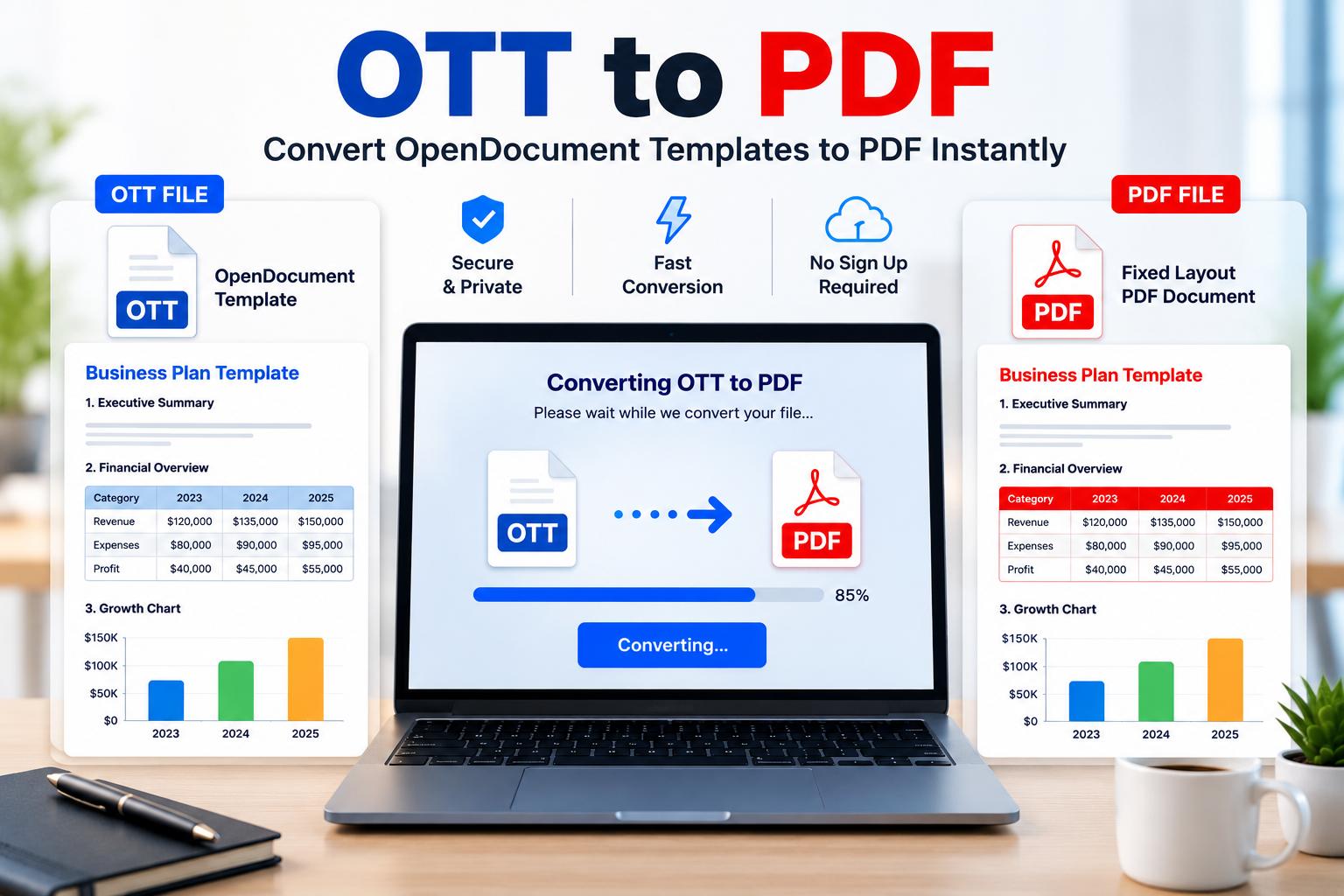
OTT to PDF: Convert OpenDocument Templates Without Losing Formatting

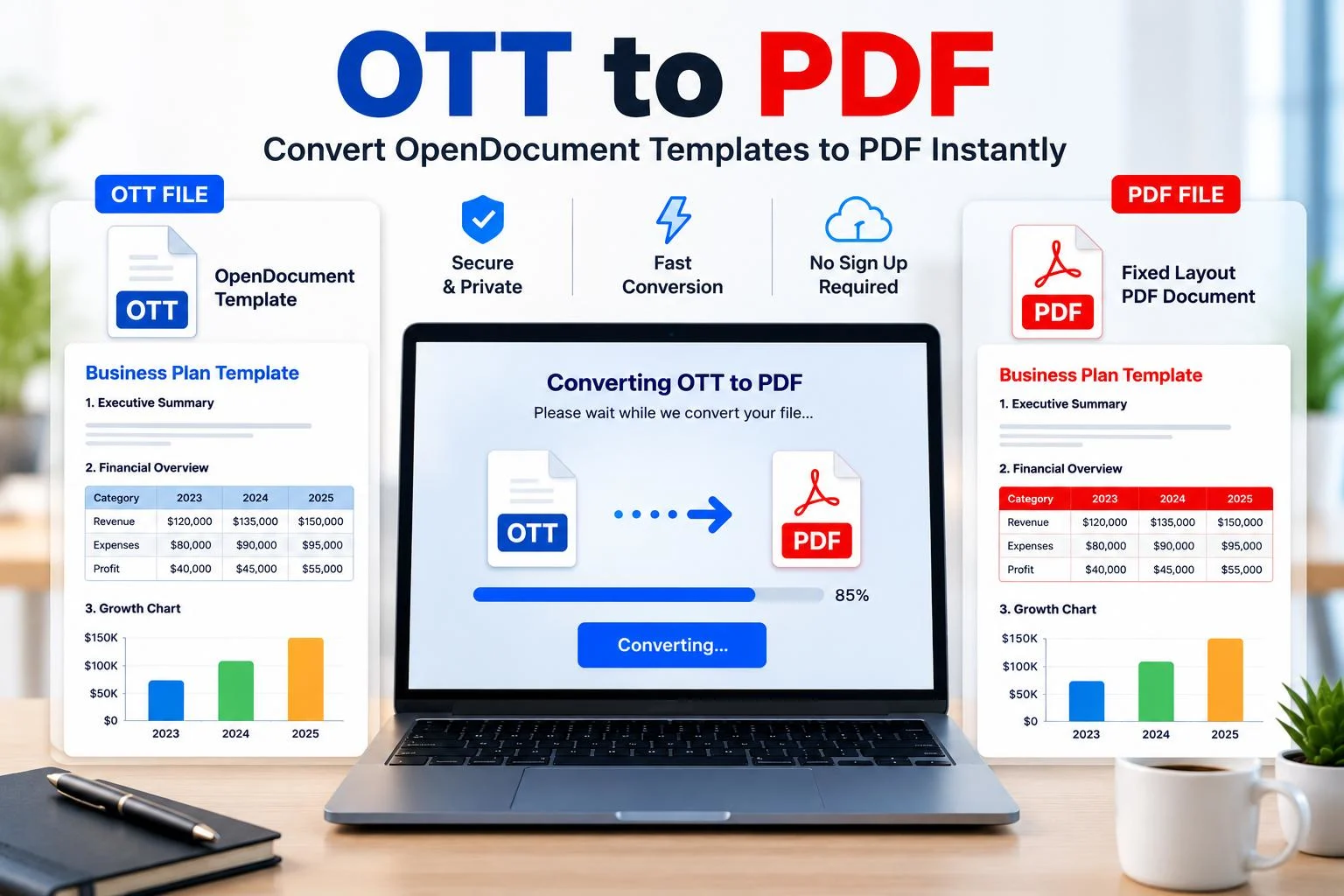

Table of Contents▼
Convert OTT to PDF online without losing important formatting. Learn how to export OpenDocument Text Templates using LibreOffice or a browser-based converter.
Quick Answer:
“Yes, you can convert an OTT (OpenDocument Text Template) file to PDF using LibreOffice Writer, OpenOffice, or an online converter. A standard conversion turns the template's content and formatting into a fixed-layout PDF that is easier to share, print, and view. If the OTT is a reusable template, it is usually best to open it, fill in the required content, and then export the finished document to PDF.
Introduction
You have spent the last forty-five minutes perfecting an invoice template. The margins are exact, the fonts are consistent, and the logo is positioned precisely. Then you export it—and the page breaks shift, a table loses its borders, or the font changes unexpectedly.
This situation plays out in offices and home workspaces constantly. The culprit is often a file format most people do not think about until it causes problems: the OTT file.
OTT stands for OpenDocument Text Template. It is the standard template format used by LibreOffice, Apache OpenOffice, and other open-source office suites. Think of it as the blueprint for documents. You use it when you need to generate multiple documents with the same structure, such as contracts, invoices, reports, or letters.
The problem arises when you need to share that template as a finished, non-editable document. That is where the shift from OTT to PDF becomes essential. And if you do not handle it correctly, your carefully designed template may not look the way you intended.
Here is the good news. Converting OTT to PDF does not have to be frustrating. Whether you use desktop software or an online converter, there is a reliable path to get your template into a polished, professional PDF. Let us walk through exactly how to do it.
Why This Format Confuses So Many People
To understand why OTT to PDF conversion trips people up, you need to understand what an OTT file actually is.
An OTT file is an OpenDocument Text Template. It is part of the OpenDocument Format (ODF), an open standard for office documents. OASIS maintains the ODF standard, and applications such as LibreOffice and Apache OpenOffice support it.
The key word here is template.
An OTT file is not meant to be the final document. It is the starting point. It stores:
Page layouts and margins
Styles and formatting rules
Placeholder text and fields
Header and footer information
Pre-defined tables and graphics
When you open an OTT file in LibreOffice Writer, you are opening the blueprint. You then fill in the content, and you save it as something else, usually an ODT file (OpenDocument Text) or, ideally, a PDF for sharing.
The confusion comes from how different software handles templates. Some applications treat them as regular documents. Others lock them down. Some users do not even realize they are working with a template until they try to save their changes and the software asks for a new file name.
Additionally, many people encounter OTT files when they receive templates from colleagues or clients who use open-source software. If you primarily use Microsoft Word, opening an OTT file can be disorienting. The formatting might look off, or the file might not open at all.
This is why converting OTT to PDF matters. PDF is a widely supported format for sharing finished documents. It preserves formatting across devices and operating systems. You do not need special software to view it. And once it is a PDF, the layout generally remains consistent.
The Technical Reality Behind OTT Files
Here is a quick breakdown of what is happening under the hood.
OTT as a Structured Container
An OTT file is more like a ZIP archive than a traditional document file. If you rename an OTT file to .zip and extract it, you will find a collection of XML files and folders. These XML files contain:
The text content
Style definitions
Metadata about the document
Embedded images or objects
This structure is what makes OpenDocument formats so powerful. The format separates document content, styles, metadata, and embedded resources into structured components, which makes the document easier for compatible software to process and modify.
Why Formatting Breaks During Conversion
When you convert an OTT to PDF, the conversion software has to interpret the XML-based OTT structure and render it into PDF's page-based formatting system. Problems happen when the software does not fully support all the OTT features or when the template uses specialized elements that do not map cleanly to PDF.
For example, if your OTT template uses custom fonts that are not embedded, the PDF might substitute them with default fonts. If it has complex tables with nested formatting, the converter might struggle to preserve cell borders and spacing. If you used OpenDocument-specific features like text variables or conditional fields, the PDF might display them incorrectly or drop them entirely.
Understanding this helps set realistic expectations. Not all OTT to PDF conversions will be perfect. But the right approach minimizes these issues significantly.
OTT vs ODT: What is the Difference?
You have probably seen both OTT and ODT files and wondered whether they are the same thing.
ODT is the OpenDocument Text format. This is your finished document, the one you edit and save.
OTT is the OpenDocument Text Template. This is the starting point, the blueprint.
The difference is similar to the difference between a DOCX and a DOTX file in Microsoft Word. The ODT is your document. The OTT is your template.
When you open an OTT file in LibreOffice Writer, the template is used as the basis for a new document, allowing you to enter or modify content without normally replacing the original template. Any changes you make go into the new document, not the template itself, unless you explicitly save it back to the template. This is a safety feature. You can modify the content without accidentally overwriting the template.
For conversion purposes, if you want to convert a template directly to PDF without opening it first, you can do that. But many users prefer to open the OTT, fill in the content, and then export the filled document as a PDF. That approach gives you more control over what ends up in the final file.
The Most Common Pitfalls and How to Avoid Them
If you have ever tried to convert an OTT to PDF and ended up with something unusable, you are not alone. Here are the most frequent issues and how to sidestep them.
The Font Substitution Trap
Your OTT template uses a beautiful custom font. The converter does not have that font installed. It substitutes something similar, but the spacing is different, and now your document is two pages longer.
Fix: Use fonts that are available to the conversion environment, and where supported, embed fonts or choose PDF export settings that preserve typography. Always check the final PDF if the template uses custom fonts.
The Missing Image Problem
Your template has a company logo. The converter processes the text correctly but leaves a blank space where the logo should be.
Fix: Make sure images are properly embedded in the OTT, not just linked. Linked images require the source file to be available during conversion.
Broken Table Layouts
Tables are the number one source of conversion frustration. Cell padding disappears. Borders shift. Column widths are ignored.
Fix: Simplify your table styles. Avoid nested tables if possible. Use fixed column widths rather than percentages. Test your conversion with a small sample before processing your entire batch.
Page Break Chaos
Your template is carefully paginated. The converter ignores your manual page breaks and reflows everything.
Fix: Use LibreOffice Writer's print preview and page-style settings to check page breaks, margins, and paper size before exporting. If the layout shifts, adjust the page style or manual page breaks in the source document and export again.
Character Display Issues
The text looks normal in the OTT, but the PDF shows strange characters or question marks.
Fix: If characters appear incorrectly, first check that the source document uses a font that supports those characters and that the conversion environment has access to the required fonts. Non-Latin scripts should be checked in the exported PDF before distribution.
How Online Converters Handle OTT to PDF
Online OTT to PDF converters have become popular because they do not require software installation. You upload your OTT file, wait a few seconds, and download your PDF. Simple, right?
The reality is more nuanced. Online converters vary widely in quality. Some handle OTT files excellently. Others break formatting in unpredictable ways. Here is what you should consider when choosing an online converter.
Privacy and Security
This is the first thing to evaluate. You are uploading potentially sensitive documents such as contracts, financial records, and personal information. What happens to your files after the conversion?
Privacy practices vary between online converters. Before uploading a sensitive document, check how the service handles uploaded files, how long files are retained, and whether files are automatically deleted after processing.
The best online converters are transparent about their privacy practices. They delete uploaded files within minutes. They do not retain logs containing your document content. They use encryption for file transfers.
If you are converting sensitive documents, consider a desktop solution instead. Or use an online converter that explicitly guarantees file deletion.
Formatting Preservation
Online converters use different document-processing engines, so their handling of OTT formatting can vary. A converter that supports OpenDocument formats natively may produce different results from another service. The quality depends on which version of these libraries they are using.
Conversion results can vary between software versions and processing engines, particularly when a template uses advanced styles, embedded objects, or unusual formatting. including complex tables, embedded fonts, and advanced styles. Older versions might drop or misinterpret these elements.
Look for converters that mention their underlying technology. If they say they use the latest LibreOffice engine, that is a good sign.
Speed and Batch Processing
Most online converters handle one file at a time. If you have many OTT templates to convert, this becomes tedious.
Some paid services offer batch processing. You can upload multiple files and download them all as a ZIP archive. This saves time but may cost extra.
File Size Limits
Free online converters often limit file sizes to 10 MB or 50 MB. If your OTT file contains large images or extensive embedded objects, you might hit this limit.
For larger files, you need a desktop application or a paid online service with higher limits.
Dependency on Internet
This is obvious but worth mentioning. Online converters require a stable internet connection. If you are working in a location with spotty connectivity, you will be stuck.
Desktop software works offline, which is a significant advantage for productivity.
The Step-by-Step Workflow for OTT to PDF
Let us get practical. Here is a reliable method for converting OTT to PDF using LibreOffice Writer, the most compatible software for OpenDocument formats.
Step 1: Open Your OTT File
Launch LibreOffice Writer. Go to File and select Open, then choose your OTT file. The file will open as an untitled document based on the template.
If you are in a hurry and do not need to edit the content, you can skip this step and convert directly from the command line using LibreOffice's headless mode. But for most users, opening the file gives you a chance to review and finalize the content.
Step 2: Review and Finalize Content
Now that the template is open, fill in any placeholder fields. Check that text flows correctly. Verify that tables look right and images are displaying properly.
This is also a good time to check your document properties, such as title, author, and subject, under File and Properties. These metadata fields will carry over to the PDF and can help with document management.
Step 3: Choose Export to PDF
Go to File, then Export As, then Export as PDF. This opens the PDF Options dialog box.
Step 4: Configure PDF Export Settings
This step is where you control the quality of the output.
General Tab:
Check "Lossless compression" for images if quality matters.
Review the font and PDF export options available in your LibreOffice version. If the document uses custom fonts, verify the exported PDF carefully for font substitution or text reflow.
Check "Export bookmarks" if your document has headings you want as PDF bookmarks.
Images Tab:
Set JPEG compression to a moderate level. Choose a JPEG compression level that balances image quality and file size. For documents containing logos, screenshots, or photographs, inspect the exported PDF before sharing. For good quality and a reasonable file size.
User Interface Tab:
Use a suitable PDF/A option if your workflow specifically requires PDF/A archival compliance.
Leave "View PDF after export" checked to quickly verify your output.
Step 5: Export
Click Export, choose a location, and name your file. LibreOffice creates the PDF.
Step 6: Verify the PDF
Open the PDF and do a visual check. Look at:
Page breaks
Table borders
Font rendering
Image placement
Hyperlinks, if any
If something looks off, go back to the OTT, make adjustments, and export again. It may take a couple of iterations to get it perfect, but you will learn what works for your templates.
Need a quicker browser-based option? If you do not have LibreOffice installed or prefer working online, you can use Doxbar's OTT to PDF converter to handle the conversion directly from your browser. It is designed to preserve formatting while keeping your files private.
Alternative Methods for OTT to PDF
Using OpenOffice Writer
OpenOffice Writer is similar to LibreOffice, though less actively developed. The steps are almost identical. Go to File and Export as PDF. The export options are slightly less advanced, but the basic functionality is the same.
Recommendation: Prefer LibreOffice over OpenOffice if you have a choice. LibreOffice has more up-to-date OTT support and better PDF export quality.
Using Apache OpenOffice
The same applies. OpenOffice Writer, then File, then Export as PDF.
Using Cloud-Based Services
Google Drive and Microsoft OneDrive do not natively support OTT files. You would need to convert to ODT first or use a third-party add-on. This adds unnecessary steps.
However, some cloud conversion services support OTT to PDF. They run on server-side software, often LibreOffice, so the quality is similar to desktop conversion. The advantage is they work on any device, including tablets and phones. The disadvantage is the privacy risk and reliance on the internet.
Using Command Line for Bulk Conversions
For bulk conversions, LibreOffice has a command-line mode. You can process large batches of OTT files automatically, subject to your system resources and conversion setup.
libreoffice --headless --convert-to pdf *.ott
This converts all OTT files in the current directory to PDF using the default settings. You can adjust settings with a config file if needed.
Using Online Dedicated Converter
Many websites offer dedicated OTT to PDF conversion. The experience varies. Some are excellent, with clean interfaces and fast processing. Others are ad-ridden and slow.
We will compare these options in the next section.
Comparison Table: OTT to PDF Conversion Methods
Method | Best For | Privacy | Setup | Batch Support |
LibreOffice Writer | Manual control and quality | Local | Installation required | Manual or automated |
OpenOffice Writer | Manual control | Local | Installation required | Manual |
Online Converter | Quick one-off conversions | Depends on provider | None | Depends on provider |
Command Line | Automation and bulk processing | Local or server-controlled | Technical setup required | Excellent |
Pros and Cons of Different Approaches
LibreOffice Writer
Pros:
Strong native support for OpenDocument formats
Complete privacy with no uploads
Fine-grained control over PDF export
Free and open-source
Works offline
Cons:
Requires installation
Learning curve for settings
Slower for large batches
Online Converters
Pros:
No installation needed
Works on any device
Very fast
Simple interface
Ideal for one-off conversions
Cons:
Privacy risks with sensitive documents
Variable formatting quality
File size limits
Requires internet
May have ads or paywalls
Command Line
Pros:
Fastest for batch processing
Automatable
Complete privacy
Uses the same engine as LibreOffice
Cons:
Requires technical knowledge
No visual interface
Harder to troubleshoot formatting issues
Real-World Scenarios: When OTT to PDF Actually Matters
Scenario 1: The Freelancer's Invoice Template
Maya runs a graphic design business. She created an OTT template for her invoices. Every month, she opens it, fills in the project details, and exports to PDF. Her clients receive professional-looking invoices with consistent branding.
Without reliable OTT to PDF conversion, Maya would have to manually recreate the invoice each month, or risk sending a template file that clients cannot open.
Scenario 2: The Legal Assistant
James works at a law firm. They have dozens of OTT templates for legal contracts and agreements. Each template has complex formatting, specific fonts, and multiple sections.
James's team needs to generate PDFs from these templates regularly. They use LibreOffice Writer with custom PDF export settings to ensure every contract looks identical and professional.
Scenario 3: The Nonprofit's Newsletter
A small nonprofit creates a monthly newsletter using an OTT template. Volunteers from different teams fill in the content, and one person handles the final PDF conversion.
By using a consistent conversion method, the nonprofit maintains a professional appearance without needing specialized design software.
Scenario 4: The Software Company's Documentation
A software team may use OpenDocument templates for standardized documentation, release notes, or client-facing guides.
When they release a new version, they convert the OTTs to PDFs and distribute them to clients. The conversion must preserve all formatting, including code samples, screenshots, and cross-references.
Advanced OTT to PDF Considerations
Setting Up a Custom PDF Export Profile in LibreOffice
If you convert OTT to PDF regularly, you can save your PDF export settings as a custom profile. This prevents you from having to reconfigure the settings each time.
Open LibreOffice Writer.
Go to File, then Export As, then Export as PDF.
Configure the settings as you want them.
Click the "Save as Profile" button.
Name your profile and save it.
Now when you export, you can select your profile from the list and click Export.
Handling Embedded Content
If your OTT includes embedded audio or video, these will not play in a PDF. PDFs can contain multimedia, but the playback depends on the PDF viewer. For most users, it is simpler to convert OTTs with embedded content to PDF without including the media.
Dealing with Non-Standard Fonts
As mentioned, fonts are a common pain point. The most reliable approach is to use Google Fonts or system-standard fonts in your OTT templates. If you must use a custom font, embed it in the OTT and ensure your converter supports font embedding.
Accessibility and PDF/A Compliance
If your PDF needs to be accessible to users with disabilities, use LibreOffice's accessibility features. Add alt text to images. Use proper heading hierarchy. The PDF export settings include options for adding accessibility tags.
For long-term archiving, choose an appropriate PDF/A export option if your workflow requires archival compliance.
Advanced FAQ Section
1. What is an OTT file?
An OTT file is an OpenDocument Text Template. It is the template format used by LibreOffice, OpenOffice, and other open-source office suites. It stores styles, layouts, and placeholder content for creating consistent documents.
2. What does an OTT file mean?
OTT stands for OpenDocument Text Template. It is part of the OpenDocument Format (ODF) standard maintained by OASIS.
3. OTT vs ODT: what is the difference?
OTT is a template file used as a starting point. ODT is a document file used as the finished or work-in-progress document.
4. Can OTT be converted to PDF?
Yes. You can convert OTT to PDF using LibreOffice Writer, OpenOffice Writer, online converters, or command-line tools.
5. How do I convert an OTT file to PDF?
Use LibreOffice Writer: File → Export As → Export as PDF. Or use an online converter. Or use the command line: libreoffice --headless --convert-to pdf filename.ott.
6. How to convert OTT to PDF online?
Upload your OTT file to a trusted online converter. Select PDF as the output format. Click convert. Download the PDF.
7. Can I convert OTT without LibreOffice?
Yes, you can use an online converter or a different desktop application that supports OTT files. However, LibreOffice is the most reliable option.
8. How to convert OTT without losing formatting?
Use LibreOffice Writer with proper PDF export settings. Embed fonts, choose lossless image compression, and verify the output. For custom fonts, check that they are available in the conversion environment.
9. What happens when OTT is converted to PDF?
The converter interprets the OTT's styles, layout, and content and renders them into a PDF file. The result is a fixed-layout document that is generally rendered consistently across supported PDF viewers.
10. Does OTT formatting stay in PDF?
In most cases, yes, with high-quality converters. However, some advanced formatting features might not translate perfectly. Always verify the output.
11. Can I convert OTT to PDF on a smartphone?
Yes, using mobile versions of LibreOffice or online converter websites. The quality may vary depending on the app.
12. Can I convert OTT to PDF on Mac?
Yes. LibreOffice for Mac supports OTT to PDF. Online converters also work on Mac through your browser.
13. Can I convert OTT to PDF on Linux?
Yes. LibreOffice is available on Linux and provides native support for opening and exporting OpenDocument files to PDF.
14. How to convert OTT to PDF in bulk?
Use the LibreOffice command line: libreoffice --headless --convert-to pdf *.ott. Or use a batch conversion service.
15. How to convert OTT to PDF using Python?
Use the subprocess module to call LibreOffice's command-line converter. Example: subprocess.run(["libreoffice", "--headless", "--convert-to", "pdf", "file.ott"])
16. Is OTT to PDF conversion reversible?
No. PDF is a fixed format. You cannot easily convert a PDF back to an OTT. Always keep your OTT source files.
17. What are common OTT-to-PDF errors?
Font substitution, missing images, broken tables, page break issues, and character encoding problems are the most common.
18. Is it safe to convert OTT to PDF online?
If the document contains sensitive information, avoid online converters. Use desktop software instead. If you must use an online converter, check its privacy policy first.
19. Can I password-protect a PDF from an OTT?
Yes. In LibreOffice's PDF export options, you can set a password for opening or modifying the PDF.
20. Why choose PDF over OTT for sharing?
PDF is widely supported across modern operating systems, browsers, and document viewers.
EEAT and Trust Signals
This guide focuses on practical OTT-to-PDF workflows, including LibreOffice export, online conversion considerations, command-line automation, and common formatting problems. The recommendations distinguish between source-file limitations and conversion-tool behavior so readers can verify the final PDF before sharing it.
For software-specific instructions, always check the current documentation for the version you are using, as menu names and export options can change between releases.
The scenarios described are based on common use cases such as freelance invoicing, legal document management, nonprofit communications, and software documentation workflows. These examples represent common document workflows, although the exact conversion result depends on the template structure and software used.
External references to Wikipedia, Google, and OASIS support the technical explanations. The guide aims to be transparent about common conversion issues and their solutions, helping readers make informed decisions about their OTT to PDF workflows.
Conclusion
Converting an OTT file to PDF does not need to be a frustrating experience. With the right tools, primarily LibreOffice Writer, and an understanding of what OTT files are and why they behave differently from regular documents, you can produce professional, polished PDFs.
The key takeaways are simple:
Understand what an OTT file is. It is a template, not a finished document. Treat it accordingly.
Use compatible software. LibreOffice Writer provides the most reliable OTT to PDF conversion.
Check your settings. Font embedding, image compression, and page layout options all matter.
Verify the output. Always open your PDF and check for formatting issues.
Be careful with online converters. They are convenient but not suitable for all documents, especially sensitive ones.
The workflows, scenarios, and troubleshooting tips in this guide should give you everything you need to handle OTT to PDF conversions with confidence. Whether you are a freelancer, legal assistant, nonprofit volunteer, or software engineer, you now have a reliable set of methods to turn your OpenDocument templates into finished, professional documents.
Need to convert an OTT file without installing desktop software? Use DoxBar's OTT to PDF converter to process your file directly in the browser and get a ready-to-share PDF. If the document is important or heavily formatted, review the exported PDF before sending it.
Need to Convert Document Formats?
Try our secure, lightning-fast PDF conversion suite. Convert Word, Excel, Images, and more with zero formatting loss.

Doxbar Editorial
Security & Privacy Team
We specialize in secure document architectures, parsing engines, and modern developer utilities. Keeping your files safe, lightweight, and perfectly formatted.
Join the Conversation
Share your thoughts or ask a question about this topic. This is a privacy-first system.