

Convert XLS to PDF Online for Free | Preserve Excel Formatting
Contents
Convert XLS to PDF Online for Free | Preserve Excel Formatting

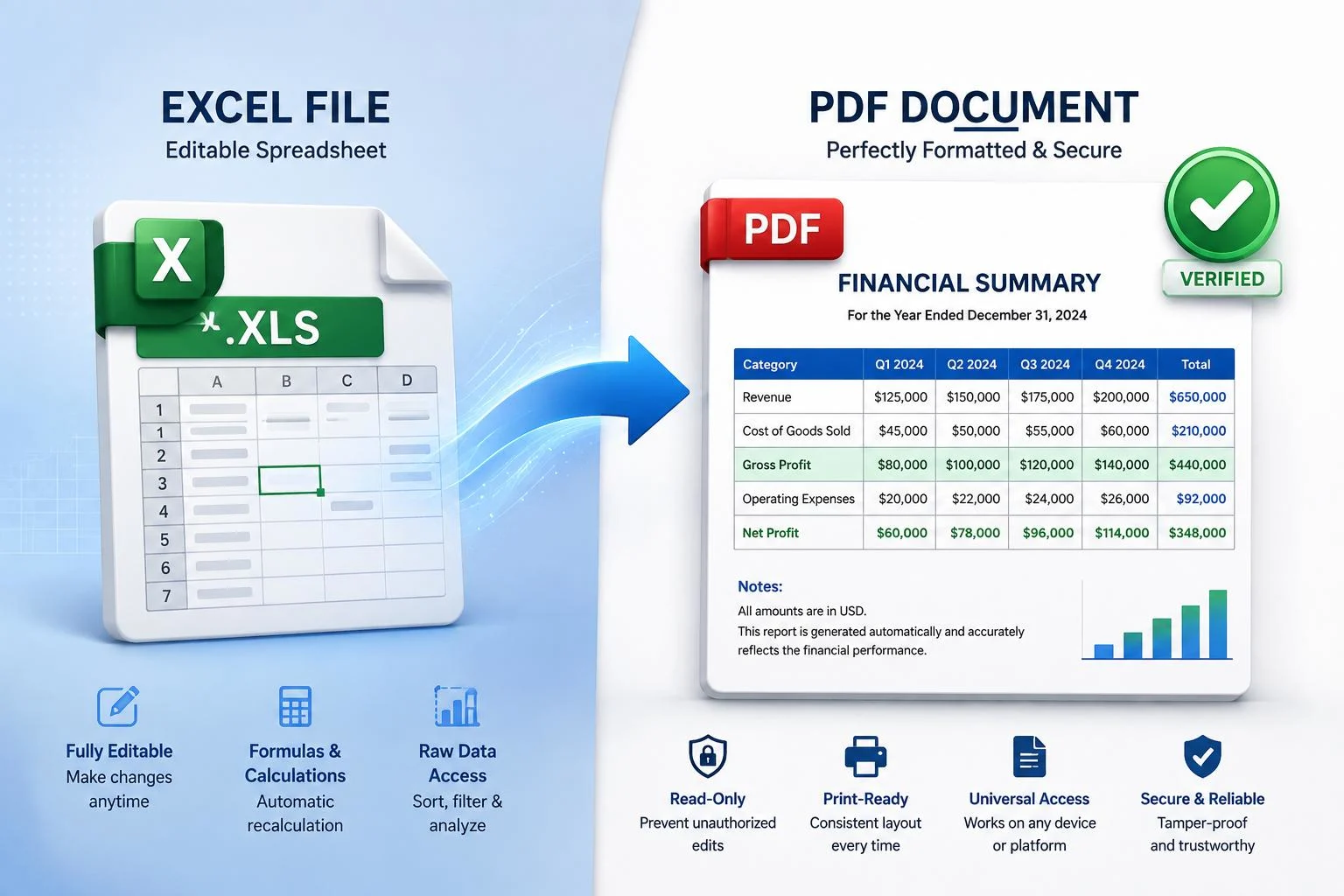

Table of Contents▼
Convert XLS to PDF online for free without losing formatting. Preserve tables, fix cut-off columns, and create print-ready PDFs from old Excel 97–2003 files in seconds.
Quick Answer
“How do I convert an XLS file to PDF?
To convert an old Excel file (.XLS) to PDF online, upload your workbook to Doxbar, select your page orientation (Portrait or Landscape), and click Convert. Doxbar automatically scales columns to fit on a single page, resolves missing font glitches, and outputs a clean, print-ready PDF in seconds without changing your original spreadsheet.
Why Convert XLS to PDF Instead of Sharing the Original Spreadsheet?
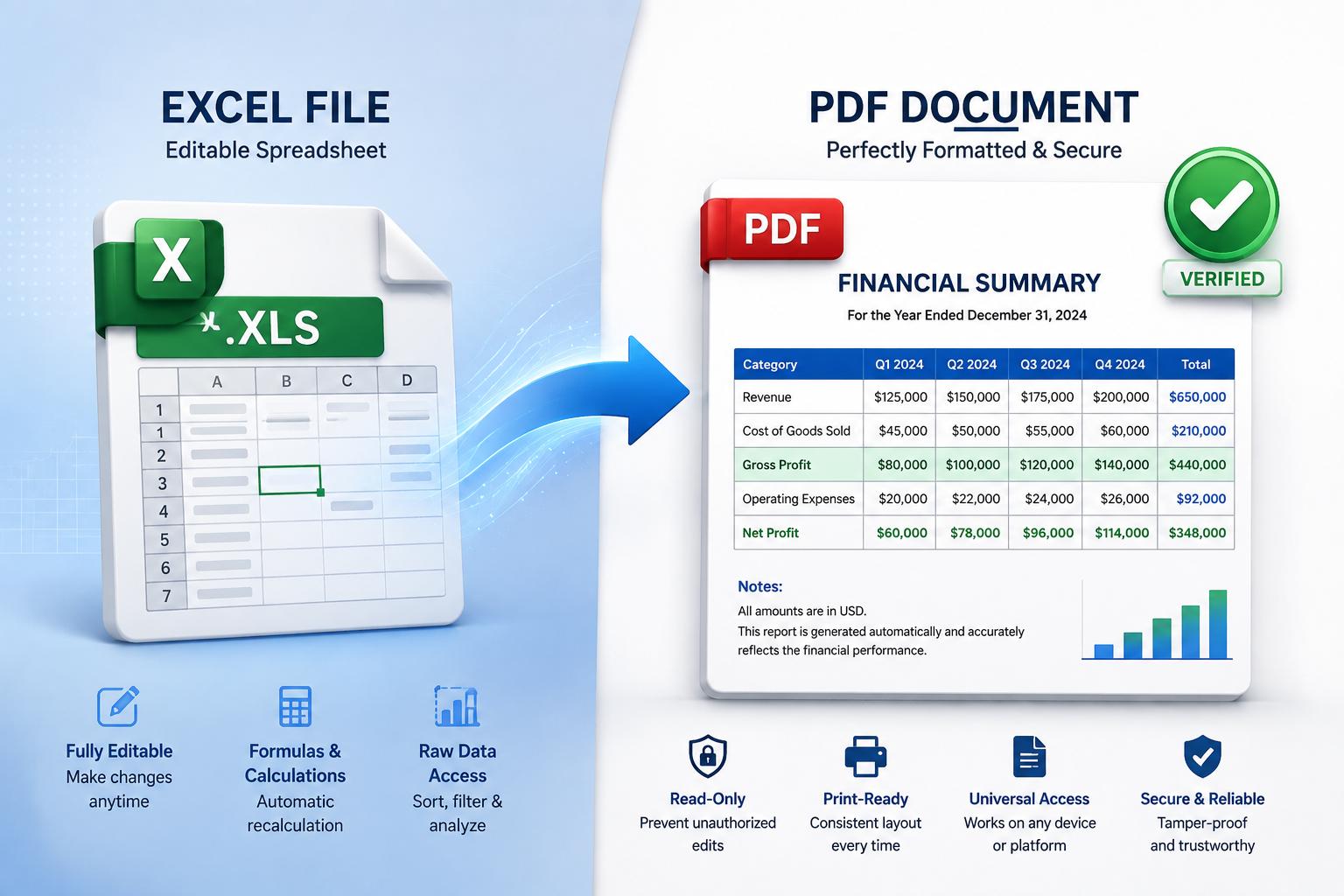
Although XLS files remain editable, they are not ideal for sharing. Converting an XLS file to PDF preserves formatting, prevents accidental edits, keeps formulas from being modified, and ensures the document looks the same on every device.
TL;DR (Executive Summary)
Format Difference: .XLS is an older Microsoft Excel format (97–2003) built on a binary grid, whereas .PDF is a fixed-layout document designed for printing and universal sharing.
The Main Problem: Opening an old Excel file on modern computers often causes formatting issues, cut-off columns, missing fonts, or text turning into ### overflow errors.
The Solution: A specialized browser converter scales your tables automatically, preserves print areas, and secures your sensitive data with immediate file cleanup.
Why Convert XLS to PDF? (Core Benefits)
Converting an old Excel file to PDF turns a flexible, volatile spreadsheet into a locked, professional document. Here is why businesses, accountants, and freelancers convert their .xls files:
Easier Printing & No Cut-off Columns: Automatically aligns tables so your data doesn't split awkwardly across multiple sheets.
Read-Only Data Security: Prevents accidental editing, formula tampering, or row deletions before sharing.
Works on Every Device: Opens instantly on iPhones, Android devices, Macs, PCs, and Chromebooks without requiring Microsoft Office.
Archive & Audit Readiness: Complies with long-term digital document retention standards (like PDF/A) for tax and accounting records.
Preserved Table Formatting: Ensures custom fonts, cell borders, and background shading look identical on every screen.
Effortless File Sharing: Reduces file size and creates a clean attachment for email, client portals, or Slack.
Decision Guide: When to Keep XLS vs. When to Convert to PDF
When Should You Keep an XLS File Instead of Converting It to PDF?
The right format depends on what you plan to do with your spreadsheet. If you still need to edit formulas, update figures, or continue working with the workbook, keep the file in XLS or XLSX format. However, once your spreadsheet is finalized and ready to share, converting it to PDF is usually the better option.
Keep the file as XLS or XLSX if you need to:
Edit data or update calculations
Run formulas or macros
Add new worksheets or tables
Collaborate on an editable spreadsheet
Convert the file to PDF if you need to:
Share invoices, financial reports, or budget sheets
Print spreadsheets without broken page layouts
Archive tax records or compliance documents
Prevent accidental edits before sending the file
Ensure the document looks the same on every device
Recommendation: Use XLS or XLSX while you're actively working on the spreadsheet. Once the document is complete and ready for printing, sharing, or long-term storage, convert it to PDF to preserve its formatting and create a professional, read-only version.
Common Real-World Use Cases
Payroll & Sales Reports: Turning monthly commission breakdowns into uneditable PDFs for employees.
Tax & Audit Filing: Locking historical profit-and-loss statements from older accounting software.
Inventory Sheets: Printing physical stocktaking worksheets for warehouse operations.
Client Budget Proposals: Sending clean financial estimates without exposing internal working formulas.
Step-by-Step: How to Convert XLS to PDF Online
Converting an old Excel file to PDF takes only a few seconds when using a browser-native workflow.
Upload Your Old Excel File: Drag and drop your .xls file into the Doxbar XLS to PDF Converter or select it from your device.
Auto-Format Alignment: The engine reads the spreadsheet binary grid, balances page breaks, and automatically scales wide tables to fit page margins.
Download & Verify: Click Download PDF to save your report. Open it in any browser or viewer (such as Adobe Acrobat Reader) to review your document.
Troubleshooting Common Excel PDF Formatting Issues
When exporting or converting older spreadsheets, you might encounter layout glitches. Here is how to fix the most common ones:
1. Excel Columns Getting Cut Off
Symptom: Your table spans 10 columns, but columns 9 and 10 drop down to page two.
Fix: Change the print layout orientation from Portrait to Landscape, or use Doxbar's automatic "Fit All Columns to One Page" scaling setting.
2. Cells Displaying "###" Instead of Numbers
Symptom: Numbers in financial reports turn into line errors like ###.
Fix: This happens when default font changes make text slightly wider than the cell width. Expanding column widths slightly in Excel or processing through an engine with metric-compatible fallback fonts fixes this error.
3. Blank Extra Pages in the PDF
Symptom: Your converted document includes empty pages at the end.
Fix: Old spreadsheets often contain invisible spaces or custom borders in distant cells. Clear formatting from empty rows surrounding your table or explicitly set the Print Area before converting.
Comparison: XLS vs. XLSX vs. PDF
Understanding the technical differences between spreadsheet types and fixed documents helps you pick the right format for your workflow:
Feature / Metric | XLS (Legacy Excel) | XLSX (Modern Excel) | PDF (Fixed Document) |
File Structure | Proprietary Binary (BIFF) | Open XML Compressed | Vector / Fixed Layout |
Primary Use | Legacy data editing | Active editing & complex formulas | Printing, sharing & archiving |
Formula Execution | Live | Live | Flattened (Static values) |
Layout Consistency | Poor on modern OS | Good | Perfect across all devices |
Editing Protection | Unlocked by default | Unlocked by default | Locked / Read-Only |
Office Software Required | Yes | Yes | No (Opens natively) |
Technical Deep Dive: Why Old Excel Files Break on Modern Systems
To understand why converting an old Excel spreadsheet to PDF feels unpredictable, it helps to understand how older files store data.
Before Microsoft introduced .xlsx in Office 2007, spreadsheets were saved in a binary format called BIFF (Binary Interchange File Format). These files tied font rendering, column widths, and line spacing directly to the operating system display drivers of the late 1990s.
Fixed Pixel Grids vs. Modern DPI Displays
Modern operating systems (Windows 11, macOS, Android, iOS) handle display scaling differently than older desktops did. When a modern web browser or computer opens an old binary .xls file, it recalculates cell dimensions using updated rendering engines. A column that measured 100 pixels in Excel 2000 might render as 105 pixels today—causing the far-right column to push past the print boundary and spill onto an extra page.
Font Substitution and Line Inflation
Old spreadsheets frequently used legacy system fonts like Tahoma or MS Sans Serif. If your current computer lacks those exact font files, your operating system uses a fallback font. Because letter spacing varies across different fonts, wrapped text lines inside cells expand in height, pushing data downward and creating unexpected page breaks.
Legacy Online Tools vs. Desktop Software vs. Modern Web Conversion
Choosing the best way to convert your spreadsheet depends on your hardware and privacy requirements:
Capability | Legacy Online Tools | Desktop Software | Modern Browser Workflow (Doxbar) |
Setup Required | None | High (License & Installation) | None (Runs in browser) |
Old XLS File Support | Frequent layout errors | High (Native rendering) | High (Optimized binary parser) |
Page Break Preservation | Inconsistent | Manual setup needed | Automatic intelligent scaling |
Cross-Platform Access | Yes | Machine dependent | Universal (PC, Mac, Mobile) |
Data Privacy | Long storage / Ads | Local only | Encrypted transit, fast purge |
Speed | Queued processing | Fast | Instant |
Frequently Asked Questions (FAQ)
1. How can I convert an XLS file to PDF for free?
You can upload your file to a free online converter like Doxbar, select your preferred page setup, and download your converted PDF instantly without installing software.
2. Can I convert an old Excel file to PDF without Microsoft Excel?
Yes. Web-based converters process .xls files directly in your browser using server-side rendering engines, so you do not need Microsoft Office installed.
3. Why are my Excel columns cut off in the PDF?
Spreadsheet tables often exceed default paper widths. To fit all columns on one page, switch your conversion layout to Landscape mode or select "Fit to Page Width" scaling.
4. What is the difference between an XLS file and an XLSX file?
.xls is an old binary format used by Excel 97–2003, while .xlsx is the modern XML-based format introduced in Excel 2007. Binary files often suffer from layout shifts when opened on modern devices.
5. Will my spreadsheet formulas still work inside the PDF?
No. PDFs are static, print-ready documents. All dynamic formulas, cell linkages, and calculations are flattened into fixed visual numbers during conversion.
6. Are my sensitive financial spreadsheets safe when converted online?
Security depends on the platform you choose. Reputable converters protect uploads using HTTPS/TLS encryption and automatically delete files shortly after processing. For web privacy best practices, review the Google Safety Center.
7. Why did my numbers turn into "###" after converting to PDF?
This happens when system font substitution makes text slightly wider than the physical cell width. Slightly expanding column widths or converting through a modern engine resolves this issue.
8. How do I convert an old Excel 97–2003 workbook to PDF on a mobile phone?
Open your mobile browser (Safari or Chrome), go to Doxbar.com, upload your .xls file from your device or cloud storage, and download the finished PDF.
9. Can I convert multiple sheets from one XLS workbook into a single PDF?
Yes. Modern converters automatically parse every visible sheet tab inside an .xls workbook and combine them sequentially into one multi-page PDF document.
10. Will converting an XLS file to PDF alter my original document?
No. The conversion process creates a separate .pdf file. Your original .xls spreadsheet remains untouched on your computer or device.
11. Can I edit text inside a PDF after converting it from an Excel file?
PDF documents are designed to be read-only. To make major text or data changes, edit your original .xls file and convert it again, or use a dedicated PDF editor.
12. How does document conversion security work under global standards?
Trusted online document processors enforce strict encryption standards during transit and storage. You can read more about standard web data transmission protocols on the Cloudflare Learning Center.
13. Can I convert XLS to PDF without losing formatting?
Yes. A high-quality XLS to PDF converter preserves tables, fonts, borders, charts, page orientation, and print layouts so your spreadsheet appears the same in the final PDF across different devices.
EEAT & Trust Signals
At Doxbar, we prioritize formatting accuracy, fast processing, and data security:
Our conversion engine is regularly refined to improve layout consistency across a wide range of legacy spreadsheet formats and real-world document structures.
Strict Privacy Protocols: We do not view, analyze, share, or store your personal or financial data. All uploads are encrypted during transmission and permanently purged from server memory shortly after conversion.
Realistic Expectations: While static PDFs cannot run interactive macros or complex VBA scripts, our engine ensures your cell values, text layout, and formatting render cleanly every time.
Key Takeaways
Old .xls spreadsheets frequently break layout margins on modern computers due to legacy binary grid structures and missing system fonts.
Converting your old Excel file to PDF creates a locked, print-ready document that looks identical across all screens and mobile devices.
Always check table orientation (Landscape vs. Portrait) to prevent cut-off columns or split tables.
Secure browser tools like Doxbar let you convert files instantly without needing desktop software installations.
Explore More Excel & PDF Tools
If you're working with different spreadsheet formats, you may also find our other document conversion tools useful. Convert modern Excel workbooks with our Excel to PDF tool, transform newer spreadsheets using XLSX to PDF, or turn comma-separated data into professional documents with CSV to PDF. If you use OpenDocument spreadsheets, the ODS to PDF converter provides the same reliable formatting and print-ready output. Need to edit spreadsheet data after conversion? Use PDF to Excel to convert PDF tables back into editable worksheets. Once your document is ready, you can also use Compress PDF to reduce file size for faster email sharing and easier online uploads.
Conclusion
Working with old Excel files shouldn't mean struggling with broken layouts or cut-off columns. Whether you are archiving tax records, emailing client invoices, or printing inventory sheets, turning your .xls spreadsheets into clean PDFs ensures your data looks professional on every screen.
Whether your workbook contains invoices, payroll records, inventory sheets, or archived financial reports, converting XLS to PDF helps preserve the original layout while making the document easier to share, print, and archive. Ready to transform your legacy spreadsheets into clean, printable reports? Try Doxbar today for fast, accurate, and secure document conversion.
Need to Convert Document Formats?
Try our secure, lightning-fast PDF conversion suite. Convert Word, Excel, Images, and more with zero formatting loss.

Doxbar Editorial
Security & Privacy Team
We specialize in secure document architectures, parsing engines, and modern developer utilities. Keeping your files safe, lightweight, and perfectly formatted.
Join the Conversation
Share your thoughts or ask a question about this topic. This is a privacy-first system.