

XLSM to PDF: Convert Macro-Enabled Excel Workbooks Securely
Contents
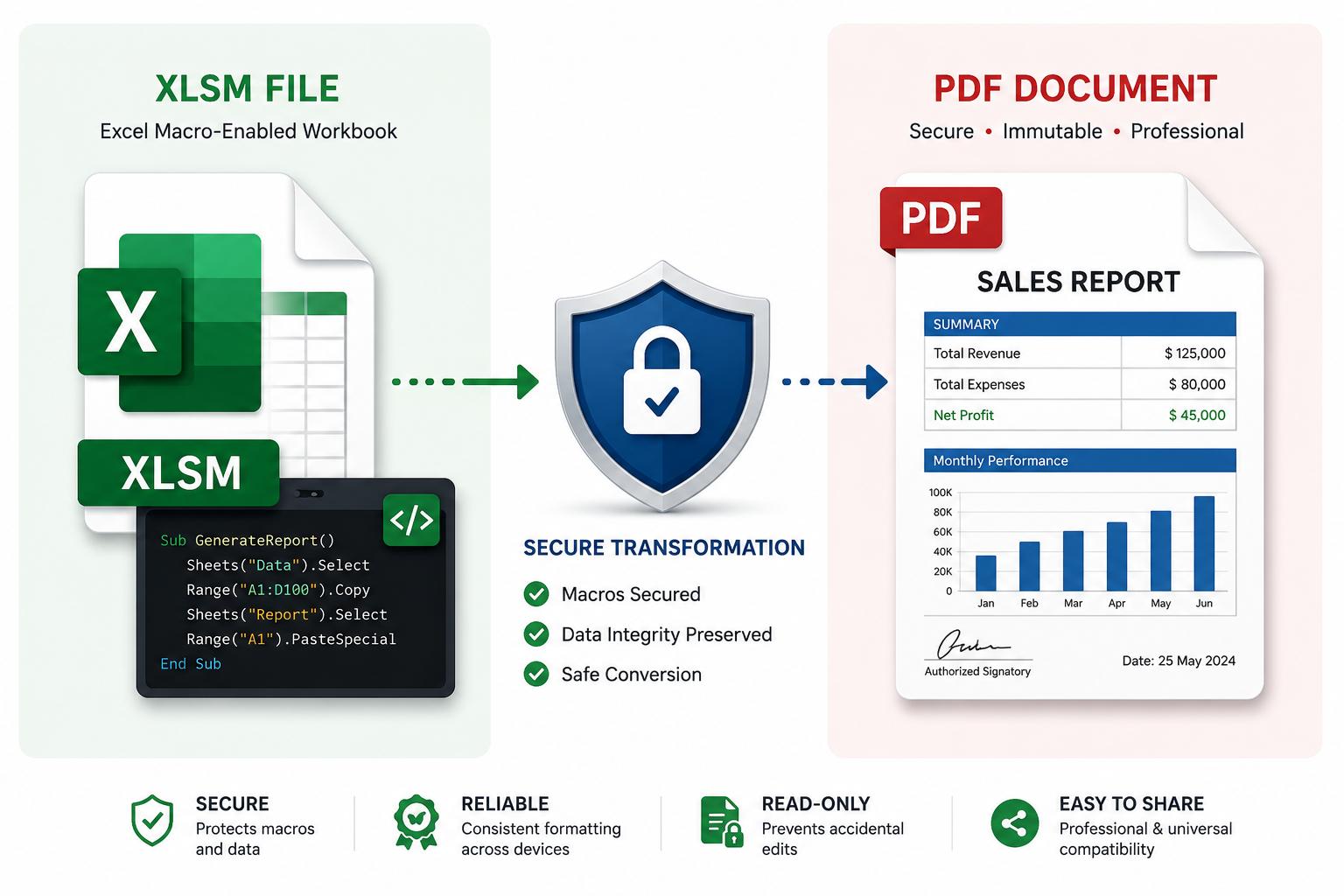
XLSM to PDF: Convert Macro-Enabled Excel Workbooks Securely

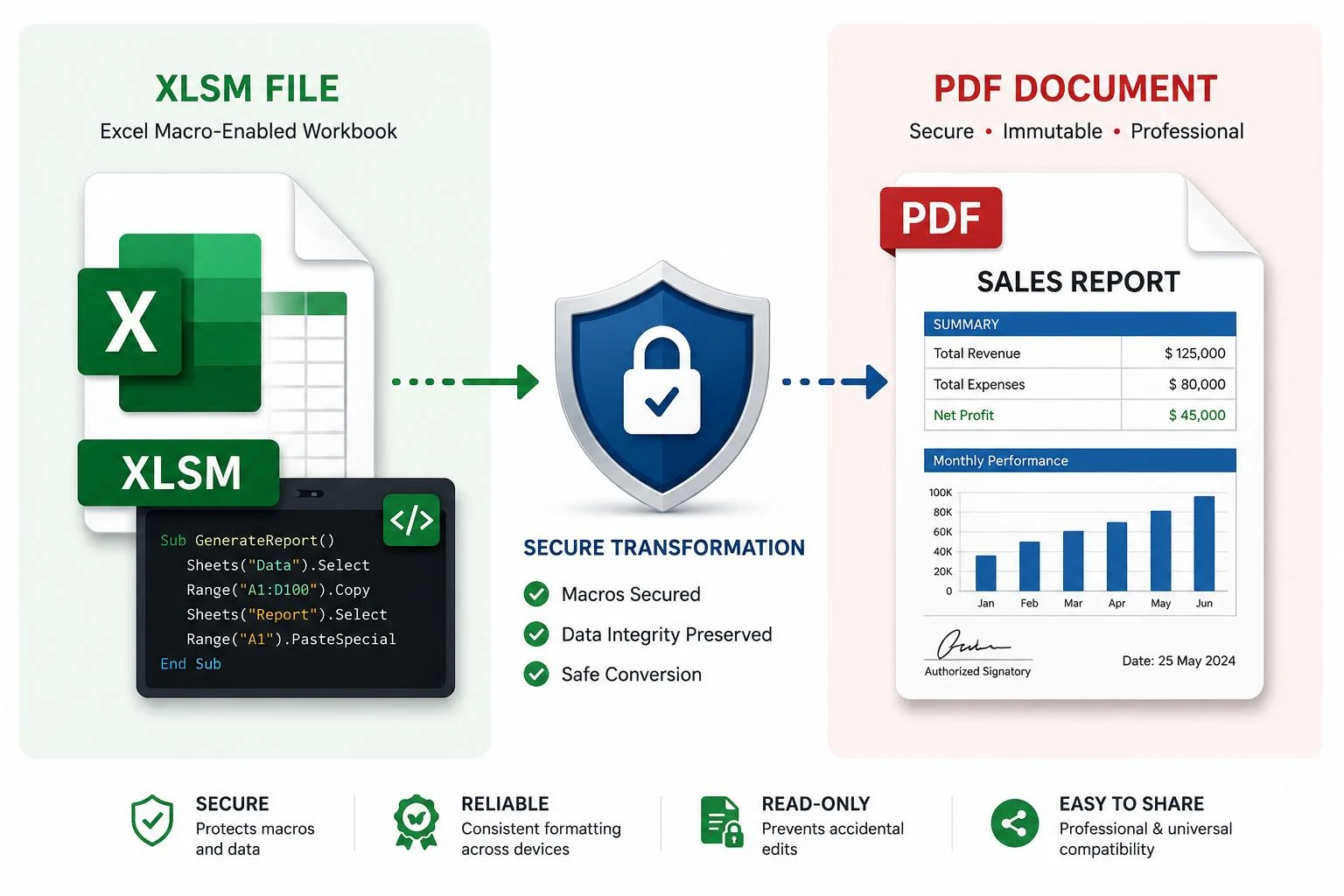

Table of Contents▼
Convert XLSM to PDF online for free without losing formatting. Protect VBA code, avoid macro security warnings, and share Excel reports securely across any device.
Direct Answer: What Is XLSM to PDF Conversion?
An XLSM file is a Microsoft Excel workbook that supports Visual Basic for Applications (VBA) macros to automate tasks, build interactive dashboards, and process calculations. Converting an XLSM to PDF creates a secure, static snapshot of your spreadsheet layout, charts, and tables while not preserving executable VBA code.
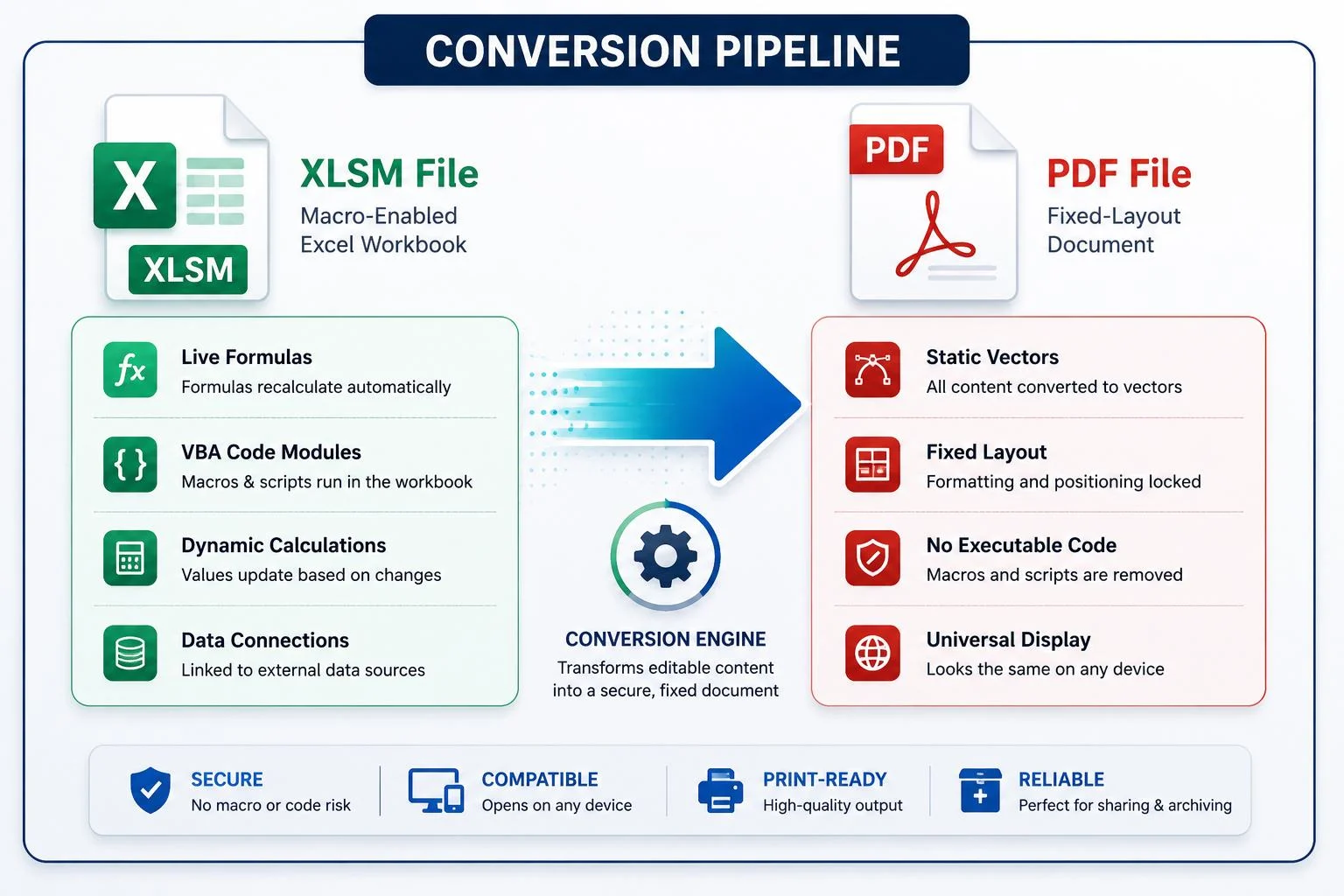
A technical infographic demonstrating how a macro-enabled Excel XLSM workbook is converted into a secure PDF. The diagram compares interactive spreadsheet features such as formulas, VBA macros, and data connections with the fixed-layout, non-executable PDF output designed for universal viewing, printing, compliance, and document sharing.
Converting an XLSM file to PDF preserves your exact visual formatting, prevents recipient macro security warnings, protects proprietary backend logic, and ensures your report renders identically across Windows, macOS, iPadOS, iOS, and Android. Whether you export locally or use a modern online tool like Doxbar, preparing your document layout first is the key to maintaining professional results.
Quick Answer: How to Convert XLSM to PDF Safely
Run Active Macros: Execute all VBA scripts to ensure the visible data grid reflects your final numbers.
Configure Print Area: Select your report range in Microsoft Excel and set your page orientation and scaling.
Convert File: Upload your .xlsm file to a secure converter like Doxbar or use File > Save As > PDF in desktop Excel.
Download & Verify: Inspect your generated PDF to ensure columns are intact and text does not wrap awkwardly.
Key Takeaways
Security & Compliance: Converting XLSM to PDF prevents security flags triggered by Microsoft’s Mark of the Web (MOTW) and firewall policies.
Intellectual Property Protection: A PDF hides your underlying Visual Basic source code, cell formulas, and staging sheets from third parties.
Cross-Platform Integrity: PDF files lock fonts, print boundaries, and visual charts into place across mobile and desktop operating systems.
Efficiency: Automated reporting workflows are safer when final distribution copies are decoupled from active code engines.
The Friday Afternoon Excel Dilemma
It is 4:45 PM on a Friday. You have spent the last three days building an automated financial dashboard in Microsoft Excel. It relies on a network of complex VBA macros to aggregate raw data, run calculations, and render clean visual summary charts.
Now, you need to send this monthly performance report to your executive team, external clients, and board members.
You attach the .xlsm file to an email and hit send. Within ten minutes, the replies start trickling in:
"I got a red security banner saying macros are blocked."
"The layout looks completely jumbled on my iPad."
"It keeps asking me to enable editing, but our IT team blocks macro files."
"Why is the font tiny, and why did the table break across four different pages?"
To make matters worse, you realize you just sent an active workbook containing raw data sheets and exposed proprietary backend code to an external party. This scenario is remarkably common. Macro-enabled spreadsheets are phenomenal for data processing inside your own environment, but they are a terrible medium for final distribution.
Why Convert XLSM to PDF?
To understand why sharing raw spreadsheet files causes so many headaches, it helps to look at how different file extensions handle security and display structures.
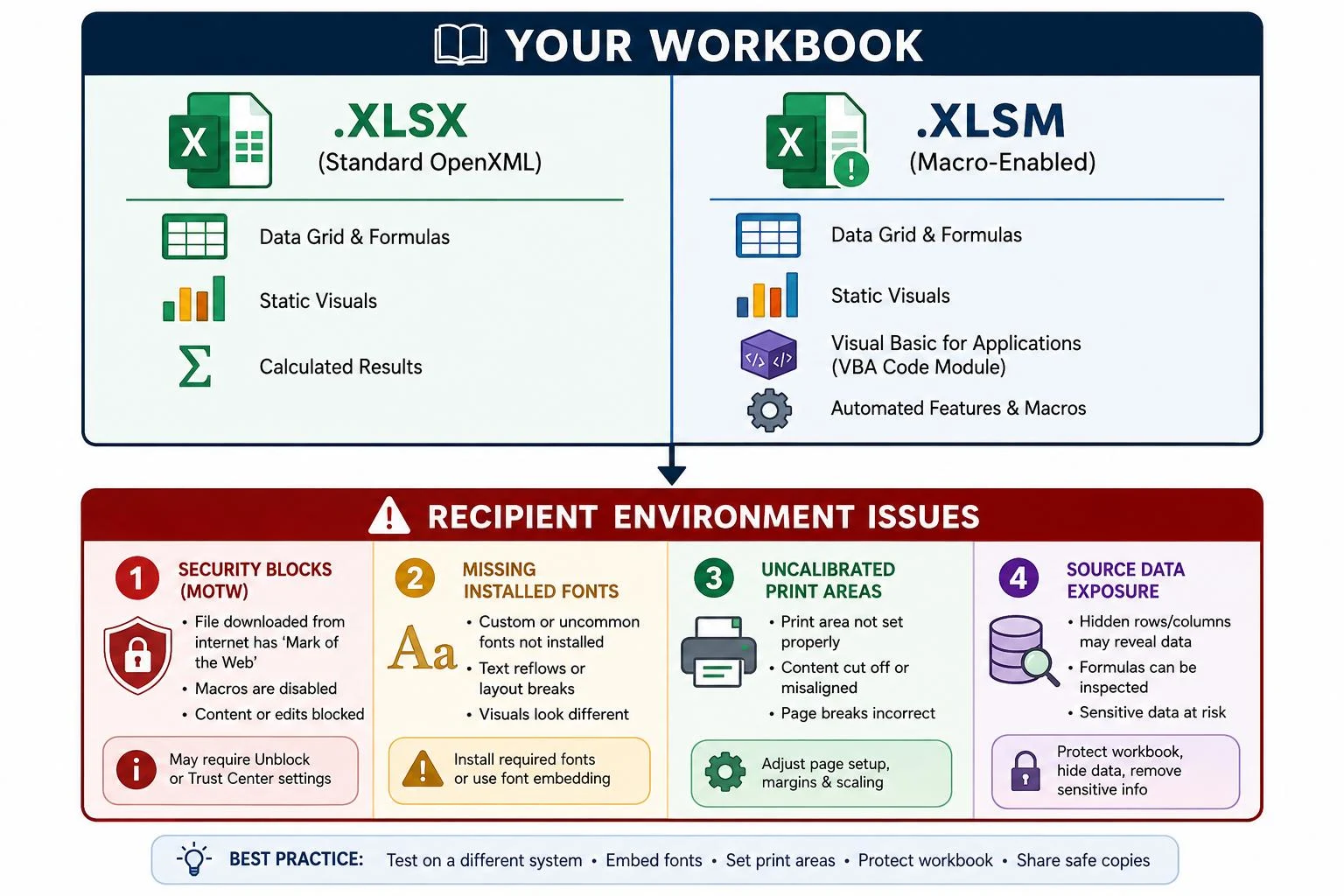
This infographic explains the key differences between XLSX and XLSM workbooks and why recipients may encounter problems after opening shared Excel files. It covers macro security (Mark of the Web), unavailable fonts, incorrect print layouts, and unintended exposure of formulas or hidden data. It also provides best practices for secure workbook sharing, improving compatibility across Microsoft Excel environments, and reducing formatting or macro-related issues. This resource is ideal for IT professionals, Excel developers, business users, and technical documentation.
1. Security Warnings and Mark of the Web (MOTW)
Modern operating systems actively quarantine files downloaded from email or web sources. Microsoft Office enforces strict Mark of the Web (MOTW) security rules. When an external recipient opens an .xlsm file, Excel often blocks macro execution by default. If your report relies on macros to run on open or populate visual tables, your recipient will see a broken or blank spreadsheet flanked by security banners.
2. Protecting Proprietary VBA Code and Backend Data
When you distribute a live macro-enabled workbook, recipients can inspect your Visual Basic source code via the Visual Basic Editor (Alt + F11), unhide background calculation sheets, or trace proprietary margin formulas. Converting your report to PDF decouples the visual presentation from the underlying logic. The resulting PDF does not preserve executable VBA code, protecting your operational intellectual property. Many teams use Microsoft Excel's built-in PDF export, while others prefer browser-based tools like DoxBar when working across multiple devices.
3. Display Consistency Across Devices
Excel renders documents dynamically based on the local system's display scaling, active printer drivers, and installed fonts. A dashboard built on a high-resolution desktop monitor can easily distort on a mobile screen. According to rendering specifications detailed on Microsoft Learn, document layouts inside desktop spreadsheets depend heavily on localized system drivers. A PDF embeds vector graphics and fonts directly into the file container, ensuring uniform rendering everywhere.
File Format Comparison: XLSM vs. XLSX vs. PDF
Understanding the functional differences between these three formats helps clarify when to use each in your business workflows:
Feature / Capability | XLSM (Macro Workbook) | XLSX (Standard Workbook) | PDF (Portable Document) |
Supports VBA Macros | Yes | No | No |
Editable Grid & Data | Yes | Yes | No (Read-Only) |
Preserves Layout Across Devices | Low | Low | High |
Triggers Security Block Flags | High Risk | Low Risk | Zero Risk |
Hides Underlying Formulas | No | No | Yes |
Primary Use Case | Internal Automation | Static Data Storage | External Client Reporting |
Solution Framework: Choosing the Right Conversion Method
When converting macro-enabled spreadsheets, teams generally evaluate three primary workflow paths:
Capability / Requirement | Legacy Online Tools | Desktop Software | Modern Web Engine |
Installation Required | No | Yes | No |
Layout & Vector Fidelity | Variable | High | High |
Mobile & Cross-Platform Support | Partial | Limited to Installed OS | Universal |
Data Handling Security | Persistent Server Storage | Local Memory | Transient Memory Processing |
Batch Processing Capabilities | Often Paywalled | Manual Scripting | Integrated |
Best Overall Fit | Occasional Quick File Use | Local Offline Editing | Best Choice ⭐⭐⭐⭐⭐ |
Local Desktop Utilities vs. Modern Web Workflows
Using local desktop software offers control over print drivers, but it requires dedicated hardware and active software licenses. If you are working on a mobile device or a restricted workstation, opening an .xlsm file directly can be difficult.
Traditional online converters solved platform limitations but created privacy concerns by storing user uploads on persistent remote disks. Modern web utilities like Doxbar use secure, transient processing buffers that transform document visual layers without retaining persistent file copies or indexing confidential enterprise data.
Step-by-Step Guide: How to Convert XLSM to PDF
Step 1: Set Your Page Layout and Print Area
Open your workbook in Microsoft Excel.
Highlight the specific cell range you want to include in your report.
Navigate to the Page Layout tab and select Print Area > Set Print Area.
Set the orientation to Landscape for wide data tables or Portrait for standard text summaries.
In the scaling options, select Fit All Columns on One Page to prevent trailing column splits.
Step 2: Run Required Macros
Ensure all VBA scripts have completed execution before converting. If your workbook uses scripts to pull live database metrics or re-calculate dashboard outputs, run those routines so the active sheet displays your final figures.
Step 3: Convert the XLSM File
Method A (Web-Based): Open your browser, navigate to the Doxbar XLSM to PDF Converter, drop your .xlsm file into the upload zone, select your preferred page scaling, and generate your PDF.
Method B (Desktop Application): Navigate to File > Export > Create PDF/XPS Document (or Save As > PDF) directly within Microsoft Excel.
Step 4: Perform a Visual Audit
Open the generated PDF and review the following items:
Confirm all numbers display clearly without text overflow or truncation (### indicators).
Verify headers, footers, and page numbers align across all sheet transitions.
Ensure all charts, legends, and graphics render in vector clarity.
Common Problems During XLSM to PDF Conversion (and Solutions)
Even with proper preparation, converting complex spreadsheets can present formatting issues. Here is how to handle the most common errors:
1. Cell Overflow Errors (###)
Cause: Column widths in Excel are slightly too narrow for the formatted numbers when rendered by fixed PDF display engines.
Solution: Auto-fit your columns in Excel by double-clicking column borders, or widen the column slightly before exporting.
2. Content Split Across Extra Blank Pages
Cause: Unintentional formatting or empty cell values extending beyond your primary data grid.
Solution: Explicitly set your Print Area in Excel, or choose the "Fit to 1 Page Wide" scaling option before converting.
3. Missing Hidden Worksheets or Staging Tabs
Cause: Standard export engines only convert active or visible worksheet tabs by default.
Solution: Unhide relevant sheets before export if you want them included, or select "Entire Workbook" during the batch export process. Note that hidden worksheets are generally excluded unless intentionally included in your export configuration.
4. Distorted or Overlapping Visual Charts
Cause: Chart objects anchored dynamically across scaling boundaries.
Solution: Right-click the chart in Excel, select Format Chart Area, go to Properties, and choose "Move and size with cells" to lock graphics directly to table positions.
Pros and Cons of Converting XLSM to PDF
Pros
Universal Access: PDFs open seamlessly on iOS, Android, macOS, Windows, and Linux without requiring spreadsheet viewing software.
Removes Security Warnings: Bypasses macro warning banners, file quarantines, and administrative email attachments blocks.
Preserves Visual Aesthetics: Corporate brand layouts, grid alignments, fonts, and chart elements stay fixed in place.
Protects Sensitive Data: Dynamic formulas, backend database parameters, and Visual Basic code modules are completely removed from the output file.
Cons
Loss of Dynamic Functionality: Interactive macro buttons, data input forms, and dynamic sliders become static graphics in a PDF.
Requires Re-Export for Updates: Any changes made to the underlying source data require generating a fresh PDF snapshot.
Frequently Asked Questions (14 Selected Advanced FAQs)
1. What is an XLSM file?
An XLSM file is a Microsoft Excel workbook that supports Visual Basic for Applications (VBA) macro scripts, allowing users to automate repetitive tasks and calculations within the spreadsheet.
2. Can I convert an XLSM file to PDF if macros are disabled on my machine?
Yes. Converting an XLSM to PDF reads the static grid data and visual elements of the spreadsheet. Active macro execution is not required to render the layout into a PDF.
3. Will converting an XLSM file to PDF expose my hidden VBA source code?
No. Converting to PDF extracts only the visual render of your active or selected worksheets. Embedded VBA code modules, macro scripts, and user forms are excluded from the PDF output.
4. Why do cell formulas show ### after converting to PDF?
### errors indicate that a column is too narrow to display the formatted value at the current page scale. Widen the affected columns in Excel or enable "Fit All Columns on One Page" before converting.
5. Can recipients convert the PDF back into a working XLSM file with active macros?
No. While PDF-to-Excel converters can extract text, tables, and numerical data into a spreadsheet, they cannot reconstruct or restore the original VBA macro code.
6. Is it safe to convert confidential financial XLSM files online?
It depends on the platform’s security practices. Modern tools like Doxbar use secure processing buffers that process documents transiently without retaining persistent disk copies or harvesting sensitive data.
7. How do I convert multi-tab XLSM workbooks into a single PDF?
In Microsoft Excel, choose "Entire Workbook" under Print settings before exporting. On web utilities like Doxbar, multi-tab workbooks are automatically compiled into a multi-page PDF document.
8. Why do corporate firewalls block XLSM email attachments?
Enterprise security gateways often block or quarantine .xlsm files because executable VBA macros present potential security risks. Converting your reports to PDF removes macro code, allowing them to pass through email security filters without issue.
9. Will custom brand fonts render correctly in the converted PDF?
Yes, as long as the conversion engine embeds the font character sets into the PDF container. This ensures the document displays as intended even if the recipient does not have your custom fonts installed on their device.
10. Does converting an XLSM file to PDF overwrite or delete my original file?
No. The conversion process creates a separate, standalone .pdf file. Your original .xlsm master file remains unchanged with all formulas, macros, and underlying data structures fully intact.
11. How can I make a wide dashboard fit onto a single PDF page?
Set your page orientation to Landscape in your page layout settings, and configure the scaling option to "Fit All Columns on One Page" or "Fit Sheet on One Page" before starting the conversion.
12. Are hidden rows or hidden worksheets automatically included in the PDF?
No. Hidden rows, columns, and worksheets are generally excluded from the conversion output unless you explicitly unhide them or configure your export settings to include them.
13. Can I convert XLSM files on mobile devices like an iPhone or iPad?
Yes. Using a web-based conversion utility like Doxbar allows you to upload .xlsm files directly from mobile browsers or cloud storage accounts and download converted PDF files instantly.
14. What guidelines govern corporate document security when sharing macro files?
Organizations like the National Institute of Standards and Technology (NIST) recommend limiting executable script distribution over untrusted networks. Distributing static reports as PDF files aligns with these recommended security practices.
Related PDF & Excel Tools
Working with Excel and PDF files often involves more than a single conversion. Depending on your workflow, these related tools can help you manage spreadsheets and documents more efficiently:
– Convert standard Excel workbooks (.xlsx or .xls) into high-quality PDFs while preserving formatting and page layouts.
– Extract tables and numerical data from PDF documents into editable Excel spreadsheets for further analysis.
– Reduce large PDF file sizes before sharing reports through email or cloud storage without significantly affecting document quality.
– Combine multiple reports, invoices, or exported worksheets into a single PDF for easier distribution and record-keeping.
– Add password protection and encryption to sensitive financial or business reports before sharing them externally.
– Remove editing or printing restrictions from PDF files when you have permission to modify the document.
Using these tools together creates a more efficient document workflow—from preparing Excel data to securely sharing polished PDF reports with colleagues, clients, and stakeholders.
Security Practices and Compliance
When managing enterprise document pipelines, security policies must align with practical operational workflows:
Verify Untrusted Macro Files: Always scan .xlsm files received from external sources using anti-malware tools before opening them in Excel.
Inspect File Metadata: Excel workbooks frequently store hidden metadata, such as author usernames, revision logs, and internal file path structures. Converting to PDF strips out these embedded Excel properties, but inspecting document properties before external distribution is still recommended.
Follow Established Security Frameworks: Adhering to standards outlined by security authorities like NIST helps organizations mitigate operational risks while maintaining clear document distribution processes.
Simplify Your Excel Reporting Workflows
Macro-enabled spreadsheets are powerful tools for internal data processing and modeling, but distributing raw .xlsm files to clients and executives often leads to security warnings, distorted layouts, and code exposure.
Converting your XLSM files to PDF ensures your audience receives a clean, professional, and readable document that opens reliably on any screen—all while keeping your underlying code, dynamic formulas, and backend calculations protected.
When you are ready to send your next automated report, avoid attachment blocks and formatting issues. Convert your macro workbooks into secure, client-ready PDF documents using Doxbar.
Need to Convert Document Formats?
Try our secure, lightning-fast PDF conversion suite. Convert Word, Excel, Images, and more with zero formatting loss.

Doxbar Editorial
Security & Privacy Team
We specialize in secure document architectures, parsing engines, and modern developer utilities. Keeping your files safe, lightweight, and perfectly formatted.
Join the Conversation
Share your thoughts or ask a question about this topic. This is a privacy-first system.