

XLT to PDF: How to Convert Legacy Excel Templates Without Losing Layout
Contents
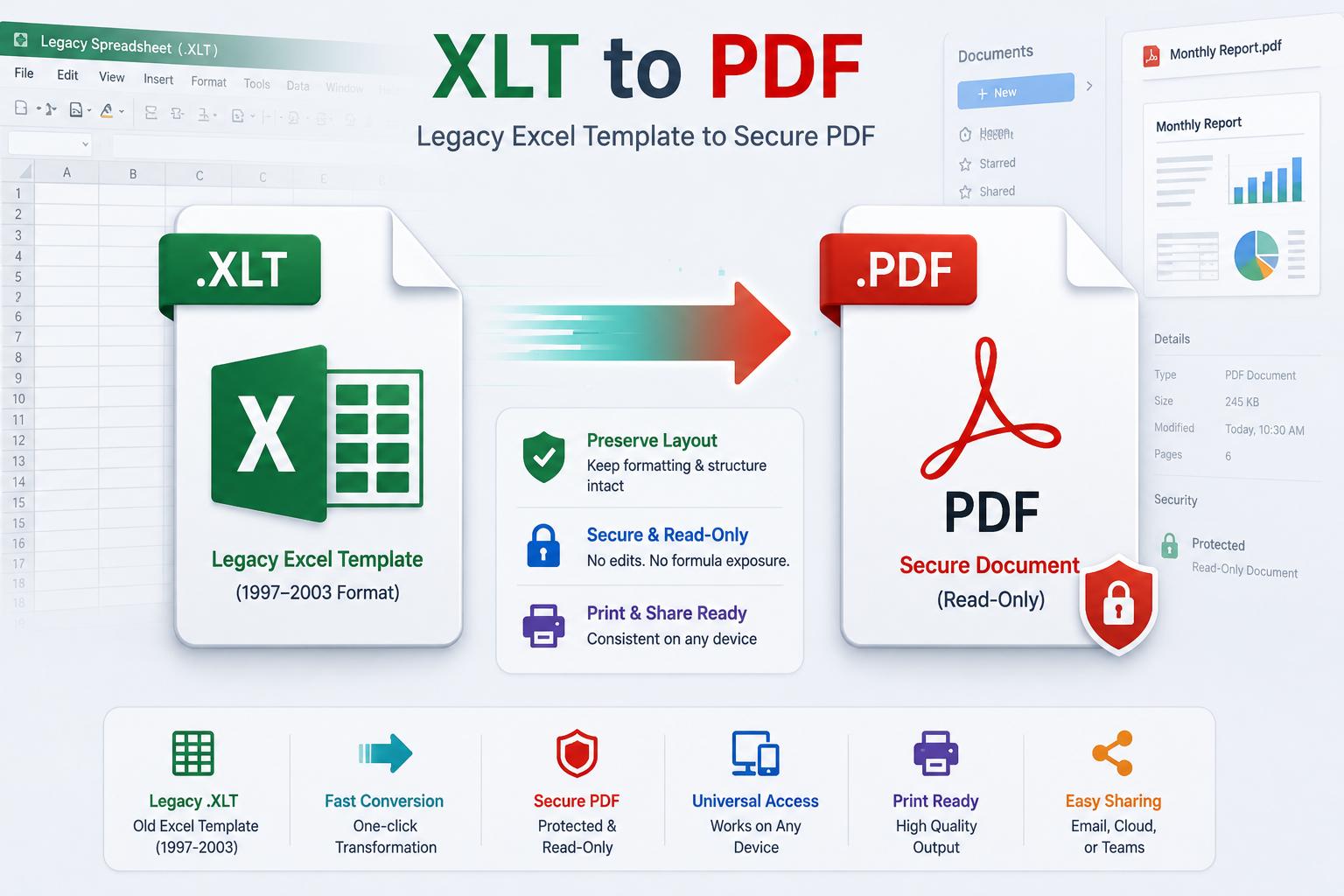
XLT to PDF: How to Convert Legacy Excel Templates Without Losing Layout

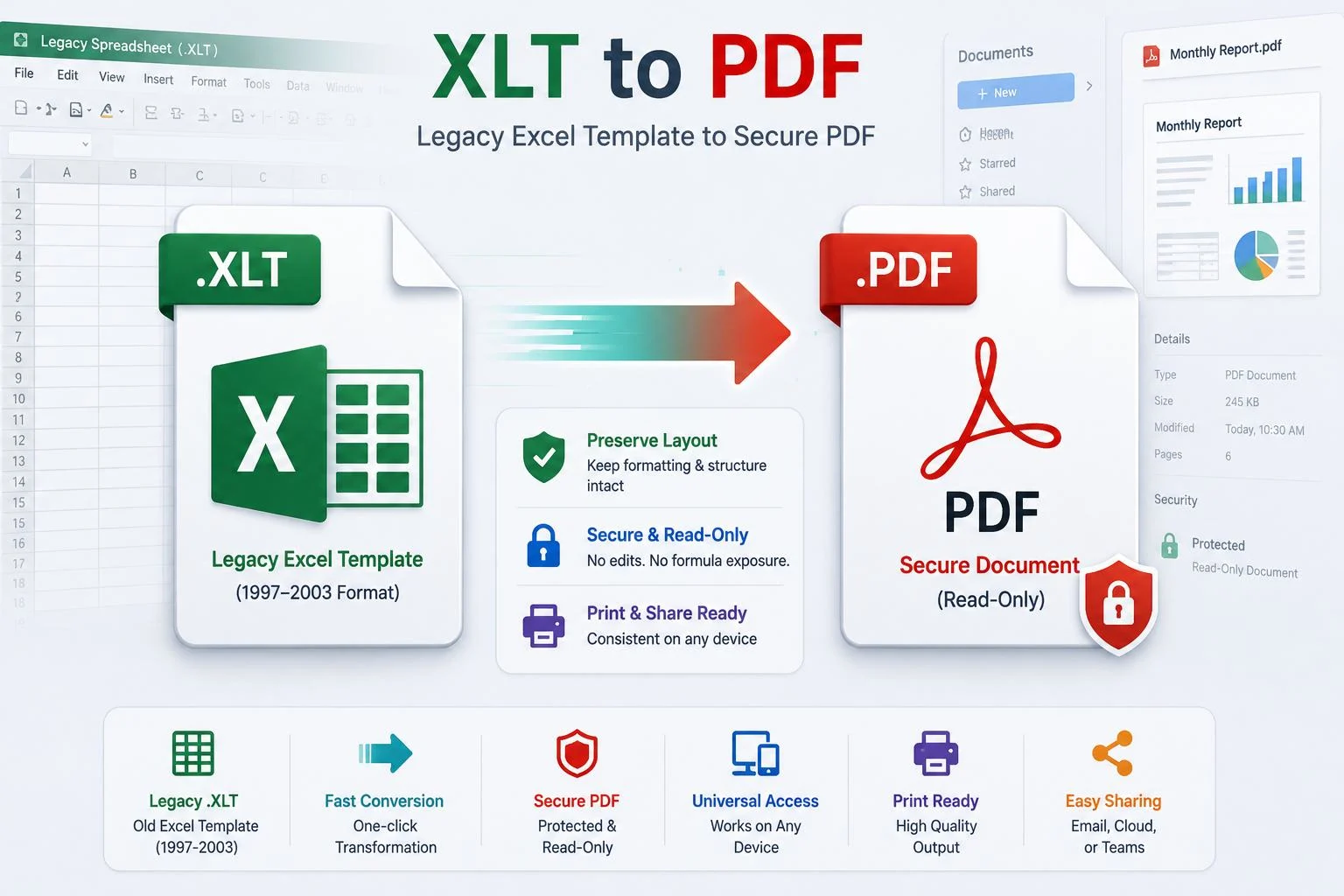

Table of Contents▼
Convert legacy XLT Excel templates to PDF without losing formatting or page layout. Follow Excel and online methods, plus fixes for blank pages, scaling, and print issues.
Quick Answer
Can you convert an XLT file to PDF?
Yes. You can convert an XLT (legacy binary Excel template) file to PDF using desktop Microsoft Excel or a compatible online converter. To preserve original formatting, verify page orientation, set horizontal scaling to fit all columns, clear extra print areas, and confirm font rendering before exporting. Converting to PDF creates a fixed-layout document that is easier to share, print, and archive without distributing the original editable template. Suitable for client distribution, printing, and digital archiving.
Introduction: Managing Legacy Excel Templates
Opening a historical document from a company archive or client folder often leads to an unfamiliar file extension: .xlt.
Created in earlier versions of Microsoft Excel, these legacy binary template files were designed to generate fresh spreadsheet instances automatically. However, sending a raw .xlt file directly to a customer, colleague, or auditor presents practical risks. Depending on the recipient's operating system, software version, or installed system fonts, an open spreadsheet can shift column margins, misalign headers, or expose editable background calculations.
Transforming an XLT file to PDF addresses these cross-platform inconsistencies. Converting the template to PDF can make the final layout, calculated values, and branding more consistent for sharing and printing, provided the workbook is checked before export. PDFs can then be viewed and shared across desktop and mobile devices. Across desktop computers, tablets, and mobile devices.
This guide breaks down what an XLT file is, how to convert legacy templates using desktop software or browser-based tools like Doxbar, and how to resolve common conversion issues like blank trailing pages and clipped table borders.
What Is an XLT File?
An .xlt file is a legacy workbook template format used by Microsoft Excel versions 97 through 2003. Unlike standard workbook spreadsheets (.xls), opening an XLT file instructs Excel to generate a new, unsaved workbook instance based on the underlying template rather than opening the master file for editing.
Understanding the underlying architecture of these older formats explains why they require specific care during modern document workflows:
Binary Architecture: The XLT format relies on Microsoft’s older BIFF (Binary Interchange File Format) binary structure, unlike modern XML-based Office formats.
Template Logic: XLT files store formula frameworks, cell styling, custom header logos, and print layouts designed for repeated business tasks like invoicing and expense logging.
Environment Sensitivity: Because legacy templates rely on local system fonts and local print driver definitions, opening them across modern or alternative platforms can lead to unexpected display changes.
Why Convert an XLT File to PDF?
Converting legacy spreadsheet templates into fixed-layout PDF files offers clear operational advantages over distributing raw, editable workbooks:
Preserved Document Layout: Converts dynamic grid boundaries into a fixed-layout document, maintaining layout presentation regardless of the reader's screen size or operating system.
Controlled Sharing: Prevents recipients from accidentally altering template formulas, modifying table structures, or shifting hard-coded references.
Simplified Multi-Device Viewing: PDFs are widely supported across desktop and mobile operating systems, making them practical for sharing and viewing.
Predictable Hard-Copy Printing: Eliminates stray column wrap-arounds and unexpected blank pages during physical printing.
Need to convert a standard Excel workbook instead? See our guide on XLSX to PDF for working with modern Excel files.
XLT vs. XLTX vs. XLS: What's the Difference?
Comparing legacy binary template structures to modern XML formats highlights why legacy file compatibility requires careful handling.
Feature | XLT | XLTX | XLS |
Format | Legacy template | Modern template | Legacy workbook |
Era | Excel 97–2003 | Excel 2007+ | Excel 97–2003 |
Structure | Binary BIFF | Open XML | Binary BIFF |
Main purpose | Reusable template | Reusable modern template | Editable workbook |
Macro-enabled modern equivalent | — | XLTM | — |
“XLT can contain legacy macro content, while modern macro-enabled templates use the XLTM format.
For detailed background on how modern spreadsheet containers structure XML packages, consult technical documentation available on Wikipedia.
If you're working with a newer Excel template rather than a legacy XLT file, you may also want to see our guide to XLTX to PDF conversion.
How to Convert XLT to PDF
You can convert an XLT template to PDF using Microsoft Excel on your desktop or an online conversion service.
Method 1: Convert XLT to PDF Using Microsoft Excel (Desktop)
If you have Microsoft Excel installed on your local computer, export the file using native print and layout settings:
Open the XLT File: Double-click your .xlt template to generate an active spreadsheet instance in Excel.
Review Layout Boundaries: Select the Page Layout tab to adjust your page layout settings:
Orientation: Choose Portrait for tall tables or Landscape for multi-column worksheets.
Scaling: Set Width to 1 Page to keep columns from spilling horizontally.
Set the Print Area: Highlight the table area you want to export, click Print Area, and select Set Print Area.
Export Document: Click File > Export > Create PDF/XPS Document, or choose File > Save As and select PDF (*.pdf) from the file type menu.
Verify File: Save the generated PDF and open it to review line spacing and column layout before distribution.
Method 2: Convert XLT to PDF Online
When working on operating systems without Microsoft Office—such as Linux, ChromeOS, or macOS—or when you need a fast workflow, online tools like Doxbar provide browser-based conversion:
Prepare File: Locate your .xlt file on your local storage drive.
Upload Document: Visit Doxbar and upload your template to the spreadsheet conversion tool.
Automated Conversion: The web conversion pipeline processes the workbook structure, evaluates visual formatting, and renders the content onto fixed PDF pages.
Download and Review: Download the processed PDF file to your local device and review the layout before sharing.
How to Prepare an XLT File Before Converting
Taking a few preparation steps before export prevents common layout shifting issues in the final PDF:
Clear Unused Cell Formatting: Highlight empty rows beneath your main table and select Clear All to erase invisible formatting that causes extra trailing pages.
Set Explicit Column Scaling: Configure page scaling parameters to fit all worksheet columns on a single horizontal page width.
Review Font Dependencies: Use standard system typography (such as Arial, Calibri, or Times New Roman) to maintain text wrapping metrics during rendering.
Verify Hidden Columns: Confirm whether hidden spreadsheet rows or columns contain non-essential notes or internal data before rendering the sheet visible.
How to Fix XLT to PDF Formatting Problems
Working with older spreadsheet files can sometimes yield layout issues during conversion. Here is how to resolve common problems:
Blank Pages in the Exported PDF
Cause: The template contains active print properties, background shading, or stray space characters in cells outside the primary content region.
Fix: Highlight all empty rows and columns outside your primary data boundary, right-click, and select Delete. Redefine the explicit Print Area on the Page Layout menu before re-exporting.
Cut-off Columns or Horizontal Text Truncation
Cause: The combined width of the table columns exceeds standard page limits in portrait mode.
Fix: Change the document page orientation from Portrait to Landscape, or select Fit All Columns on One Page under Excel’s page setup options.
Missing Gridlines or Table Borders
Cause: Sheet gridlines are set to display on-screen but disabled for print/export output.
Fix: Open the Page Layout tab in Excel, locate the Gridlines category, and check the Print box prior to generating your PDF.
What Happens to Formulas and Macros When XLT Becomes PDF?
Converting dynamic spreadsheet files into static vector files fundamentally changes how internal logic functions:
Formula Evaluation
During PDF generation, dynamic formulas like =SUM(), =AVERAGE(), or =VLOOKUP() are evaluated, and their current calculated numerical results are flattened into static text. The resulting PDF displays the calculated numbers, but the underlying formula syntax is no longer editable.
VBA Macro Functionality
An XLT file may contain embedded VBA macros, but converting to PDF does not retain macros as executable code. If your spreadsheet relies on macros to generate automated calculations or populate field data, run those operations to update cell values before exporting the file.
Is It Safe to Convert an XLT File Online?
When using browser-based conversion services for business templates or financial forms, evaluate these key data practices:
Transport Encryption: Confirm that uploads and downloads execute over secure HTTPS/TLS connections.
Retention Boundaries: Look for platforms that clearly state how long uploaded files and generated PDFs remain on processing infrastructure before automated deletion.
Data Privacy: Ensure the platform does not index, analyze, or permanently retain document content. Review the Doxbar Privacy Policy to verify platform security standards. Review privacy documentation, such as the Doxbar Privacy Policy, to verify platform security standards.
Frequently Asked Questions
1. What is an XLT file?
An XLT file is a legacy binary template created by older versions of Microsoft Excel (Excel 97 through 2003). It stores default workbook properties and formulas to generate new spreadsheet files (.xls) without modifying the original template.
2. How do I convert an XLT file to PDF?
You can convert an XLT file to PDF by opening it in Microsoft Excel and selecting File > Export > Create PDF, or by uploading the file to a secure web-based converter like Doxbar.
3. Can I convert an XLT to PDF without Microsoft Excel installed?
Yes. Browser-based file conversion tools handle file processing on remote conversion pipelines, allowing you to convert XLT templates to PDF from any web browser on macOS, Linux, or mobile operating systems.
4. Will my original XLT file be overwritten during PDF conversion?
No. Exporting or converting an XLT file generates a completely separate PDF document while keeping your source template file intact on your device.
5. Why does my converted PDF contain extra blank pages?
Extra blank pages typically occur when empty spreadsheet cells outside your primary data table contain lingering background colors, borders, or space characters. Clearing outer cells or setting a specific Print Area fixes this issue.
6. How do I prevent spreadsheet columns from splitting across multiple PDF pages?
In your page layout options, select Fit All Columns on One Page or switch the page orientation from Portrait to Landscape before exporting.
7. Do dynamic Excel formulas remain active inside a PDF?
No. PDF documents are static visual records. The PDF contains the current displayed results rather than the original editable Excel formulas.
8. What happens to VBA macros when converting an XLT template to PDF?
PDF files do not support executable VBA code. Ensure all macro operations have completed and updated your spreadsheet values before exporting to PDF. If you're working with a newer macro-enabled Excel template, you may also need our XLSM to PDF guide.
9. What is the difference between XLT and XLTX files?
XLT is the legacy binary template format used in Excel 97–2003, whereas XLTX is the modern Open XML template format introduced with Microsoft Office 2007.
10. Can I convert password-protected XLT templates online?
Supported functionality depends on the converter service. Some platforms allow password-protected conversions if you supply the password, while others require removing encryption prior to upload.
Conclusion
Legacy XLT templates remain useful across document archives, but sharing raw spreadsheet files introduces layout errors and accidental template edits.
Converting XLT to PDF turns older binary spreadsheets into clean, locked documents that display consistently across devices and print predictably.
Need a quick browser-based conversion? Doxbar lets you convert supported spreadsheet files to PDF without installing desktop software. Upload your file, convert it, and review the resulting PDF before sharing.
Need to Convert Document Formats?
Try our secure, lightning-fast PDF conversion suite. Convert Word, Excel, Images, and more with zero formatting loss.

Doxbar Editorial
Security & Privacy Team
We specialize in secure document architectures, parsing engines, and modern developer utilities. Keeping your files safe, lightweight, and perfectly formatted.
Join the Conversation
Share your thoughts or ask a question about this topic. This is a privacy-first system.