

XLTX to PDF: Convert Excel Templates to PDF Without Losing Formatting
Contents
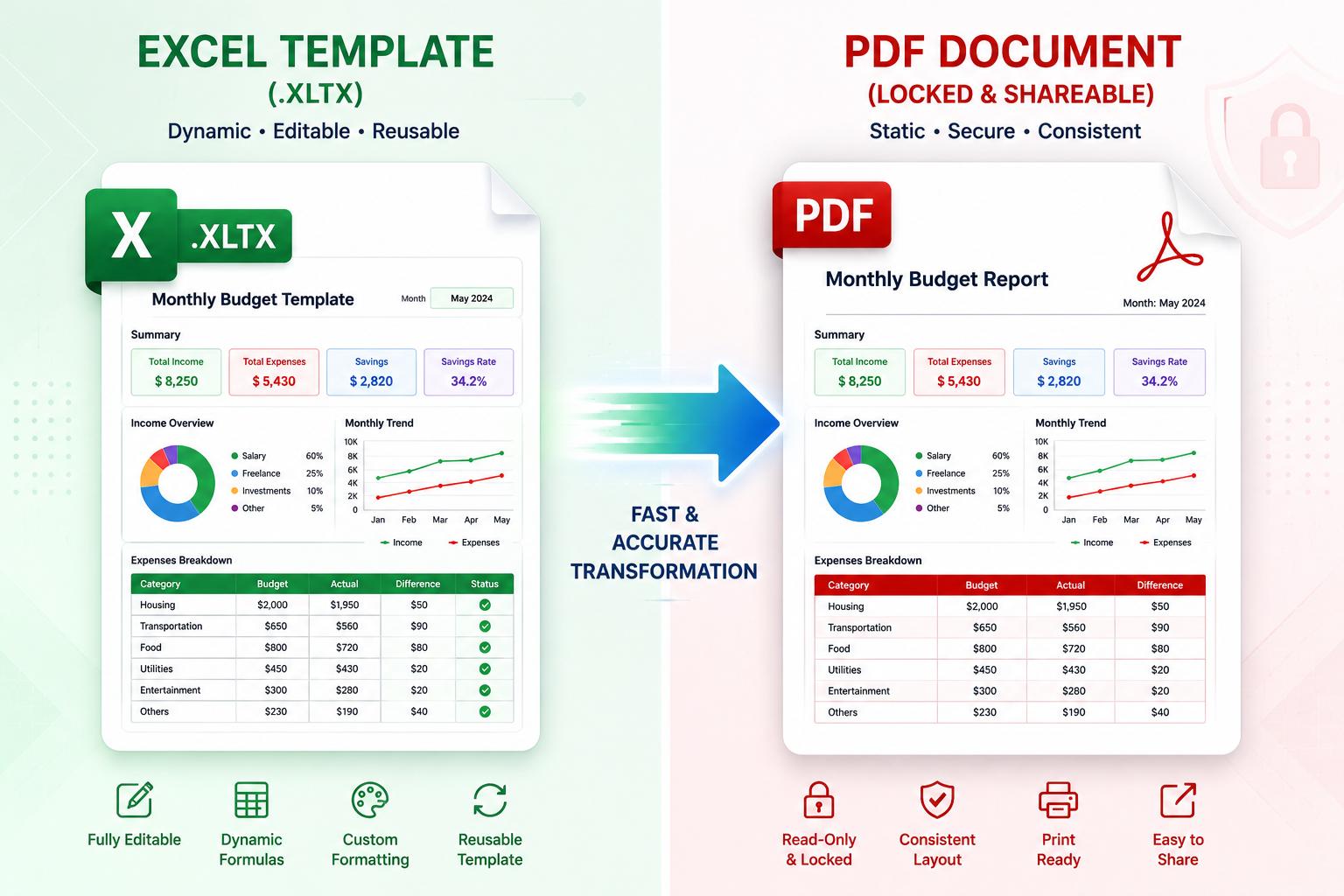
XLTX to PDF: Convert Excel Templates to PDF Without Losing Formatting

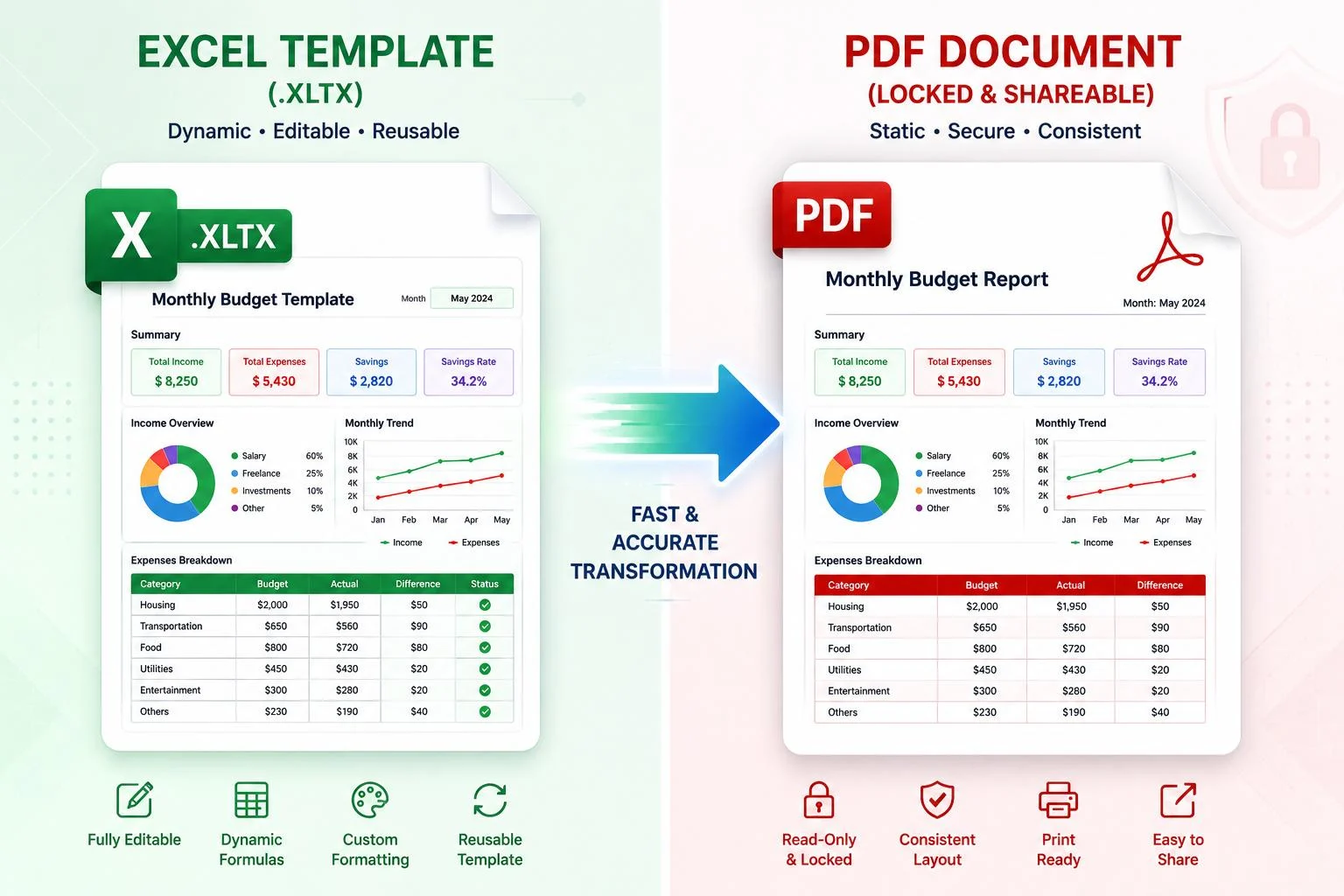

Table of Contents▼
Convert XLTX to PDF without losing formatting, print settings, charts, or visible data. Learn how to turn Excel templates into clean, shareable PDF documents.
“Quick Answer: To convert an XLTX file to PDF, first open the template and prepare the workbook content you want to share. Then check the print area, page orientation, and scaling before exporting or converting the workbook to PDF. The resulting PDF preserves the visible document layout but does not retain Excel's editable template structure or live formulas.
The Frustration of Sending an Excel Template by Mistake
It happens in almost every finance, operations, or client-facing team.
You spend two hours setting up an invoice, price estimate, or monthly project budget. You fill out the line items, check your formulas, and double-check the totals. Satisfied, you drop the file into an email to a client or director and hit send.
Ten minutes later, your phone rings or a Slack message pops up:
"Hey, this file opened as an empty template, and half the cells are asking me to update links. Can you send a viewable copy?"
That awkward pause happens because the document went out as an .xltx file—The .xltx format is a Microsoft Excel template designed to provide a reusable starting point for new workbooks. —instead of a locked, universal document.
Instead of seeing a polished summary, your recipient receives a reusable Excel template rather than a fixed final document. Depending on their software and workflow, they may need to open it in a compatible spreadsheet application before viewing or editing the template.
When you need to turn a reusable Excel layout into a final, client-ready deliverable, converting your XLTX file to PDF isn't just a minor formatting choice—it is a critical final step in your daily document workflow. Tools like Doxbar help streamline this transition without requiring cumbersome desktop software installations.
The Problem: Why Raw Excel Templates Fail in Communication
Excel templates (.xltx) serve a specific structural purpose: they act as reusable starting points for creating new Excel workbooks with predefined formatting, formulas, layouts, and other settings. (.xlsx) every time you double-click them.
When you misuse templates for direct document distribution, several operational issues pop up immediately.
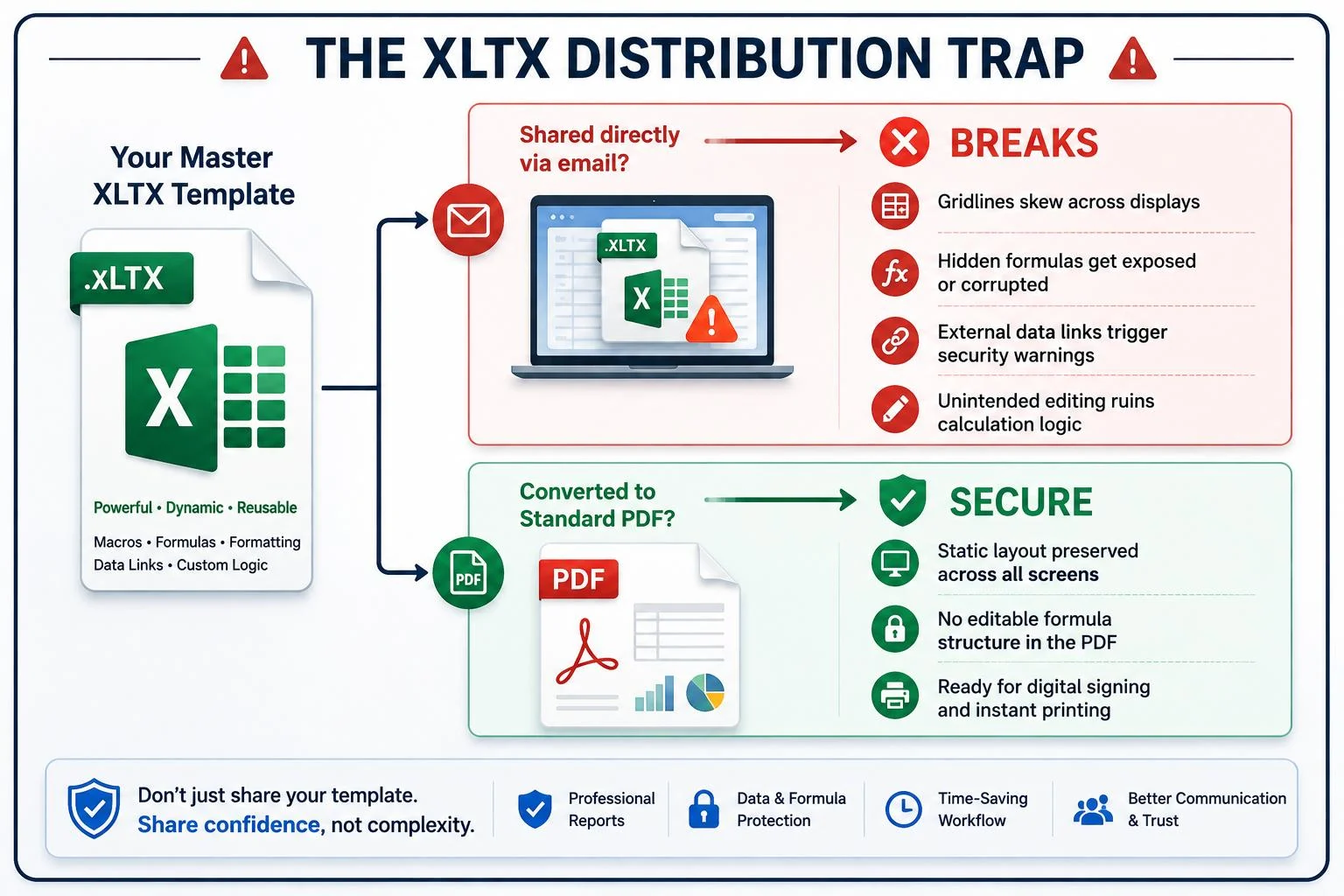
A technical infographic explaining why an editable XLTX Excel template may be unsuitable for direct distribution and why converting XLTX to PDF can provide a fixed-layout, non-editable version for reliable sharing, printing, and document signing.
File Compatibility and App Support
Not every client or stakeholder runs a full suite of desktop software. Opening an XLTX file on a smartphone or mobile browser often leads to missing fonts, misaligned columns, or outright reading errors. Microsoft natively designed XLTX files for desktop editing, not mobile viewing.
Accidental Overwrites and Exposed Data
When you send a working spreadsheet, recipients can inspect underlying formulas, unhide hidden rows, or accidentally change values that alter grand totals. If you're distributing pricing sheets or financial reports, exposed calculation structures create unnecessary security risks.
Printing and Page Layout Chaos
Spreadsheets do not natively respect standard physical page boundaries. Without explicit print setups, sending an XLTX file means the recipient might print a document that splits across seven disjointed pages, isolating key data onto orphaned sheets.
Slow, Heavy Software Overhead
Loading a heavy, formula-laden template inside standard desktop suites consumes unnecessary RAM and processor power—especially if the recipient simply needs to review a summary total on the go.
Educational Deep Dive: How Spreadsheet Conversion Actually Works
Understanding why spreadsheets misbehave during file conversion requires looking under the hood at how Microsoft Open XML standards function.
The Anatomy of XLTX vs. XLSX vs. PDF
Excel Template file format: A zipped archive of XML structures containing layout definitions, default cell styles, and formula logic. Its native OS behavior is to force the computer to spawn a copy rather than editing the master file.
XLSX (Standard Spreadsheet Document): The active file created from an XLTX file. It holds specific row data, values, and working calculations.
PDF (Portable Document Format): A vector-based, fixed-layout container created by Adobe. It strips dynamic formula evaluation in favor of precise spatial coordinates for graphics, text, and lines.
Why Layouts Shift During Conversion
Unlike word processing files, spreadsheets use fluid column widths measured in character units rather than fixed spatial margins. When an engine converts an Excel template into a PDF snapshot, it must calculate:
DPI Scaling: Translating screen pixels to print points ($72 \text{ pt/inch}$).
Font Metrics: Normalizing custom typography so embedded text doesn't wrap unexpectedly into double lines.
Boundary Truncation: Deciding where horizontal tables slice if they exceed standard page dimensions (e.g., US Letter vs. A4).
When cheap or legacy converters handle this process, they skip layout normalization, resulting in clipped tables, overlapping text, and missing background shading.
Modern Solution Framework: What to Look For in a File Converter
If you rely on turning templates into final deliverables daily, your conversion tools should meet specific technical standards.
Strict Data Privacy: Your spreadsheet templates often hold proprietary formulas, pricing logic, or personal information. Look for tools that utilize client-side conversion or enforce strict zero-retention policies on temporary server processing.
Smart Layout Preservation: The conversion engine must respect native page setup parameters—such as "Fit to 1 Page Wide"—rather than arbitrarily slicing worksheets into bits.
Zero Installation Overhead: Modern workflows belong in the browser. Needing a desktop plugin or heavy local software suite just to save a file as a PDF creates unnecessary friction.
Cross-Device Speed: Whether you are working on an iPad, a Chromebook, or a high-end workstation, the conversion process should render consistently fast.
Tool Comparison: Legacy, Desktop, and Modern Browser Processing
Feature / Capability | Legacy Online Converters | Desktop Office Suites | Modern Browser Engine (Doxbar) |
Setup Required | None | High (Paid Licenses) | None |
Conversion Speed | Slow (Queue Queuing) | Moderate | Instant |
File Privacy | Low (Persistent Storage) | High (Local Only) | High (Client-First / Privacy-Focused) |
Mobile Accessibility | Poor | Very Poor / Clunky | Full Responsive Support |
Layout Integrity | Variable / Unreliable | High | High Engine Parity |
Cost | Ad-Heavy / Subscription | Expensive Licensing | Free / Streamlined |
Step-by-Step Guide: How to Convert XLTX to PDF Seamlessly
Transforming your filled Excel templates into clean PDFs doesn't require navigating complex print setup menus inside desktop software.
Step 1: Open Your Browser Tool
Navigate to the web-based document conversion interface on Doxbar. No software installation or account creation is required to start processing files.
Step 2: Upload Your XLTX File
Drag and drop your template file (.xltx) directly into the upload dropzone, or select it from your local storage, Google Drive, or Dropbox folder.
Step 3: Select PDF as Target Output
Choose PDF as your desired output format. The system automatically reads the underlying Open XML spreadsheet layout, formula results, and formatting properties.
Step 4: Execute the Conversion
Click Convert. The engine processes the file structure, calculates page boundaries, locks visible formula outputs into static vectors, and prepares the PDF file.
Step 5: Download and Verify
Save the resulting PDF to your device. Open it in a standard viewer (or browser window) to ensure all column widths, borders, and numerical entries line up cleanly before sending it to clients.
XLTX vs XLSX vs PDF: Which Format Should You Use?
XLTX, XLSX, and PDF serve different purposes. XLTX is designed as a reusable Excel template, XLSX is used for working with editable spreadsheet data, and PDF is better suited to sharing a fixed version of a completed document.
Feature | XLTX | XLSX | |
Primary purpose | Reusable template | Editable workbook | Fixed-layout document |
Editable in Excel | Yes | Yes | No spreadsheet editing |
Stores formulas | Yes | Yes | Formula logic is not preserved |
Reusable template behavior | Yes | No | No |
Fixed page layout | No | No | Yes |
Best for | Creating new workbooks | Working with data | Sharing final documents |
Pros & Cons: XLTX vs. PDF for Distribution
XLTX Files (Excel Templates)
Pros:
Reusable structure for internal team processes.
Keeps default formulas and automation macros active.
Ensures users don't accidentally overwrite primary master files.
Cons:
Unsuitable for client-facing final deliverables.
Formulas can be broken or modified by end users.
Formatting breaks easily across different screen resolutions and OS builds.
PDF Files (Converted Output)
Pros:
100% fixed visual presentation across screens, smartphones, and print platforms.
Data and formulas are locked—preventing accidental edits or tampering.
Lightweight file sizes make for quick email attachments.
Cons:
Static data cannot be directly edited without conversion back to an editable format.
Lacks dynamic recalculation if underlying numbers change later.
Frequently Asked Questions
1. What is an XLTX file?
An XLTX file is an official Microsoft Excel Template file formatted under the Office Open XML standard. It stores default styles, layout rules, and calculation formulas to generate fresh .xlsx spreadsheets without altering the template itself.
2. Can I convert an XLTX file to PDF without Microsoft Office installed?
Yes. You can use modern web utilities like Doxbar or browser-based tools to convert XLTX files directly without owning an active Microsoft 365 desktop license.
3. Why do my formulas disappear when I convert XLTX to PDF?
This is intentional. PDFs display final static outputs rather than dynamic applications. The conversion process evaluates the calculated formula result and locks that static number visually on the page.
4. How do I fix split columns or cut-off tables in my converted PDF?
Formatting breaks usually happen when grid widths exceed standard printable dimensions. You can solve this by:
Setting your spreadsheet layout to "Fit All Columns on One Page" before saving.
Using an online engine that auto-normalizes page orientation (Portrait vs. Landscape).
5. Is it safe to convert sensitive financial templates online?
Security depends entirely on the conversion service used. Trusted platforms utilize encrypted transfers (HTTPS/TLS) and clear temporary data automatically. For privacy compliance details, review Cloudflare's Privacy Guidance on data-in-transit standards.
6. What is the difference between XLTX and XLSX?
XLTX: A read-only template used to spawn identical new documents.
XLSX: A standard working spreadsheet file containing active, editable data entries.
7. What is the difference between XLTX and XLTM?
XLTX files contain standard formulas and formatting without executable code. XLTM files contain embedded VBA macros designed to automate advanced tasks.
8. Will converted PDFs preserve hidden worksheets or rows from my Excel template?
No. Hidden sheets, hidden rows, and collapsed groupings remain hidden and are excluded from the visual PDF render unless specifically unhidden before conversion.
9. Can I convert an XLTX file on an Android or iOS device?
Yes. Because modern web tools operate directly inside mobile browsers like Safari or Chrome, you can upload, convert, and save PDFs on mobile devices without desktop software.
10. Can I password-protect the PDF generated from my XLTX file?
Yes. Once your file converts to PDF, you can apply standard PDF encryption software or permissions to restrict viewing, printing, or copying.
11. Does converting XLTX to PDF preserve chart elements and images?
Yes. Vector graphics, line charts, logos, and colored cell fills carry over into the rendered PDF document.
12. How do I convert multiple XLTX templates at once?
Many modern online document conversion utilities offer batch processing options, letting you select multiple files and download them together in a consolidated .zip folder.
13. Why is my XLTX file opening as a read-only document?
By design, operating systems open template files as read-only copies to prevent users from accidentally changing the master template structure.
14. Will converting XLTX to PDF reduce the file size?
In almost all cases, yes. PDFs strip heavy internal XML structures, macro frameworks, and recalculation trees, resulting in a much lighter file that sends faster via email.
15. Can I edit a PDF after converting it from an XLTX file?
PDFs are fixed-layout documents. While you can markup, annotate, or digitally sign a PDF using software, editing cell structures or numerical logic requires converting the PDF back to an editable spreadsheet format.
16. What happens to hyperlinks inside my Excel template?
Active text hyperlinks mapped to external websites or email addresses typically remain clickable inside the exported PDF file.
17. How do I handle large XLTX files with dozens of worksheets?
When converting multi-tab templates, the engine renders each visible worksheet sequentially into a multi-page PDF document.
18. Why does my print layout look different on Mac vs. Windows?
Font engines and print drivers interpret system margins differently across operating systems. Converting your document to PDF on a centralized web engine resolves these cross-platform inconsistencies.
19. Do I need special software to open the converted PDF?
No. Modern operating systems and web browsers (such as Google Chrome, Mozilla Firefox, or Microsoft Edge) open PDF files natively without needing dedicated software installed.
20. Does Doxbar store copies of my converted financial templates?
No. Reliable document workflows prioritize user data privacy by processing conversions through secure, temporary sessions that purge input files shortly after completion.
21. Can I convert an XLTX file directly from Google Drive?
Yes. Download the template file to your local drive or route it straight through your web tool interface to export a finished PDF file.
22. What resolution should I expect for embedded company logos in the PDF?
If your original XLTX template includes high-resolution image assets (such as PNG or SVG logos), the resulting PDF will maintain vector sharpness without pixelation.
Related Excel and PDF Tools
If you regularly work with Excel templates, spreadsheets, and PDF documents, you may also find these related conversion and document tools useful:
Excel to PDF — Convert standard Excel workbooks into fixed-layout PDF documents for sharing and printing.
XLSX to PDF — Export standard Excel workbooks to PDF while preserving tables, charts, and page formatting.
XLSM to PDF — Convert macro-enabled Excel workbooks into PDF files for easier distribution without sharing the original VBA-enabled workbook.
XLSB to PDF — Turn Excel Binary Workbooks into shareable PDF reports without requiring recipients to work with the original binary spreadsheet format.
PDF to Excel — Extract tables and structured data from PDF documents into an editable Excel workbook when further spreadsheet analysis is required.
Compress PDF — Reduce PDF file size when a converted report is too large to email or upload.
Protect PDF — Add password protection and other security controls to a PDF before sharing sensitive documents.
Maintaining Professional Document Trust
Managing digital document workflows requires balancing flexibility with presentation security. When you are building models, adjusting assumptions, or organizing workflows internally, active template formats like .xltx are invaluable assets.
However, once a document leaves your internal ecosystem and travels outward to clients, vendors, or external auditors, clarity becomes top priority.
Converting your working templates into static, universally readable PDFs ensures:
Your numbers display exactly as intended, regardless of the recipient's screen or device.
Proprietary calculation methods remain secure from accidental edits or exposure.
Your documents maintain a professional look and feel for immediate review, archive, or print.
By utilizing secure, browser-native conversion platforms like Doxbar, you can streamline this handoff in seconds—keeping your daily document production running smoothly without missing a beat.
Need to Convert Document Formats?
Try our secure, lightning-fast PDF conversion suite. Convert Word, Excel, Images, and more with zero formatting loss.

Doxbar Editorial
Security & Privacy Team
We specialize in secure document architectures, parsing engines, and modern developer utilities. Keeping your files safe, lightweight, and perfectly formatted.
Join the Conversation
Share your thoughts or ask a question about this topic. This is a privacy-first system.