



OTS to PDF Converter
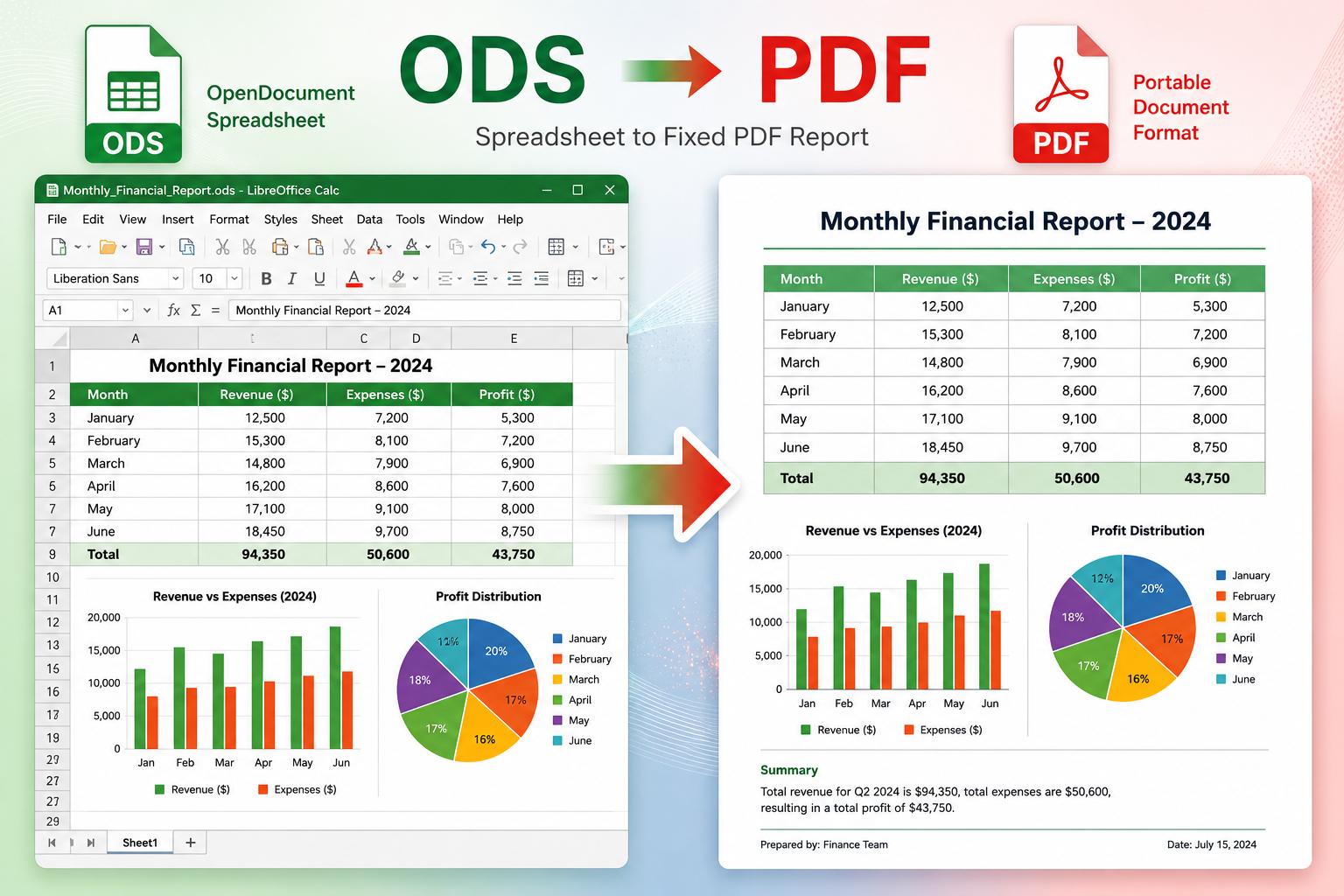
Convert OpenDocument Spreadsheet Templates (.ots) to PDF format seamlessly. Share your standard layouts and report templates with anyone.
📑 What is an OTS File?
OTS (OpenDocument Spreadsheet Template) is the template file format for LibreOffice Calc. It works similarly to Excel's XLTX format. When you open an OTS file in Calc, it creates a new, untitled spreadsheet based on the template's styles, formulas, and layout, ensuring the original template remains unchanged.
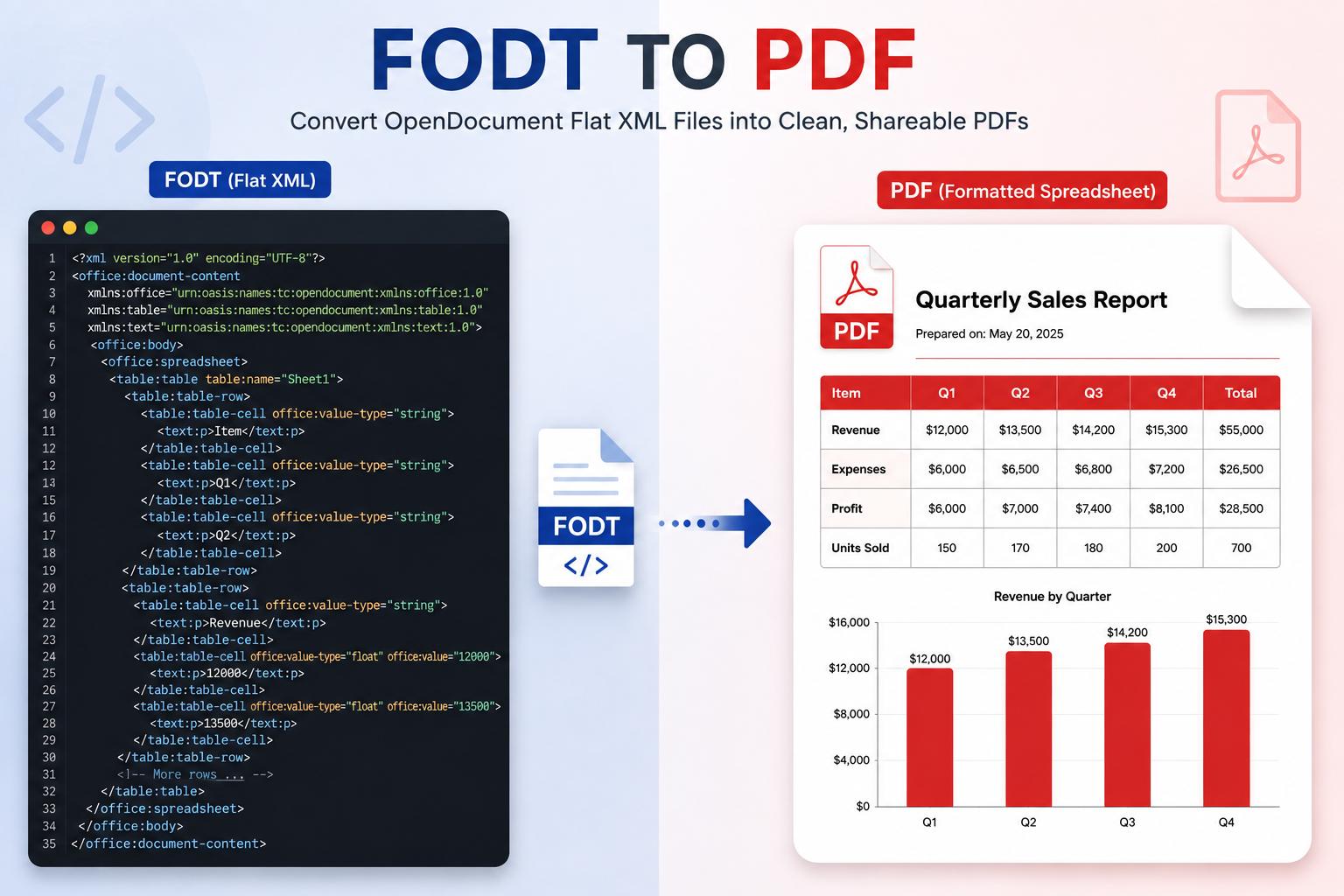
Converting OTS to PDF allows you to show others exactly what a report, invoice, or budget template looks like without them needing to install spreadsheet software or accidentally editing the template structure.
✨ Common Uses for OTS:
- ✔ Business Reports: Standardized monthly reporting layouts
- ✔ Invoices: Pre-formatted billing tables
- ✔ Budget Planners: Complex financial models ready for input
- ✔ Calendars: Yearly planners and schedules
🚀 Why Convert OTS to PDF?
👀 Preview Layouts
Let clients or team members see the template structure before they download the actual file to use it.
🛡️ Protect Intellectual Property
Share your complex template designs as read-only PDFs to prevent unauthorized modification or copying of formulas.
📱 Mobile Viewing
Most mobile devices can't open OTS template files directly. PDFs work everywhere instantly.
🖨️ High-Quality Printing
Print clean, empty forms from your templates for manual data entry using pen and paper.
Convert OTS to PDF in 4 Steps
Upload OTS
Drag & drop your template files
Processing
We analyze the layout
Conversion
Template is rendered to PDF
Download
Get your PDF file
🎯 Template Features
Style Preservation
Maintains cell colors, fonts, and conditional formatting.
Empty Forms
Perfect for creating printable blank forms from templates.
Formula Display
Shows the default values or placeholders defined in the template.
Images & Logos
Company logos and header images are rendered crisply.
Batch Processing
Convert your entire template library in one go.
Private & Safe
Files are automatically wiped from our servers.
❓ Frequently Asked Questions
Can I convert OTS to XLSX?
This tool specifically converts to PDF. To convert OTS to Excel (XLSX), you would typically use LibreOffice Calc to "Save As" XLSX, or find a dedicated converter tool.
Does it keep the gridlines?
Yes, if your template has gridlines enabled for printing, they will appear in the PDF. You can also design your template with specific borders which will always appear.
Will macros work in the PDF?
No, PDFs are static documents and cannot execute macros or scripts. The PDF will visually represent the spreadsheet as it looks when opened, but interactive elements will not function.
How do I secure my PDF?
After converting your OTS to PDF, you can use our Protect PDF tool to add a password and restrict copying or printing.
💡 Template Management Tips
- ✅Central Library:
Keep a central folder of PDF previews for all your OTS templates so staff can quickly find the right one visually.
- ✅Version Numbers:
Add a version number in a cell in your OTS template footer. It will show up in the PDF, helping you track outdated forms.
- ✅Print Areas:
Define print ranges in your OTS file to ensure the PDF only includes the relevant form area, not endless empty cells.
Digitize Your Templates
Convert your OpenDocument templates to universally accessible PDF forms and reports today.