PDF Color Picker: Extract Color Wisdom from Your Documents
Uncover the hidden aesthetic DNA of your PDF files. Our AI-driven extraction tool analyzes spatial color distributions, providing designers and developers with instant, copy-ready palettes for branding, UI, and marketing.
The Art of Color Extraction
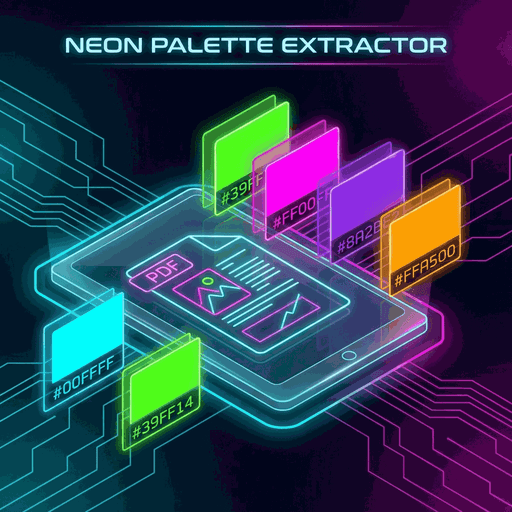
In the digital design workflow, the ability to maintain consistency is paramount. Whether you are building a website based on a client's PDF brand guidelines or trying to match a UI kit to a pre-existing marketing brochure, the PDF Color Picker is your most powerful ally.
Unlike standard image eye-droppers that pick a single pixel, our tool looks at the entire composition. We treat each PDF page as a visual dataset, analyzing millions of pixels to determine which colors define the document's mood, intent, and identity.
Dominant Profiles
Identifies primary and secondary colors that occupy the most visual weight.
Multi-Page Context
Maintains palette history across multi-page documents for comprehensive branding.
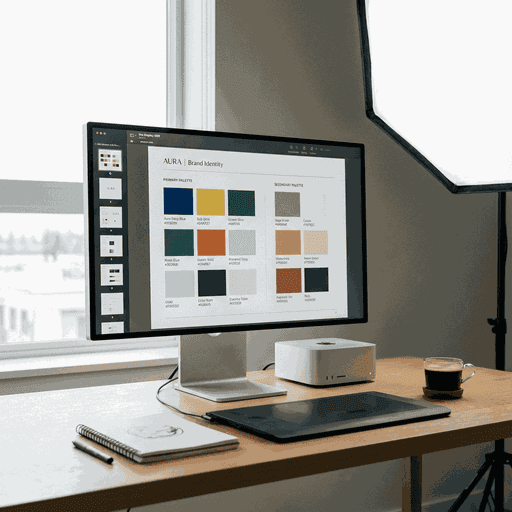
Under the Hood: K-Means Analysis
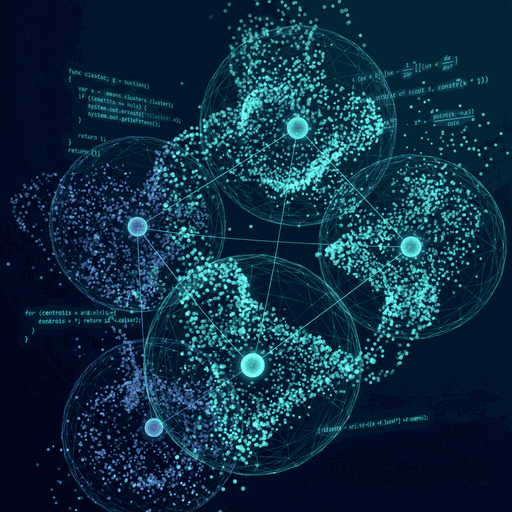
Scientific representation of three-dimensional color space clustering.
Our PDF color extraction algorithm utilizes a sophisticated implementation of the K-Means clustering algorithm. This isn't just a simple average; it's a multi-step mathematical process:
- 1
Vectorization
Each pixel is converted into a 3D vector representing R, G, and B coordinates in the color space.
- 2
Centroid Initialization
The algorithm randomly initializes "K" points (centroids) based on your requested number of colors.
- 3
Iterative Convergence
Pixels are assigned to the nearest centroid. The centroids then update their position to the center of their assigned pixels, repeating until the palette stabilizes.
Design Accuracy Note:
By using mathematical clustering instead of simple averaging, we preserve the vibrant "accent" colors that a basic average would wash out into gray.
Who Needs This Tool?
From professional studios to freelance developers, the use cases for PDF color analysis are infinite.
UI/UX Designers
Extract palettes from high-fidelity PDF mockups to build Design Systems in Figma or Sketch.
Web Developers
Instantly grab brand colors as HEX or HSL for Tailwind CSS configurations and CSS variables.
Brand Managers
Ensure marketing materials and internal documents conform 100% to approved brand color codes.
HEX, RGB, or HSL?
Our extractor provides three distinct formats for every color found. Understanding which one to use is crucial for your professional output:
HEX (Hexadecimal)
Best for: Web design, Figma, and general digital use.
RGB (Red, Green, Blue)
Best for: Image editing software and development where opacity (RGBA) is needed.
HSL (Hue, Saturation, Lightness)
Best for: CSS programmatic adjustments, themes, and human-readable color modifications.
Pro-Ready Output
Click, Copy, Create. No manual typing of codes or looking up values. 100% accuracy guaranteed.
The Psychology of Extracted Color
When you use our PDF Color Picker, you're not just getting data—you're getting insight into the emotional foundation of a document. Colors are often the first thing a human brain processes when looking at a page, long before the text is read. By extracting these dominant shades, you can understand the strategic intent behind the design.
Emotional Mapping
Our analysis often reveals patterns that design teams use to manipulate user behavior. For instance, a finance PDF might return a palette heavy in deep navy and charcoal gray—colors statistically proven to build trust and authority. Conversely, a tech brochure might extract vibrant cyans and magentas, signaling innovation and energy.
By seeing the ratio of these colors, researchers can benchmark brand presence across hundreds of competitor PDFs.
Accessibility Standards
One of the most powerful uses of the PDF Color Extractor is checking contrast ratios. Once you have the HEX codes, you can instantly run them through WCAG (Web Content Accessibility Guidelines) checkers. This ensures that the digital document you are building from the PDF source is readable for individuals with visual impairments.
Principles of Balance in PDF Analysis
The DoxBar PDF Palette Generator doesn't just list colors; it orders them by Ratio. This ratio is more than just a percentage of pixels—it's a guide to the 60-30-10 rule of design.
When you analyze a professionally designed document, you'll likely see one color occupying about 60% of the space (usually a neutral background), 30% taken by a secondary brand color, and 10% reserved for an "anchor" or "call-to-action" color.
Our tool allows you to replicate this balance in your own projects. Instead of guessing, you can mathematically prove that the logo on page 5 uses exactly 7.5% more saturation than the sidebar on page 2, allowing for a level of precision that was previously impossible without the original source files.
Educational Context
Design students use this tool to dissect classical layouts and learn how master designers group colors. By reverse-engineering a PDF, students can learn color theory in a practical, hands-on environment.
Zero Friction Web
The copy-to-clipboard functionality is built to save hours of manual entry. We support all modern browser engines and provide visual feedback for every copy action.
Questions Answered
Does changing the PDF resolution affect the color extraction?
Yes, to ensure high speed, we sample pages at 150 DPI. This provides a perfect balance between mathematical accuracy and rendering time.
Can I extract colors from massive 100+ page PDFs?
Absolutely! Simply use the 'Page Range' feature to select the specific pages you need. This prevents unnecessary processing of text-only pages.
Is the data extraction secure?
100%. DoxBar uses transient processing. Your files are rendered on our secure servers, the color vectors are calculated, and the data is purged immediately. We never store your documents.
What is k-means and why do you use it?
K-Means is a clustering algorithm that groups similar colors together. We use it because it excels at finding the 'true' dominant colors rather than just an average muddy brown or gray.
Ready to Capture the Rainbow?
Join thousands of designers using DoxBar to simplify their color workflow. Free, instant, and high-performance.