How to Clean PDF Documents: Instantly Remove Comments & Highlights
Transform your marked-up drafts into pristine, professional documents. Learn how to strip away layers of sticky notes, scribbles, and stamps in seconds.
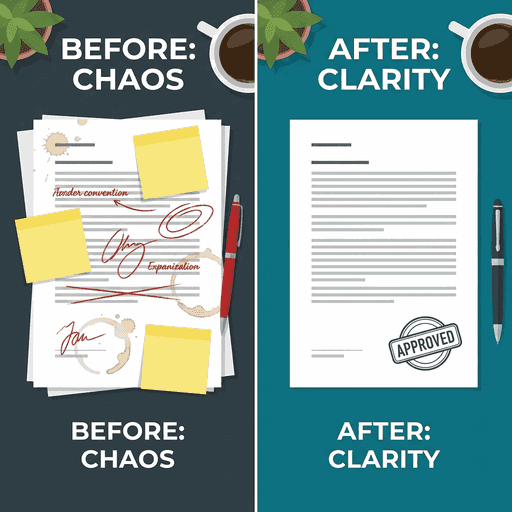
The Hidden Layers of a PDF
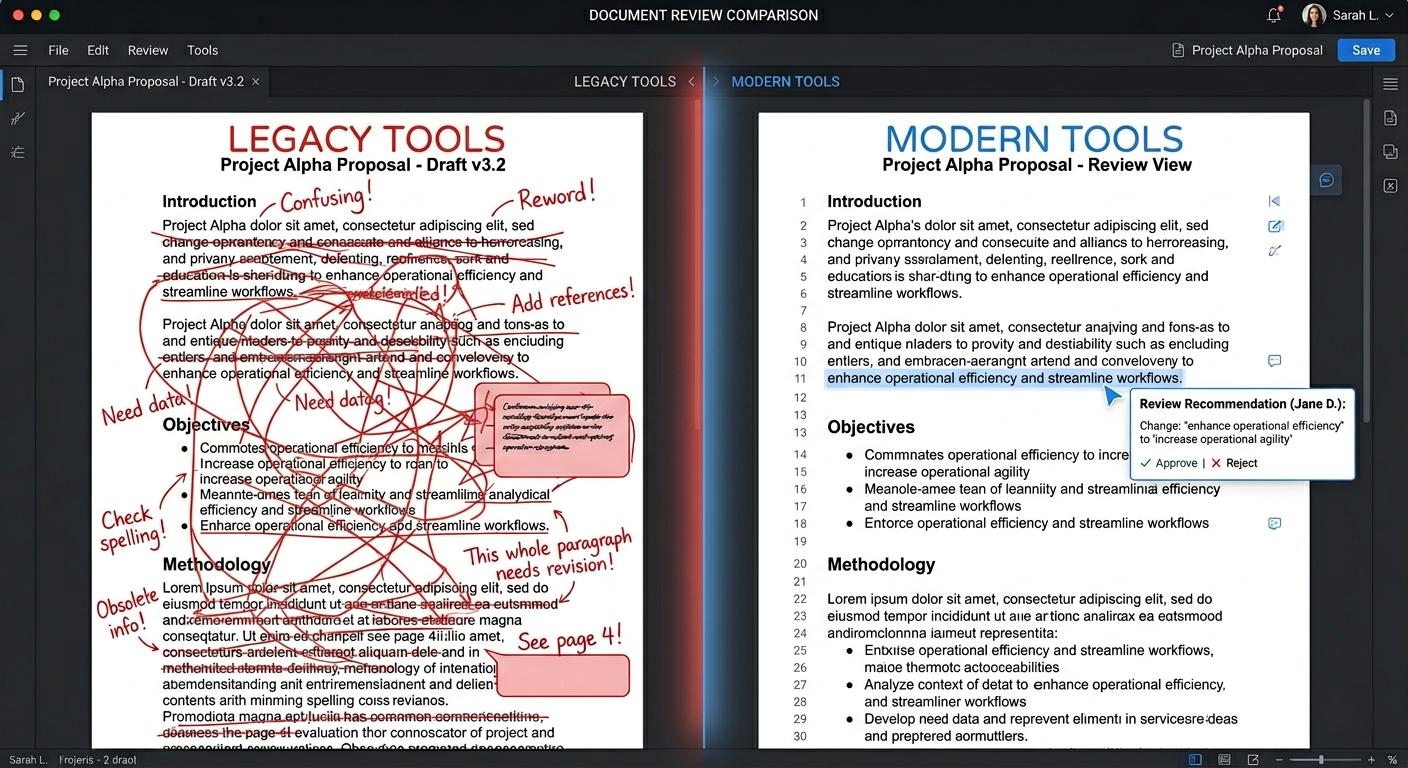
When you view a PDF, you are looking at a stack of digital acetates. The bottom layer is your content (text and images). Floating above that is the Annotation Layer. This transparent sheet holds:
- Highlights
- Underlines
- Strikethroughs
- Sticky Notes
- Stamps ("Approved")
- Freehand Drawings
While these tools are fantastic for collaboration, they are disastrous for final presentation. Sending a client a contract with your internal question "Is this price too low?" attached as a yellow sticky note is a professional nightmare.
Why "Selecting and Deleting" Doesn't Work
Opening a 100-page document and trying to manually click and delete every single highlight is tedious and error-prone. If you miss one small comment, it could leak sensitive information. Our automated tool acts like a vacuum for that specific metadata layer, ensuring 100% removal of all markup elements instantly.
3 Critical Reasons to Clean Your PDFs
Privacy & Security
Internal comments often contain negotiation tactics, doubts, or personal data. Cleaning the PDF sanitizes this information before it leaves your organization.
Professionalism
A clean document shows respect for the recipient. It prints cleaner (saving ink on yellow highlights) and is easier to read on tablets.
File Size Reduction
Heavy markup, especially freehand drawings and complex stamps, adds to file size. Stripping them reduces the kilobyte count for faster emailing.
How to Use the Annotation Remover
- Upload: Drag your marked-up PDF into the box above.
- Process: Our engine detects the annotation dictionaries in the PDF structure.
- Strip: We programmatically unlink and discard these objects while preserving the "Content Stream" (your text) perfectly.
- Download: You get a fresh file. We recommend saving it as
[Filename]_Clean.pdfso you keep your original notes as a backup.
Warning
This process is irreversible.
Once you download the clean file, you cannot "undo" to get your notes back. Always keep your original file if you need the comments for reference later.
Related Tools
Annotation Assistance.
Will this remove text I typed on the page?
It depends. If you typed text using a 'Text Box' or 'Typewriter' tool in a PDF viewer, that is technically an annotation layer and will be removed. If the text is part of the original document content (e.g., created in Word before converting to PDF), it remains 100% safe.
Does it remove interactive Form Fields?
Yes. Interactive form fields are technically 'Widget Annotations' in the PDF specification. This tool is designed to clean the document for printing or flat reading, so fillable fields and their data will be wiped.
Can I remove only specific colors/types?
Currently, our tool provides a 'Deep Clean' that removes ALL annotation types to strictly ensure no metadata is missed. Selective removal (e.g., keep highlights but delete notes) is a feature planned for a future update.
Is the removal permanent?
Yes. Once you process and download the file, the annotation layer is stripped from the file structure. We highly recommend keeping your original file if you think you might need to reference those comments later.
Does this affect the quality of the main text?
No. The main content stream (your actual document text and images) sits on a separate layer from annotations. Cleaning the top layer leaves the underlying document crisp, original, and untouched.