Compare PDFs – Detect Document Differences Online Free
Comparing two PDF files manually is tedious, error-prone, and inefficient. Doxbar's Intelligent Tool automates this process, detecting every text change, deletion, and layout shift in seconds—keeping your data 100% offline & secure.
1. Introduction
PDF files are the backbone of professional document exchange—contracts, reports, legal agreements, invoices, and academic papers. But when you have two versions of the same document, how do you quickly identify what changed? Whether you're reviewing a contract revision, validating a generated report, or comparing document versions, manually scanning page by page is time-consuming, error-prone, and inefficient.
Imagine you're a legal professional reviewing a 100-page contract revision. The changes could be anywhere—a single word in clause 42, a removed paragraph on page 67, or an added section on page 89. Missing even a minor change could have serious consequences. Or imagine you're a quality assurance specialist validating generated reports against templates—you need to ensure every page matches perfectly.
That's where DoxBar's Compare PDFs tool comes in. It's a free, secure, and intelligent online solution that detects layout shifts, text modifications, and structural changes with pixel-perfect accuracy—directly from your browser. No software installation, no registration, no hidden costs. Just upload the original and modified documents, and get a detailed comparison report instantly.
In this comprehensive guide, we'll explore everything you need to know about comparing PDFs—from basic concepts to advanced techniques, real-world use cases, industry applications, security considerations, and answers to the most frequently asked questions.
2. What is Compare PDFs?
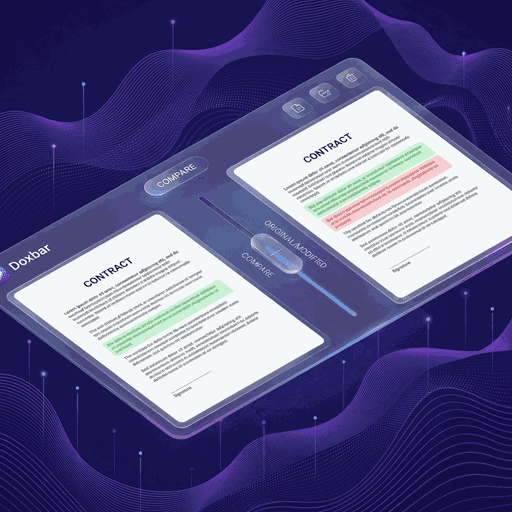
Compare PDFs is the process of analyzing two PDF documents side by side to identify every change between them. This includes text modifications, layout shifts, structural changes, added or removed content, and formatting differences.
How PDF Comparison Works
- Document Upload – Upload both the original and modified PDF files
- Content Extraction – Extract text, images, and layout information from both documents
- Intelligent Analysis – Analyze both documents to detect differences
- Smart Alignment – Automatically detect inserted or deleted pages
- Change Detection – Identify text modifications, layout shifts, and structural changes
- Result Generation – Create a comprehensive comparison report
What Can Be Detected
| Change Type | Description |
|---|---|
| Text Modifications | Added, removed, or changed text |
| Layout Shifts | Changes in formatting, spacing, or positioning |
| Structural Changes | Page insertions or deletions |
| Image Changes | Added, removed, or modified images |
| Formatting Changes | Font, size, color, or style changes |
| Content Order | Reordered content or paragraphs |
3. Why Compare PDFs?
There are countless reasons to compare PDF documents. Here are the most common scenarios:
1. Contract Review
Legal contracts often go through multiple revisions. Comparing versions ensures you catch every change—even minor wording modifications that could have significant legal implications.
2. Document Version Control
When multiple people work on a document, tracking changes is essential. PDF comparison helps you understand exactly what changed between versions.
3. Quality Assurance
Validate generated reports, invoices, or documents against templates. Ensure every page matches the expected format and content.
4. Regulatory Compliance
Many industries require documenting changes to critical documents. Comparison reports provide a clear audit trail.
5. Academic Integrity
Compare academic papers, theses, or research documents to identify differences or verify consistency.
6. Translation Verification
Compare translated documents against the original to ensure completeness and accuracy.
7. Invoice and Financial Document Validation
Verify that invoice copies match original documents. Detect unauthorized changes to financial documents.
8. Publishing and Editing
Compare manuscript versions to track editorial changes. Ensure final versions include all approved modifications.
9. Legal Discovery
In legal proceedings, comparing document versions is often necessary. Quickly identify what changed in contracts, agreements, or evidence documents.
10. Audit and Compliance
Internal and external audits often require comparing documents. Automated comparison saves hours of manual review.
4. Compare vs. Other Document Operations
| Feature | Compare PDFs | Diff Checker | Version Control |
|---|---|---|---|
| Visual Comparison | ✅ Yes | ✅ Yes | ⚠️ Limited |
| Text Change Detection | ✅ Yes | ✅ Yes | ✅ Yes |
| Layout Change Detection | ✅ Yes | ❌ No | ❌ No |
| Page Alignment | ✅ Yes | ❌ No | ❌ No |
| Color-Coded Differences | ✅ Yes | ✅ Yes | ⚠️ Limited |
| Exportable Report | ✅ Yes | ✅ Yes | ❌ No |
Why Compare PDFs is Better
- Pixel-Perfect Accuracy – Detects even the smallest changes
- Visual Difference Highlights – Color-coded for easy identification
- Smart Page Alignment – Automatically handles inserted or deleted pages
- Complete Document Context – See changes in the full document context
5. Features
Our Compare PDFs tool is built with intelligent features designed to make document comparison effortless.
📌 Core Features
| Feature | Description |
|---|---|
| Pixel-Perfect Accuracy | Detects layout shifts, text modifications, and structural changes |
| Color-Coded Differences | Red for deleted content, green for added content |
| Smart Page Alignment | Automatically detects inserted or deleted pages |
| Text Change Detection | Identifies every text modification |
| Layout Change Detection | Detects formatting and positioning changes |
| Visual Comparison | Side-by-side view with synchronized scrolling |
🛡️ Security & Privacy
| Feature | Description |
|---|---|
| Secure Processing | All uploads and downloads are protected |
| Auto-Deletion | Files are automatically deleted after processing |
| No Permanent Storage | Files are never stored permanently on our servers |
| No Third-Party Access | Files are never shared, sold, or accessed by third parties |
| No Registration Required | Use the tool completely anonymously |
🌐 Accessibility
| Feature | Description |
|---|---|
| Cross-Platform | Works on Windows, macOS, Linux, Android, and iOS |
| Browser Support | Compatible with Chrome, Firefox, Edge, Safari, Opera, and Brave |
| Mobile-Friendly | Fully responsive design for smartphones and tablets |
| No Software Installation | Runs entirely in your web browser |
| Drag-and-Drop Support | Simply drag your file into the upload area |
⚡ Performance
| Feature | Description |
|---|---|
| High-Speed Processing | Comparison is fast and efficient |
| Deep Analysis | Comprehensive detection of all differences |
💰 Cost
| Feature | Description |
|---|---|
| 100% Free | No hidden charges, subscriptions, or premium tiers |
| Unlimited Uses | Compare as many files as you need |
| No Watermarks | Output files are clean and watermark-free |
| No Feature Restrictions | All features are completely unlocked |
6. How to Compare PDFs
📝 Step-by-Step Guide
Step 1: Visit the Tool Page
Open your browser and navigate to doxbar.com/ai-tools/compare-pdf .
Step 2: Upload Both PDF Files
- Original Document: Upload the base/reference version
- Modified Document: Upload the revised/updated version
- Click the upload areas or drag-and-drop files
- File types supported:
.pdfonly - Files are uploaded securely
Step 3: Click "Deep Analysis"
- Click the "Deep Analysis" button
- Intelligent comparison begins automatically
- Processing time depends on file size and complexity
Step 4: Review the Comparison Results
- View differences highlighted in the document
- Red highlights indicate removed content
- Green highlights indicate added content
- Navigate through pages to see all changes
Step 5: Download Your Comparison Report
- Once analysis is complete, download the comparison report
- The report shows all detected differences
Step 6: Done!
- Your original files are automatically deleted from our servers after processing
- No trace remains on our systems
7. Understanding Comparison Results
Color-Coded Differences
| Color | Meaning |
|---|---|
| 🔴 Red | Deleted text or content (in the original) |
| 🟢 Green | Added text or content (in the modified document) |
| 🟡 Yellow | Layout or formatting changes |
What the Results Show
| Element | What It Detects |
|---|---|
| Text Changes | Every added, removed, or modified word |
| Page Changes | Inserted or deleted pages |
| Layout Changes | Formatting, spacing, and positioning shifts |
| Structural Changes | Document structure modifications |
| Content Order | Reordered content or paragraphs |
8. Real-Life Scenarios
⚖️ Legal Contract Review
Compare contract versions to identify every change before signing. Detect added clauses, removed sections, or modified wording that could affect legal obligations.
📄 Document Version Control
Track changes across multiple document versions. Understand exactly what changed between revisions.
📊 Quality Assurance
Validate generated reports against templates. Ensure every page matches expected format and content.
🏢 Regulatory Compliance
Document changes to critical documents for compliance audits. Maintain clear audit trails.
🎓 Academic Research
Compare research papers to ensure consistency. Verify that citations, data, and conclusions are accurate.
🌐 Translation Verification
Compare translated documents against originals. Ensure completeness and accuracy of translations.
💰 Financial Document Validation
Verify that invoice and statement copies match originals. Detect unauthorized changes to financial documents.
📚 Publishing and Editing
Compare manuscript versions to track editorial changes. Ensure final versions include all approved modifications.
⚖️ Legal Discovery
Quickly identify what changed in contracts, agreements, or evidence documents. Compare document versions efficiently.
📋 Audit and Compliance
Internal and external audits often require comparing documents. Automated comparison saves hours of manual review.
9. Industries That Benefit from Compare PDFs
| Industry | Common Documents | How Comparison Helps |
|---|---|---|
| Legal | Contracts, agreements, case files | Identify changes before signing |
| Healthcare | Patient records, medical reports | Verify document accuracy |
| Finance | Statements, invoices, audits | Validate document integrity |
| Education | Research papers, theses | Ensure academic integrity |
| Government | Applications, records | Maintain compliance |
| HR | Employee documents, contracts | Track document versions |
| Publishing | Books, manuscripts | Track editorial changes |
| Translation | Translated documents | Verify translation accuracy |
| Banking | Loan applications, statements | Validate document authenticity |
| Quality Assurance | Reports, documentation | Validate against templates |
10. Feature-Based Comparison (No Brand Names)
| Feature | DoxBar (Free) | Other Free Tools | Premium Tools |
|---|---|---|---|
| Price | ✅ 100% Free | ⚠️ Free with limits | ❌ $10–$20/month |
| Deep Analysis | ✅ Yes | ⚠️ Basic | ✅ Yes |
| Color-Coded Differences | ✅ Yes | ✅ Yes | ✅ Yes |
| Smart Page Alignment | ✅ Yes | ❌ No | ✅ Yes |
| No Registration | ✅ Yes | ✅ Yes (some) | ❌ No |
| Auto-Deletion | ✅ Yes | ✅ Yes (varies) | ❌ No |
| Watermark-Free | ✅ Yes | ❌ Often has watermark | ✅ Yes |
When to Choose Which Type of Tool
| Your Needs | Recommended Tool Type |
|---|---|
| Quick comparison tasks | Free online tool like DoxBar |
| Complex documents | DoxBar (free) or premium tools |
| No budget, unlimited use | DoxBar (free, unlimited) |
11. Best Practices
✅ Preparation Best Practices
| Practice | Why It Matters | How to Implement |
|---|---|---|
| Identify Correct Versions | Ensure you're comparing the right files | Verify document names and dates |
| Check Document Integrity | Ensure files are not corrupted | Open files before uploading |
| Know Your Baseline | Understand what's "original" | Mark the reference document clearly |
🔧 Comparison Best Practices
| Practice | Why It Matters | How to Implement |
|---|---|---|
| Upload Correct Files | Ensure accurate comparison | Double-check file selection |
| Review Results Carefully | Catch all changes | Navigate through all pages |
| Export Reports | Maintain documentation | Download comparison reports |
📂 Post-Comparison Best Practices
| Practice | Why It Matters | How to Implement |
|---|---|---|
| Review the Result | Catch all changes | Open and verify the comparison report |
| Save Comparison Reports | Maintain audit trail | Store reports appropriately |
| Organize in Folders | Maintain tidy workspace | Store in appropriate folders |
12. Tips
💡 Expert Tips
-
Always Identify the Baseline – Know which document is the original reference version.
-
Review All Pages – Don't stop at the first page. Navigate through the entire document.
-
Use for Contract Review – Always compare contract versions before signing.
-
After comparison, you can organize PDF pages for better structure.
-
Use the merge PDF tool to combine documents.
-
After comparison, compress PDF to reduce file size.
-
Use split PDF if you need to divide documents.
-
After comparison, protect PDF to secure documents.
13. Common Mistakes
| Mistake | Why It's a Problem | How to Avoid |
|---|---|---|
| Uploading Wrong Files | Incorrect comparison results | Double-check file selection |
| Not Reviewing All Pages | Missing changes | Navigate through all pages |
| Not Exporting Reports | No audit trail | Download comparison reports |
| Expecting Perfect Matches | False expectations | Understand that formatting differences may appear |
14. Security & Privacy
🔒 Security Features
| Feature | Description |
|---|---|
| Secure Processing | All uploads and downloads are protected |
| Auto-Deletion | Files are automatically deleted after processing |
| No Permanent Storage | Files are never stored permanently |
| No Third-Party Sharing | Files are never shared with anyone |
| Anonymous Processing | No registration or personal information required |
🛡️ Privacy Best Practices
- Download Files Promptly – Since files auto-delete, download as soon as processing is complete
- Use Private Networks – Perform tasks on trusted networks
- Delete Local Copies – Remove temporary files after use
- Verify Document Sensitivity – Use appropriate tools for sensitive documents
15. Supported Devices & Browsers
📱 Supported Devices
| Device Type | Supported |
|---|---|
| Desktop PCs | ✅ Yes (Windows, macOS, Linux) |
| Laptops | ✅ Yes (All OS) |
| Smartphones | ✅ Yes (Android, iOS) |
| Tablets | ✅ Yes (iPad, Android Tablets) |
| Chromebooks | ✅ Yes |
🌐 Supported Browsers
| Browser | Supported |
|---|---|
| Google Chrome | ✅ Yes |
| Mozilla Firefox | ✅ Yes |
| Microsoft Edge | ✅ Yes |
| Apple Safari | ✅ Yes |
| Opera | ✅ Yes |
| Brave | ✅ Yes |
16. Glossary
| Term | Definition |
|---|---|
| Portable Document Format – a file format that captures all elements of a printed document | |
| Compare | To analyze two documents to identify differences |
| Deep Analysis | Comprehensive detection of all differences including text, layout, and structure |
| Color-Coded Differences | Red for deleted, green for added, yellow for formatting changes |
| Smart Page Alignment | Automatic detection of inserted or deleted pages |
| Pixel-Perfect Accuracy | Detecting differences at the pixel level |
| Layout Shift | Changes in formatting, spacing, or positioning |
| Structural Change | Changes to document structure like page order |
| Auto-Deletion | Automatic removal of files from servers after processing |
17. Editorial Policy
At DoxBar, we are committed to providing accurate, reliable, and helpful content. Our editorial team follows these principles:
- Accuracy: All information is verified against current tool capabilities
- Transparency: We clearly distinguish between features and benefits
- Independence: Our content is not influenced by any third party
- User Focus: All content is created with user needs as the top priority
- Regular Updates: Content is reviewed and updated regularly
18. FAQ (Frequently Asked Questions)
General Questions
Q1: What is Compare PDFs? A: Compare PDFs is the process of analyzing two PDF documents side by side to identify every change between them, including text modifications, layout shifts, and structural changes.
Q2: Is DoxBar Compare PDFs completely free? A: Yes, absolutely! Our tool is 100% free with no hidden charges, subscriptions, or usage limits.
Q3: Do I need to create an account? A: No, you don't need to create an account or provide any personal information. It's completely anonymous.
Q4: What file types are supported for comparison? A: We support PDF files for comparison.
Q5: What types of changes can be detected? A: Text modifications, layout shifts, structural changes, page insertions or deletions, and formatting changes.
Q6: How long does comparison take? A: Processing time depends on the file size and complexity. Typically, it takes a few seconds to a minute.
Q7: Can I compare password-protected PDFs? A: Yes, provided you have the password. You'll be prompted to enter it before processing.
Q8: What do the colors mean in the comparison? A: Red highlights indicate deleted content, green highlights indicate added content, and yellow highlights indicate formatting or layout changes.
Technical Questions
Q9: How accurate is the comparison? A: Our tool uses advanced algorithms for pixel-perfect accuracy, detecting even the smallest changes.
Q10: Can the tool detect inserted or deleted pages? A: Yes, the tool uses smart page alignment to automatically detect inserted or deleted pages.
Q11: How long do you keep my uploaded files? A: Files are automatically deleted from our servers after processing.
Q12: Does this tool work offline? A: No, it requires an active internet connection.
Q13: Can I export comparison results? A: Yes, you can download a comparison report showing all detected differences.
Q14: Can I compare documents of different lengths? A: Yes, the tool handles documents of different lengths by detecting inserted or deleted pages.
Usage Questions
Q15: How do I compare two PDFs? A: Upload both PDFs (original and modified) and click the "Deep Analysis" button. Review the results and download the comparison report.
Q16: Can I compare PDFs on my phone? A: Yes, our tool is fully responsive and works on Android, iPhone, and other smartphones.
Q17: What happens to my files after processing? A: Your files are automatically deleted from our servers after processing. No copy is retained.
Q18: Can I compare PDFs without any software installation? A: Yes, our online tool works directly in your browser without any software installation.
Q19: What is the difference between Compare and Diff Checker? A: Compare PDFs analyzes both text and layout changes, while diff checkers typically only analyze text differences.
Q20: Can I compare scanned PDFs? A: Yes, the tool can compare scanned PDFs that contain text images.
Security & Privacy Questions
Q21: Is it safe to compare PDFs online? A: Yes, we use secure processing to protect your files and auto-delete them after processing.
Q22: Do you store my files? A: No, we do not store your files permanently. Files are temporarily held during processing and then purged.
Q23: Is my upload anonymous? A: Yes, we do not collect any personal information. You remain completely anonymous.
Q24: Can I compare sensitive documents? A: Yes, our secure processing and auto-deletion ensure your documents remain private. For highly sensitive documents, consider offline tools.
Compatibility Questions
Q25: Which browsers are supported? A: All modern browsers including Chrome, Firefox, Edge, Safari, Opera, and Brave.
Q26: Can I use this tool on Windows, macOS, and Linux? A: Yes, through any supported browser.
Q27: Can I compare PDFs on iPhone or iPad? A: Yes, our tool is fully optimized for iOS devices.
Q28: Does the tool support large files? A: Yes, the tool handles large files efficiently, though processing time may increase.
19. Related PDF Tools
After comparing documents, you can:
- Organize PDF Pages – Organize your documents for better structure
- Merge PDF – Combine documents after review
- Split PDF – Divide documents if needed
- Compress PDF – Reduce file size for easier sharing
- Remove PDF Pages – Delete unwanted pages
- Extract PDF Pages – Extract specific pages
- Rotate PDF – Adjust page orientation if needed
- Add Page Numbers – Add page numbers
- Watermark PDF – Add professional watermarks
- Protect PDF – Secure documents with password
- OCR PDF – Convert scanned images to searchable text
- PDF to Word – Convert to editable Word
- PDF to Excel – Convert to Excel format
- PDF to JPG – Convert pages to image format