PDF to LaTeX
Contents


PDF to LaTeX Converter – Convert Research PDFs to .TEX Online | DoxBar
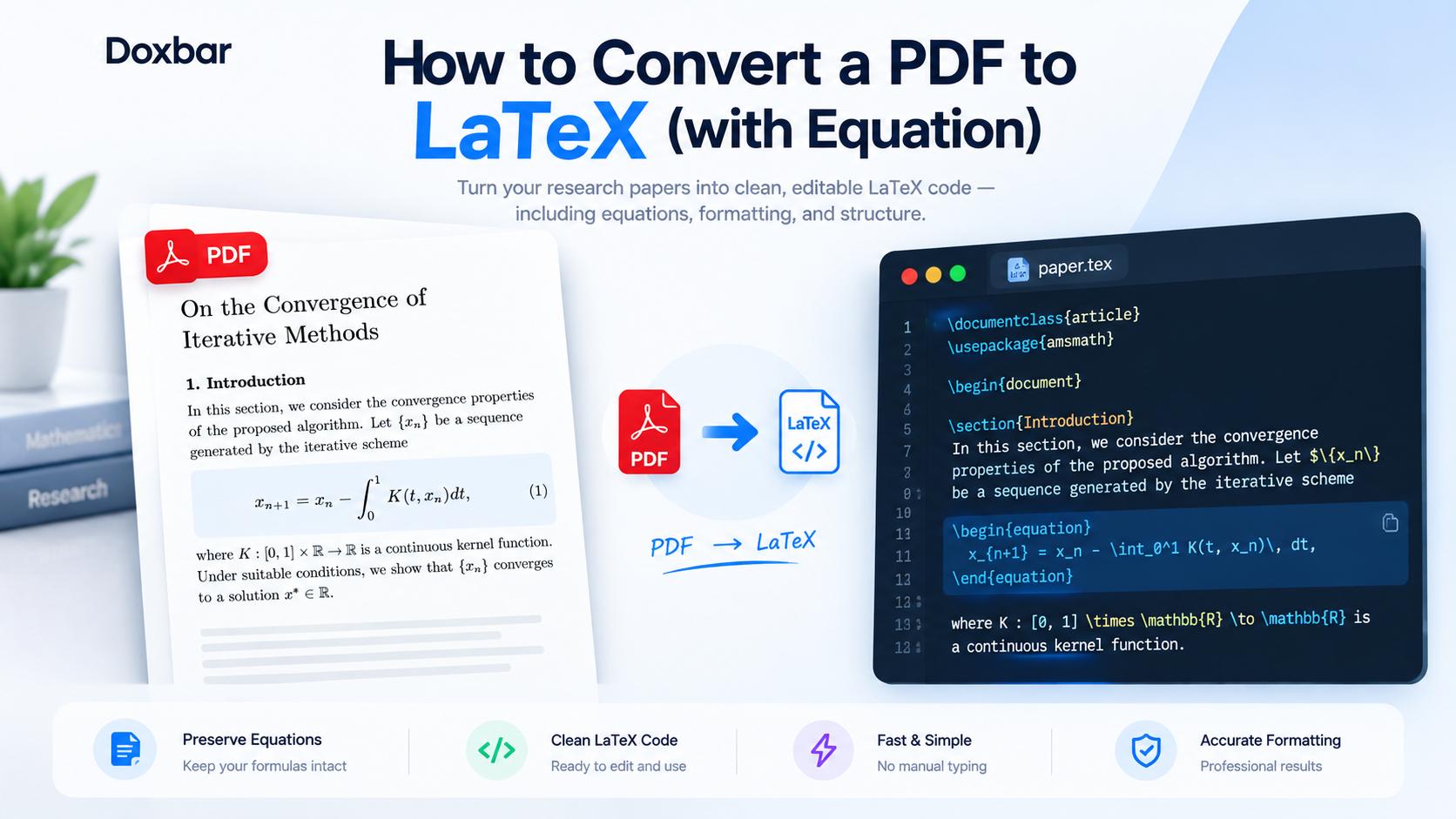
Convert PDF documents and research papers into structured LaTeX (.tex) source code online with DoxBar. Supports batch PDF uploads and instant .tex or ZIP downloads.
How to Convert PDF to LaTeX Online
- Upload Your PDF Files: Drag and drop your documents into the Upload Research PDFs box, or click the upload area to select PDF files from your device.
- Review the Processing Queue: Once uploaded, your files appear in the Processing Queue. You can verify your selection using Preview, remove an individual document with the red X button, or clear the list using Clear.
- Start the Conversion: Click Begin Extraction to map your PDF content into LaTeX code. A progress indicator displays the status of each file in your queue. You can stop the operation at any time with Cancel Process.
- Download Your .TEX Files: When conversion finishes, click Download LaTeX under any file to save its .tex source file, or click Download All (ZIP) to download all converted files together. Use Reset Workspace when you are ready to convert a new batch.
Key Features of DoxBar's PDF to LaTeX Tool
- Batch PDF Processing: Upload multiple PDF documents at once, manage them in a visual processing queue, and convert them in sequence.
- Structured LaTeX Mapping: Converts PDF document elements into organized .tex source code ready for editing and typesetting.
- Flexible Download Options: Save individual .tex files for single documents or export an entire batch in one .zip archive.
- Queue Management Controls: Preview queued files, remove unwanted uploads individually, or reset the entire workspace in a single click.
- Browser-Based Workflow: Run conversions directly in your web browser without installing desktop TeX conversion software.
How to Open and Compile Your Converted .TEX File
- Using Overleaf: Create a new blank project in Overleaf, upload your downloaded .tex file, and click Recompile to inspect the rendered PDF alongside the source code.
- Using a Local TeX Editor: Open the .tex file in TeXstudio, TeXworks, or Visual Studio Code (with the LaTeX Workshop extension) and compile it using pdfLaTeX, XeLaTeX, or LuaLaTeX.
- Checking Packages: Depending on your document's tables, math symbols, or layout, you may need to verify that standard packages (such as amsmath, graphicx, or booktabs) are included in the document preamble before final compilation.
Common Use Cases for PDF to LaTeX Conversion
- Editing Research Papers and Preprints: Recover editable LaTeX source code from published or archived academic PDFs when the original .tex files are no longer available.
- Reusing Mathematical Equations and Tables: Extract complex formulas and structured tables from technical reports instead of manually coding every symbol.
- Thesis and Dissertation Formatting: Convert draft chapters or reference material saved as PDF into LaTeX so they can be merged into a master academic template.
- Migrating Word-Generated PDFs to LaTeX: Transition documents originally exported from word processors into clean academic typesetting workflows.
Troubleshooting PDF to LaTeX Conversion Issues
- Conversion Takes Longer on Large Files: Multi-page research papers with dense equations and complex layouts require more processing time. Monitor the progress counter in the queue window and allow the extraction to complete before refreshing the page.
- Missing or Broken Formatting After Compiling: Automated PDF-to-LaTeX mapping reconstructs structure from visual layout, which can occasionally produce minor syntax quirks in complex multi-column tables or custom fonts. Open the .tex file in your editor to review and refine any flagged lines.
- Scanned or Low-Resolution PDFs: Documents created from blurry scans or photos of printed pages are harder to parse than digitally generated PDFs. Use clear, high-resolution PDFs with selectable text whenever possible for cleaner output.
- Browser or Session Stall: If a file becomes unresponsive during upload or queueing, click Reset App in the top-right corner of the tool bar to reload a clean workspace.
Frequently Asked Questions
What file format does this tool output?
Can I convert multiple PDF files to LaTeX at the same time?
Is DoxBar's PDF to LaTeX converter free to use?
Will the converted .tex file compile immediately without edits?
Can I convert a scanned PDF into LaTeX?
Start Converting Your PDFs to LaTeX
Internal Links & Related Tools
- LaTeX to PDF Converter: Once you finish editing your .tex source code, compile it back into a publication-ready document using our LaTeX to PDF Converter.
- PDF to Word Converter: If you need an editable .docx file instead of LaTeX markup, use our PDF to Word Converter.
- Split PDF Tool: Working with a large thesis or multi-chapter dissertation? Divide your file into smaller sections with our Split PDF Tool before converting.
- OCR PDF Tool: For scanned documents or image-based pages, extract selectable text first using our OCR PDF Tool.
- All PDF Conversion Tools: Explore more browser-based document utilities in our Convert from PDF Tools hub.
External Resources for LaTeX Users
- Overleaf: Upload your downloaded .tex file directly to Overleaf to edit, collaborate, and compile your LaTeX project online without local installation.
- CTAN (Comprehensive TeX Archive Network): Browse official documentation and verify required LaTeX packages (such as amsmath, graphicx, and booktabs) on CTAN.
- arXiv: Access open-access academic preprints and research papers on arXiv to see standard LaTeX formatting conventions used across scientific fields.
Conclusion
Author: DoxBar Productivity Team
Reviewed By: DoxBar Tool Experts
Last Updated: 6/15/2026
Reading Time: 10 minutes
Methodology: Uses an advanced cloud-based processing engine that executes PDF to LaTeX operations entirely within the browser or secure cloud, ensuring high fidelity and data privacy.
All information on this page is verified and fact-checked by our security experts to ensure the highest standards of data safety and privacy.
Invert colors for night reading.
Visual PDF coordinate cropping.
Remove scan background and noise.
Add text/image watermarks.
Add headers/footers with numbers.
Combine multiple PDFs into one.
Reduce PDF file size.
Convert DOCX to PDF.
Convert images to PDF.
Convert spreadsheets to PDF.
Convert slides to PDF.
View JSON as PDF.