



Zip to PDF & PDF to ZIP – Secure Archive and Conversion Tools in One Place
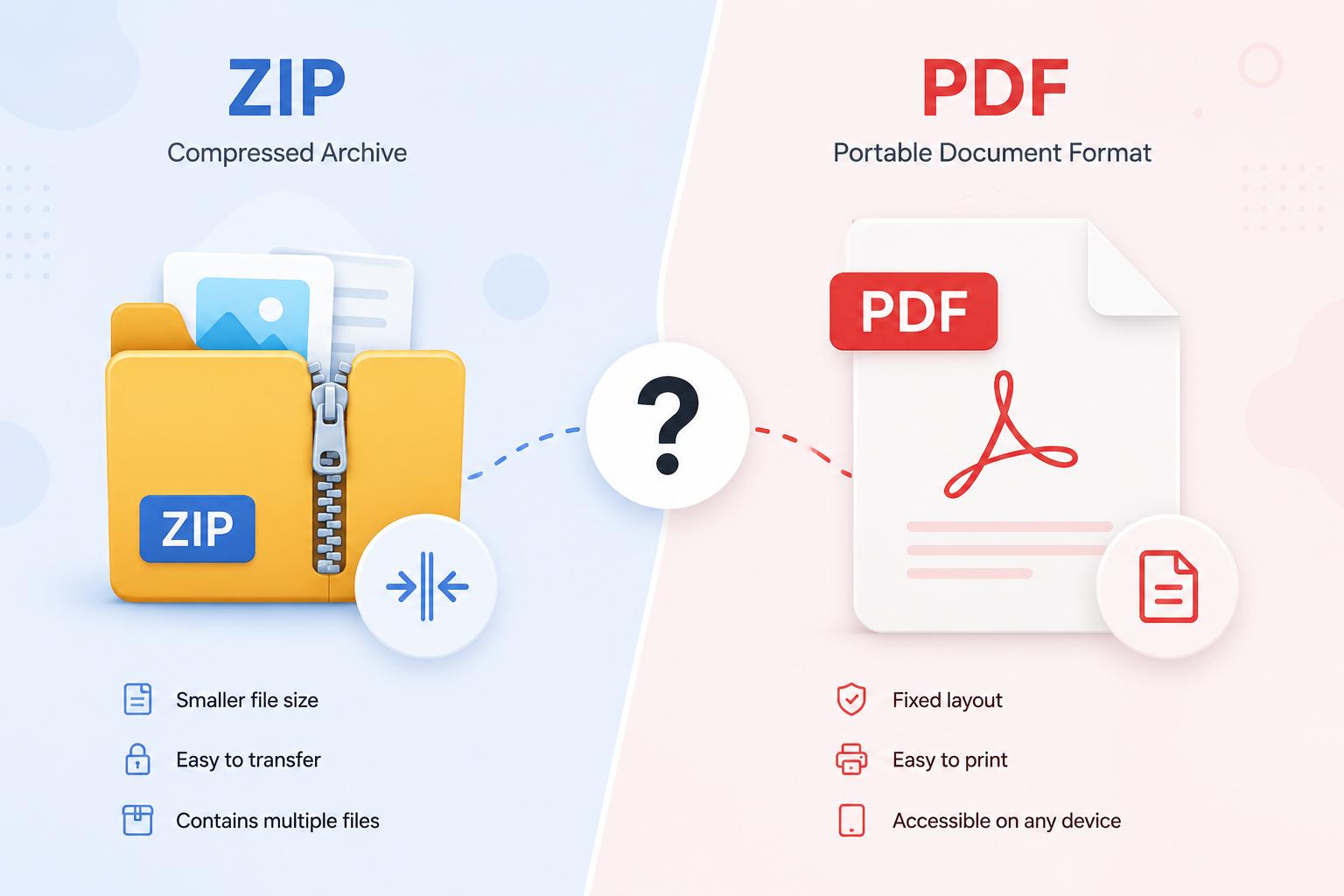
This page combines two powerful Zip ⇄ PDF tools: a Zip to PDF converterthat merges all screenshots or image files from a ZIP into a single PDF, and a PDF to ZIP packager that bundles one or more PDF files into a compressed ZIP archive. It is designed for users who need secure, email-friendly and archive-ready PDFs and ZIP files.
What this Zip ⇄ PDF web page does
The Zip to PDF side of the page takes a ZIP archive that contains image files (PNG, JPG, WEBP, GIF, BMP) and converts them into a single, clean PDF, with one image per page. The PDF to ZIP side lets you select one or multiple PDF files and instantly compress them into a single ZIP archive, which is ideal for email attachments, cloud storage, and secure sharing.
- Upload a ZIP with images and get a merged PDF file.
- Select multiple PDF files and download a ZIP archive of PDFs.
- Customize output names using the title and ZIP name input boxes.
- Enjoy a 3D-style, responsive interface with clear icons, borders and shadows.
Step-by-step: How to use the Zip to PDF tool
- Open the tool: Go to theZip ⇄ PDF pageunder thePDF Security tools section in DoxBar.
- Prepare your images: Place all screenshots or pictures you want to merge into a single folder and compress them into a .zip file.
- Upload the ZIP: Drag and drop the ZIP file into the “ZIP to PDF” card or click the upload area to browse from your device.
- Review the entries: The page lists all files inside the ZIP and marks which ones areimages and which ones will be skipped.
- Set the PDF title: Enter a descriptive name (e.g. “UI-review-screenshots”) in the PDF title box; this will be used in the output filename.
- Convert to PDF: Click “Merge ZIP images to PDF”. The tool will read each image, scale it to fit the page and generate a single multi-page PDF.
- Download the merged PDF: Your browser will automatically download the PDF using the chosen title and a timestamp.
If you need more specialized PDF tools, you can explore related features such asAdd WatermarkorAdd Page Numbers directly on DoxBar.
Step-by-step: How to use the PDF to ZIP tool
- Select your PDFs: In the “PDF to ZIP” card, drag and drop one or several PDF files, or click the upload area and choose multiple PDFs from your device.
- Check the list: All selected PDF files appear in a scrollable list with file name and size. You can remove individual items or clear all with one click.
- Set ZIP name: Enter a clear package name (for example, “client-contracts-Q2”) in the ZIP name field.
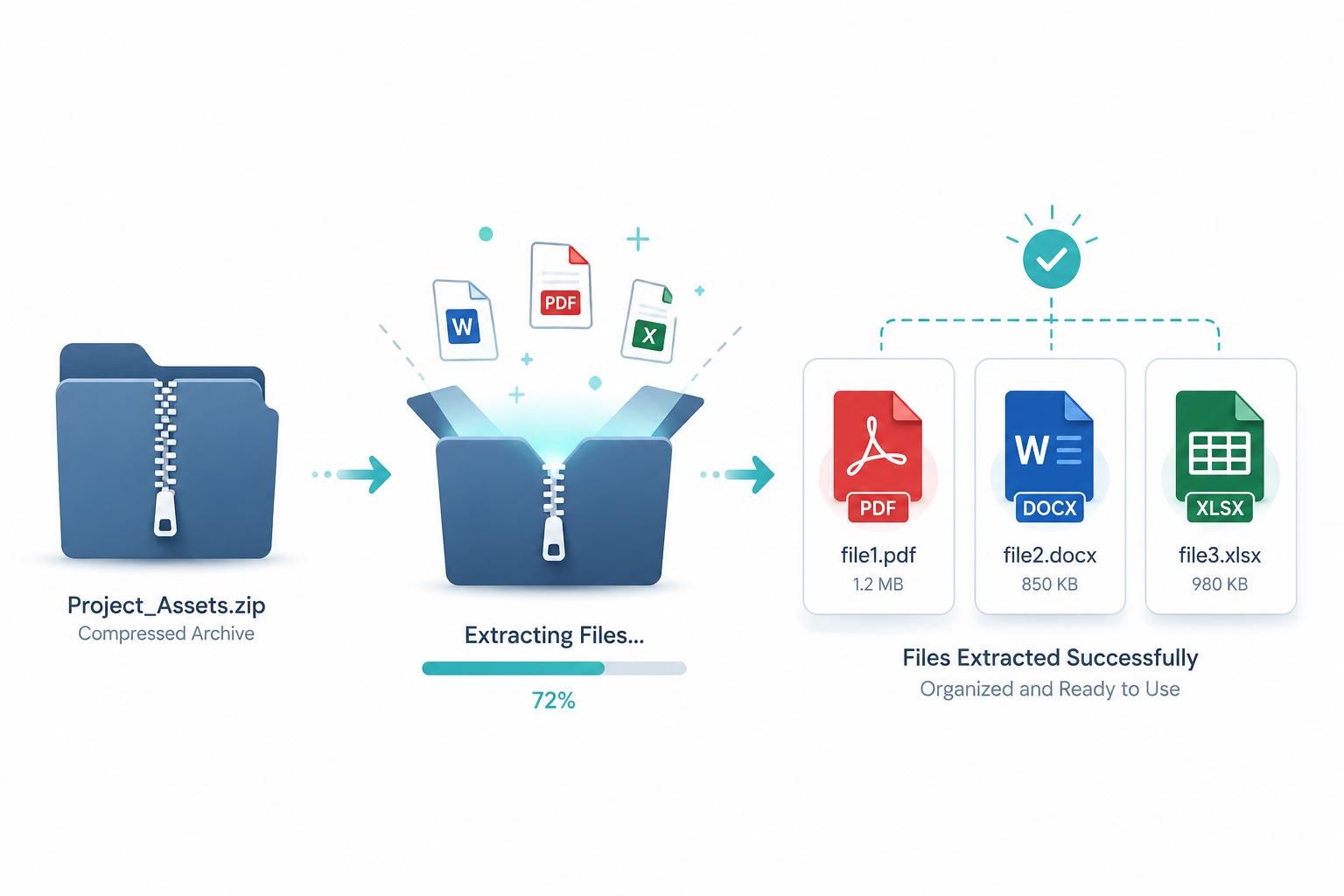
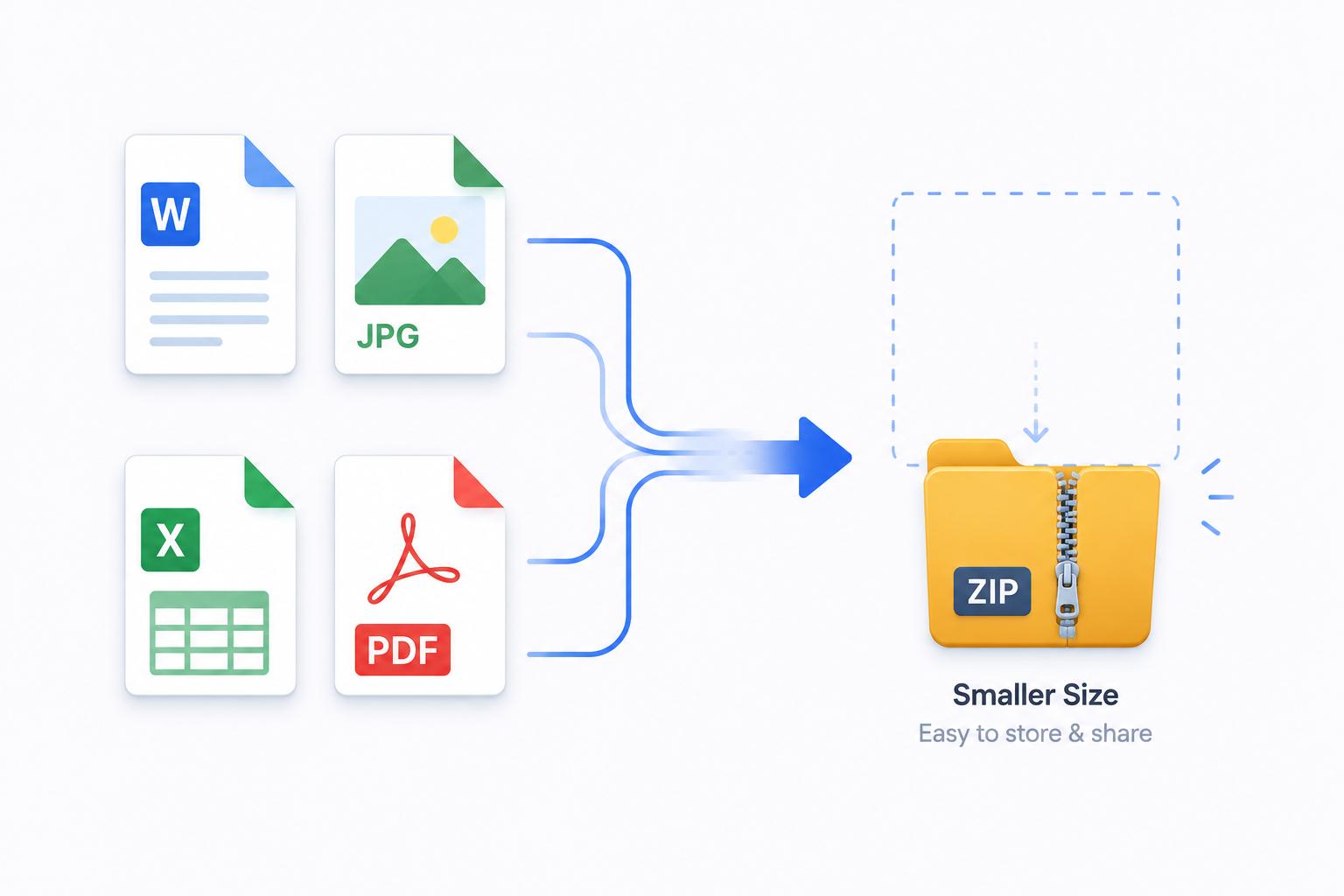
- Create the ZIP: Click “Package PDF into ZIP”. The tool reads each selected file and bundles them into a single .zip archive with your chosen name.
- Download the archive: Your browser downloads the ZIP file, which you can attach to emails or upload to cloud storage.
For more advanced PDF security options, such as password protection and restriction control, visit theProtect PDFandUnlock PDFtools.
Key features and benefits of the Zip ⇄ PDF tools
- Zip to PDF converter: Merge multiple screenshots or image assets directly into a single PDF while preserving quality.
- Batch PDF to ZIP packaging: Select multiple PDFs and compress them into one archive for easy sharing.
- 100% browser-based: All logic is handled in the browser using libraries such asjsPDF and JSZip, so you don’t need to install software.
- Responsive 3D interface: Carefully designed cards with borders, soft shadows and hover effects, optimized for desktop and mobile users.
- Simple naming controls: Title and ZIP name input boxes let you manage filenames for clean storage and SEO-friendly downloads.
- Part of a larger PDF toolkit: The page integrates with otherConvert to PDF andConvert from PDFtools inside DoxBar, giving you a complete PDF workflow.
Common use cases
- Design and UI reviews: Bundle exported UI screens or component screenshots from a ZIP into a PDF for client presentations.
- Customer communication archives: Turn chat screenshot ZIPs into archival PDFs and compress PDF threads into ZIP files for compliance.
- Project handover packages: Create a ZIP of all project-related PDFs for final delivery to clients or stakeholders.
- Email-friendly attachments: Many email providers limit large single attachments; a well-compressed ZIP with multiple PDFs is easier to send.
- Long-term storage: Organize documents into structured ZIP archives for backups following best practices described inthe ZIP file format overview on Wikipediaandthe PDF format article.
SEO-focused keywords this page targets
This Zip ⇄ PDF page is optimized for search terms such as:
- "zip to pdf converter online"
- "convert images in zip to pdf"
- "pdf to zip archive"
- "multiple pdf files to zip"
- "merge screenshots zip to pdf"
- "zip pdf security tools"
- "bundle pdf documents into zip"
- "online zip pdf tool"
- "zip to pdf for screenshots"
- "pdf packaging for email"
- "pdf archive zip download"
- "batch pdf compression into zip"
- "browser based zip pdf converter"
- "free zip to pdf merger"
- "free pdf to zip packager"
- "secure pdf zip archive online"
- "doxbar zip pdf security"
- "zip screenshots into pdf document"
- "pdf sharing zip bundle"
- "zip converter for pdf documents"
Frequently asked questions (FAQ)
1. Is this Zip to PDF and PDF to ZIP tool free?
Yes. This zip to pdf converter and pdf to zip packager is free to use on DoxBar. You don’t need an account to convert or archive your files.
2. What file types are supported inside the ZIP?
The Zip to PDF tool reads image formats such as PNG, JPG, JPEG, WEBP, GIF and BMP. Non-image files inside the ZIP are listed but skipped during the PDF merge.
3. Can I upload multiple PDF files at once?
Yes. The PDF to ZIP card lets you select multiple PDFs in a single action. All valid PDFs are added to the list and included in the generated ZIP archive.
4. Is there a size limit for ZIP and PDF files?
For performance and browser stability, the page currently accepts ZIP archives up to about 150MB and individual PDFs up to about 100MB each.
5. Does this tool change the content of my PDFs?
No. The PDF to ZIP side only packages existing PDF files into a compressed archive. It does not alter the content of each PDF. For editing or securing PDFs, use other DoxBar tools such asProtect PDForAdd Watermark.
6. Is my data safe when using this page?
The Zip ⇄ PDF page primarily processes files in your browser using client-side libraries. For broader details about PDF security practices on DoxBar, review thePDF Security section and related tools.